Gap FIB numerical
With a gap FIB numerical you check calculation results and other numbers in a text. It is built like the gap text: you write a text and set gaps in it, but you enter a number as the solution. You insert gaps in the editor of the question with the icon with the calculator ("Gap FIB numerical"). Click a gap to open the "Edit gap" dialog.
In the test editor, owners of the test, administrators and learning resource managers add the question under Test > Administration > Test editor > Add elements > Gap FIB numerical. In the question bank you choose the type under Question bank > My questions > Create question in the "Type" field.
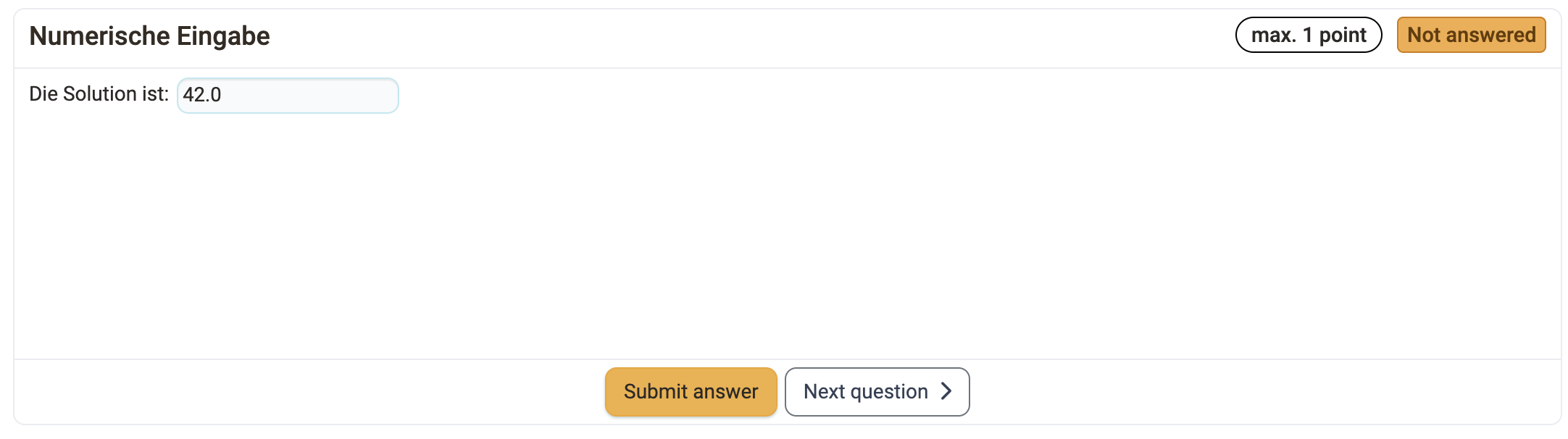
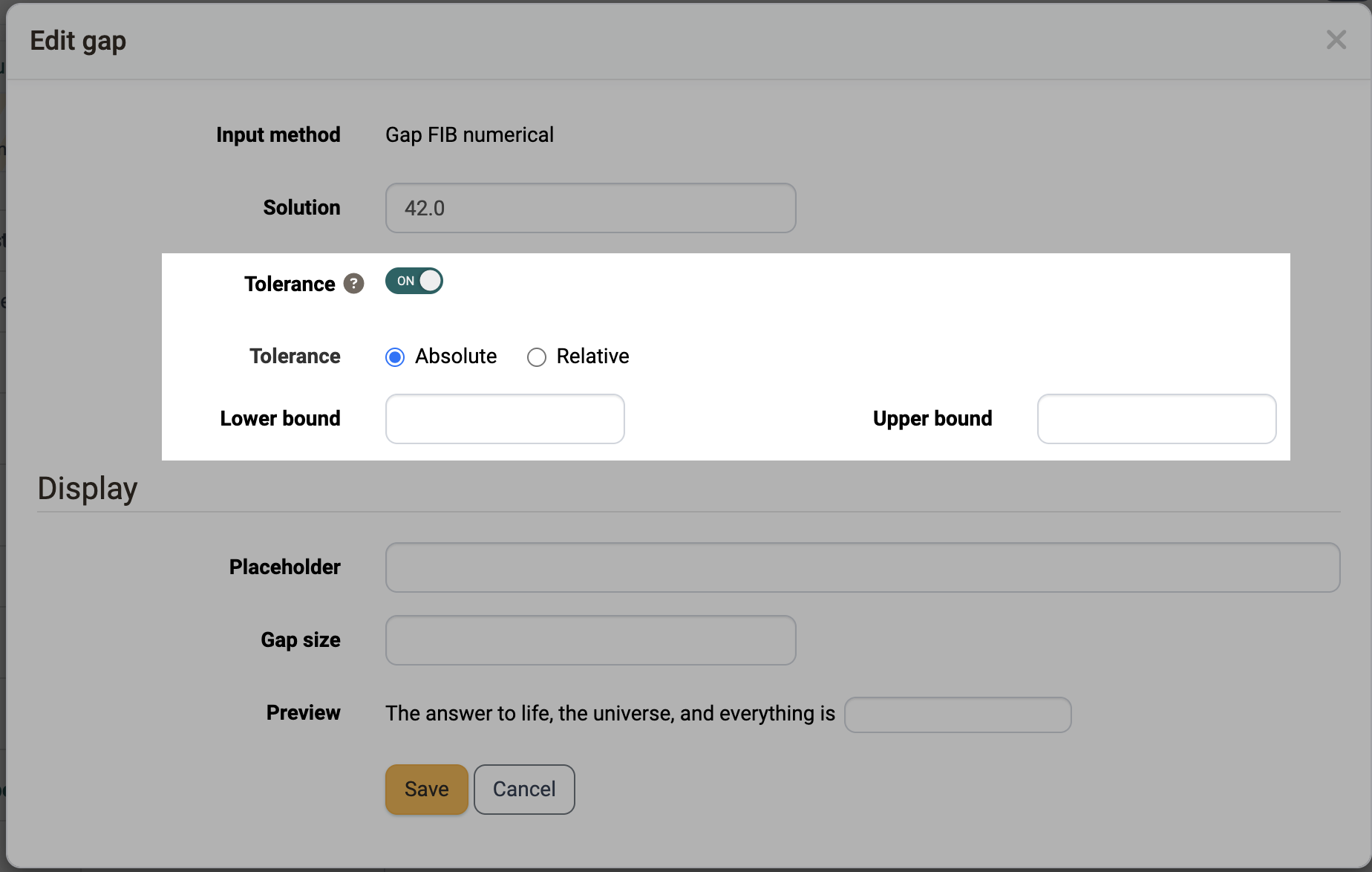
The dialog of a number gap shows "Solution", "Tolerance" and "Display". For deviations from the solution there is the "Tolerance": with it you let a range around the solution count as correct. The fields "Alternative answers" and "Correction" are in the dialog of the gap text, and the option "Allow twice the same input" in the "Score" tab likewise applies only to its text gaps. The question type Gap mixed combines text and number gaps in one question.
For each gap you define the following settings:
- "Solution": Enter the correct number. Write decimal numbers with a point, for example 20.8. This also applies to the bounds under "Tolerance". With a comma, the dialog reports: "For decimal numbers point and not comma is used as separator. Examples: 15.0, 5.5, 10".
-
"Tolerance": If the toggle is switched off, the answer must exactly match the solution. If it is switched on, the gap accepts answers between a lower and an upper bound. For this you choose one of two modes under "Tolerance mode":
-
"Absolute": You enter "Lower bound" and "Upper bound" as absolute numbers.
Example: Solution 20, lower bound 18, upper bound 20.8 → all solutions between 18 and 20.8 are correct.
-
"Relative": You enter "Lower bound" and "Upper bound" as relative numbers in percent.
Example: Solution 20, lower bound 10, upper bound 10 → all solutions between 18 and 22 are correct, as the lower bound means minus 10% (20-2) and the upper bound plus 10% (20+2).
-
-
"Display":
- "Placeholder": Here you enter, if needed, a text that the participants see in the empty gap.
- "Gap size": Here you enter a length in characters for the gap field, for example for formatting. It does not limit the length of the entry.
- "Preview": Shows directly in the dialog, using an example sentence, how the gap appears.
The participants write decimal numbers with a point or with a comma. OpenOlat assesses "20,5" the same as "20.5".
You award the points in the Score tab. Under "Method of assessment", "All correct answers", "Score per answer" and "Partial score" are available. With "Score per answer" each gap receives its own points.
Further information
Gap FIB text >
Gap mixed >
Question Bank: Create Questions >
Question types >
Configure test questions >
Test editor >