Drawing*
With the question type Drawing you let the participants edit a given picture with drawing tools, for example to draw something in or to label it. The answer is the edited drawing, therefore you correct this question type by hand after submission. The * in the name of the question type indicates this.
In the test editor, owners of the test, administrators and learning resource managers add the question under Test > Administration > Test editor > Add elements > Drawing. In the question bank you choose the type under Question bank > My questions > Create question in the "Type" field.
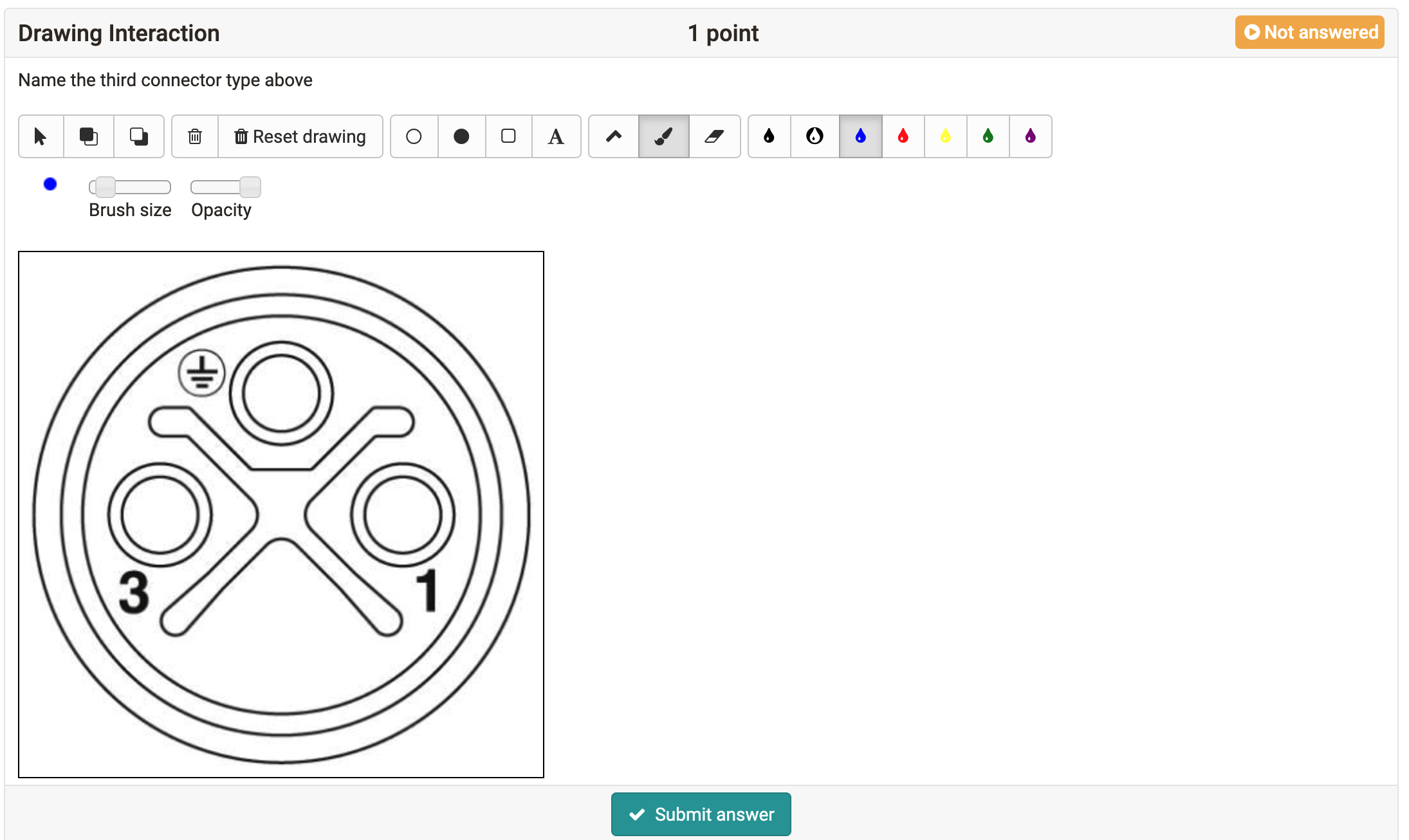
First enter a short title under "Title" and the question or the editing instruction under "Question". Then upload the picture that the participants edit under "Background". Title and background are mandatory fields. You do not define a correct answer.
With the tool "Text", the participants can also write text into the drawing. With the slider "Brush size" they set the line width and the text size, with the slider "Opacity" the transparency. With "Reset drawing" they remove everything drawn and start again.
Coaches and owners of the course correct the answers in the course element Test with the correction tool, correctors via the correction workflow. Who corrects and when the participants see their assessment is defined in the course element Test with the setting Correction. You define the highest score to be awarded in the correction in the Score tab under "Max. score".
Note: Restriction to mobile devices
The participants operate this question type by drawing freehand. It is not optimized for touch operation. It is best suited for tests that the participants work on at a desktop computer or laptop.
Further information
Question Bank: Create Questions >
Assessing tests >
Test: Correction workflow >
Set up a test >
Question types >
Configure test questions >
Test editor >