Course Settings - Tab Catalog
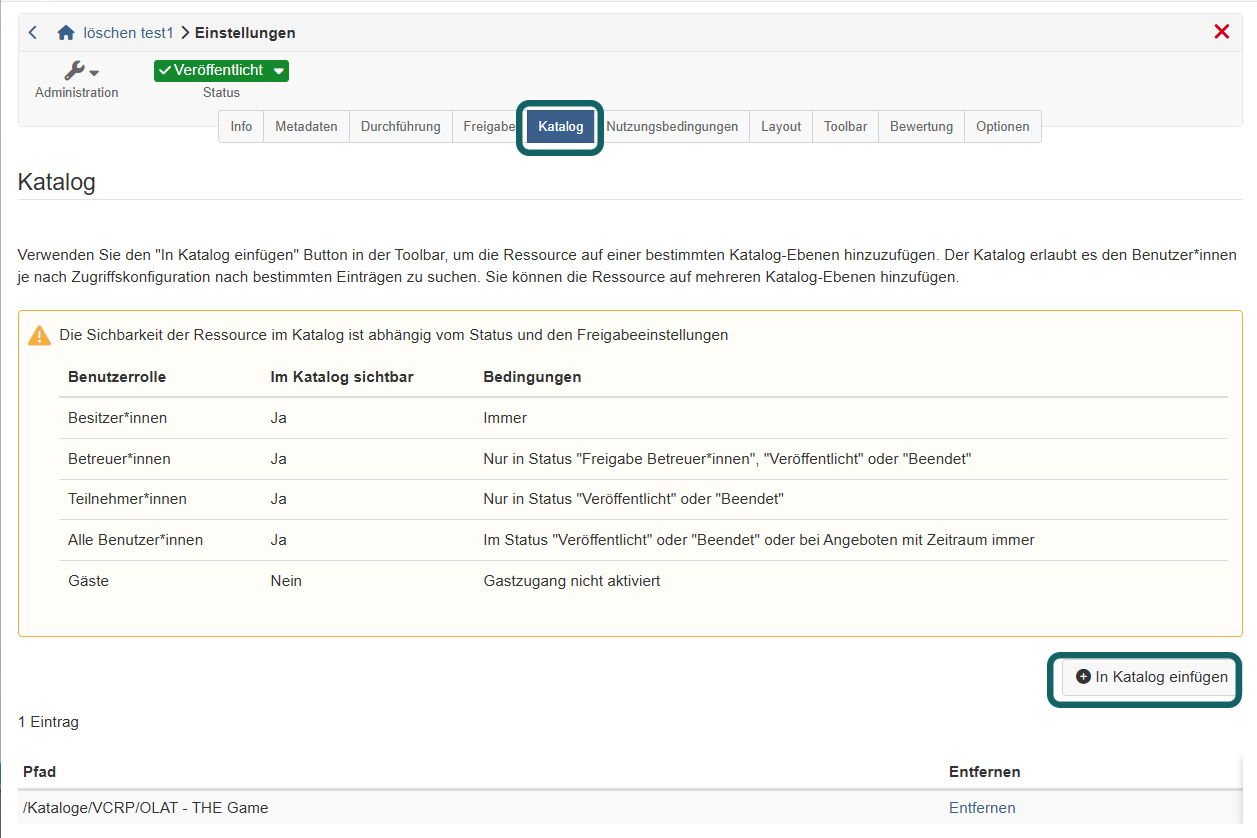
If your course is to appear in catalog 1.0, you add it to one or more categories in the "Catalog" tab. Users then find it in the structure that catalog managers have set up in the catalog and open its info page from there. You find the tab under:
Course > Administration > Settings > Tab "Catalog"
The tab exists not only for courses but for every learning resource with the "Settings" menu, for example podcast, blog or SCORM 1.2.
When the tab appears
You see the "Catalog" tab if both conditions are met:
- Catalog 1.0 switched on: In the system administration, the option "Catalog V1" is selected under
Administration > Modules > Catalog > Tab "Settings". Which catalog version applies is determined by the administration of your OpenOlat instance. - Usage "Standalone": The learning resource has the usage "Standalone" in the tab "Share". With a different usage, the tab is missing.
If catalog 2.0 is switched on, this tab does not exist. A course appears there as soon as it has an offer in the "Share" tab.
Add the course to the catalog
With the "Add to catalog" button you select a category of the catalog. Repeat this step for each further category. All entries then appear in the table with their "Path" in the catalog. With "Remove" you take the course out of a category again.
Above the table, a note shows which role sees the course in the catalog. This depends on the status of the course and on the settings in the "Share" tab. The overview is on the page Catalog 1.0.
Only add the course once it is finished and users are to see it.
Further information
Mentioned on this page
Course settings - Tab Share >
Catalog 1.0 >
Further reading
Course Settings >
Catalog 2.0: Overview >
Module Catalog >