Coaching - Assessment Orders
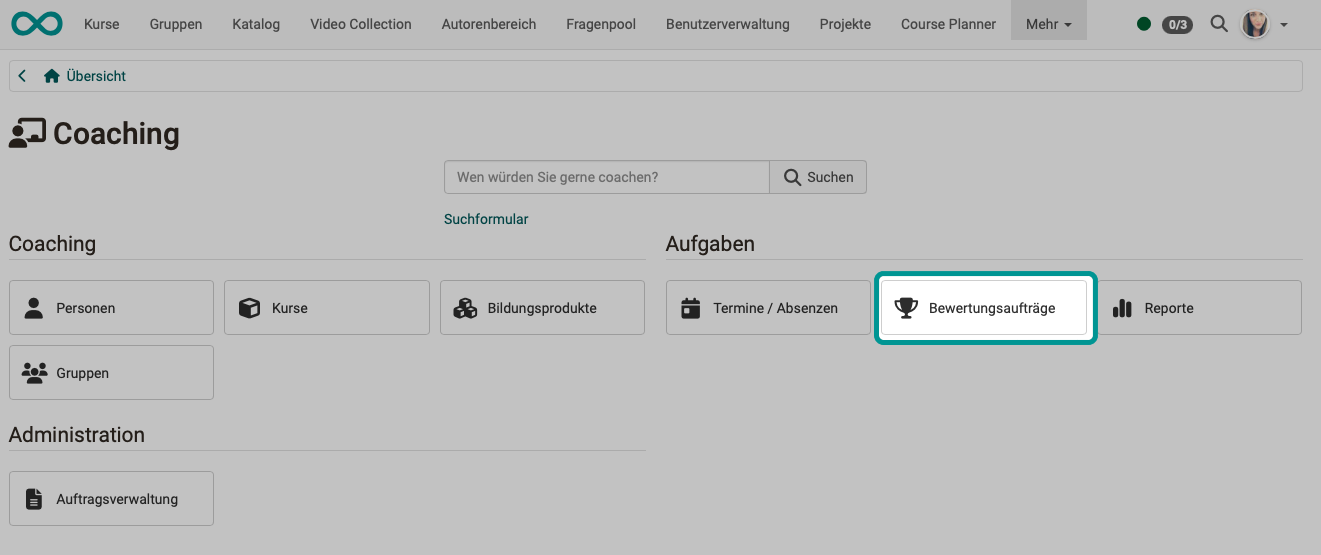
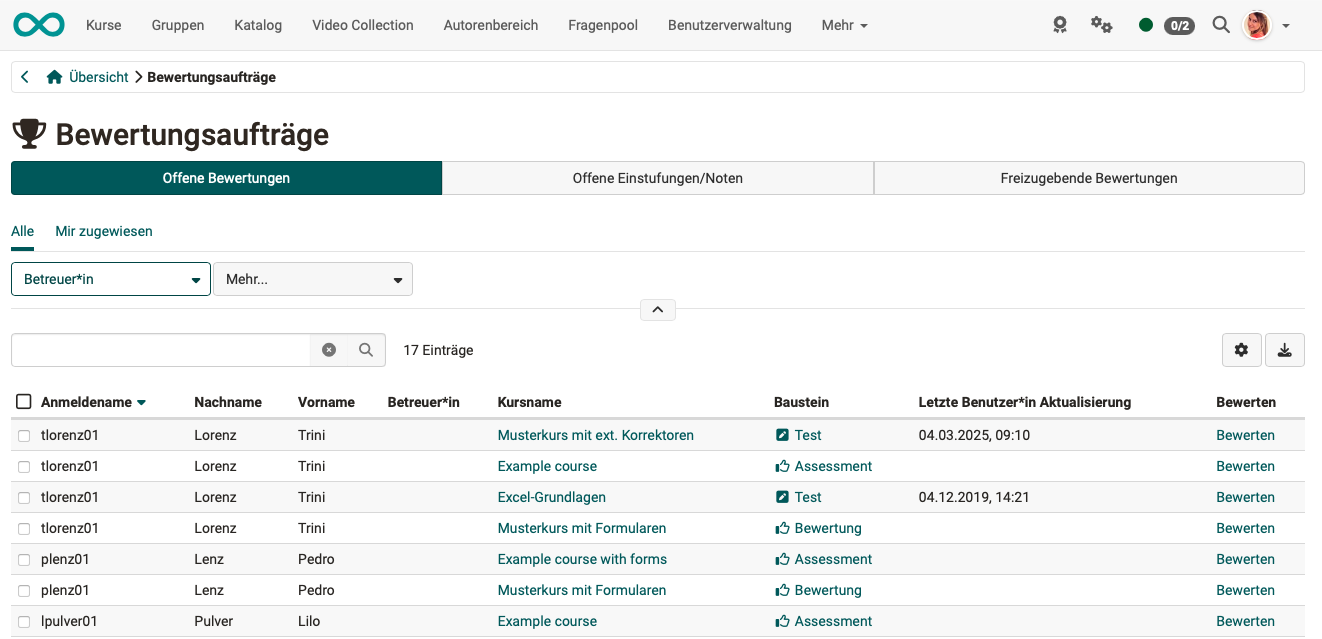
Here you can see where specific coaching actions such as assessments or gradings still need to be carried out, or whether they still need to be released.
Depending on your role, in addition to your own assessment orders, the others are also displayed and you can get an overview.
Assessment, correction and levels/grading
Three terms appear on this page. They refer to different things:
- Assessment: the result of a person at an assessable course element, that is status, points, "Passed" and, if applicable, the grade. A test also has an assessment. You edit it in the assessment form or in the assessment tool of the course.
- Correction: reviewing a submission by hand where OpenOlat does not evaluate it itself, for example with essay questions in a test. The correction is a step on the way to the assessment: in a test, the correcting person awards the points, and the assessment results from them. Coaches correct a test in the correction tool, correctors via "Grade" in their grading assignment.
- Levels/Grading: the conversion of the points into a grade according to a rating scale. Without levels/grading, the assessment consists of points and, if applicable, "Passed". With Levels/Grading, the grade is added, and the rating system determines whether the score counts as passed.
Creating assessment orders
Course owners create assessment orders at the course element: they set it to manual assessment. As soon as a participant then completes their work, OpenOlat creates the assessment order and shows it in the matching tab. Coaches and correctors work on the open orders from all their courses under Coaching > Assessment orders.
Whoever works on an order usually does not set it up. Coaches without ownership only reach the course editor if they have been granted the "Course editor" right in the Rights area of the members management. The owners of the test set up the correction workflow, correctors only work on the orders that are assigned to them.
The four tabs are not four kinds of orders. The first three show the assessment of a person at different points of its process: to be assessed, grade to be assigned, to be released. The fourth tab shows the grading assignments: test submissions that a corrector entered in the correction workflow corrects. The correction workflow only exists for tests. Other course elements, for example a task, therefore do not create grading assignments.
The tabs "Open reviews", "Open levels/gradings" and "Reviews to release" are seen by course owners for all participants of the course, and by coaches for the people they coach. The tab "Grading assignments" is seen by the people who are entered as correctors in the correction workflow.
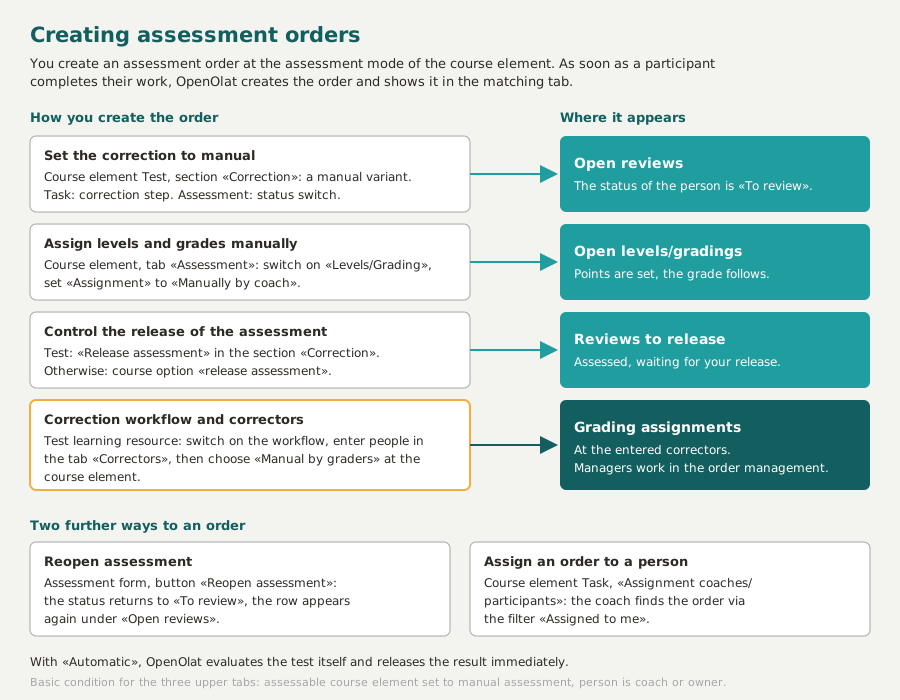
The pages on which owners make the respective setting:
- Open reviews: Tests at course level, Course Element "Task", Course Element "Assessment"
- Open levels/gradings: Levels/Grading
- Reviews to release: Tests at course level, Course settings, section Assessment rights
- Grading assignments: Test settings
The course element must be assessable and set to manual assessment, which means points or "Passed" are set at the course element. If the correction of a test is set to "Automatic", OpenOlat evaluates the test itself and releases the result immediately; the same applies to the assignment "Automatically on score change" for levels and grading.
Two further ways lead to an assessment order:
- Reopen assessment: With the button "Reopen assessment" in the assessment form the status returns to "To review". The row then appears again in the tab "Open reviews".
- Assignment coaches/participants: In the Course Element "Task" course owners assign a coach to each participant. That person is notified and finds their orders via the filter "Assigned to me".
Tab Open reviews
Here you have access to all course elements that still need to be assessed. These can be sorted according to the columns and then selected and assessed individually. Clicking on the "Assess" link takes you to the corresponding assessment form.
A row appears as soon as the assessment entry of the participant is in the status "To review". This status is created by the manual correction of a test, by the steps "Review", "Correction", "Peer review" and "Grading" in the course element Task, and by the switch "Set status To review if accessible" in the course element Assessment. Coaches see these steps in the column "Step" when they open the task in the course.
With the filter "Assigned to me" you limit the list to the orders that are assigned to you personally.
Tab Open levels/gradings
Here you find all course elements that have already been assessed but for which the manual assignment to a rating scale or rating system has not yet been completed.
A row appears if "Levels/Grading" is switched on at the course element and the "Assignment" is set to "Manually by coach", the points are set and the grade is still pending. Course owners set both in the course editor at the course element, for a test in the tab "Test configuration", otherwise in the tab "Assessment". In addition, the module Levels/Grading and a stored rating scale are required.
Coaches without ownership see the row and assign the grade as long as the option "assign Levels/Grading" is switched on. The option is switched on by default. In learning path courses, course owners switch it off or on under Course > Administration > Settings > Tab "Assessment" in the section Assessment rights. Conventional courses do not have this section; there, coaches can always assign the grade.
Tab Reviews to release
Here you find all assessments that are not yet visible to the participants and still need to be released.
In this tab, it is also possible to select all course elements and release them all at once.
For a test, the field "Release assessment" in the section Correction controls whether OpenOlat releases the assessment itself once the correction is completed. For all other manually assessed course elements, the course option "release assessment" decides. The same option gives coaches without ownership access to this tab. It is switched on by default. In learning path courses, course owners switch it off or on in the section Assessment rights; conventional courses do not have this section.
Tab Grading assignments
This tab only appears if you have been entered as a corrector for a test. You see an overview of the tests in the different courses that you still have to check and correct manually. Depending on the setting in the learning resource "Test", the assessment is anonymous or not.
If you are neither coach nor owner of a learning resource, the other tabs are missing; the heading "My grading assignments" with your list then appears directly under the title "Assessment orders". If, on the other hand, you manage the correction workflow yourself, as owner of a test learning resource with correction workflow, as learning resource manager or as administrator, this tab is missing; you then find your assignments under Coaching > Order management in the tab Grading assignments.
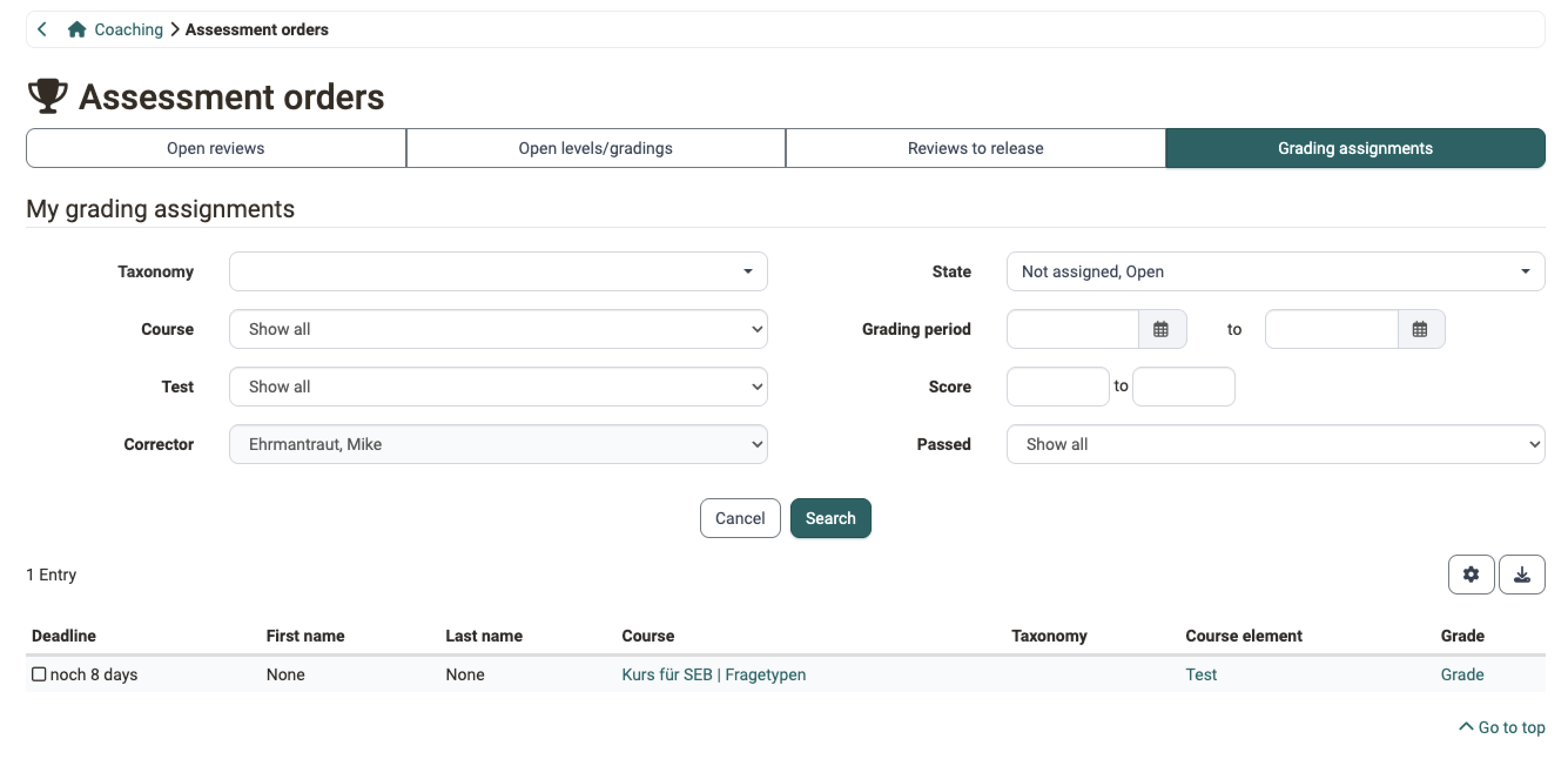
In the example, the correction is set to anonymous. That is why the "First name" and "Last name" columns only show a dash. The owners of the test make this setting in the learning resource under Test > Administration > Correction workflow > Tab "Configuration".
The "Grade" link takes you directly to the test to be corrected, where you make the manual assessments. You can adjust the score of automatically corrected questions. Leave a comment when you do so.
You work in the same interface as the correction tool of the course. The status of a question, the tabs, the columns and the action "Adjust score" work the same way and are described on the page Assessing tests.
Who sets up a grading assignment
A grading assignment is created in five steps. Three roles set it up, the submission of a participant triggers it. It reaches the corrector as soon as all five steps have taken place.
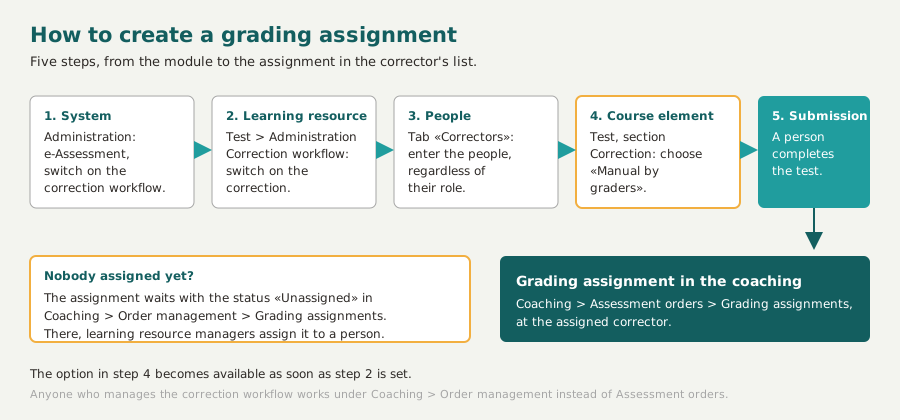
- Administrators switch on the correction workflow in the system administration:
Administration > e-Assessment > Test. - Owners of the test switch on the correction workflow in the learning resource Test:
Test > Administration > Correction workflow > Tab "Configuration". - Owners of the test enter the correcting people in the tab "Correctors". Their role in OpenOlat does not matter.
- Course owners set the correction at the course element Test to "Manual by correctors". This option becomes available as soon as step 2 is set. More about this on the page Tests at course level.
- A participant completes the test.
If no corrector is available at that moment, the assignment carries the status "Unassigned" and waits in the Order management. There, owners of the test, learning resource managers or administrators assign it to a person. The assignment then appears in that person's list.
For essay questions, you download a person's answer as a PDF with the "Download as PDF" button at the top right. The PDF contains information about the course, course element and test in the header. With anonymous correction, the "Participant identifier" appears instead of the personal details. You download all answers to a question at once in the correction tool of the course.
Prerequisite
The download requires the PDF service to be switched on in the system administration.
The management of all correctors and their assignments, on the other hand, is done in the Order management.
Further information
Mentioned on this page
The assessment form >
Assessment tool - Overview >
Assessing tests >
Levels/Grading >
Tests at course level >
Course Element "Task" >
Course Element "Assessment" >
Course Settings - Tab Assessment >
Test settings - Administration >
Coaching: Order management >
External Tools: Overview >
Further reading
Coaching: User search >
Coaching: People >
Coaching: Courses >
Coaching: Educational products >
Coaching: Events / Absences >
Coaching: Reports >
Coaching: Groups >
Roles >