Various Types of Learning Resources
OpenOlat comprises different types of learning resources.
Most of the time, these are embedded into course elements.
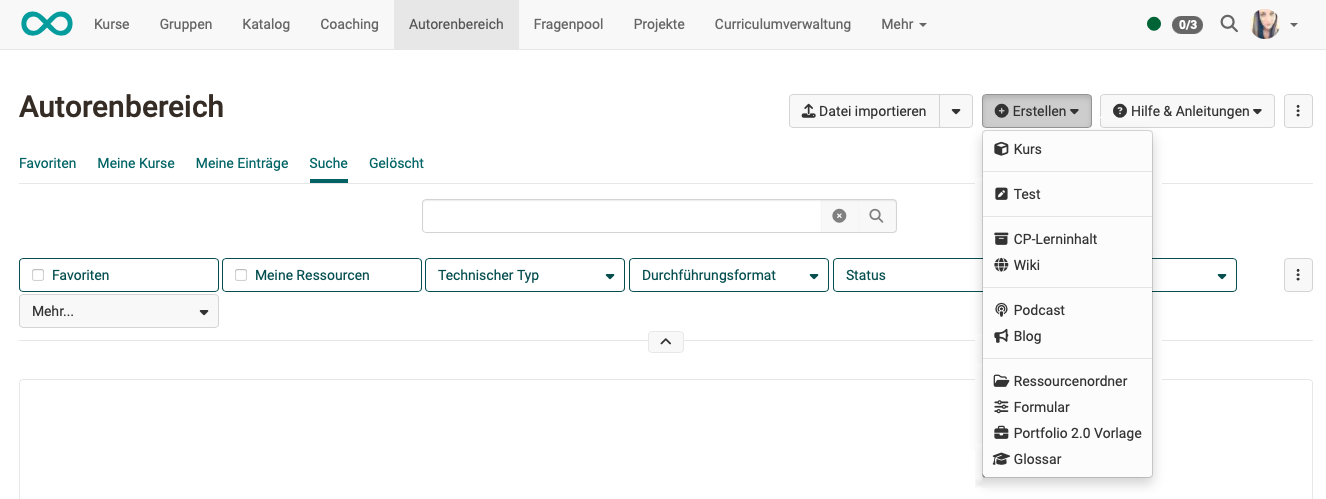
Some learning resources can be created directly in the authoring area.
In addition, further learning resource types can be created or imported.
Course
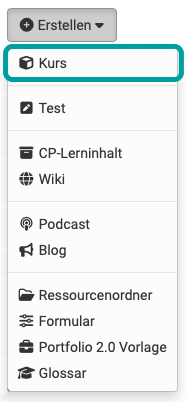

An OpenOlat course can be used as an online-only course or accompany lectures, seminars or other face-to-face events. In an OpenOlat course, different didactic concepts like webquest, group puzzles, cooperative online seminars, problem-based learning, game-based approaches etc. can be implemented. In OpenOlat, a course is a document type of its own that can contain any number of "course elements" as well as other functionalities.
How to create courses is explained in the chapter "Creating Courses". Details on course elements and the course editor can be found in the chapter "Types of Course Elements".
Test
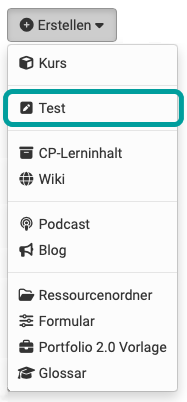
OpenOlat tests can be used for both examination and practice purposes. In the first case, the course authors can view the test results and assign them to the participants; in the second case, the results are stored anonymously. Each test is available in the standardized format IMS QTI 2.1.
More information on using and creating tests can be found in the chapter "Creating Tests".
CP Learning Content
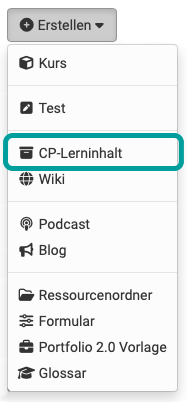
A Content Packaging (abbr.: CP) is learning content in a standardized e-learning format. The specification of this data format also comes from IMS resp. 1EdTech Consortium. OpenOlat supports the IMS CP version 1.1.2. CPs are suitable for use in OpenOlat courses or outside of OpenOlat. OpenOlat supports this format so that learning content can be used not only in OpenOlat but in other LMS as well. More information on creating Content Packagings can be found in the chapter "CP Editor".
Wiki
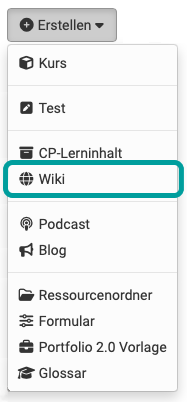

Wikis make it easy to create content jointly. A wiki can be used for group work, as a documentation tool or as a knowledge base for studies and projects.
More information on creating wikis can be found in the chapter "Creating Wikis". How to create content in a wiki and work with it efficiently is explained in the chapter Course Element "Wiki".
Podcast

A podcast allows you to upload audio or video files that can then be made available in OpenOlat. Podcasts can either be listened to or watched directly in OpenOlat, or they can be subscribed to in portals such as iTunes in order to copy single episodes to mobile devices later on. Participants can easily rate and comment on episodes.
Further information on podcasts can be found in the chapter "Podcast: Overview".
Blog
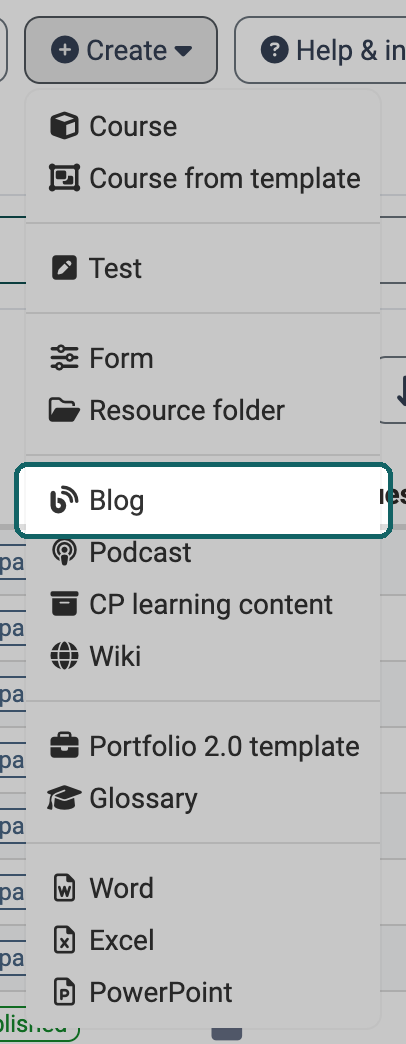
In a blog, subject-related or personal information can be published and commented on in a time-structured manner. Blogs are often used as an online diary or online journal. Blogs embedded in courses can also be rated and commented on easily by participants.
Here you can find more information about the course element blog. Information on how to create a blog and embed it in your course can be found in the "How to section".
Resource Folder
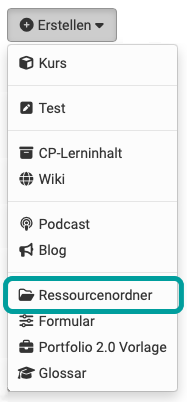
With the help of the resource folder, files (content, information, graphics, etc.) can be used in multiple courses. The files are referenced from the resource folder and therefore do not need to be created multiple times. The linked resource folder is displayed in the files of the linked course under _sharedfolder, and all files stored in the resource folder can be accessed. Changes to the files in the resource folder then apply to all linked courses. Note that only one resource folder can be added per course. Further information can be found in the chapter "Course Settings" in the tab "Options".
Form
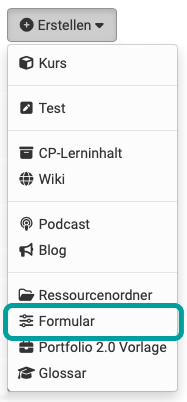

Forms can be used in OpenOlat for a variety of purposes and in different places. They are suitable, for example, for surveys, data collection, self-assessments, questionnaires or rubric assessment. They are used in the course element "Form", in the course element "Survey" or as rubric assessment in the course element "Assessment" or course element "Task".
More information on the use and creation of forms for surveys, rubrics etc. can be found in the chapter Creating forms.
Portfolio 2.0 Template
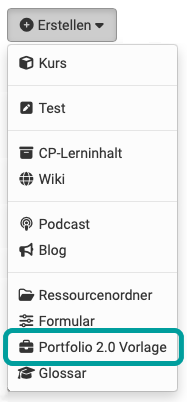

A Portfolio 2.0 template contains assignments that can be used as part of a portfolio assessment and embedded in an OpenOlat course as a portfolio task. With the help of a Portfolio 2.0 template, lecturers can design a structured portfolio binder that learners can collect and edit. Further information on the Portfolio 2.0 template can be found in the corresponding chapter.
Glossary
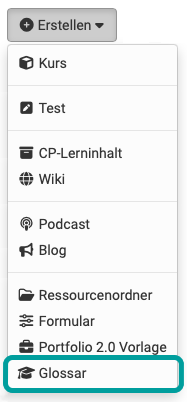

A glossary can be used to store terms and definitions and make them accessible in alphabetical order. If a glossary is embedded in an OpenOlat course, the terms can also be displayed directly for explanation in embedded HTML files. Furthermore, glossaries can be configured so that learners can also add content to a glossary.
Further information on the creation and usage of glossaries can be found in the corresponding chapters.
Further learning resources
In addition to the learning resources that are created directly in OpenOlat, there are further learning resources that are created by upload.
SCORM 1.2
Another standardized e-learning format supported by OpenOlat is the SCORM format (version 1.2). SCORM stands for "Sharable Content Object Reference Model" and is a reference model for exchangeable electronic learning content of the "Advanced Distributed Learning Initiative" (ADL). SCORM learning content is suitable for use in OpenOlat courses or outside of OpenOlat. OpenOlat supports this format so that you can use your learning content not only in OpenOlat but also in other LMS.
SCORM modules cannot be created in OpenOlat, only imported.
Audio

Audio files can be uploaded to OpenOlat and, in some places, can also be recorded directly in OpenOlat.
Video

OpenOlat uses video learning content in the MPEG-4 format with the file extension MP4. The learning resource video can be added in OpenOlat via "Import file" or "Embed via URL" and then further configured. OpenOlat supports the display of subtitles in multiple languages, integrated quizzes, annotations and jump labels. General information can be found in the chapter Learning resource: Video.
Learning resources of the type file and other files
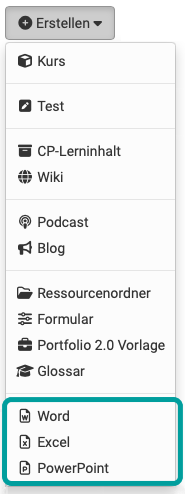
Apart from the above-mentioned learning resources, you can import a number of other file types into OpenOlat. Among these are PDF, PowerPoint, Excel and Word files as well as images, music and animations.
In addition, if a corresponding document editor is activated, you can create Word, Excel or PowerPoint files directly in OpenOlat as a learning resource. Which files can be created with your configuration is shown in the "Create" list.
Important
Diagram files (draw.io) can usually not be created directly here. Use the Media Center, a course or the "Projects" area for this purpose.