External Tools: Overview
In the menu "External tools", the OpenOlat administrators switch various external tools on and off (e.g. several virtual classrooms) and, depending on the tool, configure certain basic settings that apply system-wide. The menu is located in the system administration under: Administration > External tools
Profile
| Name | External tools |
|---|---|
| Available since | Release 10.5 (2016) |
BigBlueButton
BigBlueButton is software for online conferences and virtual classrooms. To make web conferences with BigBlueButton possible in OpenOlat, activate and configure BigBlueButton in the system administration under Administration > External tools > BigBlueButton.
See the details >
To the top of the page ^
OpenMeetings
OpenMeetings is a solution for web conferences.
In the system administration you configure the OpenMeetings module and activate the functionality, under:
Administration > External tools > OpenMeetings
In the tab "Configuration", enter the "URL OpenMeetings Server", as well as the "Web Service username" previously created in OpenMeetings and the corresponding "Web Service password". Then save the data and check the credentials with the "Check the connection" button.
If the module is switched on and the credentials for the OpenMeetings server are correct, OpenOlat can create and use OpenMeetings rooms in the following locations:
- In courses with the course element OpenMeetings. Each course element creates a corresponding room on the OpenMeetings server.
- In groups with the OpenMeetings group tool. Each group has its own OpenMeetings room that can be used like any other group tool.
In the tab "Rooms", administrators get an overview of the OpenMeetings rooms created in OpenOlat.
Adobe Connect
Adobe Connect is the web conferencing solution from the Adobe product line.
You can activate and configure the tool if the required licenses are available.
Microsoft Teams
Microsoft Teams is the web conferencing solution from Microsoft. In courses and groups, it provides online meetings that participants join directly from OpenOlat. After activation, authors can use the course element "Microsoft Teams" in their courses.
Prerequisites for activation:
- A Microsoft 365 tenant (Microsoft Entra ID or Azure) with the required Microsoft Teams licenses.
- The access data for the tenant ("Application (client) ID", "Client secret", "Tenant GUID") is stored at server level in the OpenOlat configuration. For hosted instances, this is done by the frentix support.
Prerequisites for use:
- Users log in to OpenOlat with the Microsoft account of their organisation (Azure login). This is a prerequisite for opening meetings: OpenOlat creates the online meetings via the Microsoft Graph API on behalf of the logged-in person.
Configuration in the system administration under:
Administration > External tools > Microsoft Teams
How the roles Organizer, Presenter and Attendee are assigned in a Teams meeting and what the moderator setting does is described in the user manual in the section Roles in MS Teams.
See the details >
To the top of the page ^
Microsoft SharePoint / OneDrive
To enable writing and copying files to and from SharePoint and OneDrive in the OpenOlat File Hub and OpenOlat Media Center, activate these two tools in the system administration under Administration > External tools > Microsoft SharePoint / OneDrive. You can also activate them individually.
The prerequisite is that the required licenses are available.
See the details >
To the top of the page ^
Zoom
Zoom is software that can be used to hold video conferences, meetings, and webinars.
To make Zoom meetings possible in OpenOlat, activate and configure Zoom in the system administration under Administration > External tools > Zoom.
See the details >
To the top of the page ^
LTI 1.3
In the system administration you activate and configure LTI 1.3 under:
Administration > External tools > LTI
This allows e.g. external LTI platforms and tools to be connected.
See the details >
To the top of the page ^
GoToTraining
GoToTraining is a virtual training platform.
You can activate and configure the tool if the required licenses are available.
Website GoToTraining >
To the top of the page ^
vitero
Vitero is a tool for holding web conferences and online meetings.
To use the vitero connection, you must have a valid vitero license and enter the
access data for the Web Service API in the system administration, under:
Administration > External tools > vitero
You receive the following information from your vitero or OpenOlat administrators: "URL vitero server", "Web service username", "Web service password" and "Client identifier".
Under "Time Zone OLAT server" you set the time zone of your OpenOlat system. This is necessary to synchronize the times of the appointments with the vitero system.
Once you have entered the data, check the configuration and the connection to the vitero server with the "Test server connection" button. Then you save the configuration and use vitero in your courses.
For the connection, OpenOlat automatically creates user accounts on the vitero server. OpenOlat does not take into account user accounts and appointments that already exist on the vitero server.
Website vitero >
To the top of the page ^
JupyterHub
With JupyterHub, learners start a Jupyter environment from within the course. The course element sets which image the hub starts. OpenOlat connects the hub via LTI 1.3. The module "LTI 1.3" must therefore be enabled in the system administration, see LTI 1.3:
Administration > External tools > LTI > Configuration
You set up a hub in the system administration: Administration > External tools > JupyterHub > Add hub configuration. The button appears once "JupyterHub course element" is switched on. In the "JupyterHub URL" field you enter the address of the hub. From this address OpenOlat builds the redirection URI and the other LTI addresses itself. In OpenOlat you do not enter them by hand:
| Item | Address |
|---|---|
| Redirection URI(s) (Redirect URL) | <JupyterHub URL>/hub/lti13/oauth_callback |
| Initiate login URL | <JupyterHub URL>/hub/lti13/oauth_login |
| Public Key URL (JWKS URL) | <JupyterHub URL>/hub/lti13/jwks |
When you change a hub configuration, OpenOlat sets these addresses again on saving. OpenOlat also generates the "Client ID" itself and shows it in the form.
Hub configurations
If a hub is no longer offered, for example after the end of the semester, deactivate it instead of deleting it. The configuration is kept, the hub can no longer be selected in the course editor, and the course elements that still use it point this out.
You find the list "Hub configurations" in the system administration under Administration > External tools > JupyterHub. It shows each hub with status, client ID, CPU and RAM. The list opens in the "Active" tab; the "All" tab also shows the inactive hubs, and the "Status" filter limits the list to active or inactive hubs . The column "Applications / Participants" counts the course elements that use the hub. A click on the number lists them with course and number of participants.
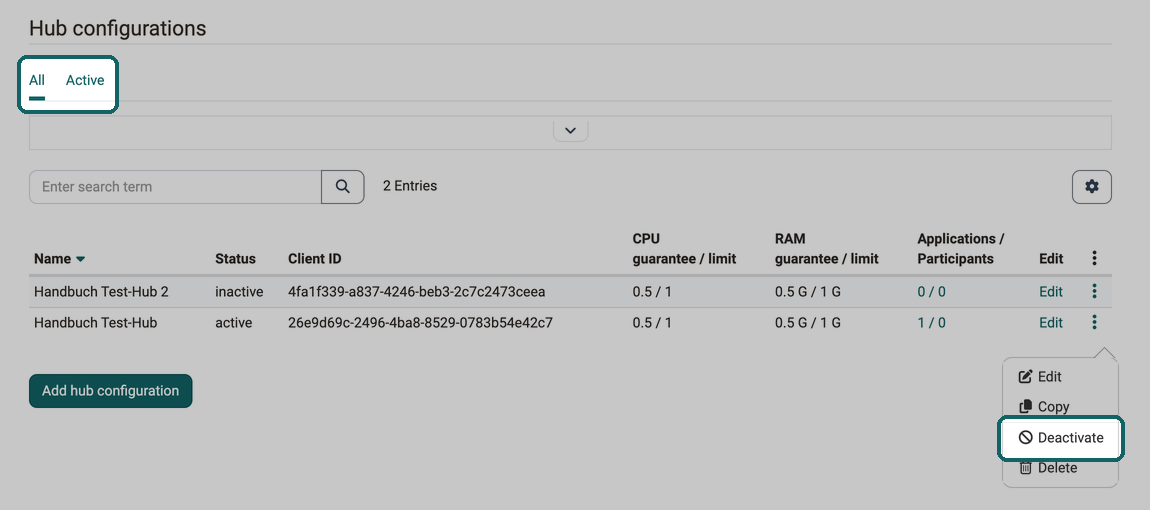
The "More actions" menu (three-dot icon) at the end of each row offers these actions:
- Deactivate: The hub becomes inactive immediately, without being deleted. It can no longer be selected in the course editor. Course elements that use it show a warning in the "JupyterHub configuration" tab, and instead of the Jupyter environment participants see the message "Jupyter hub inactive".
- Activate: Appears for an inactive hub and makes it selectable and startable again.
- Edit: Opens the hub configuration, like the "Edit" column.
- Copy: Creates a new hub configuration with the same details and its own client ID. Its name carries the suffix "(copy)".
- Delete: Is only possible as long as no course element uses the hub. Otherwise OpenOlat reports "Hub configuration in use"; in this case, deactivate the hub.
User manual: Course element JupyterHub >
To the top of the page ^
card2brain
card2brain is a software for learning with a flashcard system.
You can activate and configure the tool if the required licenses are available.
Website card2brain >
To the top of the page ^
Edubase/Edubook
Edubase is an e-book platform.
You can activate and configure the tool if the required licenses are available.
Website Edubase >
To the top of the page ^
Youtube API
When you embed YouTube videos in OpenOlat, you receive the title, description and license of the video automatically as soon as an API key is stored here. You find the setting in the system administration under:
Administration > External tools > Youtube API
The menu entry reads "Youtube API" and thus differs from the brand YouTube. It does not refer to the video platform itself but to its programming interface: the YouTube Data API (version 3) from Google. OpenOlat uses it to query the details of a video. In the field "API Key" you enter the key for this interface. With "Test API Key" you check whether OpenOlat may read data with it, with "Remove the key" you delete it again.
Opencast
Opencast is an open source software for planning, recording and publishing audiovisual learning content, especially for the recording and distribution of courses.
After activation, you set up the connection via the API and via LTI. BigBlueButton recordings from OpenOlat can also be used.
Mediasite
Mediasite is an automated video platform for video recording, video management and captioning. With the Mediasite module, course owners integrate a single recording or a channel of the Mediasite server into courses via the course element "Mediasite". You activate the module in the system administration under:
Administration > External tools > Mediasite
Preconfigured Server: If this option is activated, you enter here a connection to a Mediasite server that is available to all course elements "Mediasite" of the instance. If it is not activated, the course owners set up the connection in each course element themselves. The fields for the connection only appear when the option is activated.
Server Name: Name under which the course owners see the preconfigured server in the course editor.
LTI version: The connection to the Mediasite server runs over LTI 1.1 or LTI 1.3 . The version determines which details you enter and how the course owners select the content in the course editor. You receive the details from the operator of the Mediasite server.
LTI 1.3 requires that the module LTI 1.3 is enabled in the system administration under Administration > External tools > LTI, see LTI 1.3 Integrations. You manage the Mediasite connection exclusively here; it does not appear in the list of external tools on the LTI page.
Suppress "Data transmission agreement": If this option is activated, the content opens for participants without the page "Accepting of data transmission". Course owners with a custom server define this in the course element themselves.
The configuration of the course element is described in the user manual: Course Element "Mediasite"
Documentation for Mediasite >
To the top of the page ^
edu-sharing
Edu-sharing is a software for networking learning platforms, exchanging
learning content, metadata and tools and making them searchable in an
education cloud and usable in all connected systems. In the system
administration you activate the module in general and enable the use of
edu-sharing as a course element, under:
Administration > External tools > edu-sharing
You configure edu-sharing in four steps:
- Enter and save configuration values.
- Generate and save keys.
- Import and save the public key of the edu-sharing repository.
-
In edu-sharing: Connect OpenOlat as an application. URL with metadata:
https://your.openolat.domain/olat/edusharing/metadata
Website edu-sharing >
To the top of the page ^
Document editors
Various tools can be used in OpenOlat to edit Office documents, configured in the system administration under Administration > External tools > Document editors:
- ONLYOFFICE
- Microsoft Office
The prerequisite in each case is that the necessary licenses are available.
draw.io
draw.io is an online tool for creating diagrams that can be used in many places in OpenOlat, e.g. in projects, in the portfolio, in the course element "Document", in the Media Center and in many other places where new documents can be created. In draw.io, several people can also work together on one diagram. To use draw.io, set up the function in the system administration under Administration > External tools > draw.io.
Website draw.io >
To the top of the page ^
Analytics
In the system administration under Administration > External tools > Analytics you activate external analytics services, e.g. Google Analytics.
AI module
In the system administration under Administration > External tools > AI module you activate and configure the artificial intelligence tools that can be integrated into OpenOlat.
See the details >
To the top of the page ^
ONNX embedding model
If Taxonomy Matching (Embeddings) is to run without an external AI provider, use an ONNX embedding model: OpenOlat loads it from a model directory on its own server, needs no API key, and no text leaves the server.
As soon as a model is in the model directory, the system administration shows the section "ONNX embedding model" with the detected models under Administration > External tools > AI module in the tab "AI providers". There, "Rescan" detects newly placed models, and "Validate" checks whether each model loads correctly. Then, in the tab "AI features", select the provider "Local ONNX" and the embedding model for Taxonomy Matching (Embeddings), see Module Taxonomy: Automatic assignment by AI.
The model directory and the files in it are part of the server configuration. frentix customers contact the frentix support for the setup: support@frentix.com
PDF Generator
In OpenOlat PDFs can be created in various places, e.g. certificates, test results, member lists, info pages of learning resources and implementations or similar.
These functions are only available if the switch "PDF Service" is turned on and a service is configured under "Generator" in the system administration under Administration > External tools > PDF generator. Without a PDF service, the button "Download as PDF" is missing on the info page.
Gotenberg (recommended)
Gotenberg is a PDF generator based on Google Chrome or Chromium and Docker.
You find more information on Gotenberg at Gotenberg and GitHub.
To learn more about how to install and configure the PDF service Gotenberg, please visit the installation manual.
Athena PDF (outdated)
AthenaPDF is a PDF generator based on Electron and Docker. This implementation uses the micro service variant.
More information on AthenaPDF can be found at GitHub.
To learn more about how to install and configure the PDF service AthenaPDF, please visit the installation manual.
Further information
Mentioned on this page
BigBlueButton module >
Course Element "Microsoft Teams" >
Microsoft Teams module >
SharePoint / OneDrive >
Zoom >
LTI 1.3 Integrations >
Website GoToTraining >
Website vitero >
Course Element "JupyterHub" >
Website card2brain >
Website Edubase >
Course Element "Mediasite" >
Documentation for Mediasite >
Website edu-sharing >
Website draw.io >
External tools: AI module >
Module Taxonomy >
General Functions: Info Page >
Website Gotenberg >
GitHub: Gotenberg >
Install Gotenberg PDF >
Website AthenaPDF >
GitHub: AthenaPDF >
Install AthenaPDF >
Further reading
Modules: Overview >
Virtual classrooms >