Course Planner: Overview
Dashboard
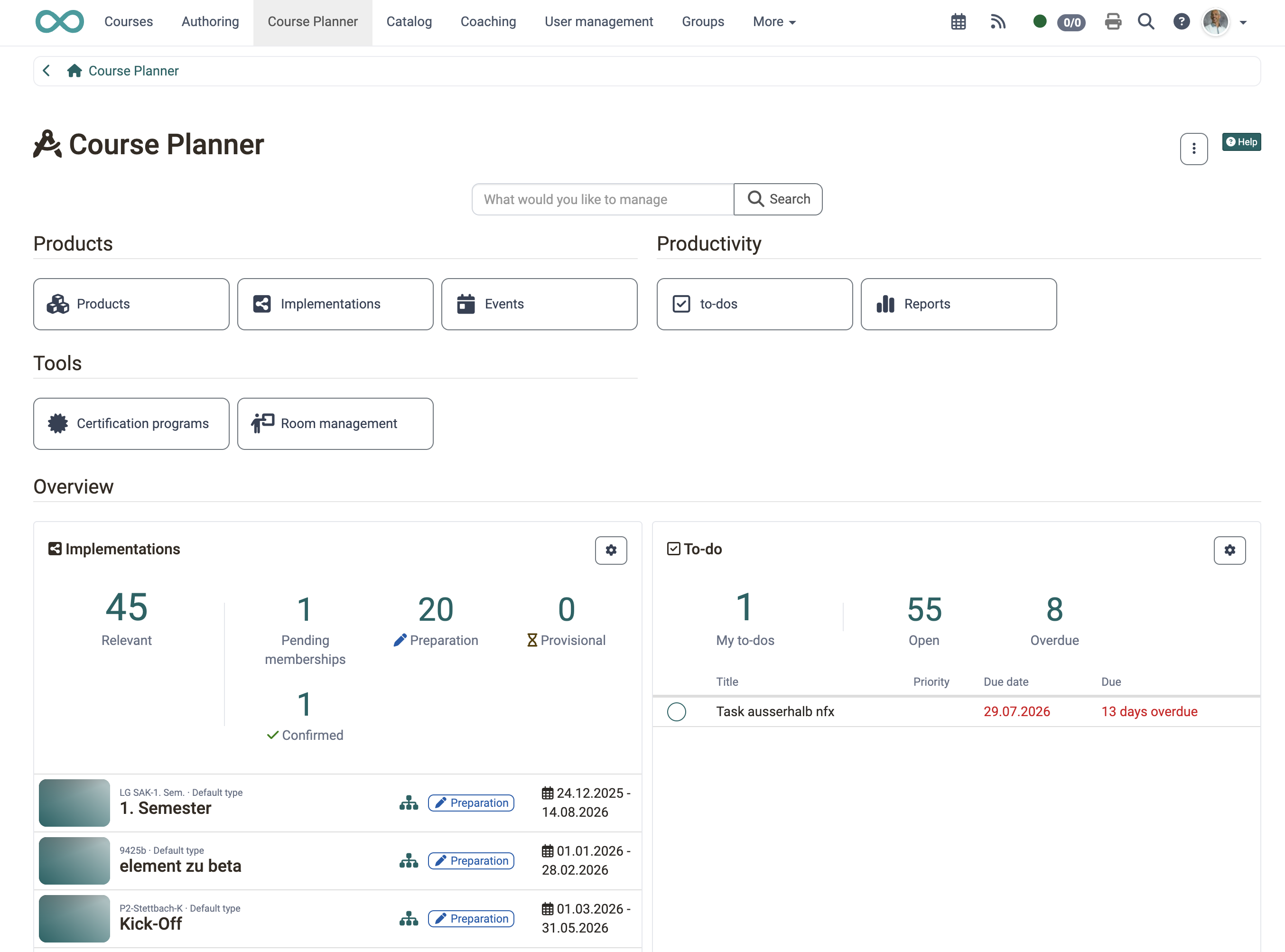
When you open the Course Planner, you are taken to the overview page with the access buttons, the search, and an area with configurable widgets (implementations, events, members).
The access buttons are divided into the three areas Products, Productivity and Tools . The section Where can I find the Course Planner? describes them in this order.
What's the purpose of the Course Planner?
The Course Planner is a module for course management. The aim is to create and run courses automatically and efficiently, starting from the offer.
With the Course Planner, the planning work can be separated from the content creation (in the author area).
Of course, you can also create OpenOlat courses without Course Planner. However, the Course Planner provides you with a tool that consolidates the organizational tasks.
| without Course Planner | with Course Planner |
|---|---|
| only independent single courses | single or multiple courses with several implementations |
| everything is administered and managed individually in the courses | central administration |
| x | Functional separation between administration and content |
| x | Central planning of several courses |
| x | Central member administration of several courses |
| x | Central tendering of several courses |
| x | Central control and management of multiple courses |
The Course Planner can be used to manage
- single courses
- course bundles
- structured educational programs/products
Planning tasks
The planning tasks include:
- Create different offer types (e.g. chargeable / not chargeable)
- Plan several implementations, each with its own time window
- Place offers in the catalog
- Define space quotas in the courses
- Prepare automatic course creation from template
- Set up automated status changes in the course
Planning single courses
With the Course Planner, several implementations can be created for a course and offered in the catalog.
This administrative planning work can be done by a course planner even if the course has not yet been created or is not yet available in its final version.
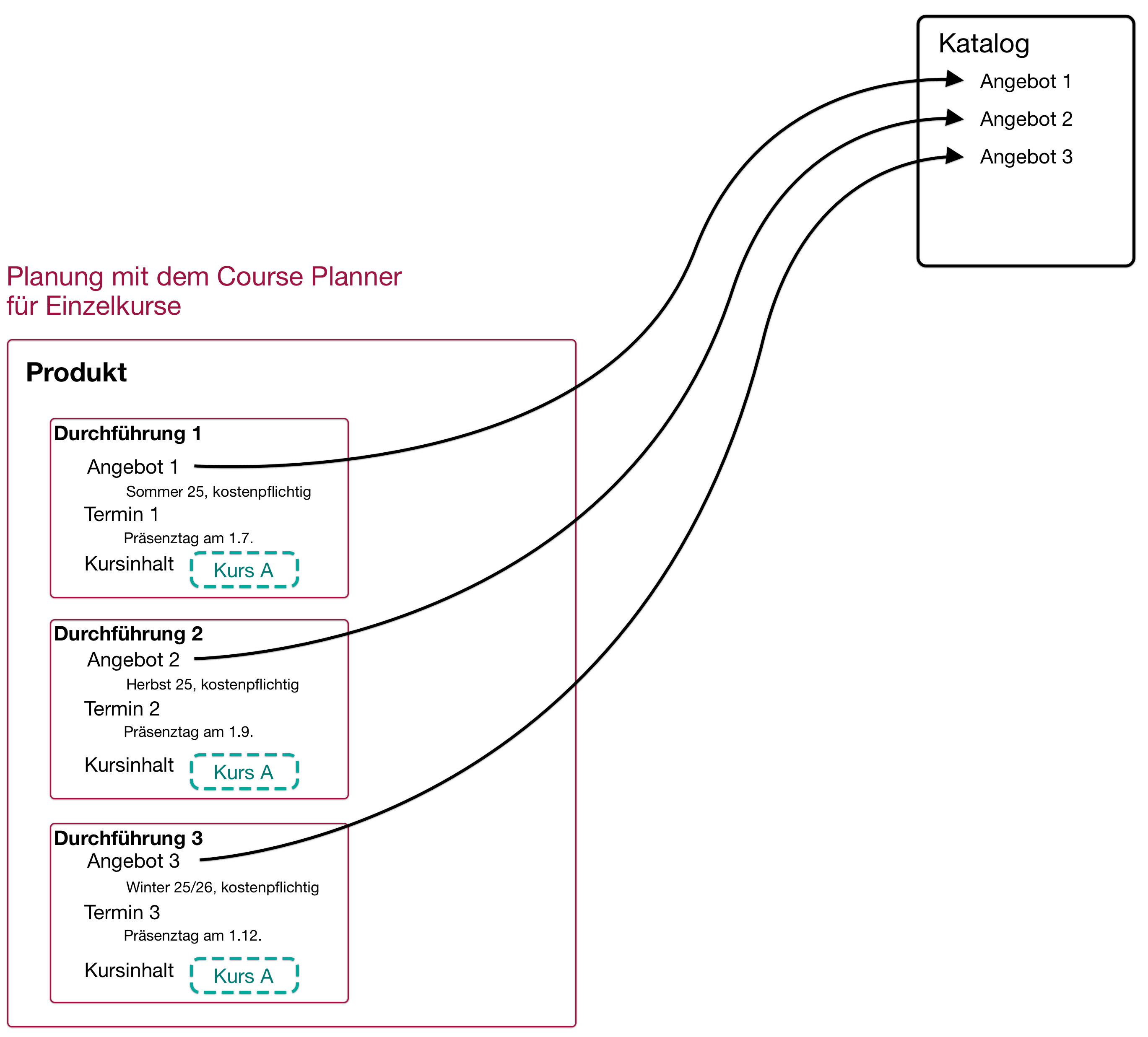
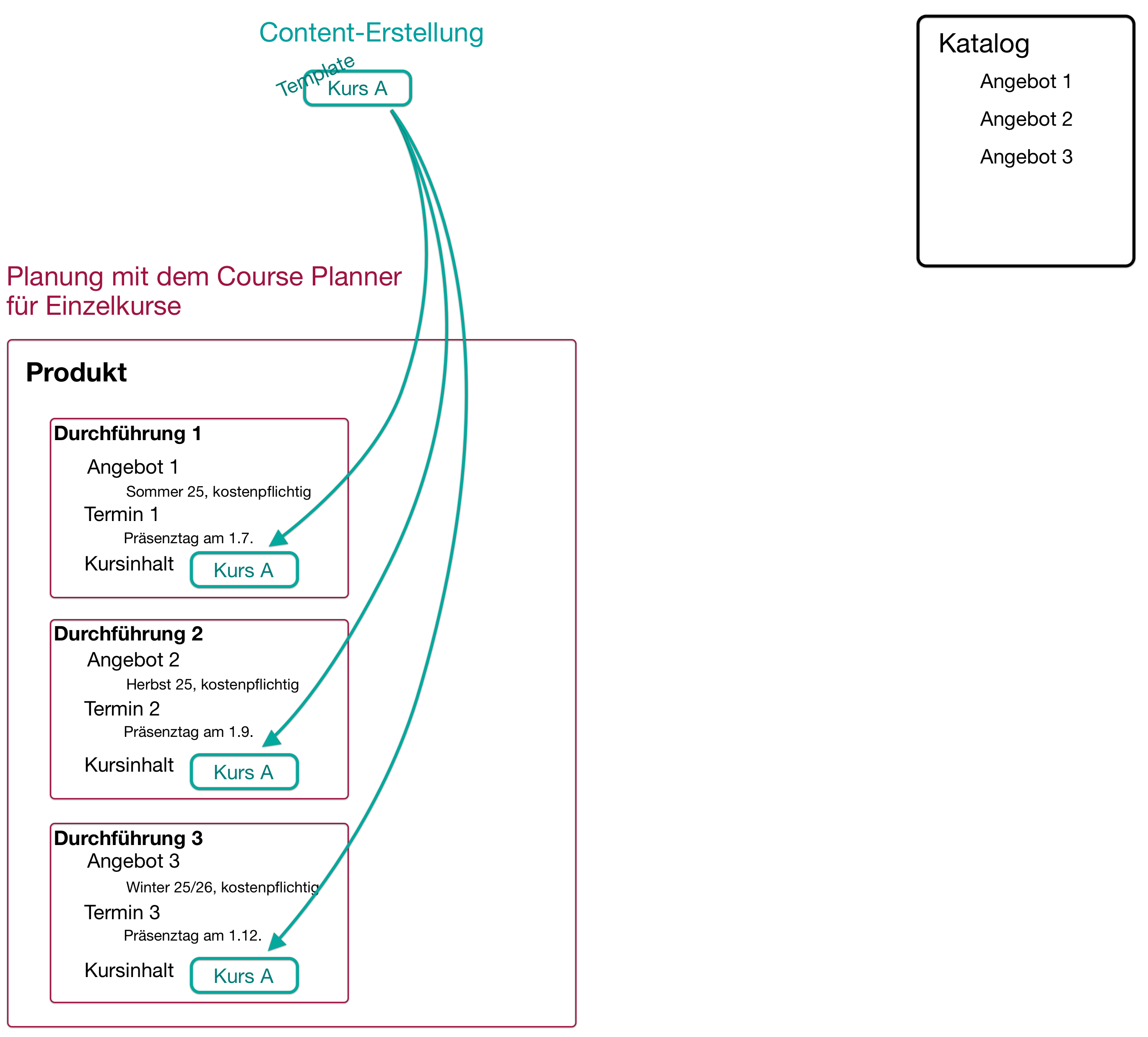
Independently of these administrative tasks (carried out by a course planner), a course can be created by authors as a template and then integrated into all implementations.
The courses can also be instantiated automatically on a definable date.
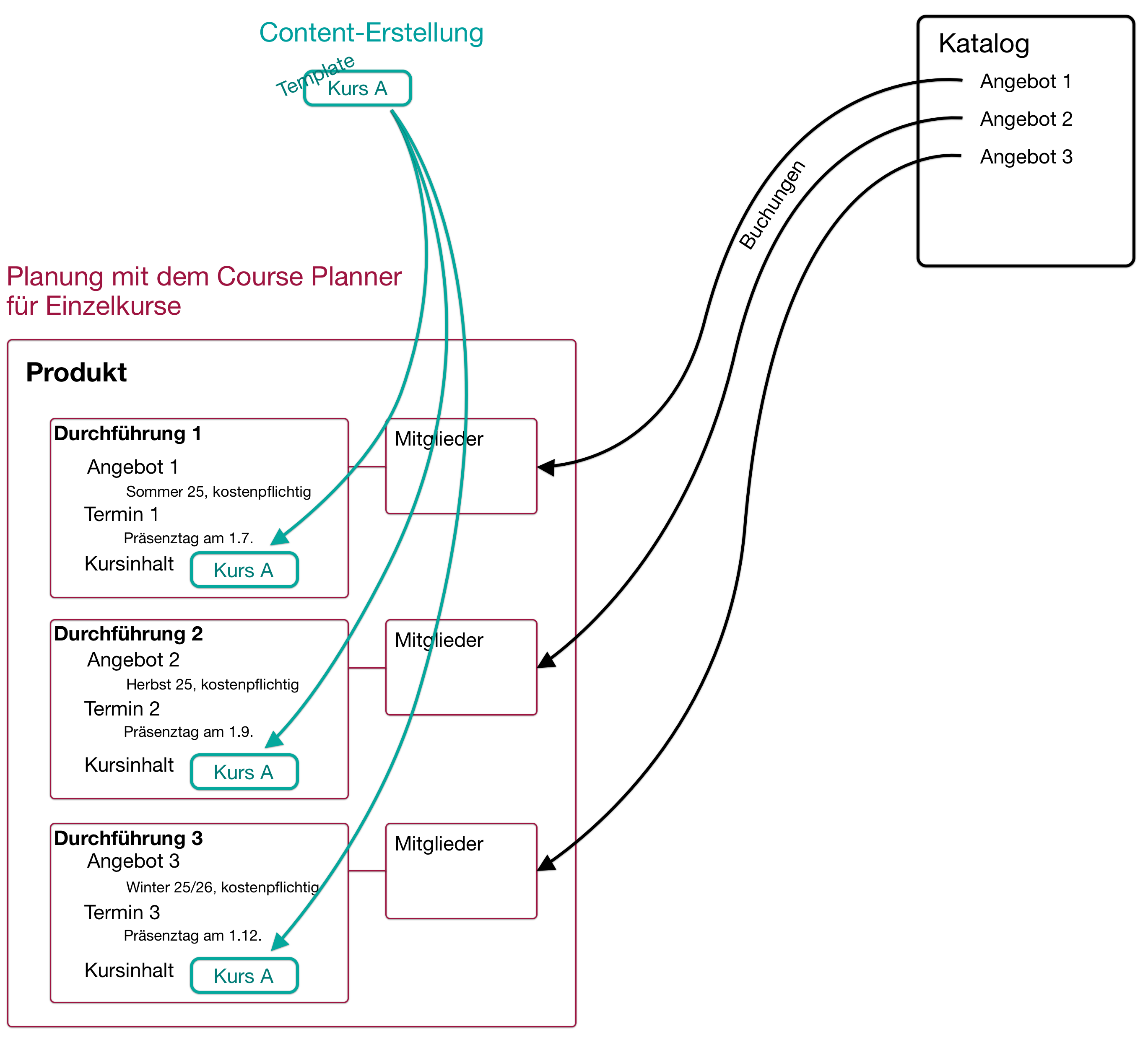
For example, members can be added directly to the individual implementations by booking an offer themselves in the catalog.
Please note:
Course members in the template course are then only the course owners with the author role.
Planning for course bundles
Just as several implementations can be created for a single course, implementations can also be created for an entire course bundle and offered in the catalog.
If desired, the combination of courses/learning resources can also be modified in the individual implementations and deviate from the standard implementation ("copy template").

Planning for structured educational programs
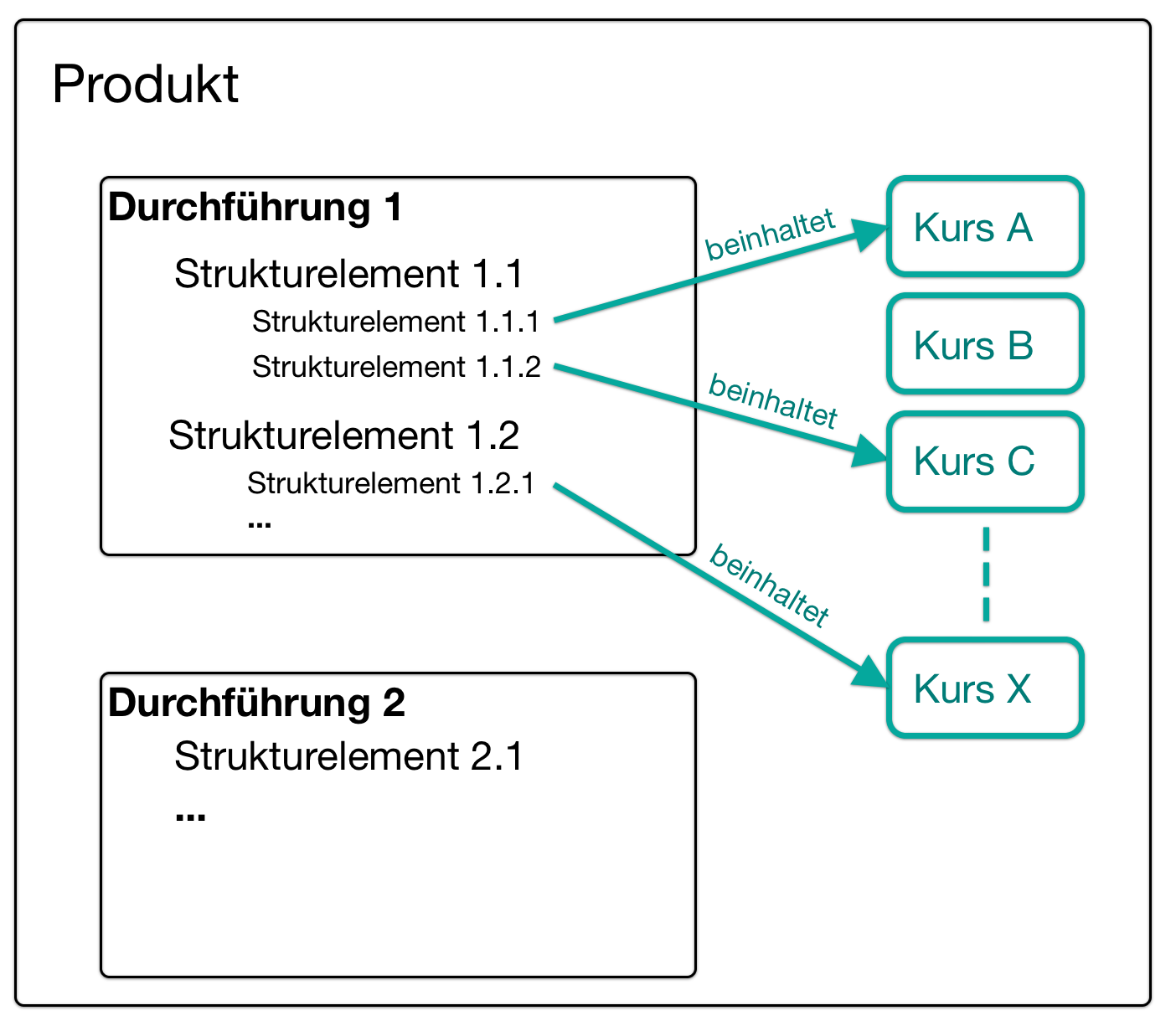
Structured products/educational programs have an additional tree structure compared to course bundles. They contain structural elements.
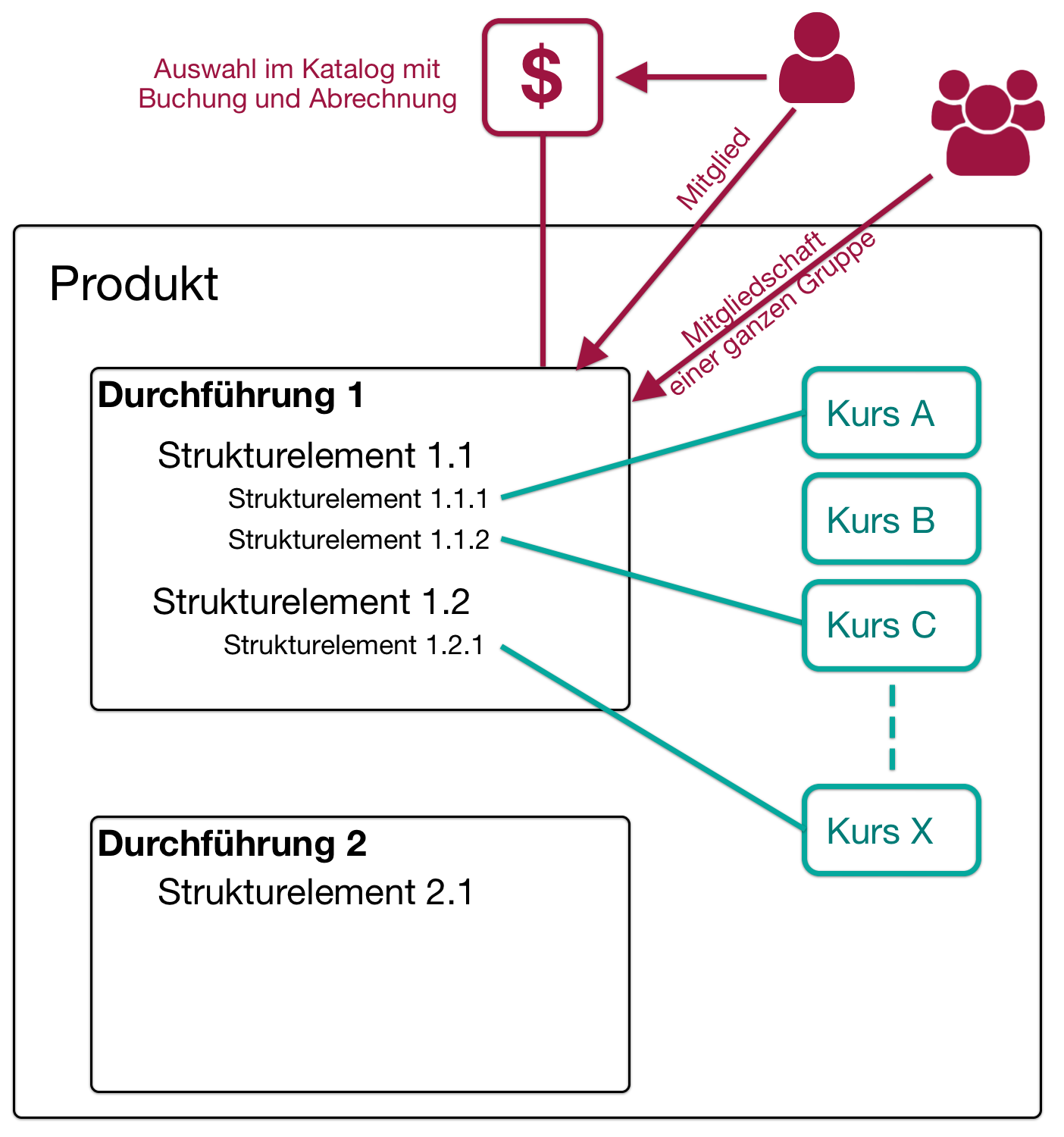
Even if participants are to complete an educational product, they are made members of a specific implementation. (Not members of individual courses or members of the educational product template.)
In addition, a billing system can also be set up for the implementation.
Who can use the Course Planner?
After activation of the Course Planner by a system administrator, it is available to all users with the role "Course Planner". (When using organisational units, the role course planner may also be restricted to certain organisational units.)
Administrators and principals also have access. (These roles may also be restricted to organisational units.)
Principals have exclusively read access to the entire Course Planner: actions such as Change status, Remove or Instantiate are not available to them. If a principal opens a course directly from the Course Planner, the same read-only restriction also applies to the course view.
Note on the restriction as principal
The read restriction is active whenever the principal only holds this role. There can be overlaps if a user has several roles in a product, for example. In that case, this user can become active wherever the role permits, for example in a to-do assigned to "them".
Limited to a specific product, product owners and element owners can access it within their area of responsibility.
Other OpenOlat roles
Authors and learning resource administrators do not have access to the Course Planner. Their role, rights and responsibilities focus on content creation rather than on the planning, scheduling and administration of courses and implementations.
Roles and rights in the Course Planner
Access in the Course Planner is based on three areas of responsibility:
- subject-related and structural responsibility: setting up and maintaining products, implementations and elements
- administrative responsibility: managing members, for example by a secretariat
- content-related responsibility: content, events and tasks of the individual elements
Depending on the role, one, two or all three areas are covered:
- Course planner (organisation role): covers all three areas and has unrestricted access to all products and certification programs of their own organisation.
- Administrator: has the same rights in the Course Planner as a course planner.
- Product owner: takes on the same tasks as a course planner, but limited to the products for which they are registered as product owner (regardless of the organisation).
- Element owner: holds the content-related responsibility for their own elements (regardless of the organisation). They have full access to the content and events of their own element, but can only read members and settings and cannot change the structure.
- Principal: has exclusively read access to the entire Course Planner (see section above).
In addition, owners of certification programs have access to the Course Planner.
Rights matrix
The following overview shows which actions the individual roles can perform on the objects of the Course Planner.
Legend: access or action available · no access · the remaining entries name the actions available in each case.
Course and group roles in the Course Planner
Course owner, Master coach, Coach and Participant are course or group roles. They have no management rights in the Course Planner itself; their tasks lie in running the course. One exception are to-dos: course owners can be assigned to a to-do or entered as a delegated person. In the personal to-do list they then change its status; all other details are edited by the roles with editing rights in the Course Planner.
Where can I find the Course Planner?
If you have the role and rights of a course planner, you will find the Course Planner in the main navigation.
Requirement
In order to use the Course Planner, it must be activated by a system administrator. If the option is not available in the main navigation, please contact your system administrator or the support of your OpenOlat instance.
Products
The Products area contains the planning objects of the Course Planner: the educational product itself, its implementations and their events.
Products
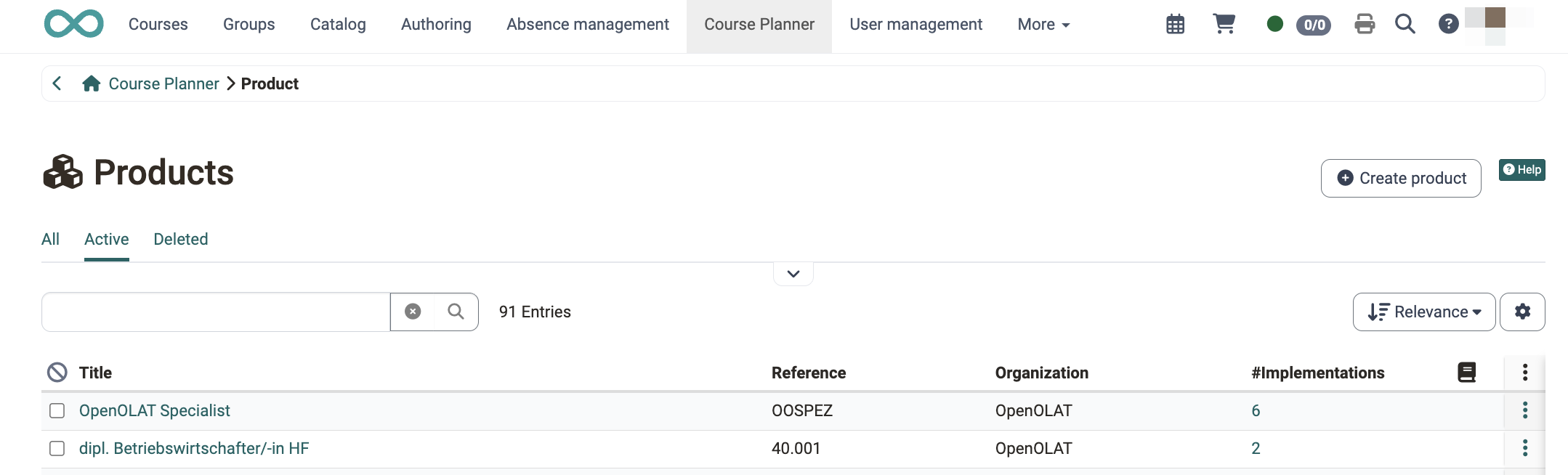
An educational product is an inwardly or outwardly directed learning offer with implementations. In most cases, these are multiple implementations, i.e. learning offers of the same "type" (-> product). The Course Planner simplifies the work considerably through the shared central administration.
Curricula/products often consist of several courses and have a certain structure/sequence in which the included courses are combined.
See the details >
To the top of the page ^
Implementations
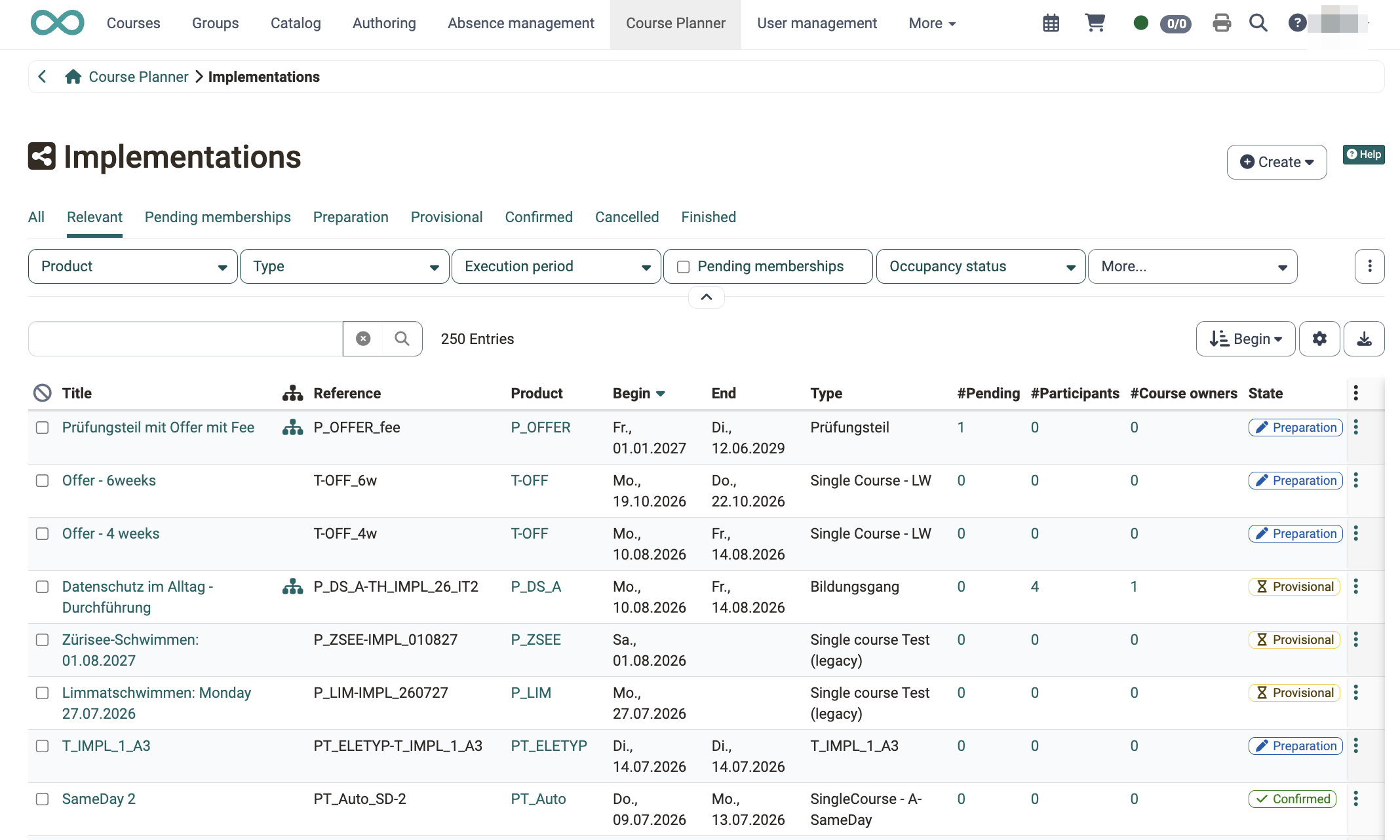
An (educational) product can be offered and implemented several times. For example, a single course can be repeated each semester, as can a structured educational program consisting of several courses.
See the details >
To the top of the page ^
Events
The events specified here refer to an implementation or a part of it.
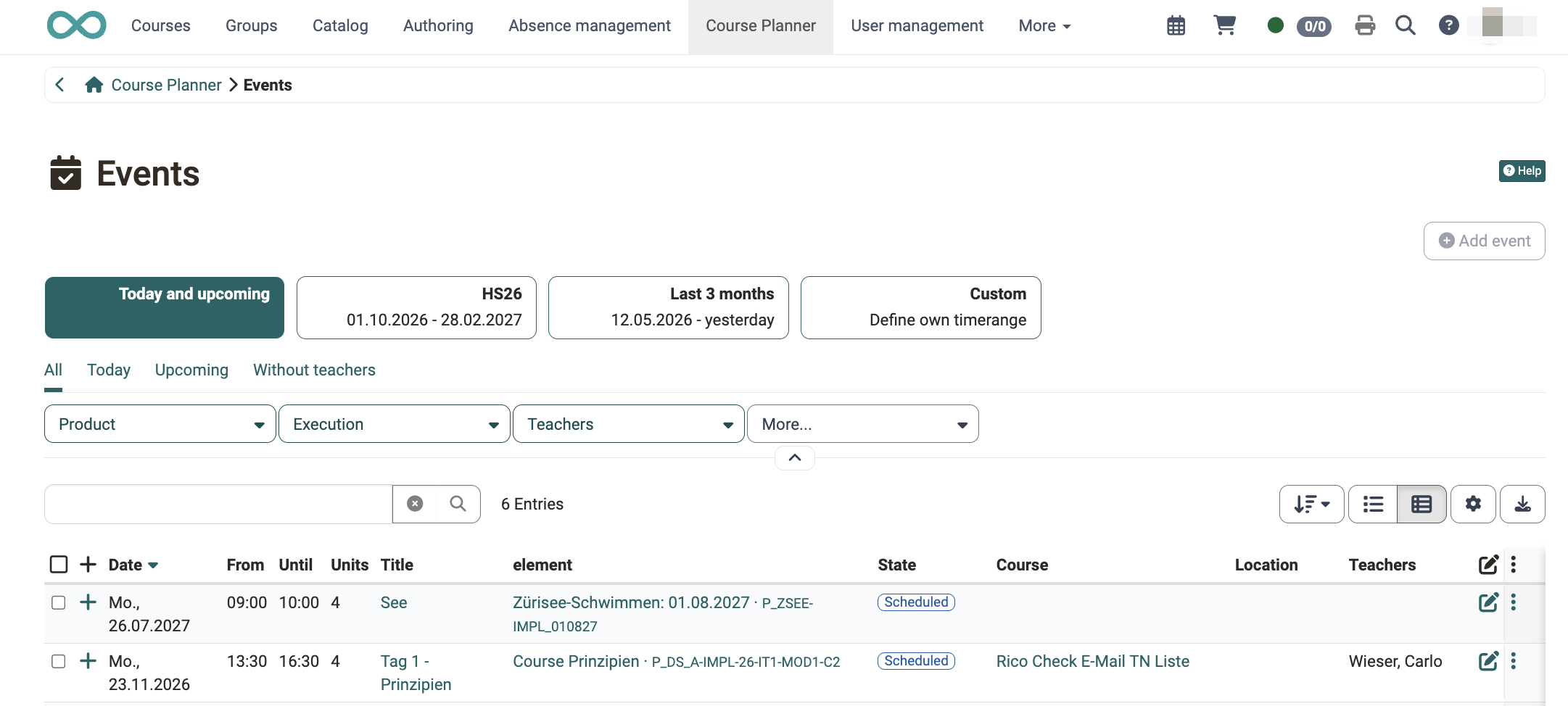
See the details >
To the top of the page ^
Productivity
The Productivity area contains the tools for day-to-day work: task tracking and evaluations.
To-dos
In the Course Planner, every to-do belongs to an element, for example to an implementation or to one of its subordinate elements. You create to-dos in the "To-dos" tab of an element or with a bulk action for several implementations at once. The central overview and the "To-dos" tab of a product bring the to-dos together. The to-do widget on the Course Planner start page shows open and overdue to-dos at a glance.
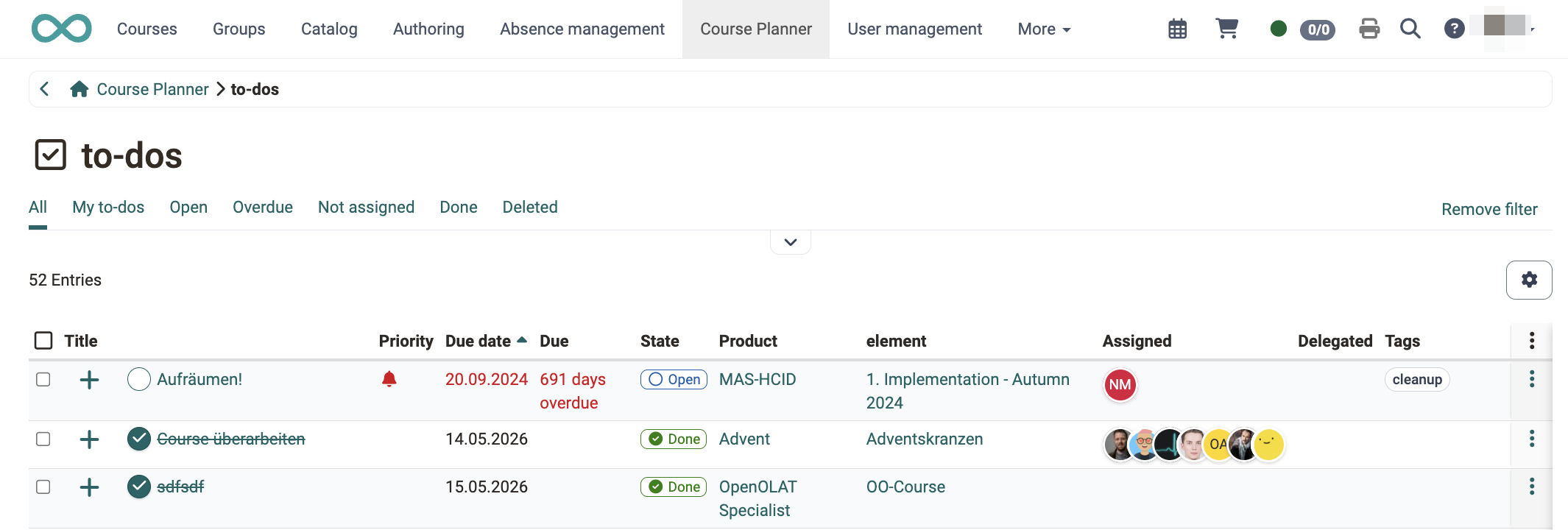
See the details >
To the top of the page ^
Reports
Various reports can be generated using report templates.
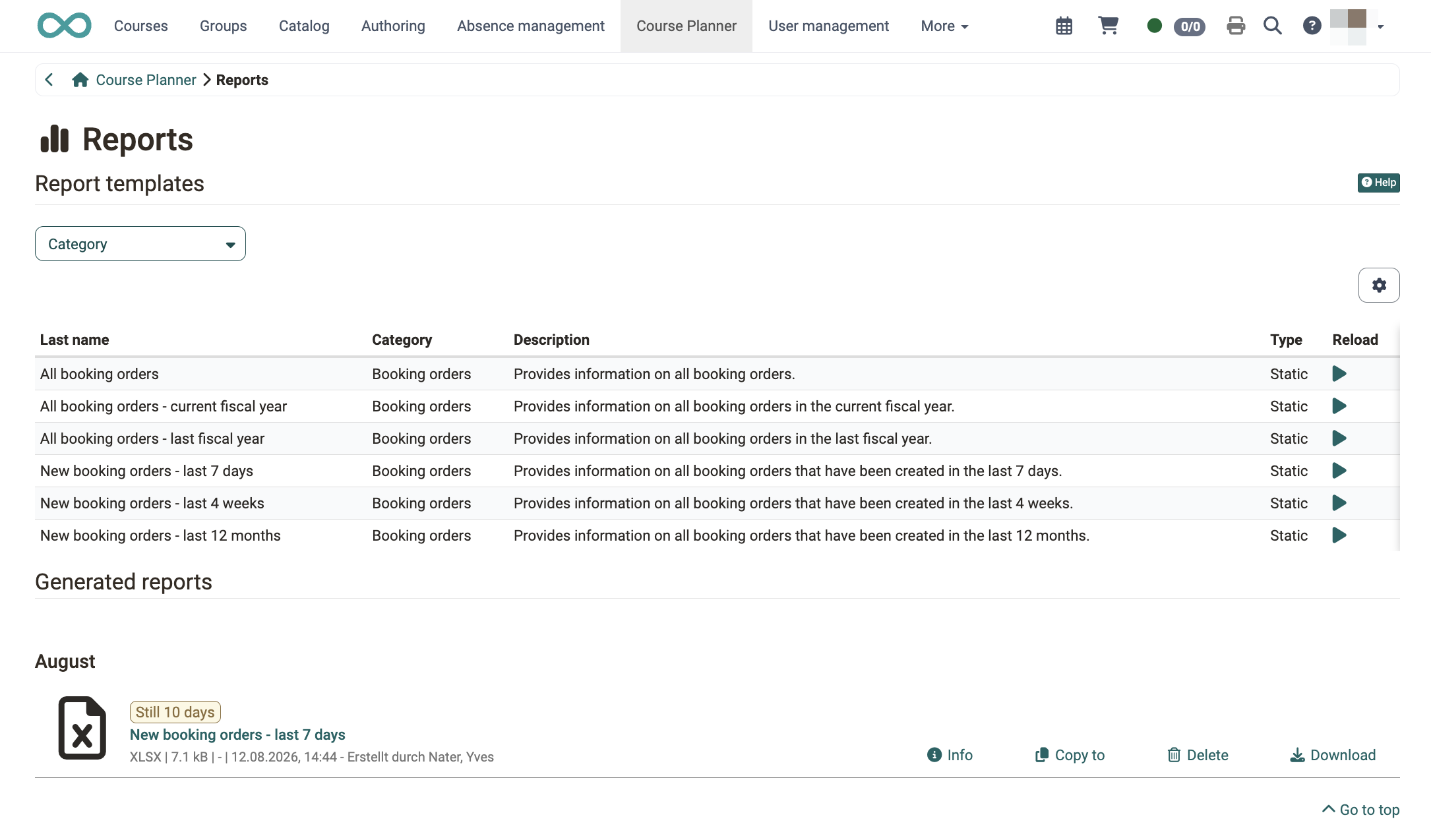
See the details >
To the top of the page ^
Tools
The Tools area contains the cross-product tools that are not tied to a single implementation.
Certification programs
Certification programs are used when a certificate is only awarded after completing several courses.
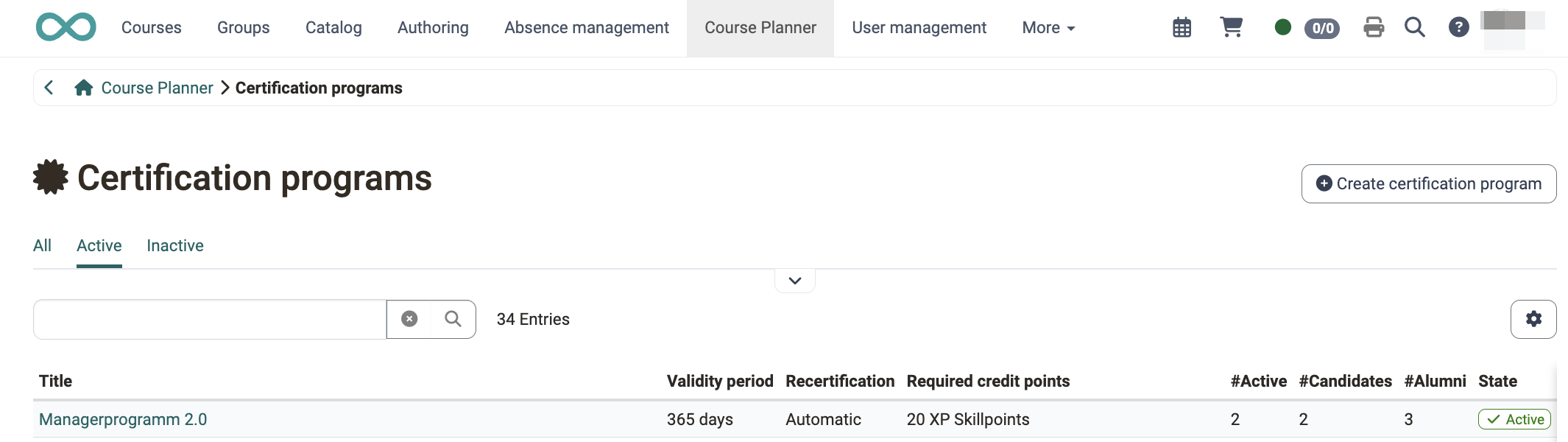
See the details >
To the top of the page ^
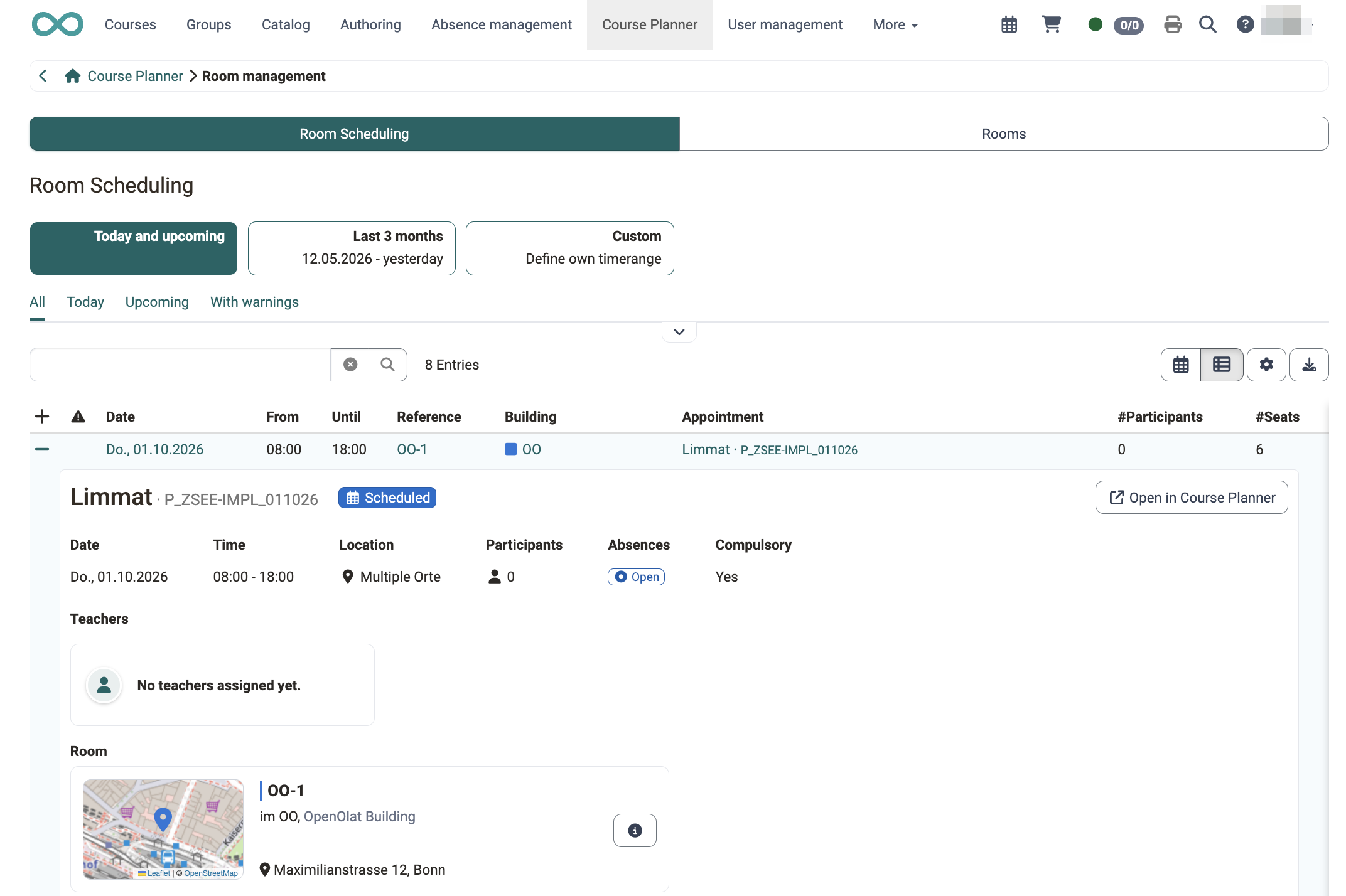
Room management
Course planners receive the "Room management" area under "Tools", with a read-only overview of the room scheduling and the rooms they have access to through their organisational affiliation. Rooms and buildings themselves are maintained in the system administration, under Administration > Modules > Rooms.
See the details >
To the top of the page ^
Import / Export
Products, implementations and memberships can be exported as an Excel file, edited in the file and then imported again. This allows many entries to be created or updated at once.
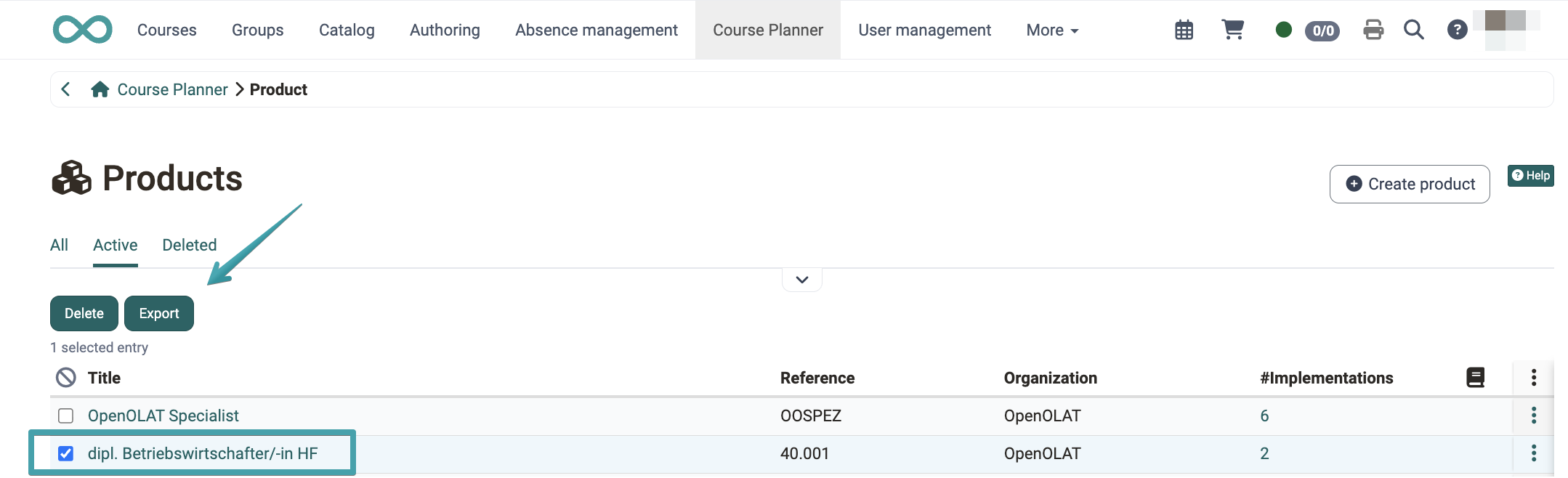
You start the export in the lists "Products", "Implementations" and "Events": select the entries, then click Export.
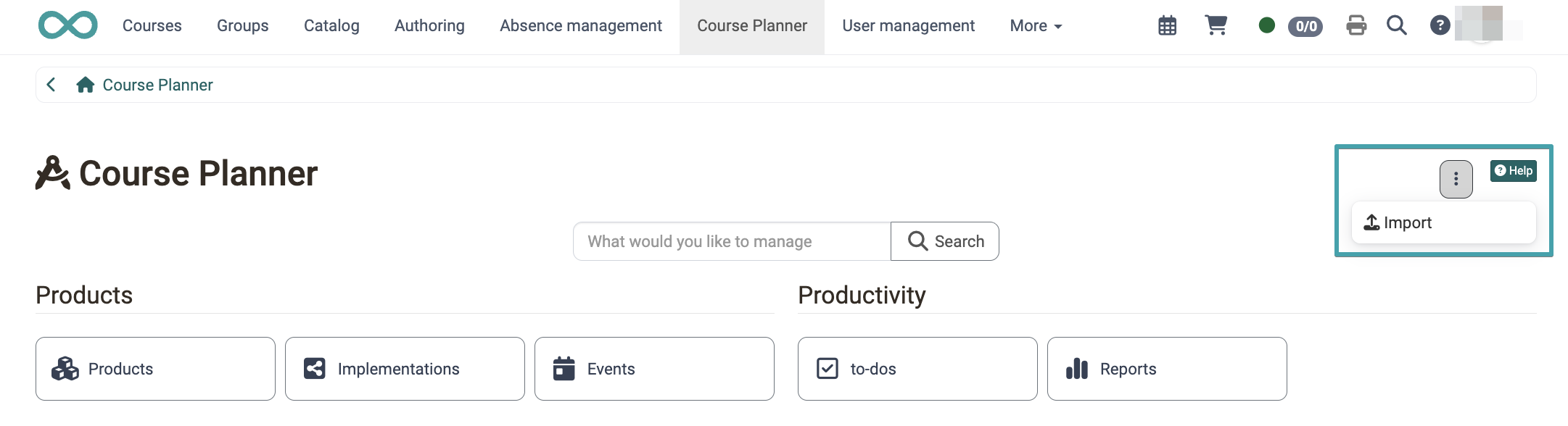
You start the import via the more menu (⋮) at the top right of the overview page with the entry Import.
See the details >
To the top of the page ^
Further information
How do I create my first OpenOlat course? >
How do I plan and run courses with the Course Planner? >
How do I plan and run a curriculum with the Course Planner? >
Activate Course Planner (Admin) >
What rights do the roles have within a course? >