General Functions: Info Page
What's the purpose of the info page?
Anyone deciding whether a course is the right one finds everything that matters before booking or opening it on the info page: description, events, objectives, teachers and the price. Every learning resource has an info page, and so does every implementation in the Course Planner. OpenOlat generates part of the information itself, the owners of the learning resource enter the rest in the settings. Once the learning resource is published, interested users see the info page, even without a booking and before they enter the learning resource. This is particularly useful if you want to inform the target audience in advance, for example for a course with a fee.
In a course, you open the info page via the link "Info page" in the toolbar, in the course overview and in the catalog via "Learn more". The ways to open it are described under How do you access the info page?.
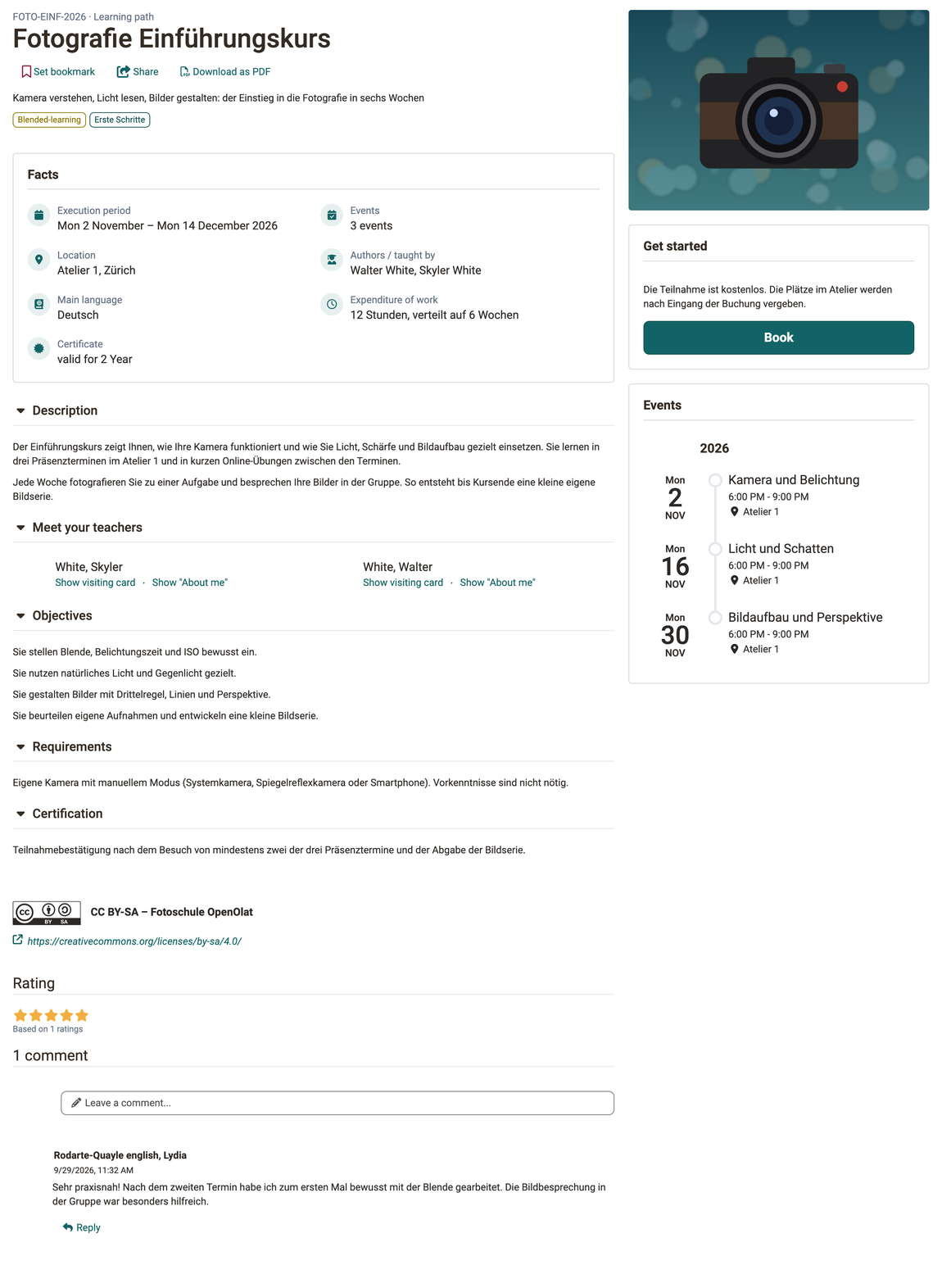
Content of the info page
The info page separates two questions into two columns. The left column shows what it is about: header, facts, sections, license and rating. The right column shows what concerns you and what you can do next: cover image, "Get started", "My course" and events.
The table shows what the info page consists of, from top to bottom. The column "In the image" tells you whether the element can be seen in the image above. The paths refer to the settings of the learning resource: Course > Administration > Settings. "Course only" means that other learning resources do not have this setting. An element only appears if it has content.
| Element | In the image | Set as author under | Only with administration |
|---|---|---|---|
| Header | |||
| Reference | yes | Tab "Metadata" | no |
| Type | yes | automatic | no |
| Title | yes | Tab "Metadata" | no |
| Set bookmark | yes | automatic | no |
| Share: shares the link to the info page, from the catalog and for an implementation the link to the offer | yes | automatic | no |
| Download as PDF | yes | automatic | PDF Generator |
| Teaser | yes | Tab "Info" | no |
| Implementation format | yes | course only: Tab "Metadata" | no |
| Subjects | yes | Tab "Metadata" | Taxonomy |
| Right column | |||
| Cover image or teaser movie | yes | Tab "Info" | no |
| Get started with booking, opening or Cancel booking | yes | automatic, offers under Tab "Share" | no |
| My course: progress, status, score, grade, groups and Leave Course | no | automatic for members; progress, status, score and grade course only | no |
| Events | yes | course only: Tab "Info", "Display on info page" | Events / Absences |
| Facts | |||
| Execution period | yes | course only: Tab "Execution" | no |
| Events | yes | course only: Tab "Info", "Display on info page" | Events / Absences |
| Location | yes | course only: Tab "Execution", field "Location" | no |
| Authors / taught by | yes | Tab "Info" | no |
| Main language | yes | Tab "Info" | no |
| Expenditure of work | yes | Tab "Info" | no |
| Credit points | no | course only: Tab "Info", "Display on info page" | Credit points |
| Certificate | yes | course only: Tab "Info", "Display on info page" | no |
| Participants | no | implementation only | no |
| Sections | |||
| Description | yes | Tab "Info" | no |
| Outline | no | implementation only | no |
| Meet your teachers | yes | course only: Tab "Info", "Display on info page" | no |
| Objectives | yes | course only: Tab "Info", section "Additional information" | no |
| Requirements | yes | course only: Tab "Info", section "Additional information" | no |
| Certification | yes | course only: Tab "Info", section "Additional information" | no |
| Categories | no | Tab "Catalog" | Catalog V1 |
| Bottom | |||
| License | yes | Tab "Metadata" | Licenses |
| Rating | yes | automatic | Rating |
| Comments | yes | automatic | Comment |
Some elements only appear once administrators have switched on the corresponding module in the system administration. The button "Download as PDF" requires the PDF Generator. Administrators switch on rating and comments in the Module Learning resource, licenses under Licenses, subjects in the Module Taxonomy. Events require the Module Events and Absences. Administrators set up credit points in the e-Assessment Administration.
The info page does not show technical details such as the ID, the external link and the responsible persons. They are in the window "About this course", see About this course: Open the window.
Note
If you, as a participant, can hardly find any information on the info page, the owners of the learning resource have not set up the page further yet. Ask your coaches about it.
On a smartphone or in a browser window narrower than 992 pixels, all boxes are shown in one column, one below the other. The order is fixed: cover image, header, "Get started", "My course", facts, sections, events, license and rating. From a width of 768 pixels, the cover image is next to the title, as in the following image.
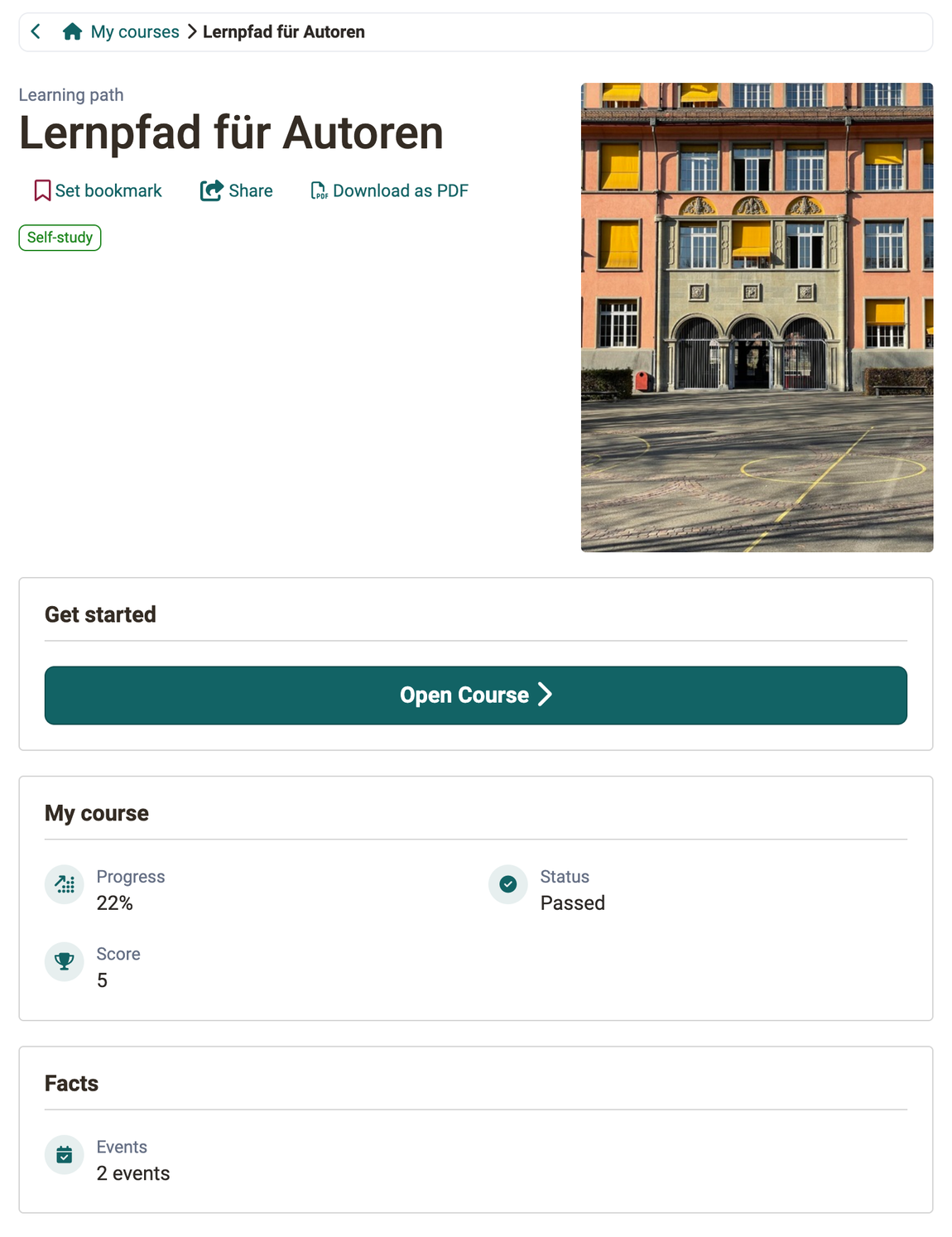
Get started and My course
The right column of the info page shows what you can do next and how far you have got in the course. The box "Get started" takes you into the course or to the booking, the box "My course" shows your own progress. OpenOlat fills both boxes itself, depending on your role and the settings of the course.
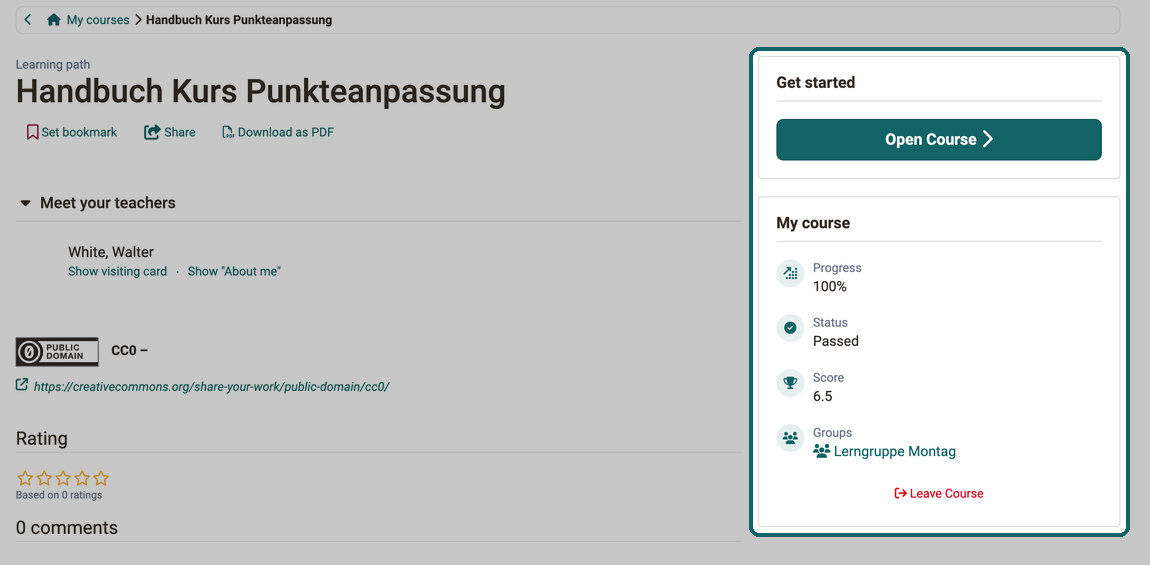
You also leave again on the info page. Which button you see for this depends on what you are a member of: a single course or an implementation. The button only appears if the roles in the last column allow leaving:
| You are a member | Button on the info page | Who allows leaving |
|---|---|---|
| of a single course, booked or enrolled | Leave Course in the box "My course" of the course | Owners of the course, default by administrators |
| of another learning resource, for example a wiki | "Leave Wiki" in the box "My course", see Leave course | Owners of the learning resource, default by administrators |
| of an implementation that you booked or in which you were enrolled with an offer | Cancel booking in the box "Get started" of the implementation | Course planners, product owners and element owners |
| of an implementation without a booking order for you | none | nobody; whoever enrolled you removes you on request |
An implementation is the concrete run of an educational offering, with a period, a location, members and one or more courses. If you are a member of an implementation, you are also a member of its courses. You then leave via the implementation, not via the single course. How you recognise an implementation:
- Info page without "My course": The info page of an implementation never shows the box "My course", even if you are a member. The info page of a course shows it as soon as there are details for you.
- Scope under "Courses": Under
Courses, the scope "Educational products" with your implementations is listed next to "My courses". An implementation that you have marked as a favourite is also listed next to it with its name as a scope of its own. An implementation that consists of only a single course appears in none of these scopes. The scopes only appear if administrators have switched them on, see Products in "Courses". - Booking order: Whether a booking order exists for you is shown in your booking orders:
Personal menu > User tools > Booking orders, see Booking orders. If there is no entry for the implementation, you were enrolled without a booking order.
Get started
The box "Get started" shows the action that suits your situation:
- Without membership: the offers of the course and the button "Book". How the booking works is described in Catalog 2.0 - Offers.
- As a member: the button "Open Course". If the course is not accessible yet, a message is shown above it, for example "The content is not yet available" or "Booking pending", and the button is greyed out.
- With an administrative role: If you are not a member but an administrator, learning resource manager, principal or course planner, you open the course with "Open with administrative role".
- Without login: Anyone who opens the info page via a link without being logged in to OpenOlat sees "Show in Catalog" if the course can be booked in the catalog, otherwise "To login".
If a course is finished and participants no longer have access in the status "Finished", the box reports "Course finished".
If you have booked an implementation that has not started yet, the box also shows the button "Cancel booking", see Cancel booking.
Cancel booking
If you cannot take part in a booked implementation after all, you cancel the booking yourself as long as the implementation has not started yet. You cancel on the info page of the implementation, which you reach via the catalog:
Catalog > "Your implementation" > Learn more > Box "Get started" > Cancel booking
Confirm in the dialog with "Cancel booking". If a cancellation fee applies, the button is called "Cancel booking for a fee", and the confirmation dialog states the fee. After the cancellation, you receive an e-mail whose subject ends with "Confirmation of your cancellation".
If administrators have switched on the scope "In preparation" under "Courses" in the system administration at Administration > Modules > Learning resource, you also reach the same info page under Courses > In preparation > Learn more. An implementation is listed there only as long as it is not running yet. The administration manual describes the setting under Module Learning resource.
Important
Under Courses > Active, "Learn more" leads to the info page of the course, not to the info page of the implementation. "Cancel booking" is missing there. In the scope "Educational products" and in the scope with the name of the implementation under Courses, "Learn more" also opens an info page without this button. Under Booking orders, a booking cannot be cancelled either. Open the implementation in the catalog.
The button only appears if the implementation allows cancellation and your booking fits. What the implementation allows is set by course planners and product owners, the offer also by element owners. As a participant, you do not see these settings; if the button is missing, ask your coaches. All four conditions must be met:
- Start date in the future: "Begin and end date" or "One-day" is selected for the execution period. With "Anytime", the implementation has no start date, and the button is missing. From the day it begins, the button is missing as well. Course planners set the execution period under
Course Planner > Implementations > "Your implementation" > Tab "Settings" > Sub-tab "Execution", see Execution in the settings. - Booking via an offer: There is a booking order for your booking with the status "New", "In payment process" or "Paid". This applies if you booked in the catalog or were enrolled with an offer. If you were enrolled in the wizard with "Without booking order", the button is missing, see Add members. In that case, ask the person who enrolled you to remove you.
- Cancelable offer: Every offer is cancelable. Only for the offer "Invoice" can cancellation be switched off with the switch "Cancelable" and a fee be set, see Offer concepts: Cancellation policy.
- Your role: You are a participant of the implementation, or your booking is still pending.
My course
As a member, you see your own progress in the box "My course" without opening the course. The box only shows the details that exist for you:
- Progress: your progress in percent. Only in a learning path course and only once OpenOlat has recorded progress.
- Status, score and grade: your result in the course. For this, the switch "Show evidence of achievement to participants" must be switched on under
Course > Administration > Settings > Tab "Assessment", see Course Settings - Tab Assessment. The status appears if the course assesses "Passed" or "Not passed", the score if it awards points. The grade additionally requires administrators to have switched on grades in the system administration:Administration > e-Assessment > Levels/Grading. - Groups: the groups of the course in which you are a member. A click on the name opens the group.
At the bottom of the box is the button "Leave Course", see Leave course.
For learning resources other than courses, the box only shows the groups and the button to leave. If none of these details exist, the box "My course" is missing completely.
Leave course
If you no longer need a course, you remove yourself from it. You leave the course on its info page:
Courses > Active > Learn more > Box "My course" > Leave Course
In the opened course, the link "Info page" in the toolbar leads to the same page. The entry "Leave course" in the menu "My course" of the course toolbar offers the same way, see Toolbar: My Course. For other learning resources, the button carries the type in its name, for example "Leave Wiki".
The button only appears for participants and only if the owners of the course allow leaving. They set it under:
Course > Administration > Settings > Tab "Share" > Participants can leave
If the setting is "Never", the button is missing. If it is "After course end date or status "Finished"", the button is greyed out until the course end date has passed or the course has the status "Finished". The options are described in Access configuration. Which option a new course has is preset by administrators in the system administration: Administration > Modules > Learning resource, see Module Learning resource.
The button is also missing in these cases:
- You are a member of the course via an implementation, or the course belongs to an implementation. How you recognise this is described under Get started and My course. Then you cancel the booking of the implementation, see Cancel booking.
- A group enrolled you that does not allow leaving or is linked to several courses.
- An assessment mode is running.
Print the info page or download it as PDF
Anyone who may only book a course after approval by a supervisor often needs the course details on paper. For this, the info page can be output as a flyer: in one column, without buttons and with a QR code that leads directly to the offer.
Click "Download as PDF" in the header of the info page. The button is next to "Set bookmark" and "Share". OpenOlat creates a PDF file with the title of the learning resource as the file name. You get the same printout with the "Print" command of your browser, then without a file.
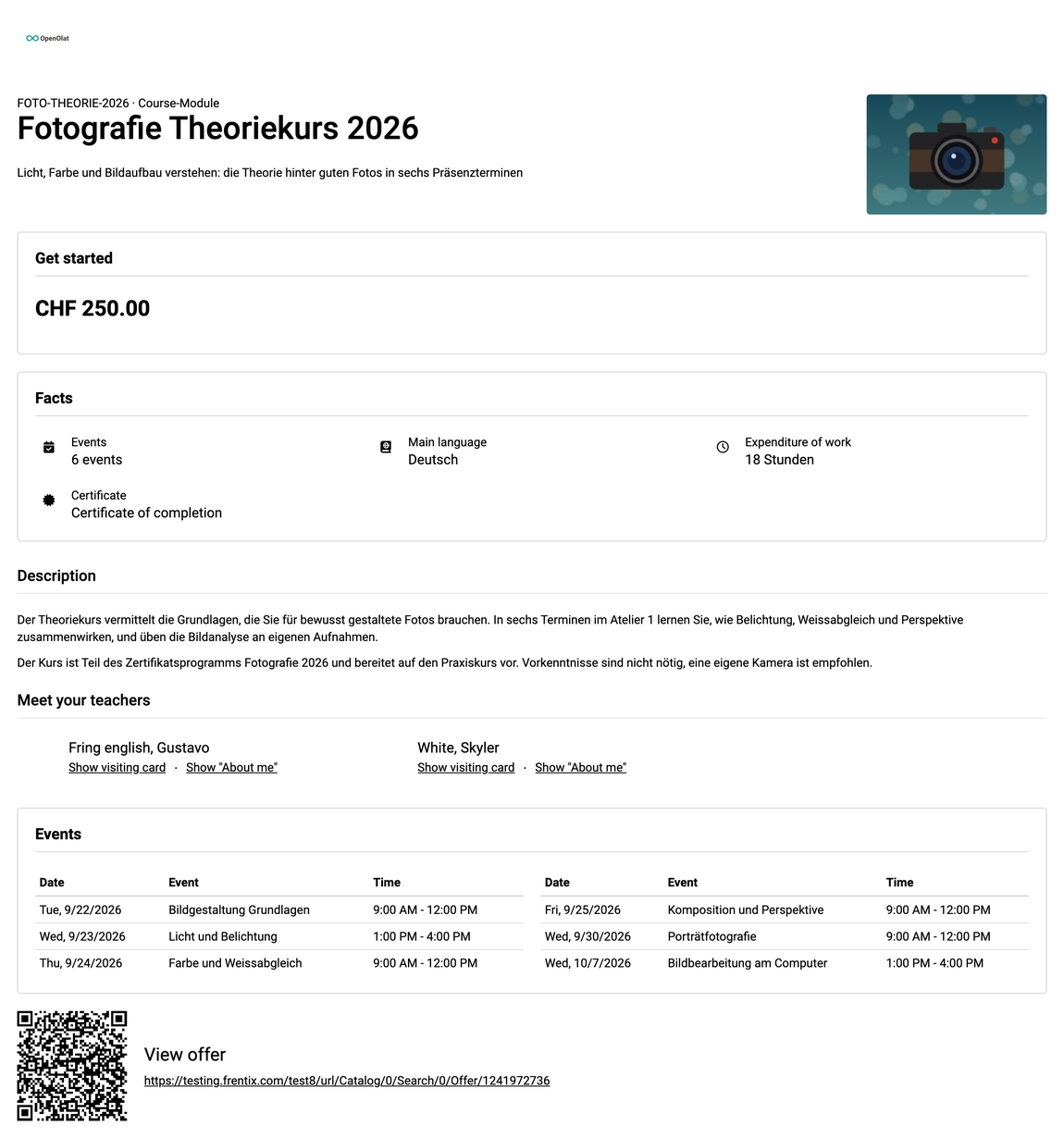
The printout contains:
- at the top the logo of the OpenOlat instance, if the layout provides one
- title, teaser and cover image
- under "Get started" only the details of the selected offer, for example the price
- facts, all sections expanded, license and star rating
- the events as a table with date, event and time
- at the end the QR code with the heading "View offer" and the address of the offer
The printout leaves out what only makes sense on screen: Set bookmark, Share and Download as PDF, the buttons "Book" and "Open Course", notes and free places, and the comments. If you are already a member, "Get started" is left out completely. The QR code points to the same address as the action "Share". Where the info page has no action "Share", the QR code is missing too.
Note
The button "Download as PDF" only appears if administrators have set up a PDF service, see External Tools: PDF Generator. Without a PDF service, print the info page via the browser.
Info page of an implementation
Anyone booking an implementation in the catalog first sees the same info page as for a course, with facts, sections, events and "Get started". Printing and "Download as PDF" work the same way.
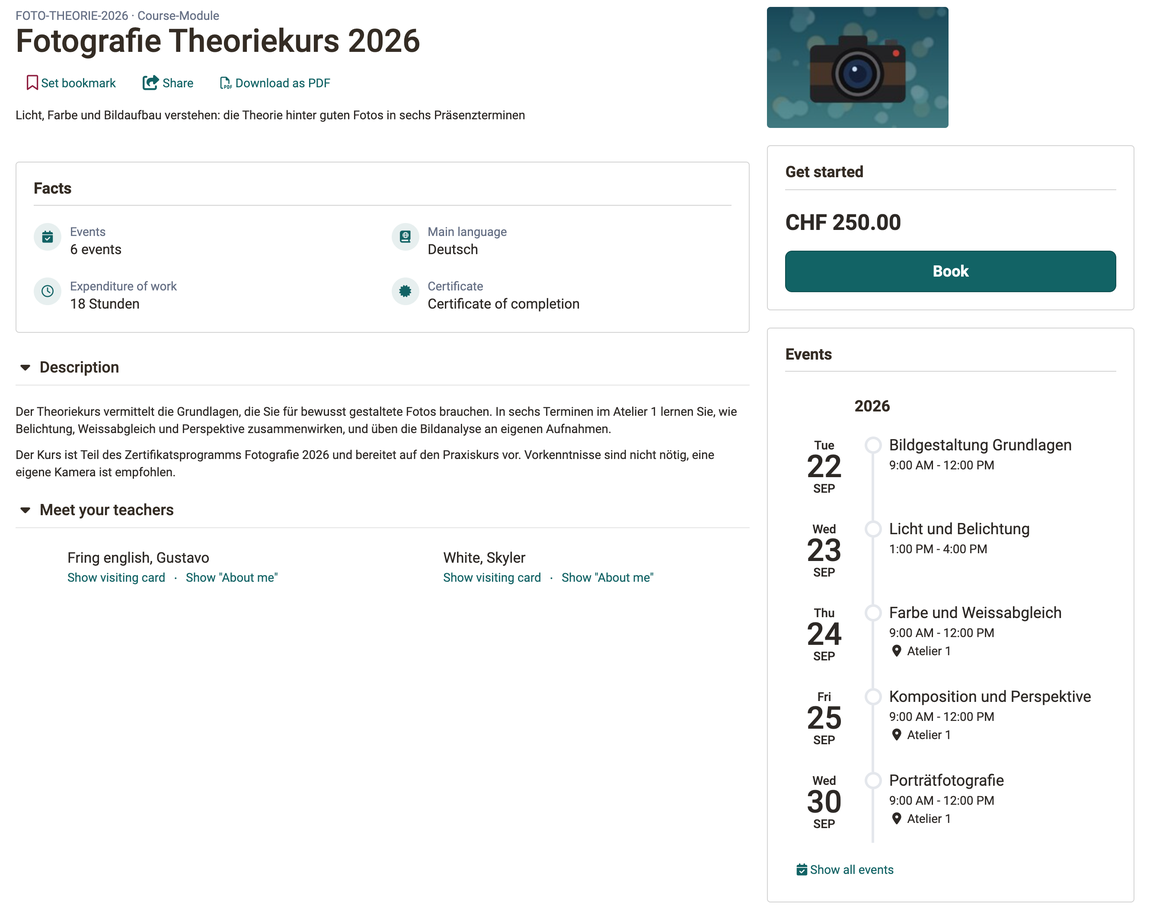
Some elements differ:
- Missing are license, rating, comments and "My course".
- Added are the section "Outline" and the fact "Participants" with the number of places.
- In the header, the element type of the implementation appears next to the reference.
You do not enter the details in a course, but in the settings of the implementation, in the sub-tabs "Metadata", "Infos" and "Execution":
Course Planner > Implementations > "your implementation" > Tab "Settings"
More on this under Course Planner: Implementations.
How do you access the info page?
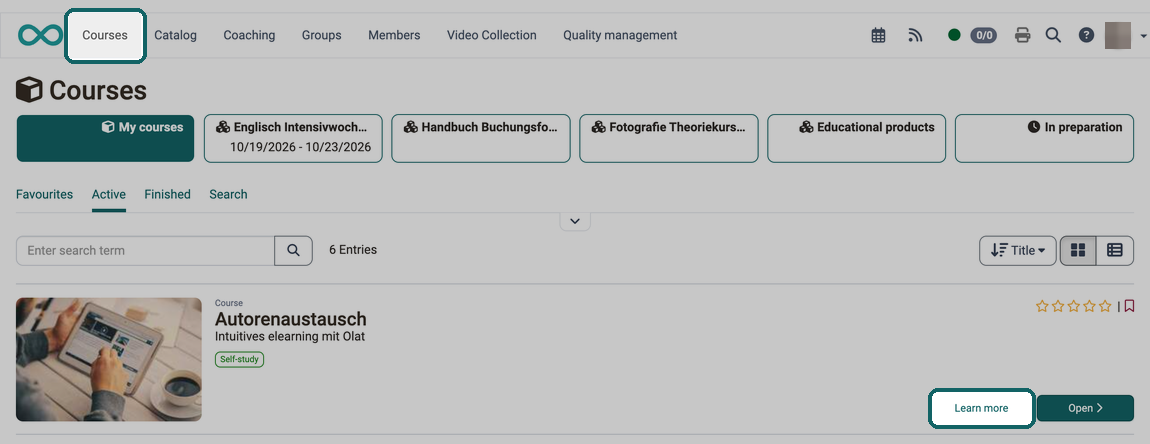
Access the info page via the course overview
In the main navigation, open your course overview by clicking on "Courses".
Then select the link "Learn more" next to the "Open" button of a course.
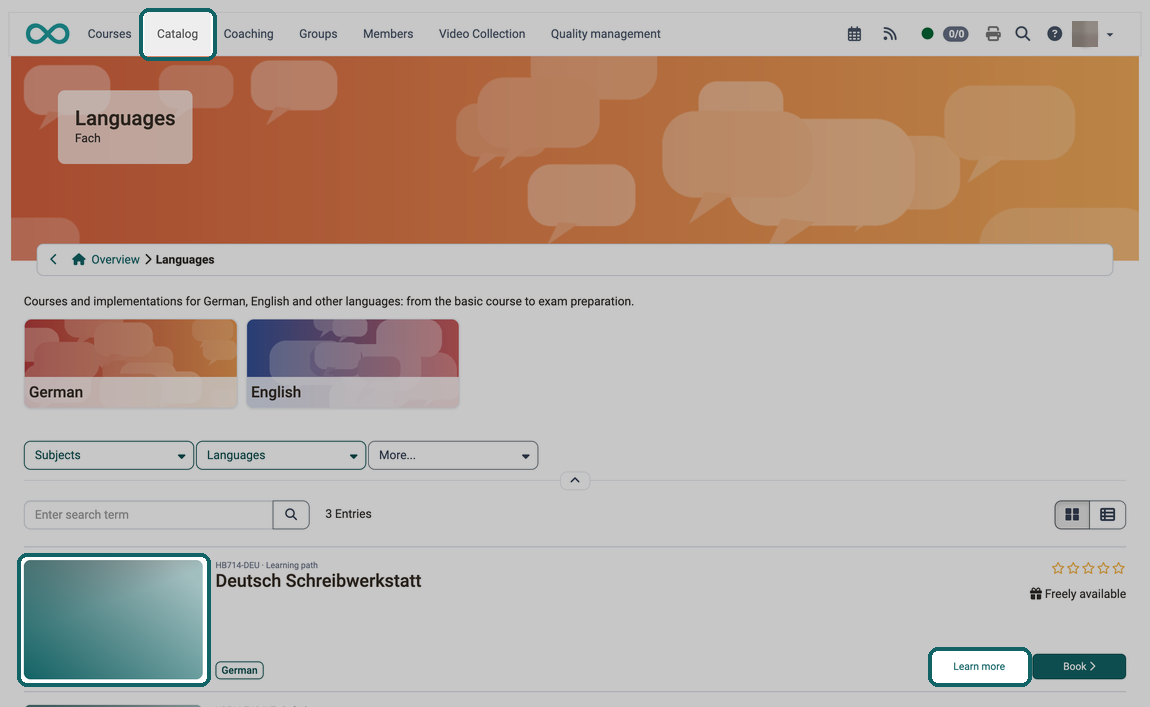
Access the info page in the catalog
In the tile view of the catalog, you find the link "Learn more" to display the info page at the bottom right. You can also click on the image.
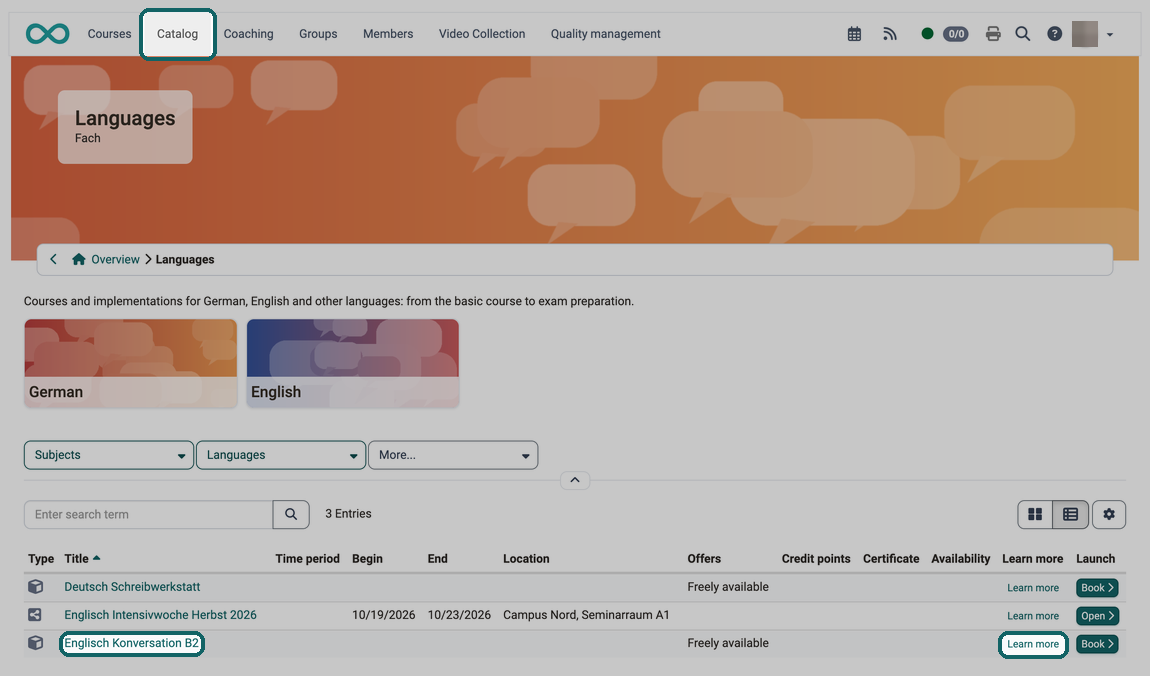
In the list view, click the link "Learn more" or the title of the learning resource.
Access the info page within a course
If you have opened a course, select the link "Info page" with the info icon in the toolbar. You reach the same page in any other opened learning resource via the toolbar.

Access the info page of other learning resources
You open the info page of other learning resources in the same way as the info page of courses. In the authoring area, no link leads directly to the info page: open the learning resource and select "Info page" in the toolbar there.
The details on usage, for example in which courses the learning resource is embedded, are not on the info page, but in the window named after the type of the learning resource, for example "About this test", see Information on usage.
Further information
Mentioned on this page
Navigation >
External Tools: Overview >
Module Learning resource >
Licenses >
Module Taxonomy >
Module Events and Absences >
e-Assessment Administration: Credit points >
About this course: Technical information and usage >
Module Course Planner >
User tools: Booking orders >
Catalog 2.0 - Offers >
Course Planner: Implementations >
Offer concepts >
Course Settings - Tab Assessment >
Toolbar: My Course >
Access configuration >
Further reading
Course Settings >
Course settings - Tab Share >