Personal configuration: COVID certificate
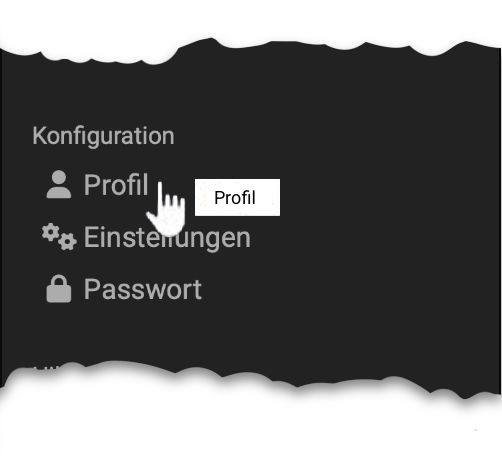

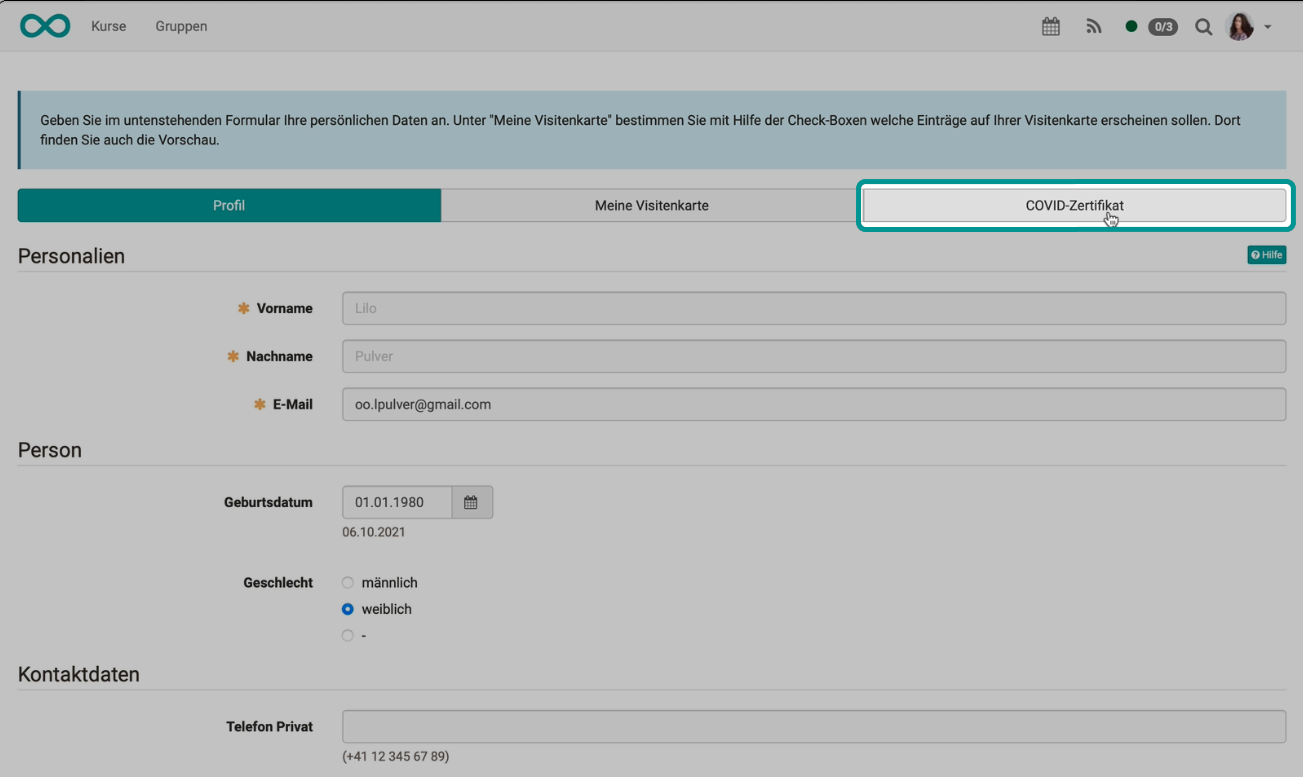
If administrators have enabled the COVID certificate in the system administration under Administration > Modules > COVID certificate, users will find the tab "COVID certificate" under "Profile" in the personal menu. Here you add a new personal COVID certificate or view the status of your existing certificate. The tab appears only in your own profile.
Important
The certificate itself is not stored. OpenOlat stores only the date until which the proof is valid.
Video Introduction (German): COVID certificates in OpenOlat
Add COVID certificate
Click on "Add new COVID certificate".
Under "Automatically", you scan the QR code of your certificate with "Scan QR code" or upload the certificate with "Upload certificate" as an image or PDF (maximum 10 MB). The validation is done automatically, see Validation status. The option "Automatically" is only available if administrators have enabled the scanning of COVID certificates.
If automatic adding does not work, select "Manually". There you specify the type of certificate (Vaccination, Recovery, PCR test, Antigen Test or Medical Certificate) and the corresponding date. Manually entered data is not validated automatically, see Validation status.
In both cases you confirm that all the information provided is true. With the option "Send email before certificate expiration", OpenOlat notifies you by email before your certificate expires.
Validation status
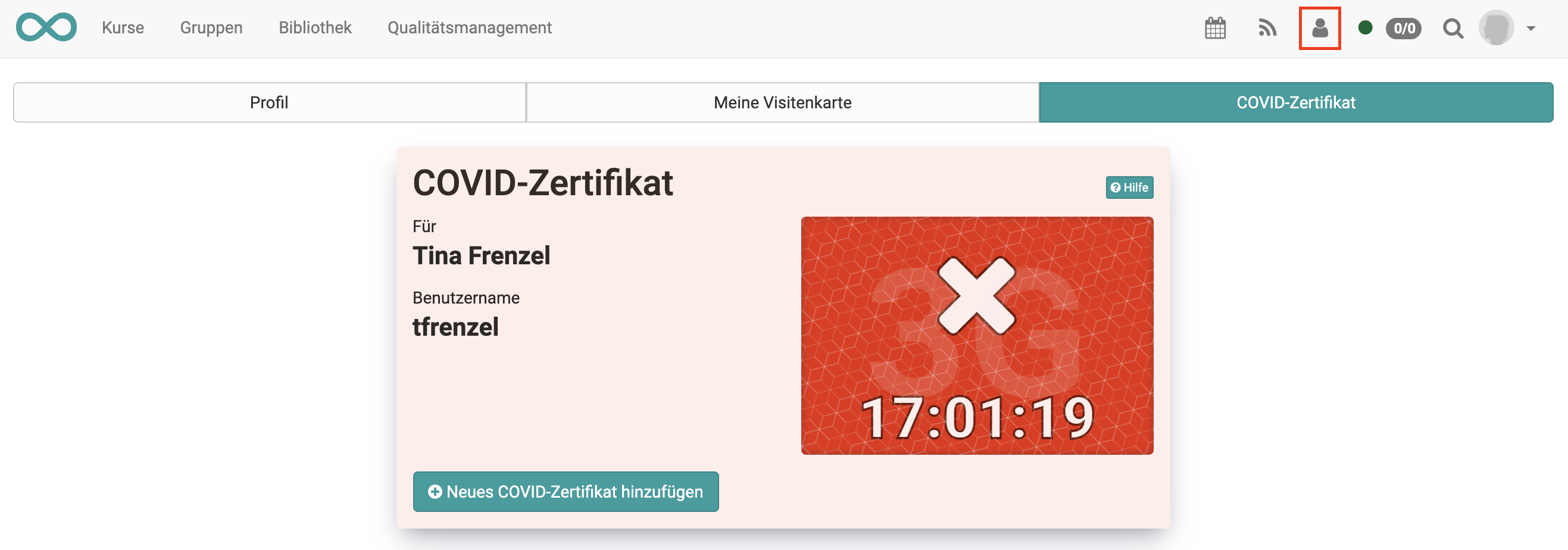
In addition to the colour, the status display shows the current time.
Green
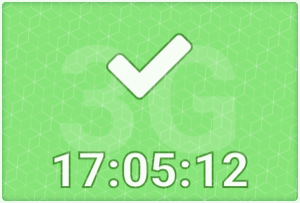
Your certificate is validated and valid.
Orange
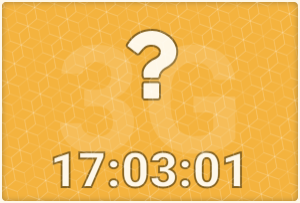
You have recorded data, but it has not yet been validated.
If you have added your certificate manually, the status is always orange.
Contact the COVID commissioners of your organisation to have your certificate validated or if the automatic capture did not work.
Red
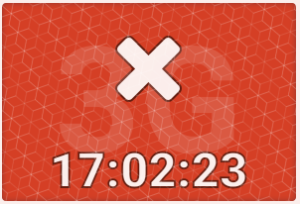
No certificate has been recorded, the certificate has expired or the automatic capture of the certificate could not be completed.
First name, last name and date of birth on the certificate must match your user data in OpenOlat, otherwise you will receive a message.
Contact the COVID commissioners of your organisation if you have problems adding your COVID certificate.
Further information
Personal Configuration >
Profile >
Modules: Overview (administration manual) >
youtube
COVID certificates in OpenOlat