Course Planner: Products
What do we mean by a product in OpenOlat?
An educational product is an inwardly or outwardly directed learning offer with implementations. In most cases, there are multiple implementations, i.e. learning opportunities of the same "type" (-> product).
Products often consist of several courses and have a specific structure/sequence in which the courses they contain are combined (structured products). The courses and learning resources are mapped in chronological order in a tree structure.
In the context of companies, the term (educational) "product" is often used instead of "curriculum". For this reason, the term "product" is generally used in OpenOlat.
With the Course Planner, an extended, general course planning function is integrated into OpenOlat.
Where are products used?
Products are used in Course Planner to plan an educational program with several courses and learning resources ("course package"). A product can then be offered in several implementations on different dates.
The implementations of a product can be offered in the catalog.
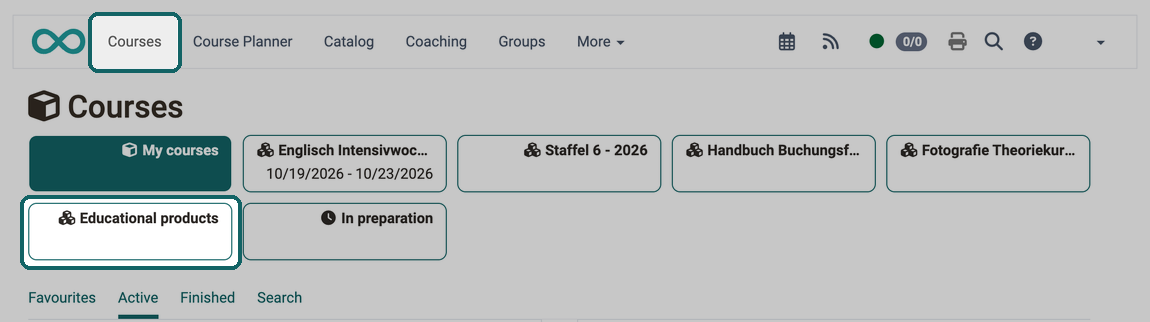
If participants are not only assigned to a single course as members, but to the Implementation of a product, the membership is visible to the participants when they select the "Courses" option in the main menu.
Courses that are assigned to a product appear there in the "Educational products" section. Implementations that you have marked as favourites also appear there as separate buttons next to "My courses".
Where and how are products activated?
The Course Planner used to create products is an additional module in OpenOlat and must first be activated.
Customers of frentix please contact contact@frentix.com for activation.
If you are not a frentix hosting customer, please ask your system operator.
After activation, system administrators can activate and set up the module at:
Administration > Modules > Course Planner
Create product
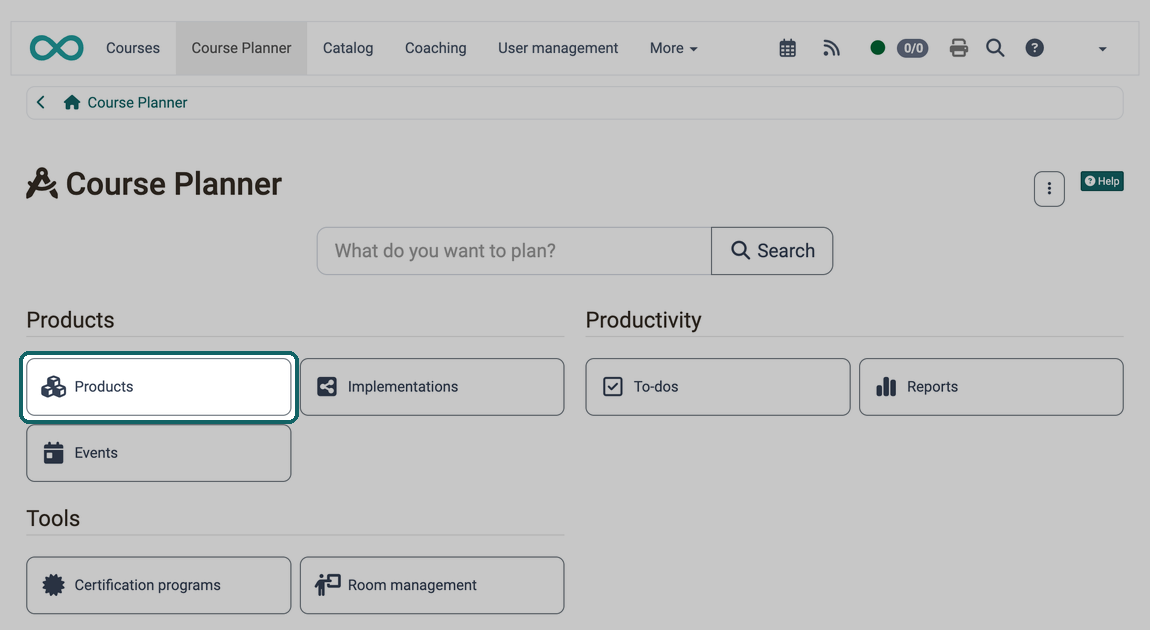
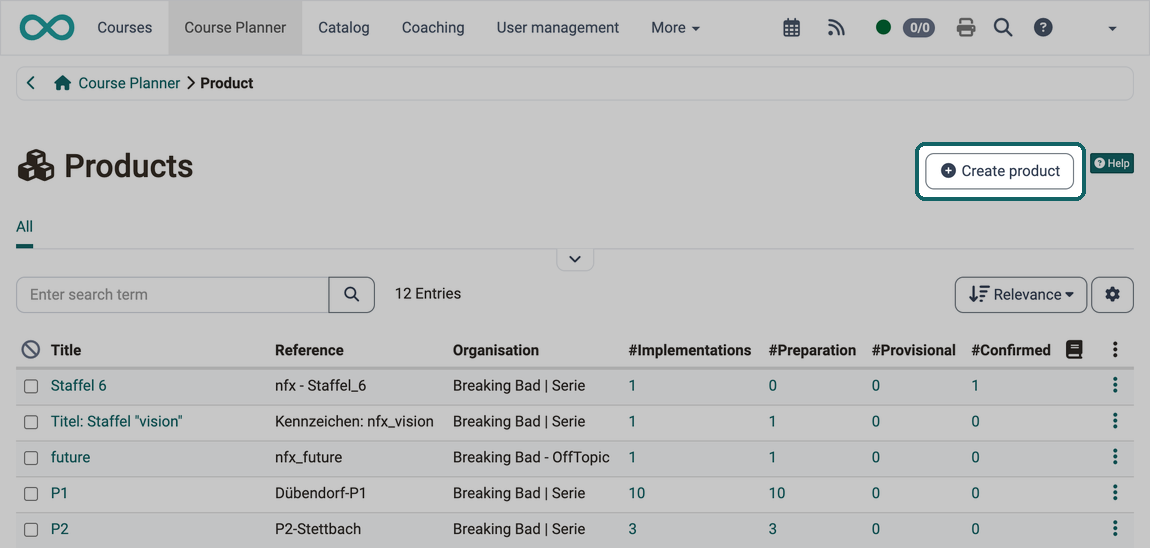
To create a product, open the Course Planner and then the "Products" subsection. Course planners and administrators see the "Create product" button.
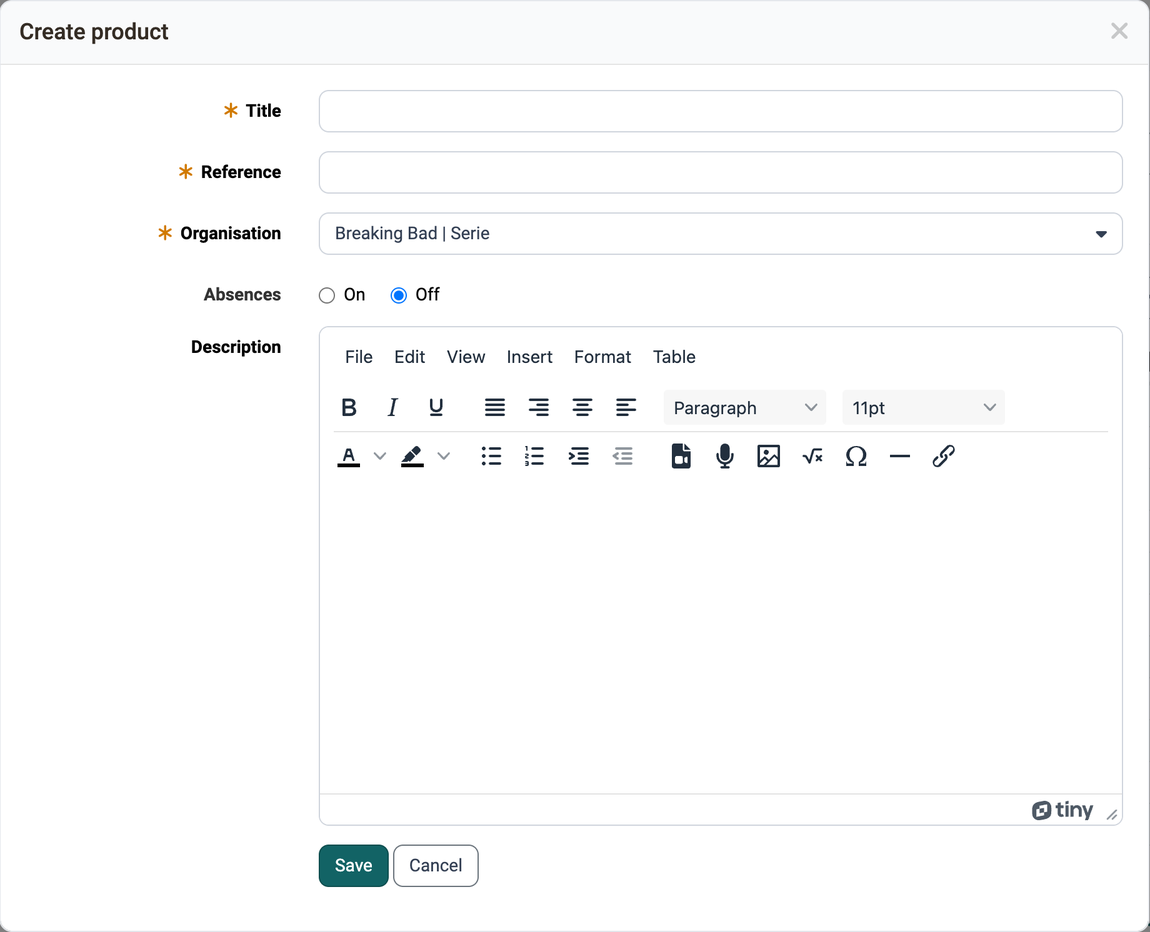
Title
The specification of a title is mandatory.
Reference
The reference is also a mandatory field. (It is used as an identifier to differentiate between elements with the same title).
Organisation
If the "Organisations" module is activated, the organisation is a mandatory field: it restricts the new product to use within a specific organisational unit. The organisation of the product also decides which courses the "Add course" dialog of an implementation offers: courses shared with this organisation or one of its sub-organisations (see Setting in the courses of the product).
Absences
With the selection "On" or "Off", you determine whether absence management should be used for this product. The prerequisite is that administrators have activated the module and made it available to the course authors, at:
Administration > Modules > Events / Absences
Description
In this editor for the description, you can insert videos in addition to text, images and links or record audio directly by clicking on the microphone button.
Filter and sort the product overview
The list of products is sorted by relevance: first products with ongoing implementations (Preparation, Provisional or Confirmed), then products with cancelled or finished implementations, and finally products without implementations. Within these groups, sorting is alphabetical. This keeps the currently relevant products at the top.
With "Save filter", frequently used filter combinations can be saved as your own preset and reused.
Course planners work with the "All" view, which shows the active products. Administrators additionally have the predefined filters "Active" (selected by default) and "Deleted" available.
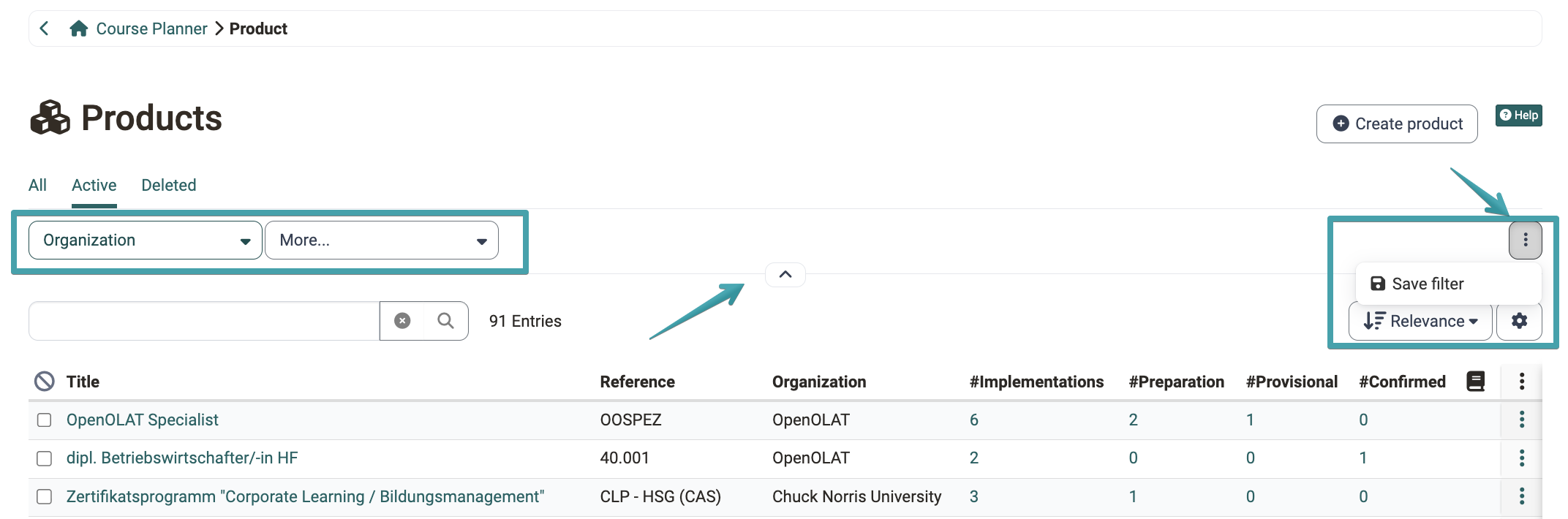
Overview tab of a product
When you open a product, the tab Overview shows three widgets, each limited to this product:
- Implementations: the implementations of this product, with key figures as a preselection. "Show all" opens the complete list.
- Events: the events of the current week from this product. The widget only appears if the module Events and absences is active system-wide.
- To-do: the open and overdue tasks of this product.
How an overview page is structured, which controls the tiles have in common and how you arrange the tiles is described centrally: Overview pages and widgets >
Import and export products
Products, implementations and memberships can also be imported or exported via an Excel file. The import wizard checks the data in several steps and shows exactly what will be newly created, changed or ignored before execution .
Import / Export
A detailed description can be found under Course Planner: Import / Export.
Settings in the courses of a product
A product normally comprises several courses. In the settings of each course, the Usage field defines how the course is used. Three usages are available for a course:
- Standalone: independent learning resource with member management
- Use in Course Planner: administered by the Course Planner, without standalone member management
- Template: template for course content, without standalone member management
The fourth usage Embedding (reusable learning resource, without standalone member management) is only available for learning resources other than courses.
If a course is managed via the Course Planner, the usage is "Use in Course Planner". The course then has no independent member administration. In this case, the member administration takes place in the member administration of Implementation. The "Add course" dialog of an implementation only offers courses with this usage.
In the selected course you will find the usage under:
Course > Administration > Settings > Tab "Share" > Section "Usage"
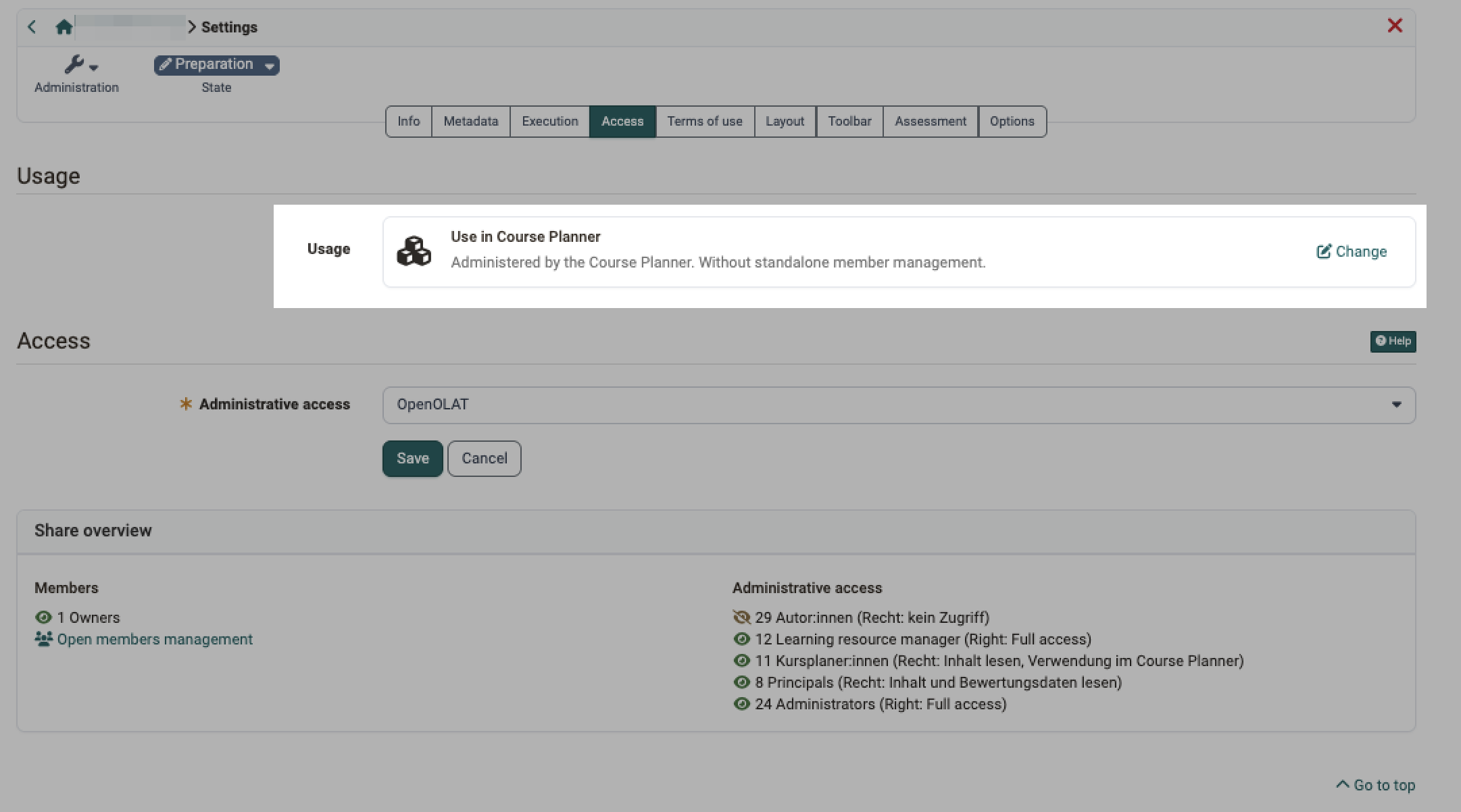
If a course already has coaches or participants, its usage can no longer be changed to "Use in Course Planner". The reasons that block the change and how you still reach your goal are described here:
If the usage cannot be changed >
Further information
Mentioned on this page
Catalog 2.0 - Offers >
Course Planner: Implementations >
Overview pages and widgets >
Course Planner: Import / Export >
How do I plan and run courses with the Course Planner? >
Further reading
How do I create my first OpenOlat course? >
Course Planner: Overview >
Course Planner: Events >
Course Planner: Certification programs >
Course Planner: Reports >
Course Planner: Dashboard >
Course Planner: To-dos >
Coaching - Educational products >
How do I plan and run a curriculum with the Course Planner? >
Module Course Planner (Administration) >