Coaching - Reports
In the Reports area of the Coaching Tool you create Excel reports about the persons you coach, for example about issued certificates. The report templates are grouped into categories (e.g. Certificates, Absences, Booking orders). Only the templates you are authorised to run are displayed.
Who can run certificate reports?
The report templates of the category "Certificates" are available to the following roles:
- Coaches of courses
- Coaches of educational products, incl. master coaches
- Line managers
- Education managers
The report contains the certificate data of the persons you are responsible for in this role.
You do not see the Reports button?
The Reports button is only displayed if you hold one of the roles mentioned above and the Coaching Tool is activated. The page Assign roles explains how roles are assigned.
How to create an Excel report
- Click
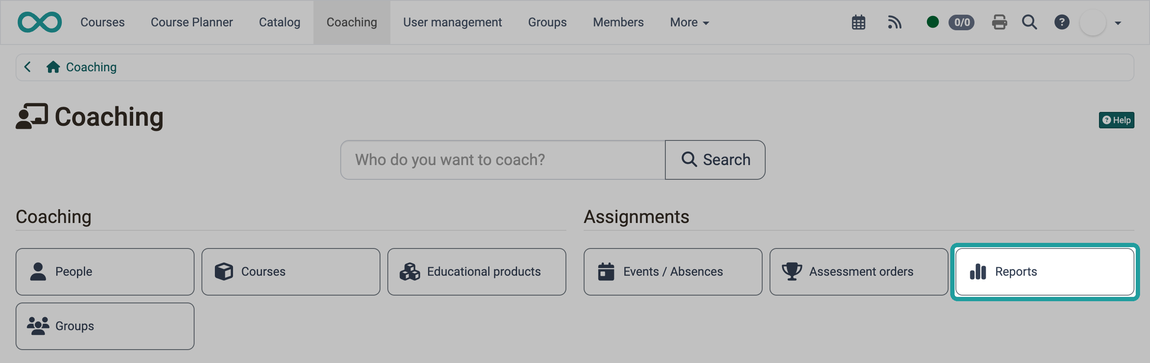
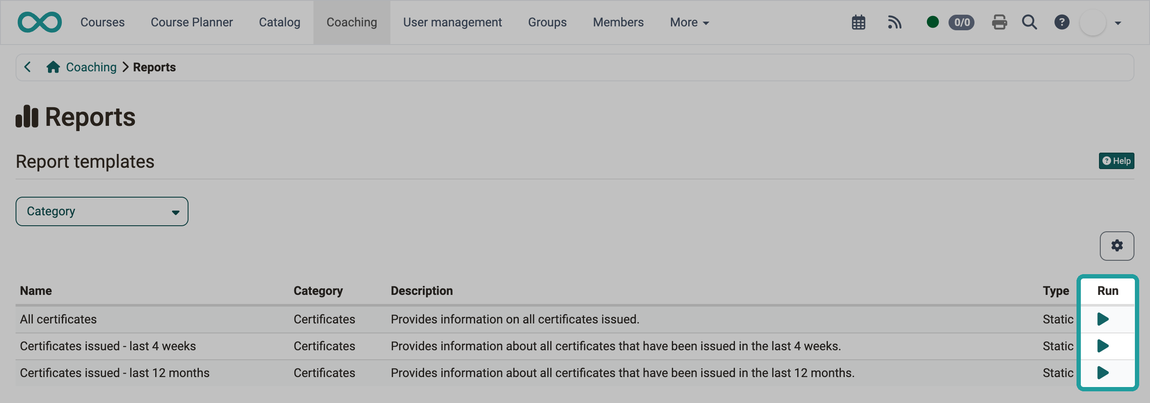
Coachingin the main menu and select theReportsbutton. - In the Report templates section, click the icon in the "Run" column of the desired template (Generate report).
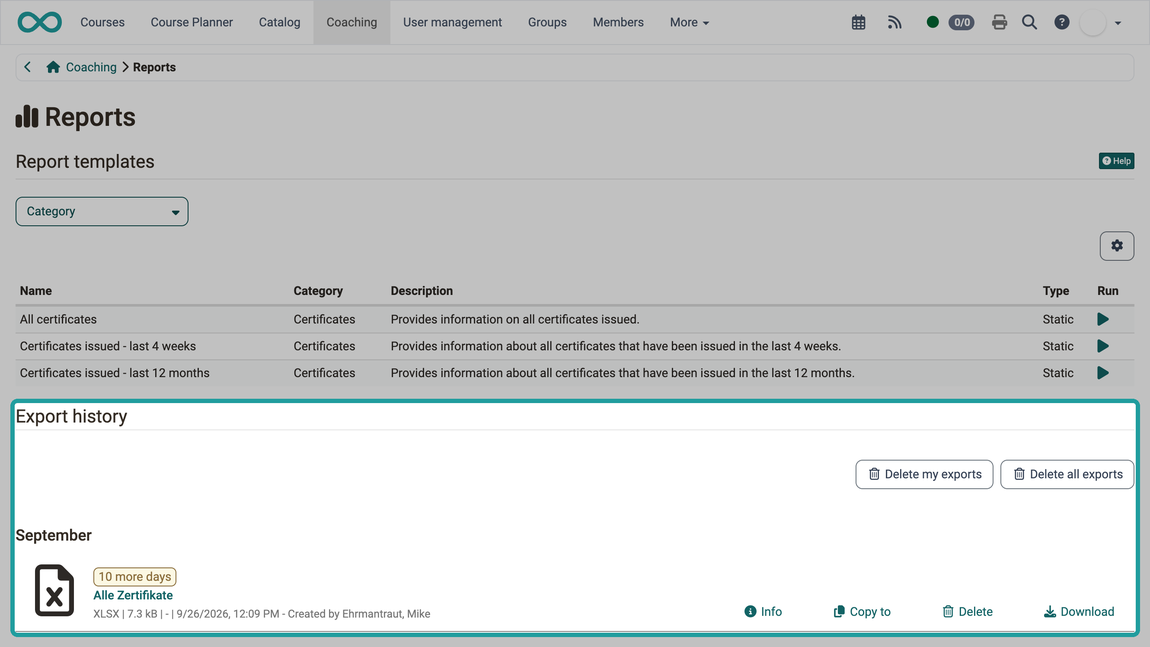
- The report is generated as an Excel file (.xlsx) and appears in the Export history section.
- Click Download next to the generated report.
Report templates
The Report templates table shows the name, category, description and type ("Static" or "Dynamic") of each template as well as the "Run" column. Use the "Category" filter to narrow down the list.
Templates of the category Certificates
| Name | Description |
|---|---|
| All certificates | Provides information on all certificates issued. |
| Certificates issued - last 4 weeks | Provides information about all certificates that have been issued in the last 4 weeks. |
| Certificates issued - last 12 months | Provides information about all certificates that have been issued in the last 12 months. |
The generated Excel file contains the worksheet "Individual courses" and, if the Course Planner module is active, an additional worksheet "Products". The page Reports: Certificates shows the structure of the worksheets.
Export history
The generated Excel files are listed in the Export history section. Each file is available for download for 10 days after creation; the remaining time is displayed. The adjacent actions allow you to download, copy or delete the file, or view detailed information. The Delete my exports and Delete all exports buttons remove all files of the list at once; the list only contains reports that you created yourself.
Further information
Mentioned on this page
Assign roles >
Reports: Certificates >
Further reading
Coaching: User search >
Coaching: People >
Coaching: Courses >
Coaching: Educational products >
Coaching: Events / Absences >
Coaching: Assessment orders >
Coaching: Groups >
Coaching: Order management >
Assessment tool >