Roles and their working areas
The main navigation of OpenOlat is composed according to role. Every task has its own working area: learners work under "Courses", coaches in "Coaching", authors in the "Authoring area". Which menu items a person sees depends on their roles and on the modules activated in the respective OpenOlat instance.
Clear separation of learning and coaching
OpenOlat consistently separates the two perspectives on a course by role:
- Under Courses ("My courses") you find the learning resources in which you yourself are entered as a participant.
- Learning resources you accompany as a coach or owner are found in the Coaching area.
If you are assigned both roles in a course, the course appears in both areas. You then open it where your current task lies: under "Courses" for learning, in "Coaching" for coaching. What coaches may do within the course itself is described in the section The role Coach.
Two people can therefore see different menus after logging in. If a menu item is missing, this is not an error: either the corresponding module is not activated or the required role has not been assigned.
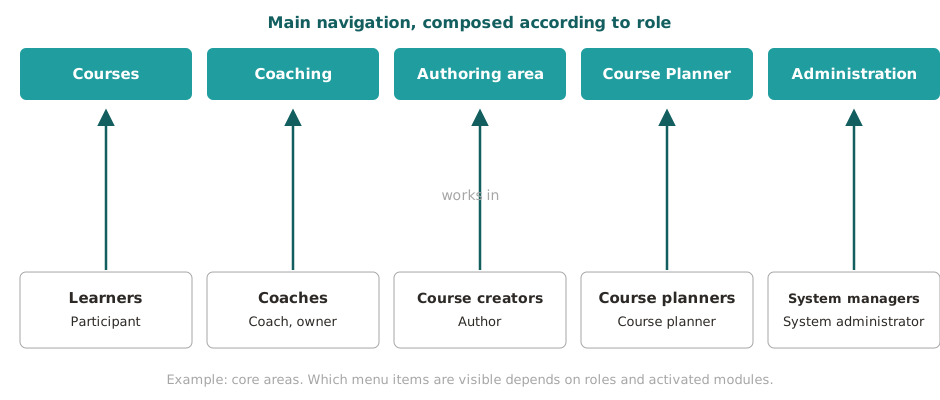
The core areas
| Who | Working area | Typical tasks |
|---|---|---|
| Learners course role participant |
Courses | open and complete courses, manage favourites, track their own learning progress |
| Coaches course role coach or owner, group coach, education manager |
Coaching | accompany, assess and manage supervised people, courses and groups across courses |
| Course creators organisation role author |
Authoring area | create, import and maintain courses and other learning resources |
| Course planners organisation role course planner |
Course Planner | plan and manage products, implementations and dates of the educational offering |
| System managers role system administrator |
Administration | configure and monitor the OpenOlat instance technically |
The working areas complement each other without overlapping. This keeps each area focused on its task: those who complete a course are not distracted by administrative functions; those who coach or plan find all the necessary tools in one place.
Multiple roles, multiple working areas
Roles can be combined. A teacher, for example, can create courses as an author in the authoring area, accompany their own participants in Coaching, and complete a course themselves as a learner under "My courses". In this case the main navigation displays all the corresponding menu items side by side.
After login, OpenOlat opens the landing page your organisation has set for the first matching role (Landing pages by role). A personal landing page in the settings takes precedence over the landing page of your organisation.
Within a course there is additionally the role switch: if a person has been assigned several course roles, they can change perspective via the "Role" menu in the course toolbar.
(See Roles in a course)
Further role-specific areas
Besides the core areas, there are further menu items and areas that only become visible with the corresponding role:
| Role | Working area |
|---|---|
| User manager | User management, menu item in the top navigation |
| Roles manager | User management, with the right to assign roles |
| Group manager | "Groups" menu item, additional tab Group management |
| Question bank manager | Question bank, including the Administration area |
| Quality manager | Quality management menu item |
| Absence manager | Absence management menu item |
| Project manager | "Projects" menu item, additional tab Administration |
| Learning resource manager | Authoring area, with owner rights for the courses and learning resources of their own organisation |
| Administrator | Module and function administration: access to many areas such as user management, catalog management and Course Planner, but not to the administration page |
| Principal | Read access to many areas of the system |
You find the complete description of all roles and the associated rights under Which roles are there? An overview of all menu items of the main navigation is provided on the page Sites and modules.
Further information
Mentioned on this page
Roles and Rights: Which roles are available? >
Finding courses >
Coaching - Overview >
Authoring - Overview >
Course Planner: Overview >
System >
Landing pages >
Personal Configuration: Settings >
User management >
Group Management >
Question Bank: Overview >
Quality Management: Overview >
Absence management >
Projects - Administration >
Sites and modules >
Further reading
Roles and Rights: Overview >
Navigation >