Catalog 2.0 - Sorting/order
In Catalog 2.0, offers can be compiled manually or dynamically. If course owners have specified during configuration that they want their course to appear in the catalog, entries are dynamically added to the catalog.
This raises the question of where in the catalog the offers are displayed.
Sorting/order on the catalog start page
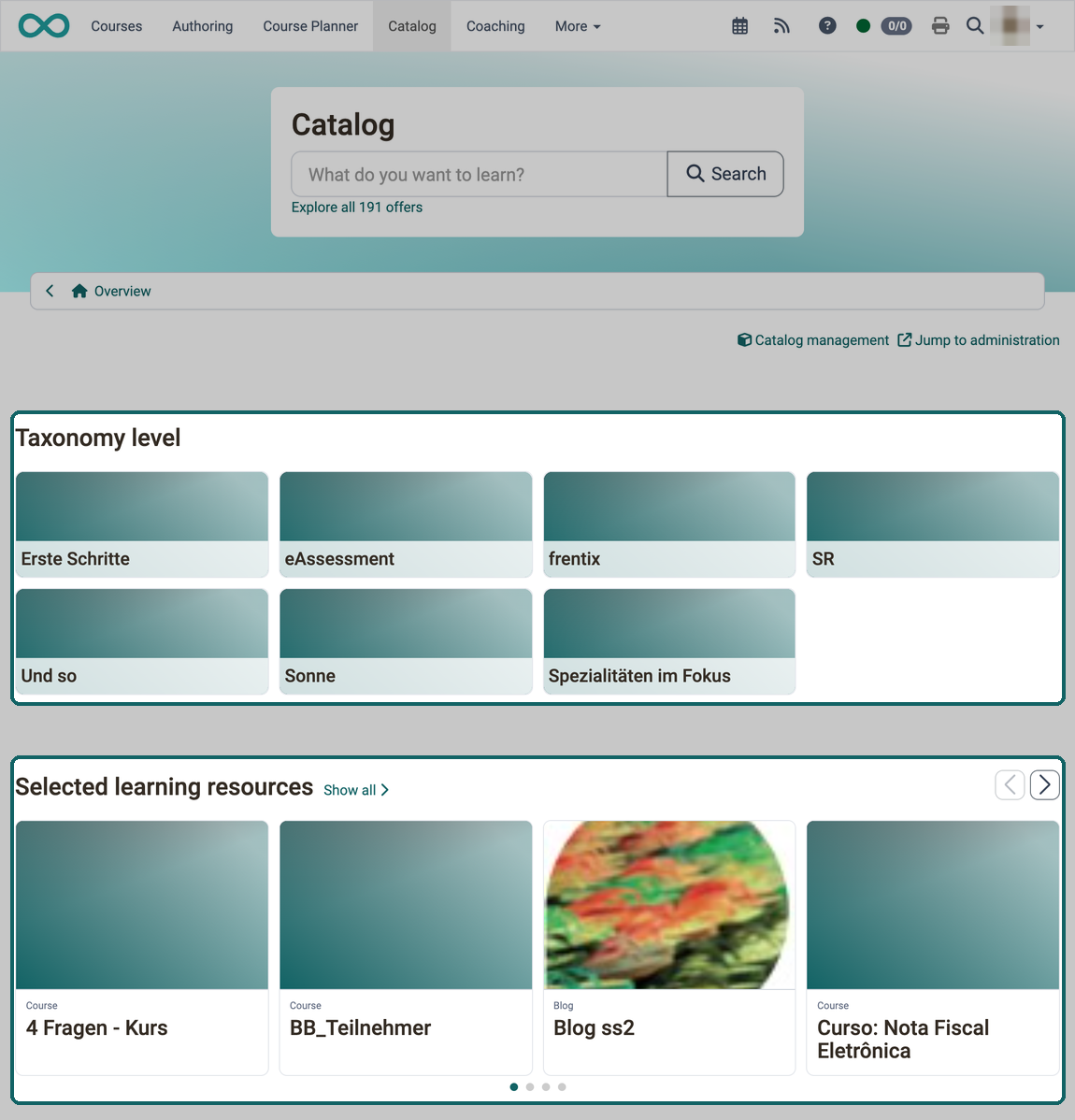
On the start page of the catalog, the order of the objects is determined by the launchers. The sections are referred to as launchers.
How do I display my courses in the catalog?
Instructions on how to display courses in the catalog.
How do I display my courses in the catalog? >
Set the order of launchers
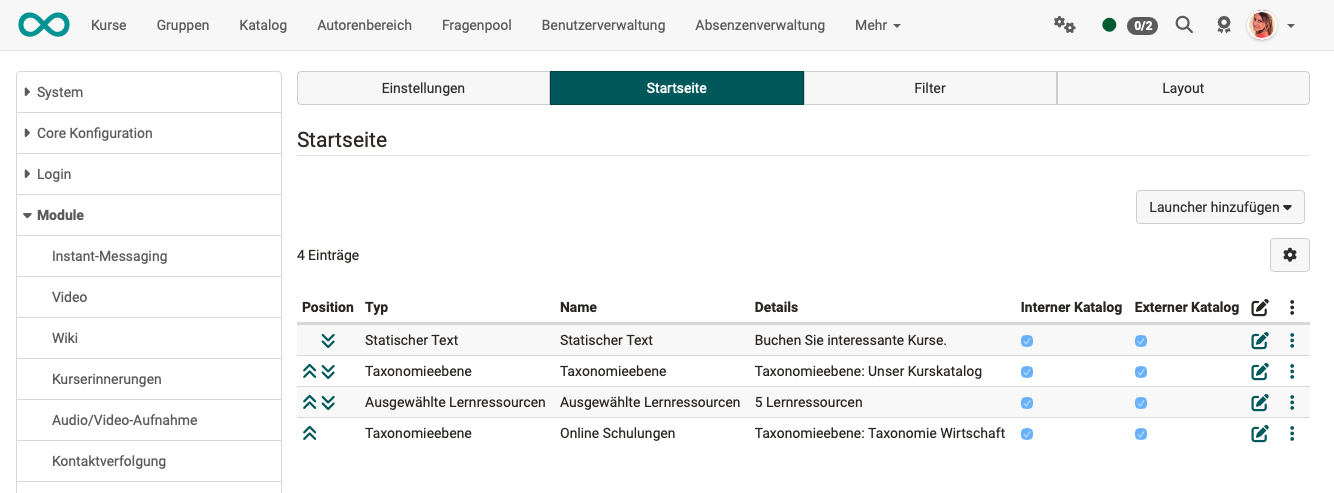
The order of the launchers (sections on the start page) is defined in the system administration under:
Administration > Modules > Catalog > Tab "Launch page"
The order can be set by clicking on the double arrows at the beginning of the lines.
Sorting within the launcher
Within a launcher, the order of the offers depends on the launcher type:
Launcher type
Configuration of launcher types in the administration.
Launcher type >
Launcher type "Static text":
OpenOlat does not sort the contents automatically.
Launcher type "Popular courses":
The order of the offers is determined by the number of clicks on course components during the last 28 days. Only courses with the status "Published" are taken into account.
Launcher type "Last published":
The order of offers is determined by publishing date.
Launcher type "Random":
The offers appear in random order.
Launcher type "Taxonomy level":
A launcher of the type "Taxonomy level" does not show courses and learning resources directly. The taxonomy levels shown correspond to folders in which the courses and learning resources are found.
The offers are automatically selected based on the taxonomy and then listed alphabetically on a microsite that opens when you click on one of the taxonomy levels in a taxonomy launcher.
Launcher type "Selected learning resources":
The manually added learning resources can be sorted by clicking on the double arrows in front of the entries.
Launcher type "Selected implementations":
The manually added implementations can be sorted by clicking on the double arrows in front of the entries.
Set the order of subpages/categories
If a launcher is to display subcategories, a launcher of the "taxonomy level" type is used.
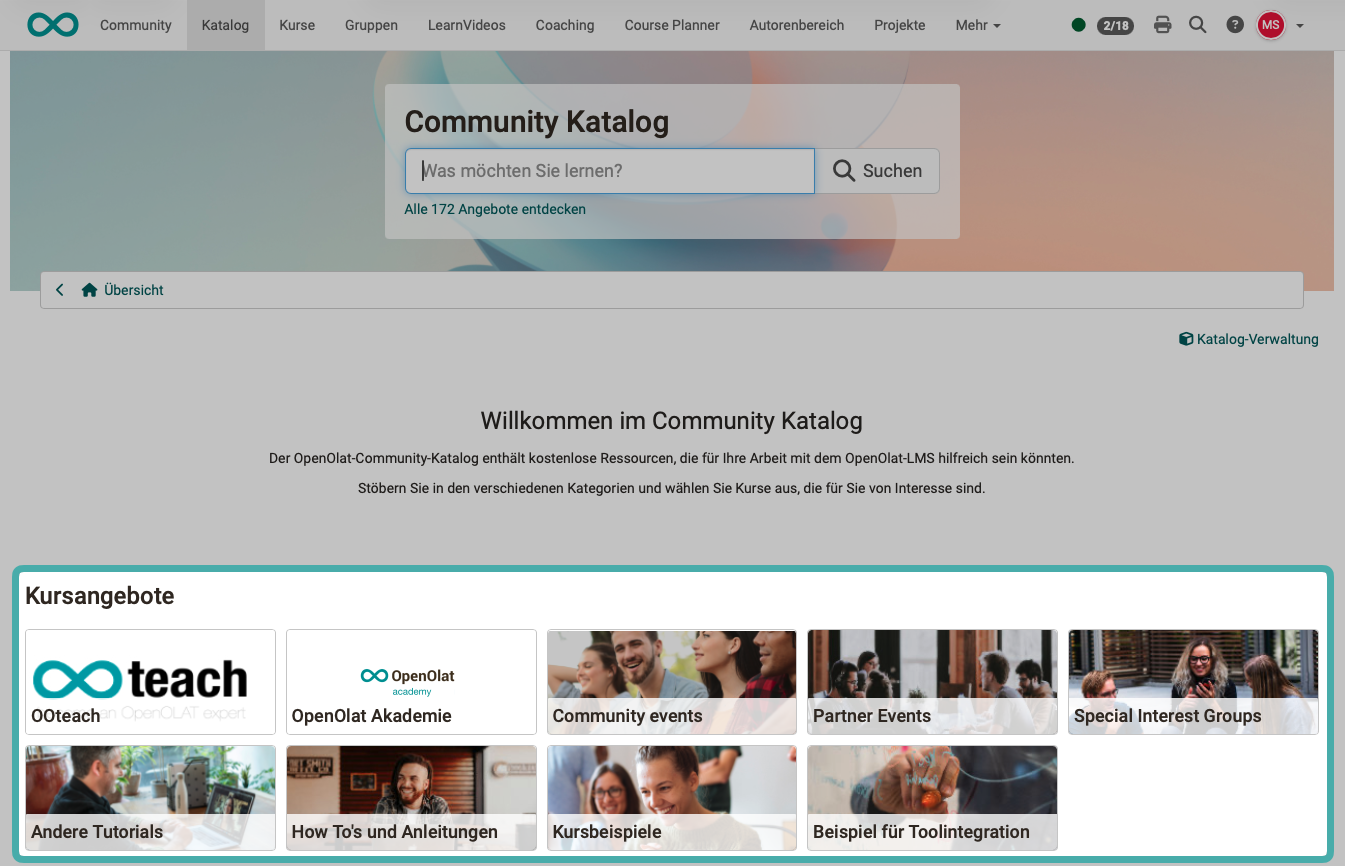
The order of entries within the taxonomy launcher (order of subpages/categories in the catalog) is determined by the structure of the taxonomy and must therefore be changed via taxonomy.
Administration > Modules > Taxonomy > Activation of a taxonomy for learning resources/catalog
Example: Taxonomy structure for the taxonomy launcher displayed above:
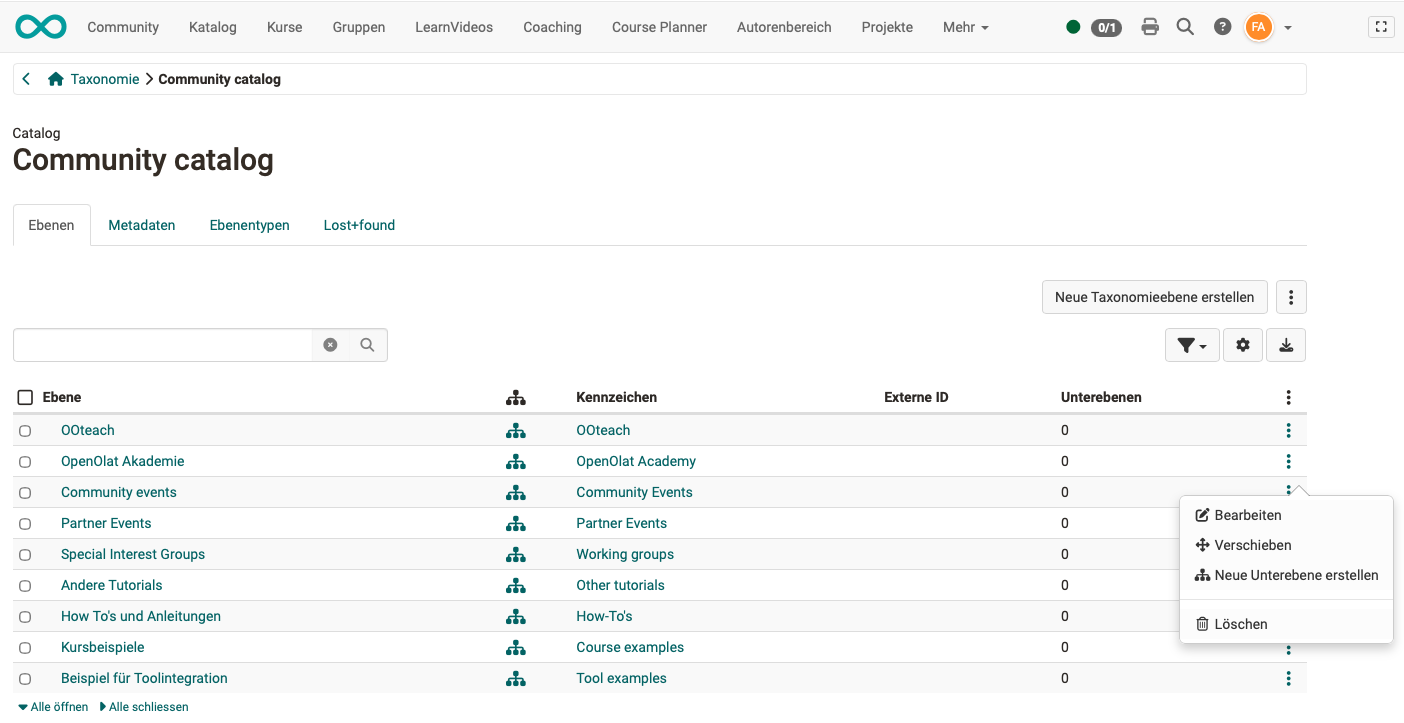
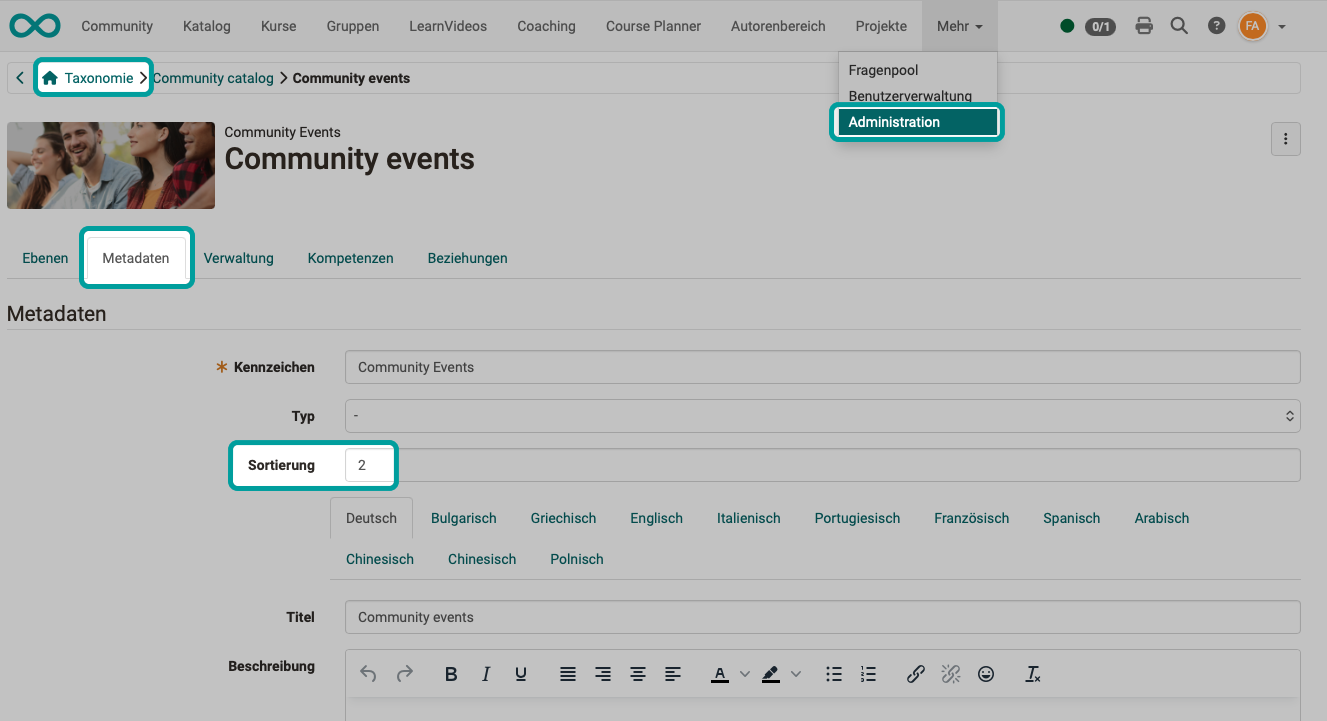
- Select the option to edit a taxonomy level from the 3 dots.
- In the "Metadata" tab, you will find the field for specifying the sorting order.
- The number specified here for the taxonomy also determines the position within the launcher. (In the example shown above: 0 = 1. Subpage/Category, 1 = 2. Subpage/Category, 2 = 3. Subpage/Category => third in the catalog)
Important
A change in the taxonomy structure not only affects the catalog, but also everywhere else where this taxonomy is used for selection.
Sorting/order within categories (microsites) of the catalog
Choosing the sort order
The sort button sits at the top right above the list of a category. It always carries the active criterion as its label, and the arrow symbol shows the direction. A click opens the list "Sorted by".
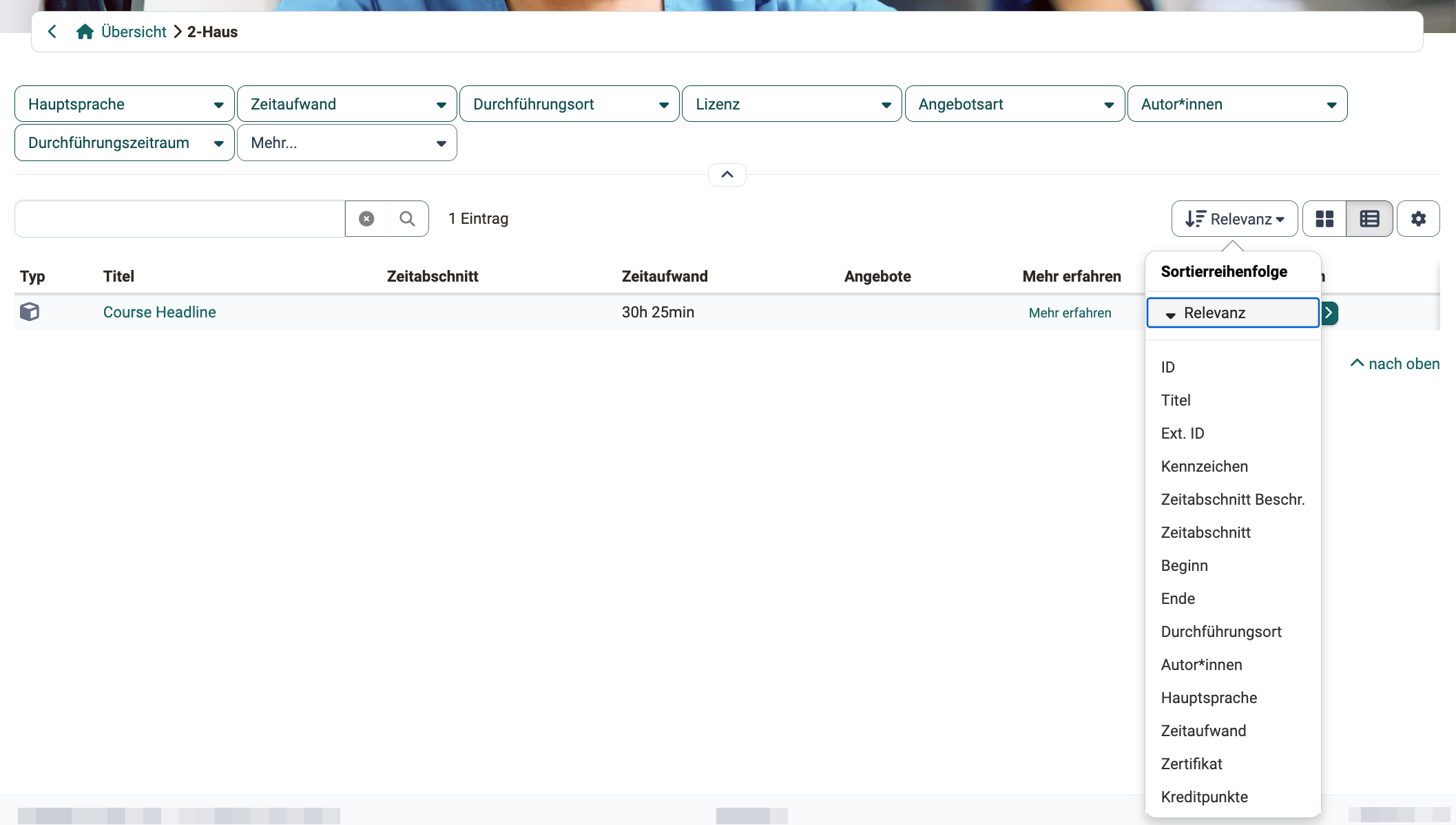
"Relevance" is available as well as all sortable columns of the list, among them "Time period" and "Time period desc.".
Important
The sort button only appears when "Sorting by priority" is activated. Without this setting the list is sorted by title in ascending order and can only be re-sorted through the column titles. The section Sorting by priority describes the activation.
Module Time periods
The columns "Time period" and "Time period desc." appear in the list as soon as administrators have switched on the "Time periods" module. The columns "Begin" and "End" are available regardless of it.
Module Time periods >
Sorting through the column titles
As with all lists in OpenOlat, the offerings in the catalog can also be sorted by clicking on a column title.
Note
The "Time period" column sorts chronologically by the time frame and not alphabetically by the short label: first by the begin date, then by the end date, and finally by the title. Entries without a time period always appear at the end of the list.
The "Time period desc." criterion sorts alphabetically by the description. Entries without a description appear at the end of the list.
Sorting by priority
An administrator activates "Sorting by priority" in the system administration under:
Administration > Modules > Catalog > "Settings" tab > "Sorting by priority" toggle button
The sort button then appears at the top right above a list. Its default criterion is "Relevance".
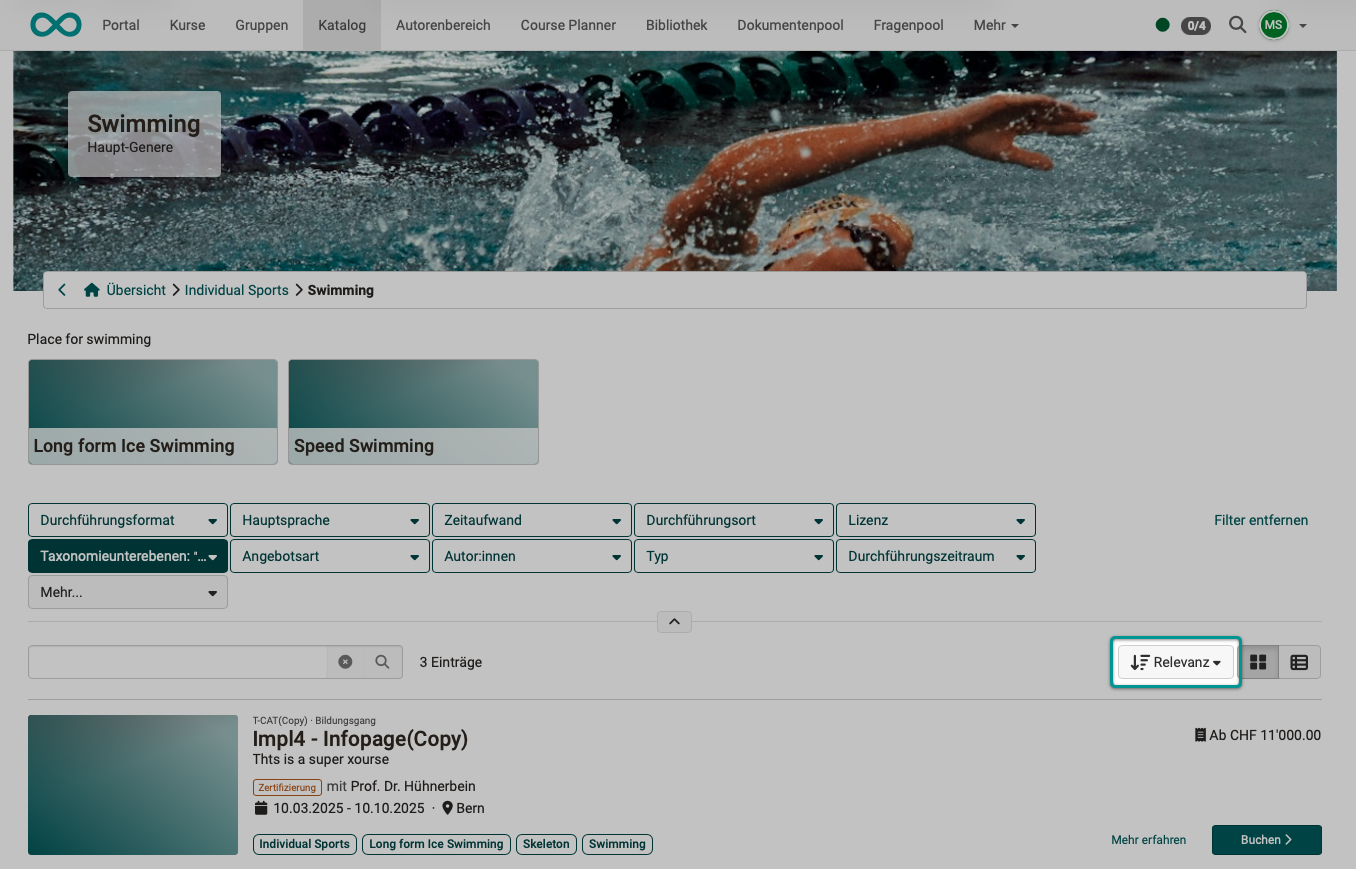
When "Sorting by relevance" is selected, a multi-stage sorting takes place:
1. Criterion: Sorting by priority
2. Criterion: Sorting by start date
3. Criterion: Sorting by end date
4. Criterion: Sorting by title (alphabetically)
If no date is specified, entries without a date are displayed after those with a date.
Where can I set priorities?
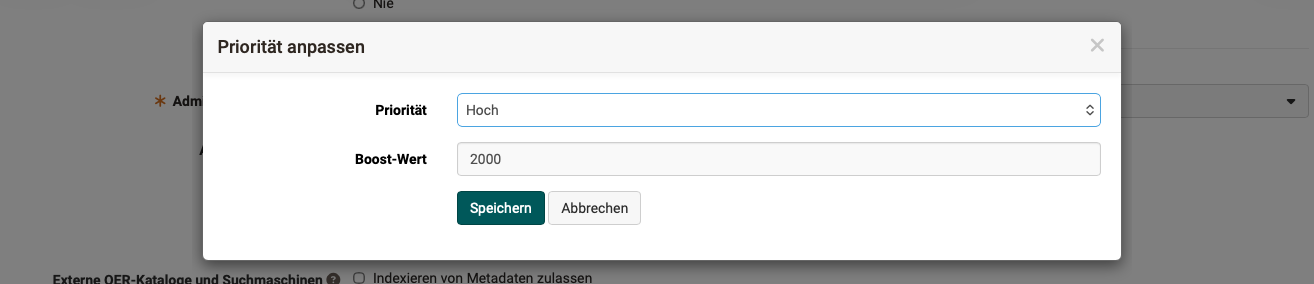
You set the priority with the offer, in the "Settings" section below the overview of the offers. The row "Catalog priority when sorting" shows the current value, the "Edit" button next to it opens the "Change priority" dialog.
In a course:
Course > Administration > Settings > Tab "Share" > Section "Settings" > Row "Catalog priority when sorting" > Button "Edit"
In the Course Planner:
Course Planner > Implementations > "your implementation" > Tab Catalog > Offers > Section "Settings" > Row "Catalog priority when sorting" > Button "Edit"
For an implementation, the section also contains the "Booking" setting, which is described in the manual page on implementations.
Example Course Planner:

What priorities can be set?
As a priority, you can select a preset boost value or enter your own boost value. The higher the boost value, the further up an offer will appear in the catalog. With your own boost values, you fine-tune the display order.
- Normal (boost value 0)
- Medium (boost value 1000)
- High (boost value 2000)
- Very high (boost value 3000)
- Ultimate (boost value 4000)
- Custom (your own boost value)
Important
Sorting by priority does not affect the sorting on the start page. There, the order of the offers is determined by the respective launcher types and the manual arrangement in the administration.
Further information
How do I present my courses in the OpenOlat catalog? >
Module Catalog >
Module Time periods >
Course Planner: Implementations >
Catalog 2.0 - Offers >
Catalog 2.0 - Design >
Externally available catalog >