Automatic Group Life Cycle
The group life cycle makes it easy to automatically inactivate and then delete unused groups after a certain period of time. A group passes through five steps: creation, "Active" status, inactivation, deletion, and permanent deletion. The process is similar to the automatic user lifecycle and the course life cycle.

Check group status
Authorized persons (group managers, administrators) receive the additional tab "Group management" when they click on "Groups" in the main navigation.
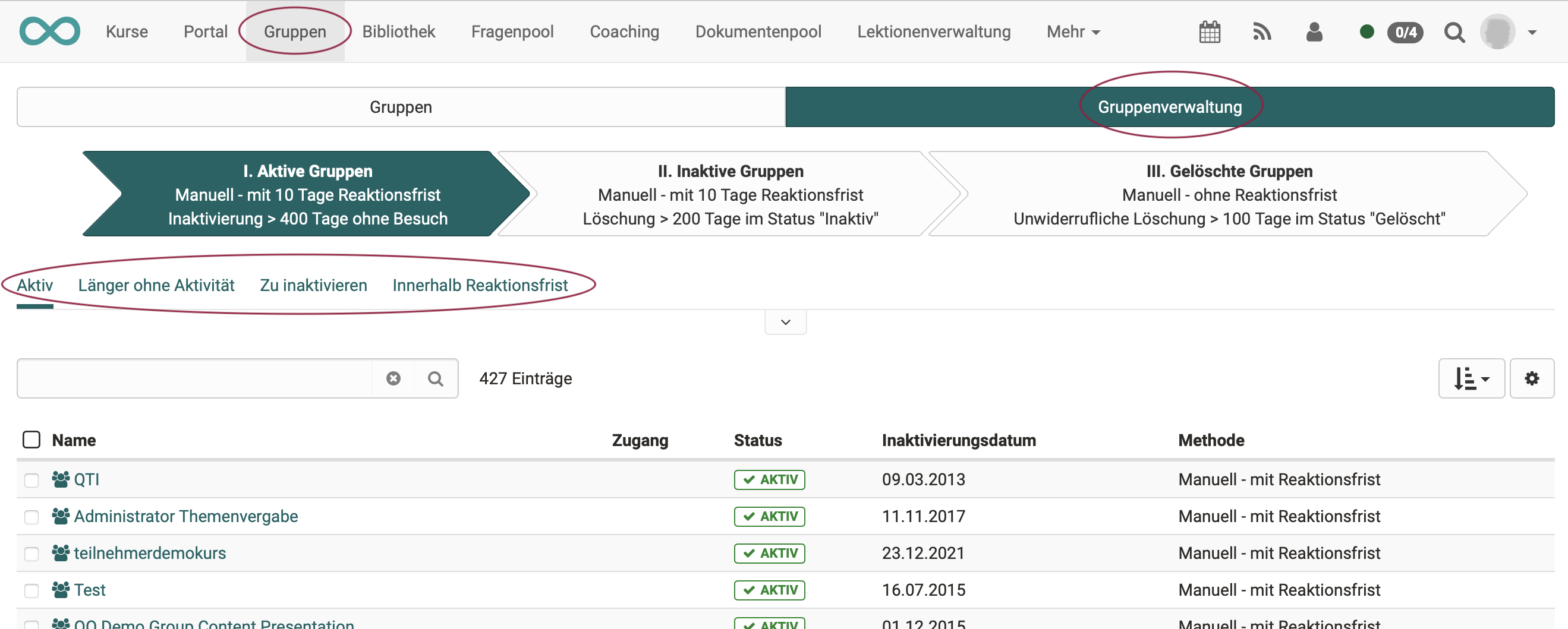
By clicking on one of the 3 arrows, all existing groups are listed sorted into 3 categories:
- I. Active groups
- II. Inactive groups
- III. Deleted groups
Below the arrows, filters narrow the list down further, for active groups for example "Longer without activity", "To inactivate" or "Within reaction time".
The additional information in the 3 arrows describes the configuration set up by the administrators for this step.
Configuration
Administrators can configure the progress of the group life cycle in the system administration under:
Administration > Life cycles > Groups
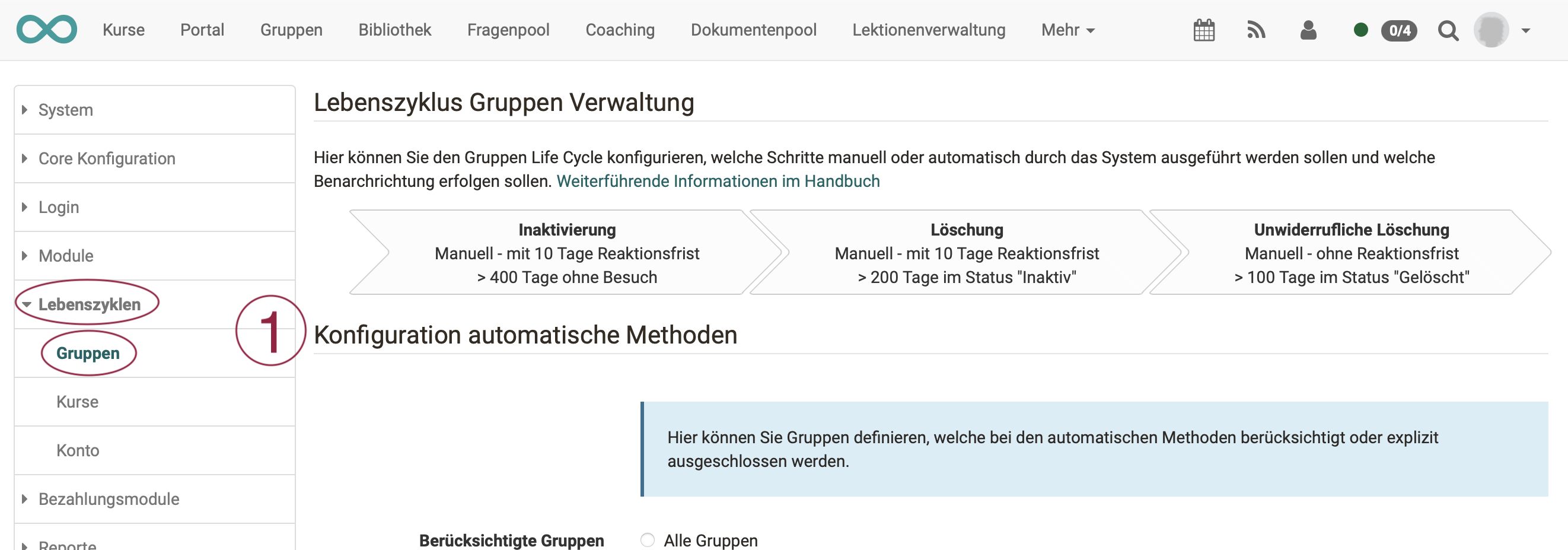
The result of the settings made is summarized both in the 3 arrows in the upper part of the configuration screen (for administrators) and in the arrows in the "Group management" tab, which group managers and administrators see under the main navigation in "Groups".
Example: View for group managers

-
active: The group is used and someone has visited it within the set period. (Default value: 400 days without a visit).
-
inactive: The group is inactive. An email is sent (if configured). If no further changes are made to this group, it will be deleted.
-
deleted: In the "deleted" status, the group can be restored. However, not all data can be restored. This group is permanently deleted after 2 days.
The configuration comprises four sections.
Configuration automatic methods
Here you can define groups that are included or explicitly excluded from the automatic methods.
Options:
- "Considered groups": "All groups" or "Only groups without linked courses"
- "Explicitly excluded groups": "Externally managed groups"
Inactivation
Upon inactivation, the status of the group is set from "Active" to "Inactive" and members can only access the group in read-only mode. Inactive groups can be fully reactivated.
Options:
- "Inactivation after": Number of days that a group remains in the "Active" status without a visit until it is inactivated
- "Reaction period after reactivation": Number of days after a reactivation during which the group life cycle does not inactivate the group again (default value: 30 days)
- "Method": Automatic or manual inactivation, each with or without reaction time
- "Reaction time": Number of days between the notification about the upcoming inactivation and the inactivation
- Notifications about upcoming inactivation
- Notifications about completed inactivation
Deletion
When deleting, all members of the group and the links to courses are removed. All remaining data is retained and can be viewed. The group can be restored.
Options:
- "Deletion after": Number of days a group remains in "Inactive" status until it is deleted
- "Method": Automatic or manual deletion, each with or without reaction time
- "Reaction time": Number of days between the notification about the upcoming deletion and the deletion
- Notifications about upcoming deletion
- Notifications about completed deletion
Permanent deletion
Permanent deletion removes the group completely.
Options:
- "Permanent deletion after": Number of days a group remains in "Deleted" status until it is permanently deleted
- "Method": Automatic or manual deletion
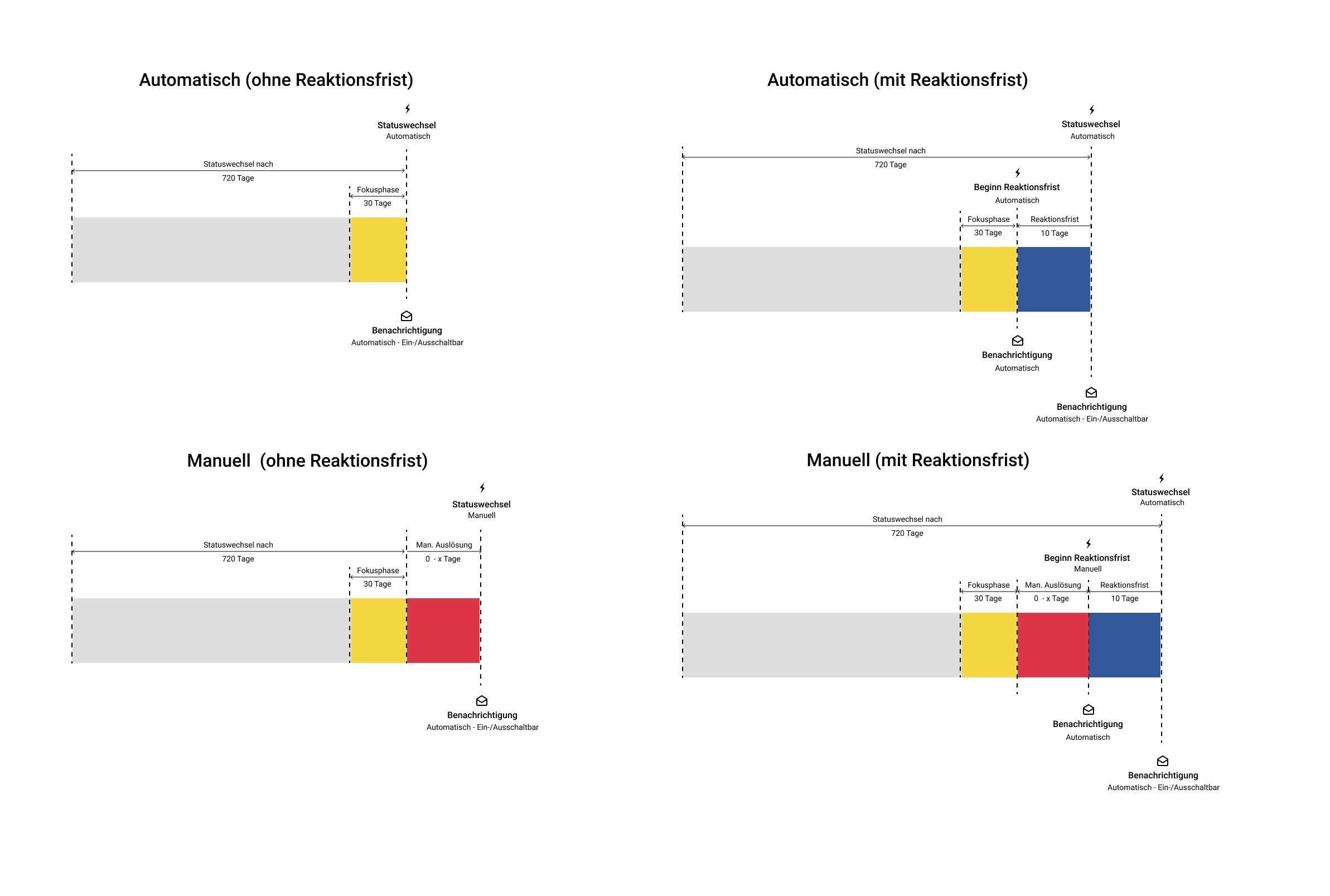
Examples of the chronological sequence of a status change
The four examples show the status change automatically or manually, each without and with a reaction time. With a reaction time, a notification is sent at the start of the period; in all cases one is sent at the status change, if configured.
Exclusion of a group from the group life cycle
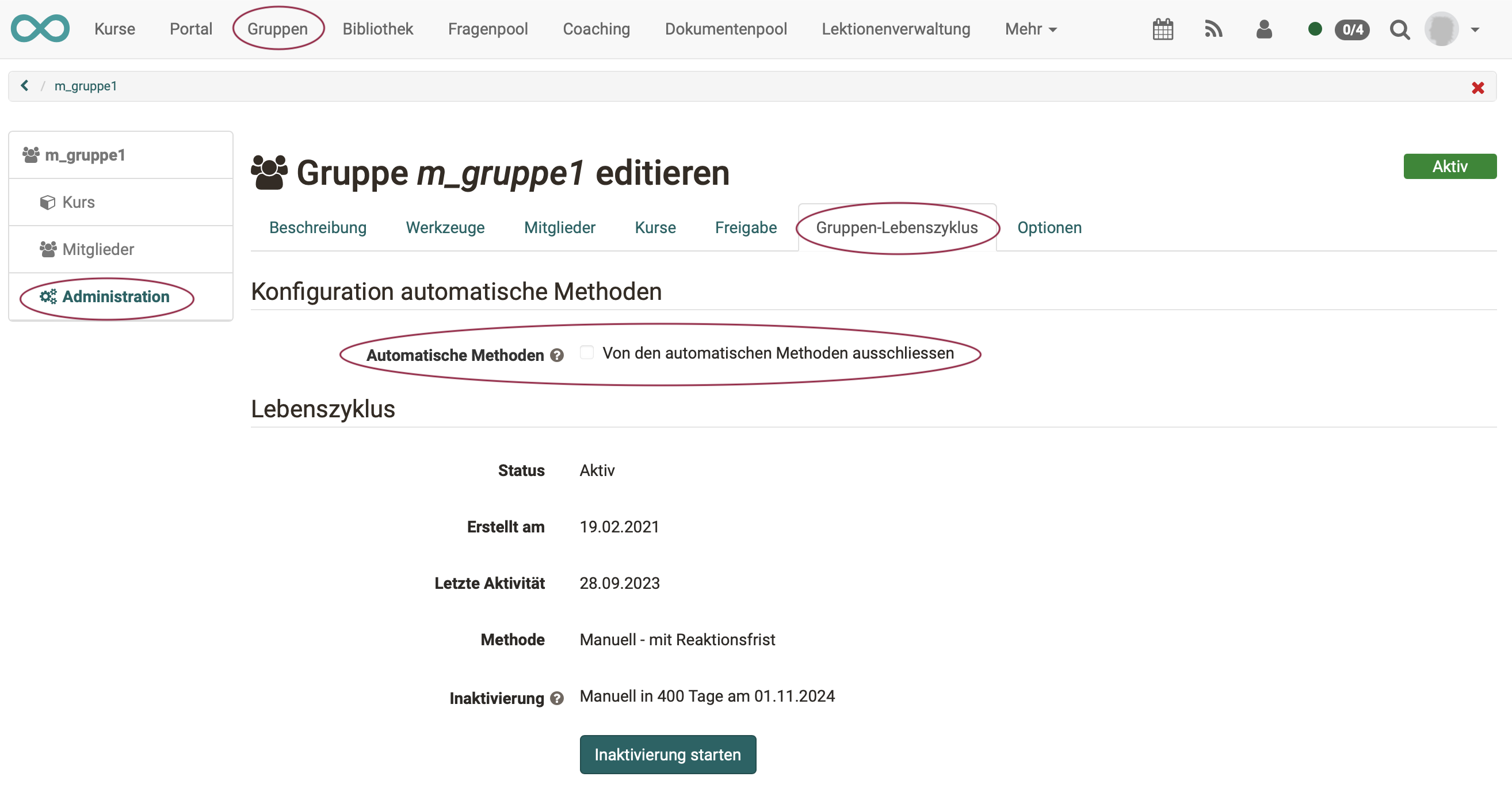
Group coaches have the option of explicitly excluding their group from the automatic methods. This means that all actions in the group life cycle must be triggered manually. You will find the option under:
Group > Administration > Group Life Cycle
Important
If the option is already activated and read-only, the group belongs to a specific group type (externally managed or with included courses), which has already been globally excluded in the system administration under Administration > Life cycles > Groups.
Who receives the notifications?
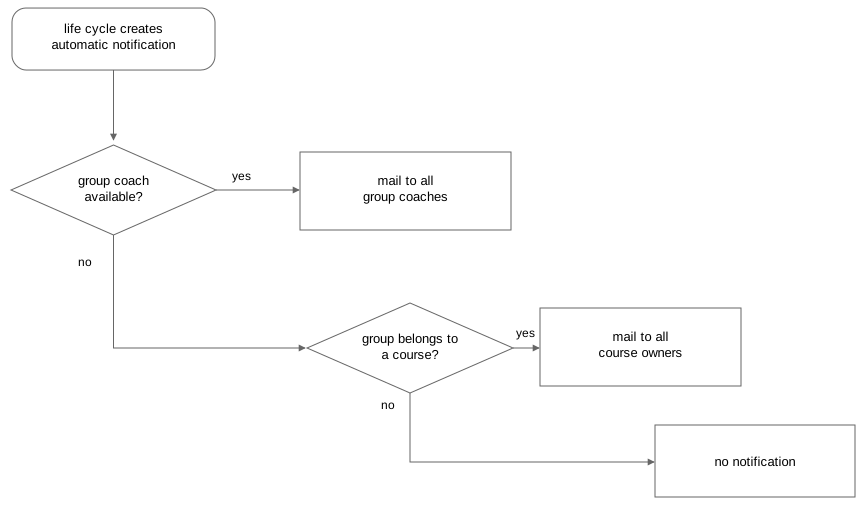
As soon as an automatic notification is triggered by the set conditions, OpenOlat checks in this order to whom the notification is sent as an email:
- If the group has group coaches, all group coaches receive the email.
- If the group has no group coaches but is included in courses, all owners of these courses receive the email.
- If neither applies, nobody is notified.
Further information
Mentioned on this page
Life cycles: Overview >
Automatic Course Life Cycle >
Further reading
How do I manage lifecycles of groups, courses or user accounts? >
Group management >