SharePoint / OneDrive
frentix customers
For frentix customers, their customer advisor at frentix takes care of the activation.
SharePoint
Only a single Microsoft Azure app is set up for the integration of SSO via Microsoft Entra ID, Microsoft Teams Online Meetings and Microsoft SharePoint integration.
Requirements
SSO via Microsoft Entra ID (formerly Microsoft Azure AD Authentication) is a prerequisite for using the Microsoft SharePoint integration in OpenOlat. For this, only the corresponding authorization is added in the login app.
Tip
As part of this configuration, Office for the web can also be activated. However, this setting does not need to be configured in the Microsoft Azure App, but only in the system administration under Administration > External tools > Document editors, tab "Office for the web".
Configuration sequence
- Creation of Microsoft Azure app registration
- Addition of authorizations in app registration for SSO via Microsoft Entra ID and for Microsoft SharePoint integration; with the module Microsoft Teams switched on, also the permissions for Teams, see Microsoft Teams module: Function "Meeting recording"
- Generation of key / secret for OpenOlat
- Activation of SSO via Microsoft Azure AD Authentication (Microsoft Entra ID) in OpenOlat
- As required: Activation of Microsoft SharePoint integration in OpenOlat
Activation in the OpenOlat administration
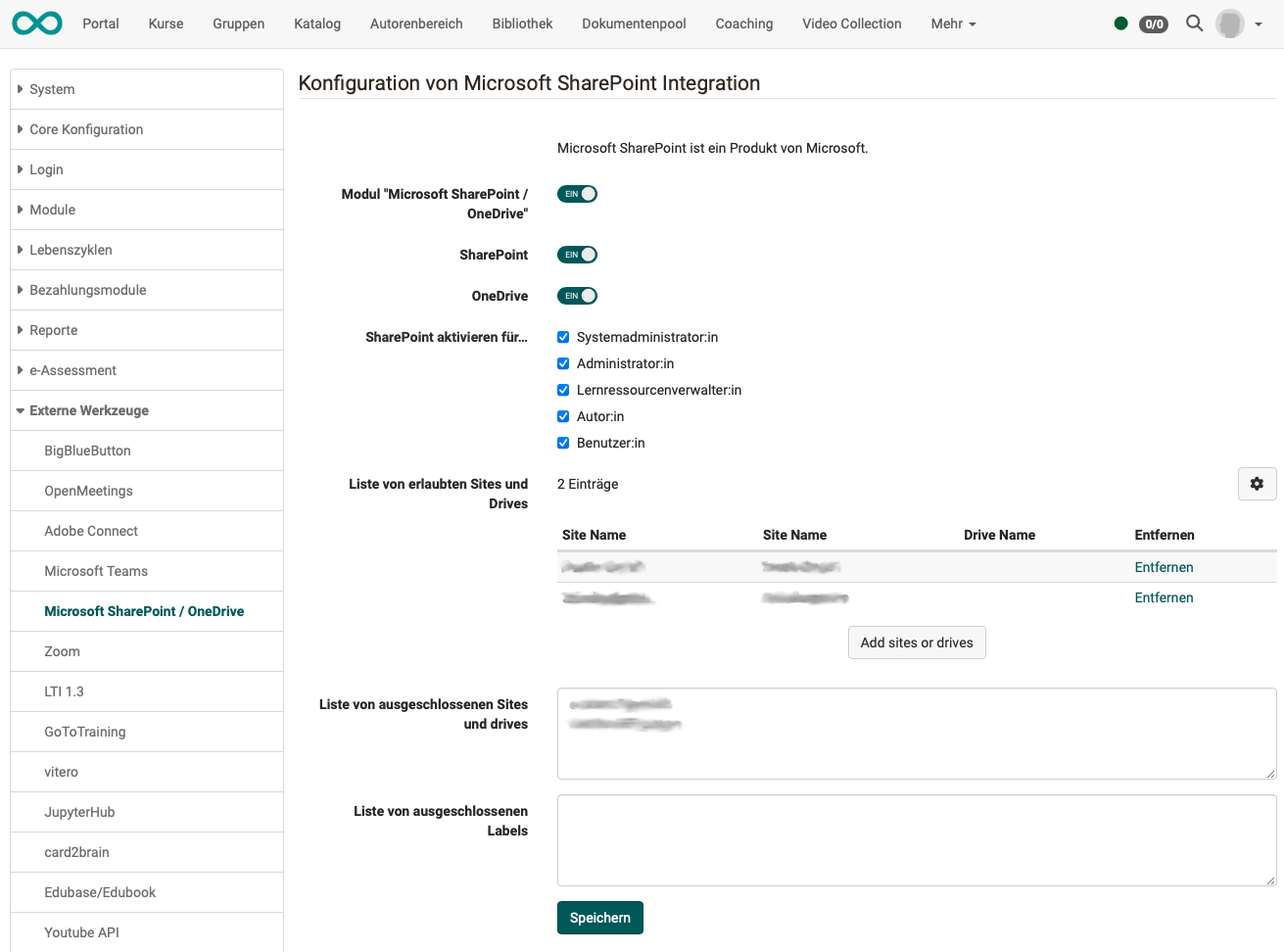
You find the configuration in the system administration under:
Administration > External tools > Microsoft SharePoint / OneDrive
Please note:
SharePoint and OneDrive can be integrated individually and independently of each other.
OneDrive
The integration of OneDrive is very similar to SharePoint and can be carried out in the same way as described above.
Further information
Mentioned on this page
Microsoft Teams module >