Module Learning resource
The Learning resource module includes settings that affect courses and learning resources stored in the authoring area.
Settings tab
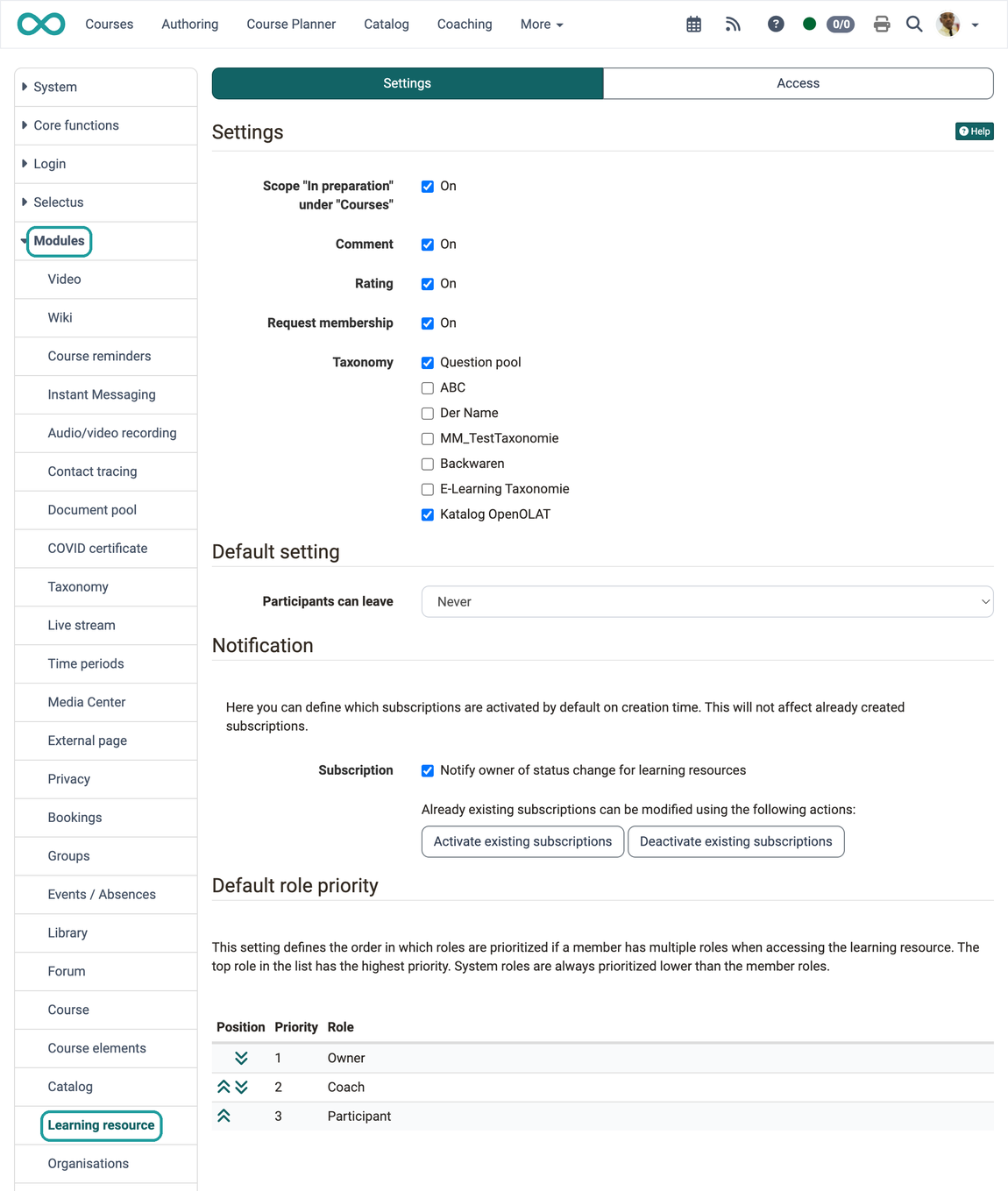
The "Settings" tab contains the sections Settings, Default setting, Notification and Default role priority.
Settings section
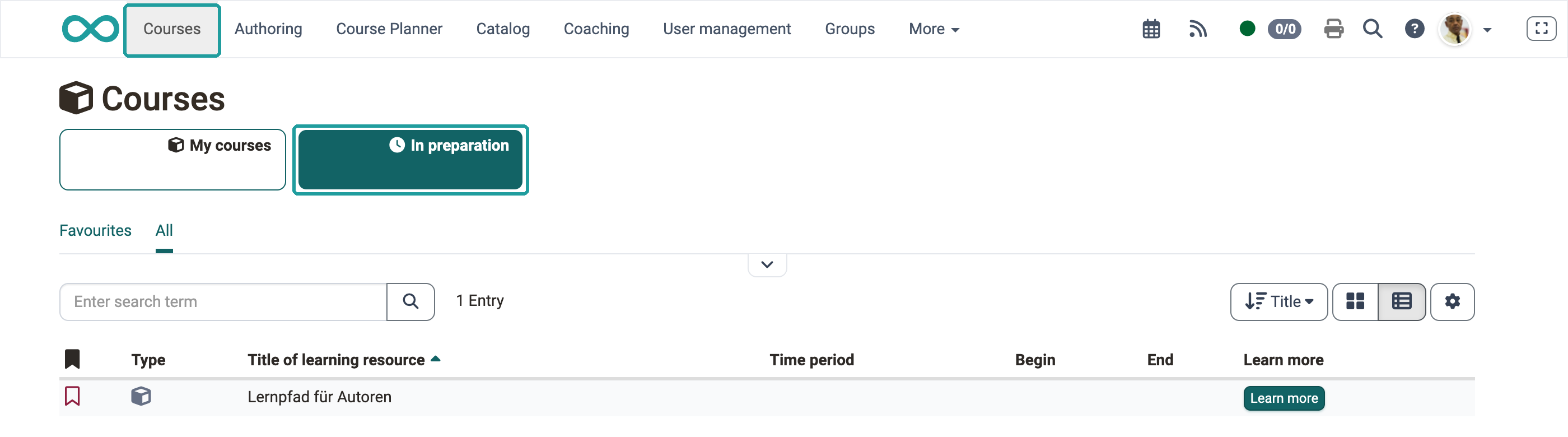
Activating the first checkbox makes the pre-selection "In Preparation" visible for participants in the "Courses" menu. This has the following effect.
Scope "In preparation" under "Courses"
Participant view when activated
Course search
The course search is configured per course, not in this module. Course owners activate it under Course > Administration > Settings > Tab "Toolbar". The "Course search" button then appears in the toolbar of the course.
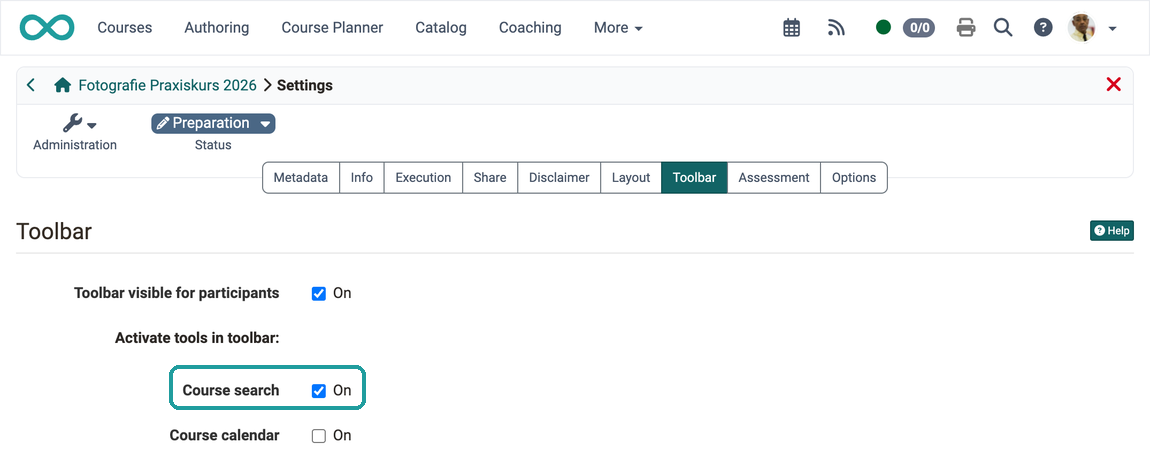
How course owners activate the course search and the other toolbar tools is described on the page Using Additional Course Features.
Comment
The course info page can be called up in the header of a course. The comment is "hidden" within it.

An input field for submitting a comment can then be displayed on the info page.
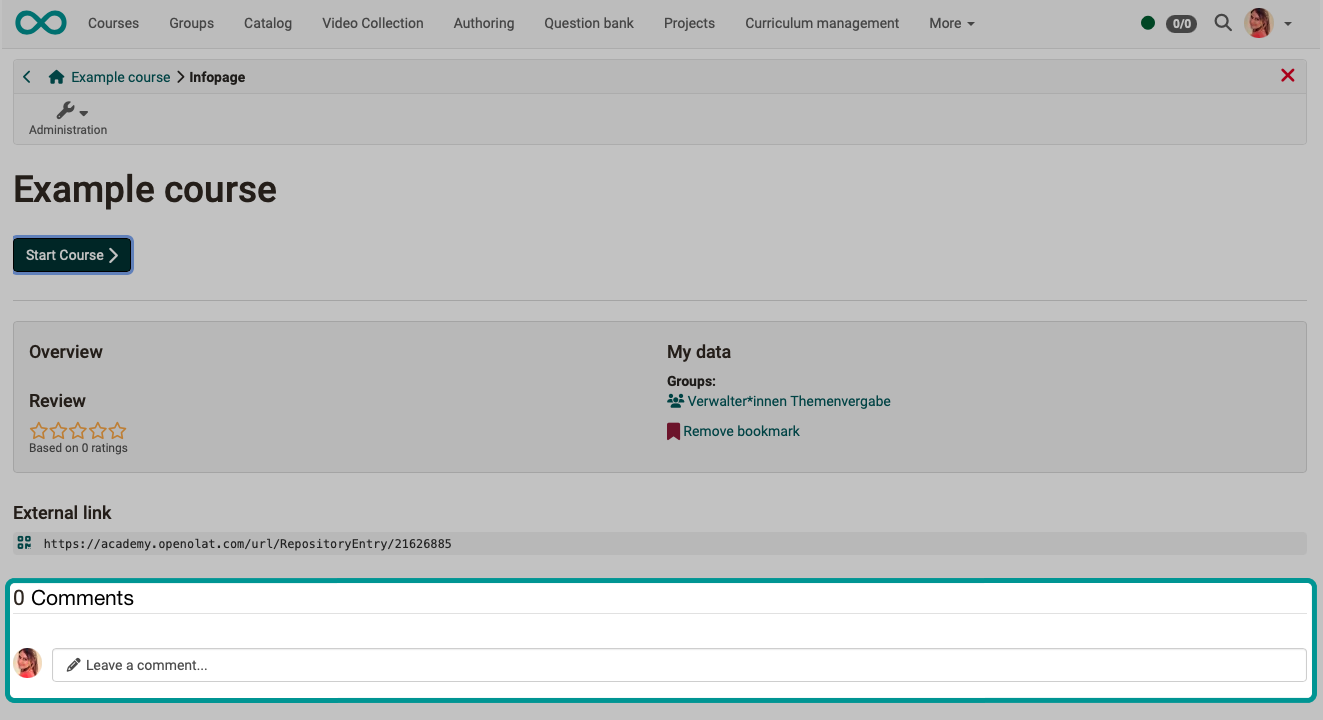
The availability of this input field can be switched on/off globally by administrators in this module.
Rating
Clickable stars for rating can also be displayed on the info page of a course.
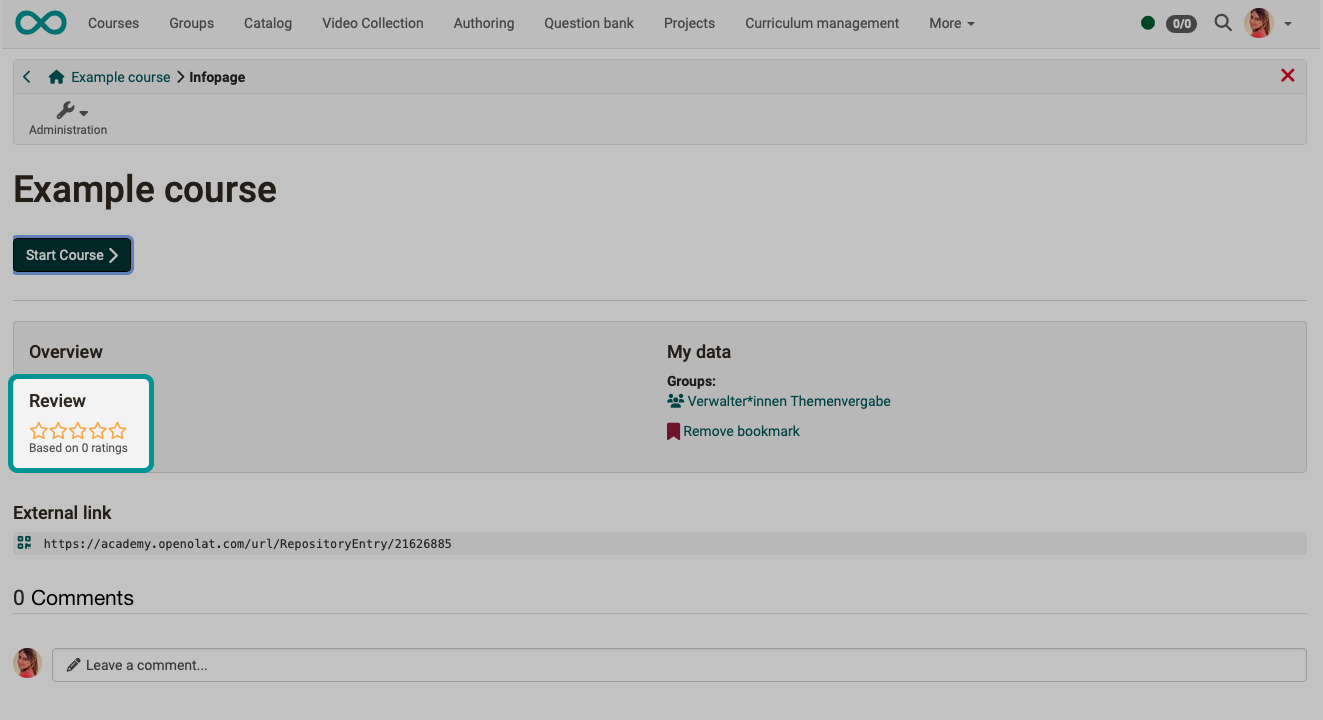
The availability of stars for rating a course can be switched on/off globally by administrators in this module.
Request membership
If someone opens a course to which they do not have access, a notice appears. There is a button there that can be used to request membership. When clicked, an email is sent to all course owners.
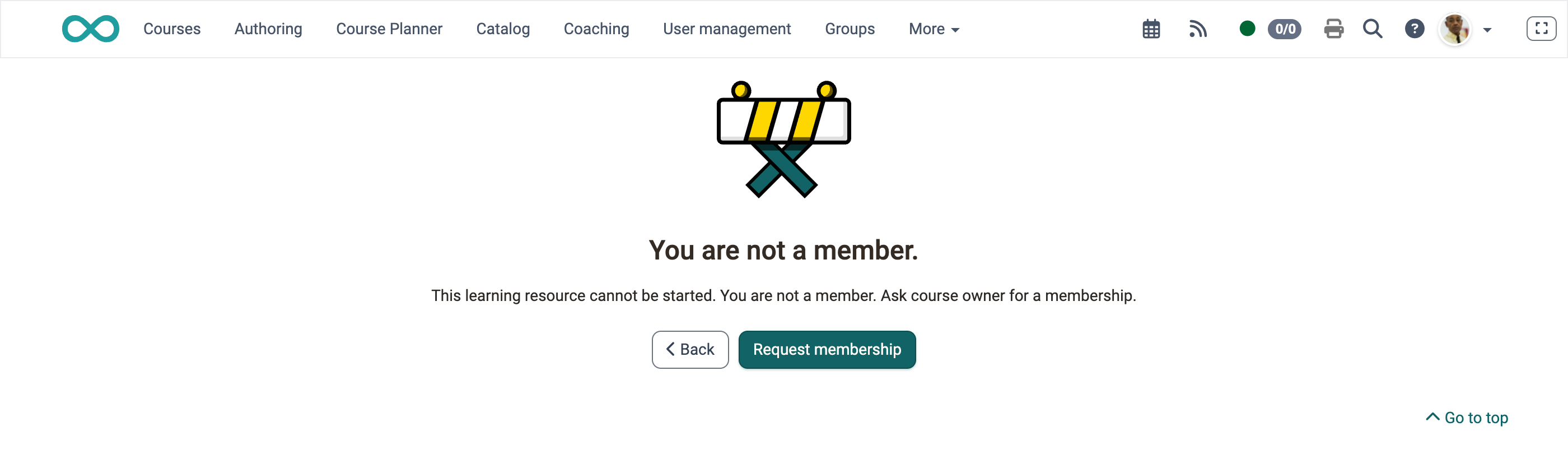
This function can be switched on/off globally by administrators in this module.
Taxonomy
Use of taxonomy in the catalog
Activating taxonomy in the learning resource means that the selected "structure" is available in the catalog. For this to work, the corresponding taxonomy must first be created and integrated.
Prerequisite
Various taxonomies can be created in the system administration under Administration > Modules > Taxonomy.
A taxonomy cannot be deselected in this area as long as it is used in a launcher of the catalog. Attempting to deselect it shows the message: "The taxonomy is still used in a launcher of the catalogue and therefore cannot be deselected."
How taxonomies are created and configured is described on the page Module Taxonomy.
Default setting section
Participants can leave
This option specifies a default setting for all new courses. (Existing courses are not affected by this.) Course participants can then decide for themselves whether they want to leave a course.
The following options are available as the default:
- At any time
- After the course end date or status "Finished"
- Never
Course-specific
This preselected setting can be adjusted again on a course-specific basis by course owners: Course > Administration > Settings > Tab "Share"
Notification section
OpenOlat can send notifications about events at various points. If someone wants to receive the notifications, a subscription can be set up. For events in the learning resource there is the subscription "Notify owner of status change for learning resources".
Subscription
A) Default setting
Activating/deactivating the subscription determines whether a subscription for the described target group is also set up by default when a new course or learning resource is created in the authoring area. This has no effect on already existing subscriptions.
B) Existing subscriptions can be updated using the "Activate existing subscriptions" and "Deactivate existing subscriptions" buttons.
Default role priority section
This setting defines the order in which roles are prioritized when a member has multiple roles when accessing the learning resource. The top role in the list has the highest priority. System roles always have a lower priority than member roles.
The list contains the member roles Owner, Coach and Participant. If a person has none of these roles, OpenOlat opens the learning resource in a system role. The order of the system roles is fixed and cannot be changed: Principal, Course planner, Learning resource manager, CPL master coach, Administrator. For example, a person without a member role who is Principal and Learning resource manager starts in the role Principal and uses the role change in the toolbar to switch to the role Learning resource manager.
Access tab
The "Access" tab contains the sections Access and Status "Finished".
Access section
Access for course owners/coaches
Anyone who is an owner or coach in a course (a learning resource) finds that learning resource in the Coaching tool. Under "My Courses", learning resources are displayed in which users with the coach role are participants themselves.
Show hint in "Courses"
If this toggle button is activated, course owners/coaches receive notices about the effects of the access setting.


Site settings
Whether the sites "My courses" and "Coaching Tool" appear in the main navigation and who sees them can be read in the "Overview of access settings for sites". It shows for each site whether it is enabled and which accounts can reach it, for example "Enabled | Registered users without guests/external users". The page Sites and modules > describes what a site is.
Via the button "Open site settings" you go directly to the "Sites" page of the system administration:
Administration > Customizing > Sites
There you define the order of the sites in the main navigation and for which roles they are visible. You can also deactivate the site "My courses" there. The Coaching tool cannot be deactivated in the standard configuration, because owners and coaches find their learning resources only there. More on this: Customizing: Sites >
Access to the setting
Only administrators can open this page and make changes.
Status "Finished" section
Here you define system-wide what access participants have to a course or a learning resource in the status "Finished". This setting is the default for all courses and can be overridden per course.
- Read-only: The content is still available to participants in read-only mode.
- No access: Participants no longer have access to the content. When they open it, a notice appears referring them to the responsible contact person.
Course owners overwrite the setting for their course under:
Course > Administration > Settings > Tab "Options"
Further information
Mentioned on this page
Search in a course >
Using Additional Course Features >
Module Taxonomy >
General Information >
Sites and modules >
Customizing: Overview >
Further reading
Coaching - Overview >
Course Settings - Tab Options >