Question Bank: Create Questions
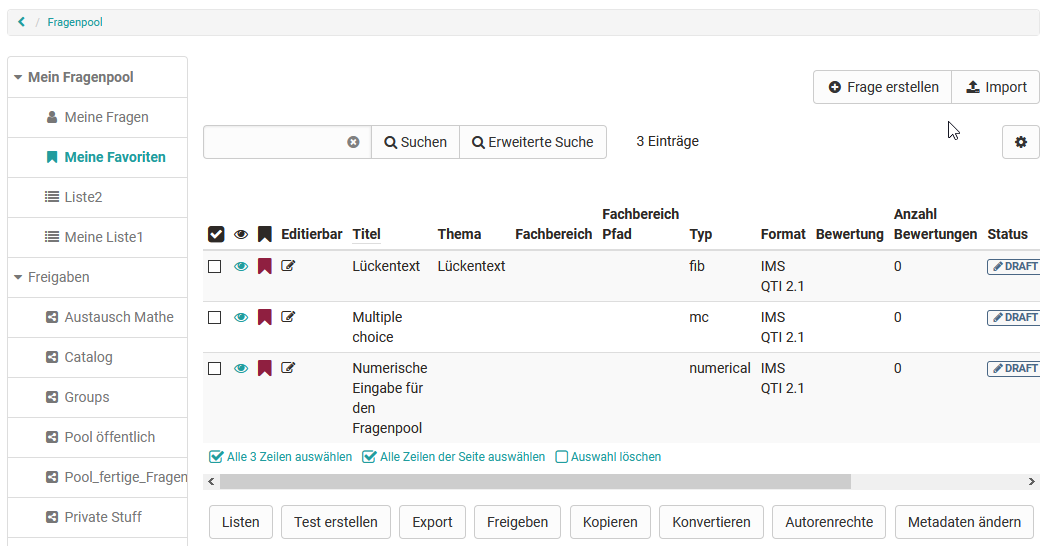
Overview of available questions
The table view of the questions stored in the question bank offers a wide range of options. Make sure that all the columns relevant to you are selected using the cogwheel symbol.
You can mark particularly relevant questions as favorites and find them again quickly. Another option is to organize several questions in lists and thus create an individual order for your questions.
You can create or import questions in the "My questions" area, in a list or in a group share. However, OpenOlat always stores the question items under "My questions" and references them at the respective location.
An overview of the question types that can be created and imported can be found in the chapter "Test question types".
Create questions in the question bank
Question items can be created in the question bank using the "Create question" button in QTI 2.1 format and saved directly for further use.
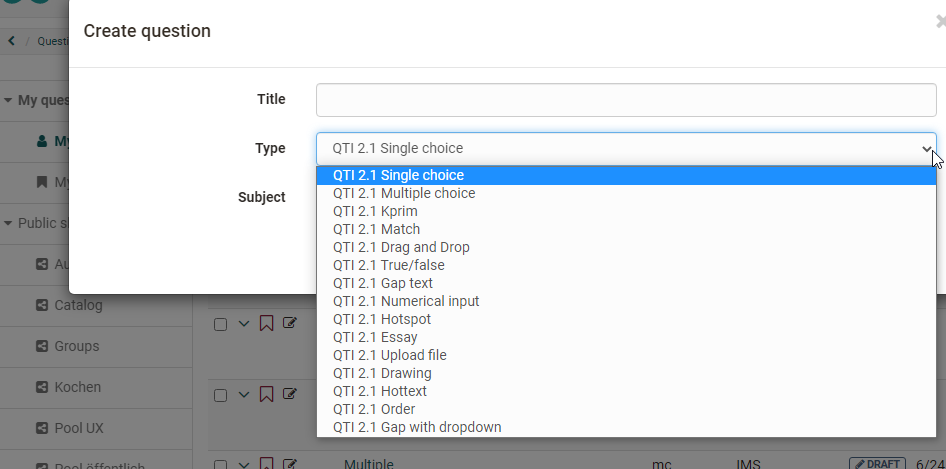
In the dialog "Create question" you enter a title and then select the question type and, if available, the subject. The questions created in this way can then be imported and used in the OpenOlat learning resource "Test".
Create questions with AI (Artificial Intelligence)
In the question bank, questions can also be created with the help of artificial intelligence. The "AI questions" entry opens the generation dialog.
Important
This function is only available if the AI module is enabled in the system administration and at least one matching AI feature is configured with an AI provider and model: "MC Question Generator" for multiple-choice questions, and "Essay Question Generator" and "Essay Grading" for essay questions with AI correction.
You choose one of two modes as source material:
- "Upload file": a Markdown, plain text or Word file (.docx).
- "Paste text": you paste the source text directly into the input field.
How long the source text may be is set by the system administration in the AI module, 60000 characters by default . The dialog states the applicable limit and rejects texts that are too long.
You then define how many questions are generated: "Multiple-choice questions" and, when AI correction is configured, "Essay questions with AI correction" . The AI suggests sensible values based on the text length, which you can adjust. Start the process with "Generate questions".
Generation runs in the background. You can leave the dialog open or close it; the new questions appear in the question bank once they are ready. They are created in the language of the inserted source text . AI-generated questions receive the "Review" status so they are checked before reuse.
Please note that the questions must be checked for correctness in each individual case.
Edit the AI grading of an essay question
For essay questions with AI correction, a grading kit defines how the AI assesses the answers. The AI prefills this kit during generation; you can adjust it by hand in the question's "AI feedback" tab. The tab also appears on an essay question you created yourself. This lets you build the grading kit from the start.
The following entries are available:
- "Learning objective": the learning objective the question tests. Mandatory field.
- "Reference excerpt": the subject text the question refers to. Mandatory field.
- "Model answer": the expected reference answer. Mandatory field.
- "Grading hints": additional instructions for the AI.
- "Bloom level" and "Language (BCP-47)": the cognitive level of the question and the language of the feedback. Both are mandatory fields.
- "Difficulty": a value from 1 to 5 for further control.
- "Key points": the core aspects to cover, each with a description and a weight from 0.0 to 1.0.
- "Rubric criteria": named criteria with "Name", "Descriptor", a "Scope" ("Content" or "Language") and a weight.
- "Common misconceptions": typical false assumptions that are taken into account in the feedback.
If rows are filled in under the key points or the rubric criteria, the sum of all weights must be 1.0.
With the "Test feedback" button you enter a sample answer and see in the preview which AI feedback learners would receive. This lets you fine-tune the grading kit before use.
Where learners receive the AI feedback
The grading kit only takes effect in the quiz element of a page. Add the essay question there with "Import questions from pool" in the 3-dot menu of the quiz element. In the course elements "Test" and "Self-test" the grading kit is not executed. There the essay answer remains subject to manual correction in the assessment tool.
Assessment by expert colleagues
Once the first version of a question has been created, it can be submitted to a review process for checking by expert colleagues.
Details about the review process >
To the top of the page ^
Share question in the pool
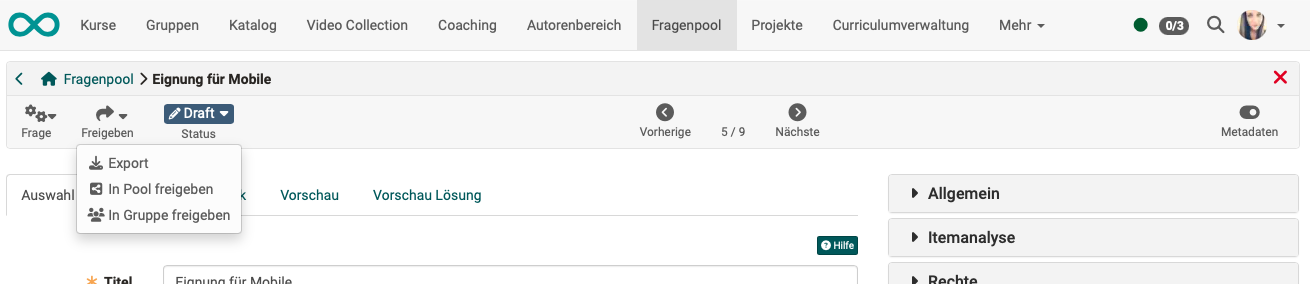
Question bank managers can create several pools. As the author of a question, you decide in which pool you share your question: Share > Share with pool.
Details about sharing >
To the top of the page ^
Share question in group
If you are developing questions together, for example, you can create a workgroup in advance. If a newly created question should initially only be visible to the group members, share the question in the toolbar with this group only: Share > Share with group.
Details about sharing >
To the top of the page ^
Further information
Mentioned on this page
Test question types >
External tools: AI module >
Content Editor >
Question Bank Review Process >
Question Bank: Sharing Options >
Further reading
Question Bank: Import Questions >
Item Detailed View >
How do I proceed when I create a test? >