Quality Management: Analysis
Reports and analyses
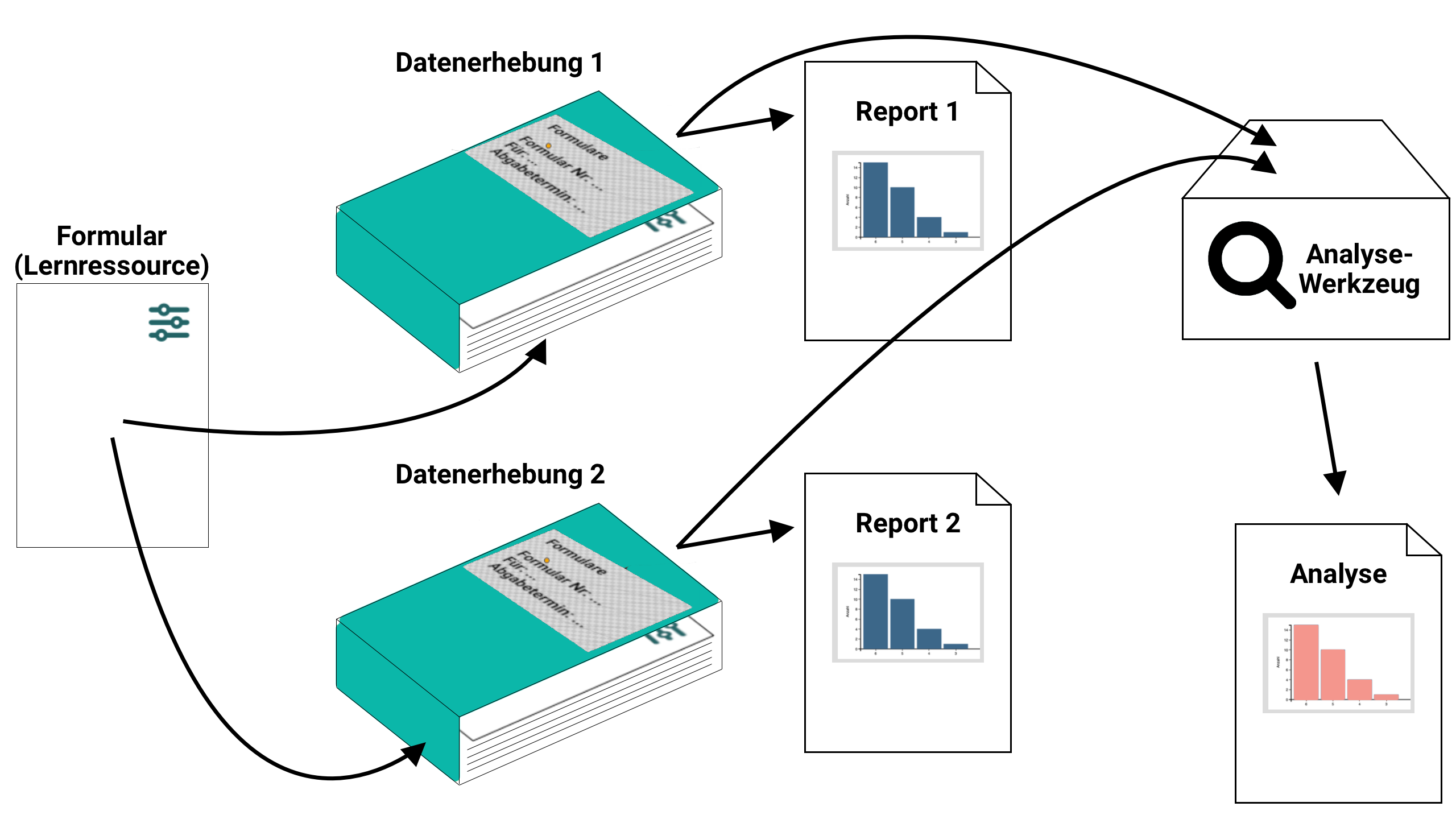
A data collection can, for example, be carried out across several courses. There is a report for each data collection.
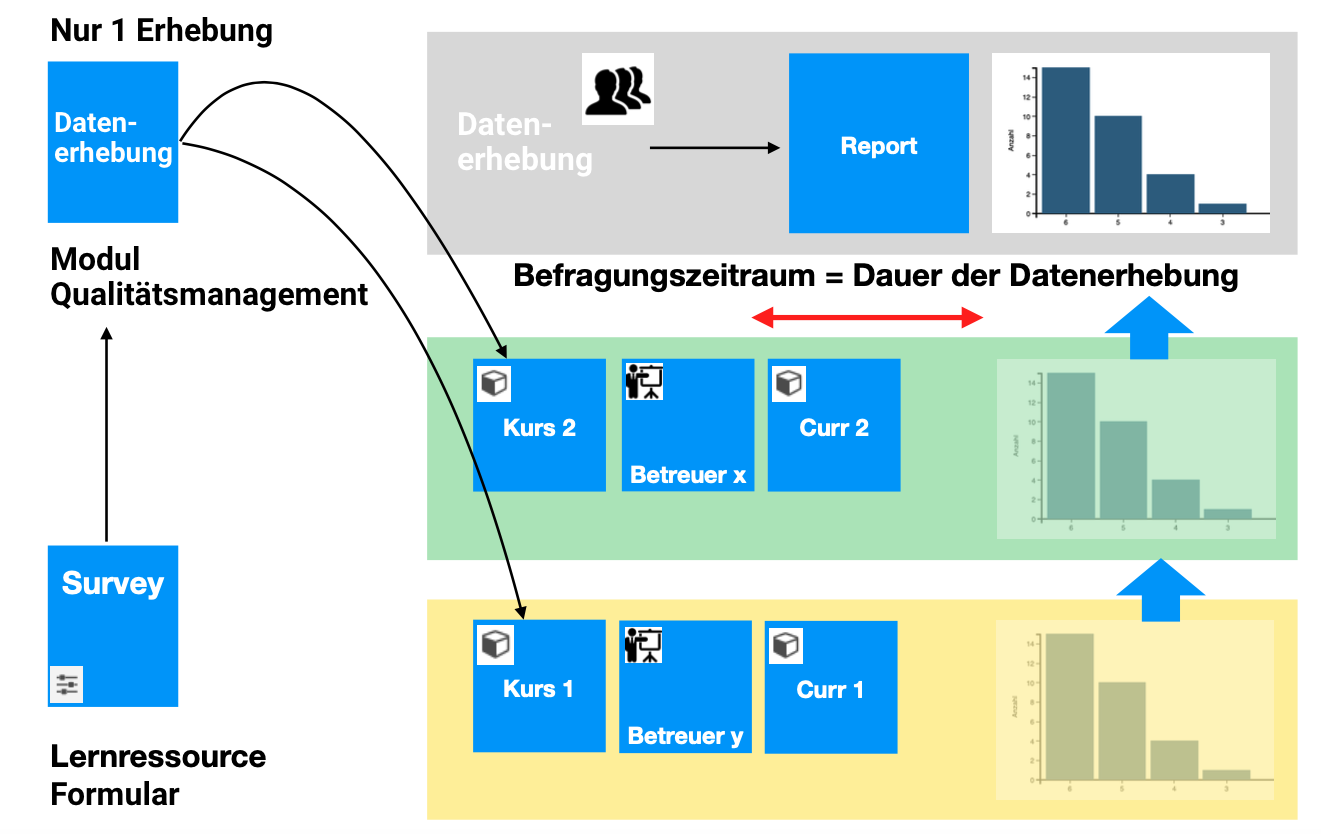
The analysis tool can perform an evaluation across several data collections/reports.
Important
Reports are always compiled and displayed from the data currently available in the database when they are called up. This means that no document is created, but the current status is displayed. (If a document is required, it would have to be created via an export.)
An analysis is, so to speak, a collective report that is created by combining several report queries.
Open analysis
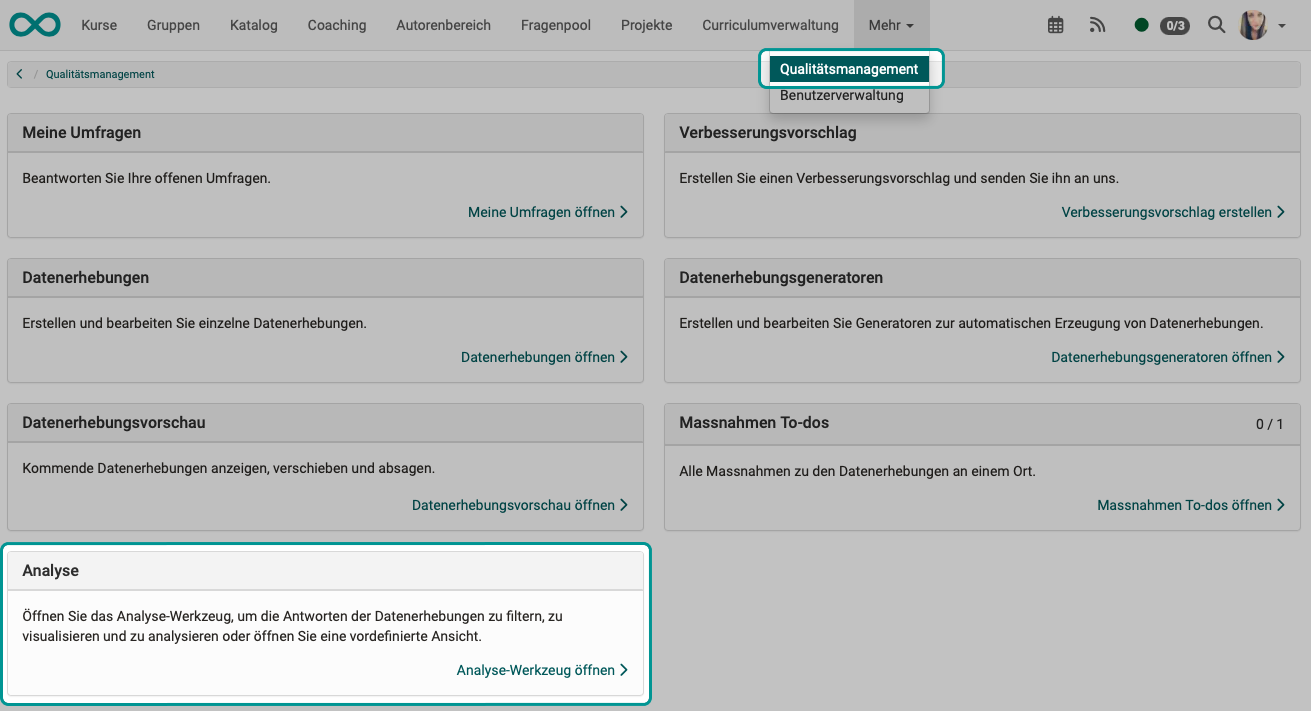
To view analyses of the quality management, click on the link "Go to analysis tool" in the section Analysis.
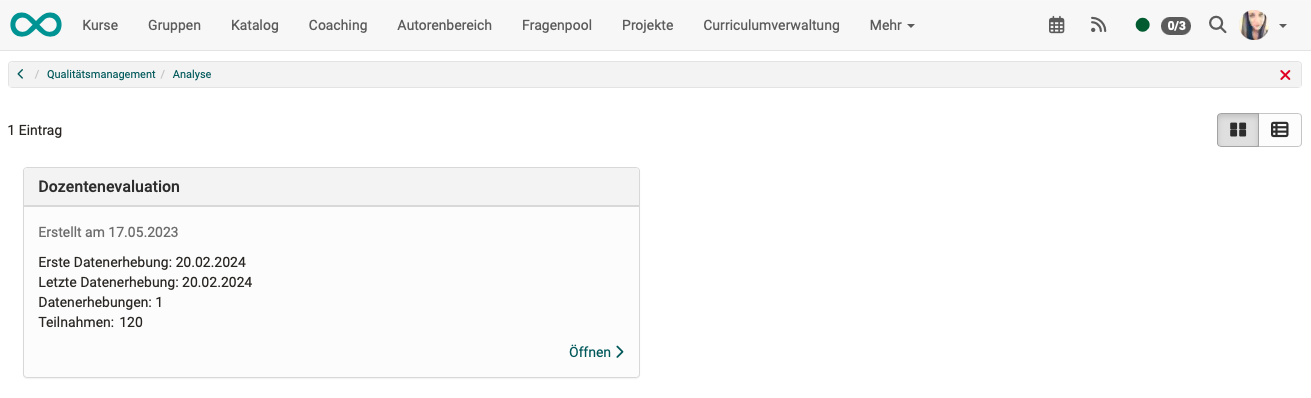
Then select your analysis and click on "Open" there.
An analysis can only be created from data collections/reports that are based on the same form (to ensure comparability). If different forms are used, a separate analysis is required for each form.
Analyzing data collections
As soon as the analysis tool is called up, an analysis is created "on the fly".
The analysis tool evaluates the data from various data collections. It is the same data that is used for the individual reports.
Quality managers have access to the reports at all times, even while a data collection is still running and further survey results may be received. In analyses, which correspond to a "collective report" from several data collections, on the other hand, only finished data collections are displayed.
Data sources
The following rules apply to the data basis of an analysis:
-
For analyses, only data from already finished data collections is taken into account. (A data collection finishes itself at the end of the defined time window.)
-
For both data collections and analyses, only data originating from the organisation of the quality manager is taken into account.
-
Filters can be used to make a selection. The data collections defined in the filter are then taken into account as the data source for analyses. If there is no restriction by a filter, all data collections made with this form are taken into account.
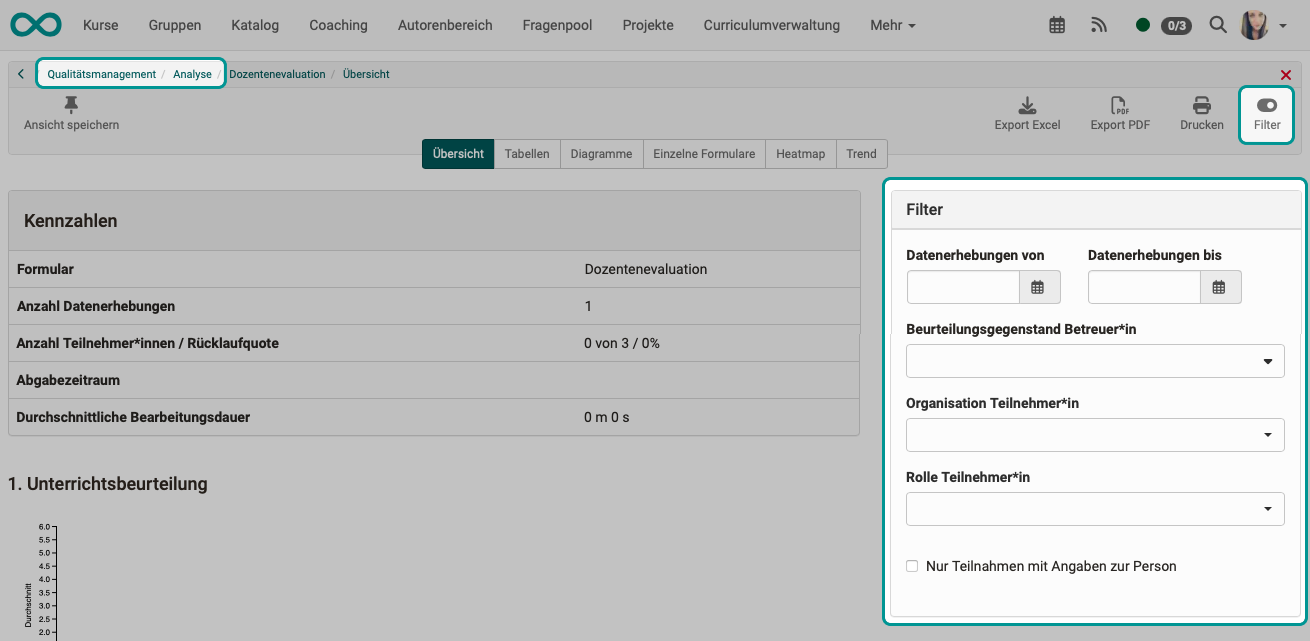
Who has access to analyses?
Only quality managers and principals have access to analyses.
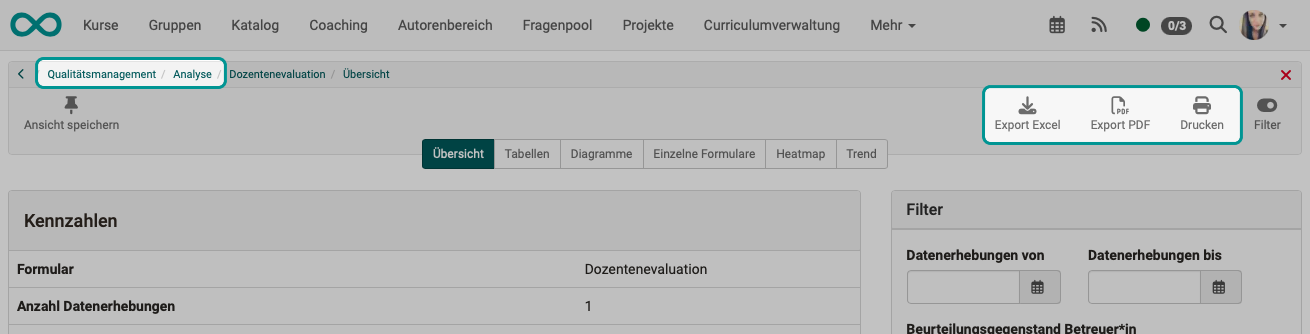
You can access the analyses via the main navigation under:
Quality management > Analysis
If organisations are used, the following applies:
For both data collections and analyses, quality managers can only analyze their own organisation.
The color code in analyses
Which color codes are there?
Within the quality management, 3 colors are used for 3 categories:
- green = Good
- yellow = Neutral
- red = Insufficient
Where can these color codes be found?
The rating is used in the individual reports and in the analysis, e.g. in the heat map.
In addition, the criteria of some data collection generators are based on these range divisions.
Setting: When does which color code appear?
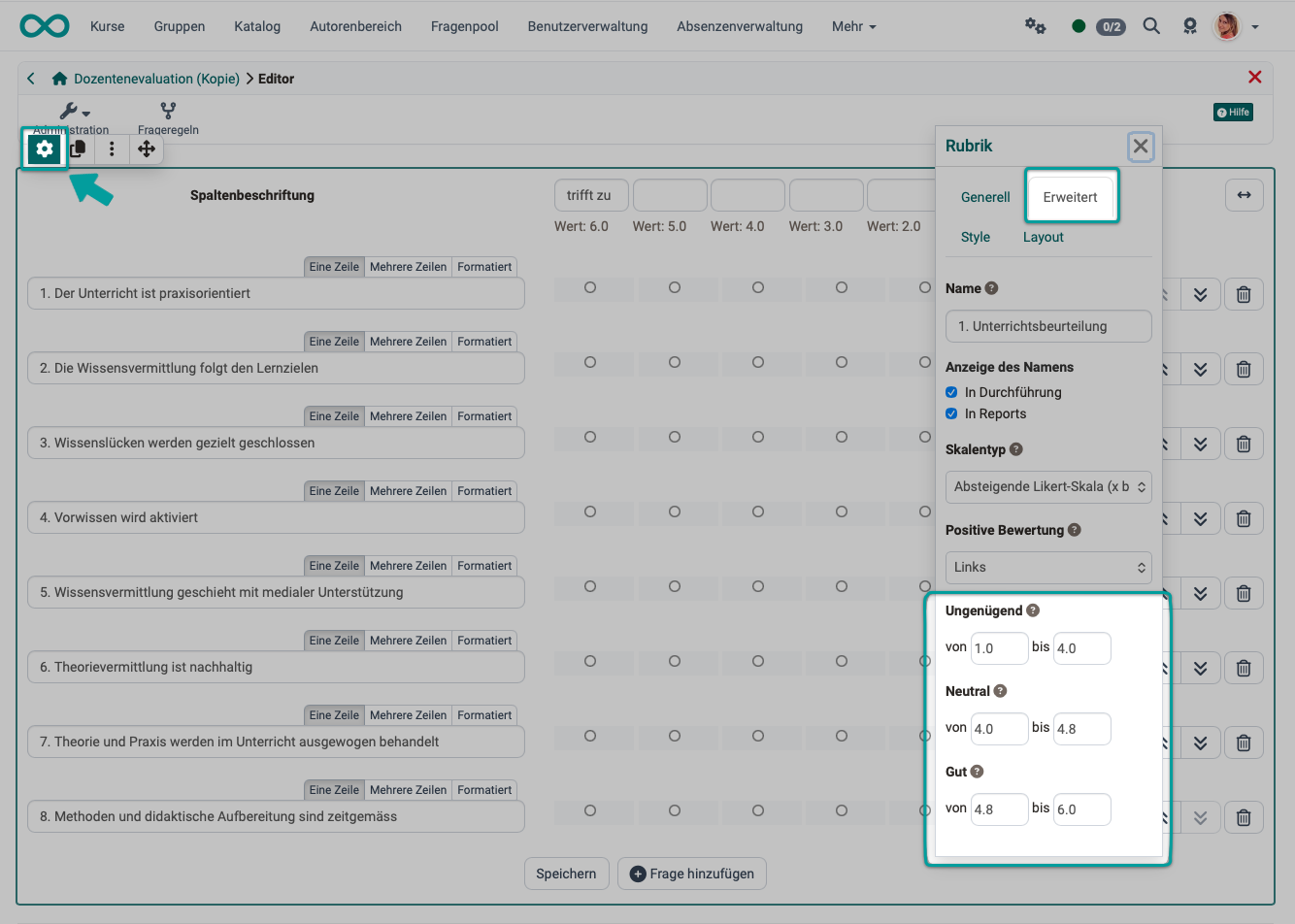
The 3 categories "Good", "Neutral" and "Insufficient" are defined and delimited from each other in the rubric element:
Proceed as follows:
- Select and open the form in the authoring area
- Edit the form:
Form > Administration > Form editor - Select the rubric element
- Open the inspector pop-up (click on the gear icon at the top left of the selection frame)
- Select the tab "Extended" in the inspector
- Enter the values for "Insufficient", "Neutral" and "Good" there.
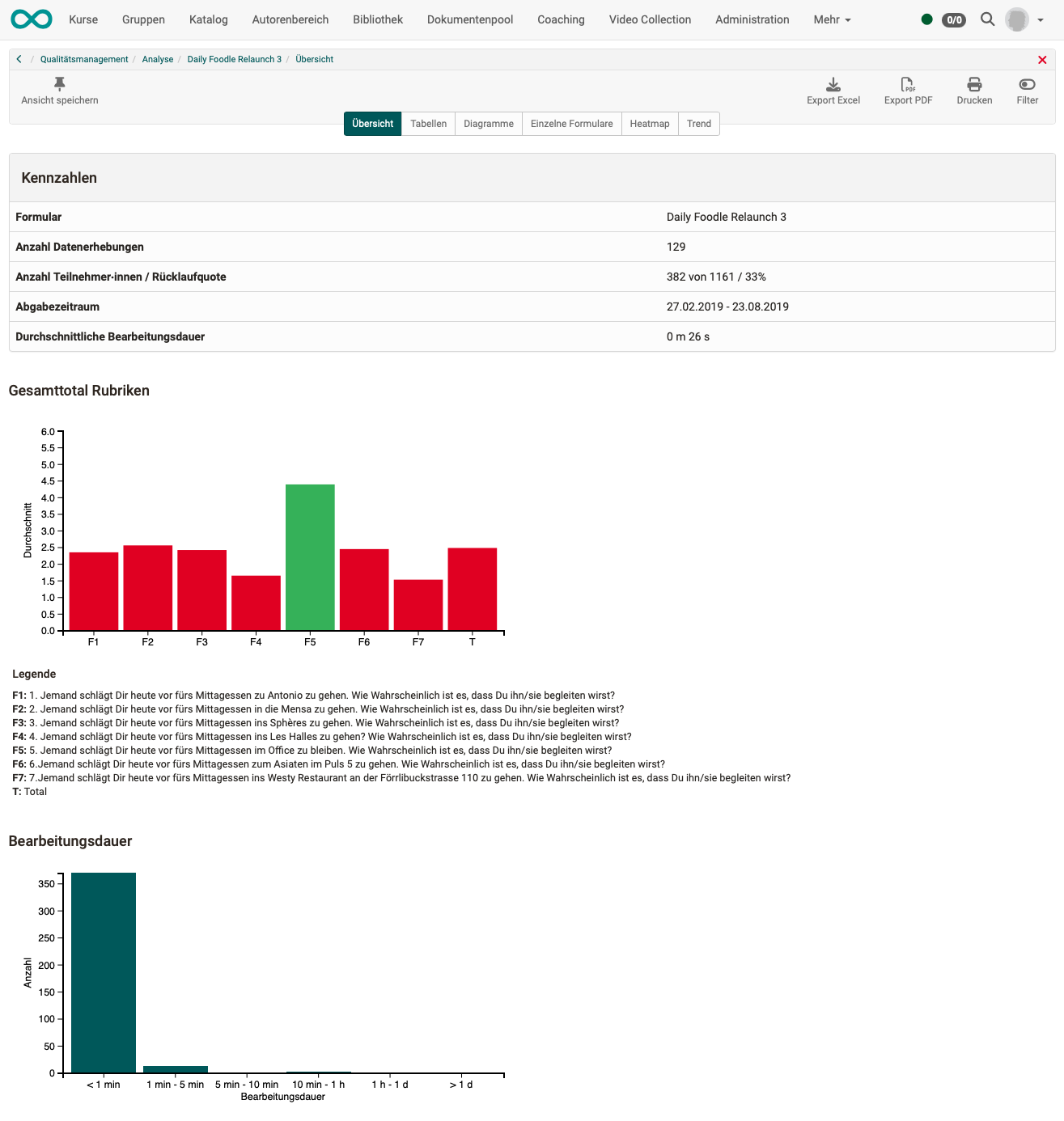
Analysis: Tab Overview
The first 4 tabs (Overview, Tables, Diagrams, Single forms) correspond to those of the data collection, but have a different data basis here: in the analysis there are several data collections.
The tab Overview displays the key figures and 1 diagram per rubric.
In each diagram, one bar per question shows the average value (across all data collections).
In addition, the bar T shows an overall total (average of all questions).
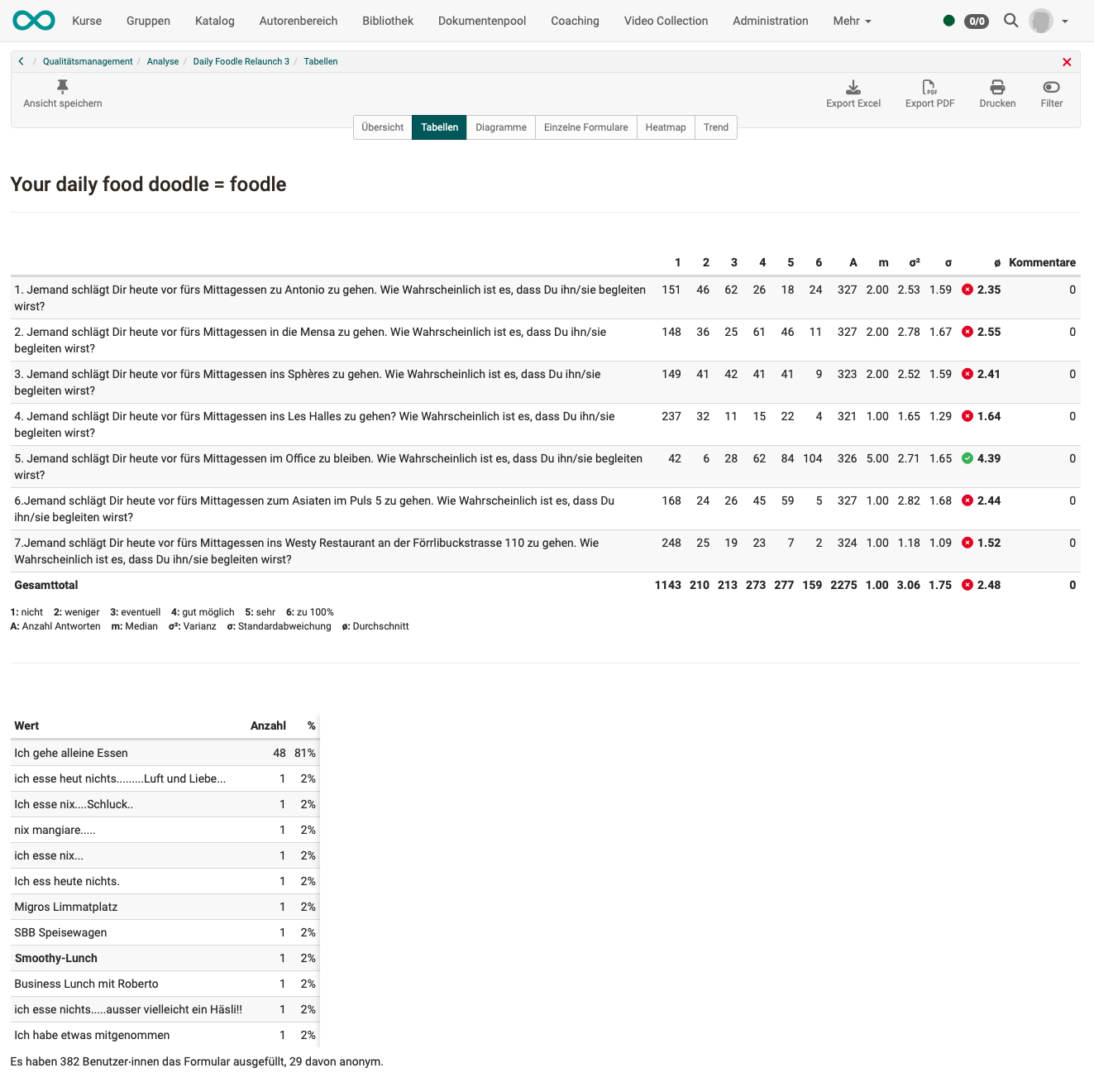
Analysis: Tab Tables
In the tabular display, all answers of all elements of the form are listed in detail.
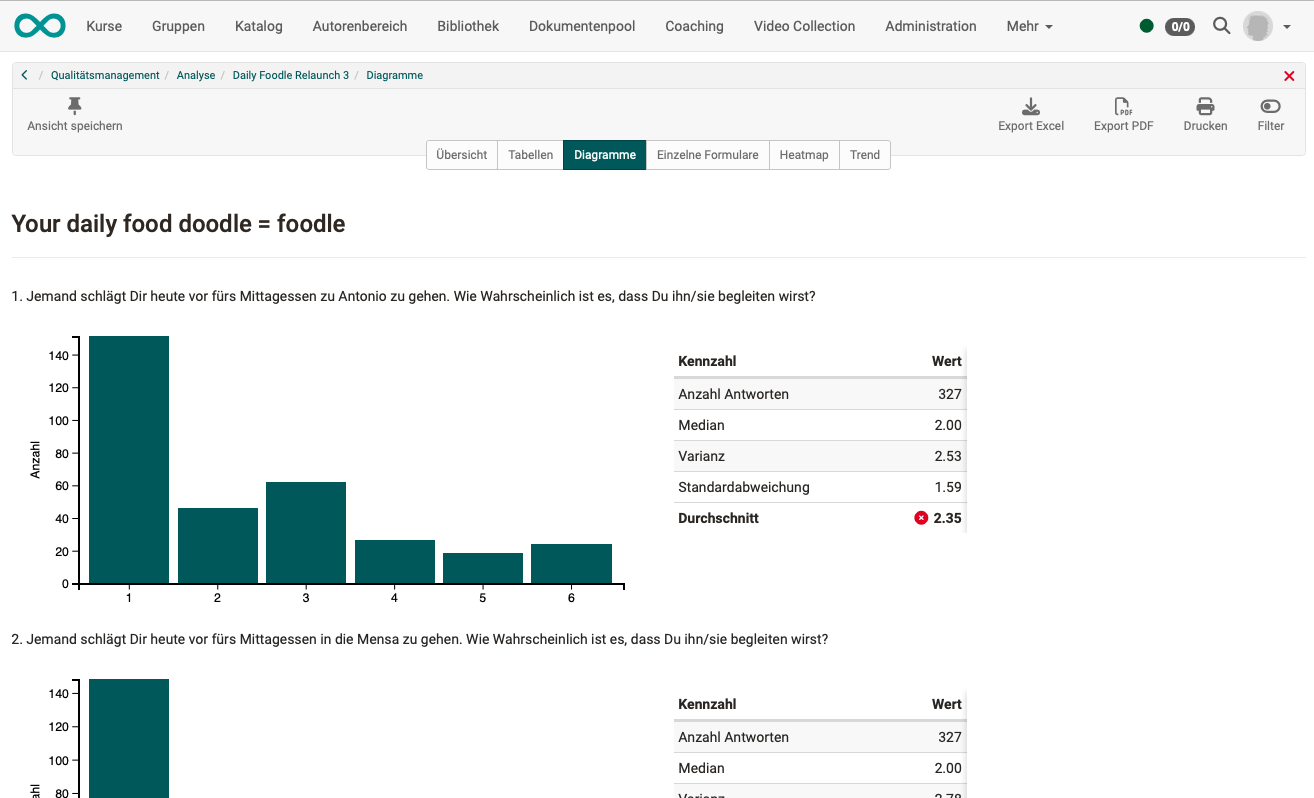
Analysis: Tab Diagrams
The diagrams are based on the same data as the tabular display.
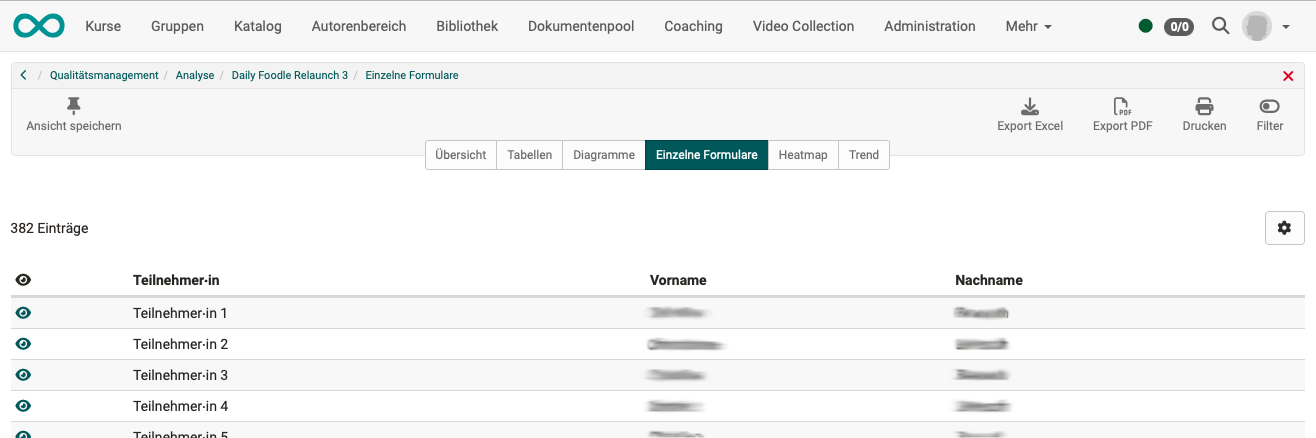
Analysis: Tab Single forms
For insight into the data basis, the forms of the individual participants can also be viewed.
Analysis: Tab Heat map
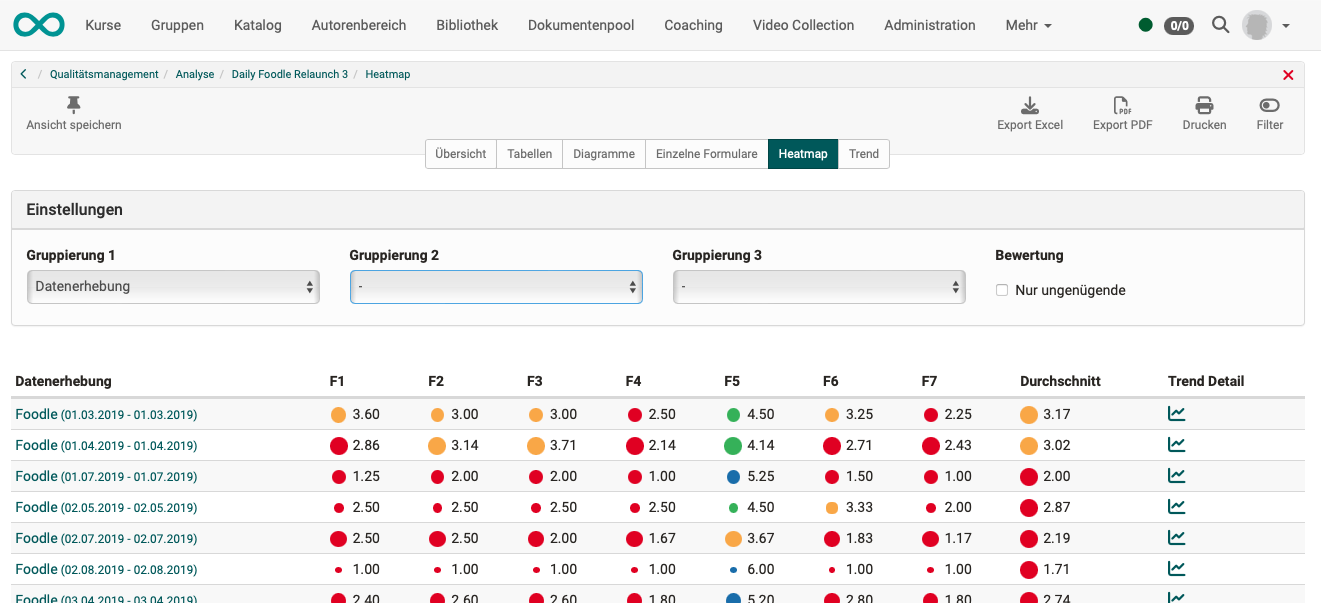
In the heat map, the problematic areas are visualized and become apparent more quickly. The data can be grouped and filtered there according to various criteria.
The use of the colors and their assignment to a certain quality range (good, neutral, insufficient) is defined in the rubric element of the form.
The size of the dots symbolizes the number of answers.
These tools enable comparisons.
Analysis: Tab Trend
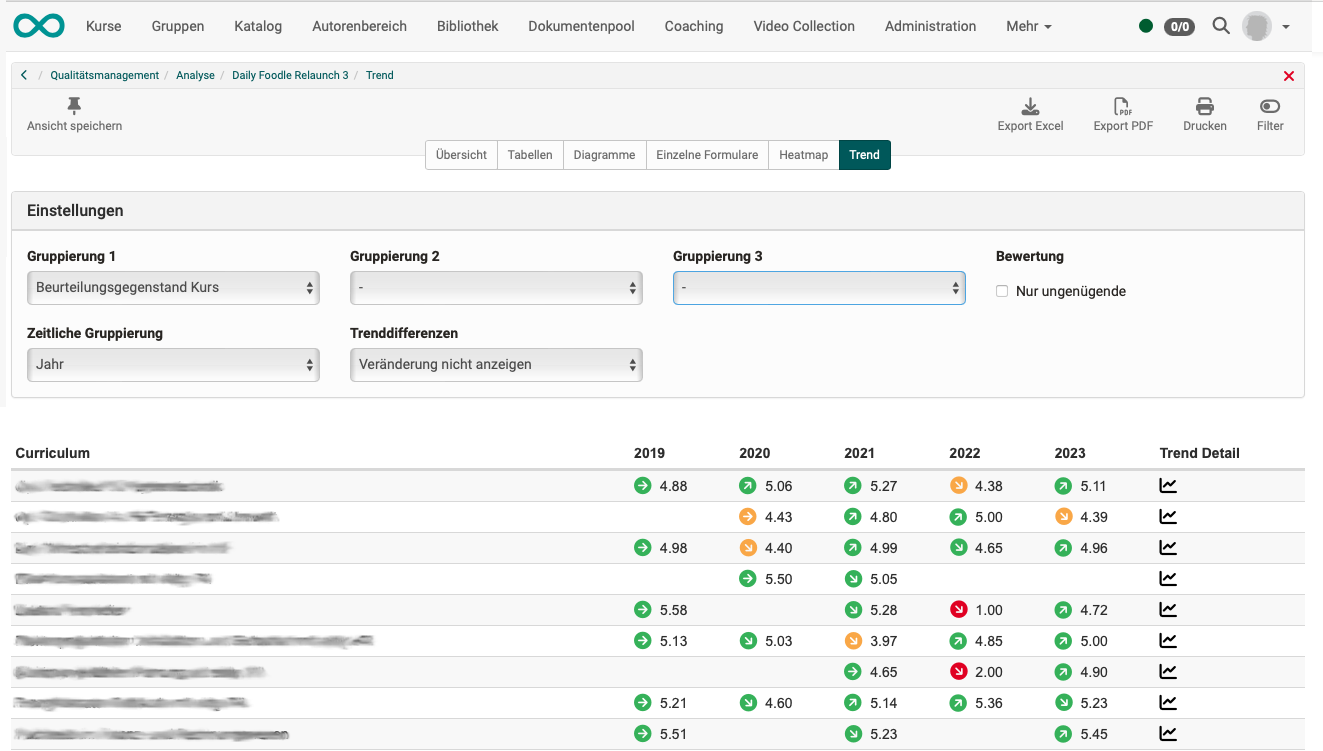
In the heat map you can see whether an overall rating is good or bad over the entire period.
In the trend, on the other hand, you can see whether a topic has been rated differently over time.
If actions have been taken, the trend shows whether and from when the actions have had an effect.
Print and export analyses
Several buttons are available at the top right for exporting (pdf, Excel) and printing the created analyses.
Analysis for organisations
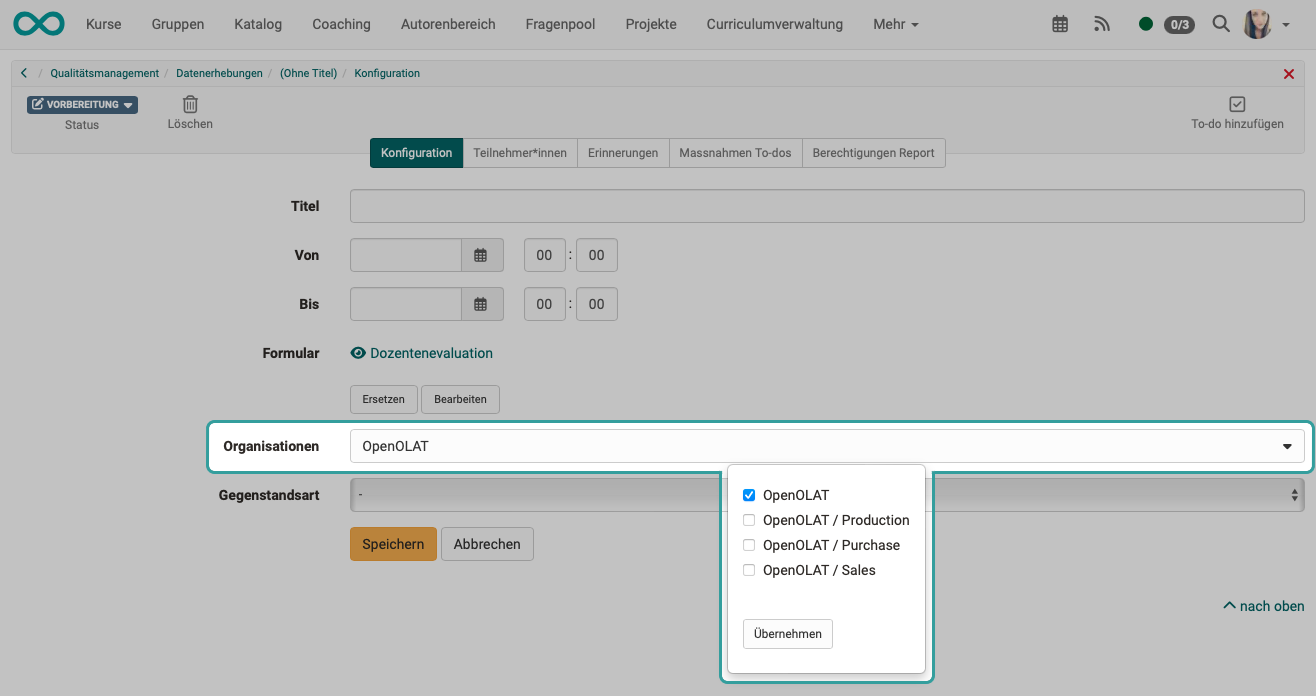
In order for an analysis to be made for a specific organisation, an already activated module "Organisations" is required.
The role Quality manager can then be assigned for individual organisations. This means that the access options of the quality managers can also be restricted to their respective organisation.
If quality managers have permissions and access to several or all organisations, they can restrict the survey to the desired organisations when creating data collections. To do this, they make a corresponding entry in the tab "Configuration" of the data collection.
Further information
Quality Management: Data collections >
The form editor >
Quality Management: Overview >
The form element rubric >
Quality Management: Data Collection Generators >