Copy a course with wizard
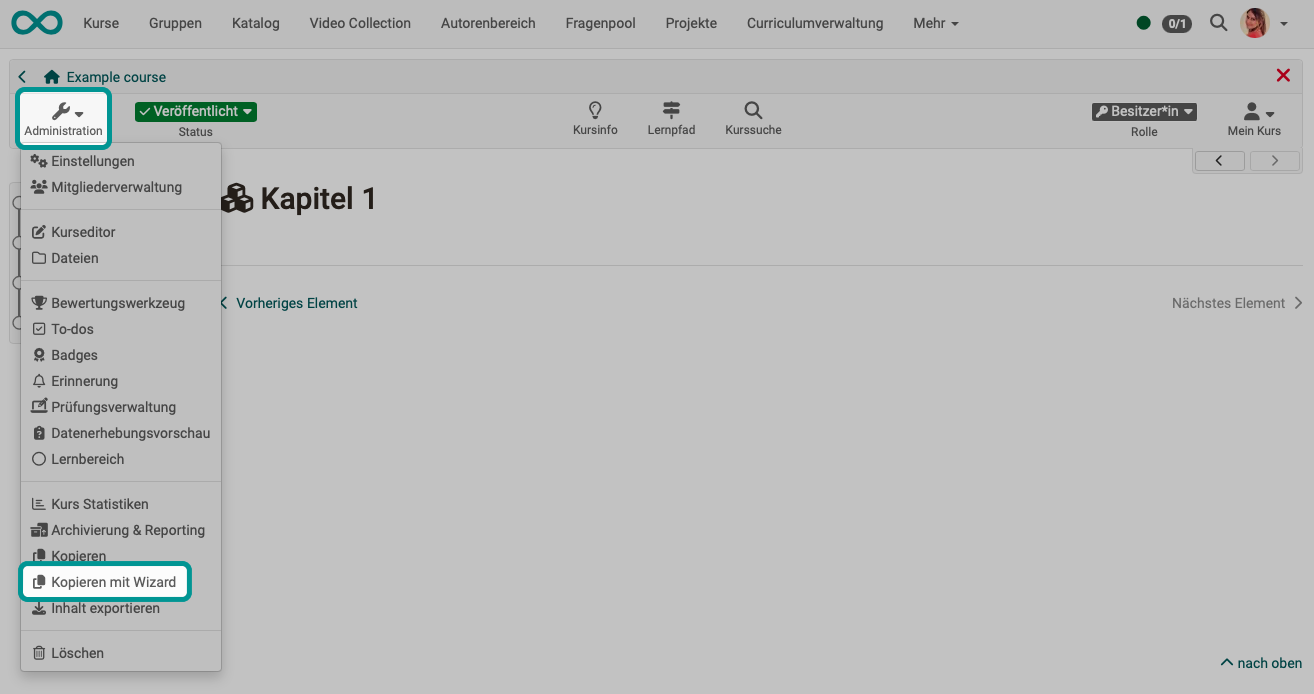
You can find this option in the course under Course > Administration > Copy with wizard. It is available to course owners with the role Author, learning resource managers and administrators. Other authors get it if "copy" is checked under "Authors can" in Course > Administration > Settings > Tab "Share".
The wizard can be used to select the elements of a course to be copied. This makes it even more effective to transfer elements for a new course run.
In the first step "General settings" you choose the copy mode "Automatic" or "Custom". In the copy mode "Custom", the course objects to be copied can be selected and further settings can be made, e.g. with regard to member administration and certain course elements.
This function is only available for learning path courses. To copy a conventional course for the next run, use Course > Administration > Copy, see Copy (a course).
Tip
Always create a course copy if you want to repeat a course instead of just removing the people from the member list. This will also remove all entries in the assessment tool and you will receive a completely clean course.
Tip
It also makes sense to create a course copy as a backup after the course has been completed and before the start of the course.
Tip
Copying can also be called up in the list of the authoring area. There you will find the option after clicking on the 3 dots at the end of a line.
Events and room bookings
If you copy a course for the next run, you can copy the events along with it instead of recording them again. The "Events" selection appears if the course has events and you choose the copy mode "Custom" in the "General settings" step. The "Copy options" step then shows it under "Further options" with "Copy", "Customize" and "Don't copy". With "Customize", the "Events" step follows, in which you change the date and location of each event and reassign the teachers.
In the copy mode "Automatic", the default setting of your OpenOlat instance applies; by default, no events are copied. The help at the "Copy mode" field shows which setting applies. The default setting is part of the server configuration. frentix customers contact the frentix support for a change: support@frentix.com
If the "Rooms" module is activated, every copied event also adopts the room bookings of the original event. The period of the room booking follows the copied event. The room booking always adopts the room from the original event, even if you change the "Location" field in the "Events" step. OpenOlat does not check during copying whether the room is still free in the new period. An overlap is shown as a warning in the room scheduling in the Course Planner.
Further information
Mentioned on this page
Learning path course - Overview >
Copy (a course) >
Module Rooms (Administration) >
Course Planner: Room management >
Further reading
Save (a course) as template >
Events and absences >