Module Events and Absences
Before the event and absence management can be used it need to be activated in the system administration. Administrators find the configuration under:
Administration > Modules > Events / Absences
Activation
Customers of frentix please contact contact@frentix.com for this. As soon as the event and absence management is activated some additional settings can be done for the systemwide configuration. For systems with a fx-release these adaptations are done by frentix.
Not a frentix hosting-client? Please ask your local system operator!
Tab Configuration
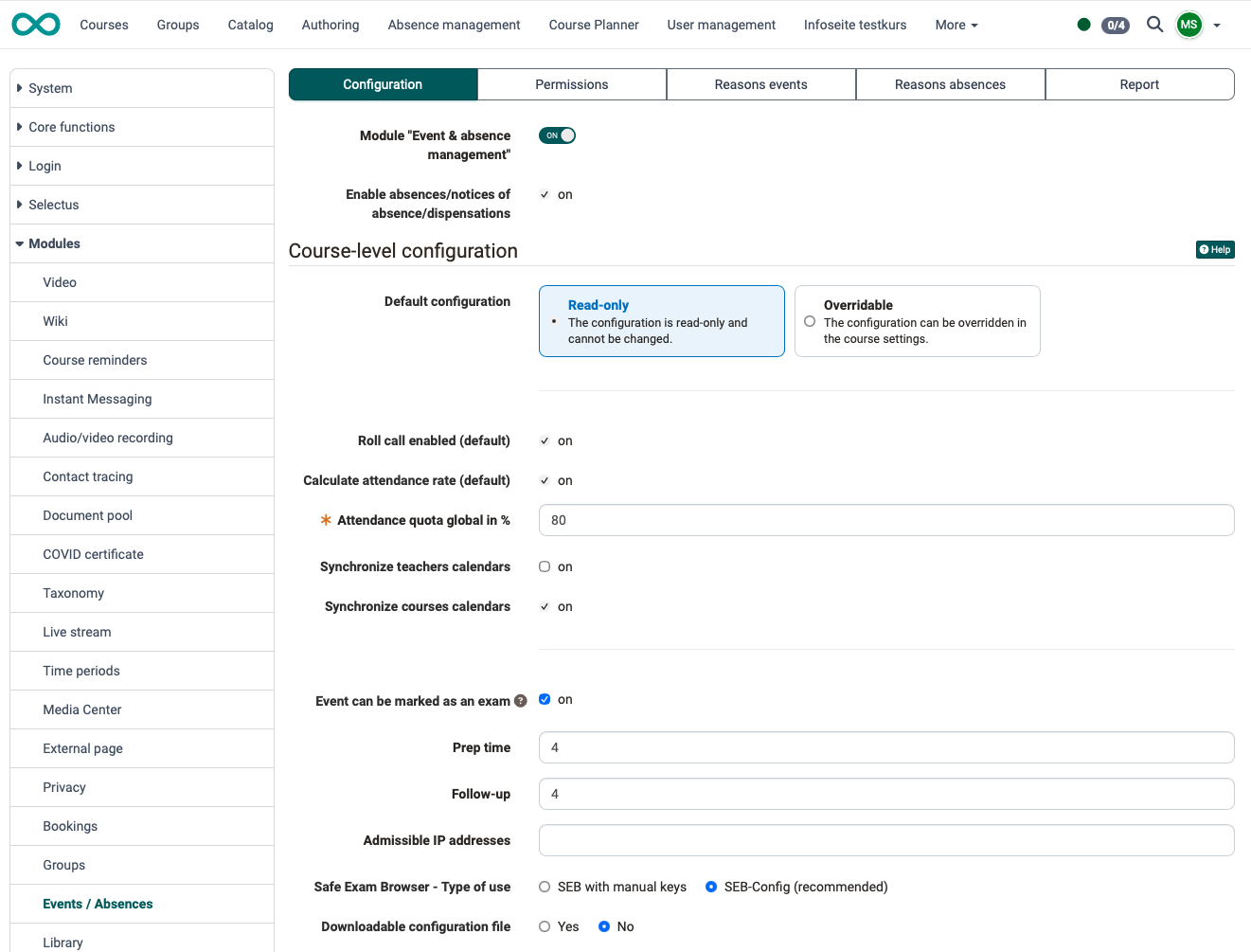
The two topmost options apply to the whole system. They are placed outside the section "Course-level configuration".
Module "Event & absence management": The switch for the whole module. If it is set to "off", all further options of this tab are hidden and courses cannot enable the event and absence management.
Enable absences/notices of absence/dispensations: Causes coaches to see the "Notifications" tab under Coaching > Events.
Course-level configuration
This section sets the default values for all courses. The option "Default configuration" defines whether course owners may change these values per course.
Default configuration
The selection is made with two options:
- Read-only: "The configuration is read-only and cannot be changed." Courses take over the default values set here and cannot change them.
- Overridable: "The configuration can be overridden in the course settings." Course owners may adapt the default values per course under
Course > Administration > Settings > Execution.
The selection only applies to the following options of this section. "Safe Exam Browser - Type of use" and "Downloadable configuration file" are excepted: these two settings apply to all courses, also with "Overridable". The values of the "Global configuration" are not affected and always apply system-wide.
Roll call enabled (default)
Attendance can only be checked with this option. Teachers then see the participants and the checkboxes.
Calculate attendance rate (default)
If this option is activated, the attendance rate is calculated in percent.
Attendance quota global in %
This quota indicates the percentage of attendance required to fulfill the conditions of a course.
Synchronize teachers calendars
Teachers (course coaches) receive entries in their personal calendar (not in the course calendar) for those events for which they are assigned as teachers (this function must be switched off for Px customers).
Synchronize courses calendars
This option allows the events entered to be displayed directly in the course calendar for all participants, teachers and course owners.
Event can be marked as an exam
The help icon next to the option shows the text "If this option is enabled, the event can be marked as an 'Exam'. A marked event is executed in assessment mode, optionally with SEB."
The option is the default value for all courses. It applies in every course that does not override the default configuration under Course > Administration > Settings > Execution. If it is switched off, the entry "Mark as exam" in the 3-dot menu of the events is missing in these courses: for course owners in the course administration and for coaches in the course toolbar. No note on the cause appears in the course. The user manual describes further reasons for a missing entry: If "Mark as exam" is missing
The option itself only appears if the assessment mode is enabled system-wide. You find the switch "Enable assessment mode" in the system administration under:
Administration > e-Assessment > Assessment management
The following fields "Prep time", "Follow-up", "Admissible IP addresses", "Safe Exam Browser - Type of use" and "Downloadable configuration file" appear if "Default configuration" is set to "Overridable" or if "Event can be marked as an exam" is enabled. They are all hidden only if "Default configuration" is set to "Read-only" and the option is switched off.
Safe Exam Browser - Type of use
Defines where assessment modes from events take the settings of the Safe Exam Browser from: from manually entered keys ("With manual keys") or from a configuration template ("From template (recommended)"). The selected type applies to all courses. Courses cannot override it, not even with "Overridable".
The type takes effect in the dialog that appears when an event is marked as an exam: with "From template (recommended)", the field "Configuration" with the active templates appears there after switching on "Use Safe Exam Browser", with "With manual keys" the read-only field "Safe Exam Browser Keys".
Note: effect in the course
Whether an exam requires the Safe Exam Browser is not determined by this setting. In the course, this is decided by whoever marks the event as an exam, with the switch "Use Safe Exam Browser" in the dialog of the exam. With "From template (recommended)", this person additionally selects one of the active templates in the field "Configuration"; the template marked as default is preselected.
Assessment modes that do not originate from an event are independent of this setting. There, the type is chosen per assessment mode in the field "SEB configuration":
Course > Administration > Assessment management
Course owners enable the event and absence management in the course: Configuring event and absence management in the course. The user manual describes where the entry "Mark as exam" is located, who can use it and why it can be missing: Toolbar: Events, Mark an event as an exam
What coaches are allowed to do
Coaches find no entry in the course administration, but the "Events" tool in the course toolbar. There they record attendance and absences and can mark their events as an exam as well. This view is described in the user manual: Toolbar: Events, Call as coach
Their rights are granted system-wide, not per course: the tab "Permissions" on this page defines whether teachers may authorize absences, record notices or view and approve appeals. There is no course-specific right for events and absences.
In the course, owners control who is assigned to an event as a teacher: Manage teachers. Coaches see their own events; the setting "Default display in course" in the global configuration defines whether the events of the other teachers can be displayed in addition.
From template (recommended): templates from the system administration
The configuration templates are maintained in the system administration under:
Administration > e-Assessment > Assessment management, tab "Safe Exam Browser configuration"
With manual keys: default values from system and course administration
The system-wide default value is entered directly below this setting in the field "Safe Exam Browser Keys".
It can be overridden per course under:
Course > Administration > Settings > Execution, field "Safe Exam Browser Keys"
Downloadable configuration file
This option appears with the type "From template (recommended)". It defines for all exams from events whether participants can download the configuration file of the Safe Exam Browser. The value cannot be changed in the dialog of the exam. The file is important if the participants use their own devices for the exam (BYOD).
Global configuration
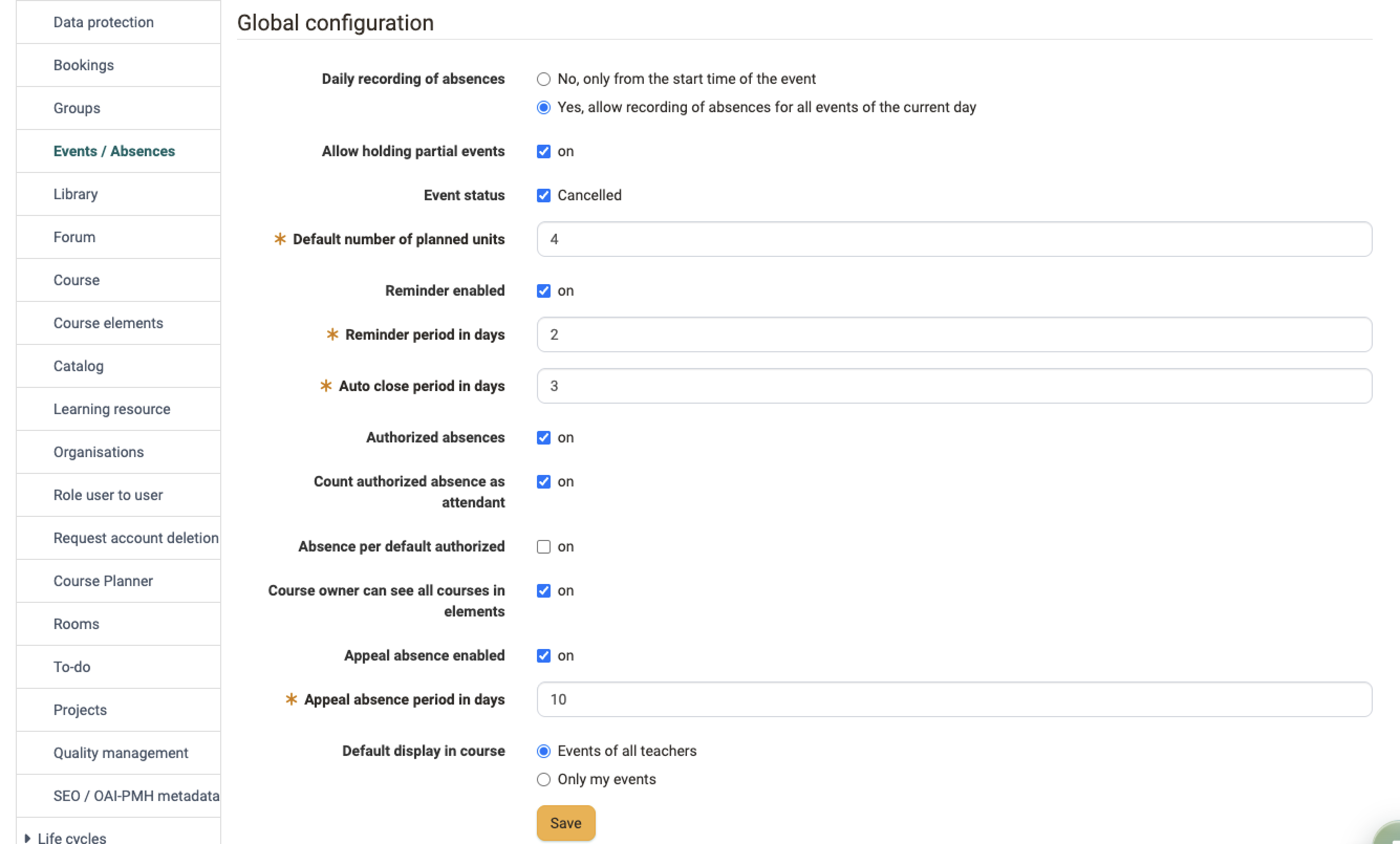
These values apply to all courses. Courses cannot override them.
Daily recording of absences
Defines from when teachers may record absences. "No, only from the start time of the event" releases the event only at its start time. "Yes, allow absence recording for all events of the current day" releases all events of the current day.
Allow holding partial events
When completing an event, the number of units that have actually been completed can be selected under "Effective units". This means that the attendance rate is only partially calculated.
Event status
If this option is selected, whole events can be cancelled. Such an event does not count for the attendance quota.
Default number of planned units
The number of units a new event receives by default. 12 is the maximum number of units per day.
Reminder enabled
This activates the reminder function. The reminder period and the auto close period must then be defined.
Reminder period in days
The reminder period is entered here in number of days. Once this number of days has been reached, the teacher is reminded to check attendance. One day corresponds to 24 hours and counting begins at the end of the event entered.
Auto close period in days
Again, the number of days is entered. After this period has expired, the status of the event is automatically set to completed. The attendance check already entered is saved. If nothing is entered, all participants are saved as present. The count begins on the day after the event has reached its end time and runs until the end of the day.
Authorized absences
This option allows absences to be authorized. If this option is not activated, all absences are considered unauthorized.
Count authorized absence as attendant
With this option, absences that are authorized are counted as present for the calculation of the absence rate.
Absence per default authorized
In principle, registered absences are considered unauthorized. This option automatically sets all entered absences to authorized. If this is not the case, the absence must be manually set to unauthorized.
Course owner can see all courses in elements
Affects the event list of an element in the Course Planner. If the option is switched off, editors only see the courses they are involved in. If it is switched on, they see all courses of the element with events.
Appeal absence enabled
If the appeal period is activated, participants are given the opportunity to submit an appeal for a registered absence. This may be necessary, for example, if an absence is subsequently recognized as authorized or if the teacher has entered an absence incorrectly.
Appeal absence period in days
The appeal period begins as soon as the event is completed. Either the teacher has manually set the event to completed or the auto close period has expired and the event has been set to completed automatically. The counting of days begins on the day after the status of the event has been set to completed. Whole days are then counted and the deadline for appeals is at the end of each day.
Default display in course
Events of all teachers or only your own.
Tab Permissions
In this tab, the permissions for teachers / class teachers are defined with regard to events and absences. These rights are granted system-wide. There is no course-specific right for events and absences.
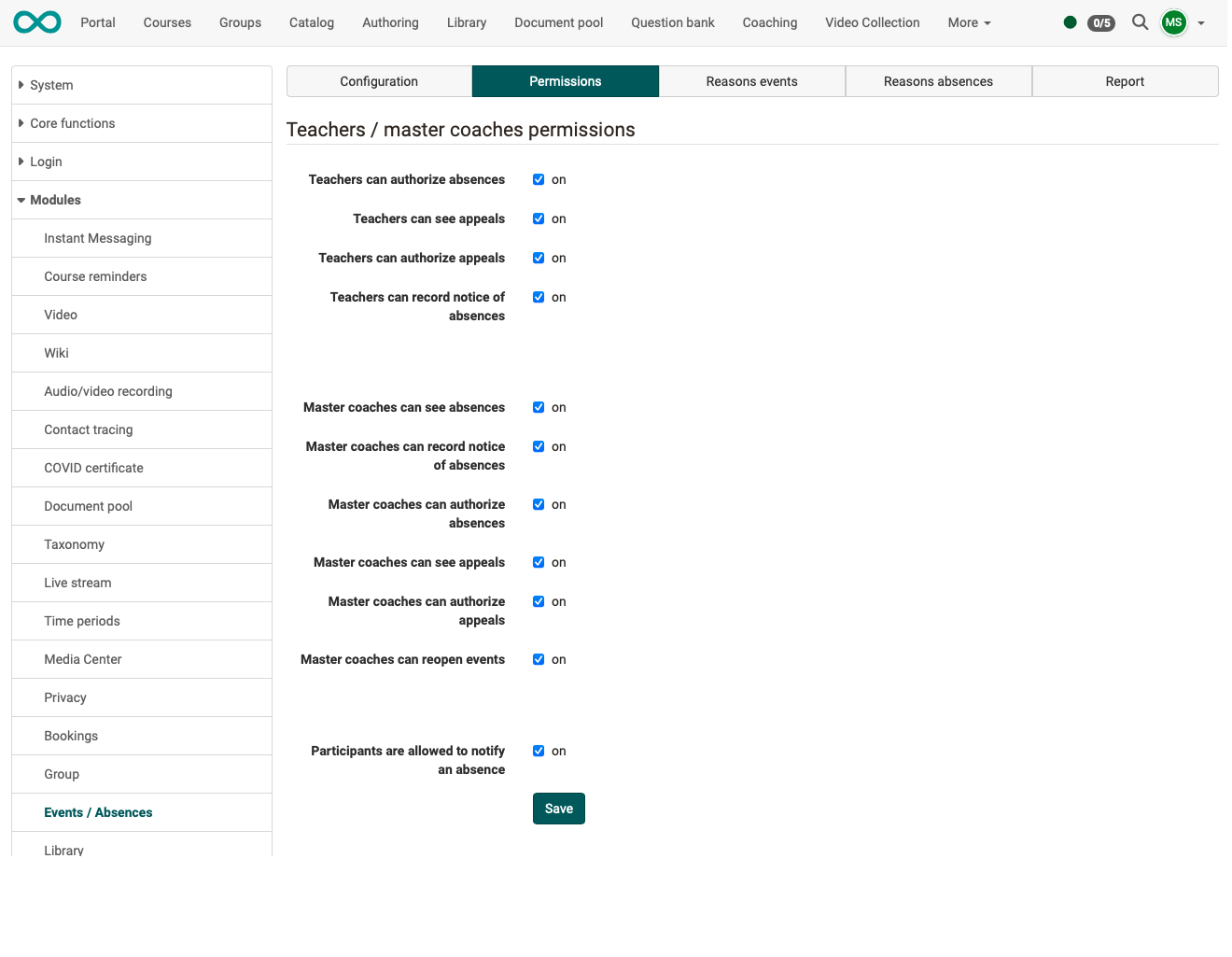
Teachers / master coaches permissions
Teachers can authorize absences
Teachers can mark a recorded absence as authorized.
Teachers can see appeals
Teachers see the appeals for their own events.
Teachers can authorize appeals
Teachers can accept or reject an appeal.
Teachers can record notice of absences
Teachers can record notices of absence, dispensations and absences without notice.
Master coaches can see absences
Master coaches see the absences of the people they supervise.
Master coaches can record notice of absences
Master coaches can record notices of absence, dispensations and absences without notice.
Master coaches can authorize absences
Master coaches can mark a recorded absence as authorized.
Master coaches can see appeals
Master coaches see the appeals of the people they supervise.
Master coaches can authorize appeals
Master coaches can accept or reject an appeal.
Master coaches can reopen events
Master coaches can reopen a completed event in order to correct the attendance check.
Participants are allowed to notify an absence
Participants can notify an absence for an event themselves.
Tab Reasons events
Events can be ended automatically or manually. If an event is ended earlier, for example, a reason should be given. The reason for ending an event differently can be selected from a list.
The available terms and descriptions for these reasons can be defined here by administrators.
If no reasons are entered here, the reason selection does not appear when the event is closed.
Tab Reasons absences
Owners/coaches can enter absences in the course administration. Various terms can be selected for the reason for the absences, such as "illness", "accident", "teacher ill", etc.
The selection of terms and descriptions offered there can be defined here.
Tab Report
Reports for specific time periods can be displayed here. You can preselect according to the status of the events/absences:
- Open
- Finished
- Auto finished
- Reopened
All reports can also be downloaded as Excel files.
Further information
Mentioned on this page
Course Settings - Tab Execution >
Toolbar: Events >
Events and absences >
Assessment management >
Further reading
Setting up the Safe Exam Browser >
Module Rooms >
User tools: Absences >
Absence management >