Course Element "Mediasite"
Profile
| Name | Mediasite |
|---|---|
| Icon |  |
| Available since | Release 16 |
| Functional group | Knowledge transfer |
| Purpose | Presentation of Mediasite content |
| Assessable | no |
| Specialty / Note | A documentation can be found at mediasite.com. |
Mediasite is an automated video platform for video recording, video management and captioning. With the course element "Mediasite" you show a single recording or a whole channel of the Mediasite server directly in the course. Further information is available in the documentation of mediasite.com.
Prerequisite is that your administrators have activated the Mediasite module in the system administration and set up the connection to the Mediasite server, under:
Administration > External tools > Mediasite
The setup is described in the administration manual: External Tools: Overview. The connection uses LTI (Learning Tools Interoperability) in version 1.1 or 1.3. Your administrators define there which version applies . The content selection in the course editor is only available with LTI 1.3.
Configuration in the course editor
In the course editor you define from which server the course element loads the content and which recording or channel appears in the course. Course owners find the settings in the tab "Mediasite configuration":
Course > Administration > Course editor > Course element "Mediasite" > Tab "Mediasite configuration"
Coaches only reach the course editor if they have the right "Course editor" in the course.
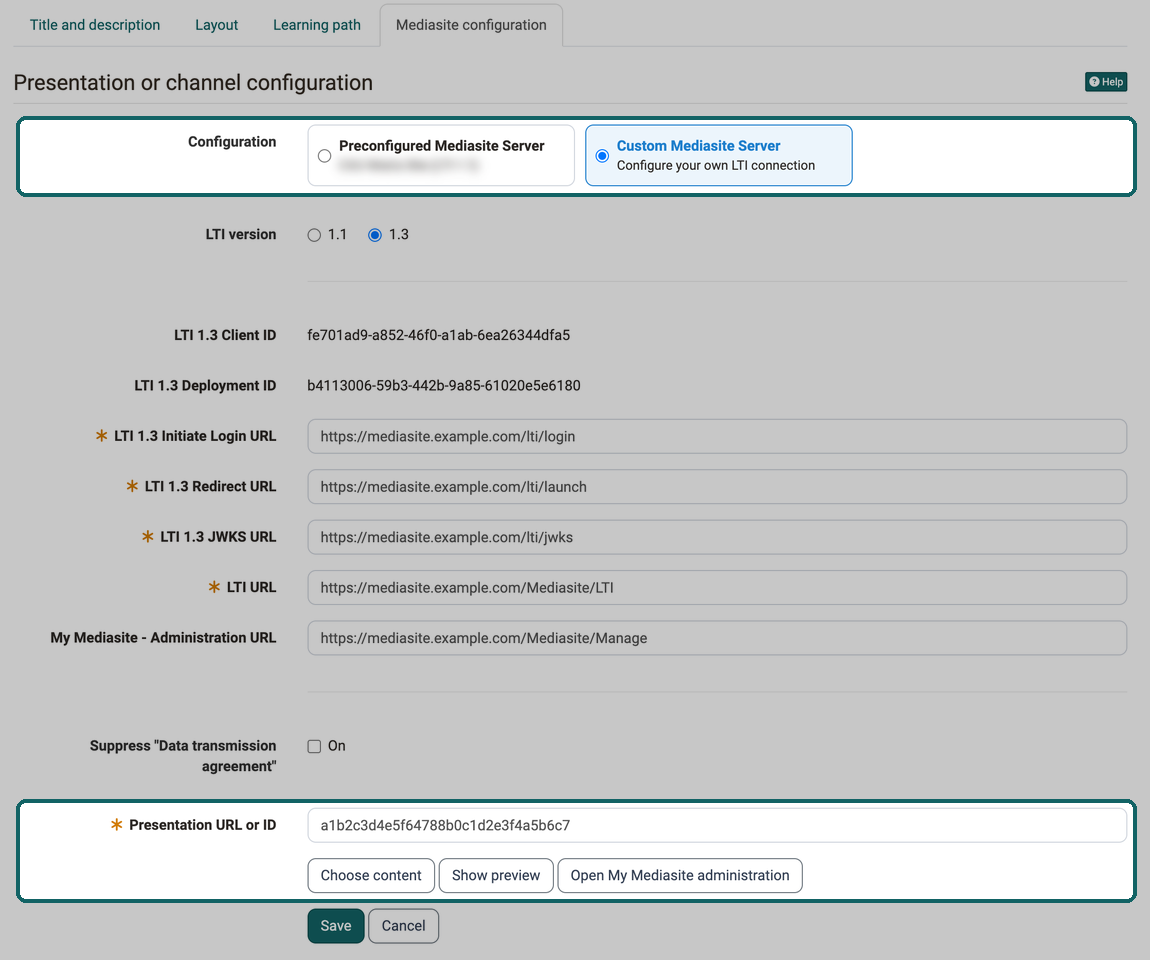
Select the server
Under "Configuration" you select which connection the course element uses:
Preconfigured Mediasite Server: The course element uses the server that your administrators have set up in the system administration. The card shows the server name and the LTI version. This option only appears if the option "Preconfigured Server" is activated in the system administration, under:
Administration > External tools > Mediasite
Custom Mediasite Server: The course element uses its own LTI connection that applies to this course element only. You select the "LTI version" and enter the details you receive from the operator of your Mediasite server. For LTI 1.1 these are "LTI Key", "LTI Secret", "LTI URL", "My Mediasite - Administration URL" and "Username Property Key". For LTI 1.3 these are "LTI 1.3 Initiate Login URL", "LTI 1.3 Redirect URL", "LTI 1.3 JWKS URL" and "LTI URL", optionally the "My Mediasite - Administration URL". OpenOlat generates the "LTI 1.3 Client ID" and the "LTI 1.3 Deployment ID" on the first save. They are displayed as soon as you open the course element in the course editor again. The operator of the Mediasite server needs these two values to register OpenOlat on their side.
With the checkbox Suppress "Data transmission agreement" you define whether participants have to confirm the data transmission to the Mediasite server before the first opening (see View in the course).
Choose content
With the content selection you define which channel or which single recording appears in the course. A channel continuously shows all recordings of the collection, including those that are added later. A single recording shows exactly this video.
- Click "Choose content" below the field "Presentation URL or ID".
- The dialog "Choose content" shows the interface of the Mediasite server. Browse your channels and recordings there.
- Select a channel or a single recording.
- OpenOlat transfers the selection to the field "Presentation URL or ID".
- Click "Save".
Depending on the Mediasite server, the dialog also offers the upload of a new recording. You then upload a video directly from the course editor and select it afterwards, without opening the Mediasite interface in a separate window.
The button Choose content appears with a complete LTI 1.3 connection
The content selection requires LTI 1.3. With the preconfigured server, your administrators define the LTI version. With the custom server, you select LTI 1.3 and save the course element once so that the connection is established. When you open the course element again afterwards, the button appears. With LTI 1.1 you enter the module ID manually.
Enter the module ID manually
In the field "Presentation URL or ID" you enter the ID of a recording or a channel. Alternatively, you paste the link that you copied from the Mediasite interface. OpenOlat reads the ID from the link. With LTI 1.1 the manual entry is the only way. With LTI 1.3 it is available in addition to the content selection.
With "Show preview" you check how the selected content appears for participants. With "Open My Mediasite administration" you switch to the administration interface of your Mediasite server.
Configuration errors in the course editor
The course editor checks the configuration of the course element and shows errors directly in the status display of the course element. A click on the message opens the tab "Mediasite configuration".
- No module id given: The field "Presentation URL or ID" is empty. Choose a content or enter the ID.
- The credentials are missing or incomplete: No preconfigured server is activated, and the course element does not use a custom server. Select "Custom Mediasite Server" and enter the credentials, or contact your administrators.
- The LTI 1.3 connection is not fully configured: The LTI 1.3 details of the selected server are incomplete, for example the LTI URL is missing. Complete the details of the custom server or contact your administrators.
As long as an error exists, the course element cannot be published.
View in the course
Participants open the course element and see the selected recording or the channel directly in the course. On the first opening, the page "Accepting of data transmission" appears. It shows which personal data OpenOlat transmits to the Mediasite server and requires the confirmation with "I accept the data transfer". The consent applies to this course element as long as the transmitted data does not change.
If the consent is suppressed, the content opens without this page. With the custom server, you define this yourself in the course element. With the preconfigured server, your administrators define it in the system administration, under:
Administration > External tools > Mediasite
Copy or import the course
If the course element uses a custom Mediasite server with LTI 1.3, it receives its own LTI 1.3 connection in the copy when the course is copied or imported. Original and copy are independent of each other. A change of the server configuration in the copy does not affect the original course. If you delete the course element, OpenOlat removes the associated LTI 1.3 connection.
Further information
mediasite.com >
External Tools: Overview >
LTI - Deep Linking >
Video: Overview >