Test question types
The following question types can be used in OpenOlat tests:
The question types marked with an * must be evaluated manually.
Single Choice
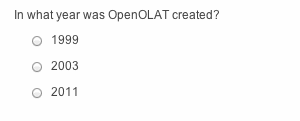
A single-choice question consists of a question and answers, of which only one can be selected. In a test only one answer is correct.
First a short title and a question are inserted.
Afterward it needs to be selected, if the order of the answers should be shuffled, if the alignment of the answers is vertical or horizontal and if the checkboxes are aligned left or right.
Then the answer texts can be added. Additional answers can be added with the button . Answers can be deleted with the button .
The correct answer can be selected in column Correct Answer. The order of the answers can be changed with the arrows.
Multiple Choice
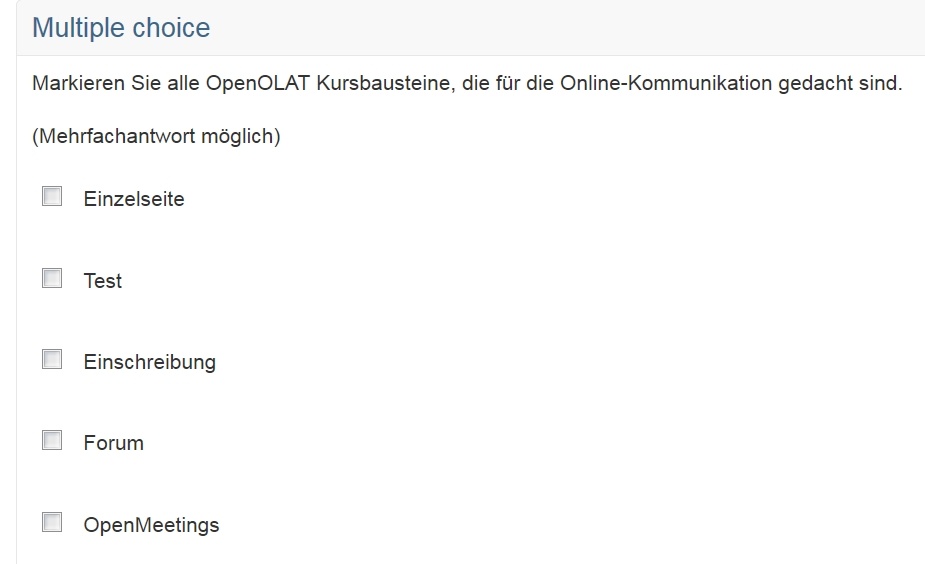
A multiple-choice question comprises one question and at least two answers; several answers can be selected. In a test several answers can be correct.
Tab "Choice"
First a short title and a question are inserted.
Afterward it needs to be selected, if the order of the answers should be shuffled, if the alignment of the answers is vertical or horizontal and if the checkboxes are aligned left or right.
Then the answer texts can be added. Additional answers can be added with the button . Answers can be deleted with the button .
The correct answers can be selected in column Correct Answer. The order of the answers can be changed with the arrows.
Tab "Score"
3 assessment methods are supported for MC questions:
-
All correct answers
To receive the full score, all correct answers must be selected. If one or more correct answers are not selected or one or more incorrect answers are selected, the final score will be 0. -
Score per answer
Positive and negative scoring can be configured for each individual answer option. -
Partial score
A weighted score is added for each correctly selected answer, while a weighted score is subtracted for each incorrectly selected answer. The following formula is used:
Score = maximum score * (number of correctly marked answers / number of correct answers) - maximum score * (number of incorrectly marked answers / number of incorrect answers)
Tab "Feedback"
Furthermore, in the "Feedback" tab, the number of response options for the candidate can be defined in addition to the exact point allocation.
Kprim
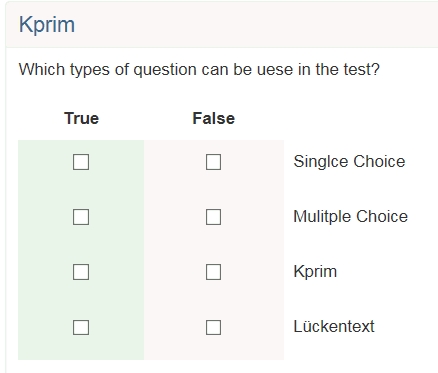
A Kprim question always consists of one question and exactly four answers. For each of these four answers, the candidate has to decide whether it is correct or not. 0 to 4 answers can be correct.
First a short title and a question are inserted.
Afterward it needs to be selected, if the order of the answers should be shuffled and if the checkboxes are aligned left or right.
Then answer texts can be inserted. The order of the answers can be changed with the arrows. No more answers can be added and no answers can be deleted. For every answer it must be chosen, if it is true or false.
For the assessment, the following score can be reached:
All correct answers = 100% score
3 correct answers = 50% score
2, 1 or 0 correct answers = 0% score
Matrix
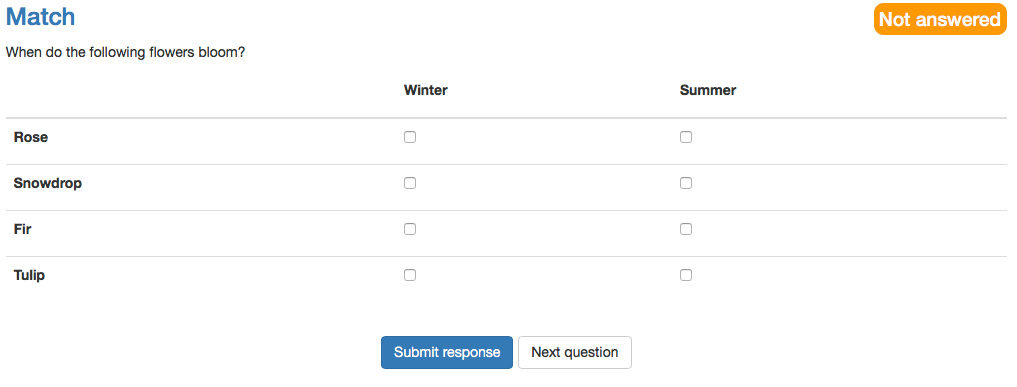
A matrix question consists of several rows and columns, where the answer can be filled in for every row, either as single choice or as multiple choice.
Tab "Match"
Again first a title and the question are inserted.
Afterwards, it needs to be selected, if the order of the answers should be shuffled and if the answers are single or multiple choice.
Then values can be added in the columns as well as in the rows. If more columns or rows are needed, they can be added with the corresponding button. Finally, the correct answer needs to be selected per row. For single choice it is one answer per row, for multiple choice several answers per row are possible.
Tab "Score"
3 assessment methods are supported for this question type:
-
All correct answers
To receive the full score, all correct answers must be selected. If one or more correct answers are not selected or one or more incorrect answers are selected, the final score will be 0. -
Score per answer
Positive and negative scoring can be configured for each individual answer option. -
Partial score
A weighted score is added for each correctly selected answer, while a weighted score is subtracted for each incorrectly selected answer. The following formula is used:
Score = maximum score * (number of correctly marked answers / number of correct answers) - maximum score * (number of incorrectly marked answers / number of incorrect answers)
Drag&Drop
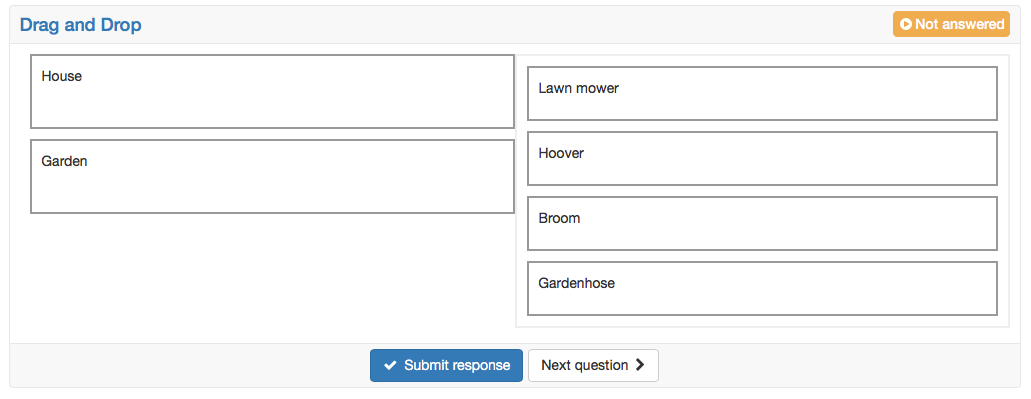
In general the Drag&Drop questions has the same behavior as the matrix question. However, the candidates do not select checkboxes, but move the items into the corresponding category.
Tab "Drag and drop"
First a title and the question are inserted.
Afterward it needs to be selected, if the order of the terms and categories should be shuffled.
If the type single choice is selected, every item can be dropped only once. For multiple choice every item can be dropped in every category once, but not twice in the same category.
The alignment of the answers defines where the items in relation to the categories are set.
Then categories are defined in the columns. Categories are the fixed elements where the items will be dropped into. The items are added in the rows. With drag&drop the items can be moved into the categories afterward.
Tab "Score"
3 assessment methods are supported for this question type:
-
All correct answers
To receive the full score, all correct answers must be selected. If one or more correct answers are not selected or one or more incorrect answers are selected, the final score will be 0. -
Score per answer
Positive and negative scoring can be configured for each individual answer option. -
Partial score
A weighted score is added for each correctly selected answer, while a weighted score is subtracted for each incorrectly selected answer. The following formula is used:
Score = maximum score * (number of correctly marked answers / number of correct answers) - maximum score * (number of incorrectly marked answers / number of incorrect answers)
Note: Restriction to mobile devices
This question type is operated by dragging the answer elements and is not optimized for touch operation. It is best suited for tests that candidates work on at a desktop computer or laptop.
True/false
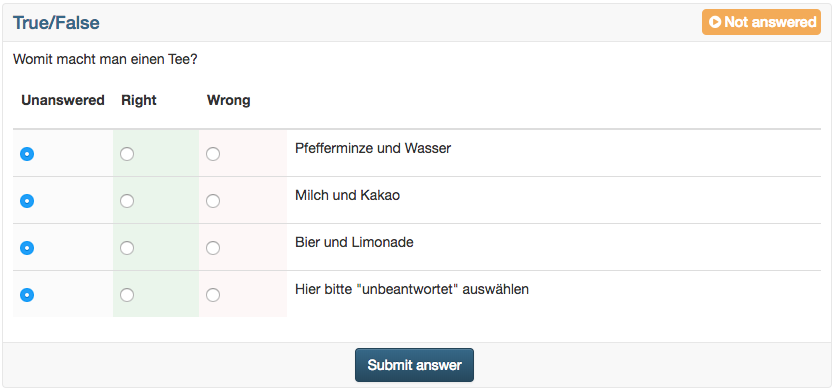
The question type True/False is similar to Kprim. In each line the corresponding statement has to be assessed.
The candidates choose from three options: "Unanswered", "Right", "Wrong". "Unanswered" is selected by default. There is no option to add more columns.
The scores can be defined as needed. You may even give points for the option "Unanswered".
Gap text
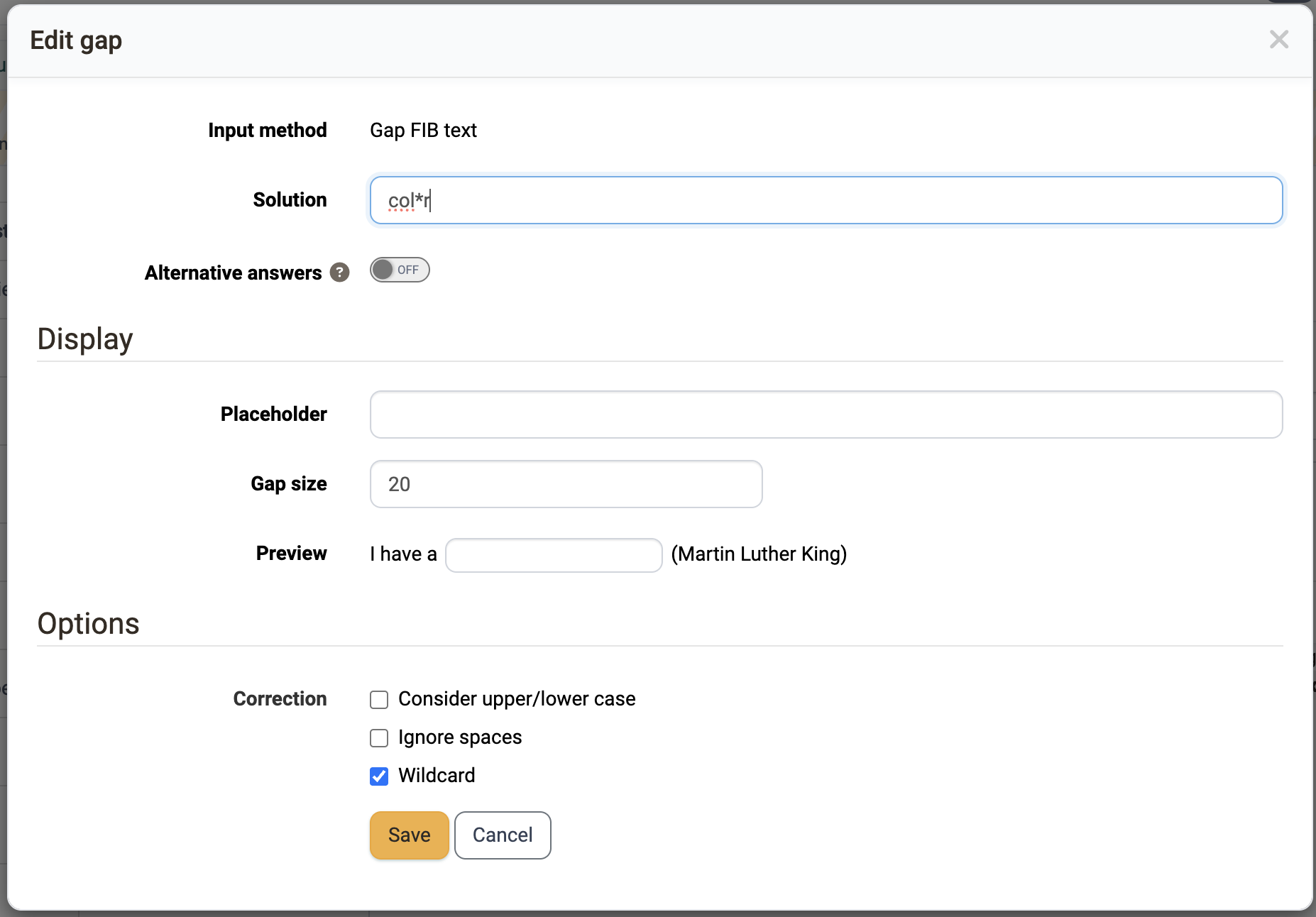
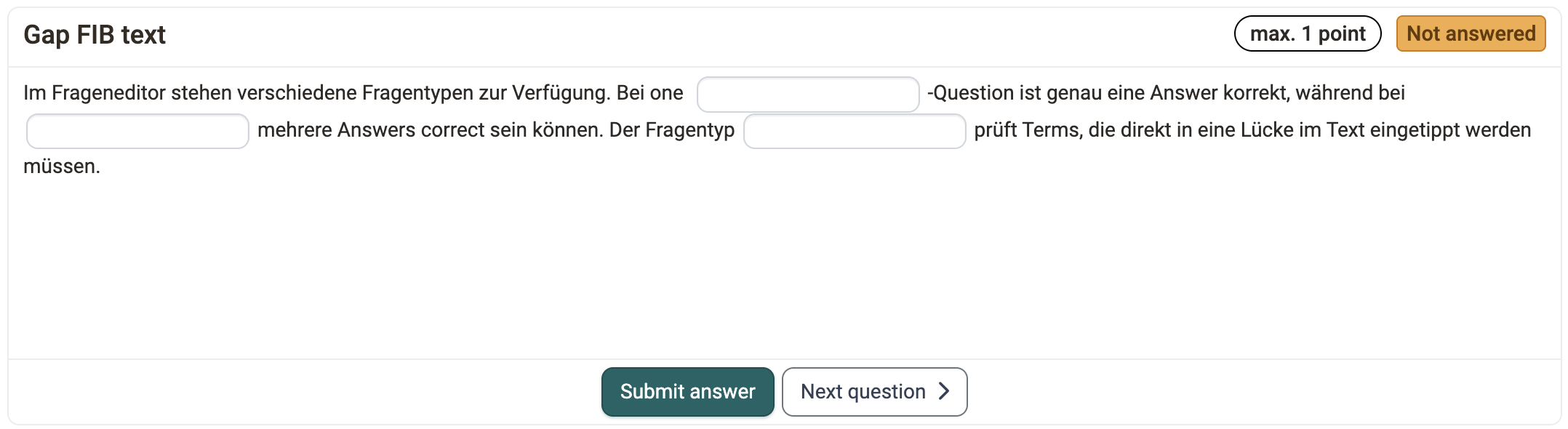
A gap-text question consists of a text in which (text) gaps are integrated. Gaps can be inserted via the icon with the three dots by editor and revised by clicking on the gap. The "Create gap" or "Edit gap" dialog shows the input method of the gap at the top and presents the configuration in a preview.
For every gap the following settings can be made:
- Solution: Fill in the correct and desired solution.
- Alternative answers: With this toggle, further accepted solutions are entered as alternatives. "Add answer" adds one field at a time; "Add multiple" enters several alternatives at once, separated by a selectable delimiter.
- Display:
- Placeholder: If desired, a placeholder can be added. It appears in the text in the gap and is visible for the candidate.
- Gap size: Here you can enter a maximum length for the gap field, e.g. for formatting. It has no effect on the actual length of the entry.
- Preview: Shows directly in the dialog, using an example sentence, how the gap is displayed with placeholder and gap size.
- Options: The "Correction" checkbox group defines how strictly the answers are corrected automatically:
- Consider upper/lower case: If this option is selected, there is a case sensitivity. Otherwise it doesn't matter if a solution is written in upper or lower cases.
- Ignore spaces: Additional spaces, tabs and line breaks in the answer do not lead to a devaluation. For example, with the solution "log in", an entry with a double space is also counted as correct.
- Wildcard: The character * stands for "something or nothing" in the solution and can also be used in the alternatives. For example, the solution "col*r" covers the spellings "color", "colour" and "colr". If candidates enter a * themselves, it is treated as a normal character. A solution consisting only of wildcards is not accepted when saving.
The points can be chosen freely. Points can also be awarded for alternative answers.
If at least two gaps contain an identical answer option, the "Allow twice the same input" setting is available in the " Score" tab. This allows or prevents the entry of the same answer in multiple gaps.

Gap text with dropdown
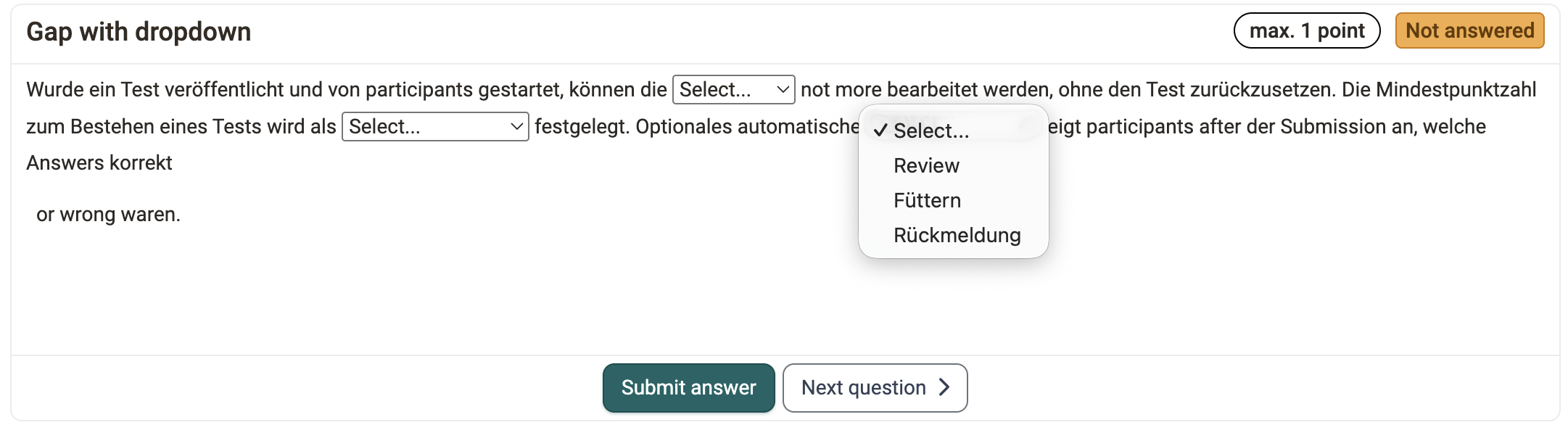
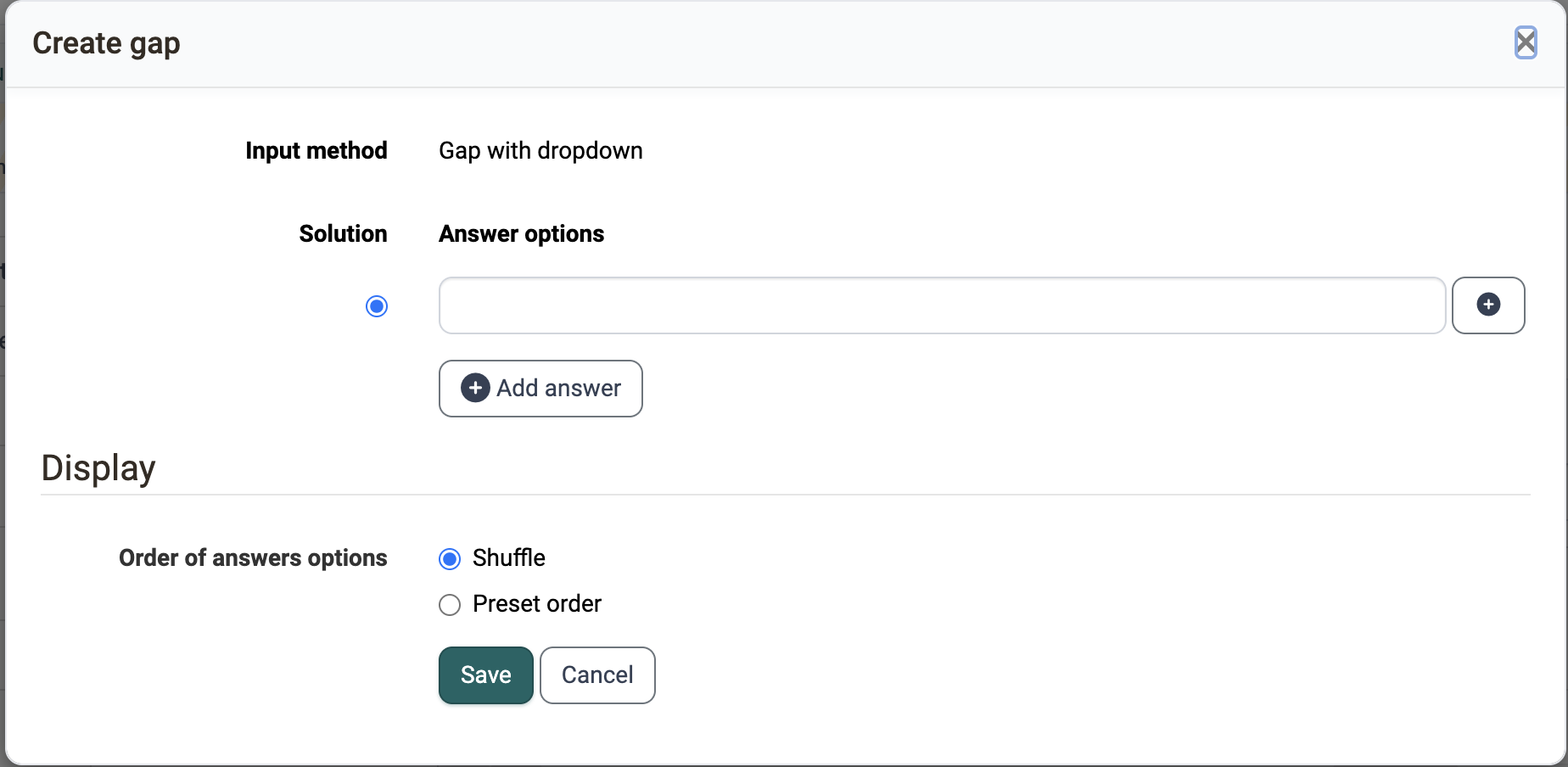
Gap text with dropdown is basically a combination of gap text and single-choice selection. Similar to the gap text, gap elements are integrated into a continuous text. These gaps are then assigned several answers under "Answer options"; the correct answer is marked as the solution.

Under "Display", the option "Order of answers options" defines whether the answers are shown to the candidates in shuffled order or in the preset order you entered.
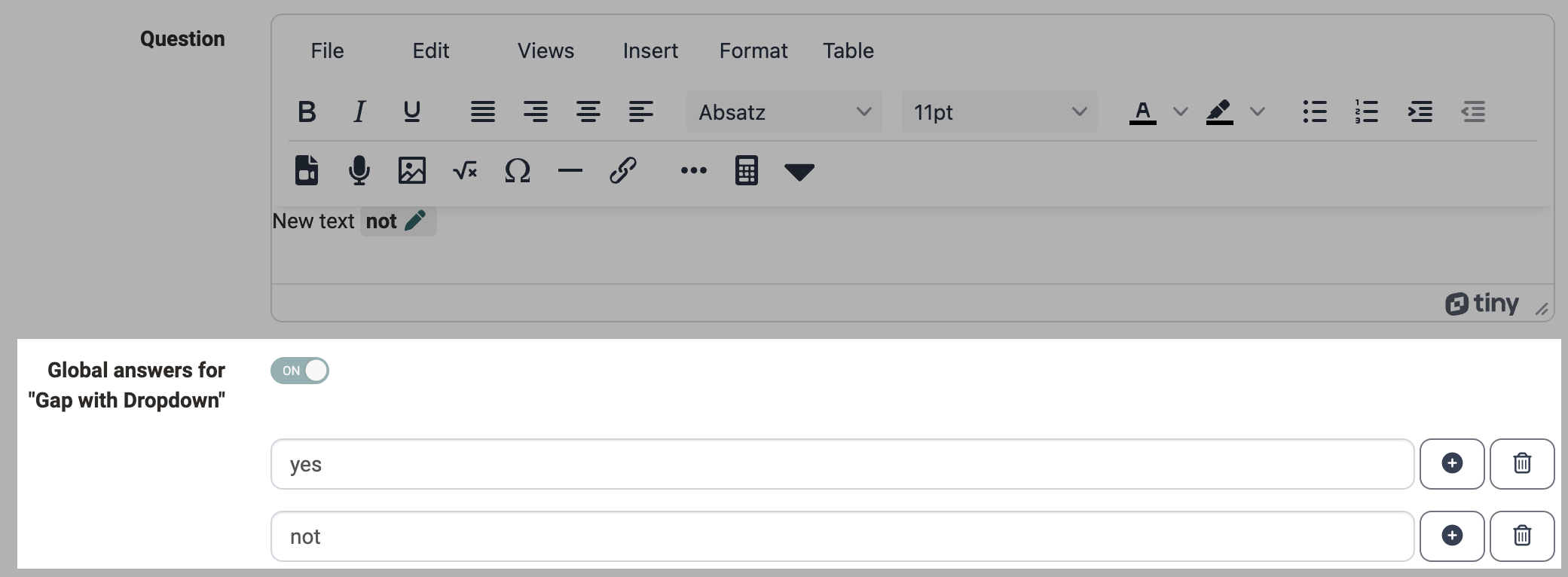
Furthermore, global answer options can also be used for the gaps. They are defined once per question via "Add global answer" and are then displayed in each gap of the respective question; the candidate must select the appropriate answer for this gap.
Scoring can be done across all gaps as well as configured separately for each answer of a gap.
Gap FIB numerical
In general the Gap FIB numerical is the same as the gap text. But as solution there are numbers required, not texts.
For every gap the following settings can be made:
- Solution: Fill in the correct and desired solution.
-
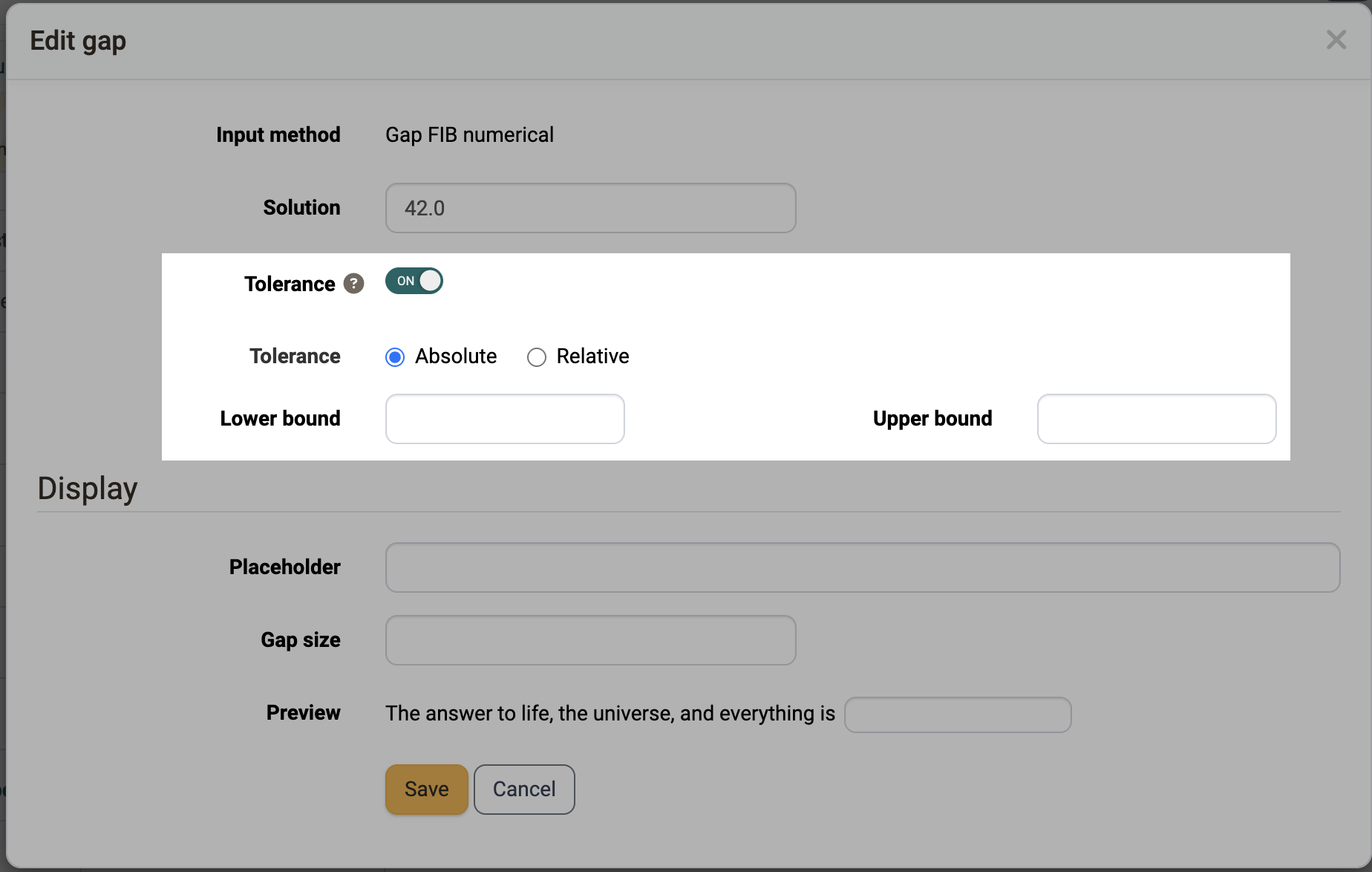
Tolerance: If the toggle is switched off, the answer must exactly match the entered solution. If it is switched on, the gap accepts answers between a lower and an upper bound. Two modes are available:
-
Absolute: "Lower bound" and "Upper bound" are entered as absolute numbers.
Example: Solution 20, lower bound 18, upper bound 20.8 → all solutions between 18 and 20.8 are correct.
-
Relative: "Lower bound" and "Upper bound" are entered as relative numbers in percent.
Example: Solution 20, lower bound 10, upper bound 10 → all solutions between 18 and 22 are correct, as the lower bound means minus 10% (20-2) and the upper bound plus 10% (20+2).
-
-
Display:
- Placeholder: If desired, a placeholder can be added. It appears in the text in the gap and is visible for the candidate.
- Gap size: Here you can enter a maximum length for the gap field, e.g. for formatting. It has no effect on the actual length of the entry.
- Preview: Shows directly in the dialog, using an example sentence, how the gap is displayed.
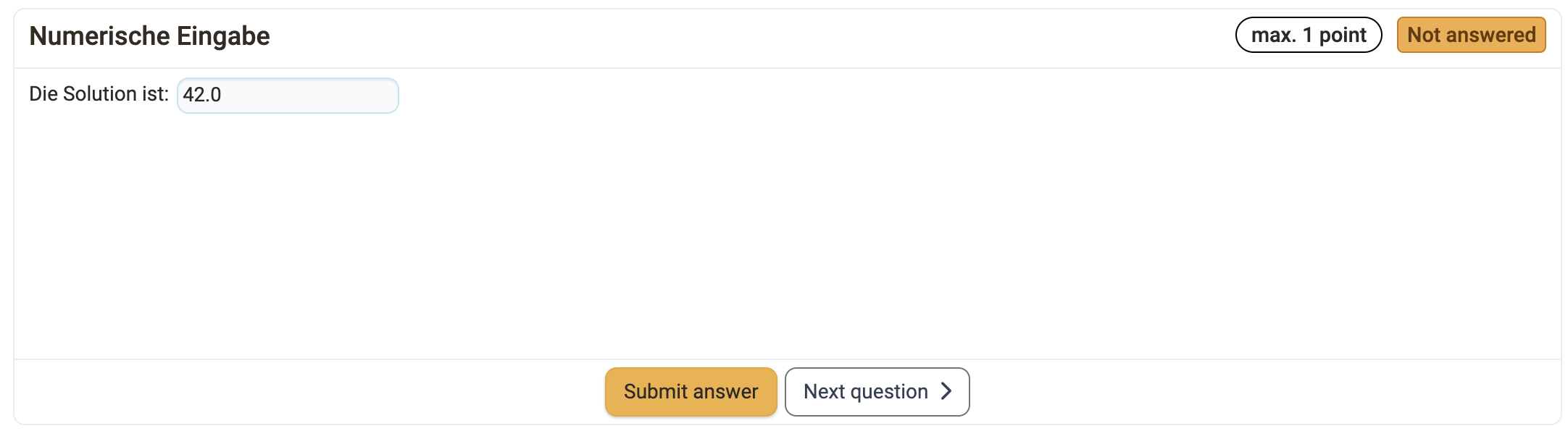
Gap mixed
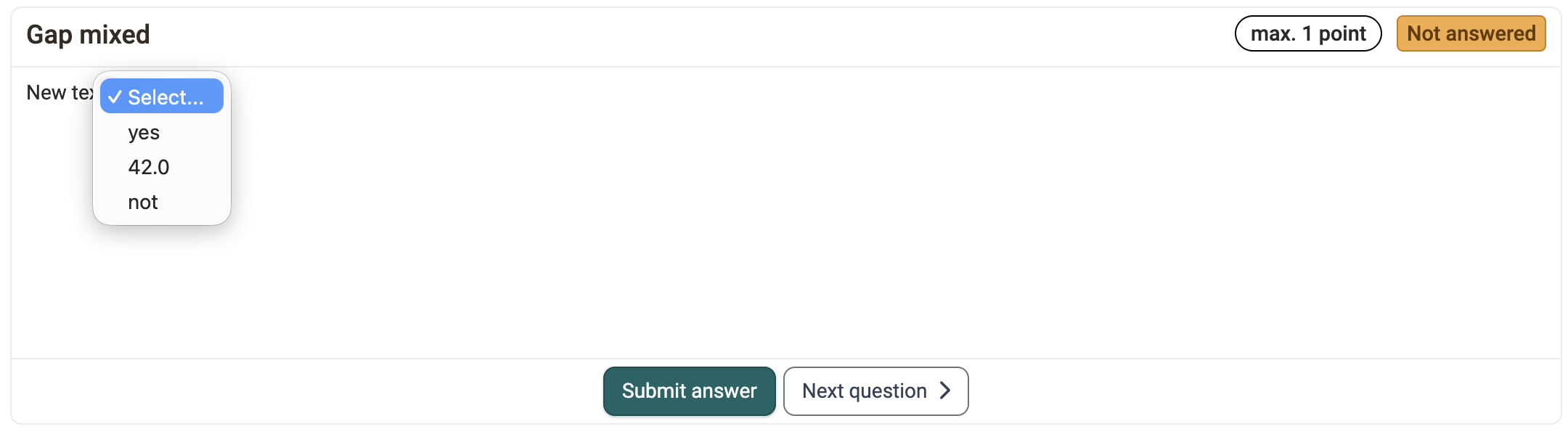
The Gap mixed question type combines the three gap variants in a single question: text gaps, numerical gaps and gaps with dropdown can be built into the same continuous text together. This makes it possible, for example, to map a calculation task including its reasoning in one question, without creating several individual questions.
When inserting a gap, the desired input method is selected. Each gap is then configured via the same dialog as for the respective individual question type; the input method of the gap is shown at the top of the dialog.
If the question contains gaps with dropdown, global answer options can also be defined (see Gap text with dropdown).
Existing questions of the types Gap text and Gap FIB numerical that contain both text and numerical gaps show a message in the question editor. The action "Convert to 'Gap mixed'" converts such a question into the new question type.
Hottext
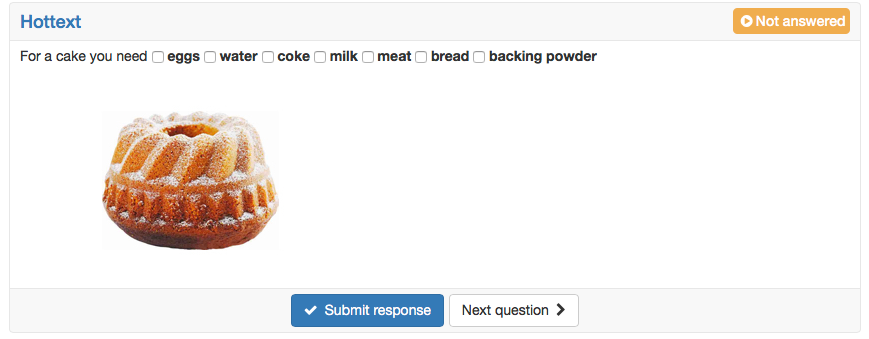
The hottext questions is similar to the gap text. In a running text different terms are marked, and can then be selected by the candidates.
First a short title is inserted.
Afterward a text is written and the selectable terms are marked as hottext. Finally the correct answers need to be marked by selecting the checkboxes.
Hotspot
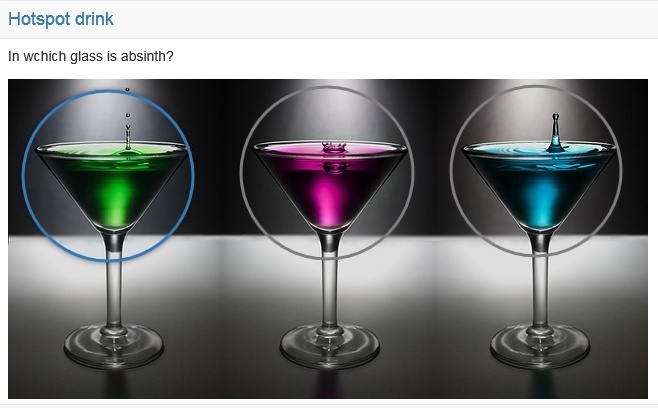
In a hotspot question, hotspots/areas are graphically presented on an image and need to be selected by the candidate correctly. Thereby the question can be created either as a single-choice or as a multiple-choice question. Various fine adjustments as the shape of the hotspot, the color of the hotspot, the adjustment of the size as well as the advanced edit allow an optimal visualization. The hotspots are visible for the candidates.
Approach
- First a short title and a question are inserted.
- Afterward the desired picture is uploaded.
- Then spots in form of circles or rectangles can be placed on the image. In advanced editing, spots can also be easily duplicated.
- Finally, the correct answer needs to be selected.
Order
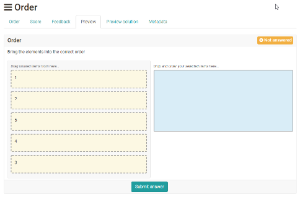
This type of question requires learners to put elements (text or images) in a correct order. This question type behaves similar to a drag&drop question.
First the title and the question are entered.
Then the answers can be entered in the correct order and the alignment of the display can be set vertical or horizontal.
Note: Restriction to mobile devices
This question type is operated by dragging the answer elements and is not optimized for touch operation. It is best suited for tests that candidates work on at a desktop computer or laptop.
Essay*
The answer to a free-text question is inserted into a field of variable size. In a test environment, the Essay question must be evaluated separately and manually.
First a short title and a question are inserted.
Afterward the following attributes can be chosen:
- Placeholder: If desired, a placeholder can be added. It appears in the text field and is visible for the candidate.
- Height (number of lines): Here can be defined, which height the textfield should have. This height is not restrictive. A candidate can also write more lines than indicated here.
- Min. words: This number of words must at least be written, to be able to send the task.
- Max. words: This number of words can at most be written, to be able to send the task.
- Allow copy/paste: Here you define if the learners are allowed to insert content via copy+paste or via drag&drop from an external source. Moving text within the same field internally remains possible regardless.
Essay questions come with a pre-defined width and a tab function. Hence, answers can be formatted more easily, e.g. by displaying columns.
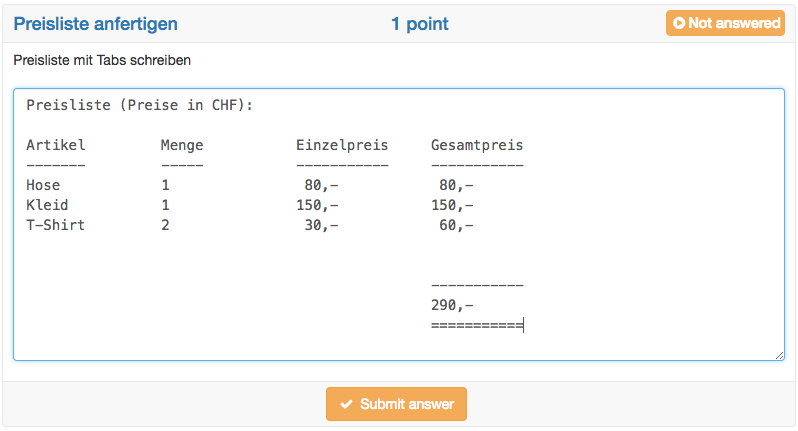
Autosave
As the name already says, with this question type essays are often written. Thus this question type has got an autosave feature, which saves written text every minute. Further information about the configuration of essays can be found in the excursion below this table.
File upload*
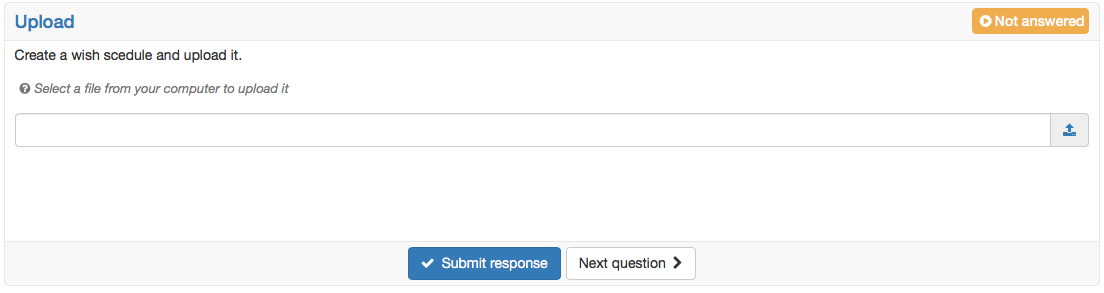
For this question type candidates need to upload a file.
A short title and the question are entered as well as the number of available upload fields. With the upload fields the maximum number of files to be uploaded can be defined. The maximum number of upload fields is 10.
No correct answer can be marked, as the assessment of this question type is only manually possible.
Drawing*
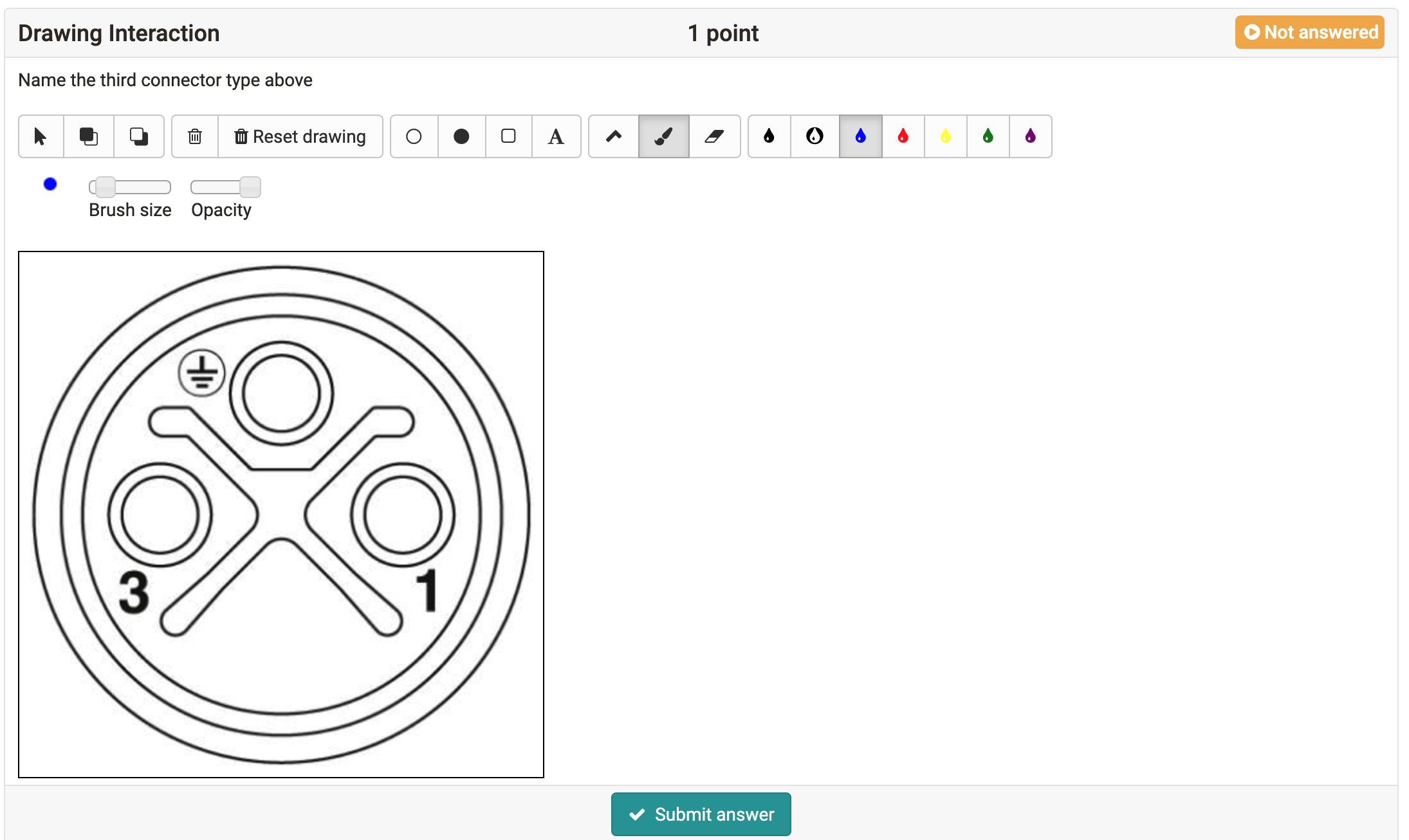
For the questions type drawing the candidate gets the task to edit a given picture with the available drawing tools.
First a short title and a question, or more an edit instruction are inserted.
Afterward a picture for the background is uploaded. This picture needs to be edited by the candidates. No answer needs to be added, as the assessment of this question type is done manually.
It is also possible for the candidates to add text via the text tool. The text size can be customized using the brush size.
Note: Restriction to mobile devices
This question type is operated by freehand drawing and is not optimized for touch operation. It is best suited for tests that candidates work on at a desktop computer or laptop.
Import questions
Besides creating questions directly, you can also import questions from the question bank or via the Excel import from a table in Excel.
Digression: Writing essays
With the learning resource test and the question type essay, essays can be written in OpenOlat. The following points need to be considered:
- The autosave feature for the question type essay saves the written text every minute. The time of the last storage is visible on the bottom right. Autosave prevents the candidates from losing written text, for e.g. if the internet connection is broken or a session time out is reached. If a candidate has not actively submitted the answer to the question via the "Submit answer" button, the content already saved via autosave is displayed in the correction workflow with a note to this effect.
- If it comes to an interruption, the candidates should be able to start the test again. So the following settings need to be met:
- The number of attempts for the whole test should not be limited. To make sure that the test is not started again at a later point (after the actual test time), it can be done with the Safe Exam Browser or in the assessment mode.
- Suspending the test is allowed. So after an interruption the candidate comes back to where they left. The text is stored until the last saving. There can be some small text losses.
- The number of attempts for the essay question is not limited. This allows candidates to submit the written text over and over again and continue writing. The regular submitting of the written text gives security to the candidates.
- If a test has a time limit, the text is saved at the very end only if it is submitted right before the time is running out. Please remind your candidates shortly before test end to submit the question one more time and not writing anything anymore afterward.
If considering these recommendations an essay can be written in OpenOlat.
Further information
Question Bank: Overview >
Question Bank: Import Questions >
Question Bank: Create Questions >