Zoom
Zoom is a commercial web conferencing solution. Please visit the Zoom homepage for more information.
The Zoom integration lets you manage Zoom profiles and use Zoom Meetings as OpenOlat course elements, course tools, and group tools.
A Zoom profile is a connection to a Zoom account and to a Zoom LTI Pro Credential. An LTI Pro Credential is a key that allows Zoom to be launched from another application without authentication and using an existing Zoom account.
Prerequisites
- You must have a Zoom Education or Enterprise license.
- You need the Zoom administrator role in your Zoom account.
- You need the administrator role in your OpenOlat account.
- The Zoom integration uses the LTI Pro App from the Zoom App Marketplace. You need to add this App to your Zoom account in the Zoom Marketplace.
Important
The Zoom integration is only possible if OpenOlat is running in the root context, i.e. directly at https://<openolat_instance>/ and
not at https://<openolat_instance>/olat/ or something like that. You also have to make sure that any firewall will not block the addresses
https://<openolat_instance>/mod/lti/auth.php, https://<openolat_instance>/mod/lti/token.php and https://<openolat_instance>/mod/lti/certs.php,
because they are called by Zoom during the OAuth handshake.
Configuration steps
Go to the management page of the LTI Pro App
- Go to Zoom App Marketplace.
- Install the LTI Pro App (this is only required the first time you visit the marketplace).
- Click Manage in the top toolbar.
- Click Added Apps in the left menu.
- Select the LTI Pro App.
- Scroll to the bottom and click Configure.
You are now in the Credential Management section of the LTI Pro App.
Steps in LTI Pro
Click Create a new credential and create an LTI 1.3 credential and give it a name:
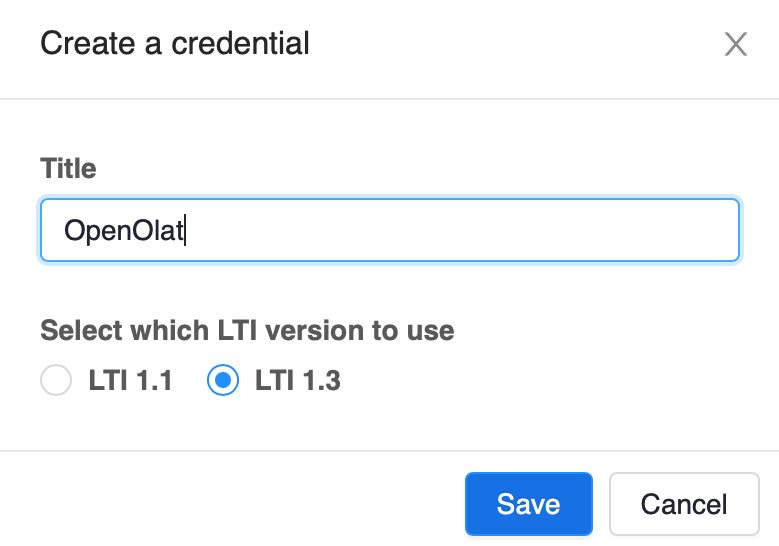
Now you have a new credential in LTI Pro.
The most important information for the next step is the value of the LTI Key field:
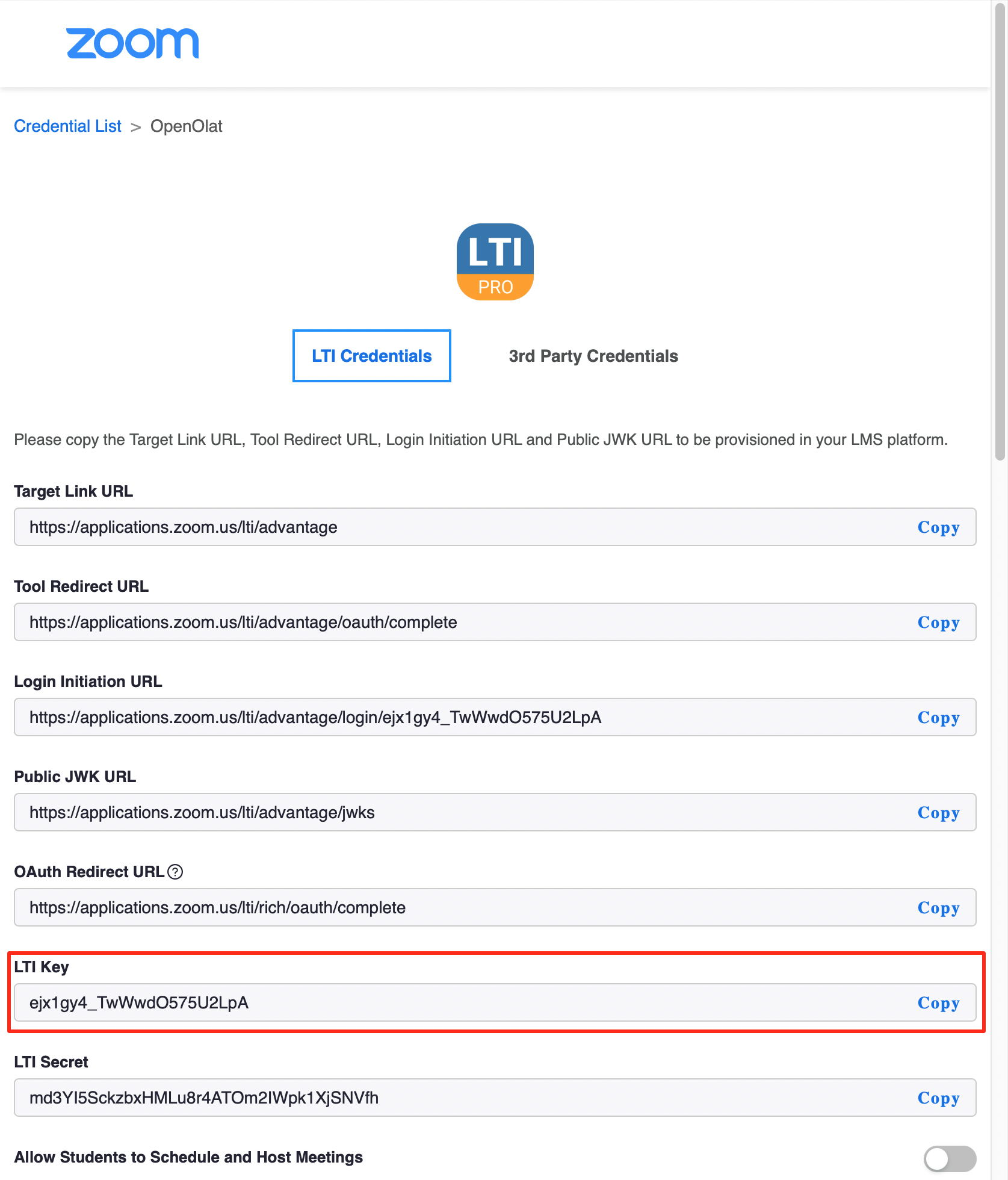
The LTI Pro Credential contains further settings besides the LTI Key. For correct operation, the time zone of the credential is crucial: set it to the same time zone that is configured for your OpenOlat server. When both systems use the same time zone, the start and end times of the meetings are displayed correctly for everyone involved.
Attention
If the time zone of the LTI Pro Credential differs from the time zone of the OpenOlat server, coaches can still start their meetings normally. Participants, however, receive a 401-type error message with a correlation ID when joining, but without any further details about the cause. In this case, align the time zones of the two systems.
Steps in OpenOlat
- Open the Zoom administration page in OpenOlat by navigating to
Administration > External tools > Zoom. - Enable Zoom for all applications: course element "Zoom", course tool and group tool.
- Click Add Zoom LTI Pro configuration.
This opens the Zoom Profile dialog:
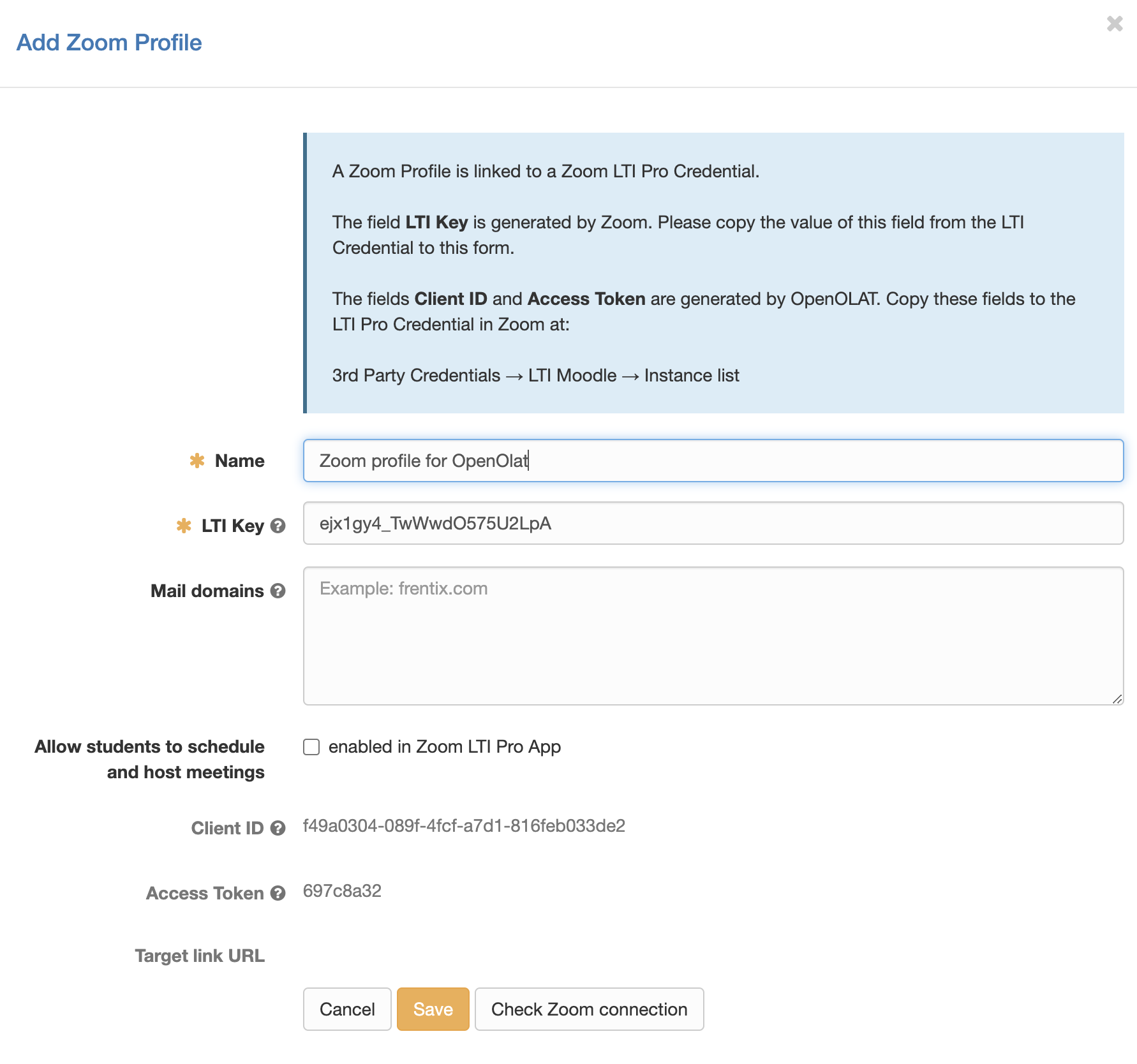
This dialog creates an OpenOlat Zoom profile for the Zoom LTI Pro Credential.
- Choose a name for the Zoom profile.
- The field LTI Key is generated by Zoom. Copy the value of this field from Zoom LTI Pro to this form. To do this, click Copy next to the field in LTI Pro to save the field value to the clipboard, and paste the value into the field in OpenOlat.
- Click Save to store the new OpenOlat Zoom Profile.
Copy information back to LTI Pro
After creating a Zoom profile, copy two values generated by OpenOlat to LTI Pro.
- Client ID: This is a unique ID generated by OpenOlat that Zoom requires to give OpenOlat permission to log in to Zoom.
- Access Token: This is a security token that Zoom sends with messages to OpenOlat. It allows OpenOlat to verify that the message originated from Zoom.
Click 3rd Party Credentials on the LTI Pro Credential page:
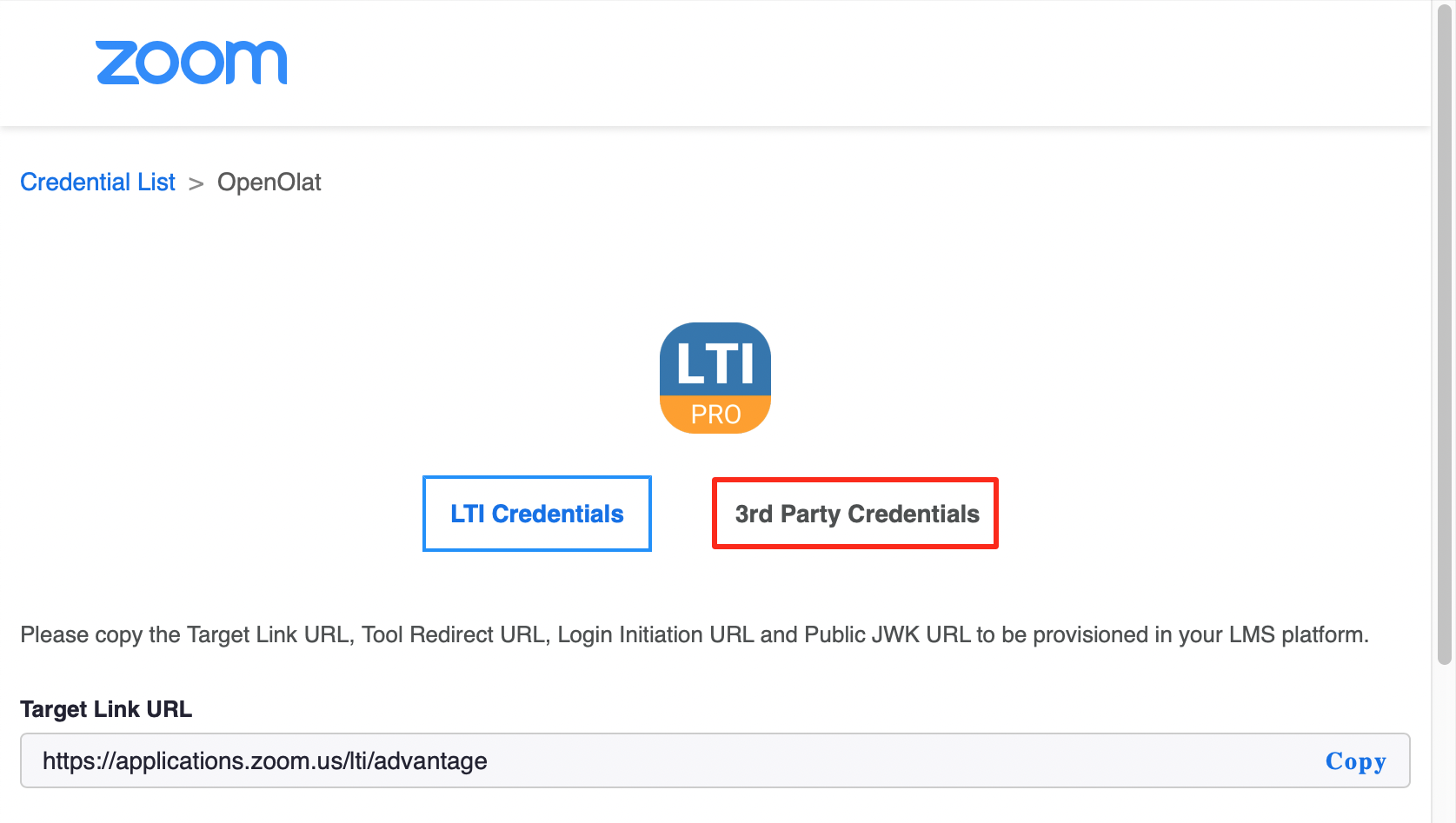
Select LTI Moodle on the left. OpenOlat uses the LTI Moodle integration.
First, activate the Calendar feature. This tells Zoom to inform OpenOlat about new meetings and meeting updates:
Click "Add Instance" to open server instance dialog:
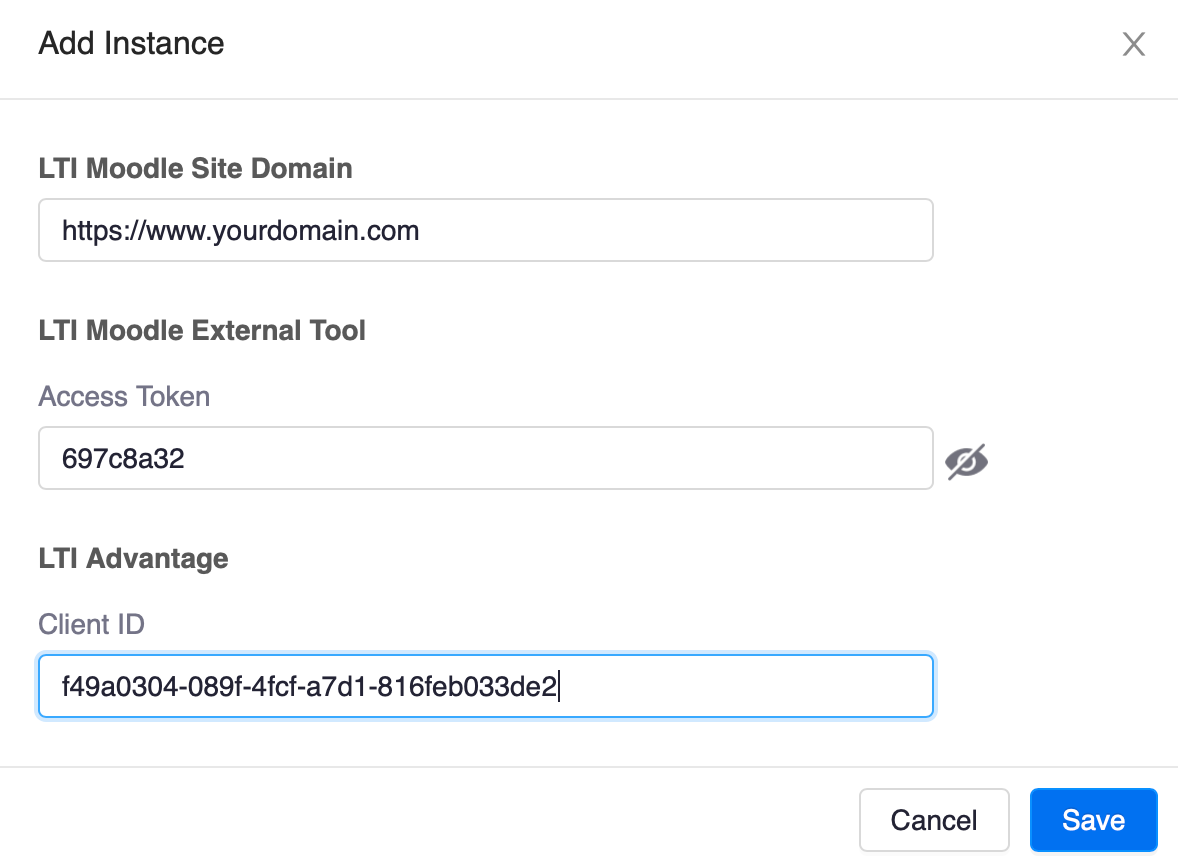
In addition to the information generated by OpenOlat (Client Id and Access Token), you also need to provide the URL of your OpenOlat server instance.
Test the Zoom integration
Now it's time to go back into OpenOlat and test the Zoom integration.
Click Edit for your Zoom Profile in OpenOlat. In the Zoom Profile editor, click Check Zoom connection. If Zoom LTI Pro and OpenOlat are configured correctly, this test should succeed.
Further information
Mentioned on this page
Zoom homepage
Zoom App Marketplace