Glossary - Usage
Where can a glossary be called up?
Course tool
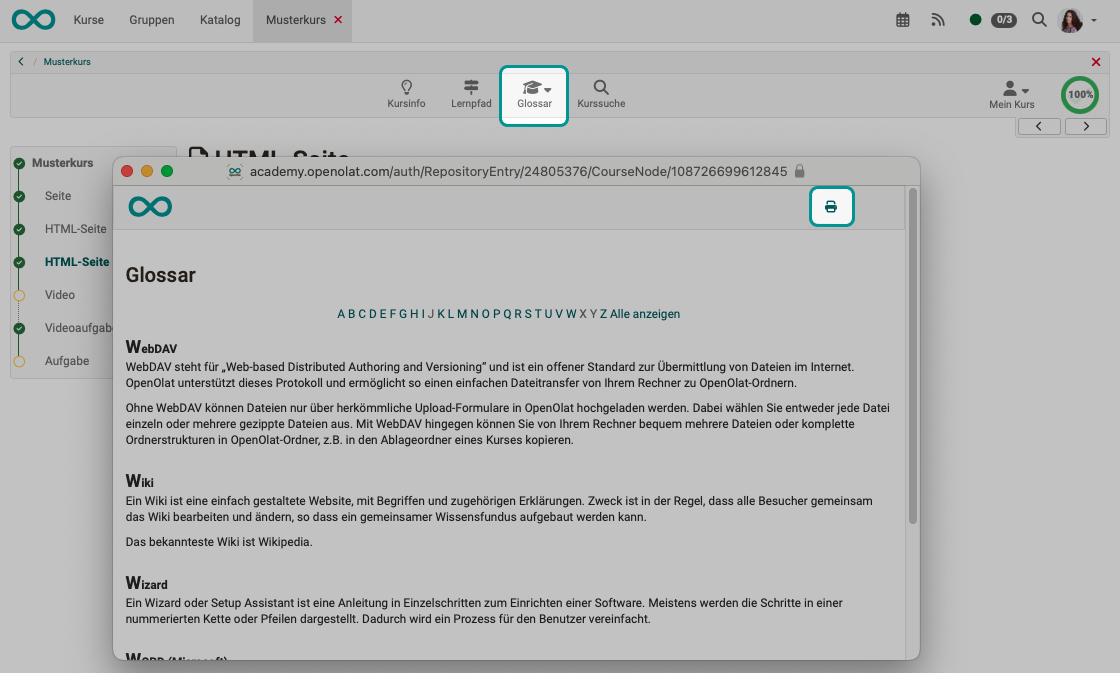
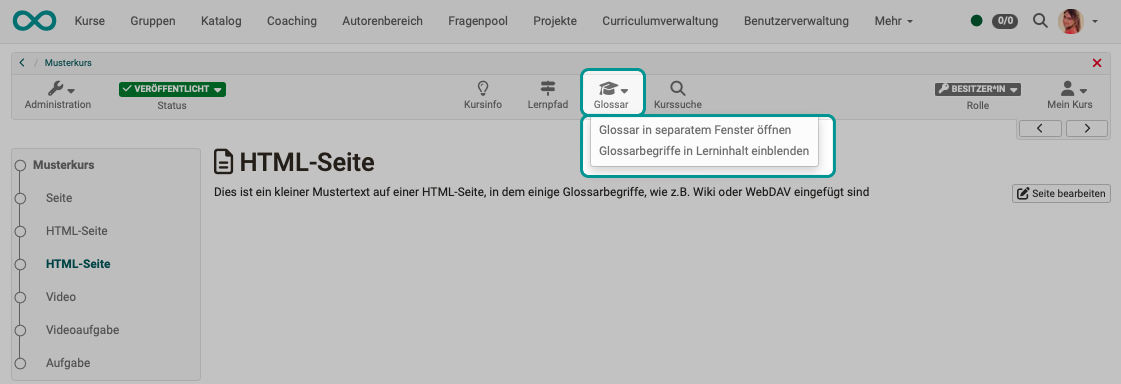
If the course owners have included a glossary to clarify terms in the course, the link to the glossary will appear in the course toolbar.
You can open the glossary in a new window or display the definitions by hovering your mouse over a term contained in the glossary while viewing the course content.
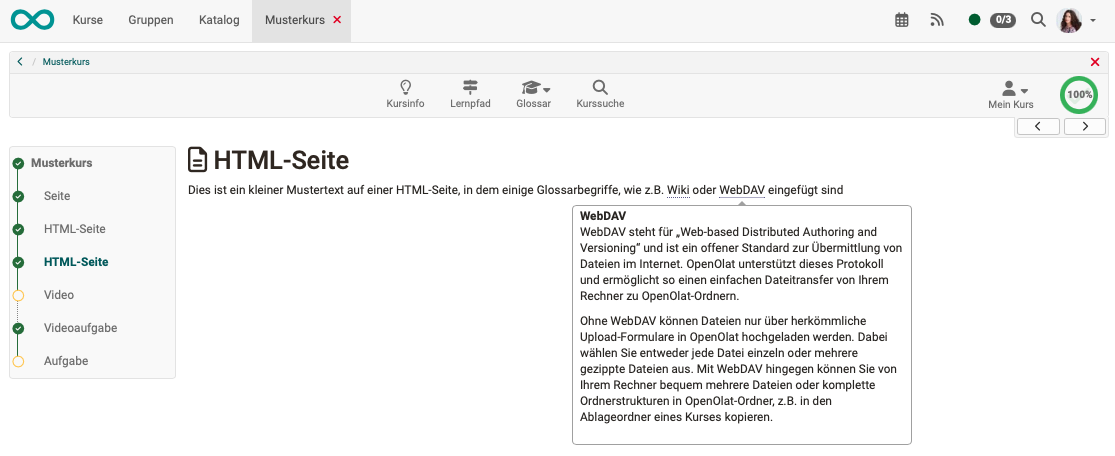
Use in HTML pages
If a term is mentioned in the course (e.g. in the wiki) that is in the glossary, the definition is displayed when you move the mouse over the term. A fine, automatically inserted dotted line under a word indicates that an explanation of this term has been found in the glossary.
Separate glossary (learning resource "Standalone")
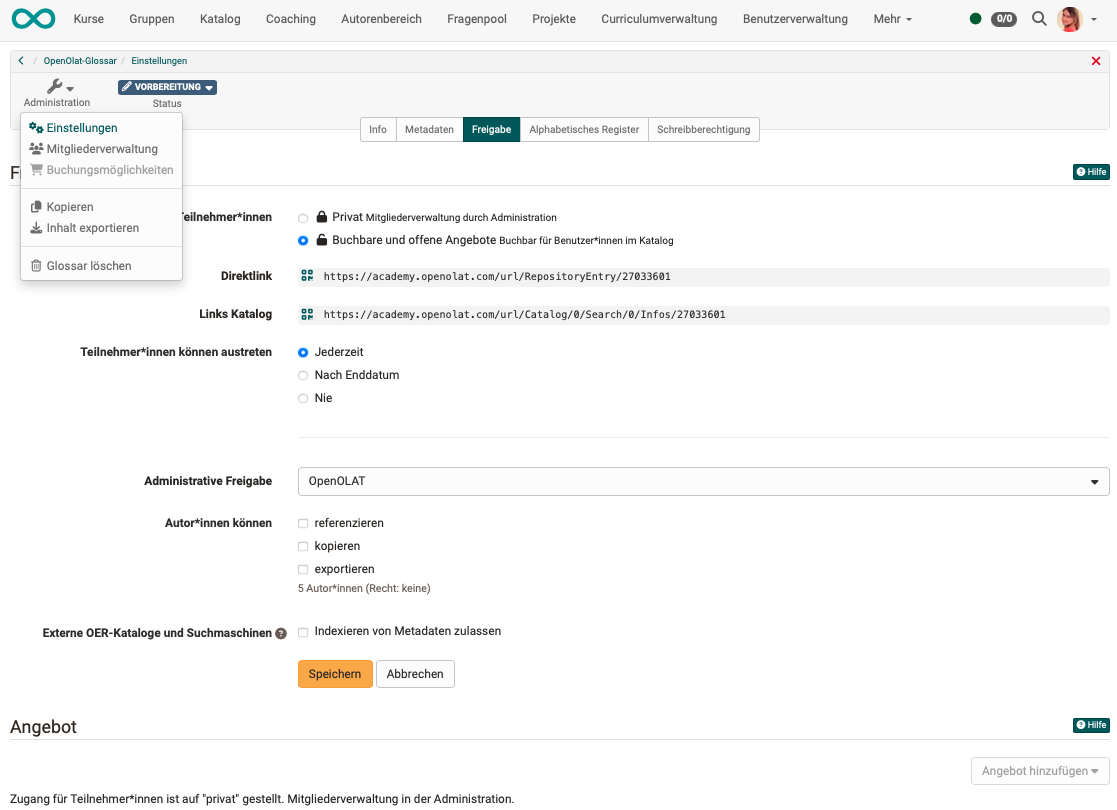
As well as being integrated into a course, a glossary learning resource can also be used as "Standalone". It can then appear in the catalog as an independent offer, for example.
In the settings in the "Sharing" tab you will find, for example, the direct link to the glossary, which you can copy into emails or other places.
Call by guests
In principle, various learning resources such as wikis, blogs, tests, videos or glossaries can be activated for guests.
Guests are anonymous, unregistered users who cannot be managed in the user management.
For guests to gain access to a glossary, guest access must be activated by the system administrators of the OpenOlat instance. It is also possible to configure which OpenOlat areas guests have access to and which they do not. These basic settings can only be made by the system administrators.
Printout of the glossary
The glossary can also be printed out. To do this, open the glossary in a separate window (dropdown in the "Glossary" course tool). You will then find the print button at the top right.