Working with tables
The tables in the courses section and in the authoring section (for authors) offer various filter and setting options.
The filter menu
The filter menu contains the selected filter options as well as the buttons "More..." and "Reset filter" and the option "Save filter". The filter menu can be expanded and collapsed by clicking on the small arrow.
Filters are either selected from drop-down menus or entered into an input field. To apply a filter, select the desired filter and then click "Apply". To remove a single filter, click "Remove filter" in the respective filter option. If you want to remove all filters, click the button "Reset filter" on the right of the filter menu.
The active filters are combined. I.e. only entries matching all filters are displayed.
Add and remove filters
On the right of the filter menu you will find the button "More...". Here you select which filter options are displayed in the filter menu, or you reset your selection to the default.
If you are in a filter tab with predefined filters, this filter cannot be changed.
Saving filters
On the right of the filter menu you will find the option "Save filter". Here you save your currently active filter settings and quickly access them again. Your individual, saved filters are then displayed above the filter menu as filter tabs.
Table settings
The button with the three dots above the table opens the dialog "Table settings". There you see and set all available filters, define the sort order and select the displayed columns under "Displayed columns".
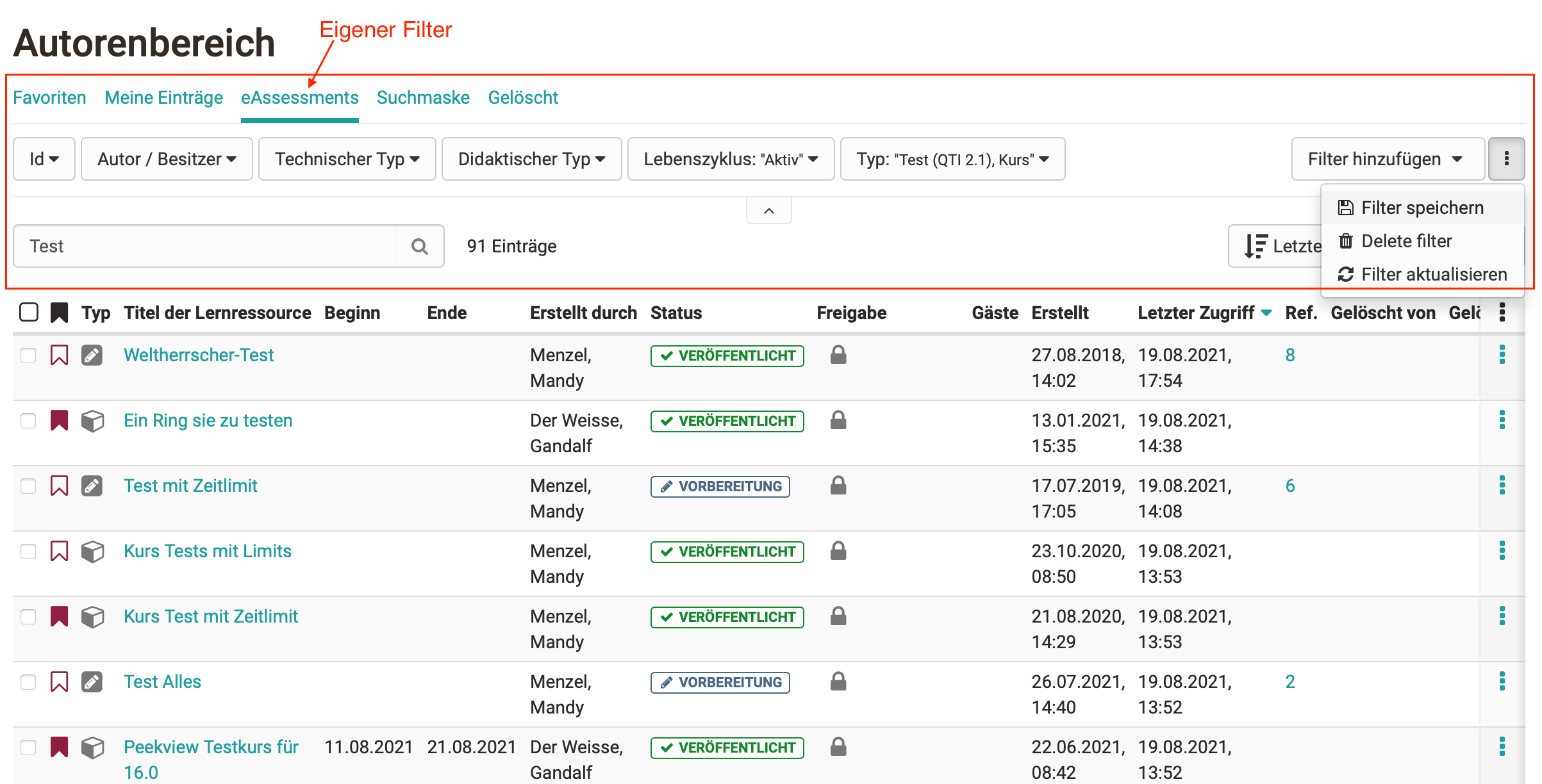
Filter tabs
Above the filter menu you will find the filter tabs. They contain the predefined filters and individual saved filters.
Some tables also offer predefined, context-specific filters whose meaning depends on the respective function. In Coaching, for example, the "Relevant" filter shows the courses currently most important to the coach, i.e. courses with the status "Published" and "Access for coach". See Coaching - Courses.
Sorting
The sort button above the table opens the menu "Sorted by", where you choose the sort criterion. The button shows the active criterion.
Mass actions
If you have selected one or more entries in the table, available mass actions appear above the table. This allows you to quickly edit multiple entries at the same time.
Search
With the search function you can search for specific entries. The selected filters remain active. In the same way, you can further narrow down your search results using the filters.
Further information
Finding courses >
Authoring - Overview >
Coaching - Courses >
General information on the search >
Folder concept >