Media Center Concept
Functions
The Media Center is a central collection point for different types of media.
Media can be...
- ... created directly in the Media Center
- ... created in various course elements and then stored in the Media Center
- ... created externally and uploaded as a file
- ... used across courses
- ... released (shared) to other persons and used jointly
- ... versioned
- ... tagged
- ... assigned to a taxonomy
- ... filtered (e.g. "My media")
- ... searched by place of use

Access
The Media Center is initially your personal area. You open it via your profile picture at the top right, in the personal menu:
Personal menu > Media Center

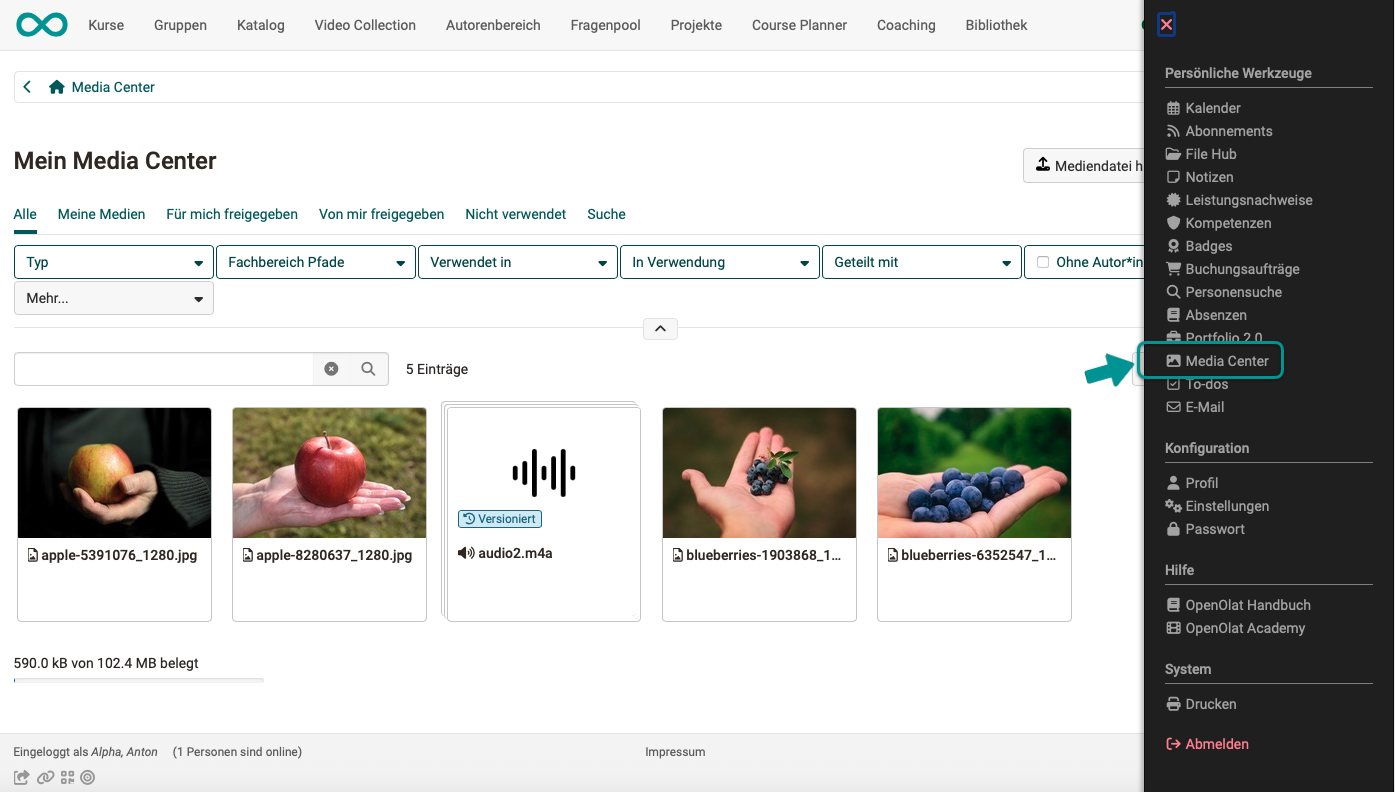
Even if they are personal media, they can be shared with other people and used in various OpenOlat contexts.
More about sharing >
Administrative access
Administrators and learning resource managers additionally have administrative access through their role to media items of other persons, provided that these are shared with a course belonging to an organisation in which they hold this role. They find these media items in the segment "Media management", see Manage Media Center.
Types of Media
Different file formats and content elements can be stored and managed in the Media Center. These include:
- images (png, jpg, svg , ...)
- video files (mp4)
- audio files (mp3)
- Office documents (docx, xlsx, pptx, ...)
- text elements
- diagrams (draw.io)
- own video recordings via webcam
- audio recordings
- citations
- forum posts
- blog entries
- wiki pages
- evidences of achievement from courses
Add media to the Media Center
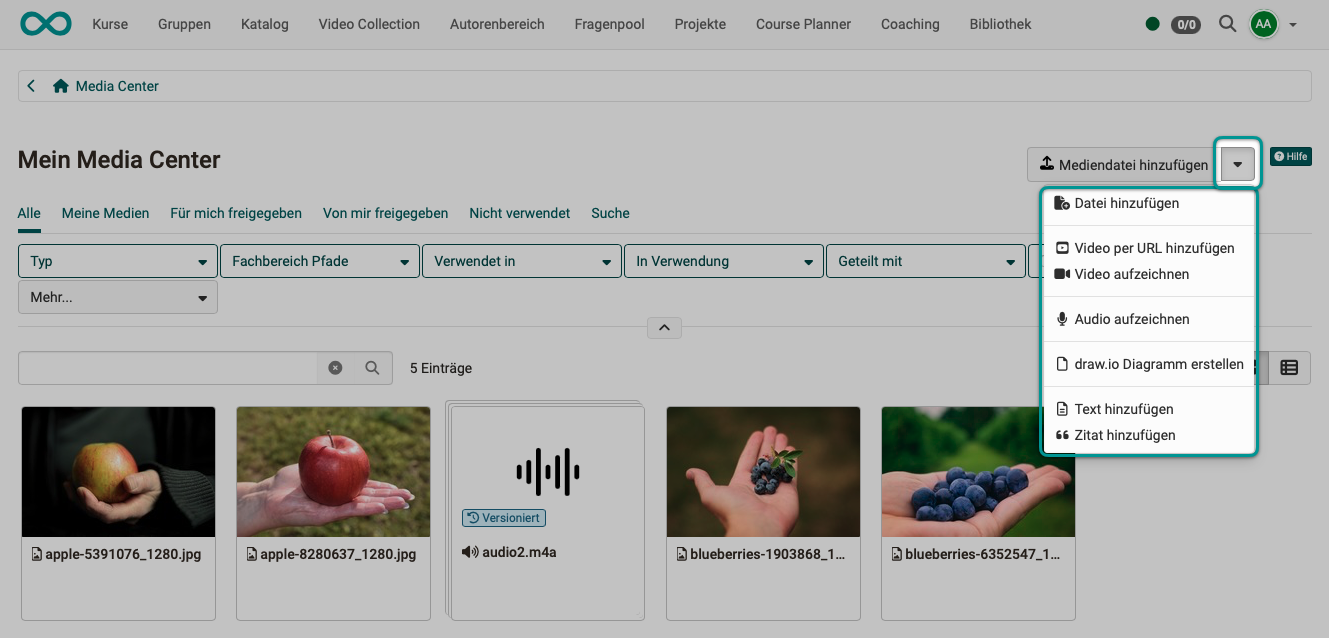
There are various ways to store media in the Media Center:
Upload or link existing media directly in the Media Center
- Add media file: Upload images, videos, pdf, Excel, etc. If the AI module is enabled, metadata such as title, description, alt text and tags can be pre-filled by AI via a button when uploading images . If the AI image descriptions are switched on for you, OpenOlat additionally adds missing metadata in the background, see Tab AI settings. Details on metadata with AI >
- Add video via URL: Videos from external portals such as YouTube, Vimeo, Panopto or nanoo.tv can simply be added via a link.
- Add citation: Quotations from books, articles, websites, films, etc. can be stored in text form and provided with metadata such as source, author, URL, etc. This means that citations can be inserted in several places in OpenOlat without having to enter the entire source again and again. However, make sure that you enter all details carefully and completely.
Create new media directly in the Media Center
- Create document: Documents of integrated editors, e.g. Word, Excel, PowerPoint
- Create draw.io diagram: Creates a diagram, flowchart or drawing with the draw.io tool
- Add text: Text elements for use in the Content Editor, created with a simple HTML editor
- Record Video: Video recording function integrated in OpenOlat. If you click on "Record Video", the recording function for the webcam is started directly, provided you allow access to the camera in the browser.
- Record Audio: Audio recording function integrated in OpenOlat. If you click on "Record Audio", the recording function is started, provided access has been permitted in the browser.
Create new media outside the Media Center in the Content Editor
Media for the Media Center can also be created in the OpenOlat course or in the portfolio using the Content Editor. In the course, you use for example the course element "Page". Go to edit mode and select "Add content". Among other things, a button for the "Media Center" will appear. Click on the button and you will be taken to the Media Center with all the corresponding options.
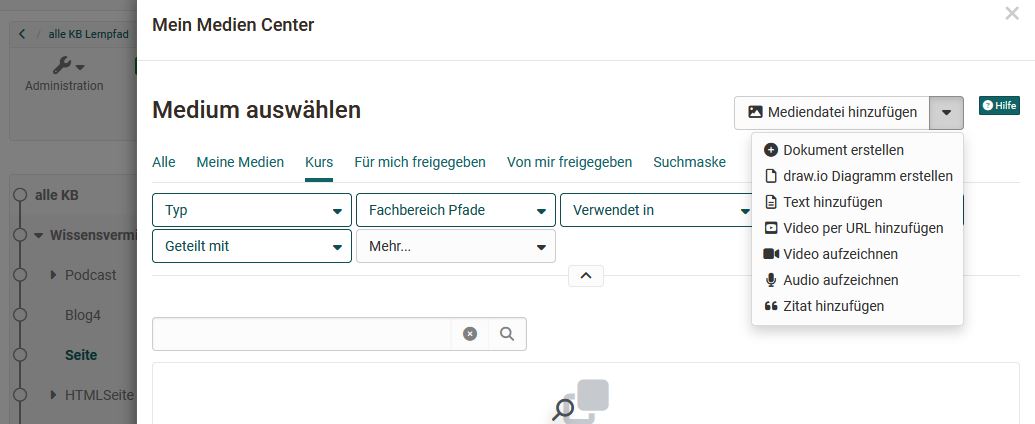
Collect content elements and assign them to the Media Center
In addition to creating or uploading media in the Media Center, media can also be collected in other places in OpenOlat and linked to the Media Center by clicking on the puzzle piece.
The elements include:
- forum posts
- blog entries
- wiki pages
- evidences of achievement from courses
For example, to add a post, open your forum post and click on the puzzle piece.
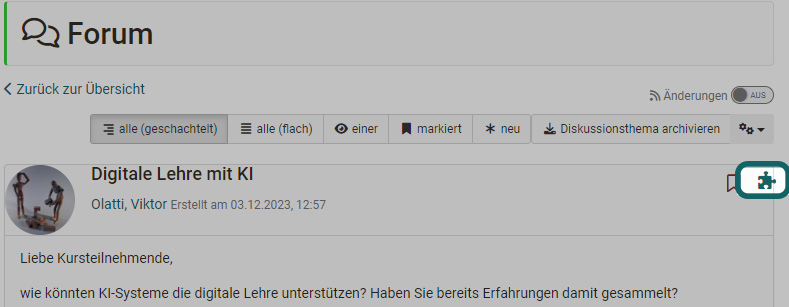
A page will then appear where you can enter the metadata as usual and save everything. The post is then available as a link in your Media Center.
Important
For forum posts, blog entries and wiki pages, it is necessary to be the creator of an entry or wiki page. Simply editing the post is not sufficient.
Mandatory information
Each media element must have a title and can then be provided with additional information and metadata. This information can be further configured later using the tabs of a media element.
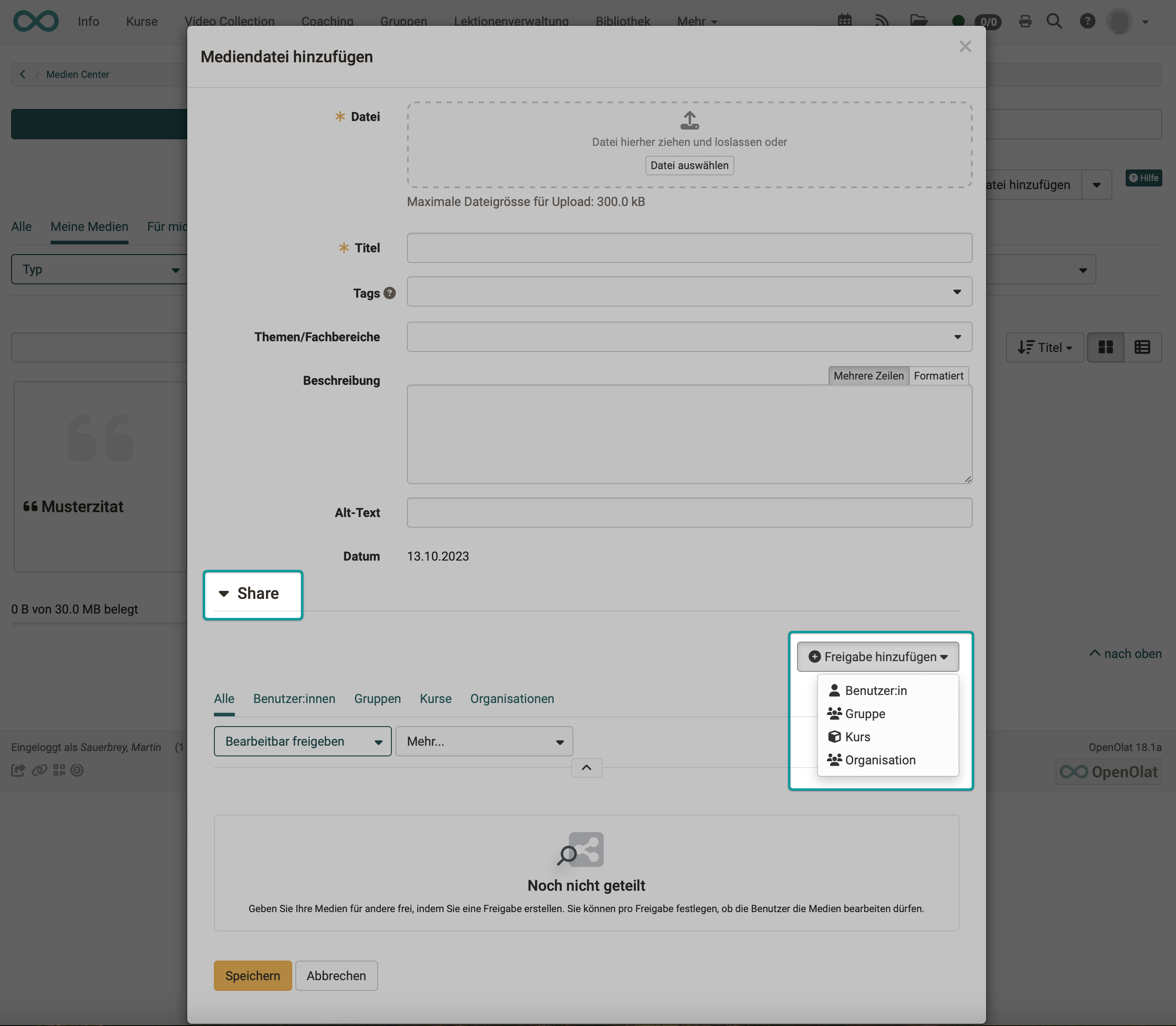
Share with others
When you add a media file to the Media Center, you can share it with other people (co-users).
The view that users see:
Delete media
You delete your own media items that you no longer need in your Media Center under Personal menu > Media Center. If you see a segment bar, select the segment "My Media Center" there.
Select the table view at the top right above the list if you are currently viewing the media in card view.
If you select at least one list entry at the beginning of a line in the table view, the "Delete" button appears above the list, which can be used to delete several elements at once.
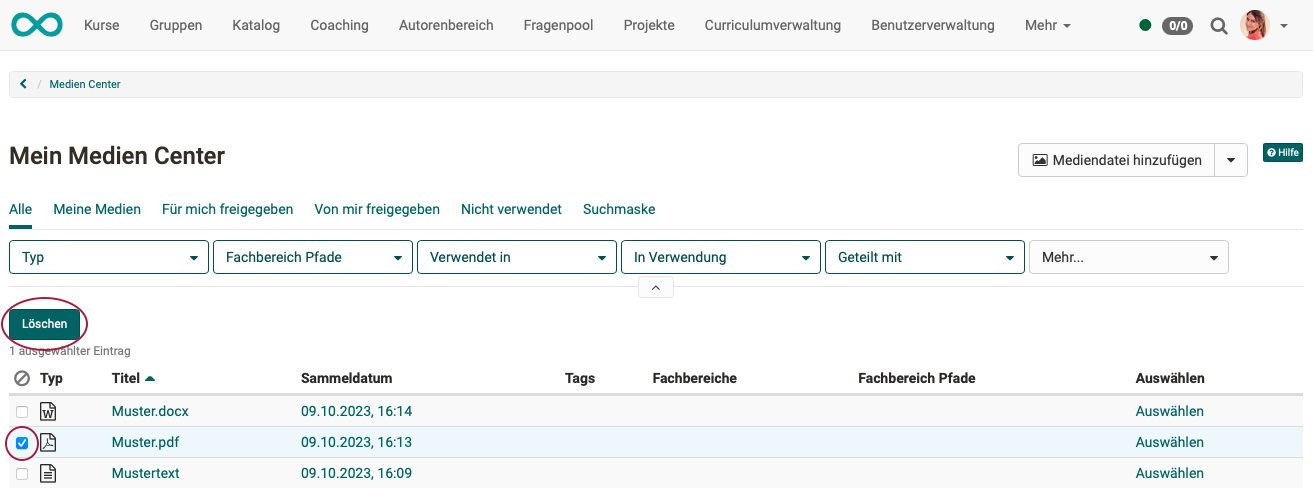
You can also delete individual files in the 3-dot menu if you have clicked on an individual medium and the information and descriptions are displayed. (Same menu as for downloading.)
Important
Please note that you can only delete your own media that are not integrated in other places in OpenOlat.
What happens to the media items when an account is deleted
Media items uploaded to the Media Center always belong to one owner. When that account is deleted, a single question decides the fate of every media item: is it embedded in a page?
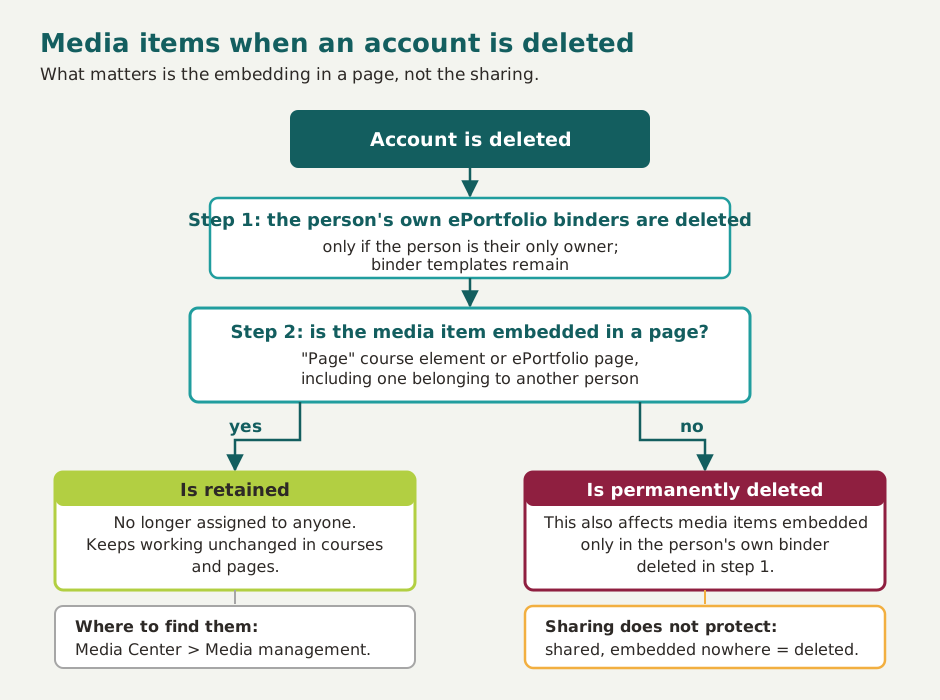
Embedded counts both in the "Page" course element and in an ePortfolio page, including one belonging to another person. If the media item is embedded, it is retained and is no longer assigned to anyone. If it is not embedded anywhere, it is permanently deleted.
Sharing does not protect the media item. Shared, but embedded nowhere means: deleted. Please note: the person's own ePortfolio binders are deleted beforehand, provided that the person is their only owner. Media items that were embedded only there lose their embedding and are therefore deleted as well.
Administrators and learning resource managers find the retained media items without an assignment in the media management, using the filter "Without creator", provided that the media item is shared with a course of their organisation. A media item that is only embedded in a page does not appear there.
Before an account is deleted
Ask the person concerned to download any media items they need. If a media item is to remain in the system, it must be embedded in a page beforehand. The complete table of all data types is on the page Delete user.
Storage space -> Quota
The storage space in the Media Center is limited. You can see exactly how much storage space you have available and how much you have already used at the bottom left. This lets you know before uploading how much space remains for new media. The indicator only appears in the segment "My Media Center", it is missing in the media management, see Manage Media Center.
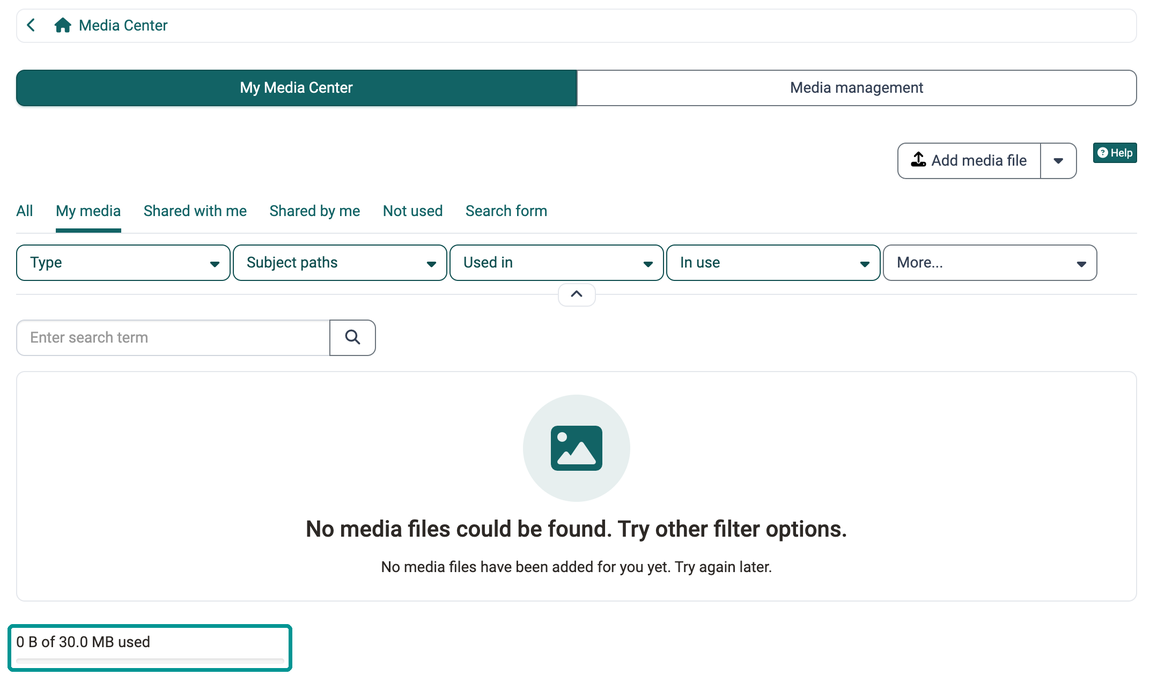
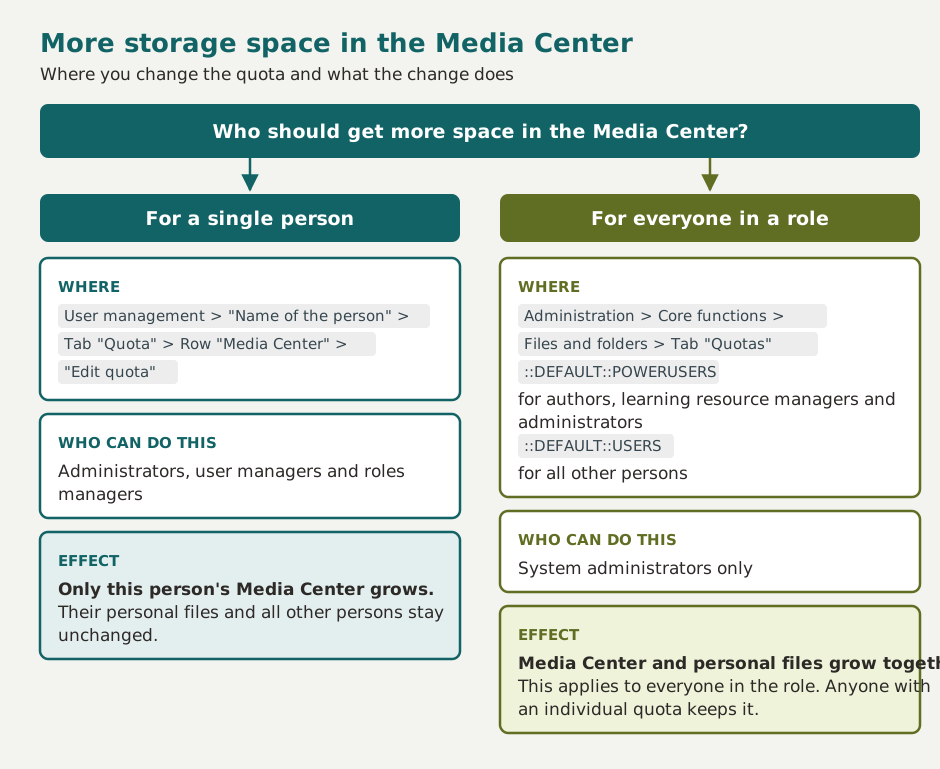
Authors usually require more storage space, so a default value of its own applies to these power users. Besides authors, learning resource managers and administrators also count as power users.
System administrators define the default value in the system administration, under:
Administration > Core functions > Files and folders, tab "Quotas"
The same value also applies to the personal files. There is no separate default value for the Media Center only, see Files and Folders.
If a single person needs more space, administrators, roles managers or user managers set a quota of its own for this person under User management > "Name of the person" > Quota, see Manage user settings. Therefore, if you have any questions about storage requirements, please contact your administrators, roles managers or user managers.
Note
Only media that has been uploaded/created by the user is displayed as storage consumption. If all media displayed is exclusively referenced (shared by other authors), then storage consumption of 0 is displayed.
Use media
You use media items from the Media Center wherever you create content. You use files, documents and collections, for example, with the Content Editor in the course element "Page" or in the Portfolio.
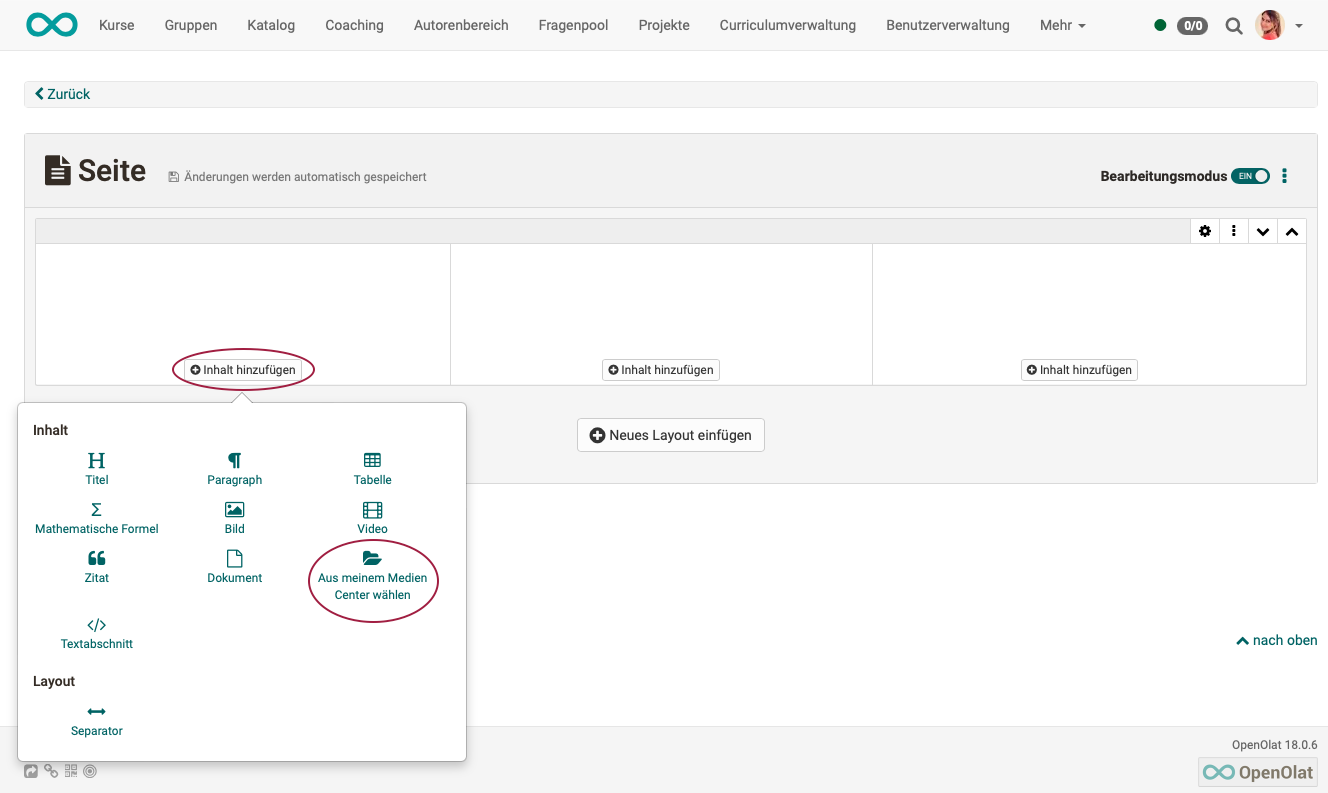
The filters above the list help you to find the media you are looking for quickly, for example "Type", "Subject paths", "Used in", "In use", "Shared with", "Source" or "Platform".

Note
When documents are included in a portfolio binder, they are displayed as links and are not displayed directly.
Manage Media Center
If you, as an administrator or learning resource manager, need to know where a media item of another person is embedded and with whom it is shared, you find the answer in the Media Center in the segment "Media management". Only these two roles see it next to the segment "My Media Center". All other roles only see their own Media Center and no segment bar.
You open the segment under:
Personal menu > Media Center > "Media management" segment
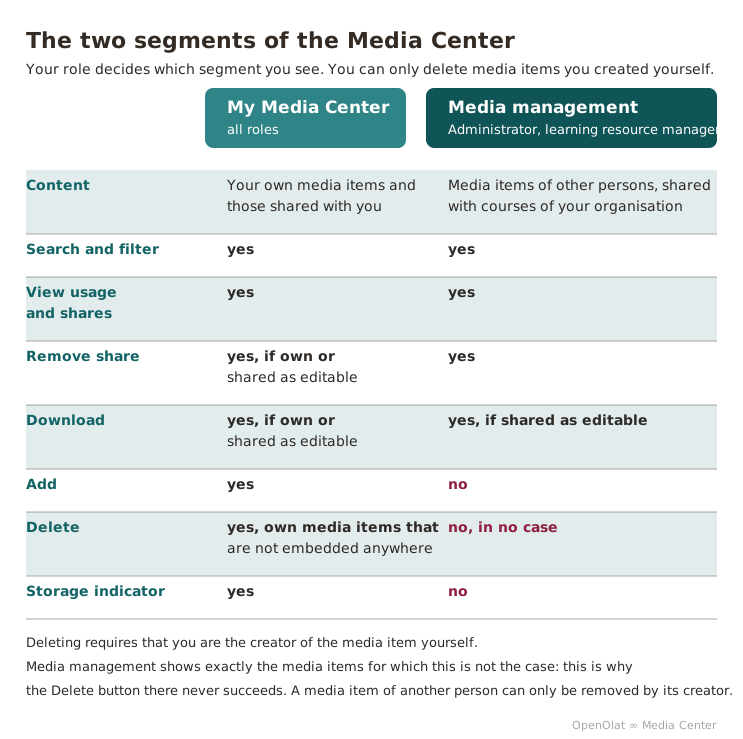
The media management lists media items of other persons that are shared with a course belonging to an organisation in which you are an administrator or learning resource manager. Media items shared directly with you, with one of your groups or with your organisation do not appear there. Like your own media items, they are in the segment "My Media Center", in the tab "Shared with me".
After clicking on a media item, you see in the tab "Uses" where it is embedded, and in the tab "Shares" with whom it is shared. Depending on the media type, the tab "Overview" also shows the activities log with the previous actions on the media item. This lets you clarify where a media item is embedded before you ask its creator to replace or remove it. In the tab "Shares", you can remove a share with the "Remove" icon in its row and confirm with "Remove share".
The filters "Used in", "In use" and "Shared with" narrow down the list. The filter "Without creator" shows the media items in this list whose creator no longer has an account because it was deleted.
If a media item is shared with you as editable (setting "Editable" in the share), you can also edit its metadata and, depending on the media type, its versions. You can then download it via the 3-dot menu. Without an editable share, the 3-dot menu is missing.
You cannot add media items in the media management, the "Add media file" button is missing there. The storage indicator at the bottom left also belongs to your own Media Center and does not appear in the media management.
Important
You do not delete media items in the media management, not even as an administrator. Neither above the list nor in the 3-dot menu of a media item is there a "Delete" action . Deleting requires that you are the creator of the media item yourself and that it is not embedded anywhere. You delete your own media items in the segment "My Media Center", see Delete media. Anyone who wants to remove a media item of another person asks its creator to do so. If the creator's account was deleted, an embedded media item is retained and is no longer assigned to anyone, see What happens to the media items when an account is deleted.
Further information
Mentioned on this page
Personal Configuration: Settings >
Information and settings for items in the Media Center >
Content Editor >
Course Element "Page" >
Delete user >
Files and Folders >
Manage user settings >
Creating Portfolios >
Further reading
User tools: Media Center >
Module Media Center >
Working with media files >
Data protection >