Creating Portfolio Tasks
To integrate a created and configured Portfolio 2.0 template into an OpenOlat course, add the course element "Portfolio task" to your course. Proceed as follows:
1. Open course editor and insert the course element Portfolio task
a) In Authoring, under "My entries", search for the course and open it.
b) Click "Course editor" in the dropdown menu "Administration" of the course.
c) In the pop-up "Insert course elements" select "Portfolio task".
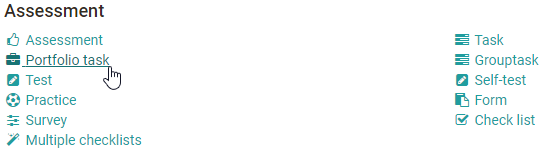
d) Insert a short title of the course element in the tab "Title and description" and save.
2. Add template to the course
Now the course element "Portfolio task" needs a matching learning resource Portfolio 2.0 template.
a) In the tab "Learning content", click "Select or create portfolio template".
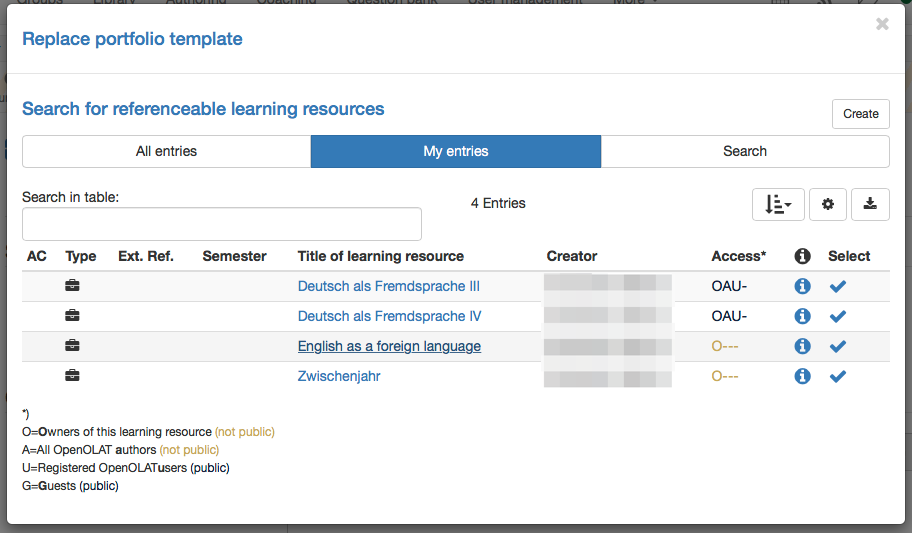
b) Under "My entries" select the template created before.
Alternatively, a new Portfolio 2.0 template can be created with the button "Create".
To grade a Portfolio with a score, the Portfolio 2.0 template has to be added to a course as a course element, and the checkbox "Score granted" in the tab "Assessment" of the course element "Portfolio task" has to be enabled.
3. Finalize
After the course element has been added and configured, the complete course must be published as usual. Click the option "Publish" in the course editor and follow the next steps, or simply close the course editor to publish quickly.
The Portfolio 2.0 template is now available in the course, and participants can collect the portfolio task and work on it.