Working with Forums
What can a forum be used for?
Forums are the central tools for asynchronous discussion in online courses and also in OpenOlat groups. Forums can be used for the exchange between the course participants, for organizational arrangements or the technical discussion with the teacher. Some online methods also use specific forums, e.g. for pro-contra discussions, the structured collection of ideas on specific aspects (brainstorming), etc.
How can learners use a forum?
The following options are available in a forum thread:

In forums participants can...
Opening a Topic
If you want to write a new message in your forum just select "Open new topic." Title and contribution are mandatory. Be sure to use a meaningful title and change it appropriately for Reply postings.

With the help of the forum editor you can create and format your post and also attach files. Depending on the configuration by the course owners, you may also be able to publish your post under a pseudonym.

Answering Forum Contributions
If you want to reply to an existing message in a forum just open its topics by clicking on its title. Then select "Reply with quotation" if you want the initial contribution to appear below your reply or if you want to respond directly to individual passages of the contribution. Select "Reply without quotation" if you only want your message to appear.
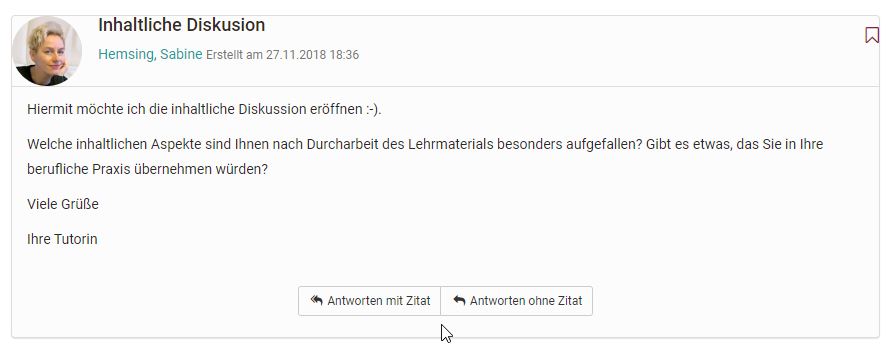
Mark Forum Message
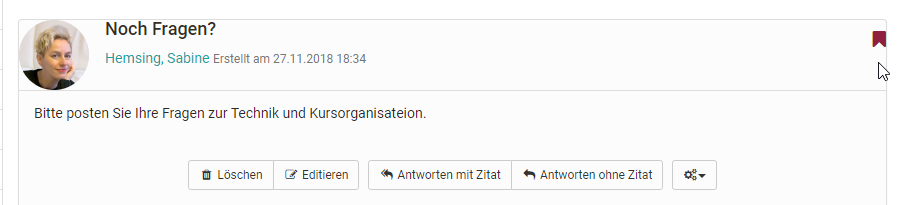
Individual forum messages can be marked. In order to do that, click on the little flag in the right upper corner of a message. In the forum overview you can see how many posts have been marked per topic. In this way, individual contributions can be found more easily or marked for a later answer.
Archiving a Forum
When archiving a forum any contributions will be zipped along with their attachments before storing them in your personal folder.
Subscribing to a Forum
Video introduction (German): Subscriptions
To be notified about new forum posts, set the toggle at "Modifications" to
"On" in the overview of discussion topics. Then you will get a notification
by e-mail or in your subscriptions: Personal menu > User tools > Subscriptions. It does not
matter whether the post was created by a participant or a guest.
A notification is only sent if a new post has been created, but not if an existing post has been modified.
You can also attach files to your posting, e.g. if your post is more extensive or if you refer to a specific file. As a rule of thumb: Postings longer than one DIN A4 page should be attached and only briefly torn out in the posting itself. You can also edit or delete your posting at a later date if no one has yet replied to your post.
Participants can receive additional moderation rights in a forum. The section Moderation rights of the course element "Forum" describes what these rights include.
What display options are available for forum threads?
There are different display options:
- all (thread)
- all (flat)
- one
- marked
- new
Users can display all posts below each other (all), with or without indentation. The initial post appears first and the other posts are displayed according to the discussion structure. In the case of extensive forums with many posts, it is advisable to use the "new" button to display only the new posts. The "one" view is particularly interesting for more complex discussions. Here the entire thread structure is displayed and can be easily understood. It is helpful that individual parts can be faded in and out. In addition, you can also quickly recognize new forum posts in this view by the asterisk.

Upload a photo in the "Profile" so that your photo appears next to your forum posts instead of the standard profile picture.
File Dialog
The file discussion is a combination of forum and file sharing. Thus, forum discussions can be created in courses for specific documents, e.g. for a draft of a seminar paper, a picture, a concept or a content-related document. A forum is automatically created for each uploaded file.
To participate in a discussion, click on the "Show" link next to the file name. Now you have the same options for opening discussion topics or answering posts as in the forum.
Uploading files
By default, participants cannot upload files. However, course owners can
activate this option in the course editor: Course > Administration > Course editor > Course element "File dialog" > Tab "Configuration".
If you have this option, select "Upload file" to upload your own file. Who has uploaded which file and
when can be recognized by the columns first name, last name or date.
Further information
Course Element "Forum" >
Personal Configuration: Profile >
Course Element "File Dialog" >
User tools: Subscriptions >
youtube
Subscriptions (German)