Course Element "Appointment scheduling"
Profile
| Name | Appointment scheduling |
|---|---|
| Icon | |
| Available since | Release 15.3 |
| Functional group | Administration and organisation |
| Purpose | Appointment finding and enrolment for specific joint appointments |
| Assessable | No |
| Specialty / Note |
The Appointment scheduling course element can be used to organize
a) enrolments for fixed appointments and
b) appointment finding
.
Several individually selectable appointments are combined into an occasion.
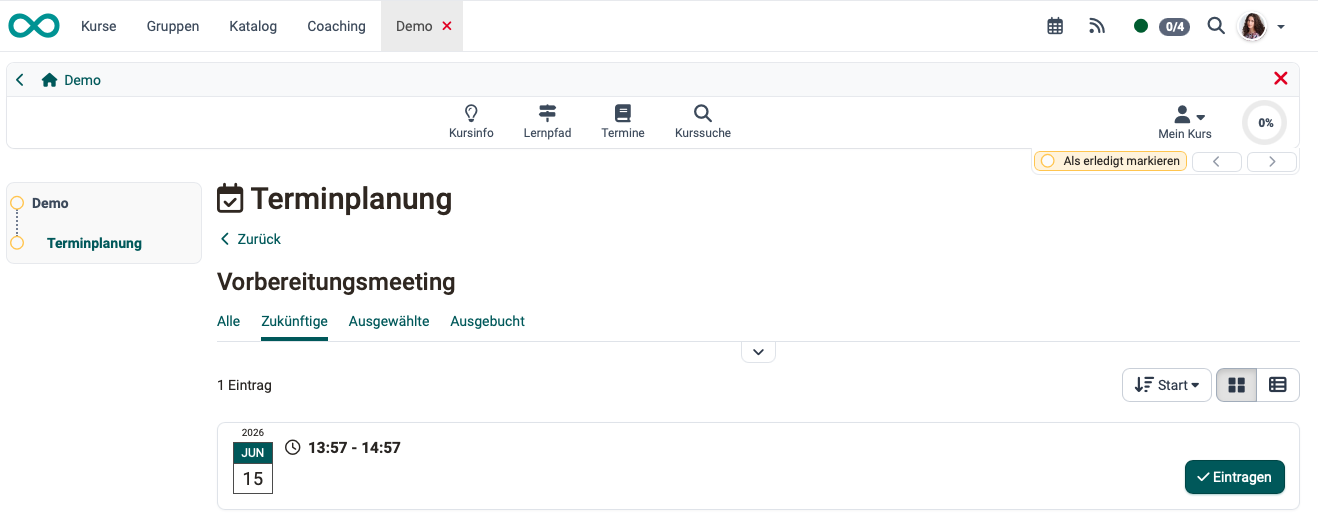
Among other things, authors can define whether multiple appointments can be selected, whether the number of participants is limited, whether it is visible who has enrolled, and whether a virtual classroom installed in the OpenOlat instance (e.g. BigBlueButton or Teams) should be assigned.
In the course editor
Once the course element has been added in the course editor, the permissions for specific groups of people are defined in the "Configuration" tab.
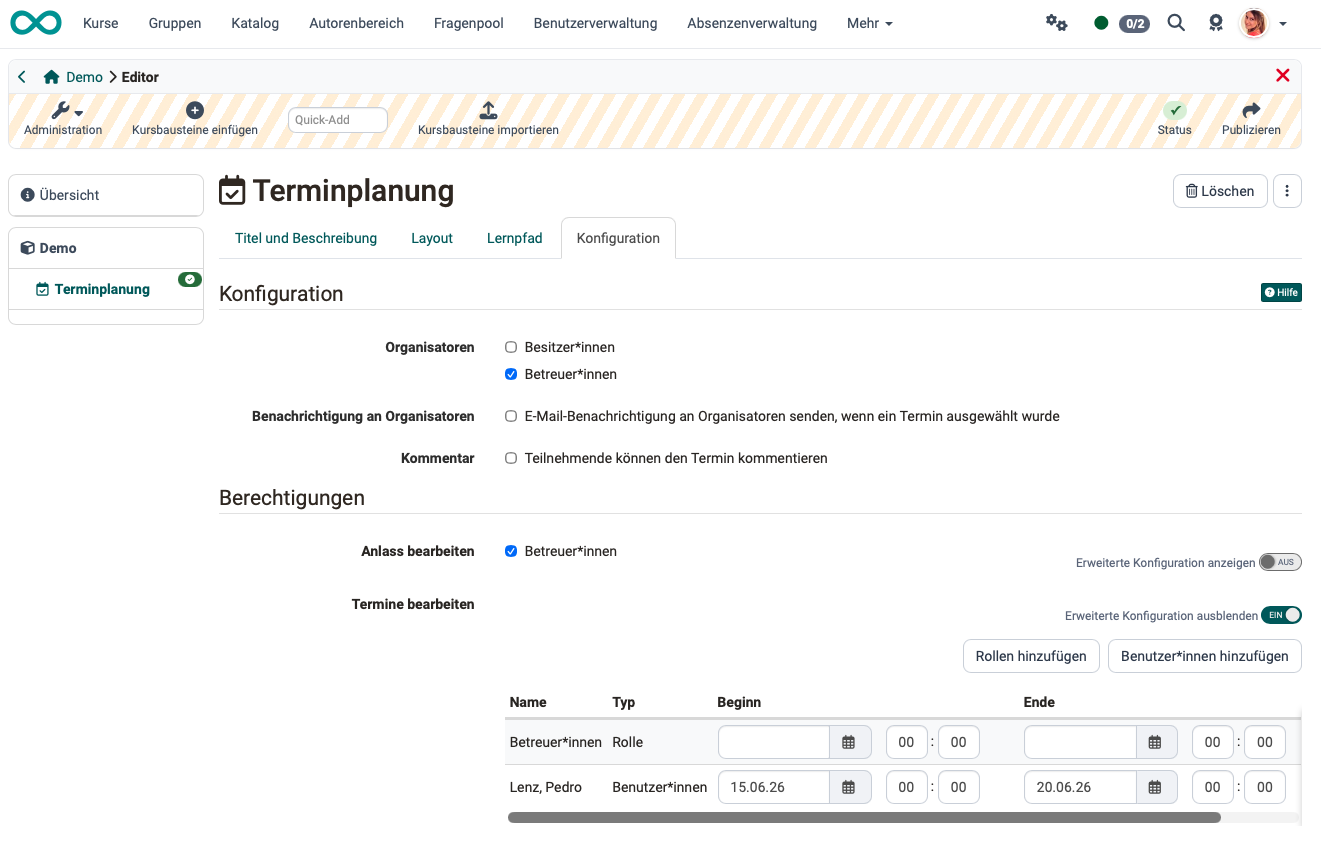
Organizers
You can define whether course owners and/or course coaches are considered organizers of the appointments.
Notification to organizers
If this option is selected, email notifications are sent to the organizers when an appointment has been selected.
Comment
As course owner, you decide here whether participants are allowed to comment on their appointment choice.
Edit occasion
Whoever is granted this permission can edit an occasion. (An occasion is a compilation of several appointments.)
The right can be granted to the coaches of the current course in general via a checkbox, or via the advanced configuration also with a time restriction. In addition, the right can be assigned to very specific individuals via the advanced configuration.
Edit appointments
Whoever is granted this permission can edit an appointment. The right can be granted to the coaches of the current course in general via a checkbox, or via the advanced configuration also with a time restriction. In addition, the right can be assigned to very specific individuals via the advanced configuration.
Tip
If the selection of appointments should only be possible for participants within a certain time window, the time specifications must be entered accordingly in the course editor in the "Learning path" tab or, in the case of conventional courses, the visibility or access must be configured accordingly.
Setup in the course run (closed course editor)
The actual configuration and setup of the selectable appointments takes place in the course run with the editor closed. First, an occasion is created. This is a compilation of several individually selectable appointments.
Using the "Create occasion" button, a new appointment booking or appointment finding is first created, the basic configuration is performed, and the first appointments are entered. Additional appointments can be added later using "Add appointment". Appointments that have already been created can be edited at any time via the three-dot menu.
Configure occasion
First, click on "Create occasion".
The configuration menu appears and you can define the following aspects:
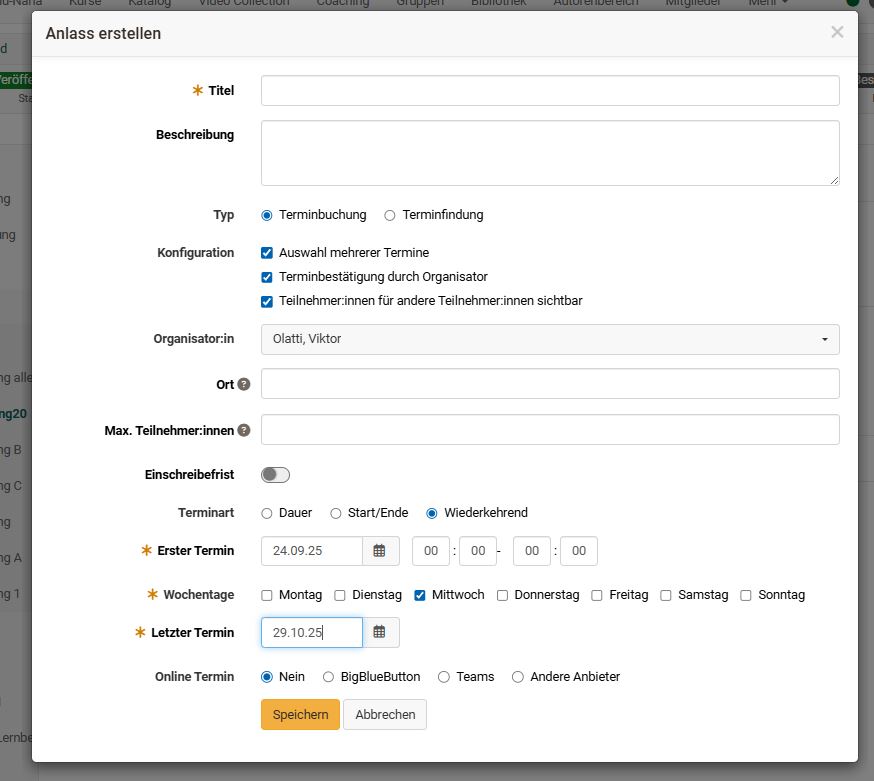
Title
Enter the name of the appointment here, e.g. "Vote on closing meeting", "Kick-off meeting" etc. The entry is required (mandatory field).
Description
Explain the appointment choice in more detail. What is it about?
Type
Decide whether it is an appointment finding for a joint appointment or an enrolment for one or more appointments from a selection, e.g. lab appointments (= appointment booking).
Configuration
Decide whether participants are allowed to select only one or several appointments and whether the names of the participants should be visible to other participants. For the "Appointment booking" type, you can additionally define whether the organizers still have to confirm the appointment.
Organizer
Define here who is displayed to the users as the organizer of the appointment scheduling.
Location
Enter the venue here.
Max. participants
You can limit the number of members for an appointment (only for "Appointment booking").
Enrollment deadline
Use the "Enrollment deadline" toggle to define whether a deadline applies. When the toggle is enabled, use the time field to specify how long before the start of the appointment enrolment ends (format "1d 1h 1m", e.g. "1d" for one day). The enrolment deadline can also be toggled on or off and changed later when editing an existing appointment.
Type of appointment
You can create appointments based on the duration, based on a start and end date, or recurring according to specific weekdays. The selection makes it easier for you to create further appointments.
Appointments:
The concrete selectable appointments are entered here. Depending on the selected type of appointment, different input fields are available.
-
Appointments with type "Duration"
Click on the "+ sign" to add new appointments. Click on the "- sign" to delete appointments again. If "Duration" is selected, when adding further appointments the appointments are preconfigured on the same day and the times are adjusted according to the duration. -
Appointments with type "Start/End"
Several appointments with a freely chosen date and different start and end times can be created. If Start/End is selected, the selected times are retained and for new entries you only need to adjust the date. -
Appointments with type "Recurring"
For recurring appointments, the first and last appointment of the series is required, as well as the time and weekday of the regular repetitions.
Online appointment
If the selectable appointments are to be connected with a virtual classroom such as BigBlueButton or Teams, this can be preselected directly here and the rooms configured accordingly. Which systems are available depends on the respective OpenOlat installation.
Use the "Other providers" option to connect an appointment with a further meeting system, e.g. Zoom. To do so, enter the name of the provider and the meeting URL. In addition, specify whether the session will be recorded; participants then confirm the recording in a consent dialog before joining.
Select "No" if no such connection is intended.
Note
If BigBlueButton or Teams is activated, "online" is automatically displayed for the location.
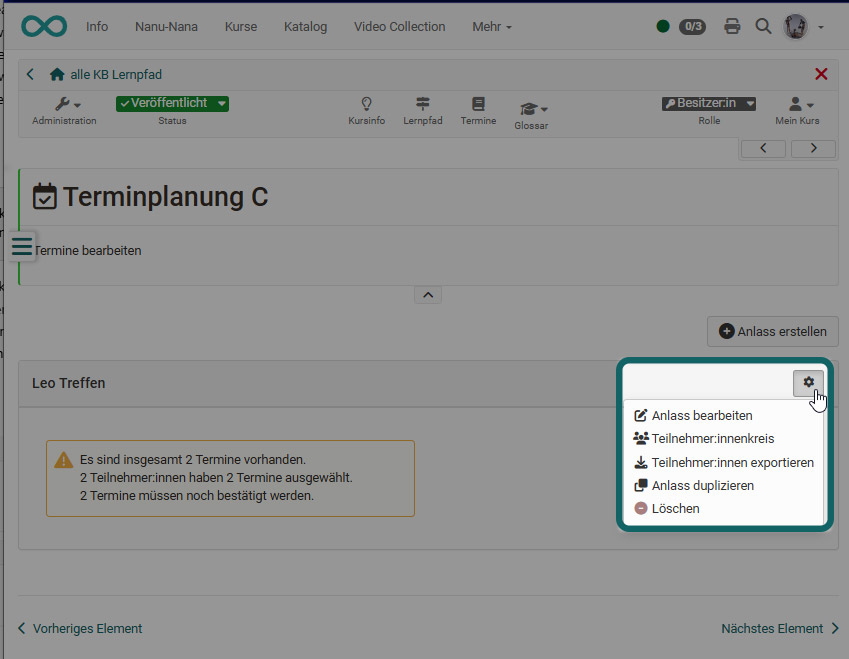
A created "occasion" can later be edited, duplicated or deleted by clicking on the cogwheel. The group of participants for the occasion can also be restricted to certain groups. An export of the participants for an occasion is also possible.
Create appointments
The associated appointment(s) can be created directly when creating an occasion. (See above ^)
As course owner or coach, however, you are also shown the "Add appointment" button in the course run after selecting the course element. There, too, choose one of the 3 types of appointment.
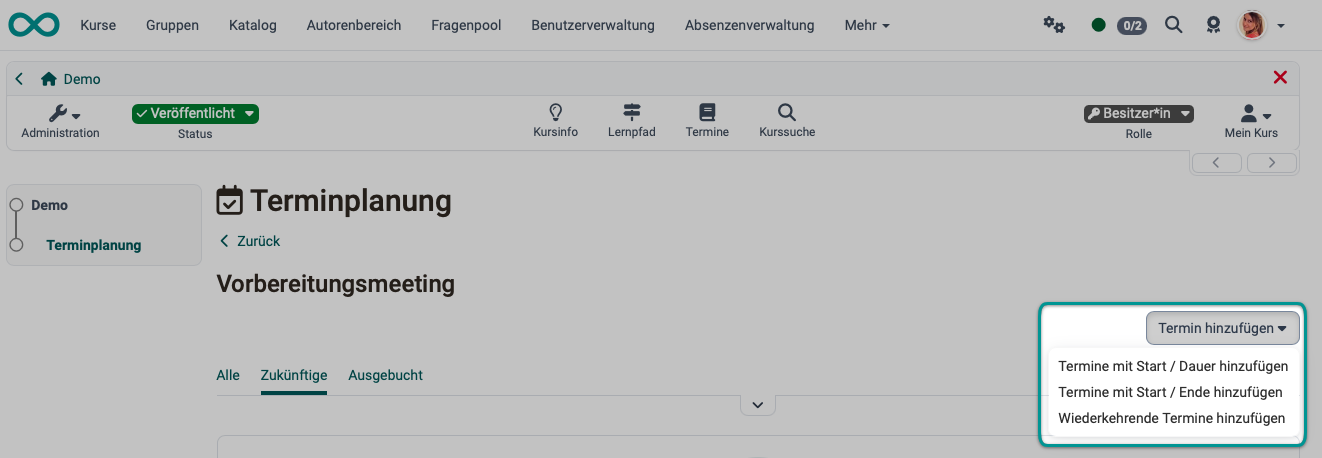
Organize appointments
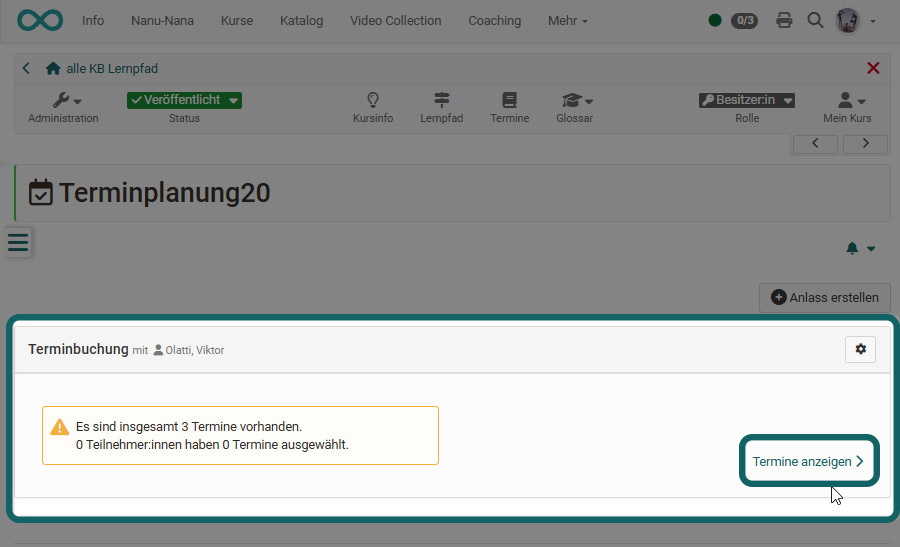
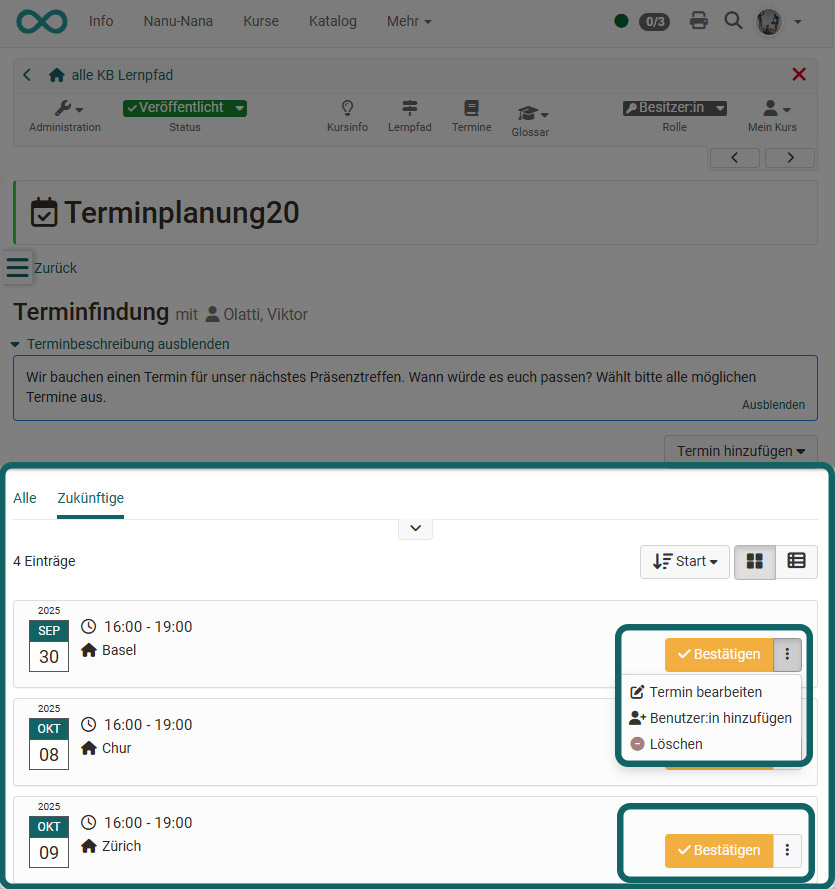
The concrete appointments defined for an "occasion" can be viewed in more detail via the "Show appointments" link in the overview and can also be edited individually by the course owners or coaches.
Here you can add, delete or rebook participants, adjust the description, change appointments or, in the case of appointment finding, confirm appointments.
If the last participant is removed from a confirmed appointment or rebooked, OpenOlat automatically revokes the confirmation of this appointment.
Participant view
By clicking on the course element, participants are shown the prepared appointment findings or possible appointment bookings. If the course element comprises several occasions, an overview page appears first.
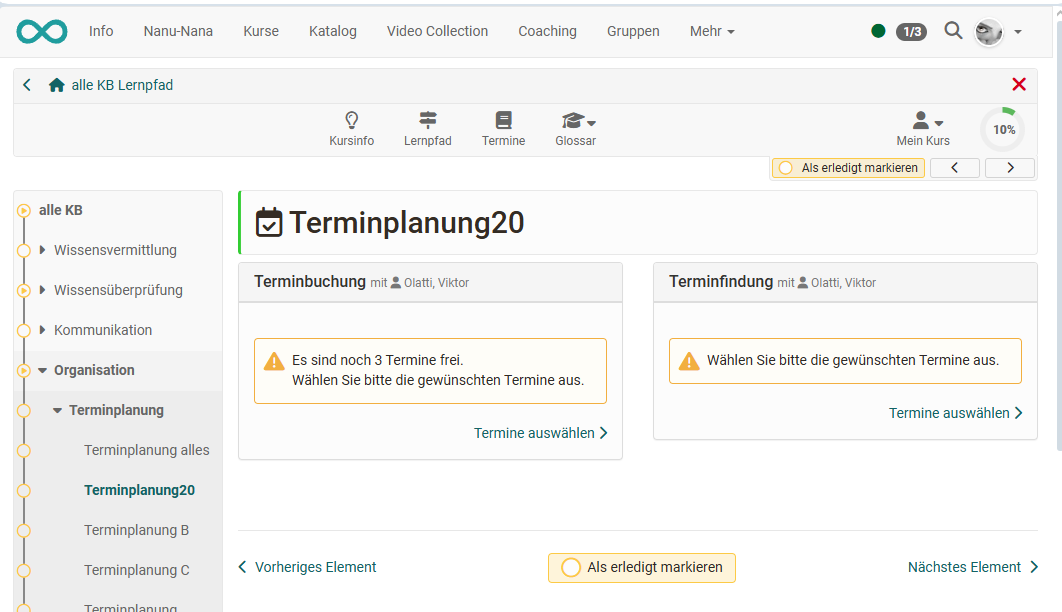
The appointments can then be selected. If there is only one occasion, the concrete selection is displayed directly.
Using the "Select" button, an appointment can be chosen. Depending on the configuration, a comment can also be added or several appointments can be selected. Unenrolling is also possible.
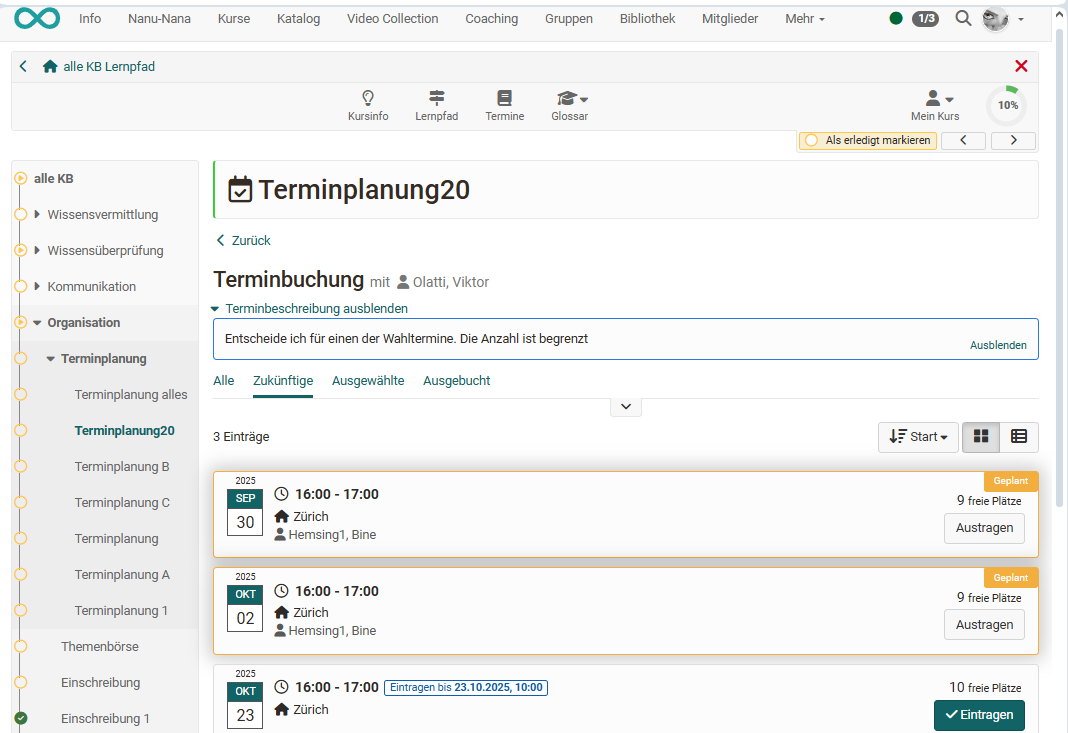
Using the "Fully booked" filter option, participants can also see who has selected the appointment (if activated) and contact each other to swap appointments.
Email notifications
The Appointment scheduling course element automatically informs participants by email. An email is sent when:
- a person selects a confirmed appointment,
- an appointment is confirmed or its confirmation is revoked,
- a confirmed appointment is deleted,
- participants are removed from a confirmed appointment or rebooked to another appointment.
This mail dispatch is an integral part of the course element. It cannot be deactivated: neither per action nor in the configuration of the course element or in the system administration.
Emails to the organizers, on the other hand, are configurable: They are only sent if the "Notification to organizers" option is activated in the course editor (see In the course editor).