Module Taxonomy
You find the module in the system administration under:
Administration > Modules > Taxonomy
What is a taxonomy?
In OpenOlat, a taxonomy is a hierarchical indexing, often with a competence approach. Taxonomy can be activated and used in several OpenOlat areas:
How the areas choose their taxonomy and how they differ is explained on the page Taxonomy in the user manual.
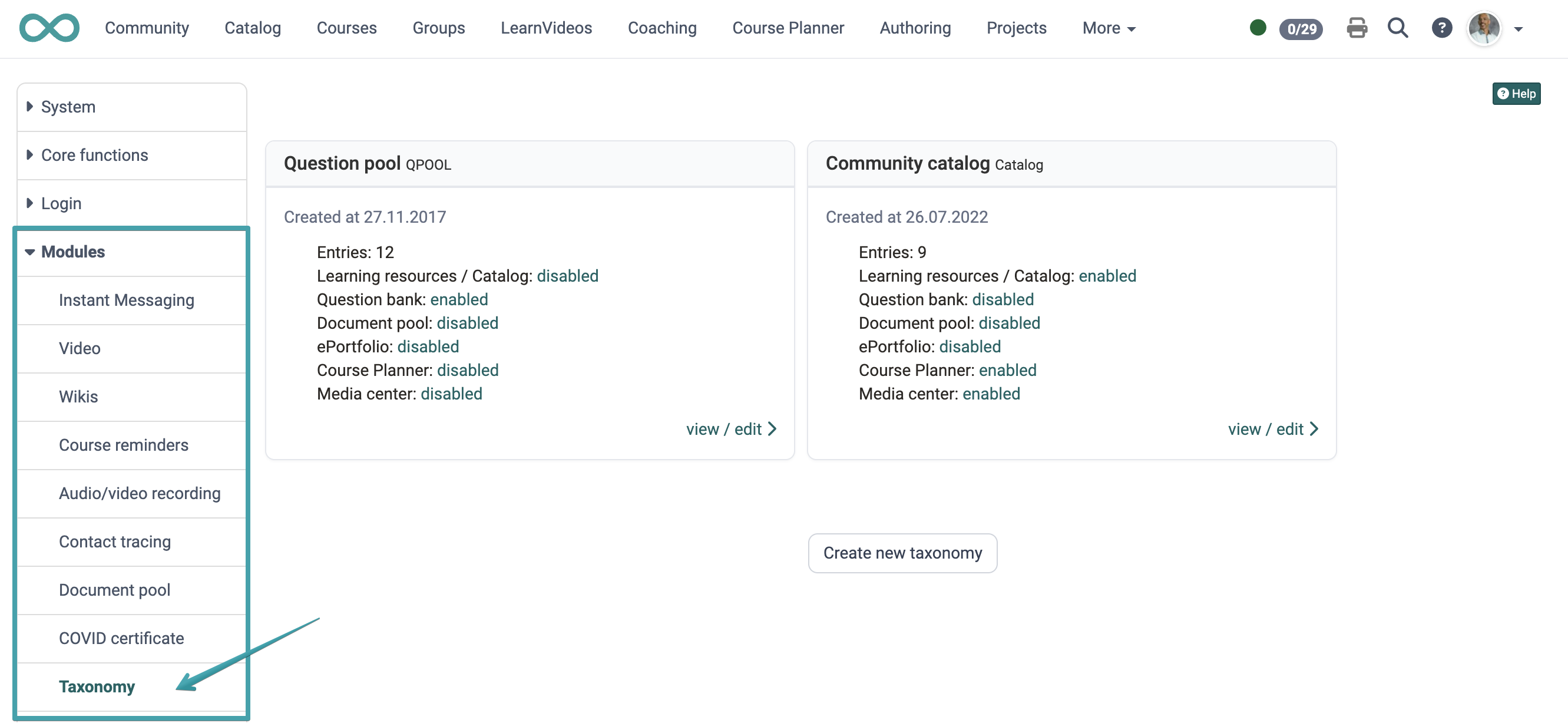
Directly on the overview page a new taxonomy structure can be created.
Several taxonomy structures can be created and activated for different purposes. The overview shows per taxonomy for which areas it is activated: Learning resources / Catalog, Question bank, Document pool, ePortfolio, Course Planner and Media Center.
Thus on one hand taxonomy structures can for example be built in the form of subject, sphere of activity or competence structures. On the other hand competences can be added to users which allows them access to the taxonomy.
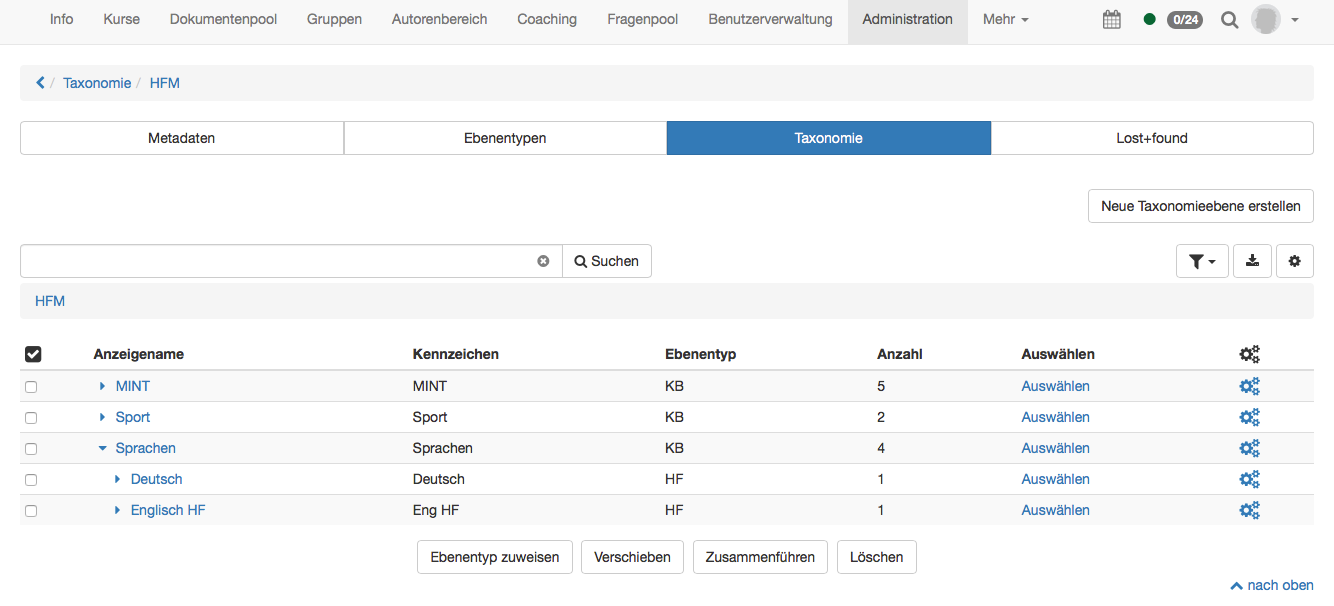
Example of an elaborated taxonomy structure, according to subjects for the document pool:
Metadata
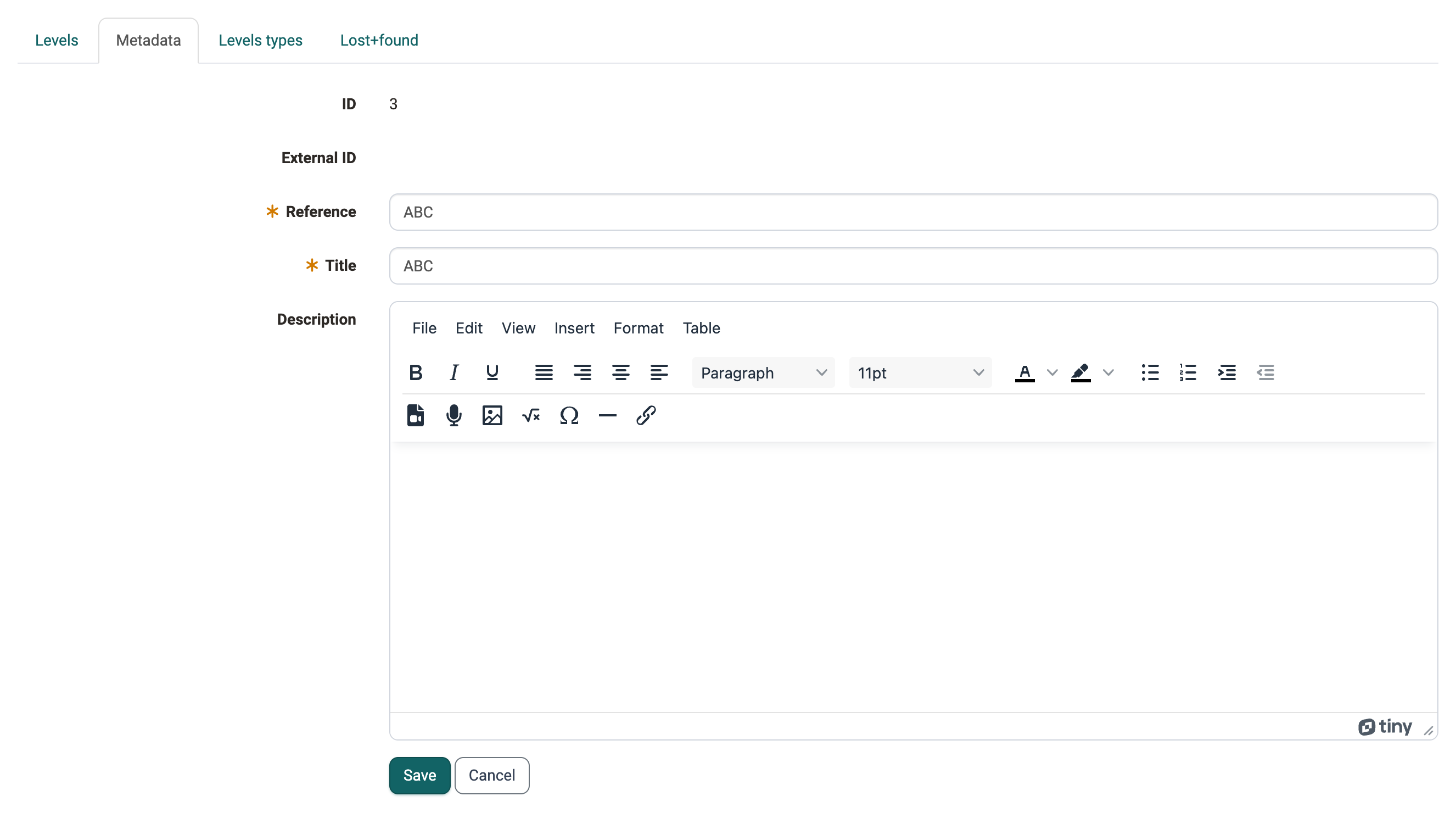
When creating the metadata reference, title and if desired a description can
be inserted. These data can be edited in the tab "Metadata" afterward.
Additionally an ID is created automatically and if an external management
system has created the taxonomy, an external ID is created as well.
Level types
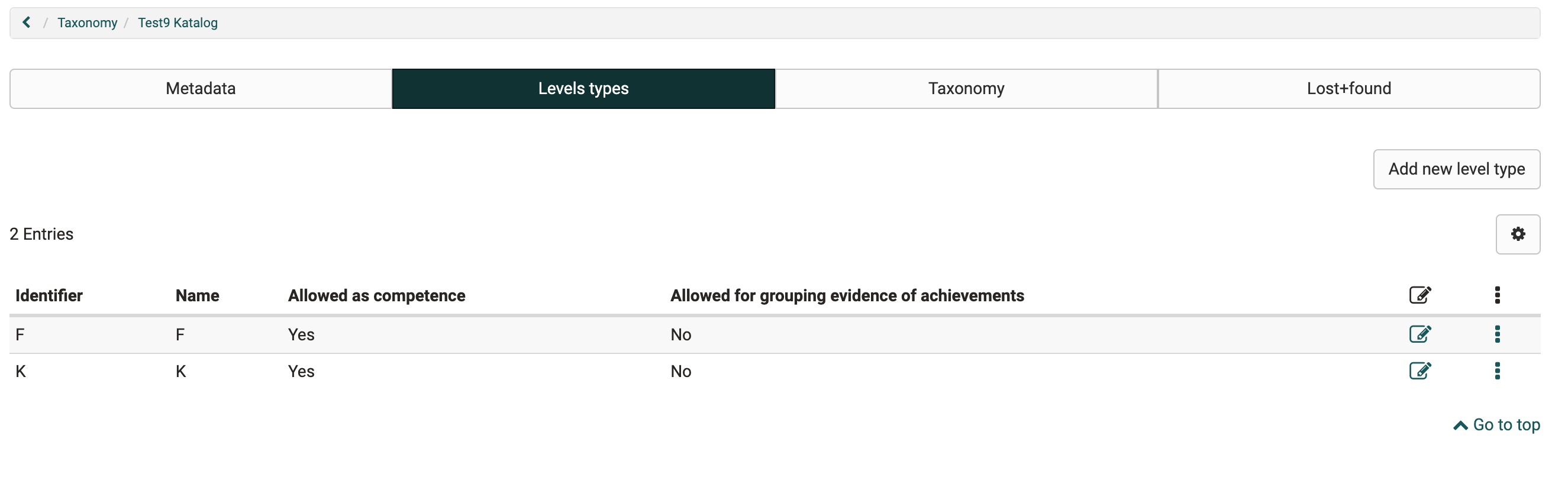
Level types are used to give a significance to the taxonomy structure. The can for example be created for competence → sphere of activity → subject and sub types can be created underneath each other. Therefore it is not necessary that a level type is alway at the same place or on the same level of the taxonomy structure.
To the level types certain configurations can be added.
In the tab "Level types" a new type can be created with "Add new level type".
Reference
Often an abbreviation of the corresponding level is added here. The reference is shown in the table in the tab "Levels" in the column "Level type". The column is not shown by default, you switch it on with the gear icon above the table under "Displayed columns". It is thus recommended to choose a unique and logic reference.
Title
This name is shown under Modules → document pool in the tab "Access permissions" in a written form and can therefore be longer than the reference.
CSS class
If a corresponding css class is added in the theme it can be chosen here. Only icons can be added.
Visible
Here can be defined if the taxonomy level of this type should be visible.
Competences
If activated, this level type is available as a competence and can be used e.g. for competence-based keywording in ePortfolio entries.
Evidence of achievement
Taxonomy levels with this level type can be activated here for the grouping of certificates of achievement.
Description
If desired a short description of the level type can be added.
Sub types
Out of the already existing level types a sub type can be chosen. Like this it becomes possible to create a hierarchical structure. It will get visible when creating the taxonomy level.
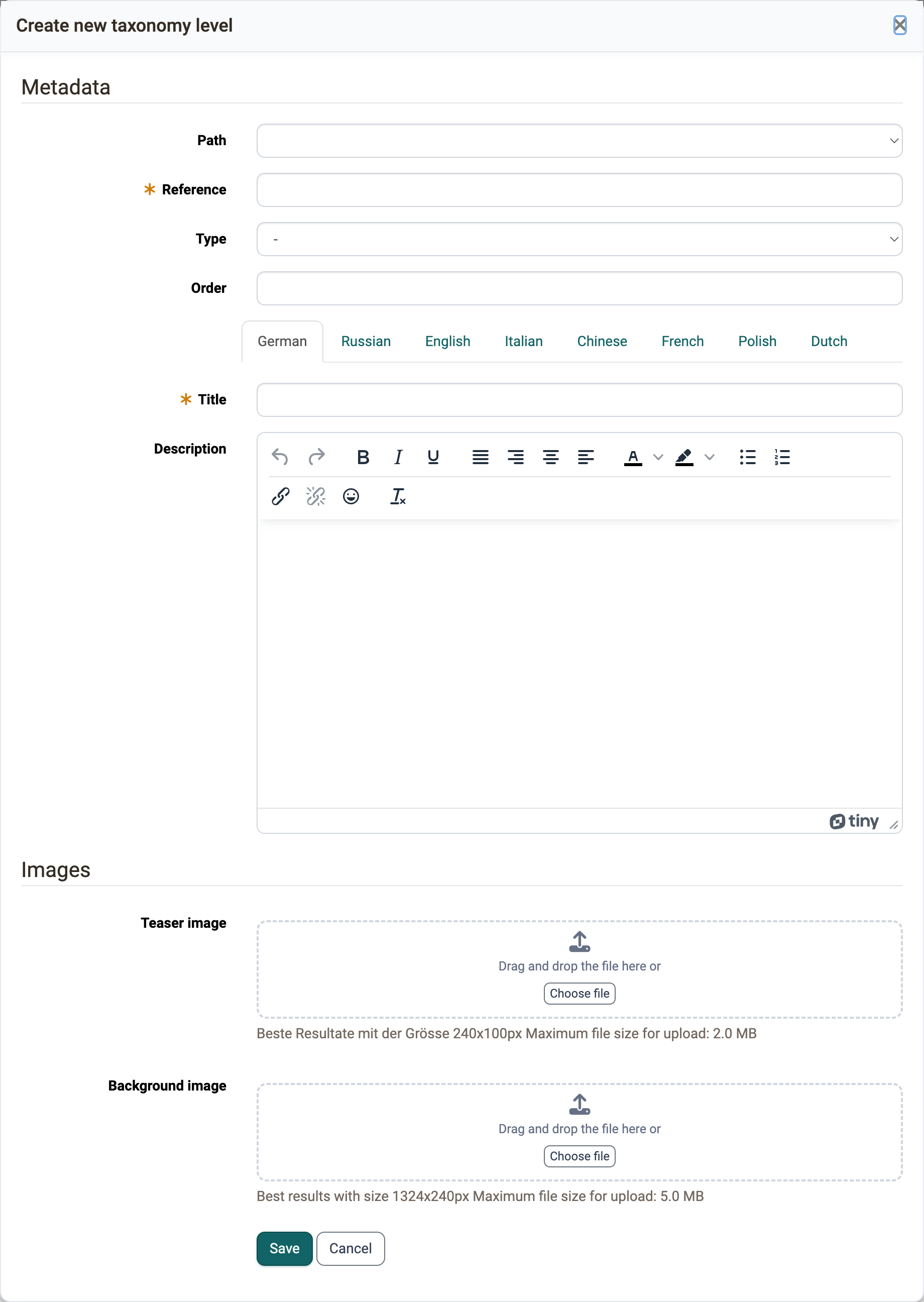
Create taxonomy
In this tab the single taxonomy levels are created, imported, exported and shown.
When creating the following attributes are necessary:
Path
With the path the position of the taxonomy level can be defined directly.
Reference
With the reference an abbreviation of the level can be defined.
Type
In the type the beforehand created level type can be chosen.
Order
Currently Beta Feature. Hereby a manual order is possible by adding a number from 1-XX. The taxonomy-tiers will get ordered ascending by the numbers ( 1,2,3,4, / 01,02,03,04,..)
Teaser image
The image is uploaded as a file. Best results with size 240x100px, maximum 2 MB.
Background image
The image is uploaded as a file. Best results with size 1324x240px, maximum 5 MB.
Title
The title depends on the language and is used in different places: Catalog 2.0, Document Pool, e-Portfolio.
Description
If desired a short description of the taxonomy level can be added. Displayed in the catalog below the level.
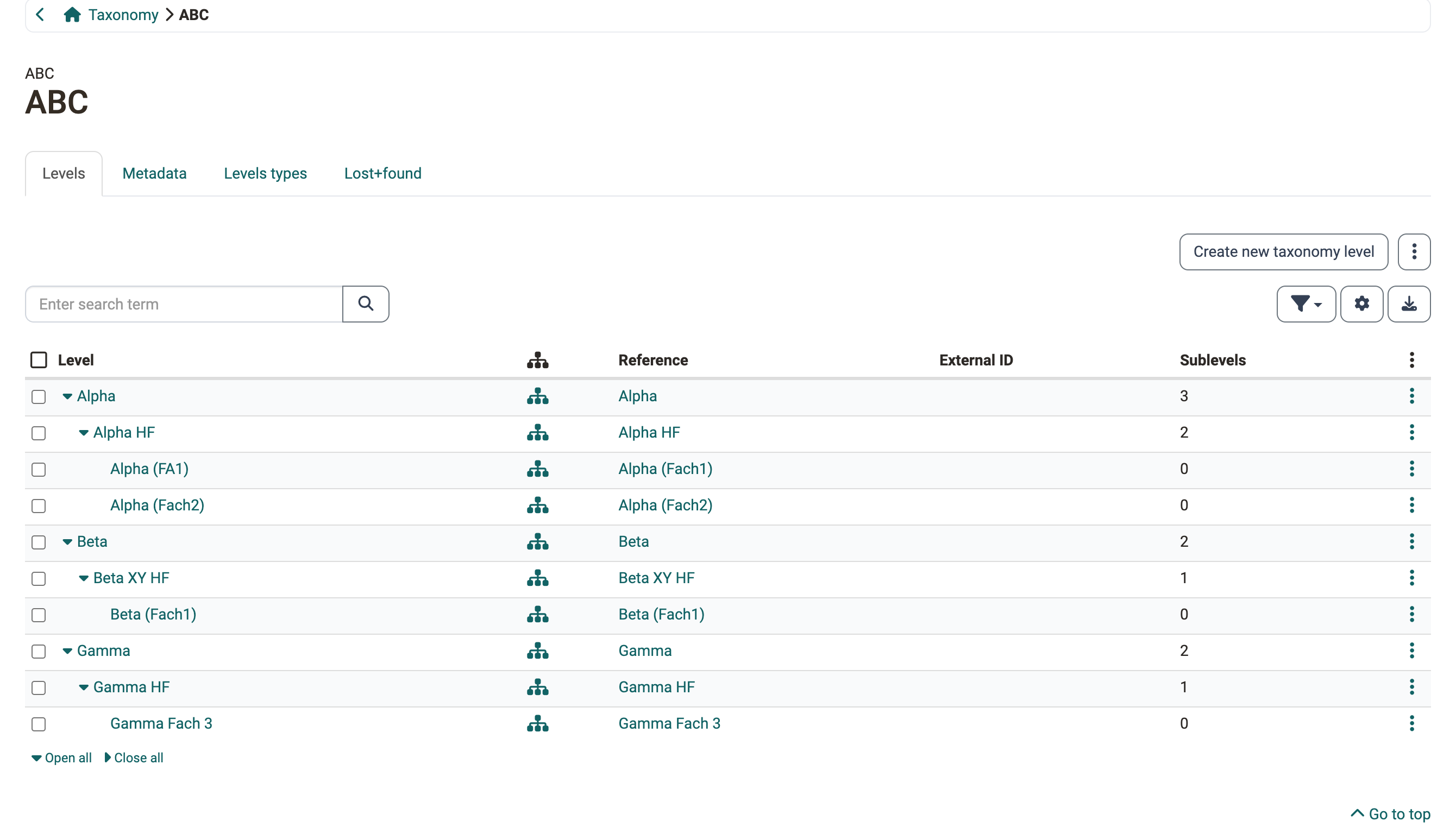
In the overview a hierarchical structure is now visible.
Competences
In the detail view competences can be added afterwards. Like this users get "access rights" for the single taxonomy levels.
4 different competences are distinguished. Following they are outlined shortly:
- Teach: A user with the Teach competence is qualified in this competence. Mostly this means they have certain expert knowledge that they can pass on. The Teach competence is added to the user either manually or by an external management system. This competence controls the access both in the document pool and in the question bank.
- Manage: Users can have a managing function for certain areas of the taxonomy. They do not necessarily need the Teach competence as well. This competence is mainly used in the question bank.
- Have: As soon as a person assigns a competence to an entry in their ePortfolio via "Add competences", OpenOlat automatically enters the Have competence for them. You assign the Have competence manually in the "Competences" tab of the taxonomy level.
- Target: The person aims for this competence. They see the Target competence in the user tools under "Competences".
Export taxonomy
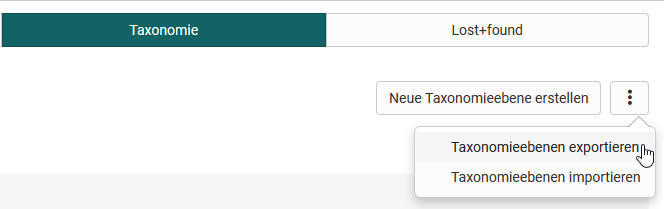
The taxonomy is downloaded as a .zip archive by clicking on the menu item (see image). This contains an EXCEL table with the hierarchical structure of the taxonomy level and a folder structure (media/level1/background;media/level1/teaser;) with teaser and background images of the taxonomy, if any are available. (more under -> Catalog 2.0)
Import taxonomy
Insert data
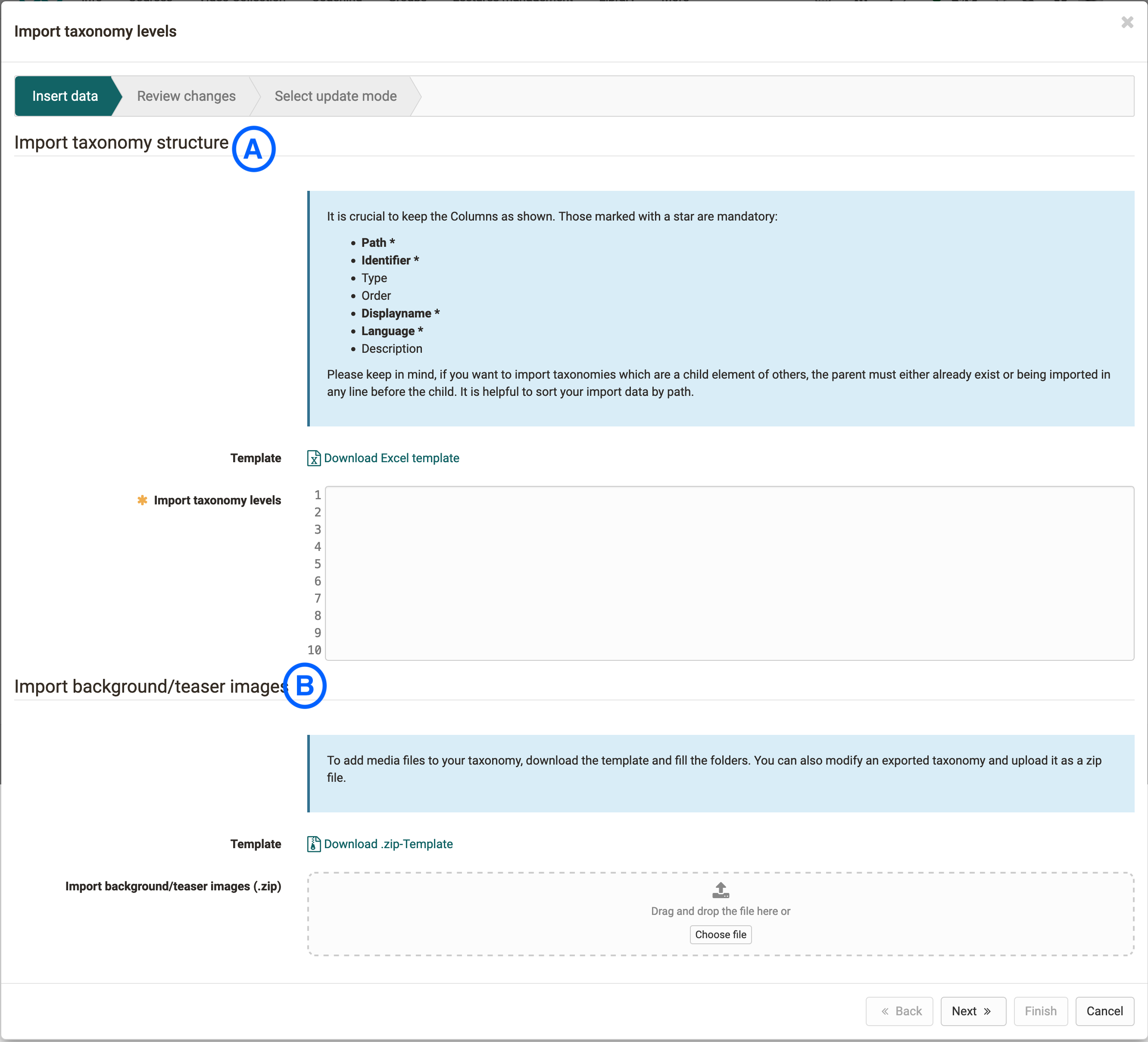
Here we have the choice between different options: We can import only the structure (A), add images to an existing structure (B) or import a structure including images (A+B).
Review changes
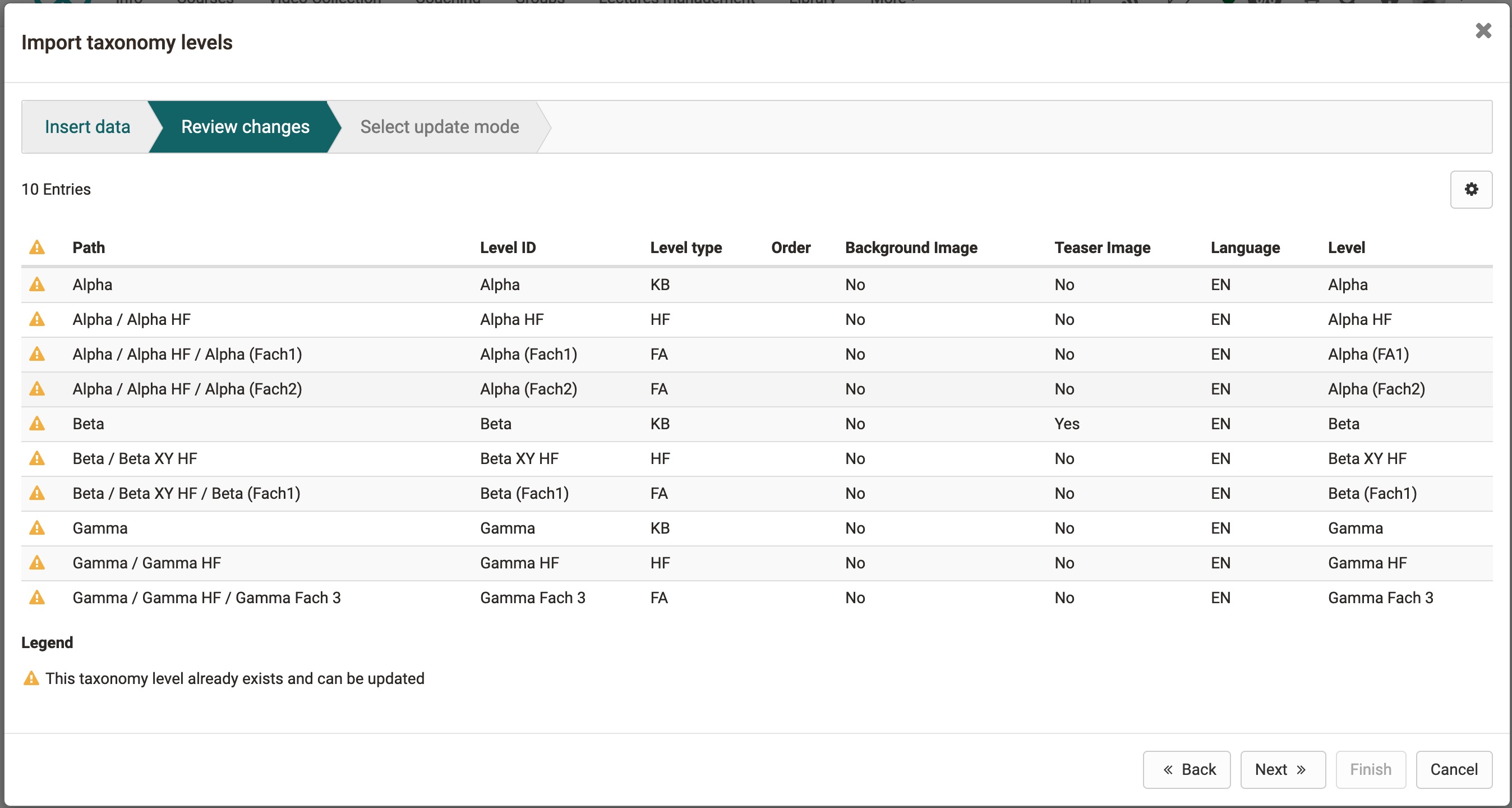
After the import, the taxonomy and the added images are reviewed again in the second step. An icon indicates whether the taxonomy level already exists and should be completed and overwritten with the files and uploaded information.
Select update mode
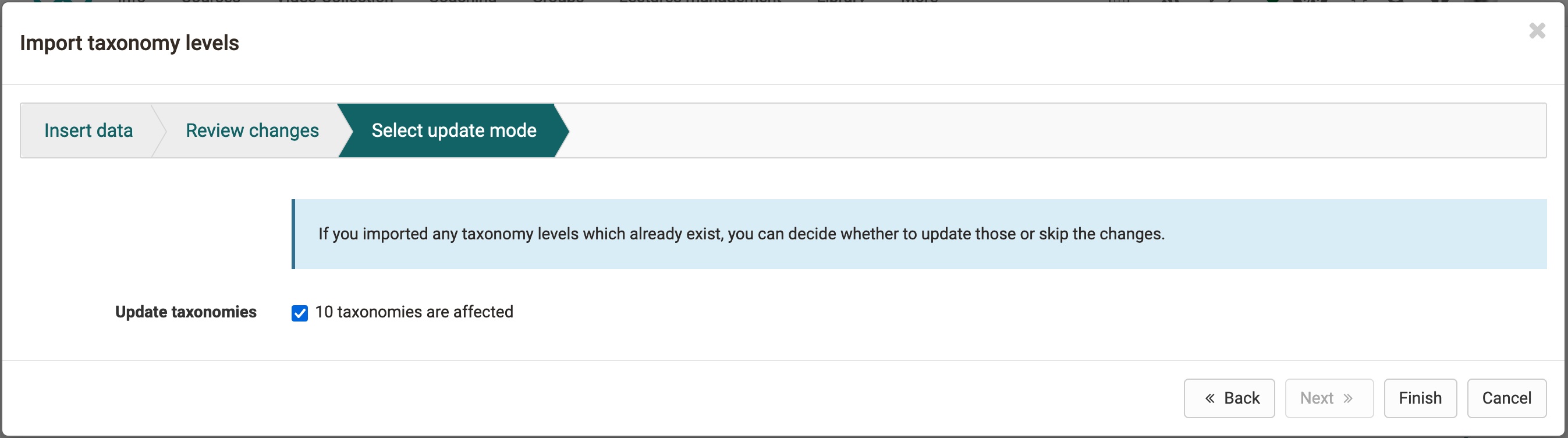
Here you can decide whether you want to overwrite the existing taxonomy levels or just add new taxonomy levels. If you want to add media, you must overwrite the changes here.
Import/add taxonomy structure only
-
First download the current taxonomy. If you don't have one yet, use the template.
-
Inside the excel sheet you add new taxonomy levels or change existing ones. The path that indicates the hierarchical structure is important. If this is incorrect, certain layers cannot be imported. If you have activated different languages in OpenOlat and use the Catalog 2.0, it is advisable to make the title and description language-dependent. Additional languages can be added by copying the columns "Language", "Title" & "Description" and adding a new, existing language, title + description for each taxonomy level.
-
The modified table is now selected without the header and copied into the input field. When proceeding to the next wizard step, the cells are checked for correctness. In case of errors, error messages appear directly at the input field.
Import/add background/teaser image only
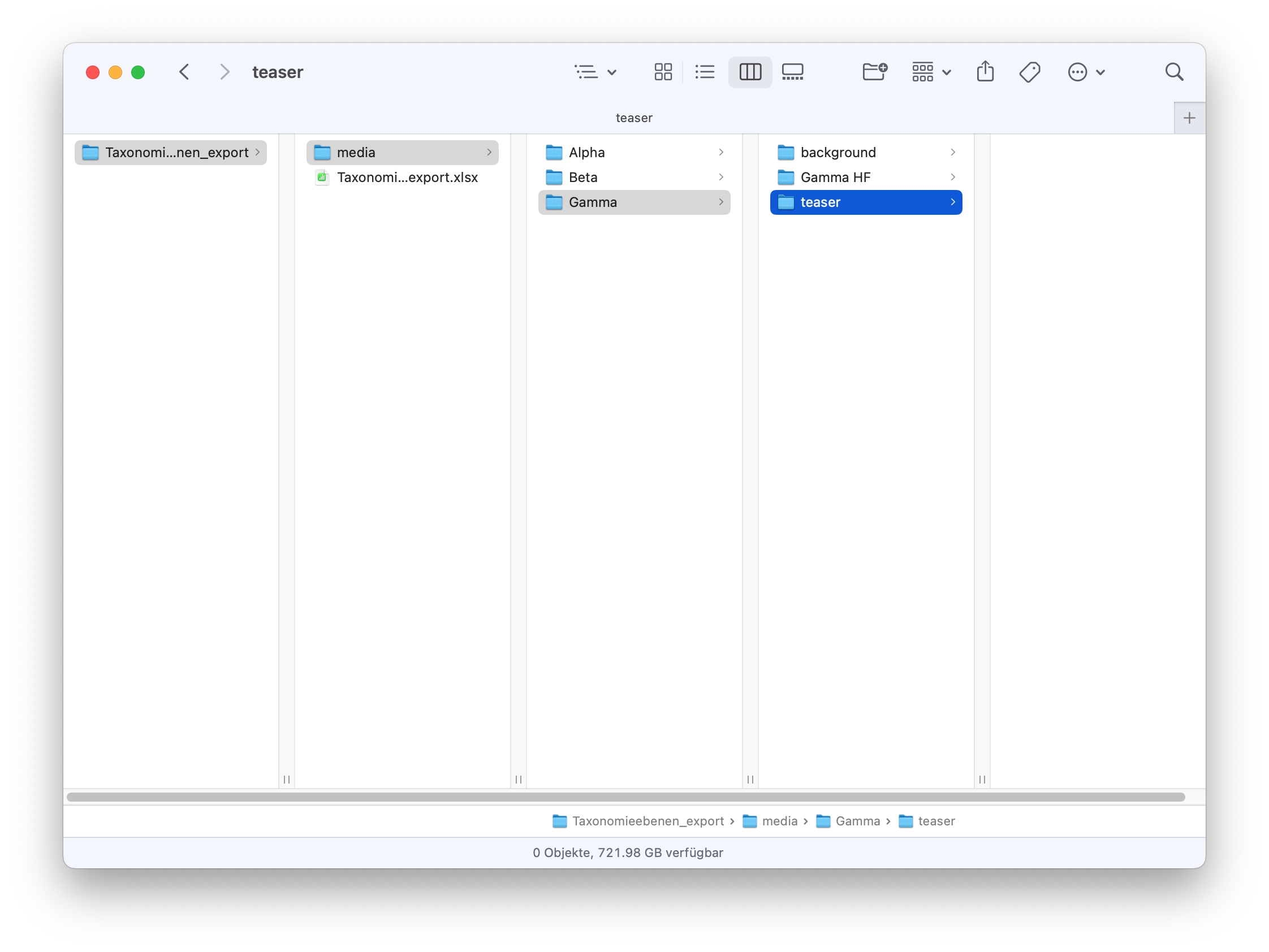
- If you want to add background images to an existing taxonomy, you should first export the taxonomy.
- Unzip the archive and place the images in the "media" folder.
- zip the entire archive again and insert it under paragraph B in the wizard.
Alternatively, it is also possible to download the existing templates under the respective links and adapt them accordingly.
Automatic assignment by AI
The AI works out what an image or a text is about and assigns the result to a taxonomy level on its own. It compares the meaning, not the exact wording. An English text therefore also finds a level with a German name, a synonym finds the intended level, and a related term finds the one that is closest in content.
The assignment takes effect when you upload an image in the Media Center and when you import Markdown files into the Content Editor. The result appears in the field "Subjects" of the metadata and can be changed there. A taxonomy level that hangs on a media item or on a learning resource is called a subject there.
OpenOlat searches the taxonomies that are selected for the Media Center. You set these in the system administration under Administration > Modules > Media Center in the field "Linked taxonomies", see Module Media Center: Taxonomy. If no taxonomy is selected there, OpenOlat searches the taxonomies that are selected under Administration > Modules > Learning resource. The overview under Administration > Modules > Taxonomy shows per taxonomy for which areas it is activated; in this case it shows "disabled" for the Media Center.
Requirements
The assignment via embedding model needs three settings in the AI module, see External tools: AI module:
- The AI feature "Taxonomy Matching (Embeddings)" is activated.
- An AI provider is selected that offers an embedding model.
- An embedding model is selected.
If one of these settings is missing, OpenOlat only assigns a level when the result of the AI is identical to the title or to the reference of the level. Upper and lower case does not matter.
What the AI compares
The title and the description of a taxonomy level decide whether the AI finds it. You maintain both under Administration > Modules > Taxonomy in the tab "Levels", not in the Media Center.
OpenOlat compares the result of the AI with three entries per taxonomy level, in German and in English:
- the title,
- the title together with the parent levels,
- the title, the parent levels and the description together.
The third entry is dropped when the level has no description. A level with a meaningful title and a description is therefore found more reliably than a level that only carries an abbreviation. Maintain both entries in the second language as well.
Interplay of AI and subjects
Which subject a media item receives depends on the trigger:
| Trigger | What OpenOlat assigns | What is needed for it |
|---|---|---|
| Button "Generate metadata with AI" when uploading an image | the best matching subject, exactly one | The AI feature "Image Description Generator" supplies what the image is about. |
| Import of a Markdown file into the Content Editor | all matching subjects, up to three per taxonomy | The same AI feature. The assignment runs in the background after saving. |
| Enter metadata manually | nothing | You select the subject yourself in the field "Subjects". |
The AI therefore supplies what the media item is about, and the taxonomy matching looks for the matching subject. Without the AI feature "Image Description Generator" this entry stays empty, and the taxonomy matching has nothing to compare. The assigned subject is a suggestion and can be changed in the metadata at any time.
If the field "Subjects" stays empty although the AI has generated title, description and tags, first check whether a taxonomy is selected for the Media Center, or, if none is selected there, under Administration > Modules > Learning resource.
Lost+Found
Last tab in the overview
All deleted elements of the tab "Levels" end up here.
Note
Deleted objects cannot currently be restored.
Further information
Mentioned on this page
Document pool >
Question bank >
ePortfolio >
Catalog >
Taxonomy >
Portfolio - General Information >
Catalog 2.0 >
Media Center: information and settings for individual media >
Content Editor >
External tools: AI module >
Module Media Center >
Further reading
Course Planner >