Navigation
After the login you get either to
- the landing page your organisation has set up for your role, e.g. the Authoring area for authors or the Courses for non-authors,
- the site "Info page", a course with general information that your organisation has added as a tab to the main navigation,
- the site "Portal",
- your personal landing page, which you set in the settings. This can be any OpenOlat page you have access to,
- or the location last visited, if "Resume last session" is set to "Yes, automatically" in your settings.
The page Roles and their working areas shows which site of the main navigation each role works in.
Important
The site "Portal" is switched off by default. If it is missing in your main navigation, the system administrators of your OpenOlat instance have not enabled it. They enable sites in the system administration: Administration > Customizing > Sites. More about this: Customizing: Sites
Global navigation
At the top right of the main navigation, the chat (instant messenger) and the search are available on every page, together with your personal menu. Which other elements appear there depends on your settings.
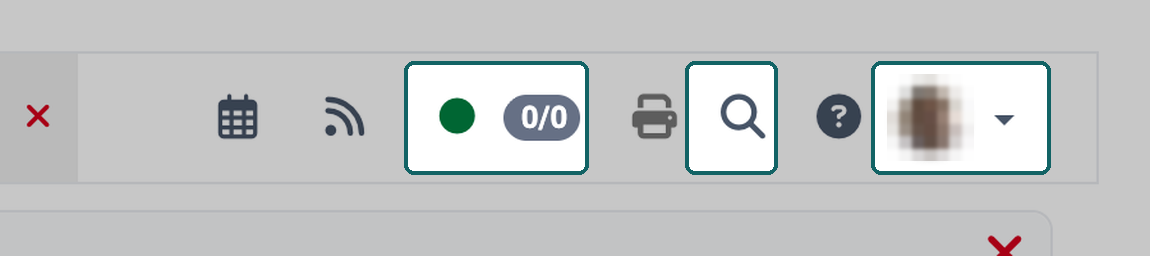
In the personal menu you find, among others, the sections "User tools", "Configuration" and "System". In the settings you define which user tools appear as an icon directly in the main navigation and which remain in the personal menu.
Video Introduction (German): Navigation
Video Introduction (German): The OpenOlat screen
Video Introduction (German): Personal menu
Video Introduction (German): Menu bar
Share in the footer
Contact
The server configuration of your OpenOlat instance defines whether the action "Share" appears in the footer and which icons it shows. For a change, contact your organisation.
If you want to show someone exactly the page you have open, for example a course element or a list, pass on the link to it. The link leads directly to this place in OpenOlat and not to the landing page. You find all ways to do this at the bottom left of the footer under the action "Share". The action is an icon without a label. The word "Share" appears when you point at it with the mouse.
A click on "Share" opens a small window with a row of icons. Here too, the name of an icon appears when you point at it with the mouse. By default, these are:
- Copy link: OpenOlat puts the link on the clipboard, confirms this with the message "Link copied to clipboard" and closes the window.
- Show QR code: OpenOlat shows the link as a QR code in a separate window, with the link as text below it. This way someone opens the page on their own phone without typing the link.
- Share link with mail: your mail program opens a new e-mail with the title of the page as subject and the link in the text. OpenOlat does not send the e-mail itself.
- Networks: "Share link on LinkedIn", "Share link on facebook" and "Share link on X" open the respective network in a new window, with the link prepared for sharing.

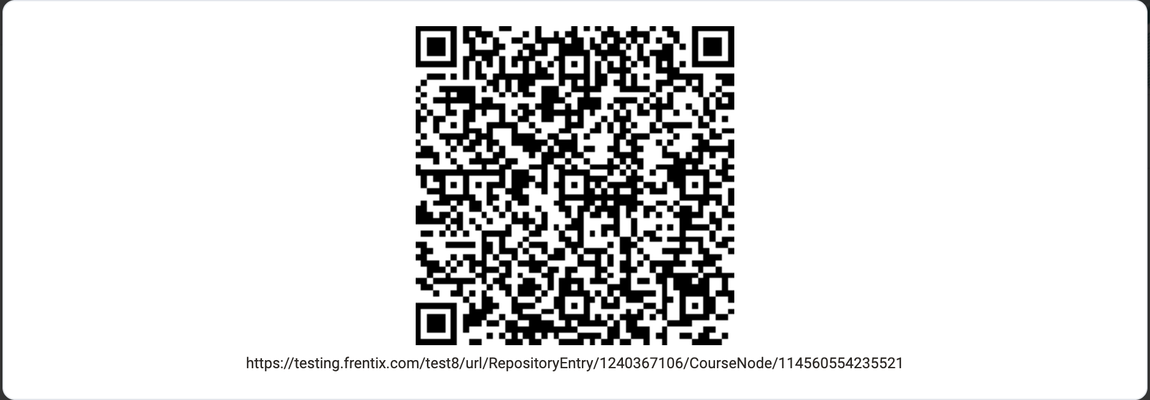
The server configuration of your OpenOlat instance defines which icons the window shows and in which order. "Copy link" and "Show QR code" always appear together.
Anyone who opens the link needs access to the page themselves. A shared link does not replace a booking or a membership.
Next to "Share" is the icon "Set current page as personal start page in profile". It makes the open page your personal landing page, see Settings: Landing page. Guests do not see this icon.
On the info page of a learning resource or an implementation, the same action is available as the labelled button "Share". It shares the link to the info page, from the catalog and for an implementation it shares the link to the offer. More about this: General Functions: Info Page
Note
You do not see the action "Share" in the footer? Then sharing is switched off in the server configuration of your OpenOlat instance. It cannot be switched on in the administration. On the info page, the button "Share" remains visible anyway.
Copy links and pass them on as a QR code
If you want to pass on a course, an offer, an online meeting, a survey, a file or your visiting card, OpenOlat offers you the link to it. It always appears in the same way, in a field with two buttons next to it. With them you bring the link into an e-mail, onto a slide or onto a notice without typing it. The field is read-only so that the link is not changed by mistake. A click into the field selects the whole link, you select a part of it with the mouse.
The two buttons are icons without a label. You see their name when you point at them with the mouse:
- Copy to clipboard: OpenOlat copies the whole link and confirms this with the message "Link copied to clipboard". Then you paste it into an e-mail, a message or a web page. If your browser does not allow copying, OpenOlat selects the link in the field. You then copy it with Ctrl+C or, on macOS, with Cmd+C.
- Show QR code: OpenOlat shows the link as a QR code below the field. People open the link with it on their own phone, for example from a slide in a classroom session or from a notice. The QR code is always on a white background so that a phone recognises it reliably. As long as it is visible, the button stays highlighted and is called "Hide QR code". A click on it hides the QR code again.
- Download PNG: The button below the QR code saves it as the image file
qrcode.png. You insert it into slides, documents or flyers.
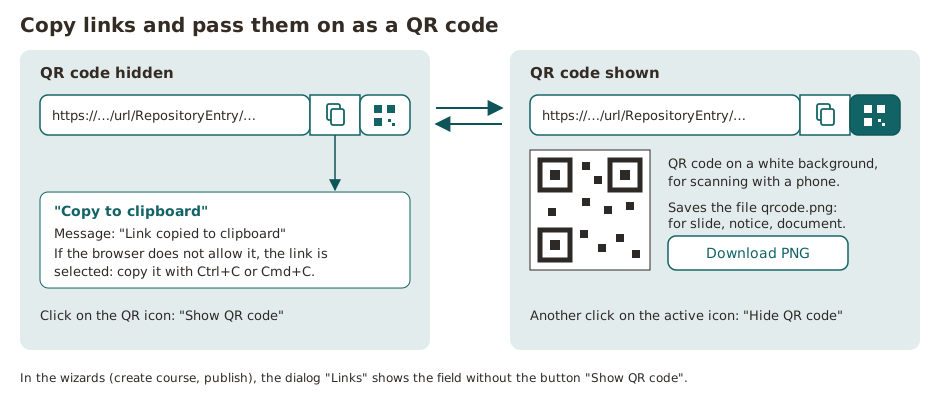
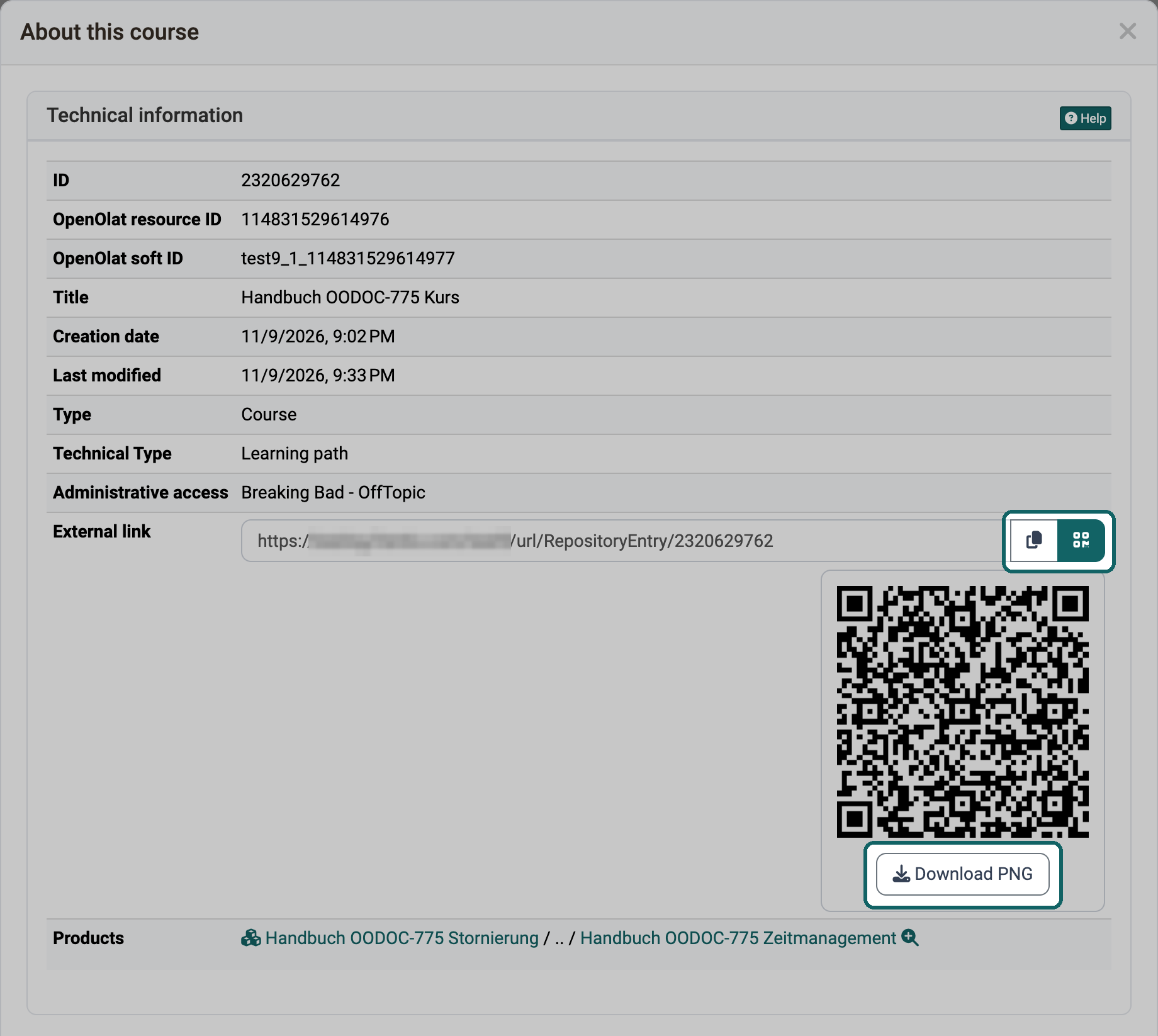
In the wizards, for example when publishing a course, the dialog "Links" of the offers shows only "Copy to clipboard". You show the QR code of an offer after the wizard in the same dialog under Course > Administration > Settings > Tab "Share", see Share.
The action "Share" in the footer passes on the page you have open. The field passes on the link that OpenOlat offers at this place, for example the link for guests of a course.
Anyone who opens the link needs access to the target. The link does not replace a booking or an offer.
Further information
Mentioned on this page
Personal Configuration: Settings >
Roles and their working areas >
Customizing: Overview >
Chat >
General information on the search >
Personal menu >
General Functions: Info Page >
Course settings - Tab Share >
Further reading
Landing pages >
User tools >
Roles and Rights: Guest access >
youtube
Navigation
The OpenOlat screen
Personal menu
Menu bar