Test: Administration
In the Test > Administration area you will find further menus, similar to other learning resources. Here you can configure the test in more detail. The "Settings" and "Test editor" menus are particularly important. Owners of the learning resource, learning resource managers and administrators see this area. For a standalone test, coaches also see it, with the entries "Assessment tool" and "Test statistics".
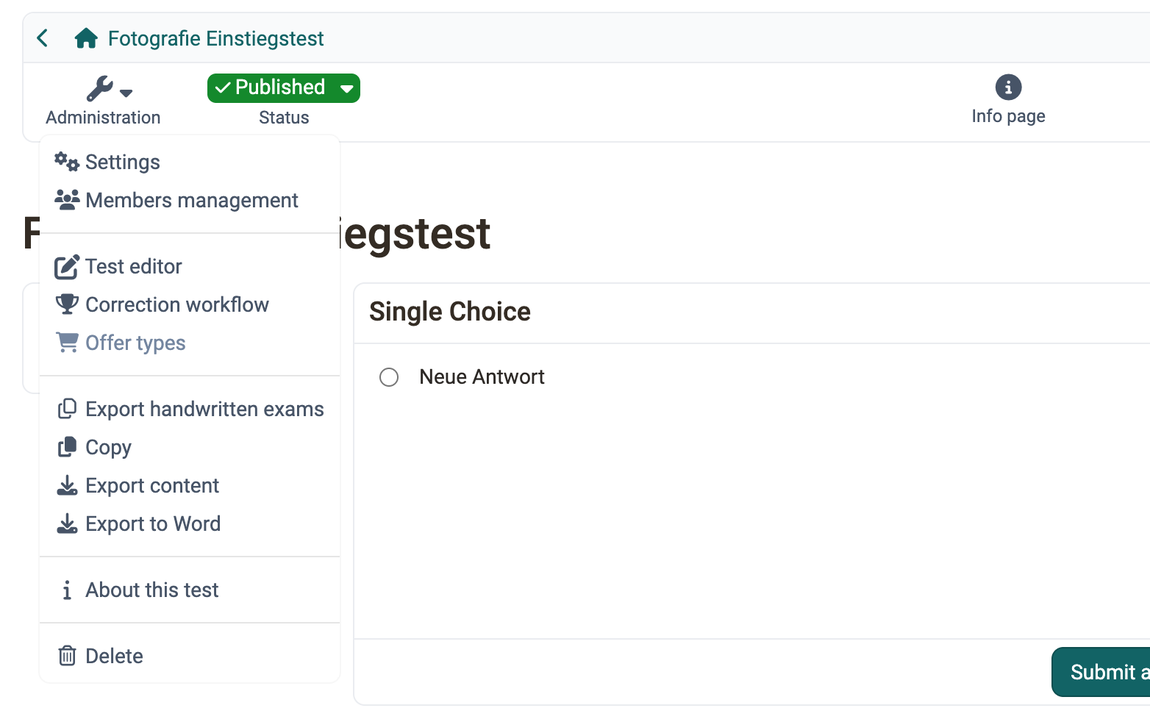
You configure the test as a whole largely in the "Settings", particularly in the "Options" tab. The fields are described on the page Test: Settings.
You need the "Members management" menu mainly if the test is to be used independently of the course. Otherwise you manage the test participants via the linked course.
The "Test editor" entry opens the test editor. There you create the questions and the structure of the test. What the editor entry is called for other learning resources is described under Editor entry.
Test editor QTI 2.1
Overview of the test editor.
Test editor
The "Assessment tool" of the test only appears if the test is to be used independently of the course: Test > Administration > Settings > Tab "Share", usage "Standalone".
In the "Correction workflow" menu you add correctors to the test, see Test: Correction workflow.
The "Test statistics" menu only appears for standalone tests. If the test runs in a course, you find the statistics in the Administration menu of the course: Course > Administration > Test statistics.
The "Offer types" menu is only active if the test has been configured as bookable.
If the PDF Service is enabled in the system administration, a wizard under "Export handwritten exams" takes you in several steps from the online test to print-ready exam sheets, see Test: Export handwritten exams.
With the "Copy", "Export content" and "Export to Word" menus you copy or save the test.
"About this test" opens a window with the technical details of the test such as ID, type and external link.
"Delete" deletes the test learning resource. You then find it in the authoring area in the "Deleted" tab.
These entries of the "Administration" menu have their own pages:
Test: Settings
Test editor
Test: Correction workflow
Test: Export handwritten exams
Export to Word
Whoever wants to have the test reviewed before it is conducted downloads it with "Export to Word" as a zip file with two Word documents, one with and one without solutions, see Export tests.
Further information
How do I proceed when I create a test? >
Tests at course level >
Assessment tool - overview >