Coaching - People
WHOM does the list show?
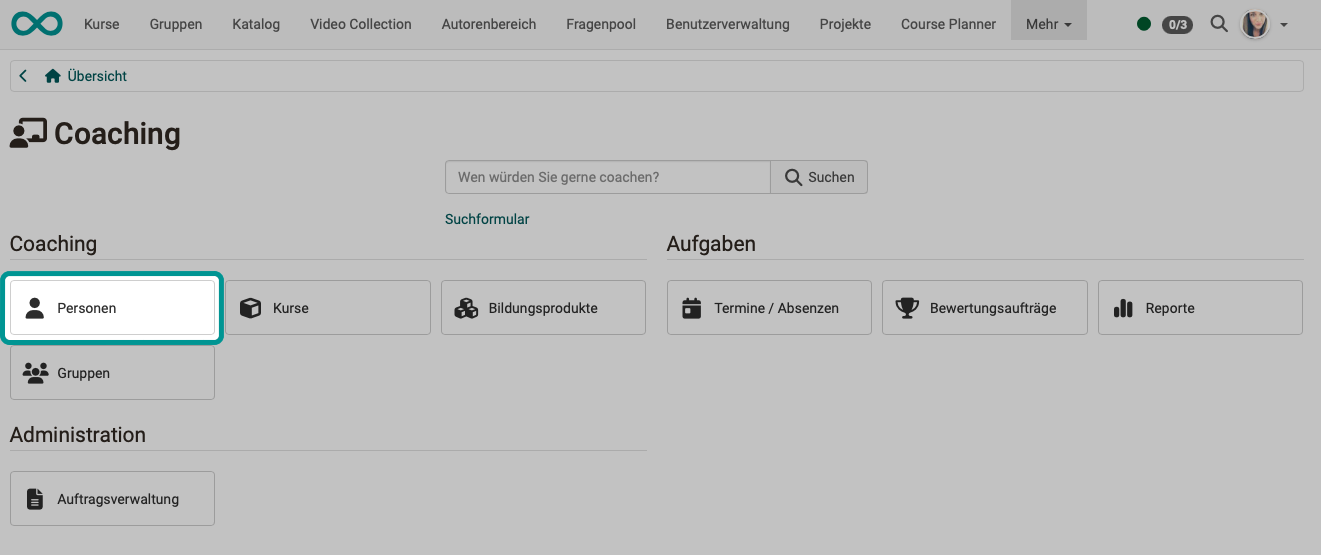
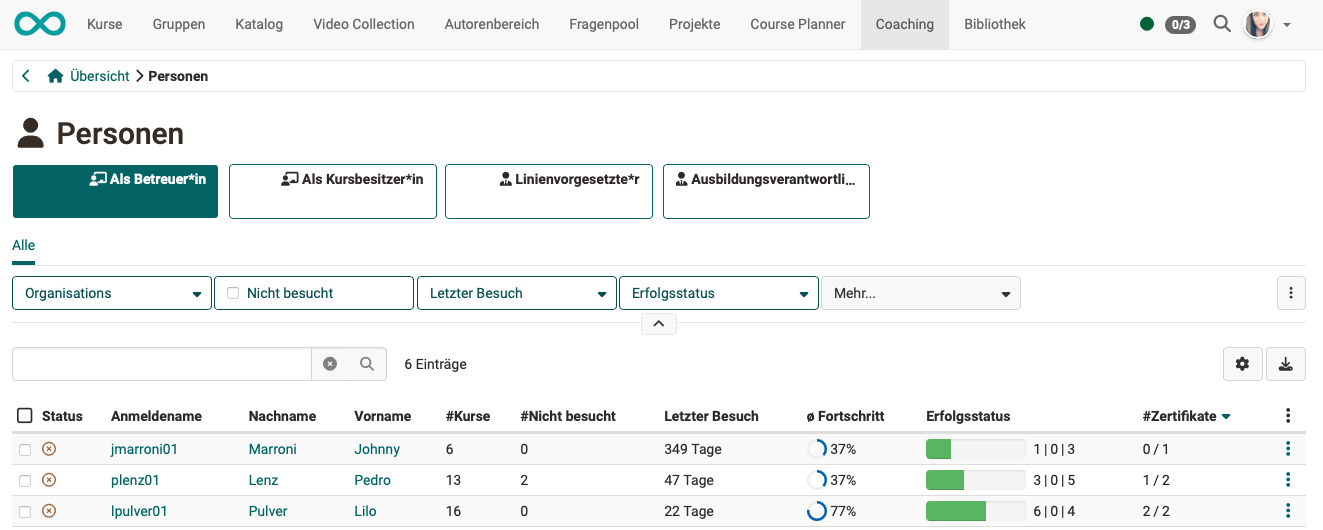
The menu item "People" in the Coaching Tool shows the list of all participants you coach.
- The participants from all coached courses are displayed. (In contrast to the assessment tool of the course. There, only participants of the current course are displayed.)
- Each coach only sees the participants they coach.
- The participants you coach are grouped and assigned to the roles you have as coach in relation to them.
In the example shown above, the coach can access presorted lists that correspond to their roles:- as coach
- as course owner
- as line manager
- as education manager
Note on the roles line manager and education manager
These roles are only displayed in the Coaching Tool if administrators have activated the Module Organisations in the system administration.
Note on other person relations
If you have additionally defined your own roles and relations, these also appear here as a separate, pre-grouped list.
WHAT does the list show?
You can define the displayed columns yourself by clicking on the gear icon at the top right above the list. The available columns may vary depending on the selected role.
With the search field above the list, you narrow down the people by name and further account details. Separate several search terms with a space or a comma; a person appears when all terms apply to them. The asterisk * stands for any number of characters, for example Mei* for all names beginning with "Mei". The wildcard behaves in the same way as in the course search of the Coaching Tool .
- Status
- Username
- Last name, First name
Clicking on the username, last name or first name of a person leads to the overview of all courses of this participant. This gives the teacher access to the assessment areas of a course of this person, including access to the respective evidence of achievement, the assessment tool of the course and the respective lectures. The search field above this course list also knows the asterisk*as a wildcard. - Gender
- Birth date
- Organisation
Only if the module Organisations is activated: Which organisation unit does the person belong to? (This information is particularly interesting for education managers.) - Courses
In how many of the courses you coach is a user a member? - Not visited
In how many of the courses you coach is a user a member but has never visited the course? - Last visit
How many days ago was the last visit to one of the courses you coach? - Average progress
Average across all courses you coach - Success status
- "Passed"/"Not passed"/"Not specified" in graphic depiction
- "Passed"/"Not passed"/"Not specified" in numbers
- Certificates
Number of certificates received / Number of possible certificates - Further actions (icon with 3 dots)
- Contact (by e-mail)
Exact numbers for the success status
Hover the mouse over the graphic bar in the "Success status" column. A tooltip shows the exact numbers: "Passed: X / Not passed: Y / Not specified: Z" .
Contacting coached people
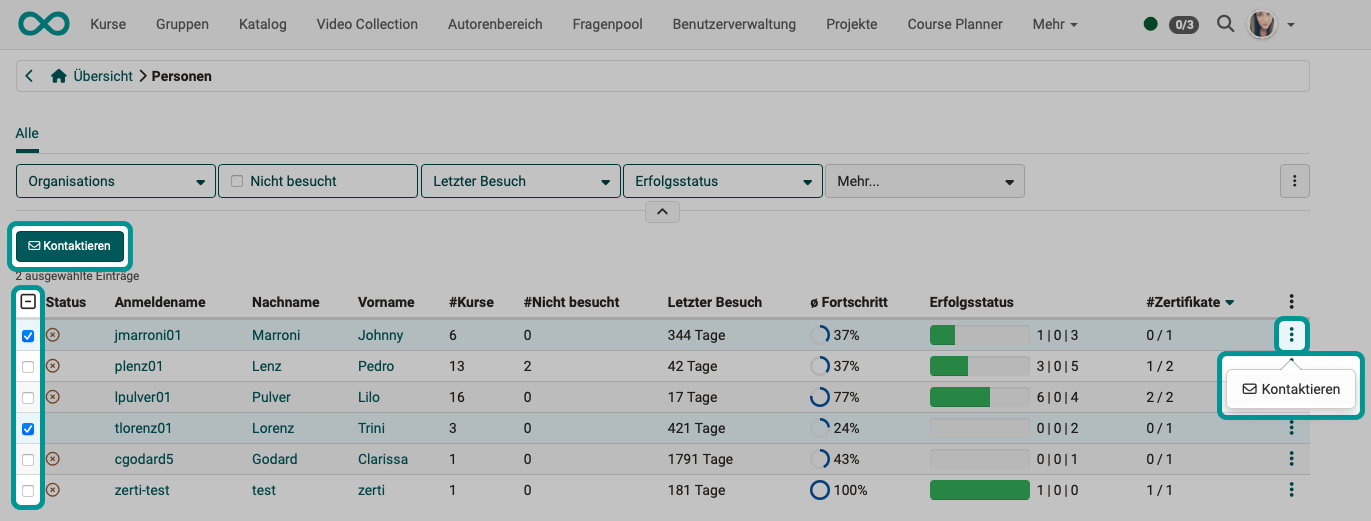
To send an e-mail to a specific person, simply click on the 3 dots at the end of the relevant row.
To write an e-mail to several people, select the relevant people in the first column. A "Contact" button then appears above the list.
The detail view of a person
If you want to know how far a coached person has got in their courses, when they attend a course or since when they have been booked into a course, you find the answer in their detail view. You open the detail view in the people list by clicking on the name or the username of the person. How the detail view is structured depends on the focus button under which you opened the person.
Under "As coach" and "As course owner"
If you coach a person in your courses, the detail view mainly shows you their courses, so that you can jump from there directly to the evidence of achievement and the assessment tool of a course. There are no tabs in this view. If the Course Planner module is switched on, the switches "All courses" and "Educational products" appear below the details of the person; "Educational products" shows the implementations of the person. In this role, you also see implementations in preparation there in a separate tab "Preparation", and the columns "Progress" and "Timetable" always appear.
In this role, you find the events and absences of the people you coach in the tool Coaching - Events and Absences. It shows the events of all the courses you coach, not those of a single person.
Under "Line manager", "Education manager" and own roles
If you are responsible for a person as line manager, as education manager or in an own role, the detail view arranges all information about the person by topic in tabs. This way you find the learning progress, events and bookings of the person without switching to the individual courses. Each tab only appears if administrators have granted your role the corresponding right; the rights are shown in the section Observational tasks. The tabs are located below the details of the person in the following order.
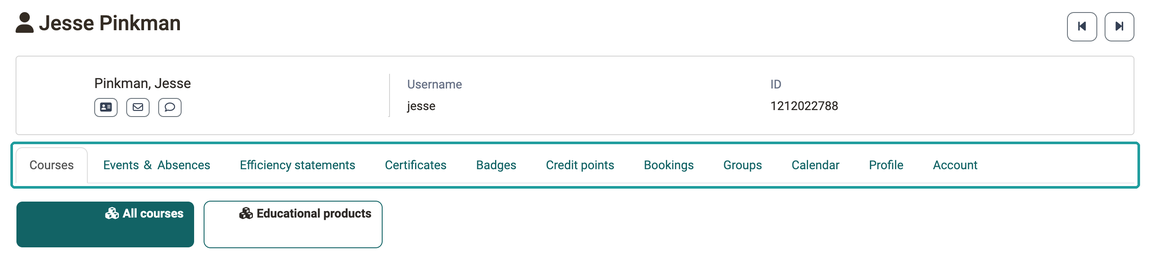
Courses
Here you see how far the person has got in their courses. Depending on the rights of your role, the list shows progress, passed and score and, if the module Events and Absences is switched on, the number of units and absences per course. The tab shows the learning progress, not the schedule: when an event takes place is shown in the tab "Events & Absences", when the person was booked in is shown in the tab "Bookings". If the Course Planner module is switched on, you switch to the implementations of the person with the switch "Educational products", see The educational products of a person. The prerequisite for the tab is the right "View courses and CPL products".
Events & Absences
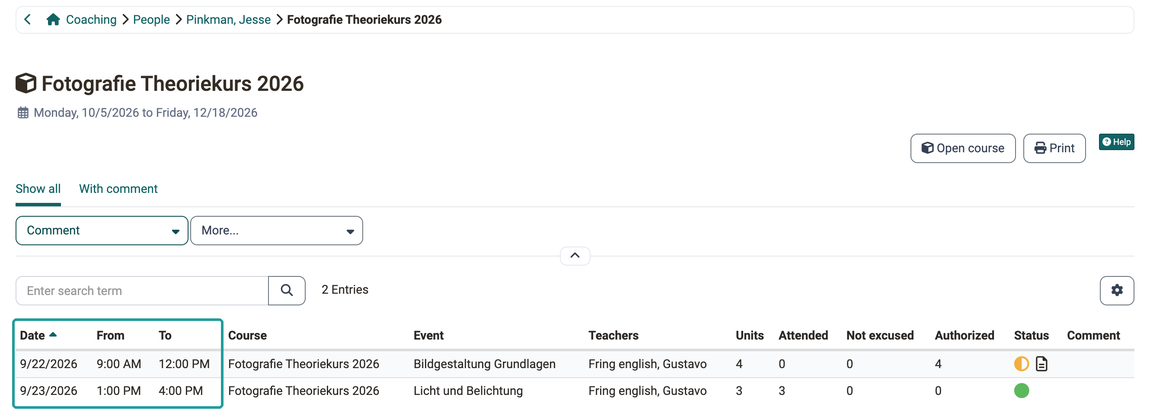
Here you see when the person attends a course. The first list shows the planned and the attended units per course (columns "Units" and "Attended") as well as the absences. If you click on a course, you see the individual events with "Date", "From", "To", "Event" and "Teachers". This is the only place in the detail view that shows the date and time of an event.
The prerequisites are the activated Module Events and Absences and the right "View events and absence". As a line manager or education manager, you moreover only see courses that are assigned to an organisation unit in which you hold this role. The right alone is therefore not sufficient. This is the most frequent cause of an empty list although the right is set.
Why is a course missing under Events & Absences?
Check the causes in this order. The first one takes effect before all others.
- The Event & absence management is switched off in the course. Then the course is missing, even if right, role and organisation unit are correct.
- No events have been recorded for the course.
- The course does not belong to any organisation unit in which you are line manager or education manager.
- The course has neither the status "Published" nor the status "Finished".
- The person is not a participant in the course.
Efficiency statements
Here you see the evidence of achievement of the person, i.e. per course their results from the assessable course elements with points and status. The prerequisite is the right "View evidence of achievement".
Certificates
Here you see which certificates the person has received. The tab appears with the same right as the tab "Efficiency statements".
Badges
Here you see which badges the person has received. The prerequisite is the right "View badges".
Credit points
Here you see the credit point balance of the person per credit point system and the related transactions, read-only. The prerequisites are activated credit points and the right "View credit points".
Bookings
Here you see when and via which offer the person got into a course or an implementation. The list shows per booking the "Order date", the "Offer", the "Content" and the "Status". The prerequisites are the activated Module Catalog and the right "View bookings". If you additionally hold the right "Pending course booking orders", the switch "Pending memberships" can appear, see Confirm pending memberships.
Groups
Here you see in which groups the person is a member. The prerequisite is the right "View groups".
Calendar
Here you see at a glance when the person is scheduled. The calendar combines their personal calendar, the course calendars of the courses in which they are a participant, and the calendars of their groups with the tool Calendar. Which of these appear depends on which calendars administrators have switched on in the Core functions. An event from the event and absence management only appears if it is linked to a course and the course synchronises its events with the course calendar. The prerequisite for the tab is the right "View course calendar".
Why is a course missing in the calendar?
Check the causes in this order.
- No events have been recorded for the course.
- The event has been recorded in the Course Planner on an implementation without a linked course. Such events do not appear in any calendar.
- The option Synchronize course calendar is switched off in the course.
- The person has a pending membership and is not yet a participant in the course.
- The course has neither the status "Access for coach" nor "Published" nor "Finished".
It is not due to your authorisation. The calendar shows the courses of the person regardless of the organisation unit they belong to.
The tabs "Events & Absences" and "Calendar" can show different things for the same course, because they do not check the same conditions. "Events & Absences" requires the status "Published" or "Finished" and, for line managers and education managers, the matching organisation unit. The calendar is content with the status "Access for coach" and does not ask for the organisation unit. In addition, the calendar does not follow the setting "Event & absence management" in the course: if it is switched off, the course is missing under "Events & Absences", while its events can still appear in the calendar.
Profile
Here you see the profile details of the person. With the right "View profile", the tab is read-only; with the right "Edit profile", you can also edit the details. If the person has additional roles, the tab remains read-only, see Extended people view.
Account
Here you see when the account of the person was created and when they last logged in, and you can change the status of the account, for example to deactivate it. The prerequisite is the right "Deactivate accounts".
Coaching tasks as line manager / education manager
Line managers and education managers find an additional button under People in the Coaching Tool, under which they find all people they are responsible for in their role.

Extended people view
In the people list under the focus "Line manager" or "Education manager", all users of the organisation are displayed, regardless of their role.
If a person has additional roles (more than the author role), an info message with an icon appears in the detail view: "Due to additional organisational roles, administration is restricted for this person." In this case:
- The Profile and Account tabs are read-only.
- The Reset password action is not available.
Requirements
The following requirements must be met for an additional button "Line manager" and/or "Education manager" to be displayed.
Requirement 1:
The module "Organisations" must be activated in the system administration.
Administration > Modules > Organisations
Requirement 2:
The person in question must have been assigned the role.
User management > Select person > Tab Roles
Requirement 3:
In the system administration, e.g. the option "Pending course booking orders" or further rights must be activated:
Administration > Modules > Organisations > Tab Organisations structures > "Organisation unit (top level)" > Tab Line manager or Education manager > Option "Pending course booking orders"
Create account for employees
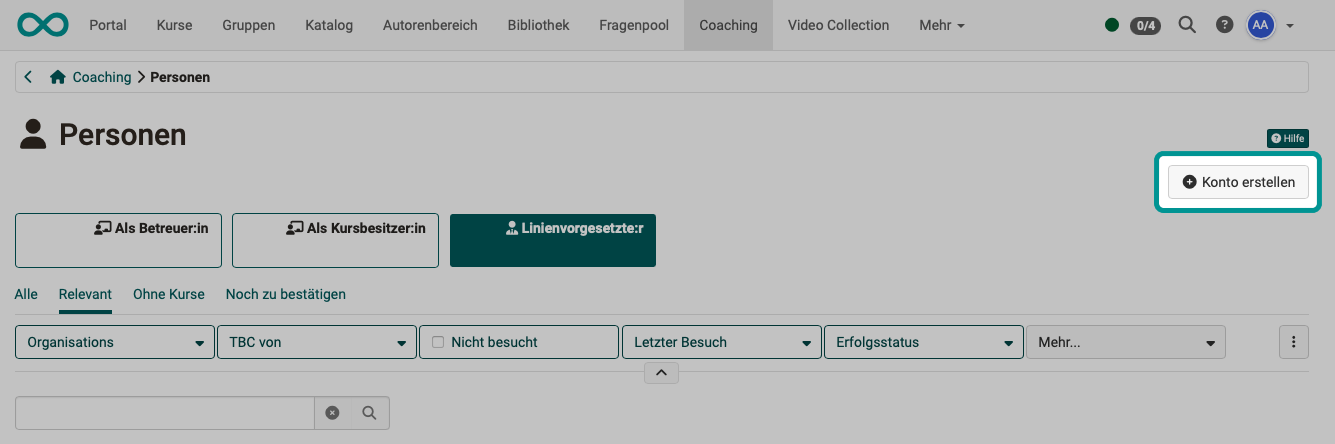
As a line manager or education manager, you will find the "Create account" button at the top right of the Coaching Tool. It opens a form for entering the necessary details to add people not yet registered to OpenOlat.
Whether this button is available is defined in the system administration:
Administration > Modules > Organisations > Tab Organisations structures > "Organisation unit (top level)" > Tab Line manager or Education manager > Option "Create accounts"
An account created by line managers or education managers automatically contains an assignment of the newly registered person to the organisation unit of the line manager or education manager.
Book participants on behalf of someone
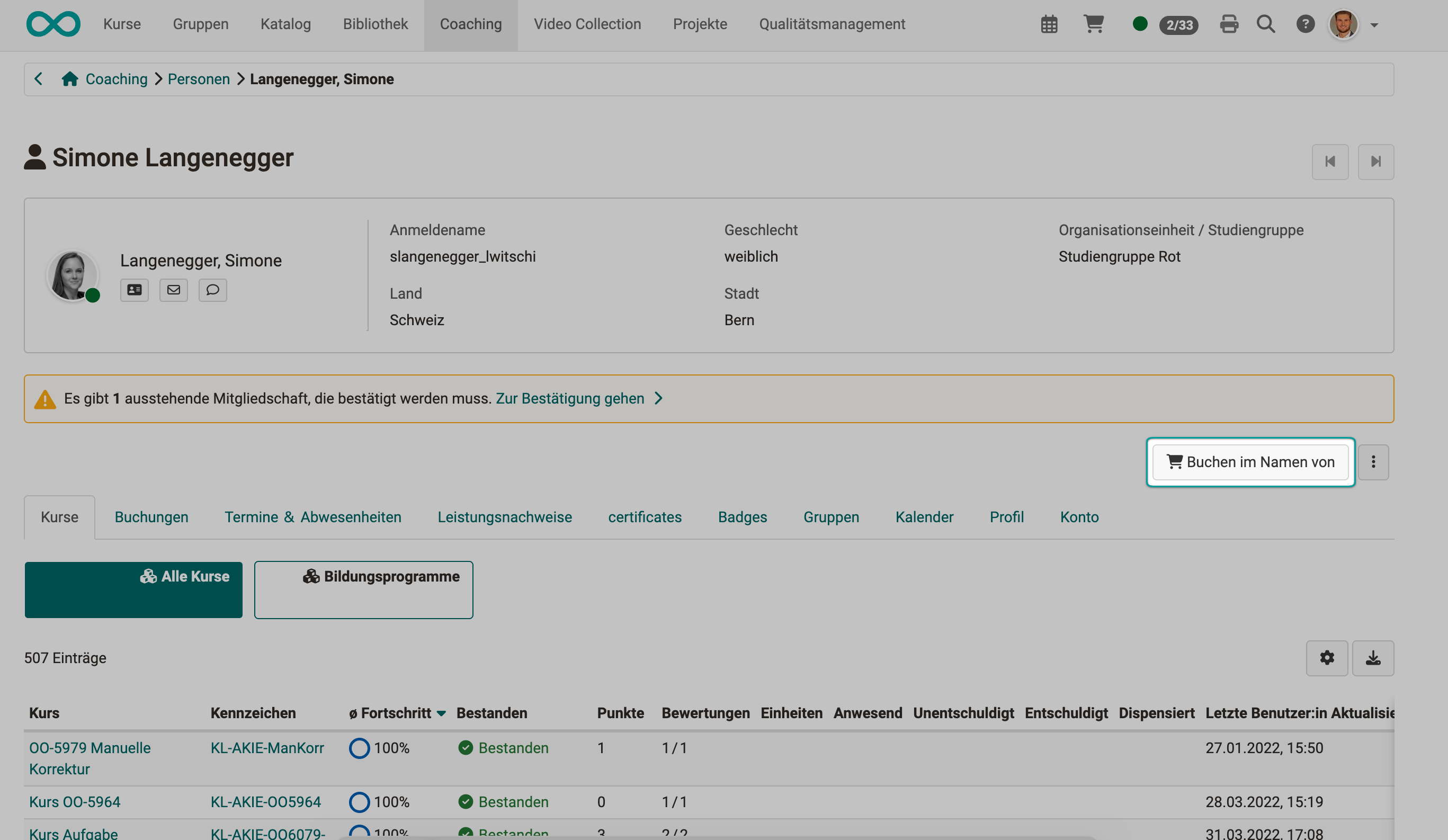
If you, as a line manager or education manager, want to book a person already registered in OpenOlat into an implementation, select the person in the Coaching Tool and click the "Book on behalf of" button. There you select the implementation in which the person should participate. Only implementations are available for selection, no courses or other learning resources. Offers with PayPal or PayPal Checkout do not appear there.
Whether this button is available is defined in the system administration:
Administration > Modules > Organisations > Tab Organisations structures > "Organisation unit (top level)" > Tab Line manager or Education manager > Option "Create booking on behalf of"
People with an own role also see the button if the same right is assigned to the role.
If the offer uses forms, OpenOlat guides you through the booking wizard. You fill in the forms on behalf of the person. The answers belong to the booking order of the booked person, not to yours.
Example 1:
A new employee is to complete several introductory courses next month.
Example 2:
Your employees are required to take safety or compliance courses. As you are responsible as line manager or education manager, you book all persons yourself.
Confirm pending memberships
Line managers and education managers often decide whether learners can participate in a training measure. In OpenOlat, they can be given the option to accept or reject pending memberships.
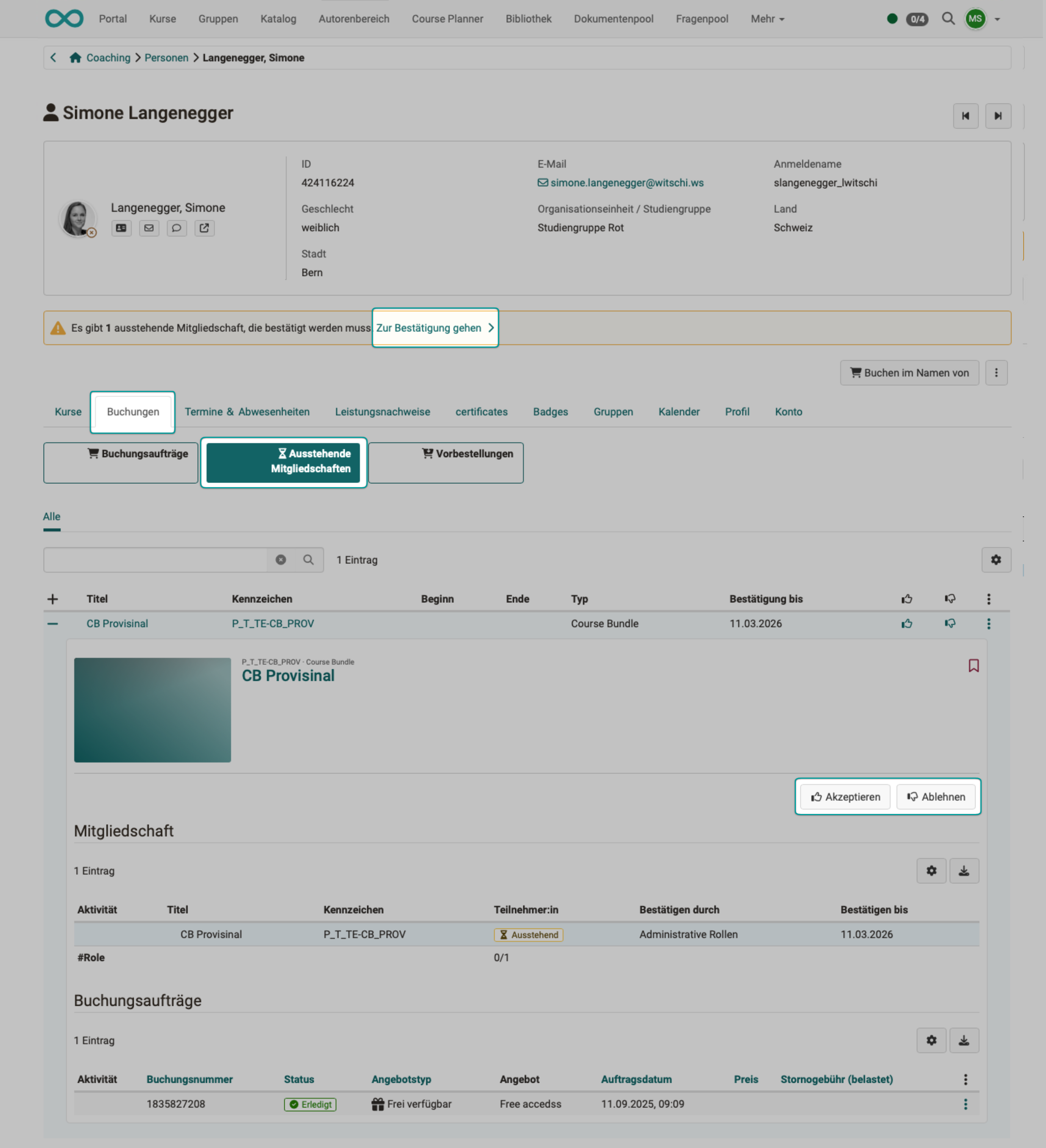
To do this, select the relevant person in the Coaching Tool and open the detail view by clicking on the plus symbol at the beginning of the row.
At the top right of the detail view, you will find the two buttons "Accept" and "Reject" with which you decide on a membership.
Alternatively and more simply, you can also use the link within the notification. If the invoice module is active, the button "Pending confirmations" on the Coaching overview additionally leads to a list of all open memberships; its search field knows the asterisk * as a wildcard.
How do pending memberships arise?
Memberships that still need to be approved by line managers or education managers are set up in the Course Planner for implementations. More about that here >
Observational tasks
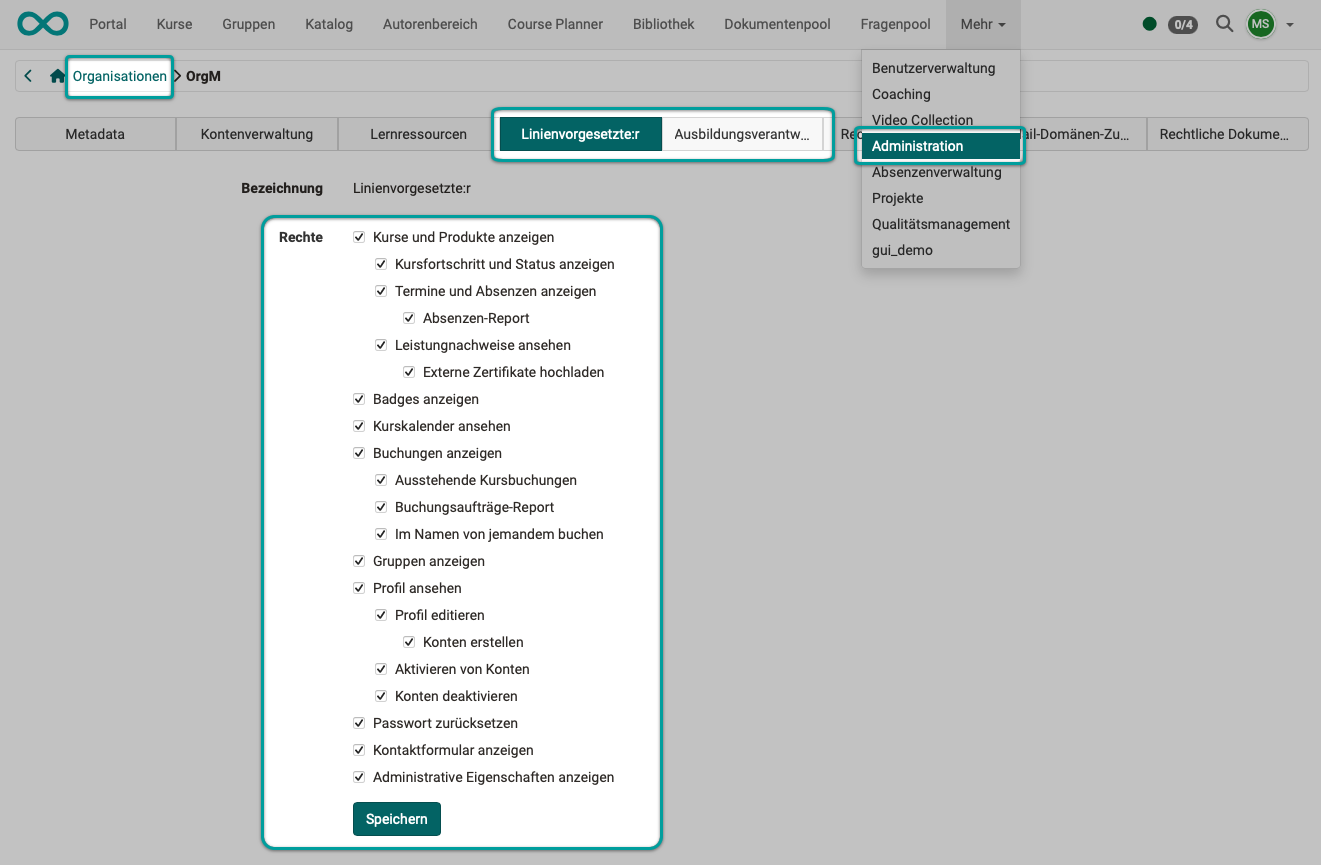
If you are a line manager or education manager, you can inform yourself about the learning progress within your organisation unit in the Coaching Tool at any time. Automatic notification about all certificates received is also possible.
As a line manager or education manager, you are generally granted read access, but editing is restricted and reserved for coaches and course owners.
Examples:
- You can see who is attending which courses, but you cannot access checklists, tasks etc. within the courses to view the entries of the participants.
- You can view received badges and other performance data, but you cannot award badges yourself.
- You can view absences, but you cannot record them yourself. This must be done by the course owners/coaches. Creating absence reports, however, is possible.
In the detail view of a person, you find this information in separate tabs: the courses attended in the tab Courses, the badges received in the tab Badges and the absences in the tab Events & Absences. Which tab belongs to which right is described in the section The detail view of a person.
If you, as a line manager or education manager, want certain rights, you can have them set up by administrators. The screenshot below shows which options administrators can configure. (The same options exist for education managers.)
The educational products of a person
Open a person and switch to "Educational products". The list shows the implementations of this person. It follows the same logic as the list under Coaching - Educational products, but offers fewer filters and columns:
- The filter tabs available are "All", "Relevant" and "Finished". "Relevant" is preselected.
- The tabs "Favourites" and "Preparation" do not exist here. Only coaches and course owners see implementations in preparation.
- There is no column "Status". Cancelled implementations appear in the tab "Finished", but cannot be filtered out separately there.
- The columns "Progress" and "Timetable" only appear if administrators granted your role the corresponding rights.
Further information
Mentioned on this page
Assessment tool >
Module Organisations >
Define own roles and relations >
Coaching: Courses >
Coaching: Events / Absences >
Module Events and Absences >
Course Settings - Tab Execution >
Events and absences in the course >
e-Assessment Administration: Credit points >
Module Catalog >
Core functions: Overview >
Catalog 2.0 - Offers >
Course Planner: Implementations >
Coaching: Educational products >
Further reading
Coaching: User search >
Coaching: Assessment orders >
Coaching: Reports >
Coaching: Groups >
Coaching: Order management >
Roles >