As an administrator, how do I set up the Safe Exam Browser (SEB) system-wide?
Aim and content of these instructions
The following instructions show you how to set up the SEB as an administrator.
Target group
[x] Authors [ ] Coaches [ ] Participants [x] Administrators
[ ] Beginners [x] Advanced users [x] Experts
Expected previous knowledge
The SEB - what is it?
Instead of running an online exam with browsers such as Edge, Firefox, Safari or Chrome, the Safe Exam Browser can be made mandatory for accessing the OpenOlat online exam. This special browser makes it possible to disable the option to open other websites or functions such as copy & paste during the exam period (kiosk mode). This prevents the use of unauthorised sources during an exam.
In a course under Course administration > Assessment management, an assessment mode can be configured that defines the conditions (time window, etc.) of an exam. Within an assessment mode you can also determine whether the SEB should be used. If this option is activated, the SEB can be configured directly there in OpenOlat and a configuration file can be generated for sending to the participants.
The SEB is an external tool
The Safe Exam Browser is not developed by frentix GmbH, so we can neither provide guarantees nor directly influence its functionality. Our support is also limited to the configuration options on the OpenOlat side for accessing this external tool.
Where and how do I set up the SEB as an OpenOlat administrator?
Before authors and coaches can use the Safe Exam Browser in an assessment mode, the administration must activate the SEB system-wide in OpenOlat.
This pre-configuration can only be carried out with administration rights (role System administrator).
All computers on which exams are to be carried out with the SEB must also have the SEB installed. As an administrator, you may have an advisory and supporting role here.
Step 1: Install the SEB if necessary
Note
It is not strictly necessary for you as an administrator to have the Safe Exam Browser installed on your own computer. Only everyone involved in an exam needs this browser. For testing and advisory purposes, however, it may be helpful if you as an administrator also have the SEB installed.
There is a separate Safe Exam Browser for each operating system (Windows, macOS, iOS).
Download the browser from the manufacturer's website (ETH Zurich) and install it.
Tip
Pay attention to which version of the SEB you install. Later, a specific SEB version can be required in the configuration file. The participants must then have the corresponding Safe Exam Browser version installed.
Step 2: Switch on the assessment mode
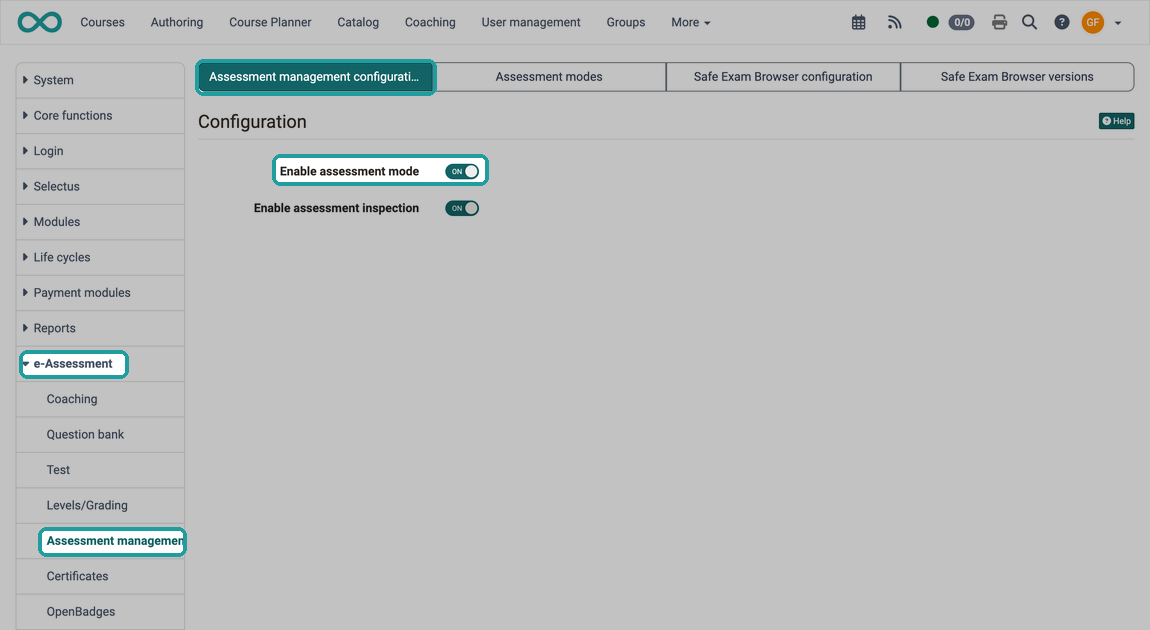
The Safe Exam Browser is always used within an assessment mode. Activating the assessment mode is therefore a prerequisite. You do this under:
Administration > e-Assessment > Assessment management > Tab "Assessment management configuration"
Step 3: Define the minimum version of the SEB
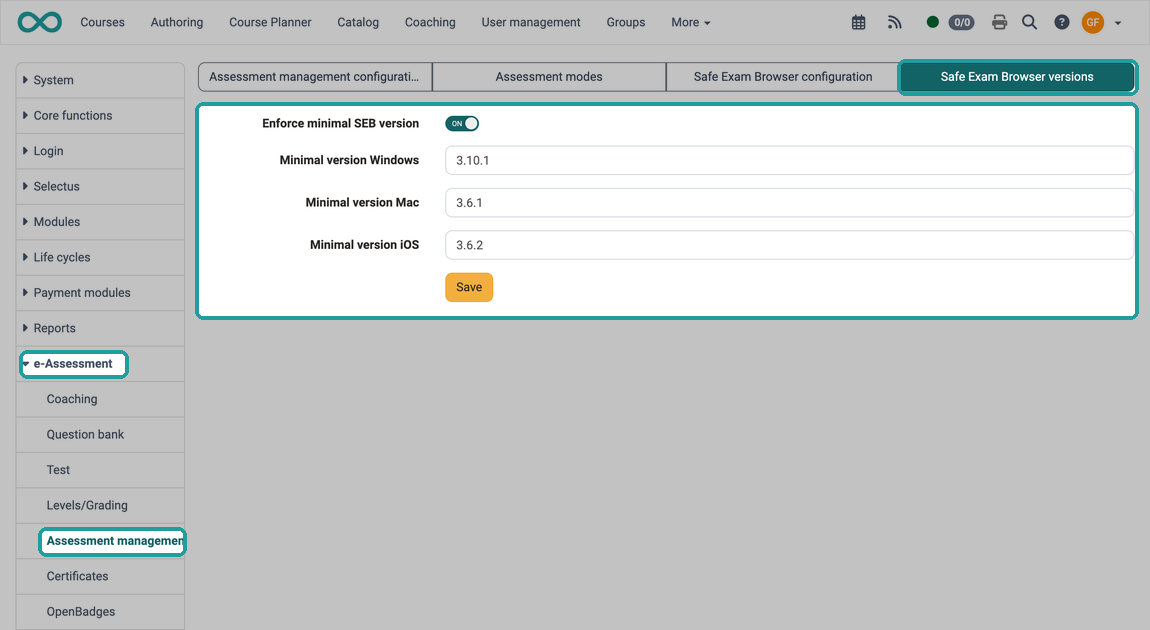
As an administrator, you can enforce the use of a specific minimum version of the Safe Exam Browser system-wide. Exam participants with an older SEB version are then not admitted.
A separate minimum version can be defined for each operating system.
You make this setting under
Administration > e-Assessment > Assessment management > Tab "Safe Exam Browser versions"
Note
New versions of the SEB are released at irregular intervals. Occasionally, this also results in a need for adjustments in OpenOlat when minimum versions are prescribed. You maintain the SEB versions permitted on the OpenOlat instance in the same place.
Step 4: Clarify which conditions the SEB should set system-wide
Find out about the available functions on the manufacturer's website (ETH Zurich) and clarify the desired requirements with the people responsible for conducting the exams.
Step 5: Configuration completely manual or with a template?
The SEB can be configured
- completely manually in the course (by authors)
- with a template (provided by administrators)
As an administrator, clarify with those responsible for the exams whether and which templates are needed.
Step 6: Provide an SEB configuration template
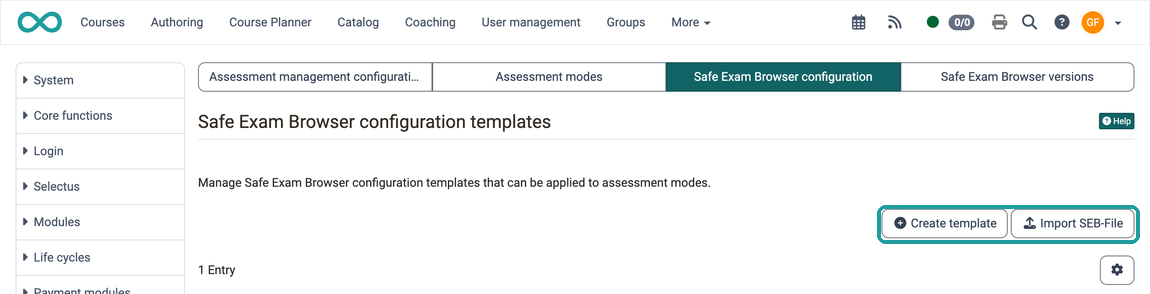
If configuration templates are to be used (clarification in step 5), the clarifications made in step 4 can now be described and stored in various configuration templates. Under
Administration > e-Assessment > Assessment management > Tab "Safe Exam Browser configuration" you can provide a configuration template in 2 ways:
- by creating a template directly in OpenOlat
- by importing a .seb file
Option 1:
You can create a new SEB configuration template yourself directly in OpenOlat. To do this, select the "Create template" button. The configurable options are described here: SEB configuration template
Option 2:
Alternatively, you can also import an unencrypted .seb file as a template.
Open the SEB and create/save/export the SEB configuration file there.
List of templates
All created or imported configuration templates are listed under the "Safe Exam Browser configuration" tab and can be edited, activated/deactivated or set as default by administrators.
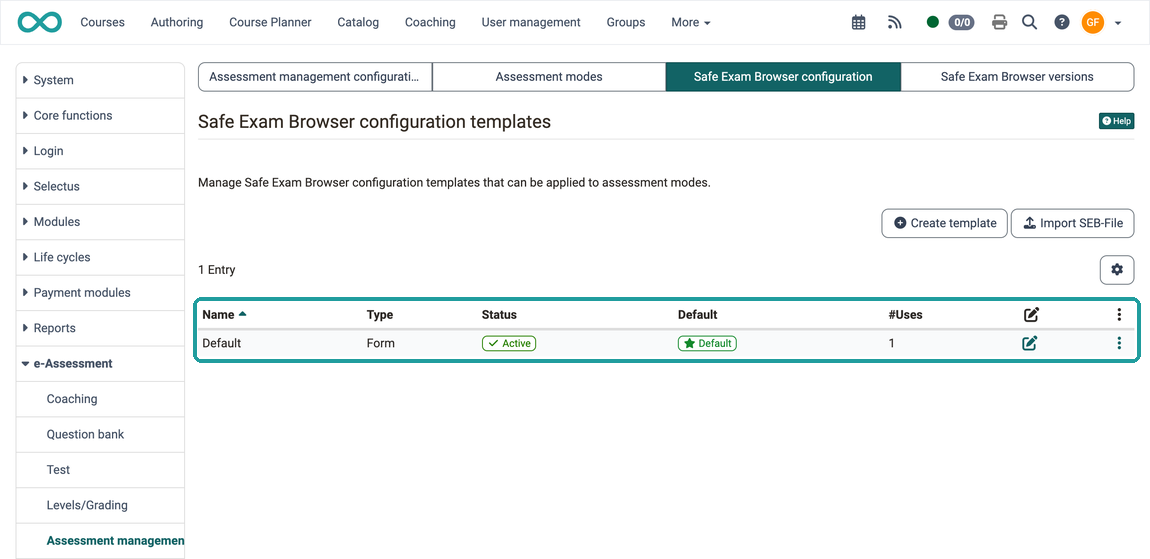
Type column
This column shows you how the template was created:
Form -> This template was created directly in OpenOlat (see Option 1)
SEB file -> This template was imported (Option 2).
Status column
A configuration template can have either the status "Active" or "Inactive".
Default column
This column shows you which templates you have set as default via the three-dot icon.
#Uses column
This shows you how often a template is already being used by authors in exam courses.
Edit column (icon)
Clicking on one of the edit icons opens the popup window in which the configuration options on the OpenOlat side are displayed.
Three dots
Clicking on a three-dot icon shows the options
- Edit
- Set as default
- Deactivate
Step 7: Activate the Events / Absences module if necessary
For anyone working with the “Events and Absences” module:
Exam mode and SEB configuration can also be set directly on an event.
As an administrator, you can enable the “Events and Absences Management” module under: Administration > Modules > Events/Absences > Configuration tab.
In this tab, in the section "Course-level configuration", you use the setting "Safe Exam Browser - Type of use" to define where exams from events take the Safe Exam Browser settings from: "With manual keys" or "From template (recommended)". You also specify there whether a downloadable configuration file is available.
Course owners typically activate or create the SEB configuration under
Course Administration > Exam Management > “Exam Mode Configuration” tab > Select mode and click the edit icon > “Safe Exam Browser” tab
See Creating the Configuration File >
Via Course > Administration > Events and Absences > Tab Events, an assessment mode is created from an event. Its dialog is shorter and has no choice "SEB configuration": Assessment mode from an event
- After you've created an event, select the “Mark as Exam” option from the three-dot menu. (If the event has already been marked as an exam, you'll see the “Edit Exam” option in the three-dot menu.)
- In the window that opens, toggle the “Use Safe Exam Browser” button to the “On” position.
- Once the SEB is enabled, you can select one of the available configurations.
Note
The toggle in the Events / Absences module controls only the path via an event. A directly created assessment mode ignores it completely.
Note
There are different types of events in OpenOlat:
An event can (e.g. in Projects) have several assigned properties.
In addition, there are also events that are merely calendar entries.
When working with the “Events/Absences” module, you are always dealing with events in the first category, which have additional properties associated with them.
Support knowledge for administrators
As an administrator, you may need to answer questions from authors. The following therefore describes some process steps that you as an administrator do not have to carry out yourself, but rather the authors. As a contact person and expert for OpenOlat, however, you should also have this background knowledge. Also consult the guide for authors:
How do I prepare an exam with the SEB?
(by the course owner) Create an assessment mode
As the author of the OpenOlat exam course, you create an assessment mode under
Course administration > Assessment management > Tab "Assessment mode configuration" > "Add assessment mode" button
(by the course owner) Creating the configuration file
Authors create a configuration file in the course (if necessary with the help of the configuration template)
under Course administration > Assessment management > Tab "Assessment mode configuration" > Select/edit mode > Tab "Safe Exam Browser"
See Step 4: Configuration (for course owners) >
(various roles) Mark event as an exam
An event can be marked as an exam by
- Course owners
- Coaches and teachers (listed in the course or designated as teachers for specific events)
- Master coaches
- Course planners
- Persons with the course right "Course editor"
Principals see the event list but do not receive the entry.
You find the entry "Mark as exam" in the 3-dot menu of an event, in three places: in the course toolbar with the icon "Events", under Course > Administration > Events and Absences and, for teachers, also under Coaching > Events / Absences > Tab "Events".
The following requirements must be met for this option to appear:
- Exam mode must be enabled system-wide under
Administration > e-Assessment > Assessment management. Without this activation, the option will not appear for anyone. - The option "Event can be marked as an exam" must apply to the course: in the course settings under
Course > Administration > Settings > Tab Executionif the course overrides the default configuration, otherwise as default underAdministration > Modules > Events / Absences. - The event is not an online meeting. (For BBB/Teams events, "Mark as exam" is hidden.)
The complete description is in the user manual: If "Mark as exam" is missing
Note
Although coaches cannot create or edit appointments (only owners can do that), marking an appointment as an exam is a separate permission and is still available to them.
(by the course owner) Distributing the configuration file to the participants
Option 1: Download by participants
If the course owners configure it this way, the configuration file can be downloaded from OpenOlat by the exam participants when the assessment mode has started.
Option 2: Download and send by course owners
If downloading by participants is prohibited, the download option is no longer available for participants, but it remains available for authors. The course owners can download the configuration file at any time and send it to the exam participants.
See Step 6: Download configuration (for course owners) >
Attention
Whenever changes are made to the configuration, a new configuration key is generated. If this is distributed to the exam participants with the configuration file, the configuration file must be redistributed each time. It is therefore not advisable to change the configuration a few minutes before the exam.
Key
To ensure that only the correct, locked-down browser can access the exam, proof is required. This proof can be provided in two ways:
Option A, "With manual keys":
A key is entered manually. This is a type of password or checksum. Only those who know this key can access the exam.
A system-wide default value can be entered under (System) Administration > Modules > Events / Absences > Configuration tab > in the “Safe Exam Browser Key” field. (This field appears as soon as “manual keys” is selected as the usage type.)
Course owners can then find this key in the course under (Course) Administration > Settings > Execution tab > in the “Safe Exam Browser Key” field. (This field appears as soon as a manual key has been specified system-wide.)
Option B, "From template (recommended)":
A configuration template can also include the key. Instead of a manually entered key, a key contained in a pre-built configuration template is used. This is the more convenient method recommended by OpenOlat.
Whether the key should be included in the template is specified under (System) Administration > Modules > Events / Absences > Configuration tab > “Safe Exam Browser - Type of use”
(by the course coach) Intervention while an exam with the SEB is running
As a rule, no further intervention should be made while the assessment mode is running. If it is necessary for compelling reasons, however, the intervention is made via the assessment mode.
Checklist
- SEB downloaded from the manufacturer's website?
- Assessment mode activated in e-Assessment?
- Clarified whether a minimum version of the SEB should be used?
- Have the desired requirements (SEB capabilities) been clarified with those responsible for the exams?
- Should the configuration be done completely manually or with a template?
- Can/should an unencrypted .seb file be imported as a template?
- SEB configuration template created?
- Link to the download (installation) of the SEB communicated to those responsible for the exams? (For forwarding to the participants)
- Configuration file for distribution to participants created by the course owner?
- Have all exam participants been asked to install the SEB on their computer?
- If separate computers are provided for the exam: are all computers equipped with an SEB?
- Is the "Events / Absences" module being used?
- Has it been defined whether the Safe Exam Browser should be used with manual keys or keys in the SEB config?
Further information
Website of the manufacturer >
How do I prepare an exam with the SEB? (for authors) >
Assessment mode >
Assessment inspection >
Assessment management (Admin) >
Assessment management by course owners and coaches >
Events and Absences module >
Course Settings - Tab Execution >
Toolbar: Events >