Course Element "CP learning content"
Profile
| Name | CP learning content |
|---|---|
| Icon | |
| Available since | New edition with release 16.2 |
| Functional group | Knowledge transfer |
| Purpose | Display learning content in IMS CP format |
| Assessable | no |
| Specialty / Note |
Use the "CP learning content" course element to embed a content package (CP) in your course: a package of learning pages with its own structure in the IMS Content Packaging format (IMS-CP, version 1.1.2). You create the CP either directly in OpenOlat, as explained in the guide "How do I create a Content Package?", or with another tool outside of OpenOlat. You upload an externally created CP in the "Learning content" tab as a ZIP file that contains the file "imsmanifest.xml".
You configure the course element in the course editor in the tabs "Learning content" and "Display content":
Course > Administration > Course editor > Course element "CP learning content"
Tab Learning content
In the course editor, the "CP learning content" course element appears as a single entry, even if the CP consists of many pages. You define its content, the content package, in the "Learning content" tab. In OpenOlat, a CP is a learning resource of its own that you can use in several courses. With "Select, create or import CP learning content" you select a CP that already exists as a learning resource, create a new one or upload one from a file. Once a CP is embedded, a click on its name opens the preview, and "Replace CP learning content" replaces it with another one. With "Edit" you change the content of the CP. The change applies to the learning resource and therefore in all courses that embed it. Owners of the CP, learning resource managers and administrators see this button.
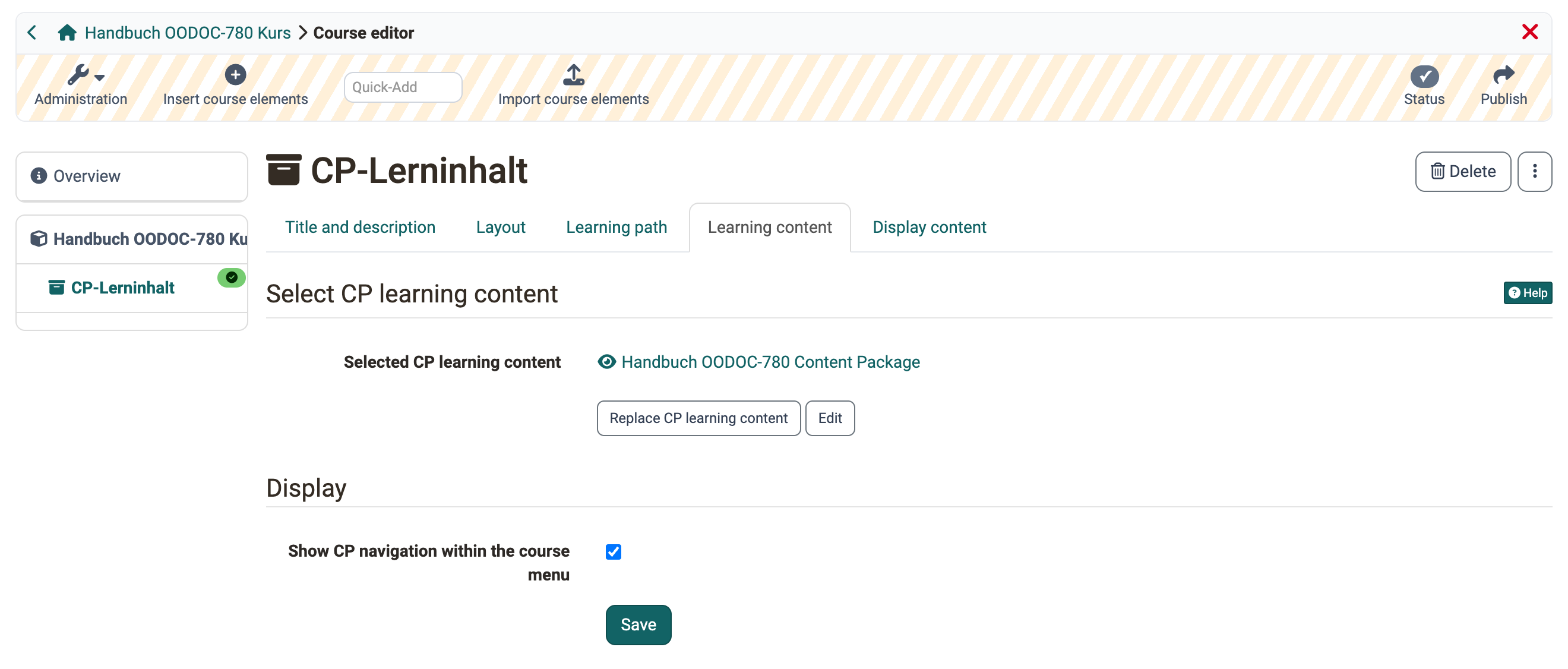
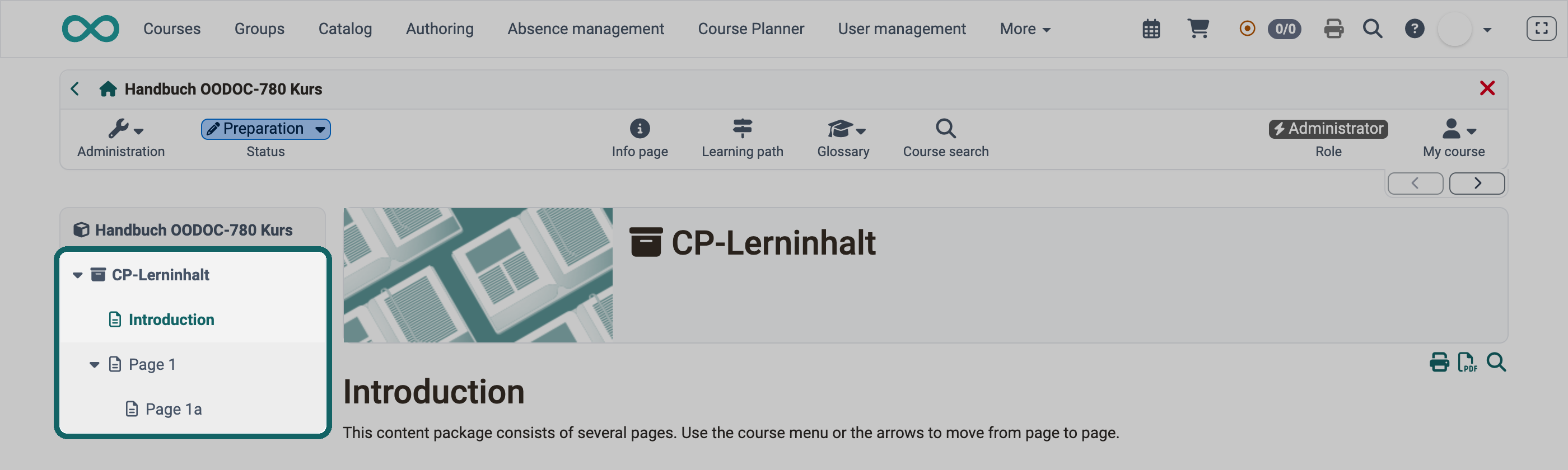
A content package usually consists of several pages. If the option "Show CP navigation within the course menu" is switched on, OpenOlat shows the structure of these pages directly in the course menu. In a new course element, it is switched on.
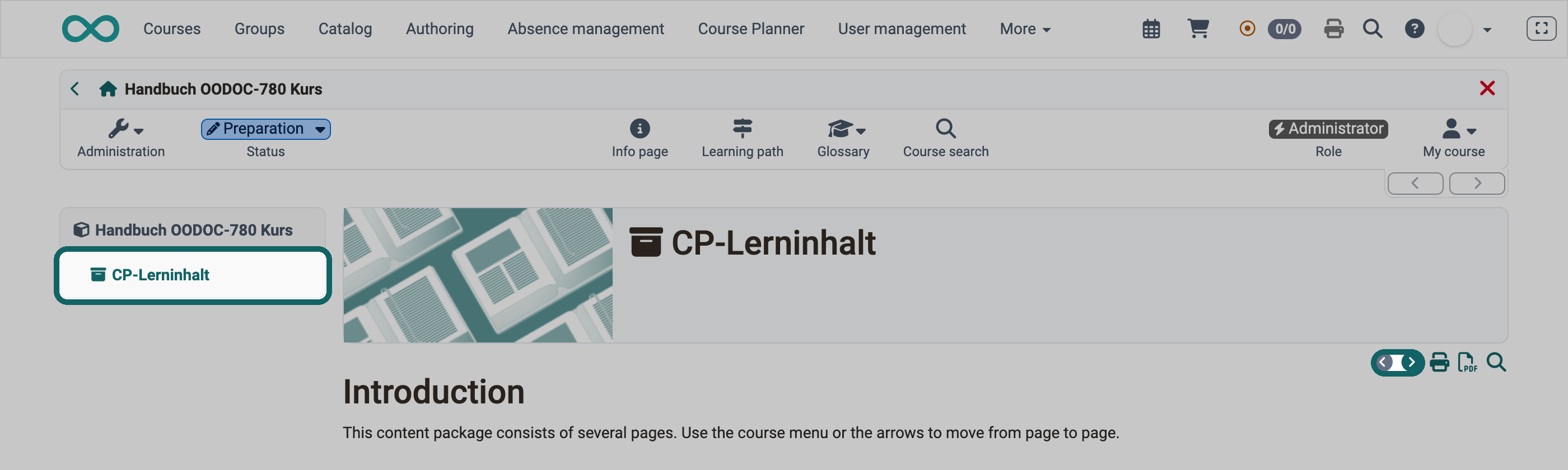
Without this option, participants do not see the structure. After opening the course element, they page through the CP pages with the arrows at the top right of the content.
Tab Display content
In the "Display content" tab, you define how OpenOlat displays the pages of the content package in the course, for example whether the course layout is applied to the pages and how high the display area is. This way, the CP learning content matches the course visually, or it appears unchanged as it was created.
If a content domain (separate address for content) is set up, OpenOlat delivers the content through it. Scripts in the content therefore have no access to the OpenOlat session.
Use standard configuration
You define the display of a CP learning content in two places: in the settings of the learning resource in the tab "Layout" and here in the course element. With "Use standard configuration" you choose which settings apply in the course:
- Use from learning resource layout configuration: The course element shows the CP learning content as defined in the settings of the learning resource. The fields below show these values and cannot be changed here.
- Modify: You set the fields below yourself for this course element. The settings only apply here; the learning resource and other courses that use it remain unchanged.
If a CP learning content looks different in the course than when the learning resource is opened directly, check this selection: with "Modify", the course uses its own values. The field "Use standard configuration" appears as soon as the course element has embedded a CP learning content.
Further fields
Below follow the same fields as in the "Display content" tab of the course element "HTML page": "Display mode", "Embed Javascript library", "Embed glossary terms", "Display height", "Adapt layout", "Content character set" and "Javascript character set". The fields are described in the section Tab Display content.
Further information
Mentioned on this page
How do I create a content package? (Step-by-step instruction) >
Content domain >
CP learning content: Administration >
Course Element "HTML page" >
Further reading
Creating and editing a content package >