Become a group member
There are various ways in which people can become a member of a group. The following questions arise:
Who adds the member to the group?
Possible options are:
1) The person adds themselves 2) The group coach adds members 3) Administrative roles such as user managers or group managers add people 4) Automatic assignment via an external system
Where does the assignment take place?
Possible options are:
- a) Directly in the group
- b) In a course associated with the group
- c) In other OpenOlat system areas
- d) Outside OpenOlat
Both aspects can be combined as follows:
1a) The person adds themselves to the specific group
For this, the group coach must set up an "offer" directly in the group under Administration > Sharing.
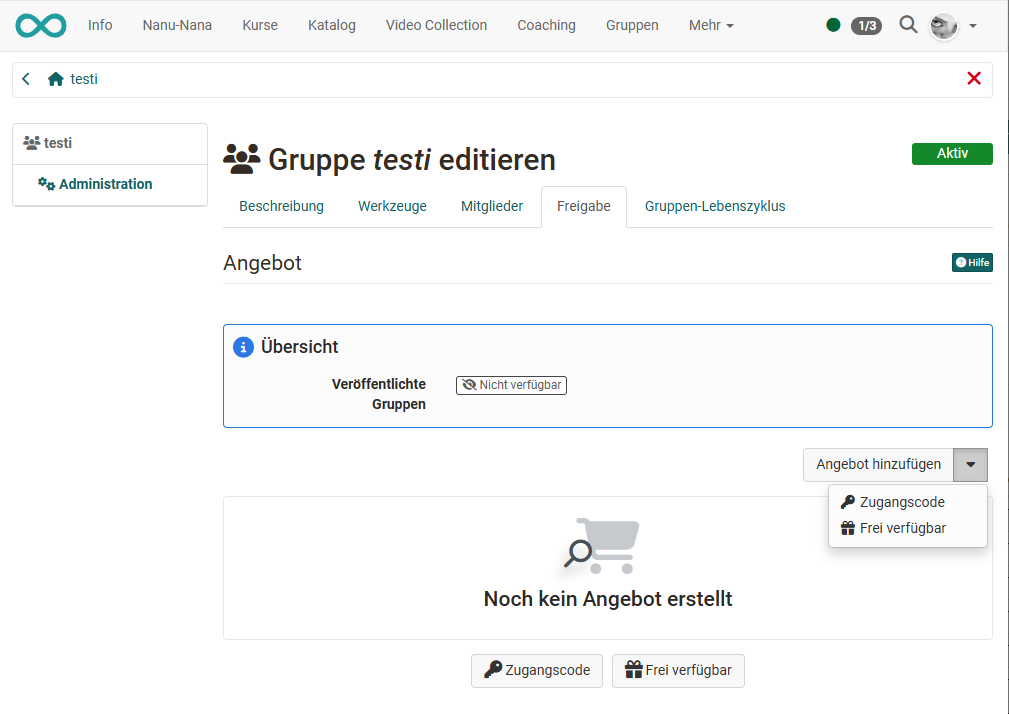
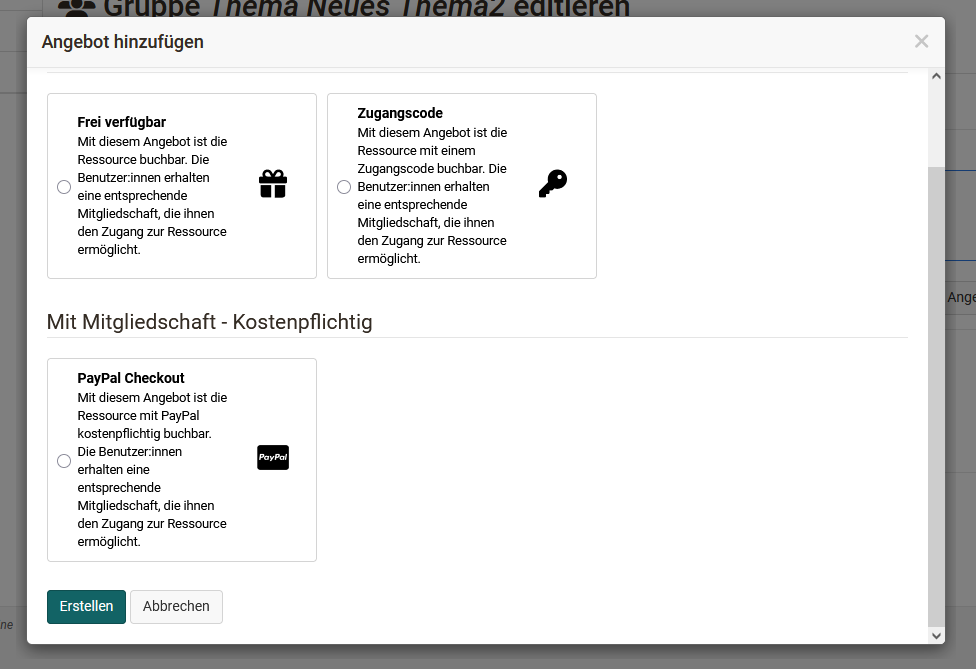
Several options are available for the offer:
"Freely available" creates a booking without a password. Interested users join the group directly after booking. With the "Access code" option, a password is set for access and the user must enter the previously communicated password when booking. This is useful if not everyone should be given access to a group, but people should add themselves. Depending on the configuration by the system administrators, the "PayPal Checkout" option is also available. With this offer, the resource can be booked for a fee via PayPal.
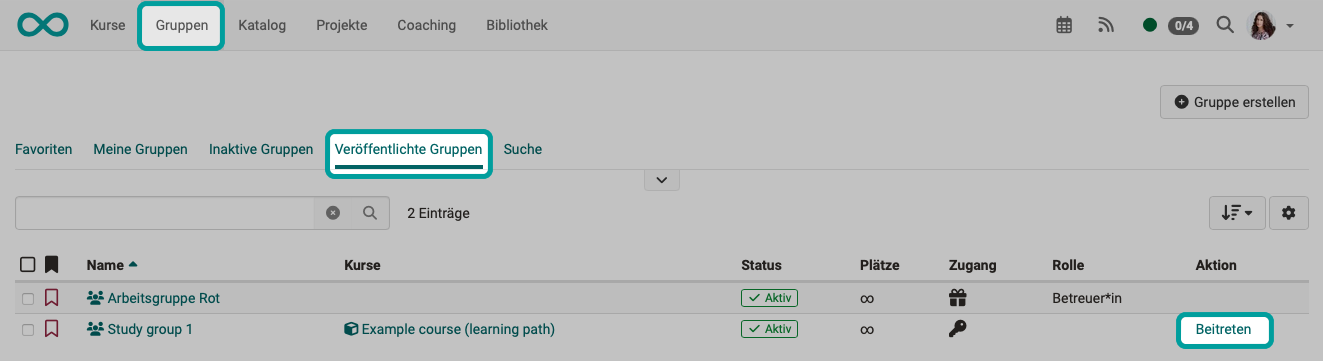
Where do users find groups they can book?
Users find groups with offers under "Published groups". Click on "Join" to book an offer and become a group member.
Overbooking {: #overbooking}
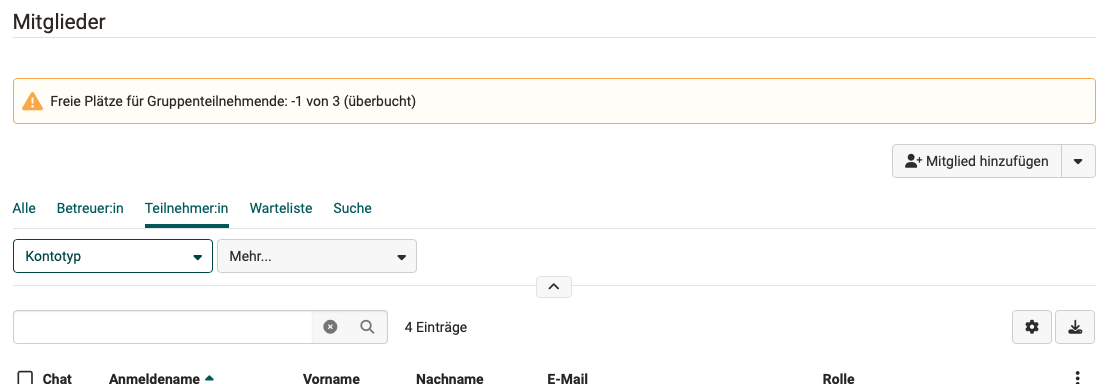
If the group size has been limited, participants who want to join a group in which all places are already taken can be placed on a waiting list. (See Create groups).
In the event of overbooking, corresponding notices appear, e.g.:
2a) Group coaches add people directly to the group
As a group coach, select or create the desired group and go to the "Administration" tab of the group. In the "Members" tab, additional participants and coaches can then be added.
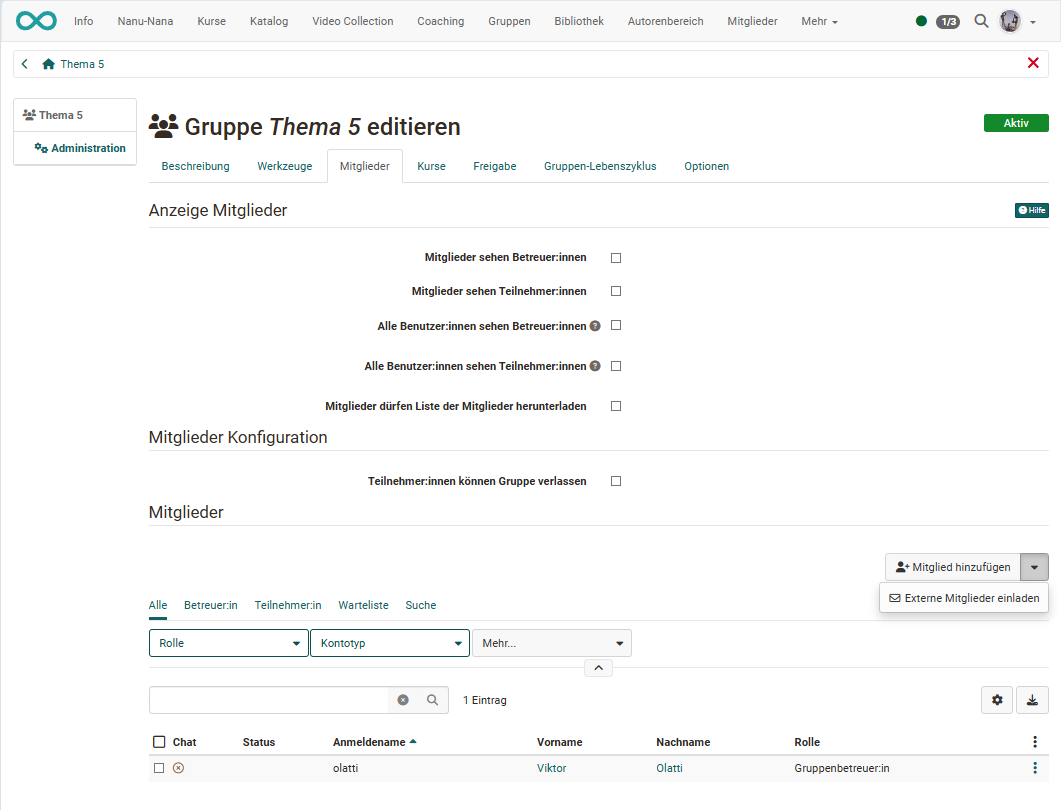
OpenOlat authors additionally have the "bulk search" available when adding members. This way, people whose OpenOlat ID or email address is known can be added directly and quickly. Authors also have the option of inviting "external members" who do not yet have an OpenOlat account into the group. To do this, the specific email addresses of the persons must be entered.
Adding a person to several groups at once
Group coaches can also add a person directly to several groups, e.g. if an assignment to several groups is necessary for a study programme. To do this, go to the group area and select all groups to which the person is to be added. The prerequisite is that you are also a coach of the respective groups. Several buttons appear.
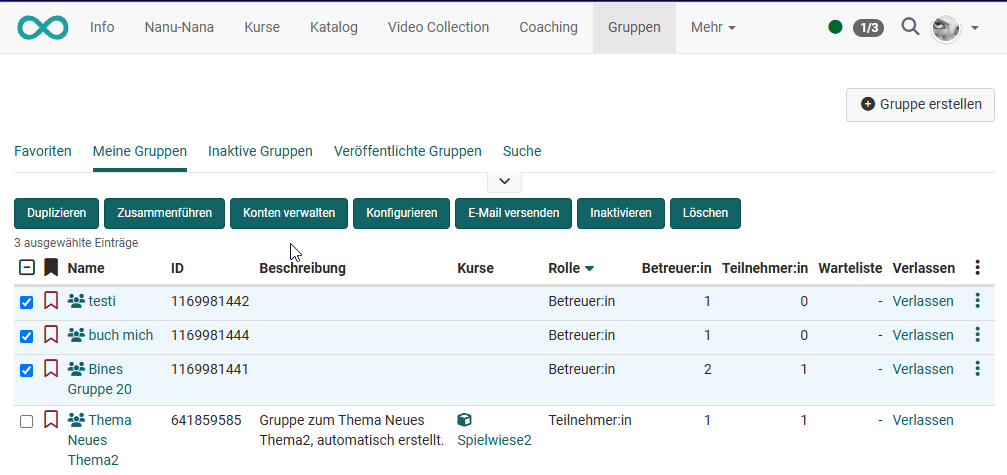
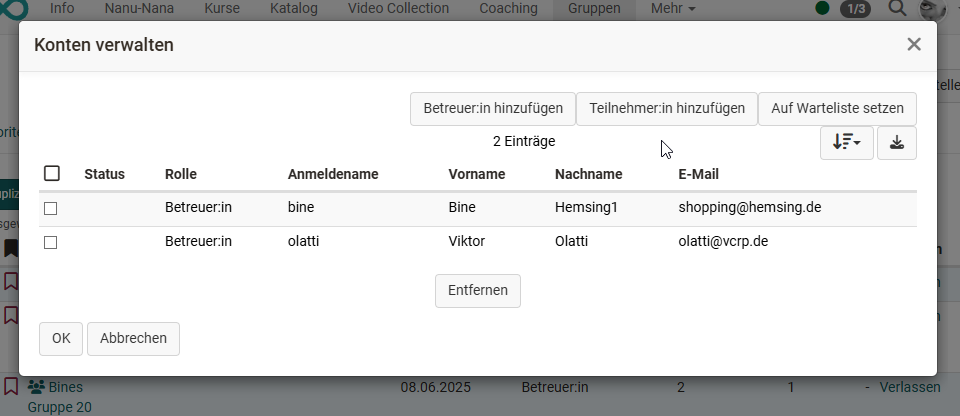
Select "Manage members" here. A pop-up menu opens in which the members of all selected groups are listed together. Use the corresponding buttons to add further participants or coaches to all selected groups or to place them on the waiting list.
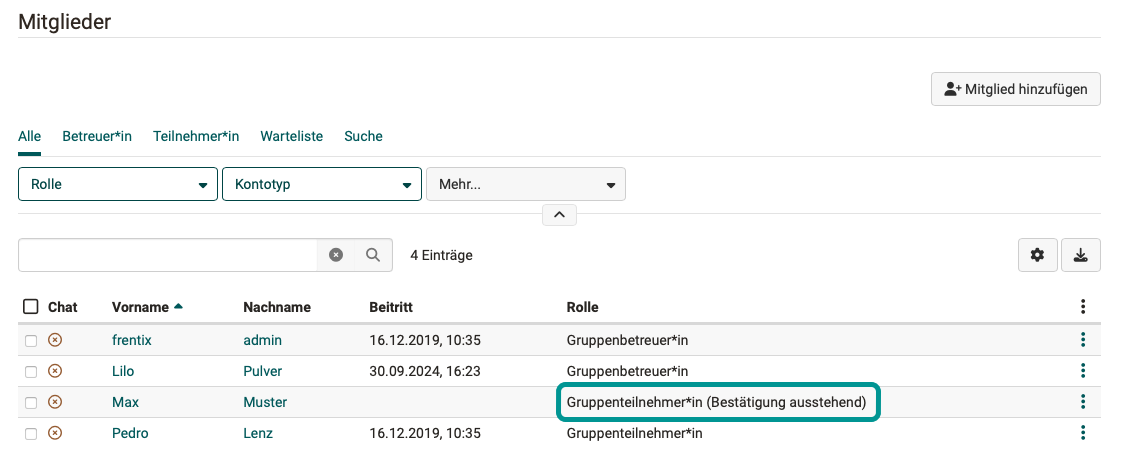
The group membership may then still need to be confirmed. If you look in the member administration in one of the courses, you may find a corresponding note. Whether such confirmation by the new group members is required can be specified by system administrators.
1b) The person adds themselves to a group within a course
Courses and groups can be linked to each other. If this is the case, people can also add themselves to a group at certain points within the course.
Specifically, this works via the course elements "Enrolment" and "Topic Assignment". With these course elements, an OpenOlat group is created automatically. When people select a topic or enrol in a group, they are automatically added to the corresponding group.
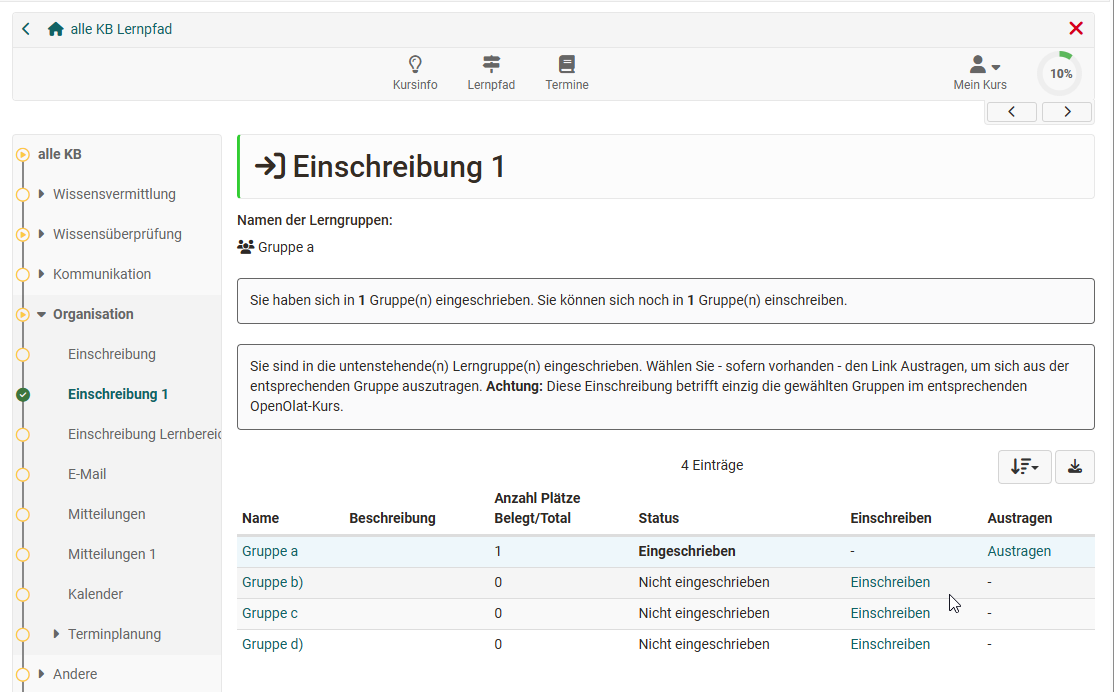
2b) Course owners add people to a course-related group
Groups can also be linked to courses. If this is the case, course owners or persons with the right to use the course's "member administration" can also create and add groups there.
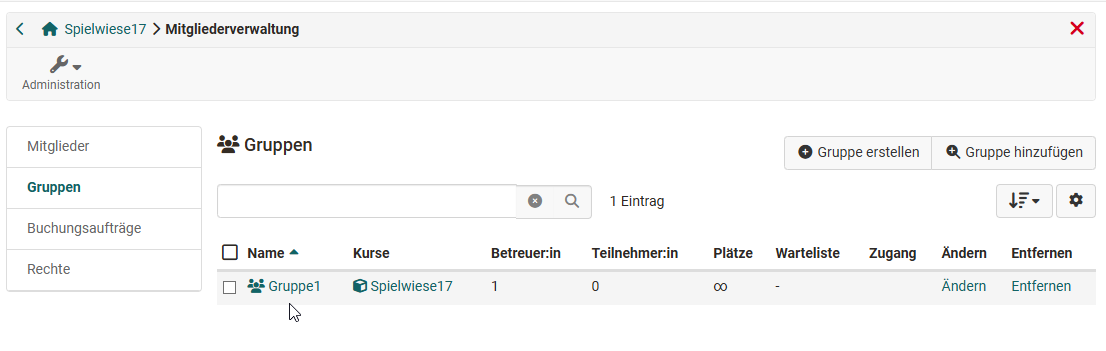
Via the displayed group name, you can access the group and then, as described under 2a), add people as a group coach.
Another option in the course is via the course's member list: Members management > Members. Here you can assign one or more course members to course-specific groups.
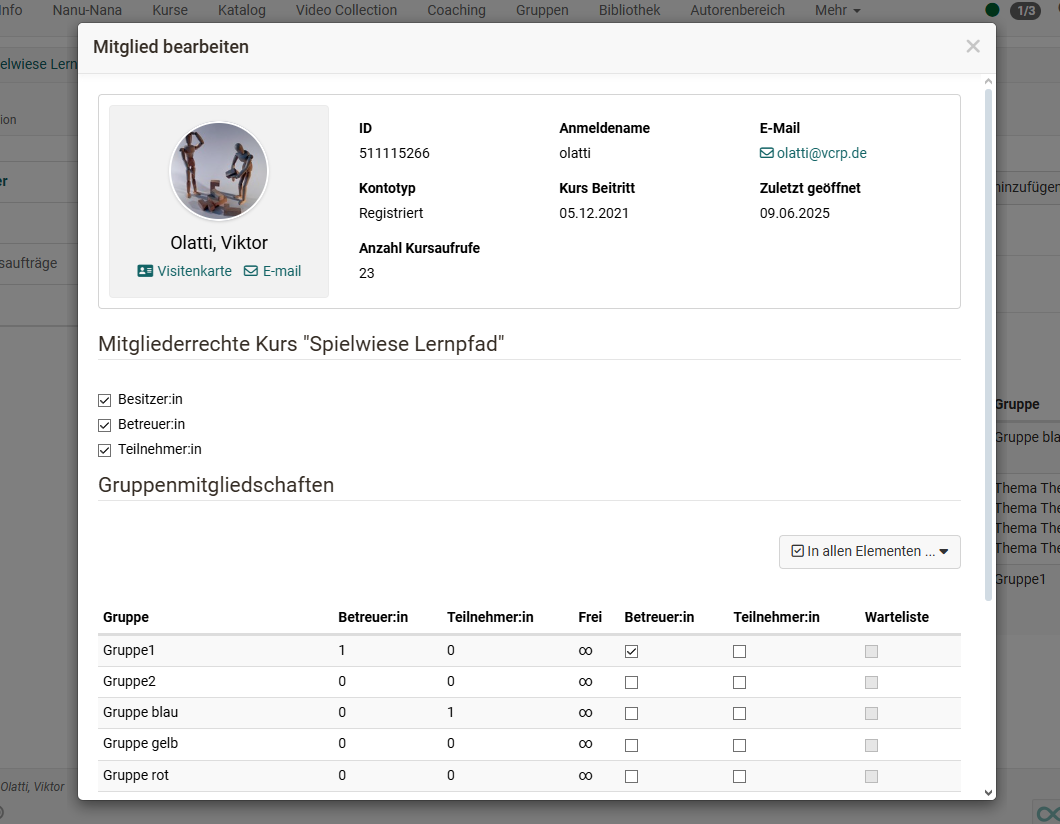
If you select several course members, for example, they can be assigned as participants or coaches to all groups available in the course via the "Edit" button that appears.
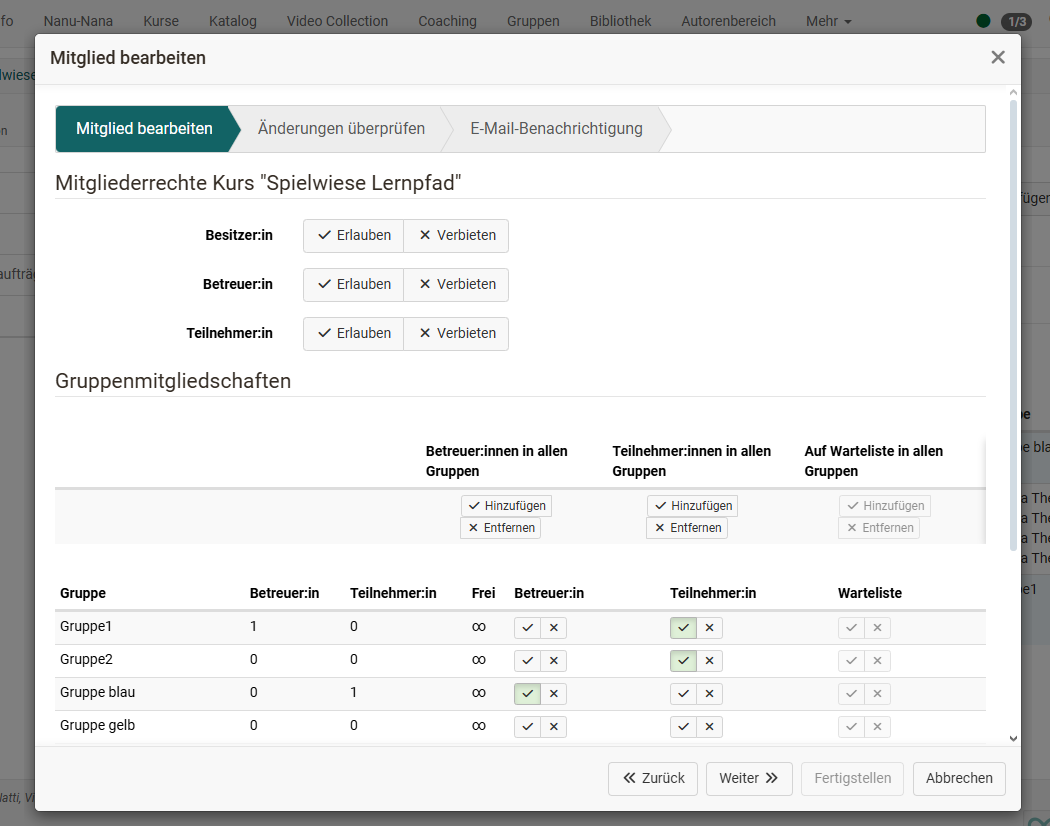
The changes are then displayed again for review and an email notification can also be sent.
3c) Assigned by persons with OpenOlat system roles
Certain people who are not group coaches of a group themselves can also add group members at an administrative level. This includes people with the OpenOlat role of group manager, user manager or administrator.
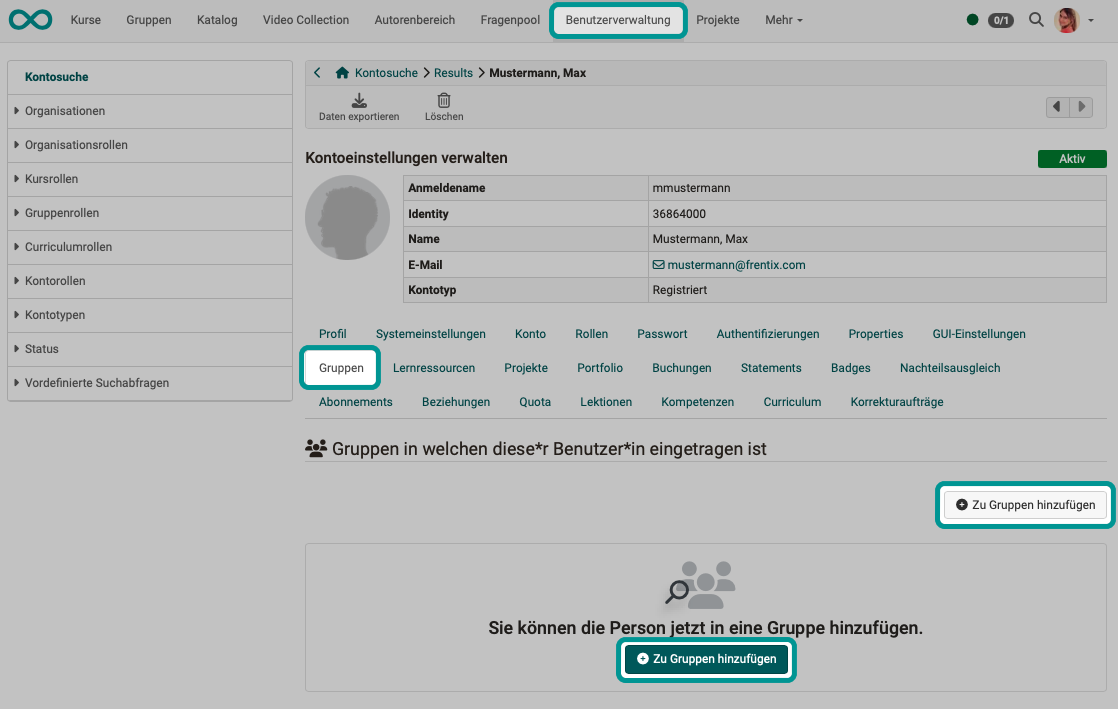
Adding group membership in the user administration
User managers can view existing group memberships and add new ones after opening the profile of a specific person in the "Groups" tab.
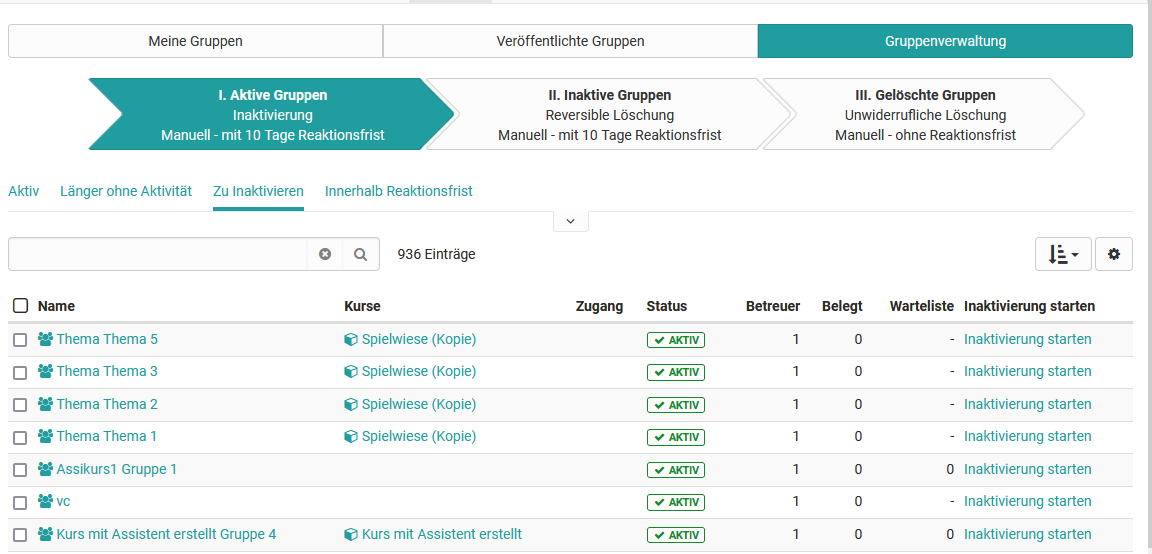
Adding group membership in the group administration
Group managers additionally have the "Group management" tab in the group area and see all groups there. Similar to their own groups, people can also be added to the groups via this tab.
4d) Automatically created group memberships - managed
Contact
If you have questions, contact your organisation.
If certain people are already grouped together in another system (e.g. HR software), these group memberships can also be mapped in OpenOlat. However, this requires middleware (Syncher), which can then automatically assign users to specific OpenOlat groups.
Accept or decline membership requests
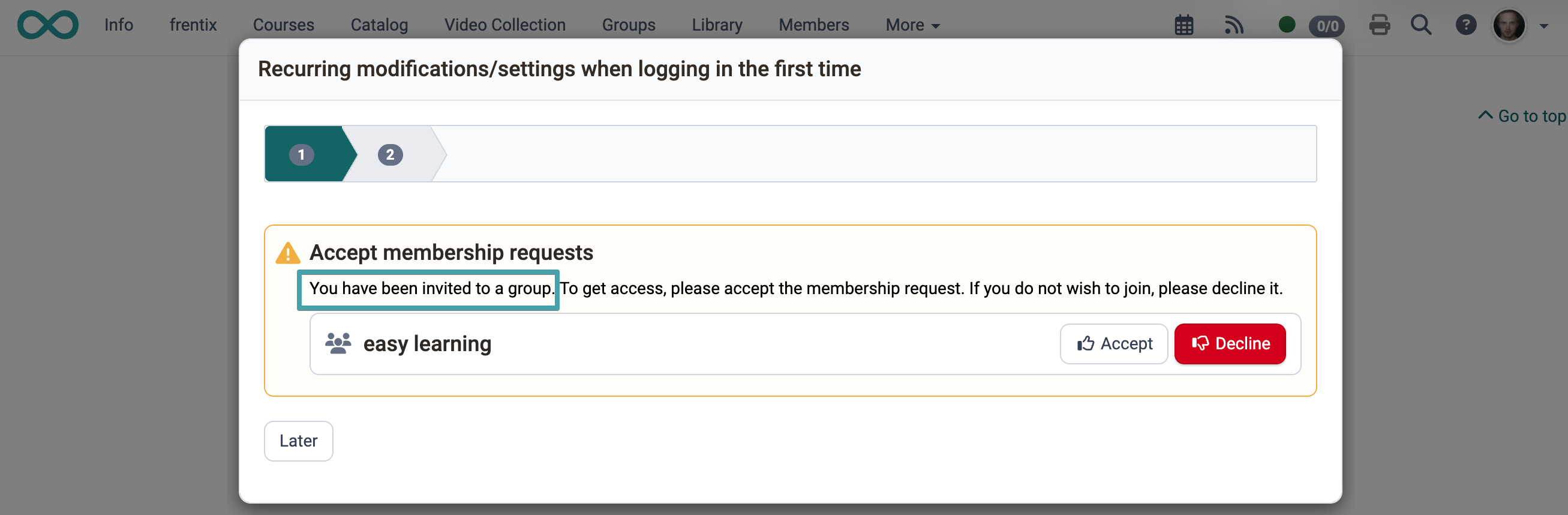
If you have been assigned to a course, group or educational product with a reservation requirement, the notification box "Accept membership requests" automatically appears in the group area. The box is collapsible and shows a card view with one entry per group.
The notification box is displayed as long as there are pending requests. It informs you that you have been invited to a group and prompts you to accept or decline the membership request.
Example view of the notification box for an invited user:
The following actions are available for each pending request:
- Accept (checkmark icon): Accepts the membership request. You are added as a member of the group.
- Decline (X icon, red): Declines the membership request.
- Details: Opens a lightbox with the description and the membership list of the group.
Note
The notification box also appears on first login if both course and group requests are pending. In this case you see both panels (course and group) at the same time. Use the "Later" action to postpone processing to a later time.
Membership requests can also be accepted or declined directly on the info page of a course or educational product. There, the notification box is not collapsible.
For system administrators: System-wide configuration of the invitation >
Further information
Create groups >
Using group tools >
Leave a group >
Configure LTI Share for groups >
System-wide configuration of the groups >
...for system administrators