Microsoft Teams module
Microsoft Teams is the web conferencing solution from Microsoft. In courses and groups, owners and coaches use it to create online meetings that participants join from within OpenOlat. Administrators define for the whole instance which types of online meetings are available, for example whether every meeting needs a date and therefore appears in the calendar.
You configure the module in the system administration under:
Administration > External tools > Microsoft Teams
The page External Tools: Overview describes the prerequisites for the connection to Microsoft 365. How owners and coaches create individual online meetings is described in the user manual in the chapter Course Element "Microsoft Teams".
Tab "Configuration"
In the tab "Configuration", you switch Microsoft Teams on for the instance and define where and with which variants online meetings may be created and whether OpenOlat takes over their recordings.
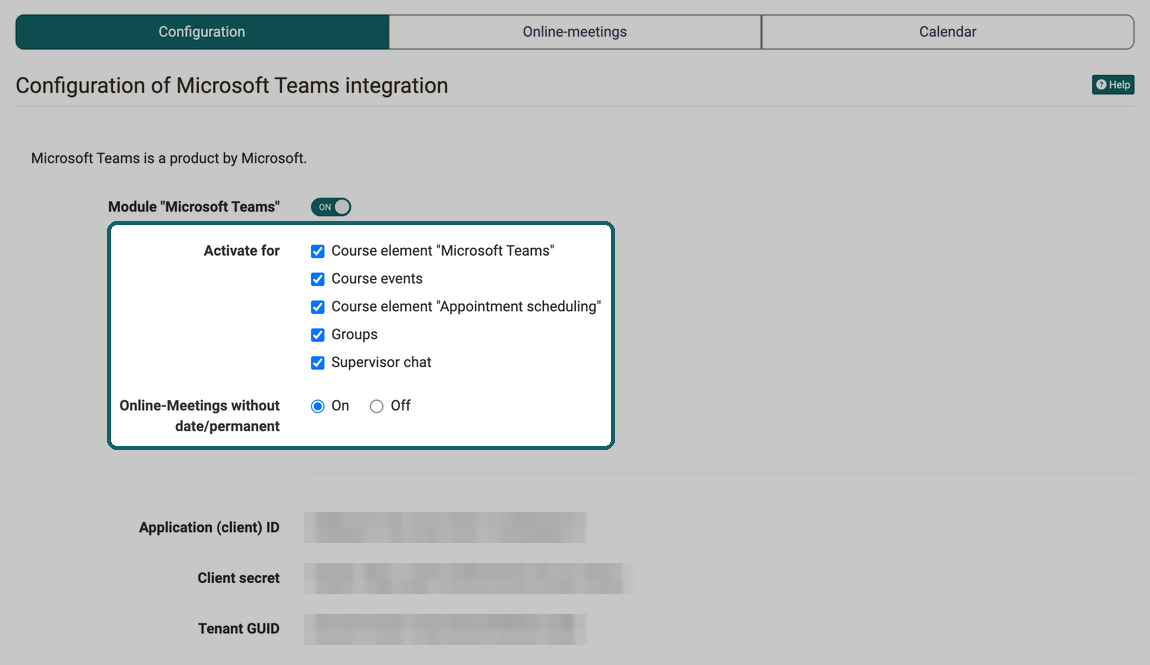
Configuration of Microsoft Teams integration
The fields "Activate for" and "Online-Meetings without date/permanent" only appear when the module is switched on.
Module "Microsoft Teams"
Switches Microsoft Teams on or off for the whole instance. If the module is switched off, the course element "Microsoft Teams" is not available for selection in the course editor.
Activate for
Enables Microsoft Teams individually for the places where online meetings are created: Course element "Microsoft Teams", Course events, Course element "Appointment scheduling", Groups and Supervisor chat.
Online-Meetings without date/permanent
Determines whether permanent reservations may be created in courses and groups. A permanent reservation is an online meeting without a start and an end. The room is permanently open, but it does not appear in any calendar.
With "On" (default), the selection "Add online-meeting" offers the variant "Add permanent meeting room". With "Off", this variant is missing in the course element "Microsoft Teams", in the group tool "Microsoft Teams" and in the course tool "Teams". Every new online meeting then needs a start and an end and appears in the calendar. This helps organisations that want to plan all online meetings and keep track of them in the calendar.
Existing permanent reservations are kept when you set the option to "Off". They can still be opened, edited and saved without a date. The option only prevents new permanent reservations from being created.
The BigBlueButton module has the same setting under the name "Online-Meetings without date", see BigBlueButton module.
Application (client) ID, Client secret, Tenant GUID
If access data for the Microsoft 365 tenant is stored in the server configuration, the tab shows it in these three fields for viewing. It can only be changed in the server configuration. frentix customers contact the frentix support for a change: support@frentix.com
Meeting recording
If an organisation wants to provide recordings of online meetings in OpenOlat and delete them again according to plan, switch on meeting recording here. OpenOlat then fetches the finished recordings from Microsoft Teams, stores them with the online meeting and shows them to the selected roles. Without the function, a recording stays in Microsoft Teams. What owners and coaches set for each online meeting is described in the user manual in the section Meeting recording.
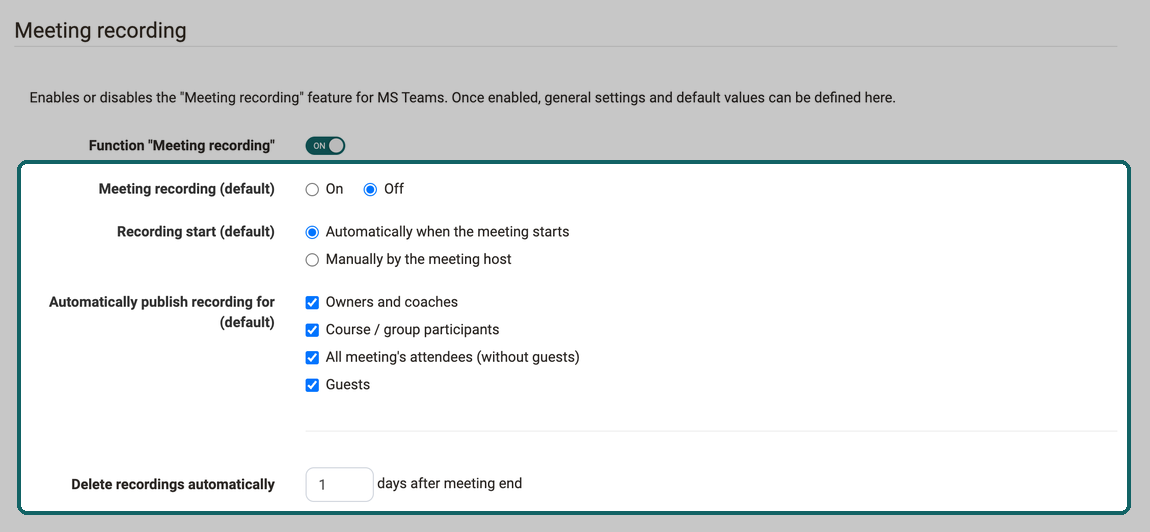
The section only appears when the module is switched on. The four settings after the switch only appear when the function "Meeting recording" is switched on.
Function "Meeting recording"
Switches meeting recording on or off for the whole instance. If it is switched off, the recording settings are missing in every online meeting, and OpenOlat does not fetch any recording, also for online meetings that were saved earlier with meeting recording switched on.
To switch it on, OpenOlat needs a key which protects the access tokens in the server configuration. If the key is missing, the section shows a warning, the switch cannot be switched on, and OpenOlat does not download any recordings. frentix customers contact the frentix support for the setup: support@frentix.com
Meeting recording (default)
Default value for new online meetings, "On" or "Off". "Off" is selected by default. Owners and coaches can change the default value for each online meeting.
Recording start (default)
Default value for when the recording begins: "Automatically when the meeting starts" or "Manually by the meeting host". "Manually by the meeting host" is selected by default.
Automatically publish recording for (default)
Default value for the roles to which a recording is visible after the online meeting: "Owners and coaches", "Course / group participants", "All meeting's attendees (without guests)" and "Guests". If no role is checked, OpenOlat does not publish new recordings automatically. They are then published manually after the online meeting.
Delete recordings automatically
Number of days after meeting end after which OpenOlat deletes a recording. OpenOlat checks this once a day during the night. If the field remains empty, OpenOlat does not delete any recording automatically.
Only the recording is deleted, never the online meeting. Recordings that owners or coaches have marked as "Recording not deletable" are kept.
Tab "Online-meetings"
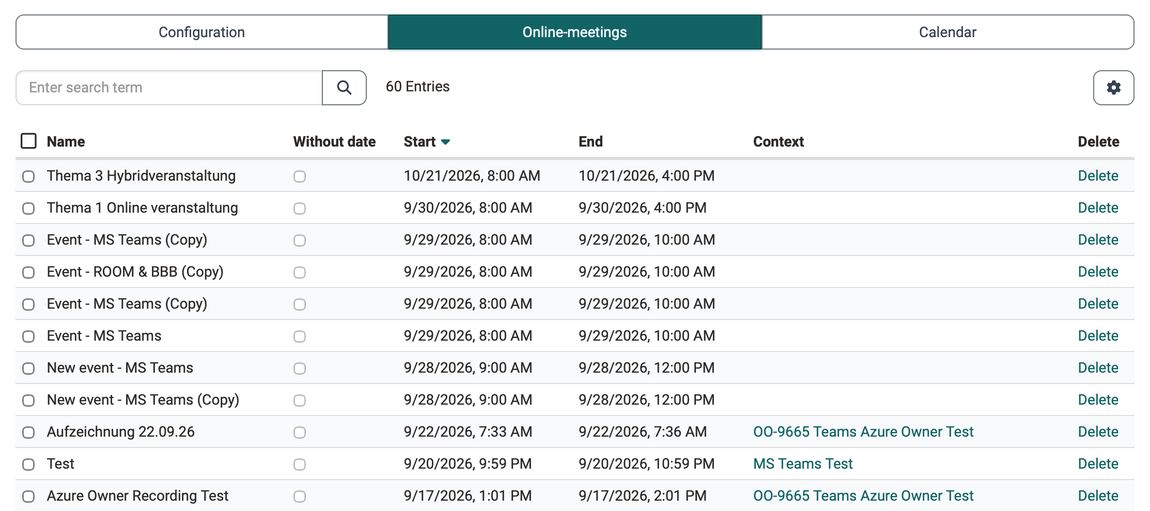
In the tab "Online-meetings", you keep track of all Microsoft Teams online meetings in the instance and clean up meetings that are no longer needed.
The table shows "Name", "Without date", "Start", "End" and "Context" for each meeting. A click on the context opens the group or the course in which the meeting was created, and for a meeting from a course element it opens this course element directly. If an online meeting belongs neither to a course nor to a group, the column "Context" remains empty and offers no link. This applies to the online meetings that are created for an event via the option "Course events". Use the search to find individual meetings. With "Delete" you remove one meeting, or several selected meetings at once.
Tab "Calendar"
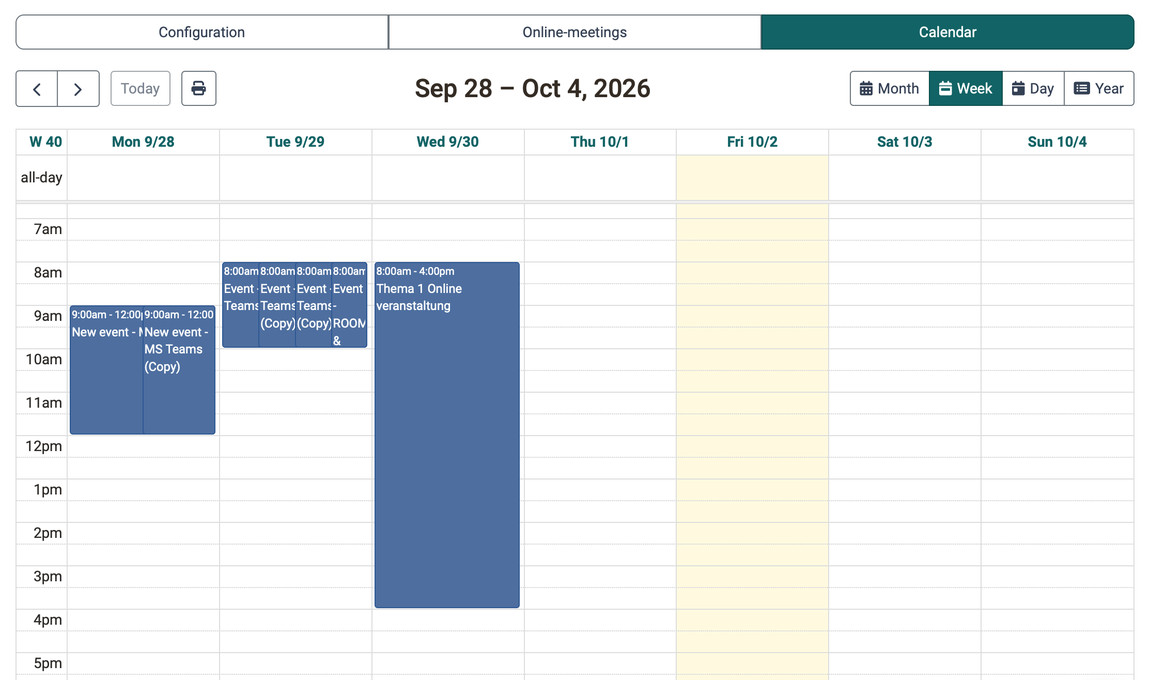
In the tab "Calendar", you see when many online meetings take place at the same time and detect bottlenecks early. The view opens in the week view and shows all Microsoft Teams online meetings with start and end. Permanent reservations do not appear here because they have no date.
With "Month", "Week", "Day" and "Year" you switch the view, "Year" lists the online meetings of the year one below the other. With the arrows and "Today" you move through time.
Further information
Mentioned on this page
External Tools: Overview >
Course Element "Microsoft Teams" >
BigBlueButton module >
Further reading
Using Group Tools >
Virtual classrooms >