User tools: Absences
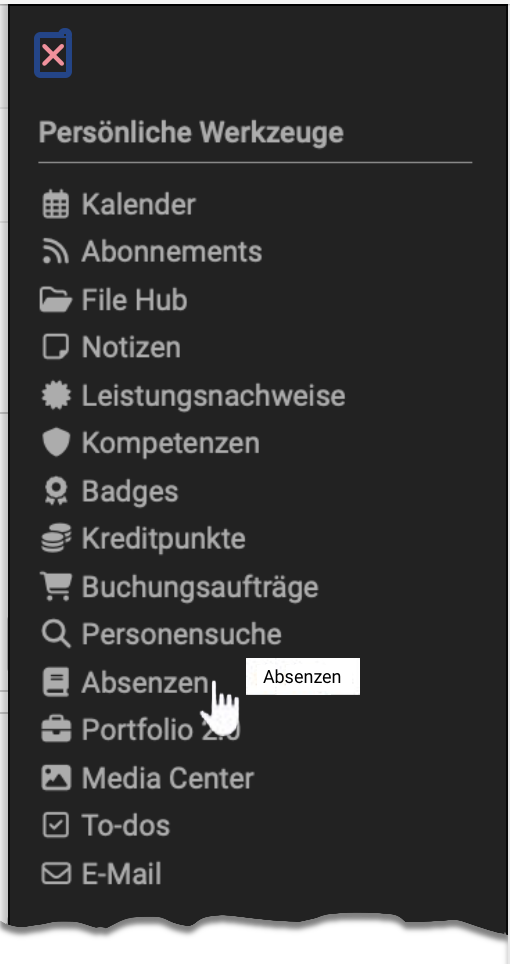

If the module Events and Absences is enabled, you see under "Absences" in the personal menu the courses in which absence management is used. All users can view their own absences there and, if permitted, edit them.
Not only your personal absences in these courses (events) are displayed, but for the sake of clarity also all events that belong to the overall programme of the courses and would normally have to be attended.
You are also shown notices of absence, dispensations and appeals.
The views are distributed over up to four tabs. The tabs "Notices / Dispensation" and "Appeals" only appear if administrators have enabled notices of absence or appeals respectively. Above the tabs, the button "Record new notice of absence" is shown if participants are allowed to notify an absence themselves (see tab Notices / Dispensation).
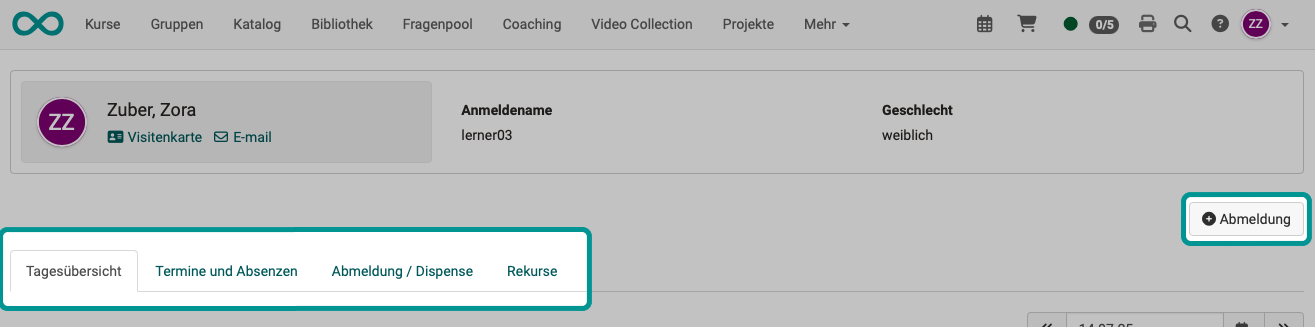
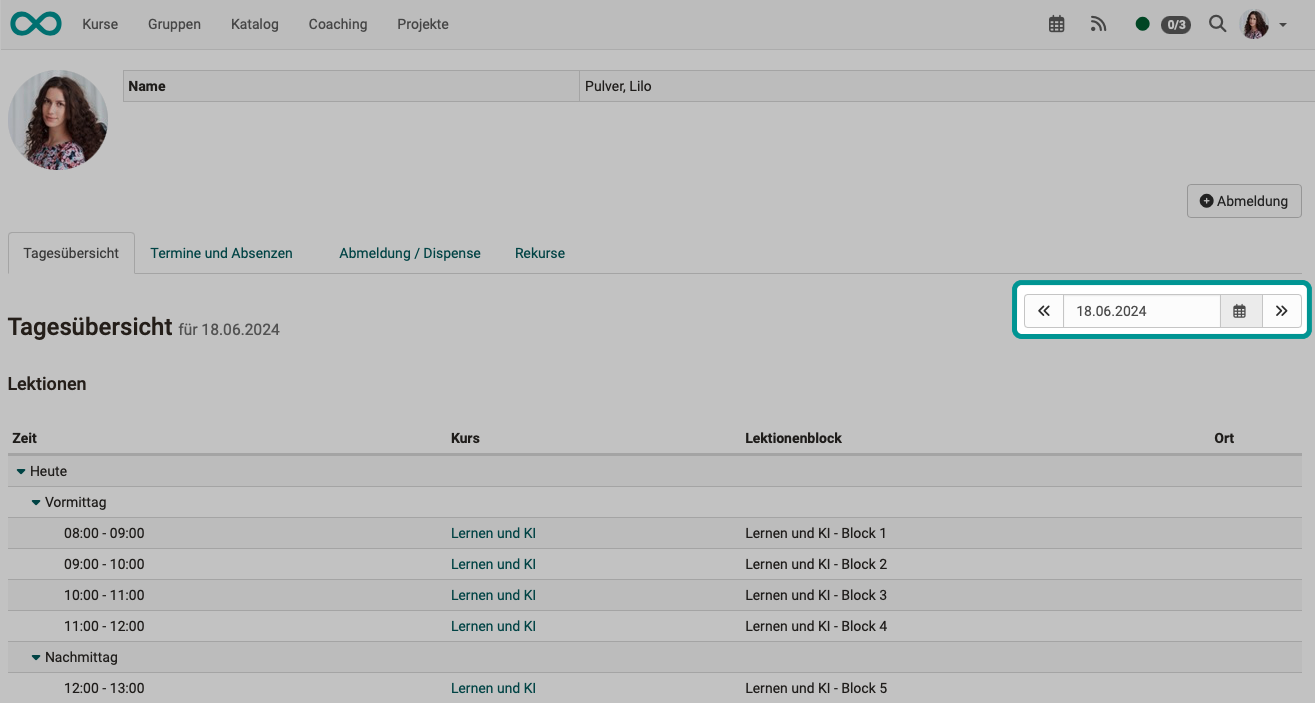
Tab Daily overview
In the "Daily overview" tab, you see the events and any absences of the current day. To display a different day, select the desired day at the top right above the table.
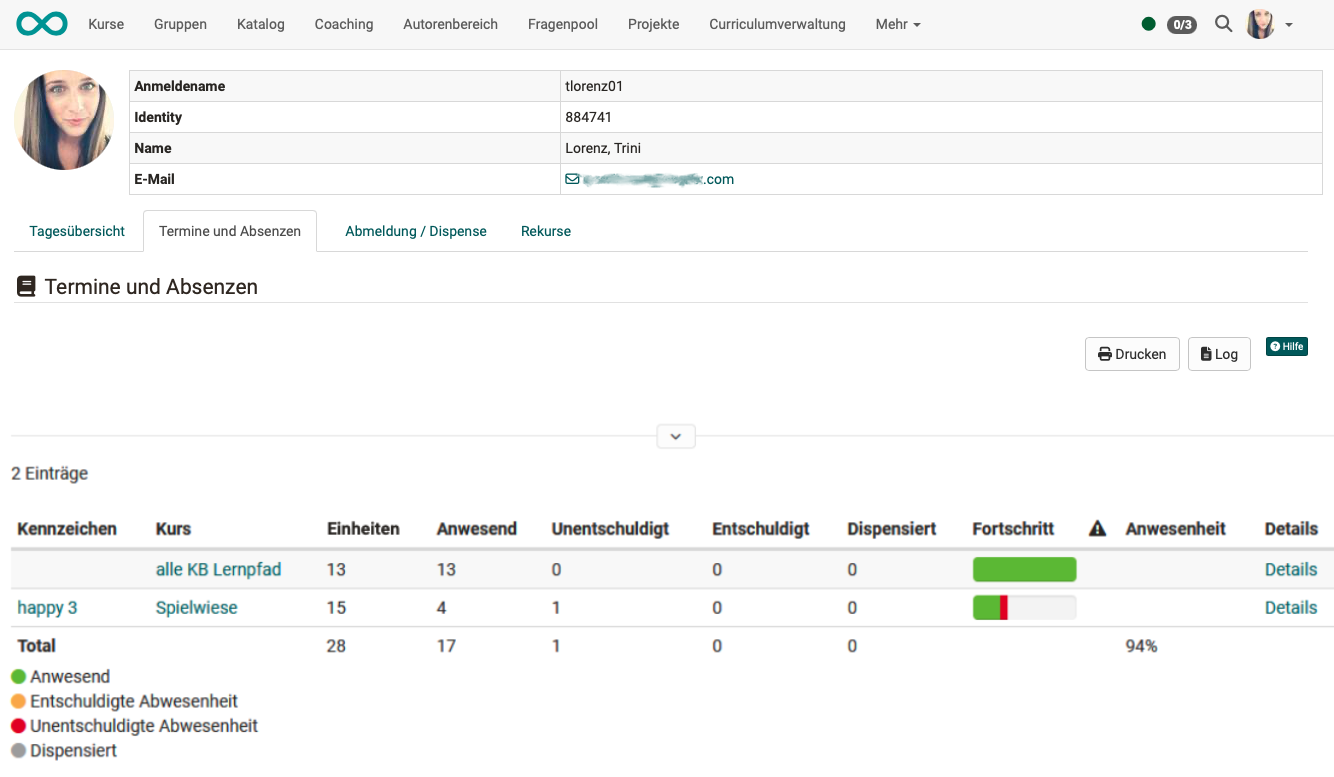
Tab Events and Absences
Here you find out how many events are recorded per course and how your attendance or absence per course is actually distributed. The progress to date is also displayed. Green stands for attendance in a unit, orange for "excused", red for "unexcused absence" and grey for "dispensed". In addition, further details can be displayed using the "Details" option. A red exclamation mark appears in the column with the warning triangle if the attendance rate falls below the required minimum. Above the table you find the buttons "Print" and "Log".
The list is complete: it holds your events regardless of where the course comes from. If courses belong to an educational product of the Course Planner, the list separates them into the sections Absences within a product and Absences outside a product. Events from projects do not appear here, they are managed in the project itself.
Tab Notices / Dispensation
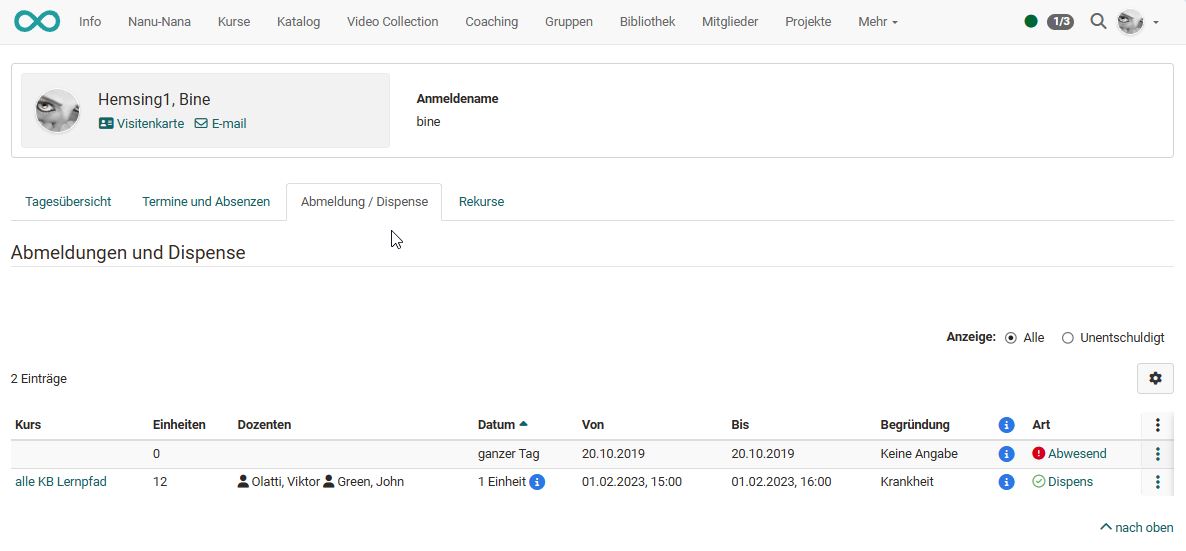
Administrators can enable the option "Participants are allowed to notify an absence" in the system administration under Administration > Modules > Events / Absences, tab "Permissions". The button "Record new notice of absence" then appears at the top right, via which you notify your own absence from events. Otherwise, this list only shows the notices of absence and dispensations that teachers or absence managers have recorded for you.
Tab Appeals
Your own appeals are listed here. Who else is allowed to view your appeals (teachers, master coaches) is determined by administrators.
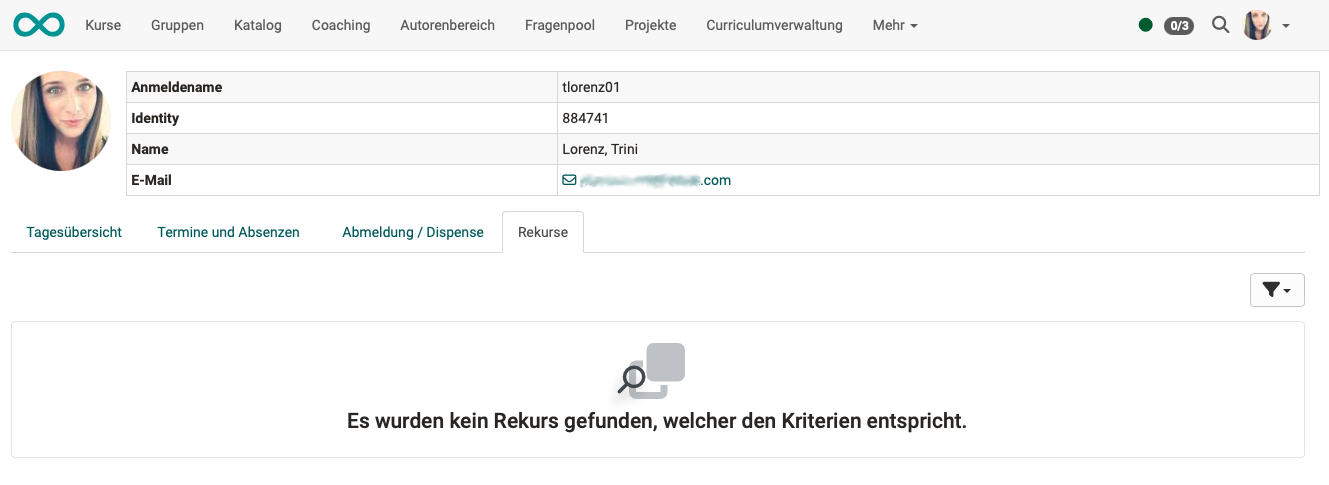
If you disagree with a recorded absence, you can lodge an appeal. After the end of the event, the date from which the appeal is possible appears: the end time of the event plus the days of the auto-close period. As soon as the event has been set to "Closed" automatically (after the auto-close period has expired) or manually by the teachers, the date by which the appeal can be lodged appears (appeal period). Subsequently, "Closed" is displayed. Administrators set the auto-close period and the appeal period system-wide, in the system administration under Administration > Modules > Events / Absences, tab "Configuration". The appeal is sent to the teachers of the event.
Further information
Further reading
Events and Absences (basic concept) >
Module Events and Absences >
Course Settings - Tab Execution >
Events and absences (course) >
Toolbar: Events >
Coaching - Events and Absences >
Coaching - Overview >
Absence management >