Toolbar: My Course
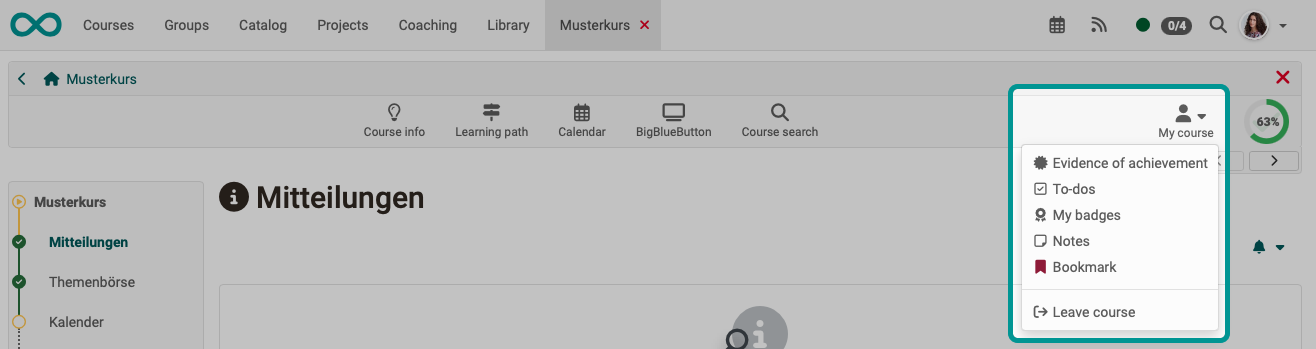
The "My Course" drop-down menu in the toolbar provides access to personalized components of the currently open course.
How is the "My Course" icon displayed or removed from the toolbar?
"My Course" is automatically displayed when at least one of the options it contains is available.
Basically, "My Course" is only available to course participants, as personalized content is displayed.
How do I add an entry to "My Course"?
The individual options under "My Course" appear automatically when the functions are available or have been activated.
Example:
If "Evidence of achievement" is enabled in the course, this option will also appear under "My Course"; otherwise, it will not.
What can be displayed in "My Course"?
Under "My Course," you will find only tools that relate to your personal data in the current course.
Depending on the configuration of the course, not all of the following entries may be displayed.
- The evidence of achievement shows the individual assessments in the course and, if activated, gives access to the certificate for the course.
- To-dos displays the current to-dos for the course.
- My badges displays your badges.
- Notes: Here you can enter course-specific notes that only you as a course participant can read.
- Bookmark: Activate the bookmark, and the course will appear in the "Courses" menu in the "Favorites" tab.
- Consent: If there are specific terms of use and/or a course-related privacy policy that you have agreed to, you can view them here and also revoke your consent.
- Groups: Here you can see all course-specific groups you are a member of and navigate directly to them.
- With "Leave course" you can unsubscribe from the course.
Evidence of achievement
An evidence of achievement is a confirmation of a completed assessment and must first be activated by the course owners. Learners can then see the individual assessment modules of the course that they have completed, such as tests, assignments, etc., their scores, and further information.
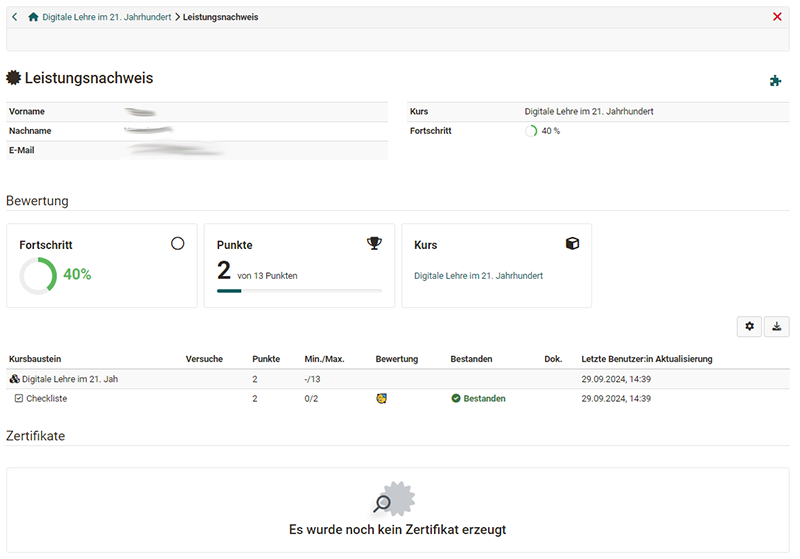
If a certificate has been issued for the course, you will also find it under "Evidence of achievement" for download. Course coaches can view the certificates in the Coaching Tool.
For certificates issued automatically after successful completion of a course, you will receive an automatically generated notification by email.
Note
You can find evidences of achievement and certificates from all your courses in the personal menu under "Evidence of achievement".
More about evidence of achievement >
To-dos
Here, participants can see all the relevant to-dos for the course. These may be automatically generated to-dos from the task course elements. You will then be asked to take a specific step in the task process, e.g., select a task, submit a solution, or similar. On the other hand, teachers can assign specific tasks to all course participants or just to individual people. Learners can change the status of a task once they have completed the action.
The to-dos serve as guidance for users on what currently needs to be done in the course. Participants can find an overview of all personal and course-related to-dos in the "User tools" section. There, they can also create their own to-dos.
More about To-dos >
More about To-dos in a course >
My badges
If badges are enabled, access to all badges you have earned in this course will automatically be displayed in "My Course."
Notes
You can take notes in every course. Under this item, you can see which notes you have taken and edit and print them.
Bookmark
Activate the bookmark, and these courses will appear in the "Courses" menu in the "Favorites" tab.
Consent
If the course requires consent to the terms of use and/or privacy policy at the beginning, you can read them here at any time.
Groups
If you are participating in this course as a group member (group participant or group coach), this link will take you directly to your OpenOlat group.
Leave course
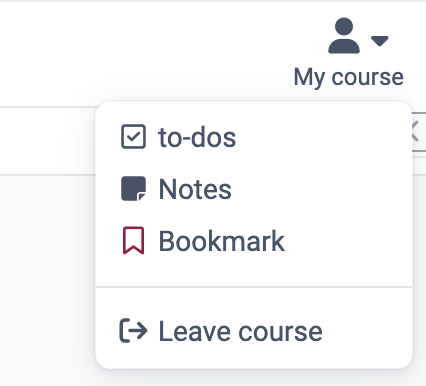
The "Leave course" function immediately terminates your course or group membership, depending on how you access the course. After that, you will no longer have access to the course, or you will need to contact the relevant course or group coach to regain access to the course.
The option to unsubscribe from a course must first be enabled by the course owners in the course settings under the "Share" tab and only applies to participants, not to coaches or owners.
When is "Leave course" available?
"Leave course" only appears if the following conditions are met:
- The active role is "Participant". When switching roles, the option only appears while the participant role is active.
- The course has the usage "Standalone" (see Course settings - Tab Share). If the Course Planner manages the course instead (usage "Use in Course Planner"), "Leave course" is not available. If participants have booked an implementation, they cancel the booking themselves instead: They open the info page of the implementation in the catalog and select the action "Cancel booking" there. If a cancellation fee applies, the action is called "Cancel booking for a fee", and the confirmation dialog states the amount. The action appears only for an implementation with a begin date, until the day before it begins, and only if the offer is cancelable. After that, the administration of your organisation can help.
- Under Course settings - Tab Share > "Participants can leave", an option other than "Never" is selected.
- No assessment mode is currently running in the course.
If the option "After course end date or status 'Finished'" is selected, "Leave course" is already displayed but is inactive as long as the implementation period has not yet ended and the course does not yet have the status "Finished".
Additional conditions for a group membership
If you are in the course through a group, the group additionally decides whether "Leave course" appears. All three of the following conditions must be met:
- In the settings of the group, "Participants can leave group" is allowed.
- The group is linked to this one course only. A group that serves several courses cannot be left through a single course.
- If the group is used by an Enrolment course element, "Delisting permitted" is set there.
Confirmation dialog
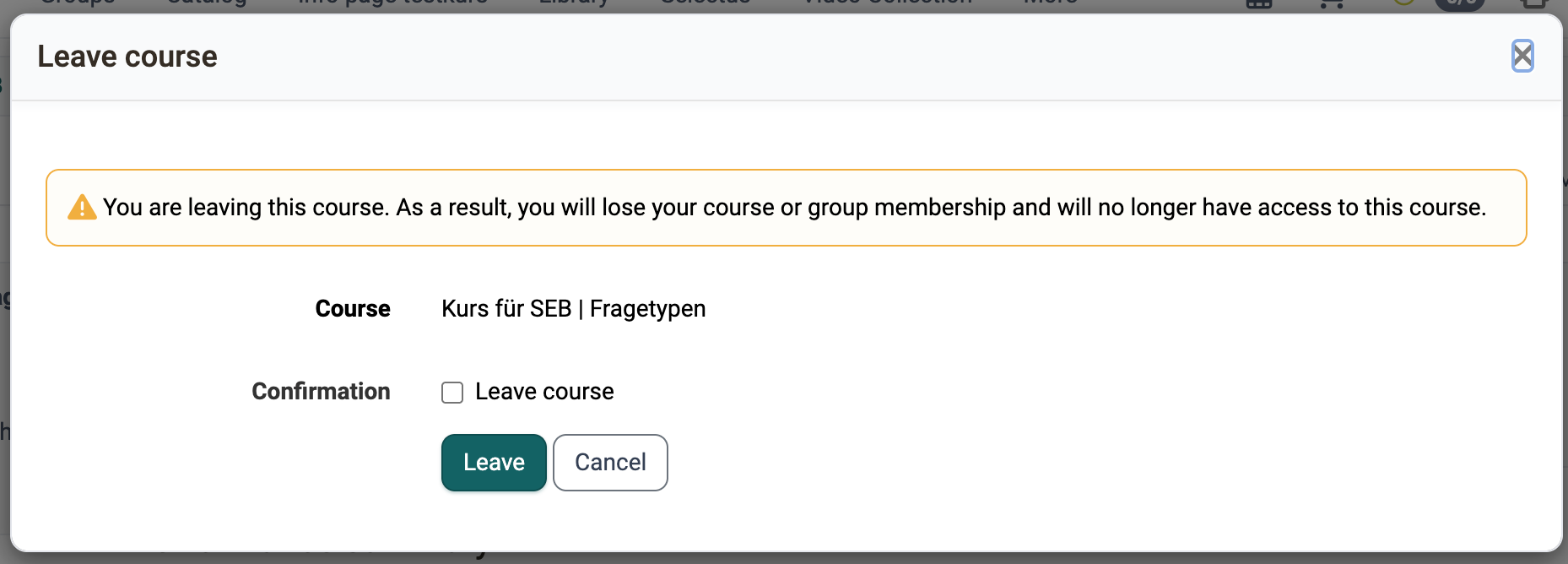
After clicking "Leave course," a confirmation dialog appears with the following warning text:
"You are leaving this course. As a result, you will lose your course or group membership and will no longer have access to this course."
The dialog names the course concerned under "Course". To complete the withdrawal, the "Leave course" checkbox must also be checked under "Confirmation" and confirmed by clicking "Leave".
Further information
Mentioned on this page
Course Settings - Tab Assessment >
Coaching - Overview >
User tools >
Personal achievements/successes: Evidence of Achievements >
Course Element "Task" >
User tools: To-dos >
To-dos: basics >
To-dos in the course >
Personal achievements/successes: Badges >
User tools: Notes >
Terms of Use >
Course settings - Tab Share >
Course Element "Enrolment" >
Further reading
Toolbar: Overview >