Types of Course Elements
Video Introduction (German): What are course elements?
Video Introduction (German): Configuring course elements
In OpenOlat, various course elements are available with which a course can be structured very flexibly and modularly according to the desired needs. In this way, course content can be structured and provided, collaborative work and exchange can be promoted, the knowledge level of the participants can be checked, and organizational concerns can be covered.
Course elements at a glance
Knowledge Transfer
The following course elements serve in particular to provide and structure course content. Depending on the module, certain externally created content can also be integrated.
Assessment
The following course elements can be used in particular to test knowledge.
In most course elements of this group you can award points. You then set up a highscore in the tab "HighScore". The points of several course elements can be added up, and passing a course can depend on the assessments of different course elements. In conventional courses, a course element Structure takes care of this.
All course elements of this group except Self-test, Practice and Survey have the tab "Reminders"; for Task and Grouptask in learning path courses it is called "Reminders & to-dos". There you set up emails that OpenOlat sends depending on the progress of the course element, for example if a task or a test has not been worked on by a certain date. The options are similar to those in the menu "Reminders" of the course: Course > Administration > Reminders. More about this: Course Reminders
The group also includes the course elements "Survey" and "Form". With them, you build OpenOlat forms for surveys and similar purposes into a course.
Highscore
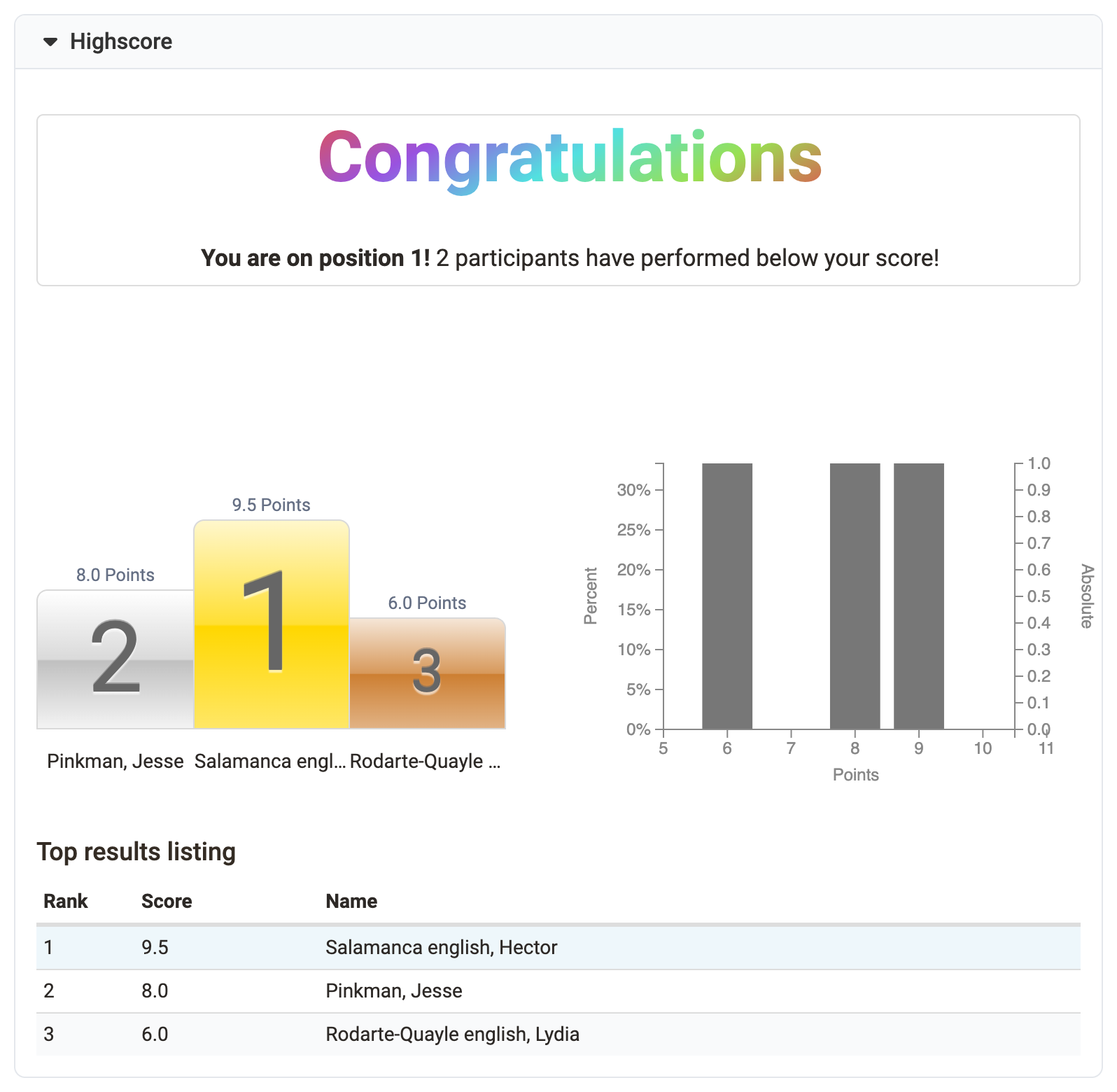
If you award points in a course element, you can show the participants a highscore. The highscore makes a playful comparison possible and can motivate the participants.
You set up the highscore in the tab "HighScore". All assessable course elements have this tab except Practice and Video task, and in addition the course element "Structure". The prerequisite is that the course element awards points, for example a test, a task or an assessment.
First switch on "Show Highscore". Under "Starting Date (optional)" you define from when OpenOlat shows the highscore. Without a starting date, OpenOlat shows the highscore as soon as the assessment of the person is released: for a test directly after finishing it, for the course element "Assessment" only when coaches complete and release the assessment. Points that are only saved temporarily are not enough. With "Anonymize usernames" the highscore shows the persons anonymised instead of with first and last name.
Then you choose which elements the highscore shows: "Congratulations title", "Podium", "Histogram" and "Top results listing". For the listing you define whether it shows all participants or only a certain number of the top participants. At least one of these options must be selected.
Communication and Collaboration
Course elements in this category are mainly used for collaborative work and exchange among each other. The course elements for virtual classrooms belong to the same category.
Virtual Classrooms
With the following course elements you use virtual classrooms in OpenOlat for synchronous meetings, video conferences or webinars.
Which course elements are available for these purposes and which functionalities each of them offers depends on the configuration of your OpenOlat system.
A virtual classroom allows you to work online (synchronously) with several people who are geographically separated from you. Functions of virtual classrooms include live chat, audio and video, desktop and document sharing. If you enter a virtual classroom through a course element, a new browser window opens in which the virtual session takes place.
To be able to use all functionalities you will need a headset and a connected camera. Depending on your system you might have to download additional software temporarily.
Administration and Organization
The following course elements are particularly suitable for organizational matters and for the distribution of information.
Other
Additional building blocks can be found in the category "Other".
General information on course elements
All course elements have the tabs "Title and description" and "Layout". In addition, there are certain tabs that exist throughout depending on the technical course type. The tab "Learning path" only exists for learning path courses. The tabs "Visibility" and "Access" exist only for traditional courses.
In addition to the course elements, there are other tools and learning resources in OpenOlat courses that can be used to design courses. You will find references to them in the respective chapters.
Performance assessment
A number of course elements can be used either for summative or formative assessment, or serves as performance control tool. The assessable course elements can be viewed in the assessment tool. All settings are described on the page of the respective course element:
- Task (manual assessment)
- Group task (manual assessment)
- Portfolio task (manual assessment)
- Check list (manual & automatic assessment)
- Assessment (manual assessment)
- LTI (automatic assessment, transferred from LTI page)
- SCORM (automatic assessment, transferred from SCORM module)
- Test (automatic & manual assessment)
Learning path courses control the progress with the completion criterion, which you set in the course editor for each course element in the tab "Learning path". With the criterion "Confirmation by participant", the participants confirm the completion themselves with the toggle button "Mark as done".

An overview of all criteria can be found on the page Learning path course - Course editor.
Read-only assessment configuration
As soon as assessments exist for an assessable course element, OpenOlat displays the settings that change the assessment result as read-only in the course editor. A lock symbol in front of the label shows which settings these are. The other settings in the same tab remain editable.
The reason: every change to the assessment rules triggers a recalculation of all existing assessments when you publish. The recalculation cannot be undone. The read-only mode makes sure that you trigger this intervention deliberately.
An assessment counts as existing as soon as at least one person has a score, a passed status or a grade for this course element. A status alone is not enough: if a person has only started the course element, the configuration remains editable. The check applies per course element. Assessments in another course element of the course do not trigger the read-only mode.
The read-only mode applies in learning path courses and in conventional courses. The course elements "Self-test" and "Questionnaire" do not have it.
Editing read-only settings
In the read-only state, the message below the legend "Grading configuration" reads: "Assessments already exist, certain settings are displayed as read-only. To make changes, you must enable edit mode - when changes are made, all existing assessments will be recalculated."
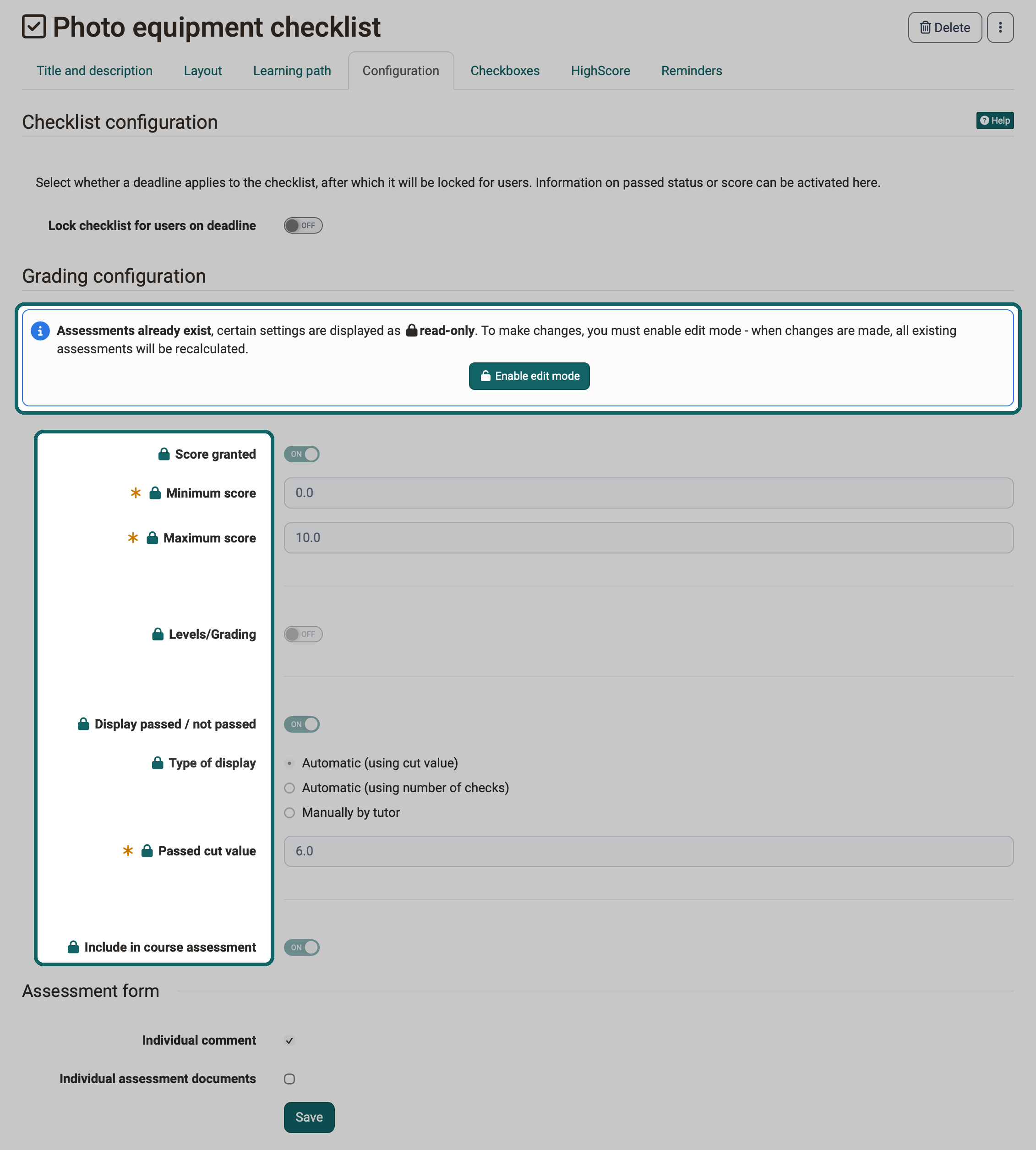
The message contains the button "Enable edit mode" with the symbol of an open lock. After the click, the read-only settings are editable, and in place of the message the warning appears: "You are currently editing the assessment configuration, even though assessments already exist. Saving and publishing your changes will cause all existing assessments to be recalculated. This action cannot be undone."
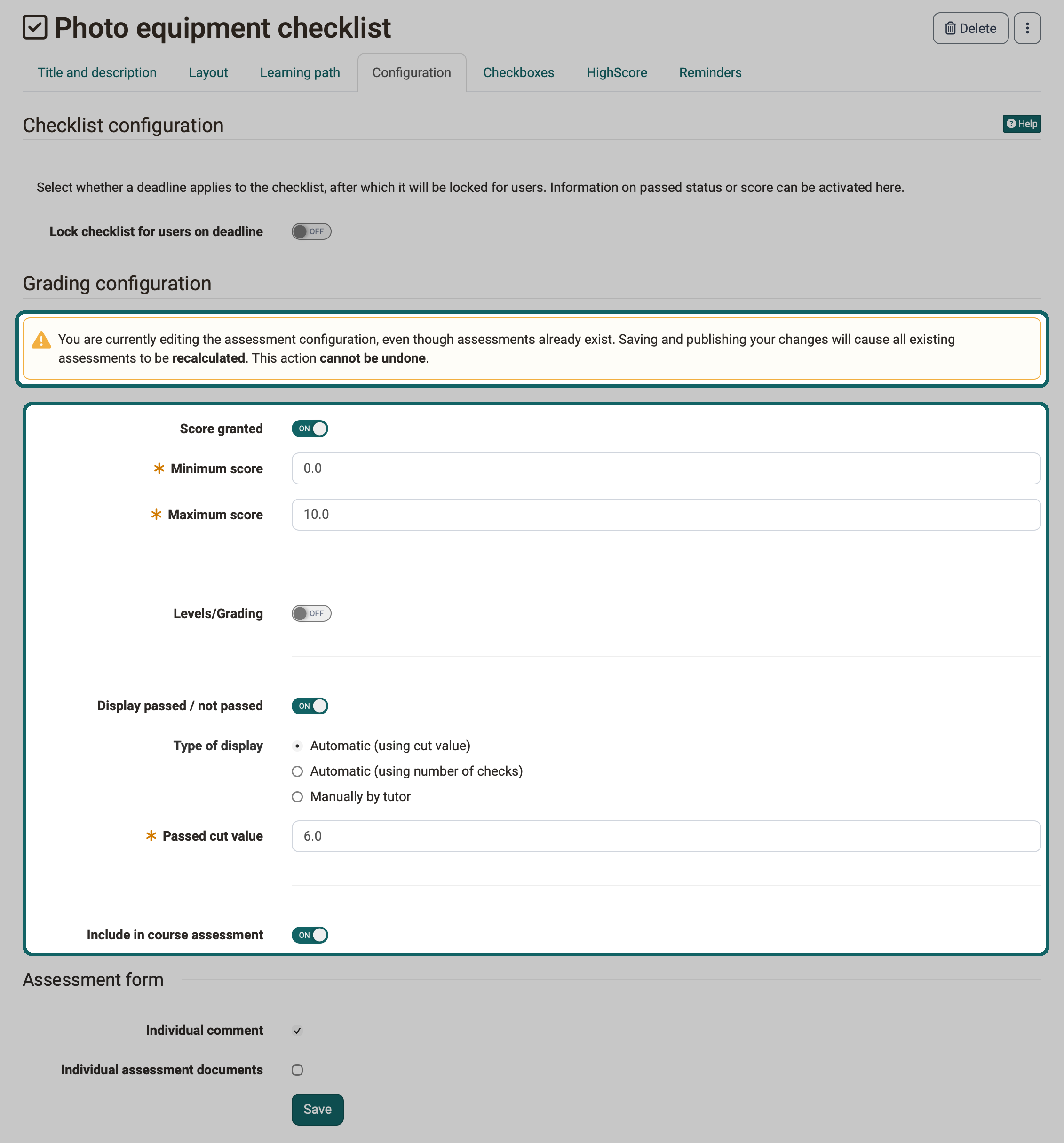
If no assessments exist yet, neither message nor warning appears. The tab is then directly editable.
The edit mode only applies while you are editing the course element in the course editor. If you open the course element in the course editor again later, the read-only mode is active again. There is no setting that lifts the read-only mode permanently.
Affected course elements
The assessable course elements structure their assessment rules in the same way: at the top, below the legend "Grading configuration", are the message and the settings covered by the read-only mode. Below that, under "Assessment form", are the settings "Individual comment" and "Individual assessment documents", which remain editable. The table shows in which tab you encounter the read-only mode and what it covers.
| Course element | Tab | Read-only | Remains editable |
|---|---|---|---|
| Test | "Test configuration" | "Levels/Grading" including the grading scale, "Include in course assessment" | all other settings, for example "Set assessment period", "Correction" and "Report" |
| SCORM 1.2 | "Learning content" | the settings under "Grading configuration", for example "Transfer score from SCORM", "Maximum score", "Score needed to pass" and "Include in course assessment" | "Prevent the score from decreasing on subsequent attempts", "Count attempts only if score is transferred", "Maximum number of attempts", the areas "SCORM" and "Settings" |
| Task | "Grading" | "Rubric assessment", score, levels/grading, passed/failed, "Include in course assessment" | "Assessment form" |
| Grouptask | "Grading" | score, levels/grading, passed/failed, "Include in course assessment" | "Assessment form" |
| Video task | "Assessment" | all settings under "Grading configuration", among them score, levels/grading, passed/failed, "Include in course assessment" | "Assessment form" |
| Portfolio task | "Assessment" | score, levels/grading, passed/failed, "Include in course assessment" | "Assessment form" |
| Assessment | "Assessment" | "Rubric assessment", "Score granted", "Levels/Grading", "Display passed / not passed", "Include in course assessment" | "Set status "To review" if accessible", "Assessment form" |
| Check list | "Configuration" | score, levels/grading, passed/failed including "Type of display" and thresholds, "Include in course assessment" | "Checklist configuration" with the deadline, "Assessment form" |
| Structure, only in the conventional course | "Score" | the whole legend "Combined assessment" | none |
Settings that are not editable anyway remain so in the edit mode, for example "Minimum score" for the video task.
Further information
Further reading
Course elements in the Course editor >
Deleting, Moving and Copying Course Elements >
Course editor tools >
youtube
What are course elements?
Configuring course elements