Communication during an exam
Objectives and content of this instruction
You have already prepared a course for an online exam and want to take the exam online within a certain time frame.
The following instructions show you which communication options are available to you during the exam in OpenOlat.
Target group
[x] Authors [x] Coaches [ ] Participants
[ ] Beginners [x] Advanced users [x] Experts
Expected previous knowledge
- "How do I create my first OpenOlat course?"
- "How do I proceed when I create a test?"
- You have already prepared a course for the online exam.
Communication needs
During an online exam, various communication needs may arise:
- individual participants have individual problems
- the exam supervision (coach) would like to point out that there are only 10 minutes left to complete the work
- the coach answers the question of a single person
- the coach recognizes through a query that a note to all exam participants is required
- ...
OpenOlat has communication options for these situations, even if the Assessment mode is active and the Safe Exam Browser deactivates all other tools on the computer.
In particular, these are the two communication tools
- Messages (from coaches to everyone) and
- the Supervisor chat (exam chat), 1:1 with coaches or from coaches to everyone
Up (Section Communication needs) ^
To the top of the page ^
1. Set up communication channels as course owner/author
Would you like to allow exam participants to ask questions during the exam?
The tool for this is the Supervisor chat. As the course owner, you configure it in the course editor:
Course > Administration > Course editor > Course element "Test" > Tab "Communication"
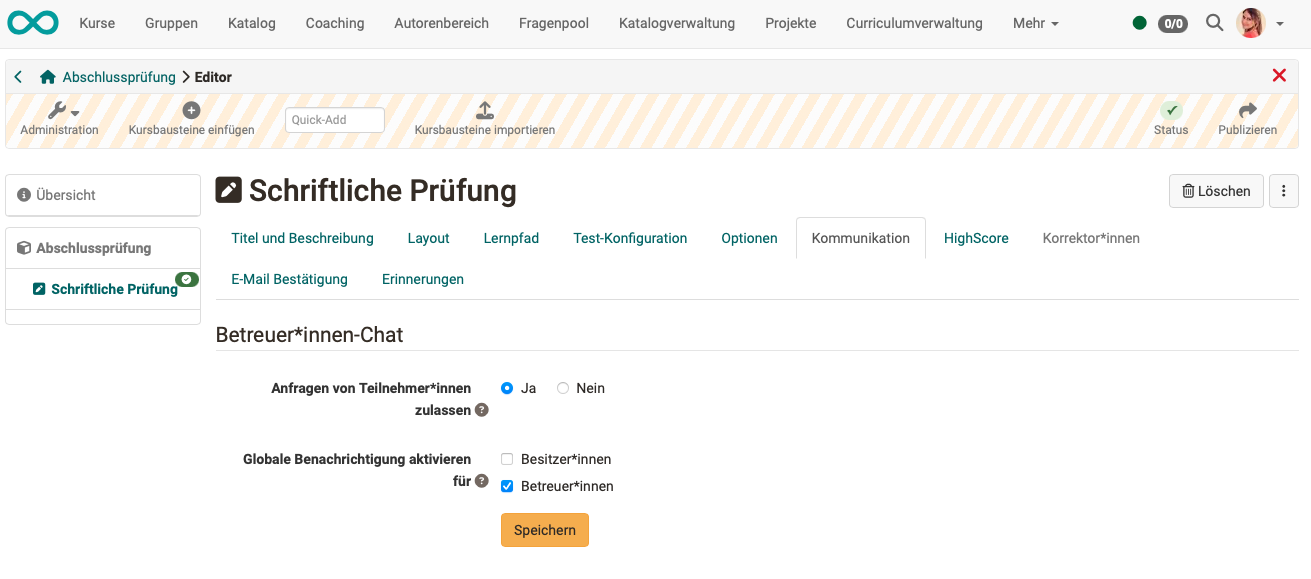
- Allow requests from participants: With "Yes", exam participants and coaches can start requests via chat. With "No", only coaches start a chat.
- Enable global notification for: For new chat activities, OpenOlat informs the selected course roles, owners or coaches, in the global menu bar. The coaches are preselected.
The Supervisor chat during exams works regardless of whether the general chat function is activated in the OpenOlat instance or not.
Up (Section Course owner/author) ^
To the top of the page ^
2. Communicate as coach
Where can I find the communication tools?
- In the menu, select the test course element that contains the exam.
- As a coach, you will not see the test after clicking on it (like the participants), but several tabs.
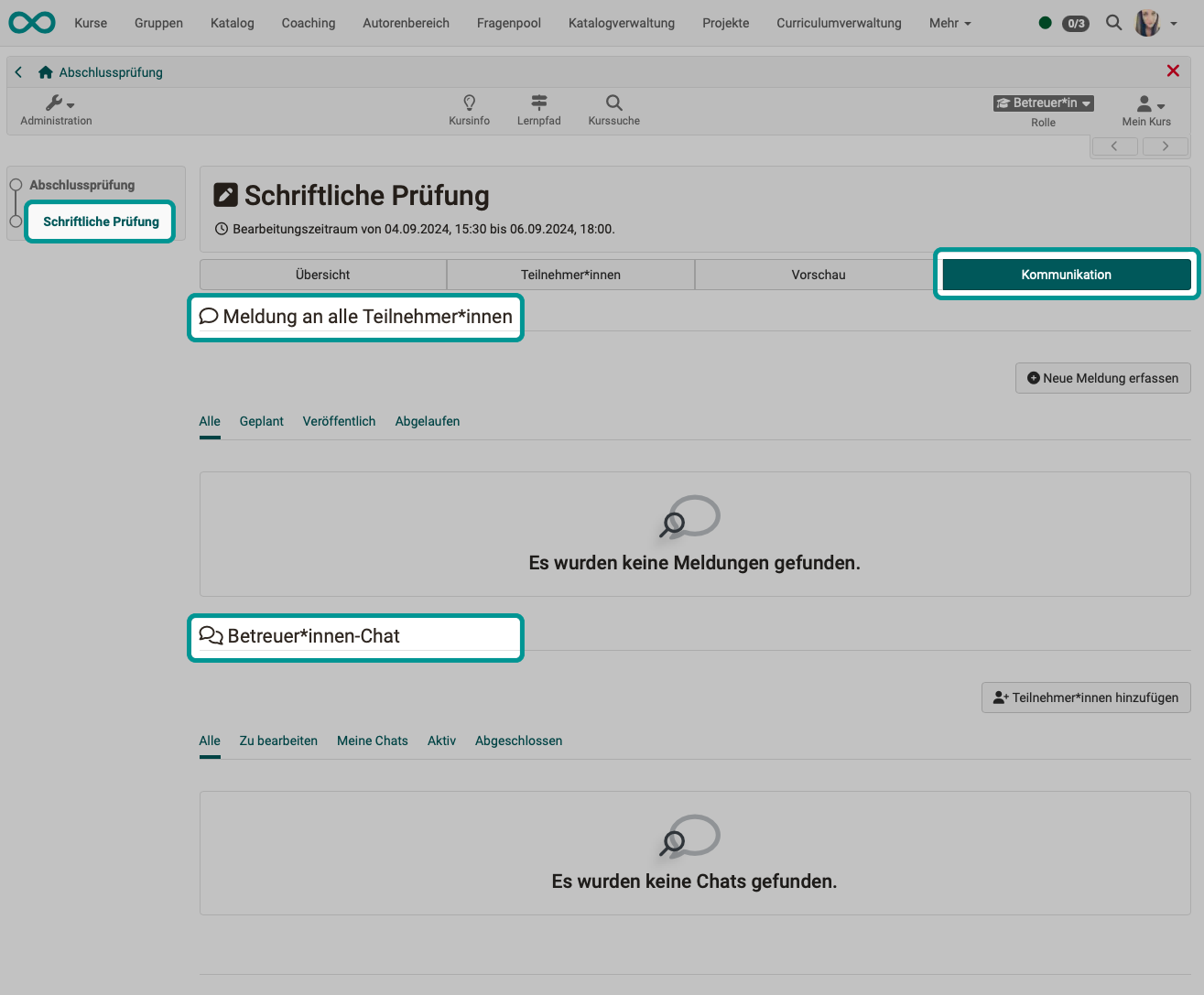
- Select the "Communication" tab. There you will find the tools for communication between exam supervision (coaches) and exam participants.
In the upper area "Message to all participants" you create, edit and manage the messages to all exam participants, before and during the exam.
In the lower area "Supervisor chat" you can see an overview of the chat histories (1:1) with the exam participants.
Multiple coaches
If there are several coaches, each of them can answer a question asked by exam participants in the chat.
Message to all
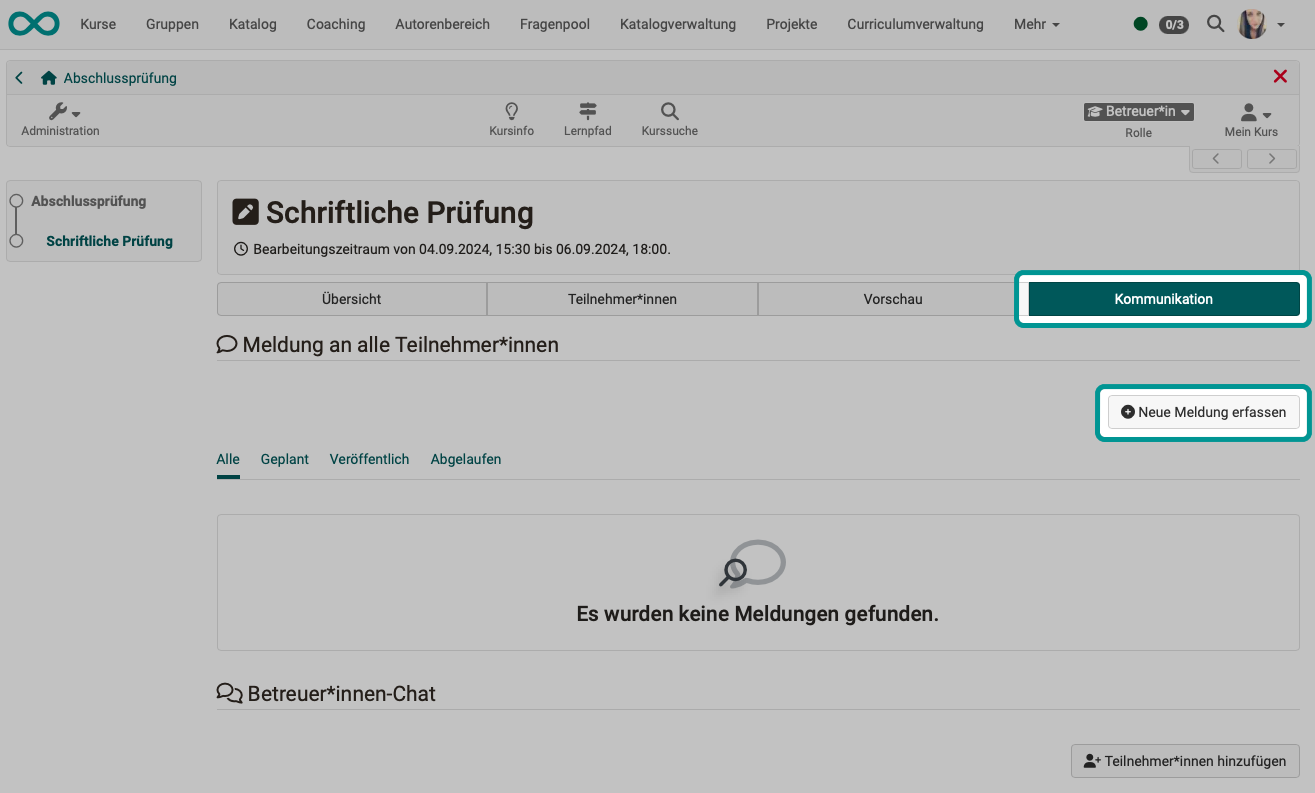
Messages can be sent by coaches to all exam participants. You create a new message with the button "Create new message".
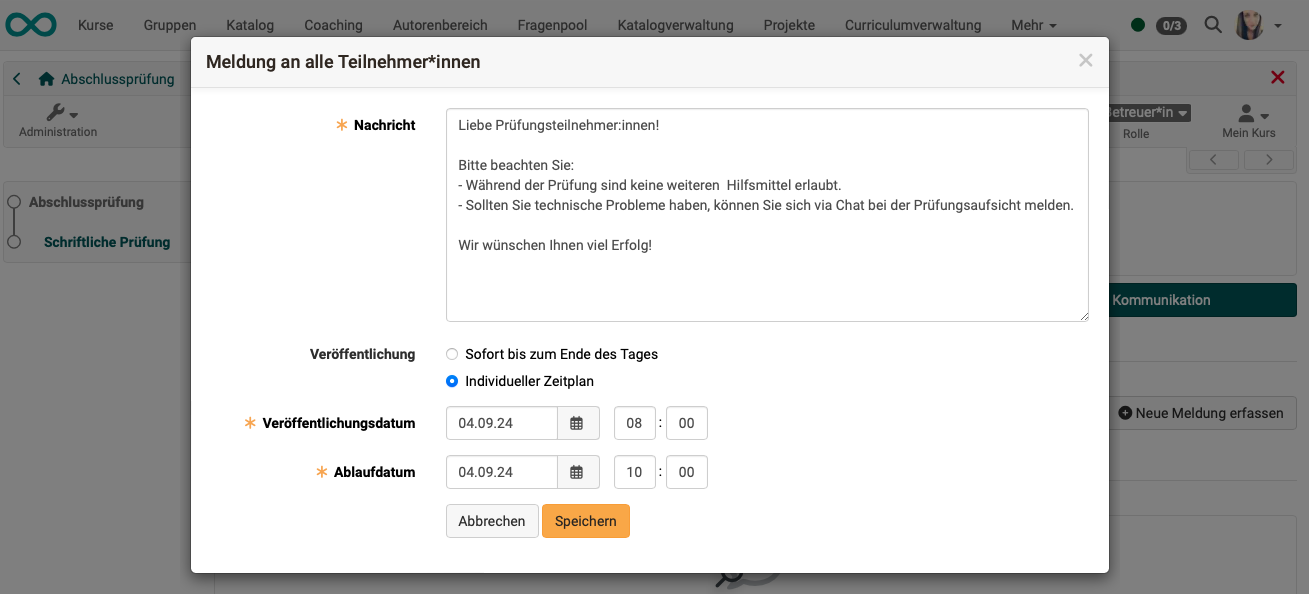
A message can be published immediately and displayed to the exam participants or within a specific time window. Under "Publication" you choose "Immediately until the end of the day" or "Individual schedule" with publication date and expiration date. The time window for publication can also be in the future so that messages can be prepared.
Answering questions from individual participants
If questions are received from exam participants, they are listed in the lower area "Supervisor chat".
If a request has been waiting for a response for more than five minutes, the row has a red background. A yellow background indicates new requests. If a coach has already responded, the background turns white.
To answer, click on "Join" in the relevant row in the "Action" column.
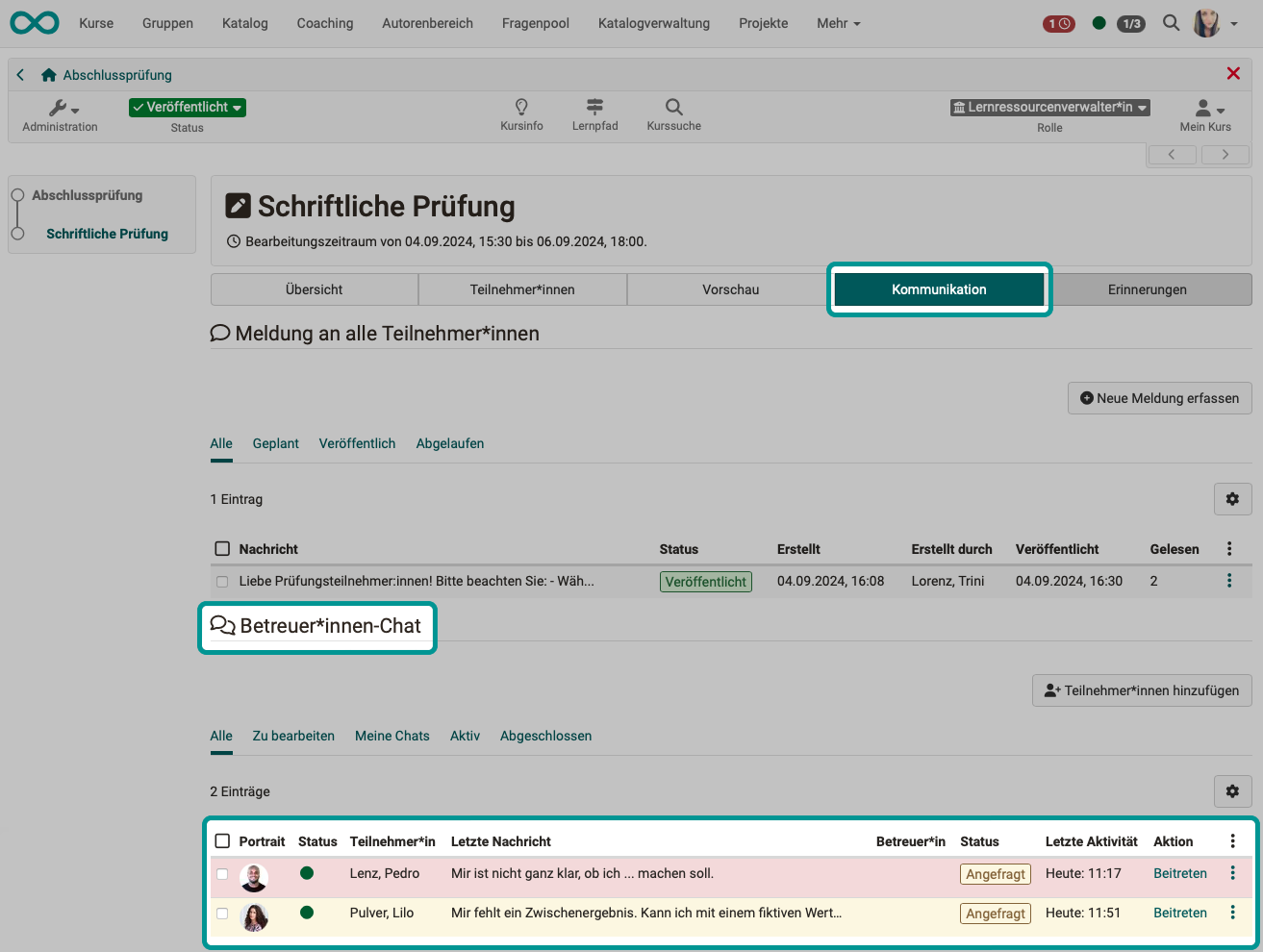
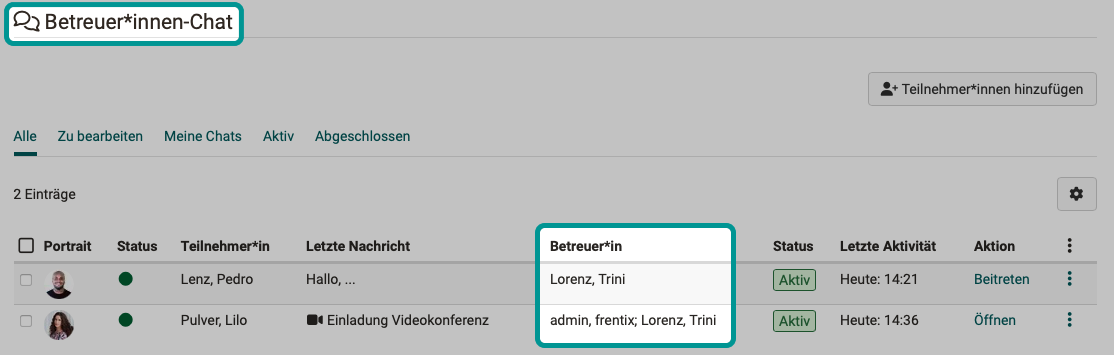
If there are several coaches, each coach decides for themselves whether to join a chat.
All coaches (exam supervision) can see in the column "Supervisor" which coaches are currently chatting with an exam participant.
Get in touch with individuals as a coach
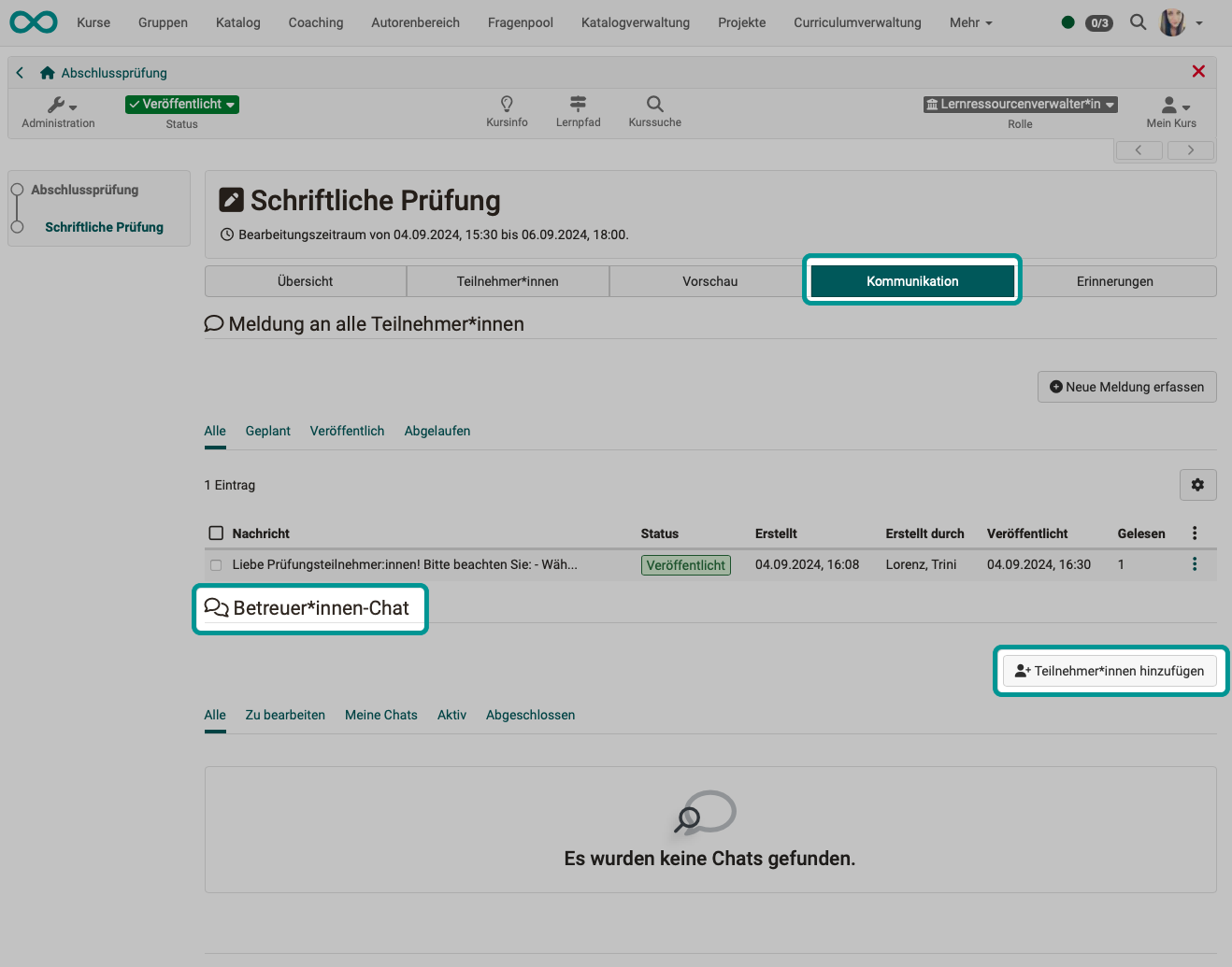
If you as a coach want to contact an individual during the exam on your own initiative, use the chat. Click on the button "Add participant".
Message to several chats at once
As a coach, you normally create a message for a note to all exam participants. However, there are also exceptional cases in which an answer in all chats makes sense.
Example:
Several participants write: "There is error xy in the exam situations". As a coach, you therefore immediately expect further chat messages from another 100 exam participants. That's why you want to send a reply to all exam participants right away with a note saying, "Attention, for those who haven't noticed yet … We are now doing …".
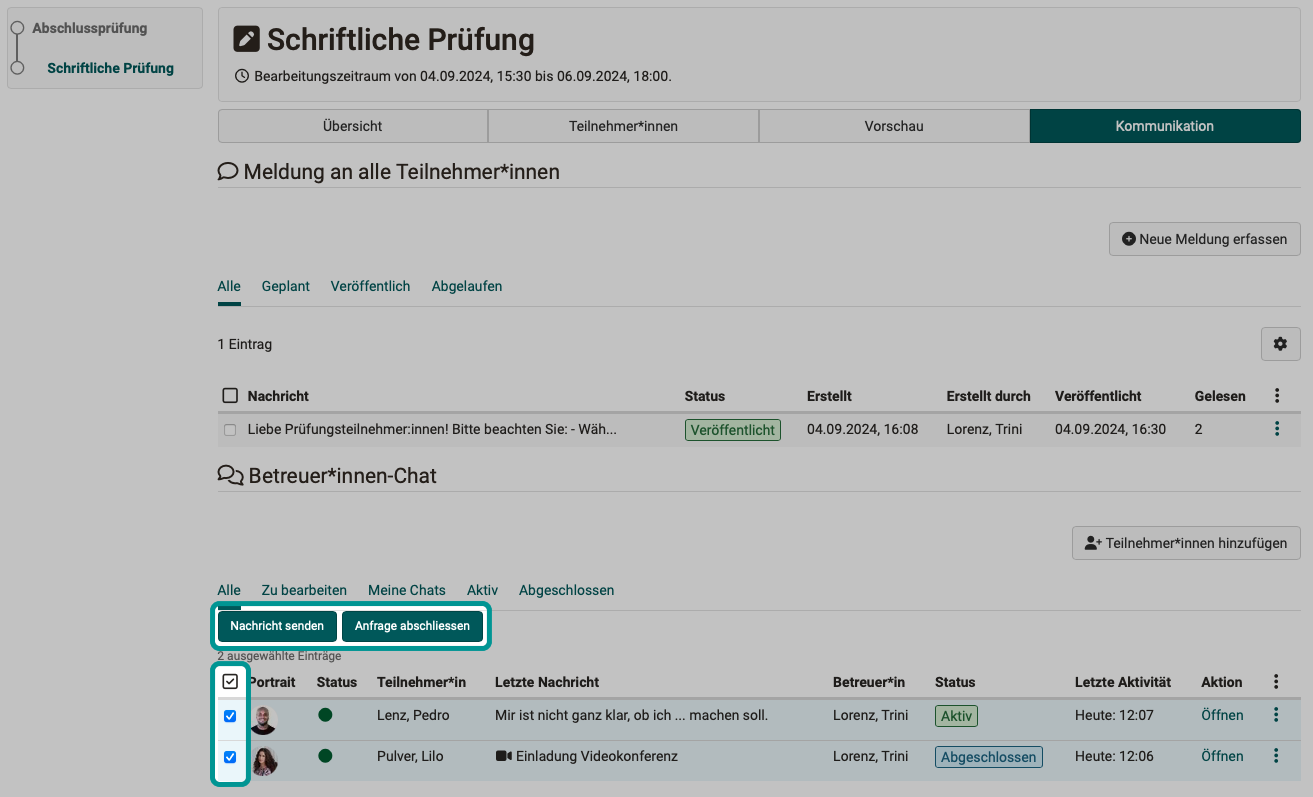
Normally, you would have to reply in all 1:1 chats and close each chat individually. For this situation, mark the chats concerned in the list. With the button "Send message" you send a message to all marked chats, with "Complete request" you close them together. For plannable, non-spontaneous information, however, it is advisable to send a message.
Video chat
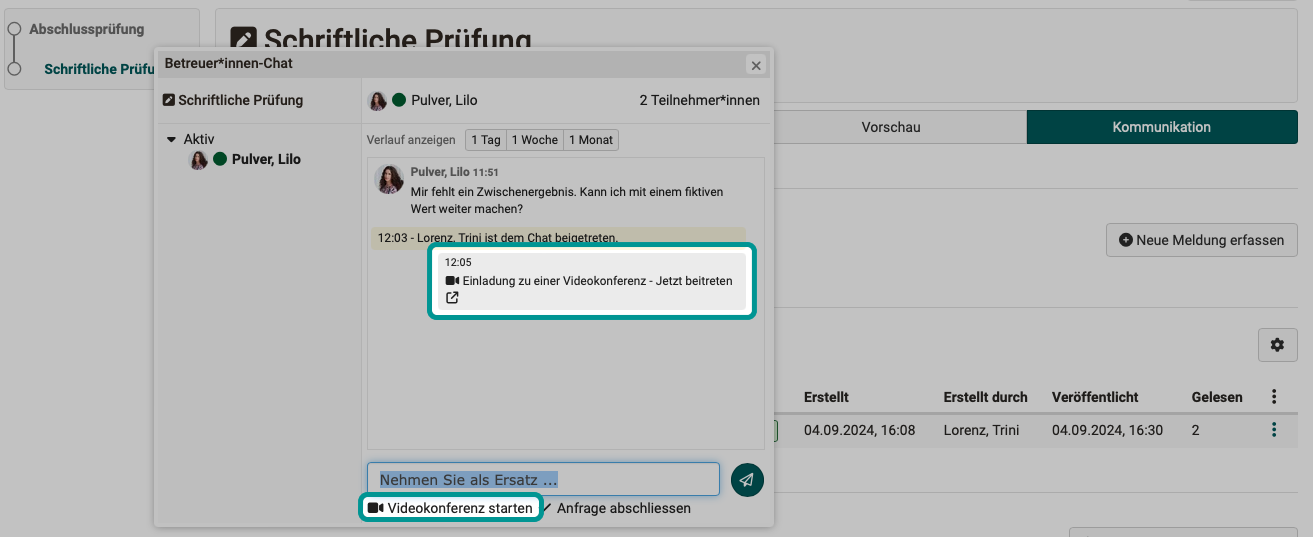
Sometimes it is helpful if the exam supervision and the exam participant can see each other briefly in a 1:1 video chat. BigBlueButton or Microsoft Teams is available for the video chat as soon as system administrators have enabled one of them for the Supervisor chat, see Activate video chat as system administrator.
Only coaches can start a video chat, with "Start video conference" in the chat window below the input field.
Exam participants will then receive an invitation and can accept it.
Important
If a video conference is running and the chat (1:1) is changed, the old video conference is canceled. Only 1:1 is ever possible. This ensures that other people are not unintentionally present in a video conference.
Supervising multiple exams
It is possible for coaches to supervise several exams taking place at the same time. For example, a subject expert can be available for subject-related problems, while other coaches take on the organizational tasks of the exam supervision.
So that this person does not have to switch to the different courses to check the chats there, OpenOlat informs them about new chat activities in the global menu bar. The prerequisite is that their course role is selected under "Enable global notification for", see Set up communication channels as course owner/author.
However, when the exams are over, these notes are also gone. They are only available during the exam.
Documentation of messages and chat history
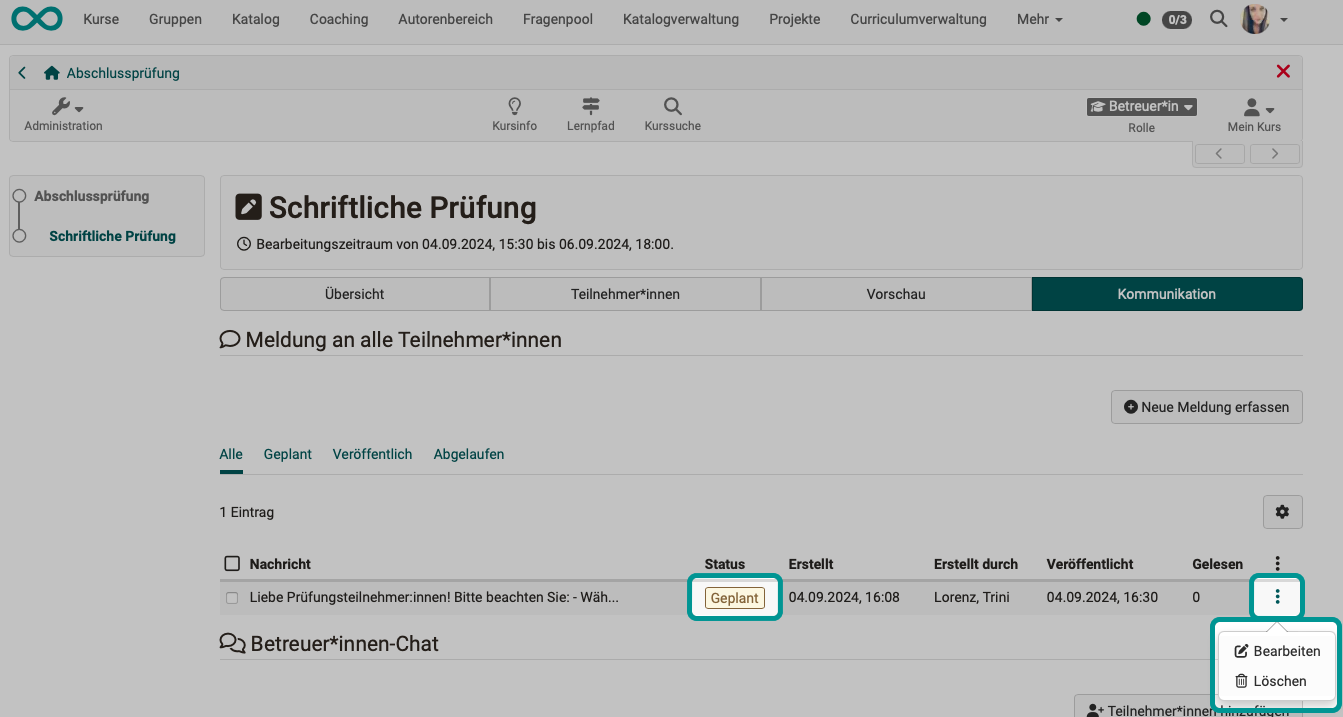
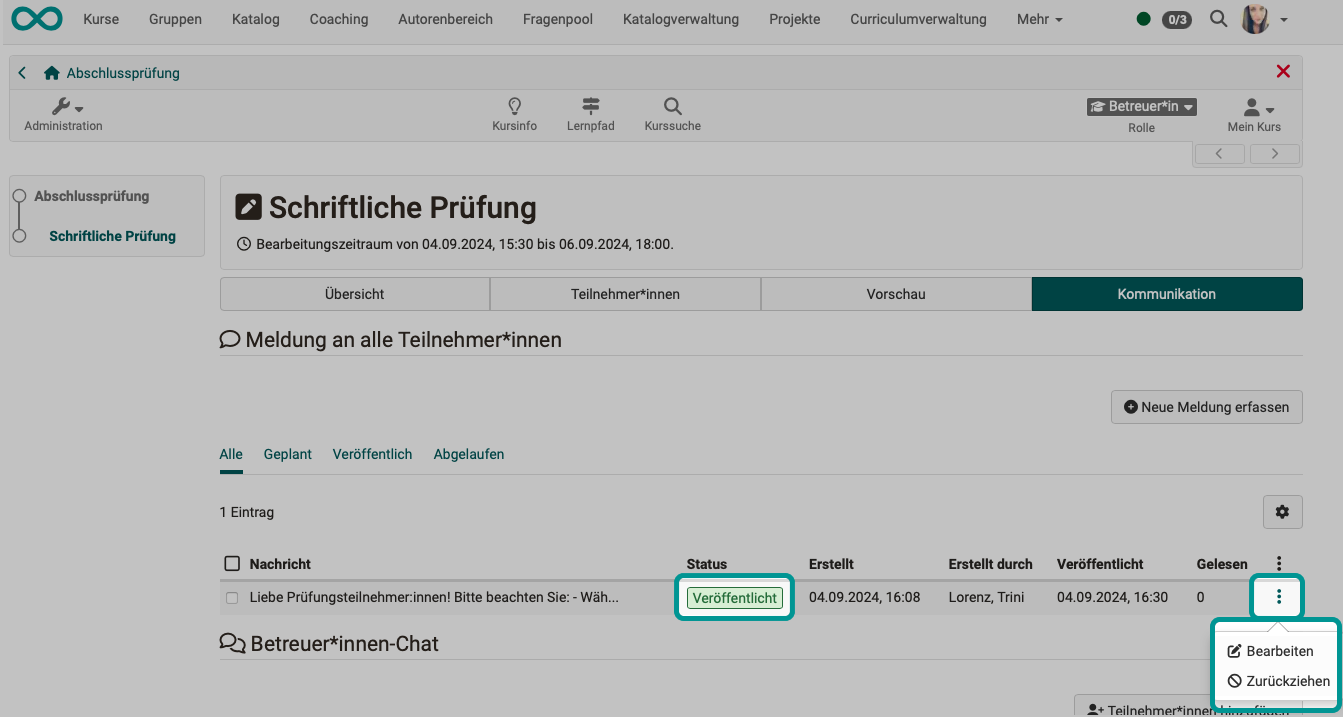
Since messages may be relevant for appeals, they can only be deleted as long as they have the status "Scheduled". After publication, they can only be withdrawn. A withdrawn message gets the status "Expired" and remains in the list.
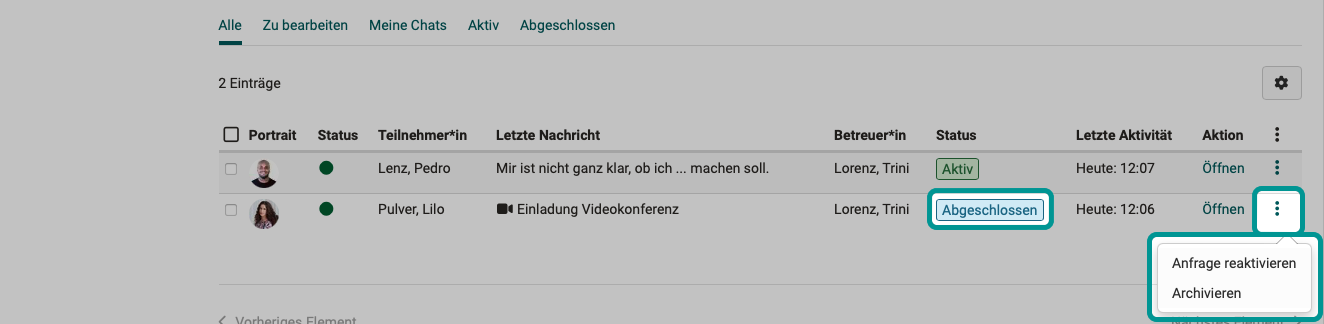
You archive the history of a chat via the menu with the three dots at the end of its row: "Archive" downloads the history of this one chat. For a completed chat, the same menu also offers "Reactivate request".
Up (Coach section) ^
To the top of the page ^
3. Communicate as a participant
Messages from the exam supervision
Messages can only be sent by coaches (exam supervision) to the exam participants. The other way around is not possible. The Supervisor chat serves for requests from exam participants.
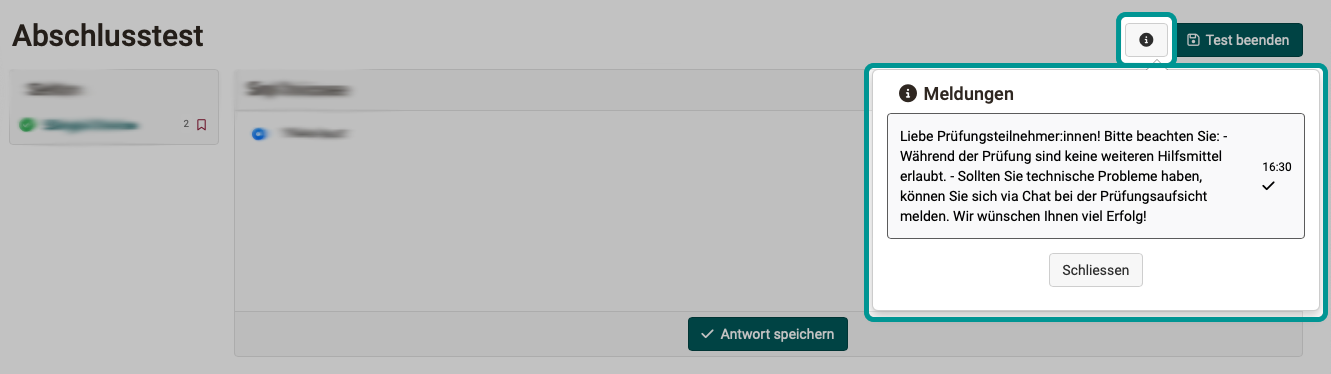
Messages appear in the header for exam participants. They remain there until a read confirmation has been submitted by clicking on the button "Read".
A message is also displayed outside the test course element, e.g. if the test has not yet been started.

Messages disappear after a read confirmation has been submitted. However, they can be displayed again at any time via the info icon in the header.
Asking the exam supervision questions
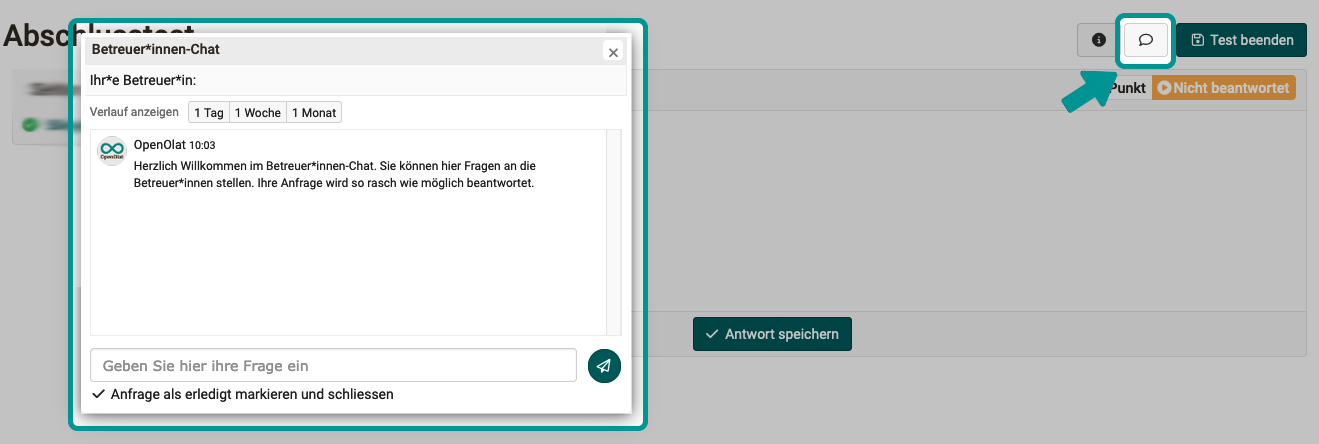
If the course owner has allowed requests from participants, a speech bubble icon appears in the header for the exam participants. A 1:1 chat can be started there in a separate chat window. With "Mark request as done and close", exam participants end their request.
Up (Participant section) ^
To the top of the page ^
4. Activate video chat as system administrator
frentix customers
For frentix customers, their customer advisor at frentix takes care of the setting "Supervisor chat".
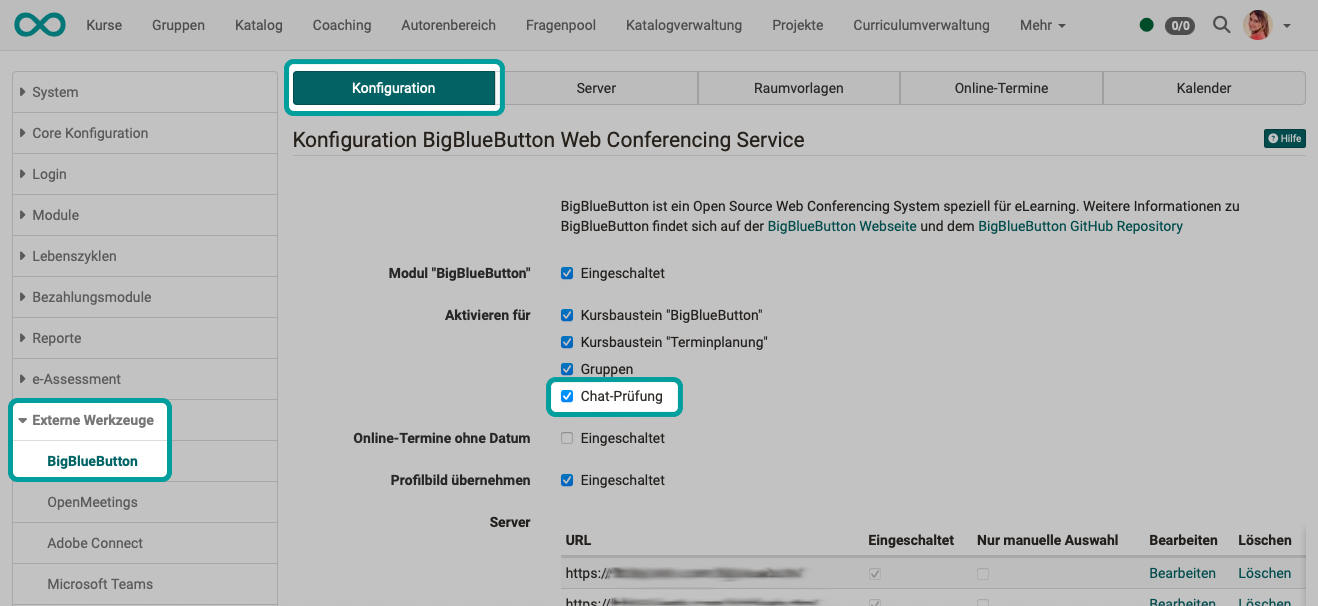
So that coaches can start a video conference from the Supervisor chat, system administrators enable BigBlueButton or Microsoft Teams for the Supervisor chat. One of the two modules is sufficient, and it must be switched on itself. To do this, activate the option "Supervisor chat" under "Activate for" in the system administration:
Administration > External tools > BigBlueButton > Tab "Configuration"
Administration > External tools > Microsoft Teams > Tab "Configuration"
The other settings of the two modules are described on the pages BigBlueButton module and Microsoft Teams module.
Up (System administrator section) ^
To the top of the page ^
Checklist
- Are there several coaches at the exam?
- Should exam participants be able to ask coaches questions during the exam?
- Are there opportunities for communication between the coaches outside of the exam course?
- Should coaches be able to send messages to all exam participants during the exam?
- Have texts for messages of greeting, for the note on the imminent end of the exam, etc. been prepared and agreed?
- Are all members of the exam supervision aware of the communication options during the exam? (Messages and Supervisor chat)
Further information
Mentioned on this page
How do I create my first OpenOlat course? >
How do I proceed when I create a test? >
Assessment management: Assessment mode >
BigBlueButton module >
Microsoft Teams module >
Further reading
Course Element "Test" >
How do I prepare an online exam? >
How do I prepare an exam with the Safe Exam Browser (SEB)? >
youtube
Testing overview (German)
How do tests work in OpenOlat? (German)