Frequently asked questions - Zoom
Zoom in OpenOlat
Zoom is a commercial web conferencing system that is integrated into OpenOlat via the LTI 1.3 interface. The actual meetings, recordings and all other content are provided and managed by Zoom. OpenOlat provides the access, the automatic role assignment and the embedding of the meeting. The following questions and answers refer to the use of Zoom in combination with OpenOlat and are not exhaustive.
- Information from the manufacturer can be found on the Zoom homepage.
- The use as a course element is described in Course element "Zoom".
- The setup by administrators is described in the OpenOlat Administration Manual.
Finding and configuring Zoom
Where do I find Zoom in OpenOlat?
Zoom can be available in three places:
- as a course element "Zoom" in a course,
- as a course tool in the toolbar of a course,
- as a group tool in a group.
Which of these variants are available is decided by your administrator. If you do not see Zoom in an expected place, the variant may not be enabled on your instance.
What do I have to configure as an author or coach?
Very little. For Zoom you only select the predefined Zoom profile. For the course element this is done in the course editor in the "Zoom configuration" tab, for the course tool and the group tool in the "Configure Zoom" dialog. All further settings (creating a meeting, scheduling, recording and so on) are made directly in the embedded Zoom interface.
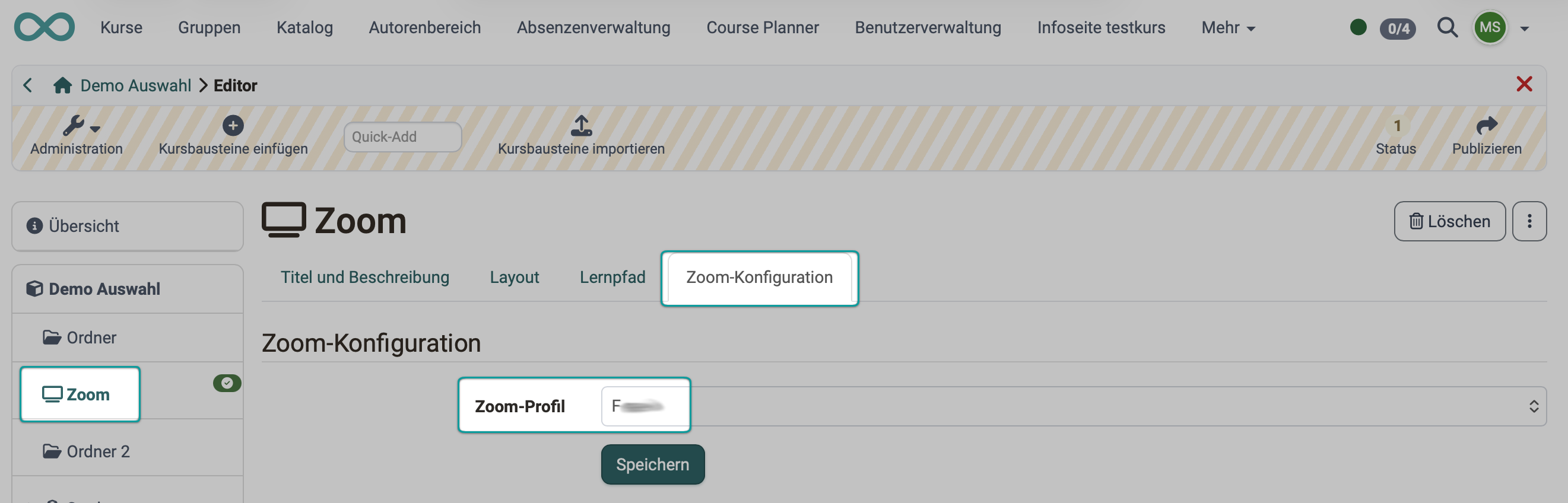
Why does the message "Zoom is not configured yet" appear?
No Zoom profile has been selected yet. Select the profile in the appropriate place:
- Course element: open the Zoom course element in the course editor and select a profile in the "Zoom configuration" tab.
- Course tool: configure the "Zoom" tool in the toolbar in the course settings.
- Group tool: configure the "Zoom" tool in the group administration.
Why is my Zoom profile inactive?
If the message appears that the selected Zoom profile is currently inactive, the profile has been deactivated at instance level. An inactive profile cannot start any meetings. In this case, please contact your administrator.
Roles, identity and data protection
Am I host or participant in the meeting?
Your role in the Zoom meeting is derived automatically from your role in OpenOlat and cannot be set separately:
- Coaches and course owners receive the role of a moderating person (Instructor) in Zoom and thus host rights.
- Participants receive the Learner role.
Why am I not recognised correctly in Zoom?
When joining, OpenOlat transmits only your email address to Zoom. Zoom assigns you to your Zoom account via this email address. If the email address stored in OpenOlat does not match the address of your Zoom account, the assignment can fail. Use the same email address in both systems.
Why do I have to accept a data transmission?
Before the Zoom meeting is loaded for the first time, the "Accept data transmission" dialog appears. The embedded page is loaded by Zoom Video Communications, Inc., and some of your personal data is transmitted to Zoom in the process. The meeting is only loaded after you click "I accept the data transfer".
Starting and joining a meeting
The Zoom meeting cannot be started or remains empty.
With some browser configurations, especially when third-party cookies are blocked, the meeting cannot be loaded within OpenOlat. In this case, open the meeting in a separate browser window using the "Open Zoom in a new window" button.
Participants receive a 401 error message when joining.
If participants receive an error message with a Correlation ID (401-type) when joining, while coaches can start the meeting normally, this is usually due to differing time zones between the Zoom LTI Pro credential and the OpenOlat server. The fix is administrative. Report the problem to your administrator. Details can be found in the OpenOlat Administration Manual.
Recordings, participants and calendar
Can I see recordings in OpenOlat?
No. OpenOlat does not manage or store any Zoom recordings. If Zoom provides recordings, these are only accessible within Zoom.
Is there a participant or attendance list via the Zoom integration?
No. The Zoom integration does not record attendance and does not provide a participant list of the meeting in OpenOlat. Such information is only available within Zoom.
Are Zoom meetings shown in the calendar?
Only if your administrator has enabled the calendar function. If it is active, Zoom enters meetings into the course or group calendar. Two restrictions apply here: for a meeting series only the first meeting is entered, and when a meeting is deleted in Zoom the corresponding calendar entry is not removed automatically.