e-Assessment Administration: Assessment management
Whoever looks after exams for the whole instance switches on assessment mode and assessment inspection here, keeps an eye on all assessment modes and provides the templates for the Safe Exam Browser. System administrators find the assessment management in the system administration under:
Administration > e-Assessment > Assessment management
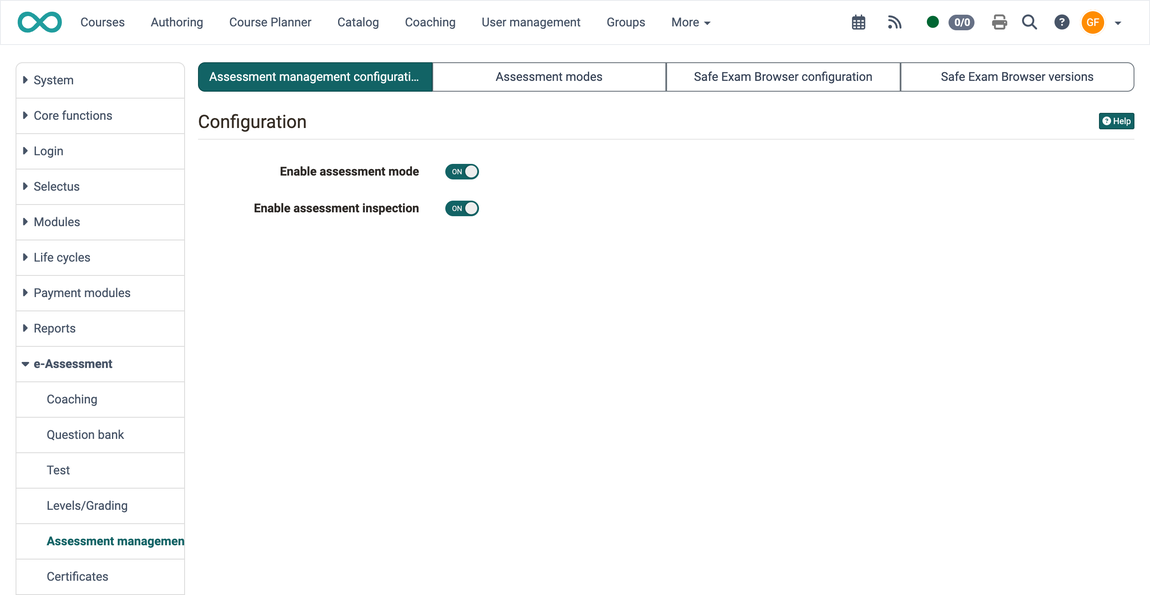
Assessment Management Configuration Tab
Assessment management includes configuring the assessment mode and setting up assessment inspection. Both can be enabled or disabled separately here.
The other tabs depend on these two switches: The tab "Assessment modes" only appears when assessment mode is switched on. The tabs "Safe Exam Browser configuration" and "Safe Exam Browser versions" appear as soon as assessment mode or assessment inspection is switched on.
Assessment modes tab
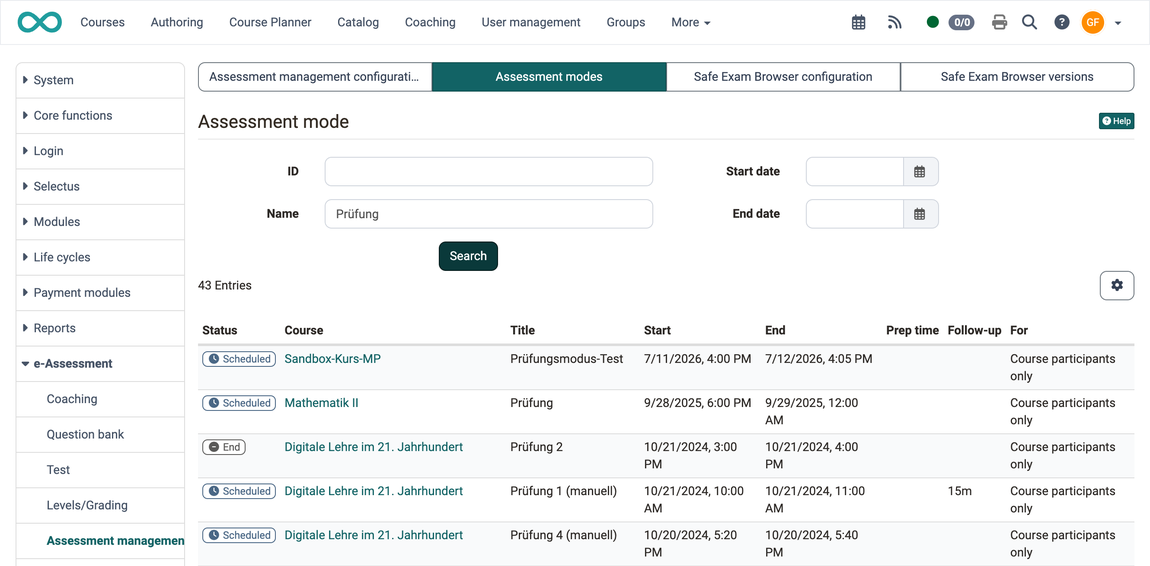
As a system administrator, you can view an overview of all assessment modes created in your OpenOlat instance.
The search filters by "ID", "Name", "Start date" and "End date". For each assessment mode, the table shows the columns "Status", "Course", "Title", "Start", "End", "Prep time", "Follow-up" and "For".
Safe Exam Browser Configuration Tab
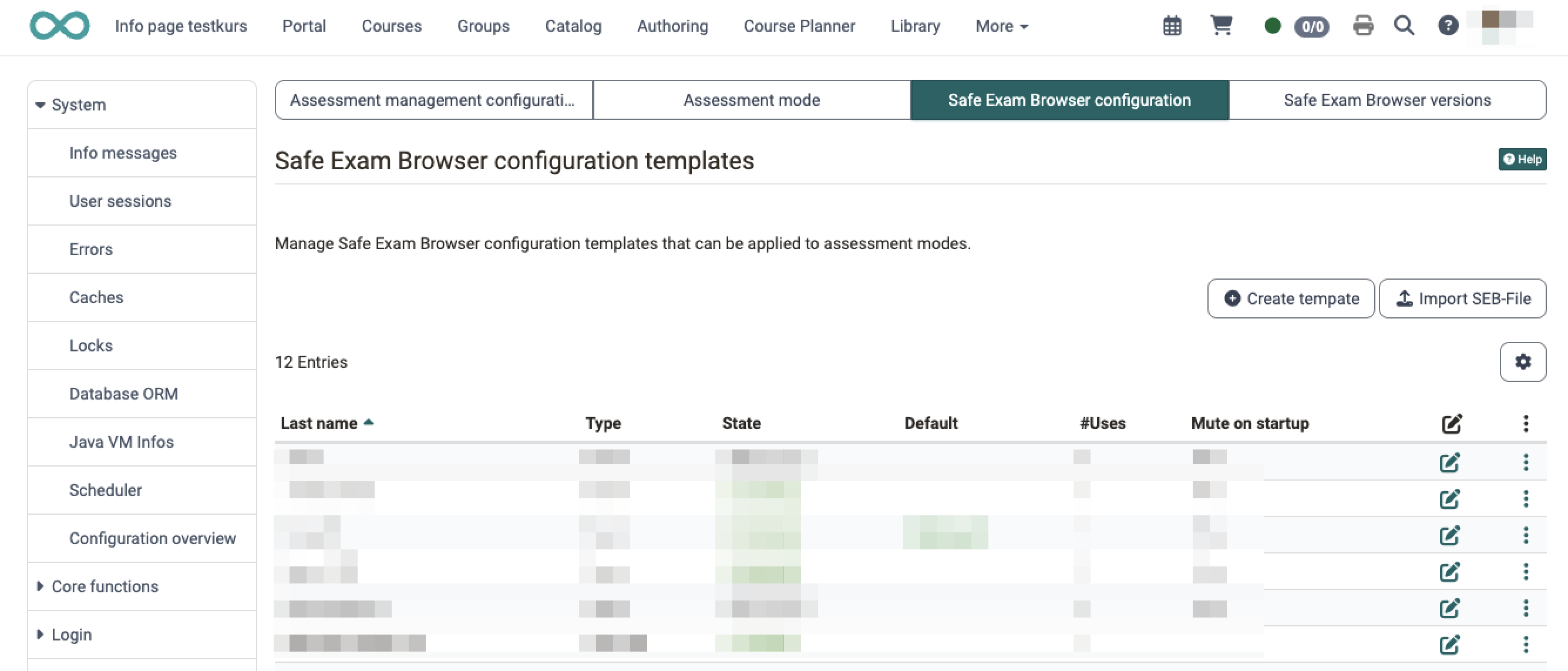
Manage Safe Exam Browser configuration templates that can be applied to assessment modes.
Template list in the Safe Exam Browser configuration tab
The template list shows all created SEB configuration templates with various columns that can be configured individually via the gear icon.
The "Type" column shows whether a template is a "Form" (configured in OpenOlat) or an imported "SEB-File".
If no template has been created yet, the message is displayed: "No Safe Exam Browser configuration templates have been created yet."
Adding / editing a template
Use the "Create template" button to create a new SEB configuration template. Open existing templates with "Edit" in the three-dot menu, the dialog is then titled "Edit template". The form contains all existing settings of the Safe Exam Browser as well as the required field:
Name
Required field for naming the template.
Status
Defines whether the template is selectable for authors: Active or Inactive.
Import SEB-File
We distinguish two types of templates:
- Form: The configuration is maintained via the individual fields of the form in OpenOlat (as described under "Create template").
- SEB-File: A complete, unencrypted
.sebconfiguration file is imported and covers the full range of Safe Exam Browser functionality.
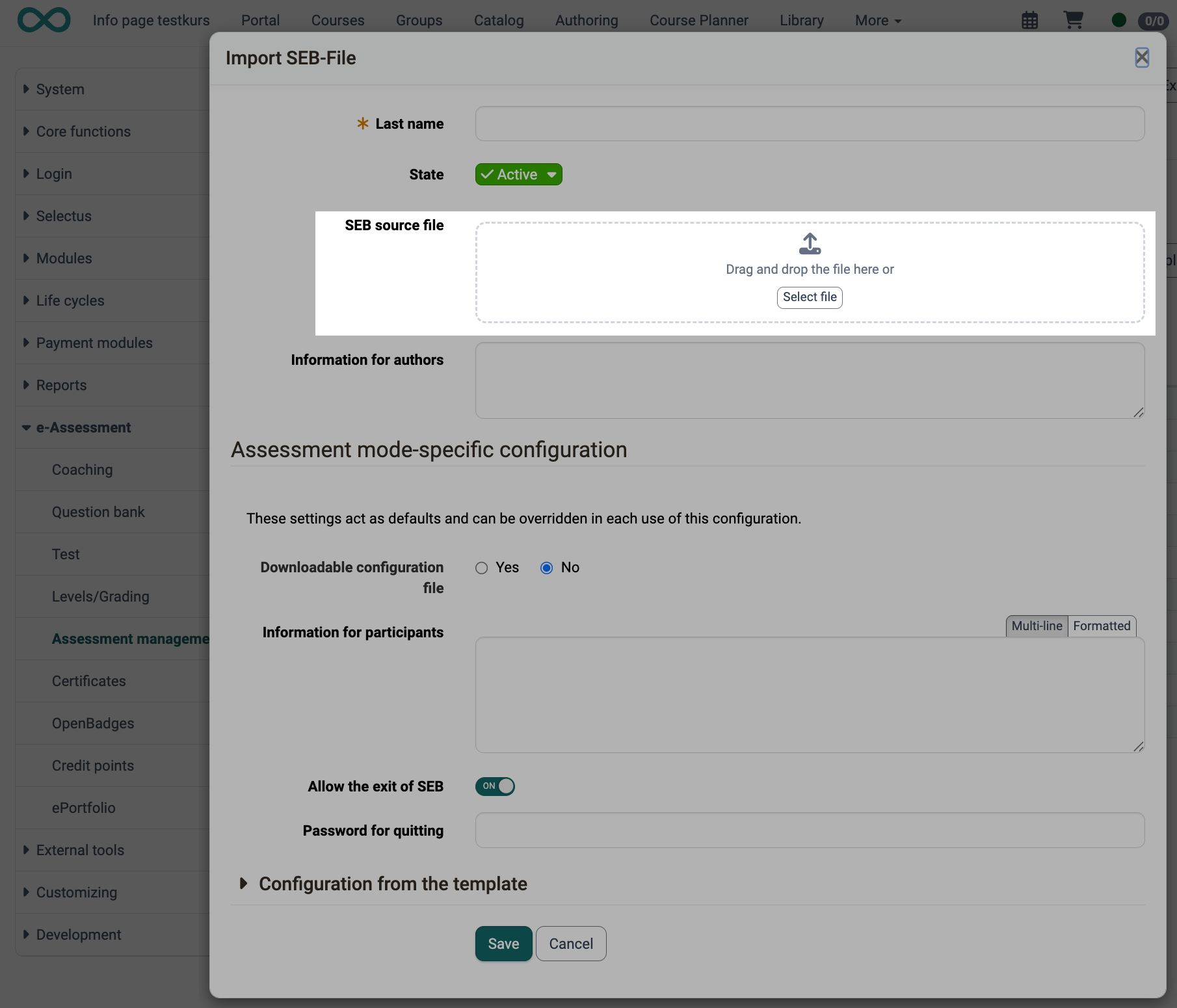
For the import, use the "Import SEB-File" action. OpenOlat reads the configuration from the file, displays it read-only, and calculates the config key automatically. The file must not be encrypted or password-protected.
For an SEB-File template, the following are additionally available:
SEB source file
The imported .seb file.
Information for authors
An optional text shown to authors when using the template in the assessment mode.
Assessment mode-specific configuration
The fields "Downloadable configuration file", "Information for participants", "Allow the exit of SEB" and "Password for quitting" act as default values. They can be overridden in each use of the template.
Setting the default template
Exactly one template must be marked as the default. Use the "Set as default" action to define a different template as the default. The default template is automatically pre-selected as soon as the Safe Exam Browser is switched on in the assessment mode.
Activating / deactivating templates
Deactivated templates are no longer available for selection when configuring an assessment mode.
Deleting templates
A template can only be deleted if the column "#Uses" shows the value 0 and the template is not set as default. Instead, you can deactivate a template that is in use and is not the default.
Safe Exam Browser Versions Tab
Enforce minimal SEB version
Via this tab, you can require a minimal version of the Safe Exam Browser instance-wide. This is helpful if versions below a certain SEB version should not be permitted.

Activate "Enforce minimal SEB version". Then set the required version separately per operating system:
Minimal version Windows
Required minimum version for participants who start the Safe Exam Browser on Windows.
Minimal version Mac
Required minimum version for participants who start the Safe Exam Browser on Mac.
Minimal version iOS
Required minimum version for participants who start the Safe Exam Browser on iOS.
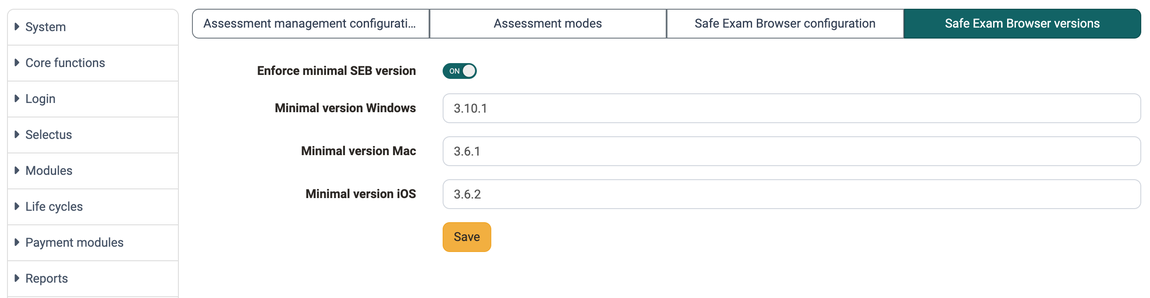
If a participant starts an exam with an older version, the exam is not released; a prompt appears to update the Safe Exam Browser.
Further information
Assessment management: Overview >
Assessment management: Assessment mode >
Assessment management: Assessment inspection >
As a system administrator, how do I set up the Safe Exam Browser (SEB) system-wide? >
Module Events and Absences >