Course Element "Participant folder"
Profile
| Name | Participant Folder |
|---|---|
| Icon | |
| Available since | updated in release 18.0 |
| Functional group | Communication and collaboration |
| Purpose | File exchange between participants and coaches (per participant a drop box and a return box) |
| Assessable | yes |
| Specialty / Note |
The course element "Participant folder" enables a file exchange between individual participants and coaches. Two folders are available for this. One is the "Participant drop box", through which participants can submit files to coaches. The other is the "Coach return box", in which coaches can return files to all participants at once or individually. In principle, this course element hides two (course element) folders, one with write permission and one without, which are visible only to coaches and one individual participant.
Provided that a corresponding document editor has been activated by the administrator, it is also possible to create different file formats such as Word, Excel or PowerPoint files directly in OpenOlat. Each course participant sees only their own individual folder here. Unlike in the course element "Folder", submissions from other learners are not visible in the participant folder.
The course element "Participant folder" can also be included in the assessment via the assessment tool.
Note
A similar configuration for submitting and returning files via coaches can also be implemented with the course element "Task", except that the possibilities of the task element are considerably more extensive and complex.
Tab "Folder settings"
In the course editor, the "Folder settings" tab is used to configure the drop box and the return box. By default, both folders are activated, and participants are permitted to delete and overwrite files.
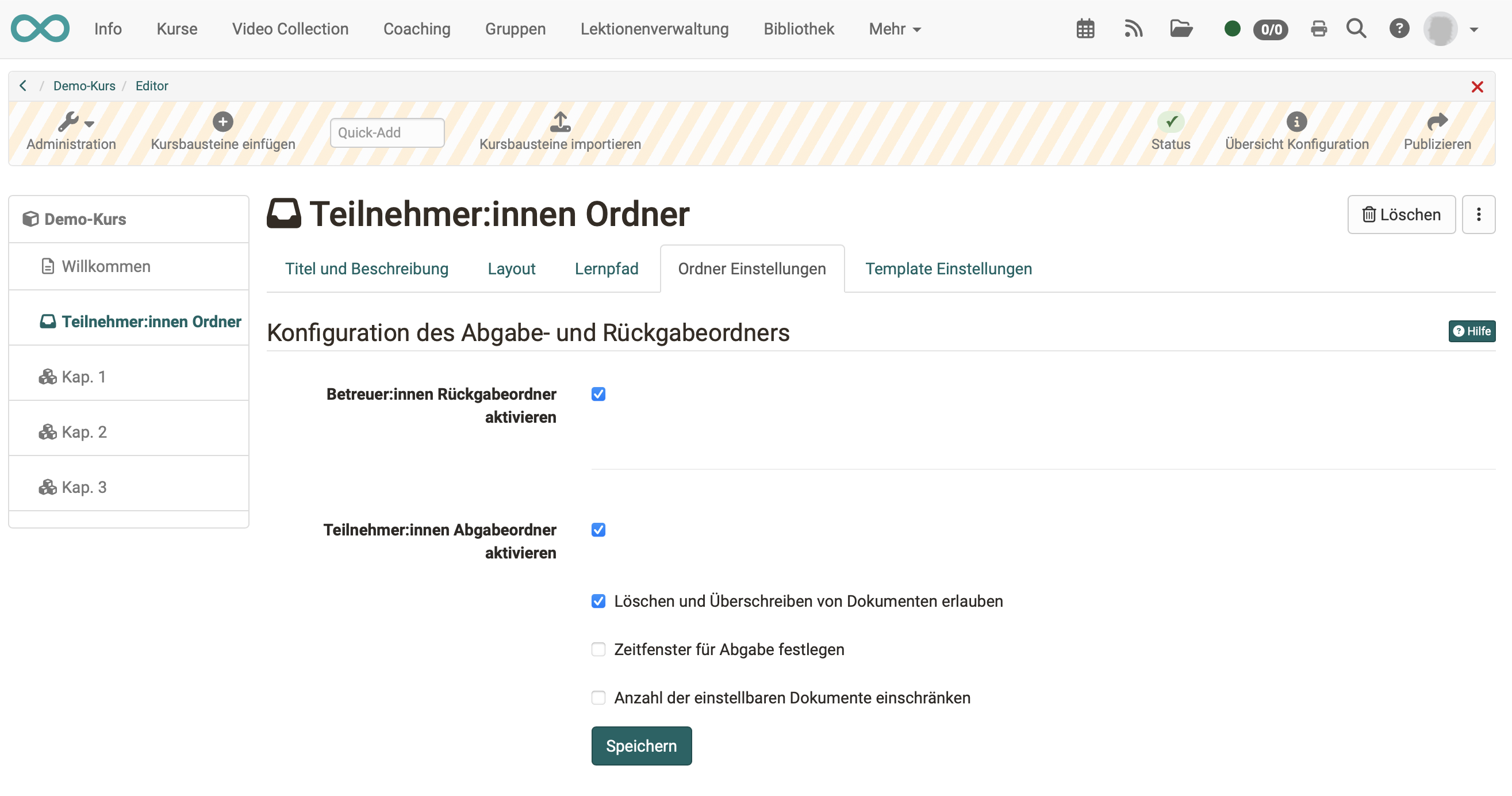
If the participant drop box is activated, participants can upload files or create them directly in OpenOlat. If the administrator of the OpenOlat instance has activated further document editors, it is also possible to create further file formats such as Word, Excel or PowerPoint files.
Further configurations can also be made for the participant drop box. For example, deleting and overwriting can be deactivated. This means that participants can no longer delete documents once they have uploaded or created them. All documents then stay in the drop box. A time frame can also be defined for submission. Submission is only possible within this time frame. Outside this time frame, documents can only be downloaded.
In addition, the number of documents that can be submitted can be limited. Once this number is reached, no writing tools are available any more. This means that documents can no longer be moved, copied, zipped or unzipped. However, they can still be deleted. If desired, only the drop box or only the return box can be activated.
Attention
As for all upload areas, there is a storage limit for the participant folder. The limits set by the administrator for the file upload and for the entire folder are displayed when you try to upload a file.
A similar configuration for submitting and returning files via coaches can also be implemented with the course element "Task", except that the possibilities of the task element are considerably more comprehensive and complex.
Tab "Template settings"
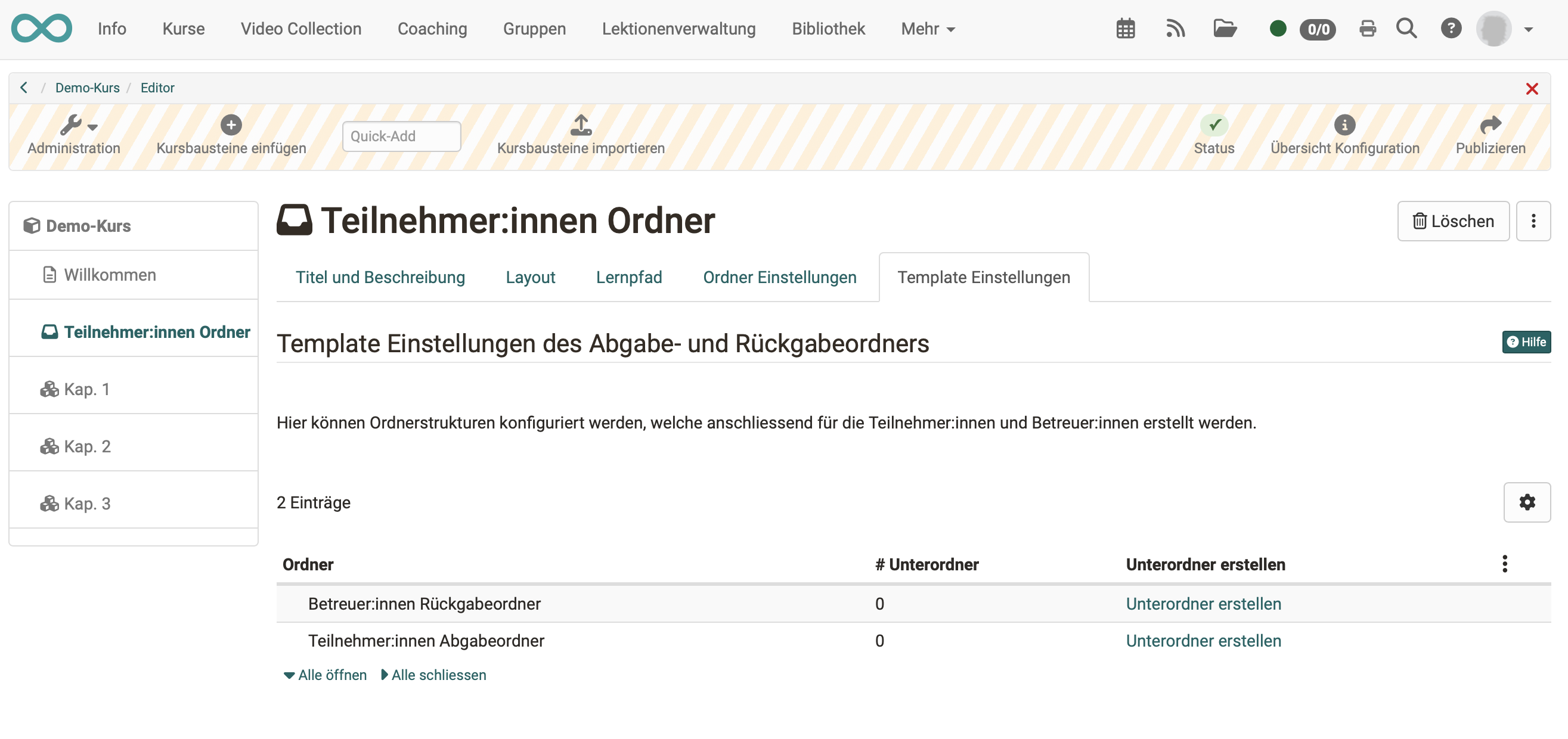
In the "Template settings" tab, subfolders can be created for both the drop box and the return box, creating a consistent folder structure for all participants. For example, a return box could include a subfolder for content feedback and one for supplementary files, or a drop box could reflect a certain desired structure for the submissions.
Attention
The subfolders created here cannot be renamed later. Only deleting and recreating them is possible. In the course run, attempting to rename these subfolders creates copies of the subfolders with a new name.
Tab "Badges"
If the owner has activated the awarding of badges under Course > Administration > Settings > Tab "Assessment" > Section "Badges", the "Badges" tab is displayed in the course editor for this course element, and a specific badge can be created for this course element.