Course Planner: Reports
In the «Reports» area, the Course Planner offers ready-made evaluations of the booking orders for your products and implementations. This gives you an overview of received bookings at a glance, without having to compile the data manually. The generated Excel files are suitable, for example, for handover to external invoicing or for internal evaluation.
The following roles can create reports:
- Administrator
- Course planner
- Product owner (for their own products)
- Principal
Important
The reports each relate to the organisation of the executing person and are therefore not cross-organisational.
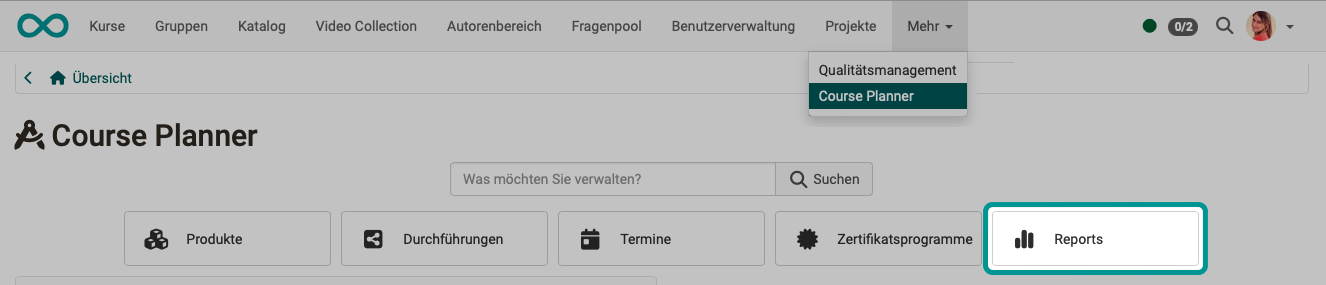
The following templates are available for creating reports:
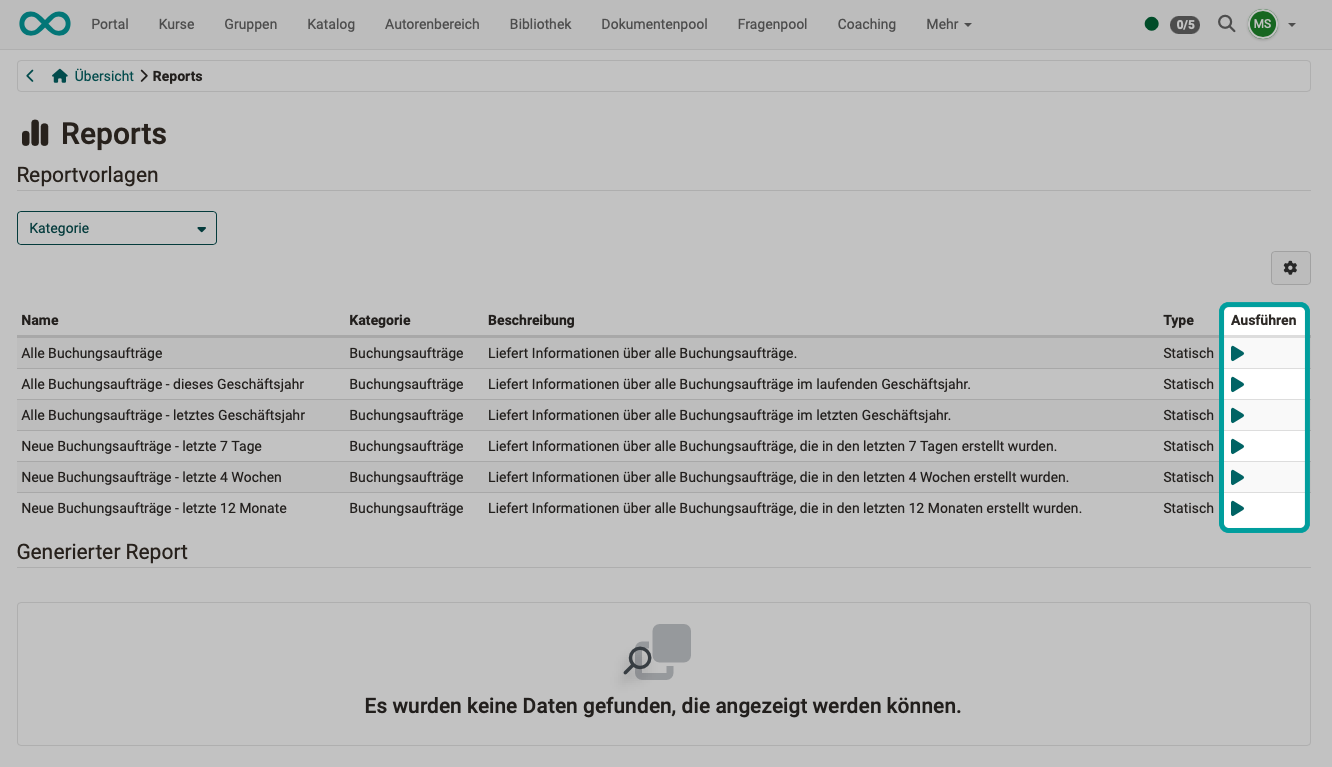
- All booking orders
- All booking orders, current fiscal year
- All booking orders, previous fiscal year
- New booking orders, last 7 days
- New booking orders, last 4 weeks
- New booking orders, last 12 months
By clicking on the arrows in the "Execute" column, Excel files with the current data are generated using these templates.
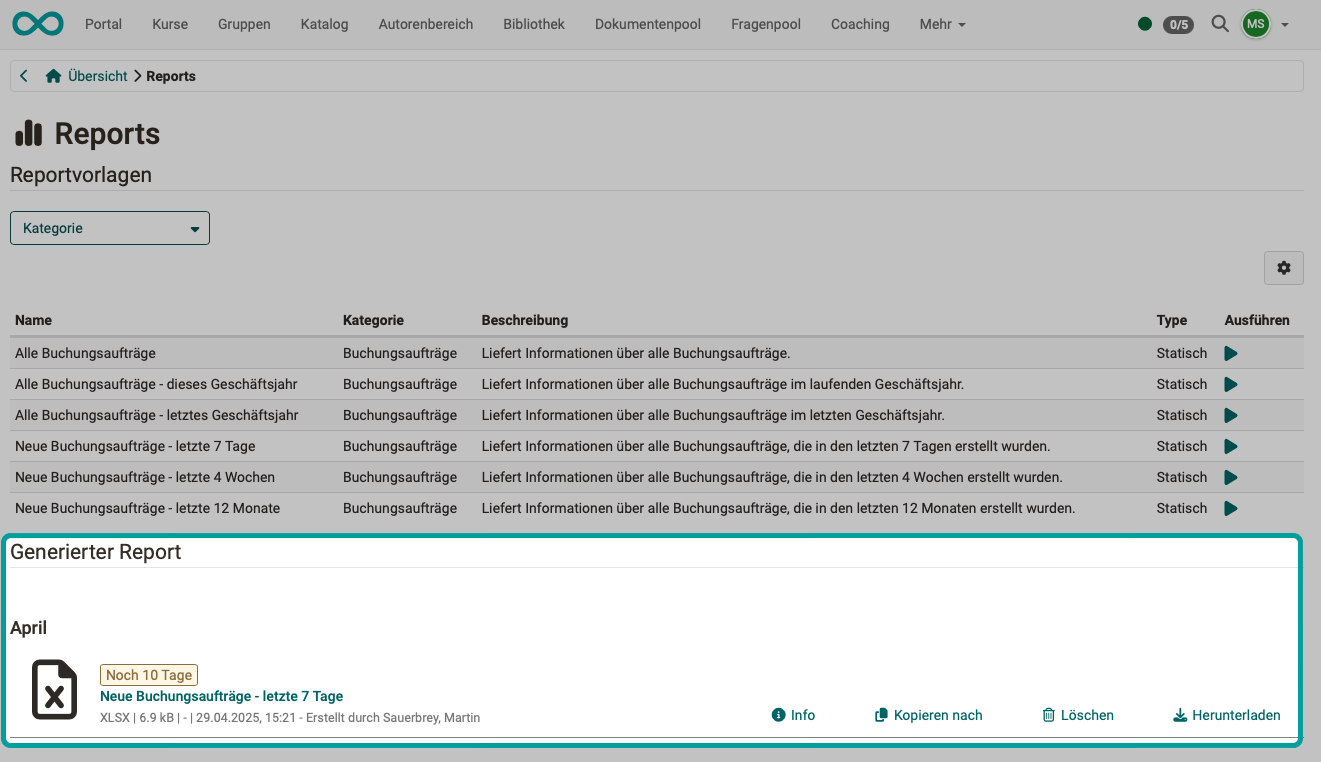
The Excel files created in this way are all listed at the bottom of the screen. They can be copied and downloaded.
Note
If you have already selected an implementation, you can also create reports there using the same procedure. You can find them there under the Tab Reports. The reports then only refer to the selected implementation. Every opened product also contains a "Reports" tab; the reports there only refer to the selected product and its implementations.
Content of the booking report
The booking report contains all booking types. The generated Excel export is organised into several worksheets:
- Worksheet «All»: all bookings of the selected period, regardless of the offer type.
- One additional worksheet per offer type (for example invoice, free, access code).
Fields that only apply to certain offer types (for example the billing address for invoice bookings) remain empty for bookings of other offer types.
The complete column overview is shown on the page Reports: Booking orders.
Further information
Mentioned on this page
Course Planner: Implementations >
Course Planner: Products >
Reports: Booking orders >
Further reading
How do I create my first OpenOlat course? >
Course Planner: Overview >
Course Planner: Events >
Course Planner: Certification programs >
How do I plan and run courses with the Course Planner? >
How do I plan and run a curriculum with the Course Planner? >
Module Course Planner (Administration) >