Roles and Rights: Guest access
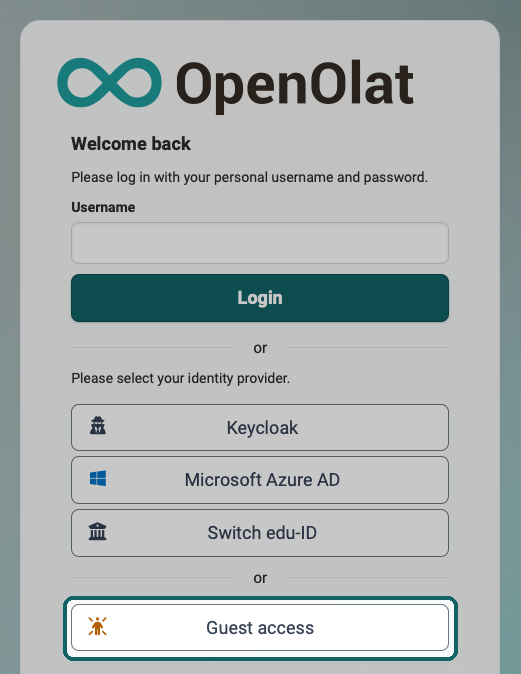
Besides registered users, people without an OpenOlat account can also access the system as guests. Guests are anonymous, unregistered users who cannot be managed in the user management.
For guests to gain access, the system administrators of the OpenOlat instance must activate the guest login. It is also possible to configure which OpenOlat areas guests can access and which not. Only the system administrators can make these basic settings. If the guest login is activated, the login page shows the button "Guest access" below the other login options. Guests enter OpenOlat via this button.
Generally, various learning resources, e.g. wikis, blogs, tests, videos or glossaries, can be released for guests.
Course level
Important
Guest access can only be activated for conventional courses, not for learning path courses.
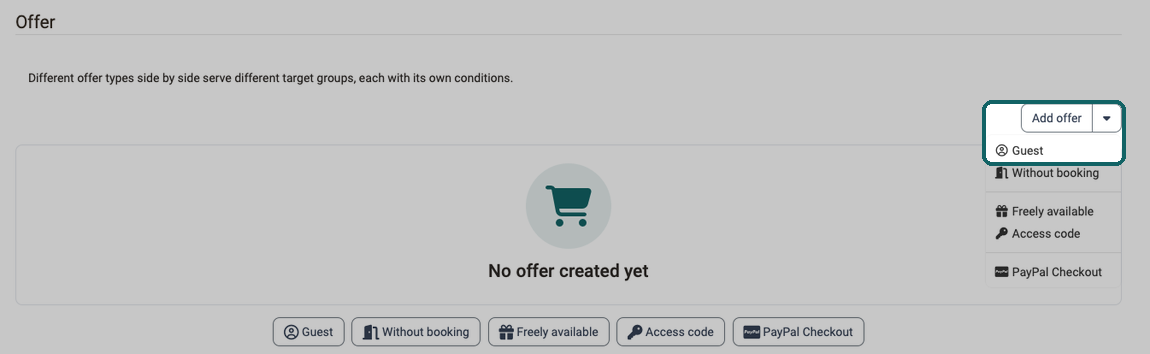
In a conventional course, course owners can set up the access configuration so that guests can also access the course: Course > Administration > Settings > Share. Set "Access for participants" to "Bookable and open offers". Then add an offer of the type "Guest" in the "Offer" section via "Add offer". If the course has no offer yet, the offer types are also available as separate buttons below "No offer created yet", including "Guest".
Guests can see or partially edit the following course elements:
- Read only: CP learning content, blog, wiki, forum, notifications, calendar, single page, external page, file dialog, link list
- Forum: In the course editor, course owners can use the option "Allow guests to post" to define whether guests may also create forum posts
- Watch podcast and video
- Folder: download files
- SCORM: run
- Test: run depending on configuration
- Self-test: run
- Participate in BigBlueButton, OpenMeetings and similar meetings
- Edit surveys
Guests stay anonymous
Guest access does not create a membership in the course. All guests use the same anonymous guest account. The member management of the course and the user management therefore do not list any guests, and individual guests cannot be told apart. If you want to record the participants by name, invite them as external members.
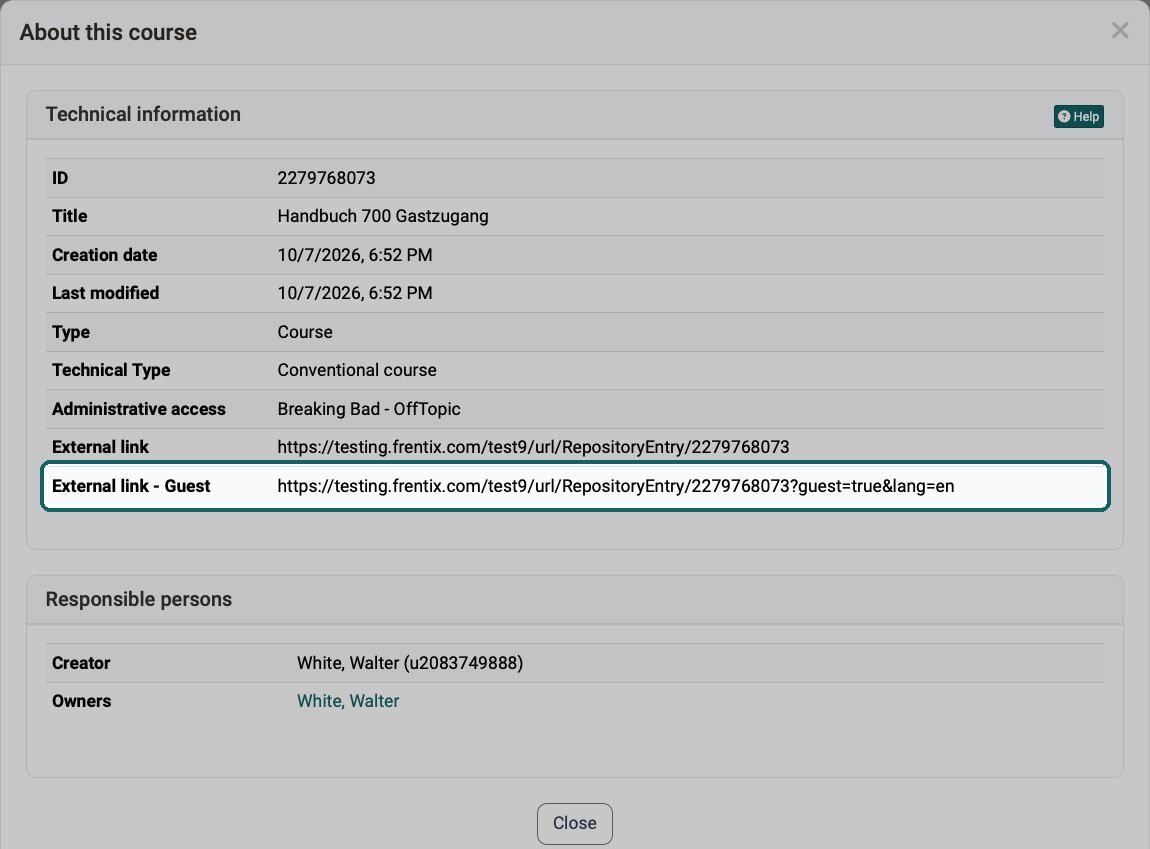
If you want to give a guest direct access to a course, send them the link from the line "External link - Guest". You find it in the window "About this course": Course > Administration > About this course. The line appears as soon as the course has an offer of the type "Guest".
Tip: Alternative to guest access
If you want to invite someone to an OpenOlat course who does not yet have an OpenOlat account, as a course owner you can alternatively use the option "Invite external members" in the members management. The invited person then receives a registration link and limited access to OpenOlat, but has more possibilities than a guest.
Note
OpenOlat administrators find further information on configuring OpenOlat for guests on the pages "Anonymous guests and external users" and "Customizing".
Further information
Mentioned on this page
User management >
Members management >
Anonymous guests and external users >
Customizing >
Further reading
Access configuration >
Offer types >
Roles and Rights: User Types >
Login Page >