Course Settings - Tab Assessment
In learning path courses, you define under Course > Administration > Settings > Tab "Assessment" how the course is assessed and when it is considered passed.
You can also enable the use of evidence of achievement and the awarding of credit points, certificates, and badges.
The tab can be edited by everyone who may open the "Settings" menu of the course: owners of the course, learning resource managers and administrators, as well as persons with the "Course editor" right, see Course Settings.
You can find the options for this in the sections
Assessment settings
User rights
Evidence of achievement
Credit points
Certificate
Badges
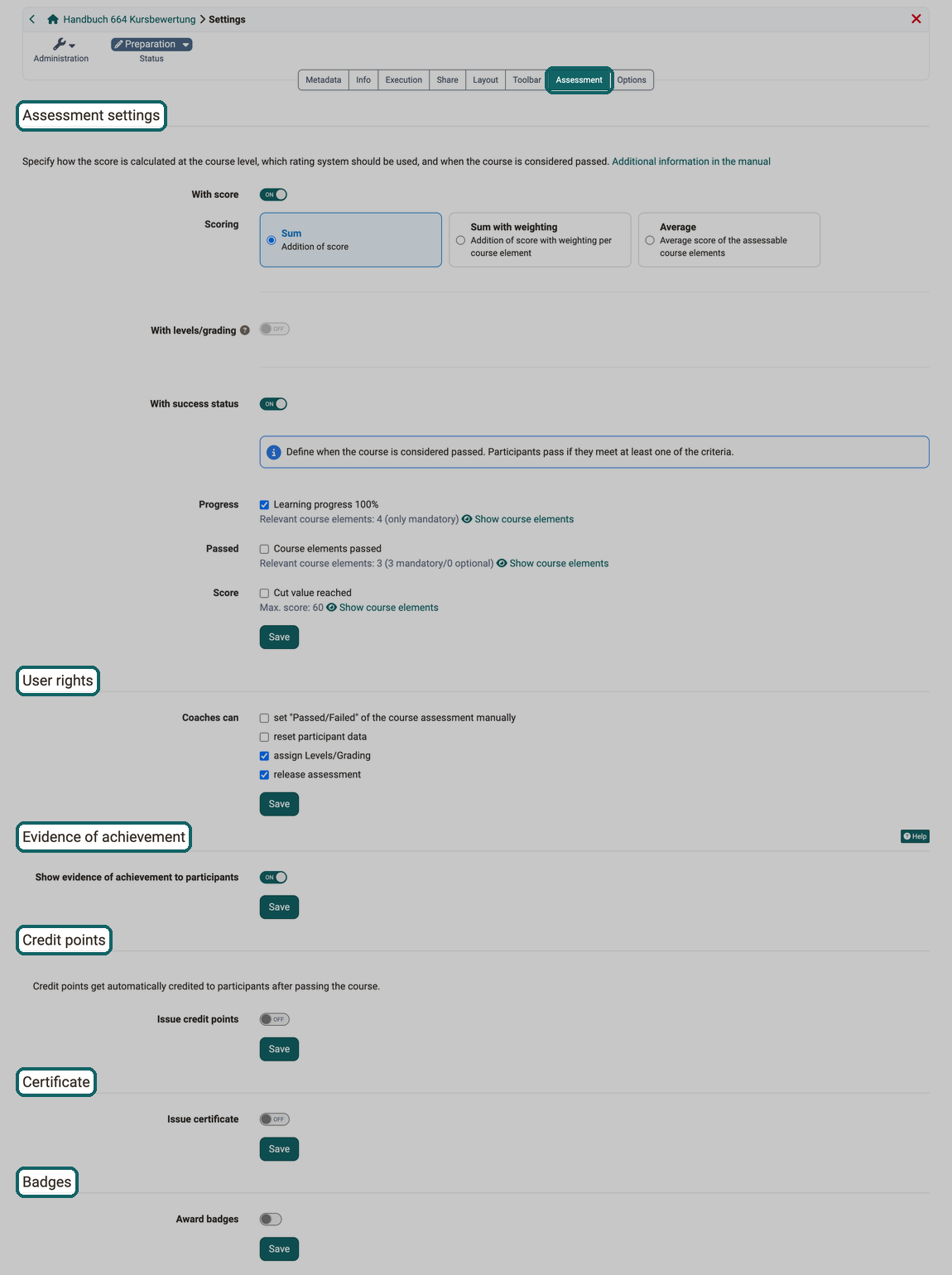
Section Assessment Settings
Assessment in conventional courses
The following information refers to learning path courses. For conventional courses, the criteria for passing a course are set in the course editor on the top course element in the "Score" tab, and the result is displayed on the course start page.
There are the following settings for course assessments:
-
With score (only with learning path courses) {: #evaluation_with_points}
Here you can set whether and what type of points are displayed. There are 3 options to choose from for course assessment with points: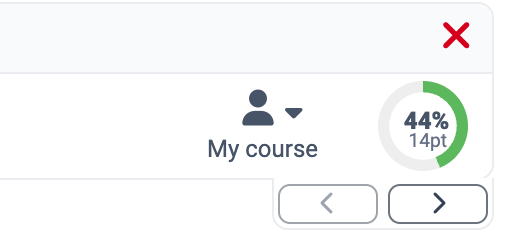 If learning path courses are graded with points, this affects whether and what type of points are displayed in addition to the percentage display in the course.
It can be graded with points, even if they are not relevant for passing the course.
-
With levels/grading (only with learning path courses)
If the levels/grading module is enabled, you assign a grade to the course at course level.
Find out more > -
With success status
Here you can set when a course is considered passed. The success status is the result of the course assessment: "Passed", "Not passed" or "Undefined". In addition to a certain number of points achieved, other criteria can also lead to a "Passed".
Find out more >
Course assessment with points: Sum
The sum of all points achieved in the course is calculated.
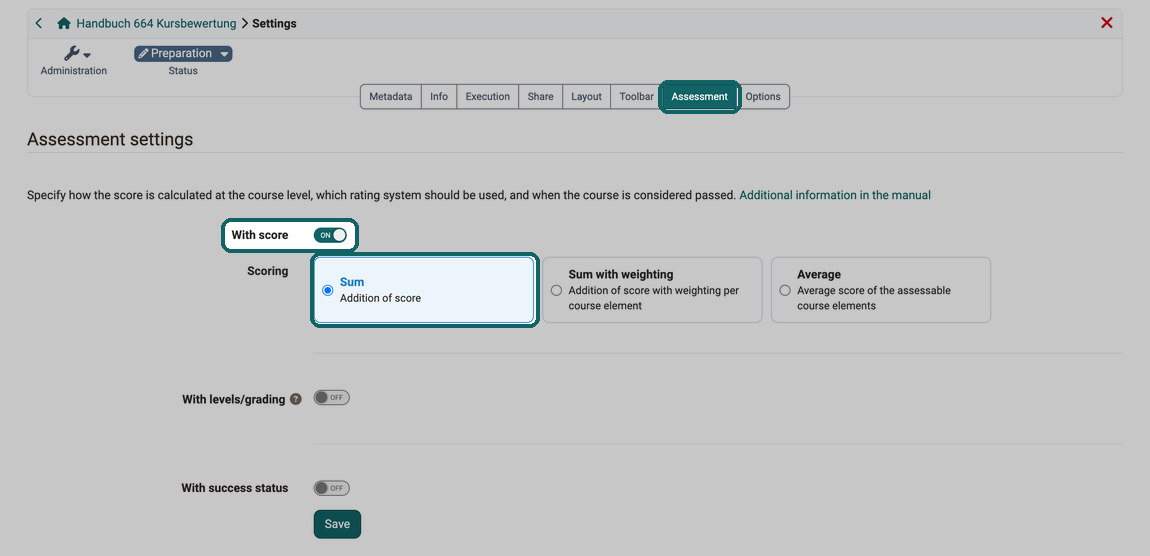
To the section Assessment Settings ^
To the top of the page ^
Course assessment with points: Sum with weighting
The weighting is taken into account when calculating the sum.
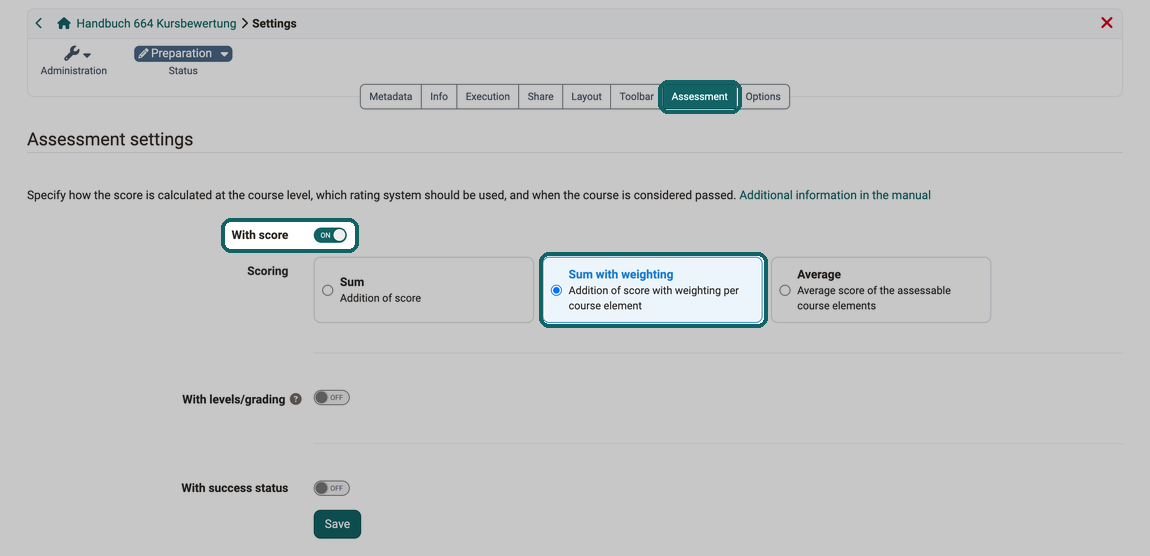
If there are several assessments to be completed in a course, these are sometimes included in the overall assessment of the course with different weightings. The "Sum with weighting" option for the course assessment allows you to enter a scaling factor for the points of assessable course elements. The points of the course element are multiplied by this factor: with the factor 0.5, 10 points count as 5 points. The prerequisite is that these assessable course elements are taken into account in the course assessment.
In the "Overview course configuration" of the course editor, the scaling for all assessable course elements can be checked and set or edited directly if required. You enter the factor as a fraction or a number, for example 1/2, 1/3, 2 or 0.5. If you select "Assessable" above the table, only the assessable course elements are shown. You can show further columns such as "Maximum score" via the "Customize columns" icon.
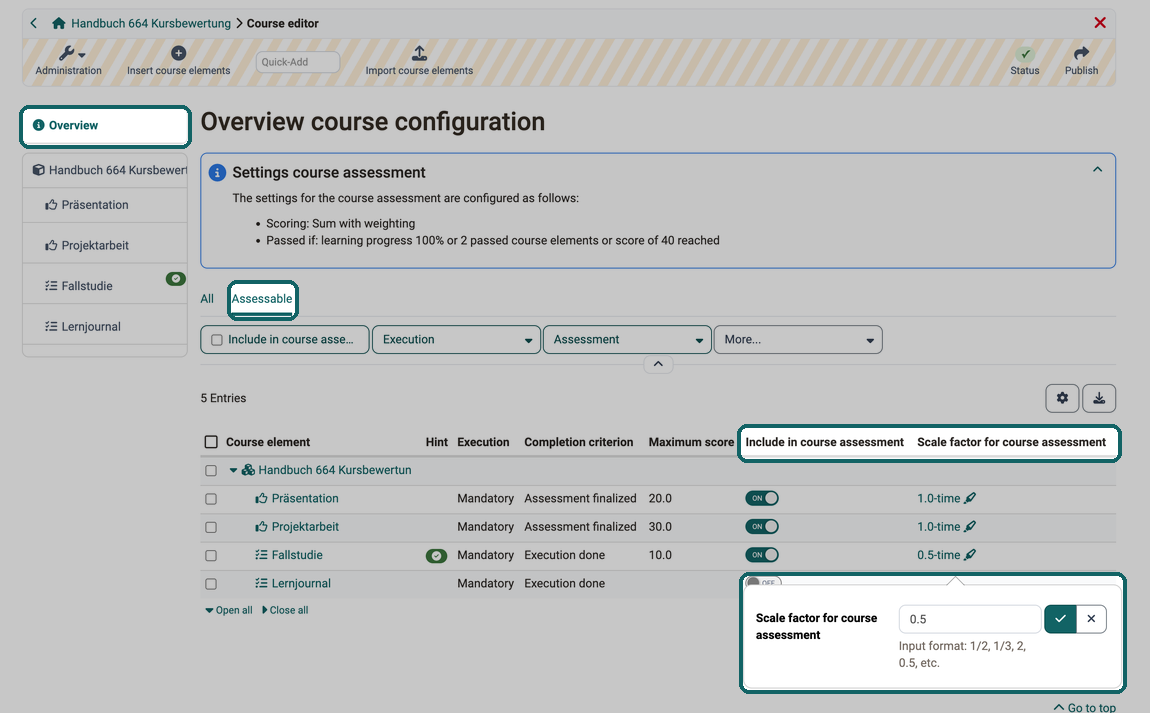
The weighted score is displayed to coaches in the assessment form. For participants, the weighted score is visible in the performance overview of the respective assessable course element and in the evidence of achievement.
To the section Assessment Settings ^
To the top of the page ^
Course assessment with points: Average
The average of the points achieved in the assessable course elements that are included in the course assessment is calculated. Course elements without a score do not count.
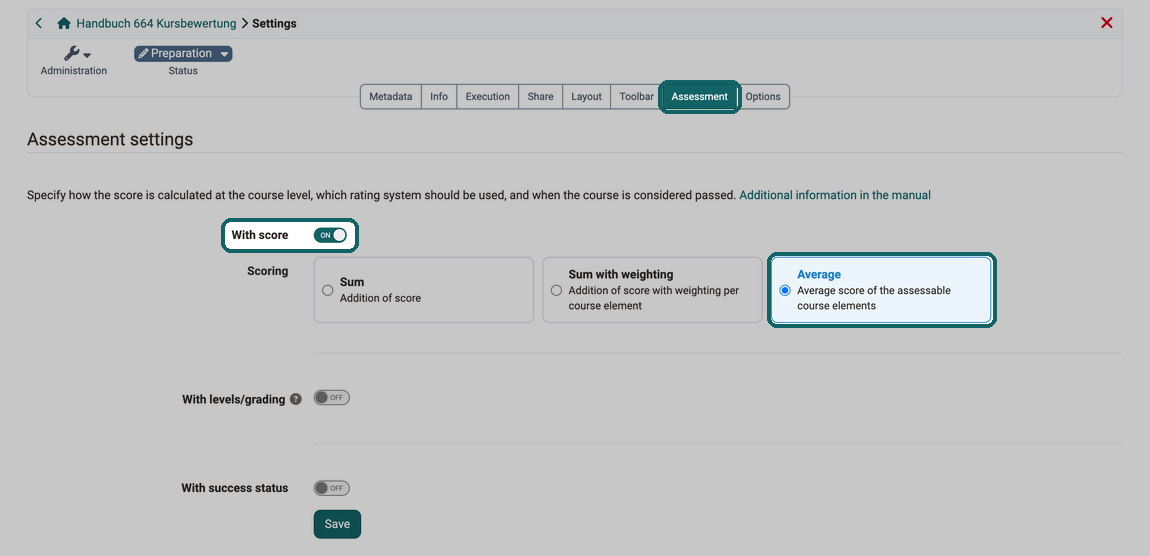
HighScore
If "With score" is switched on, the "HighScore" tab of the top course element can also be configured in the course editor, with each of the three scoring options.
To the section Assessment Settings ^
To the top of the page ^
Course assessment with levels/grading
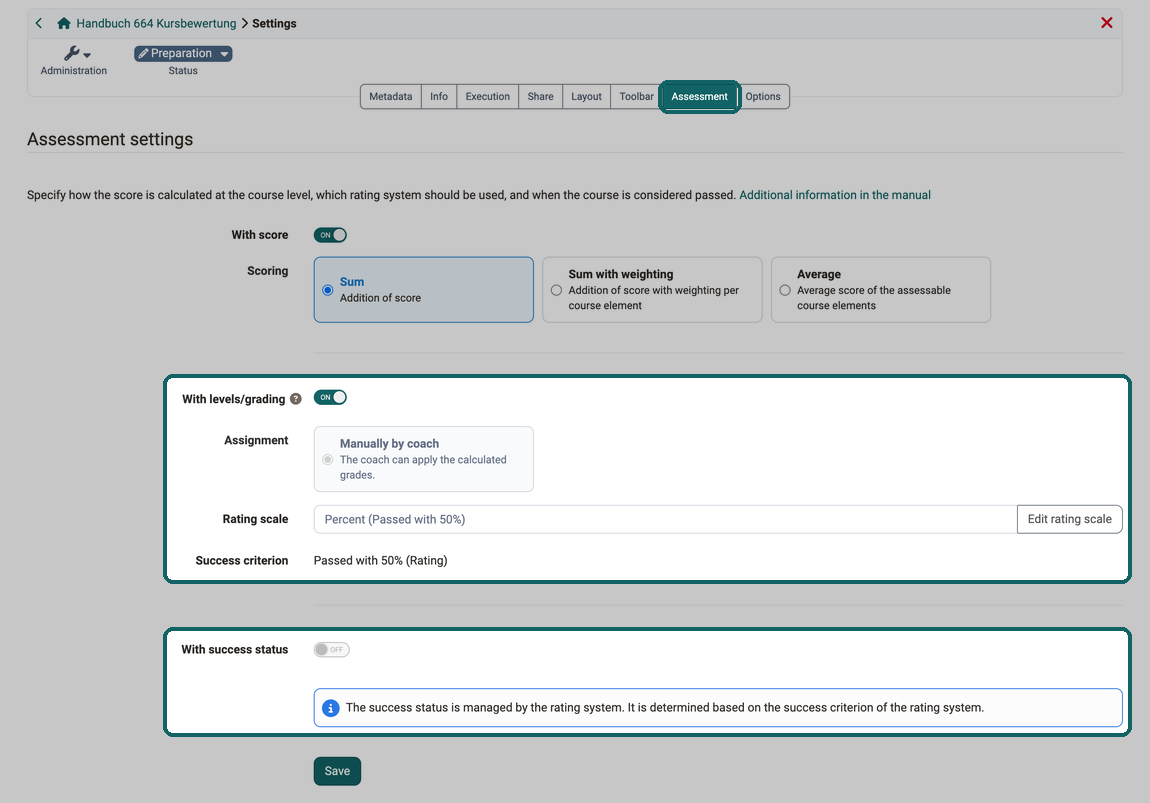
If the levels/grading module is enabled and the course is graded with a score, you can use the "With levels/grading" option to assign a grade to the course at course level. The course grade is calculated from the score at course level (sum, sum with weighting or average, depending on the selected "Scoring") and translated into a grade via the selected "Rating scale". With "Edit rating scale" you select the rating system and adjust the scale.
The toggle can only be switched once "With score" is on and "With success status" is off. As long as one of the two conditions is missing, "With levels/grading" stays greyed out.
If "With levels/grading" is active, the rating scale also determines the success status of the course. The course is considered passed if the "Success criterion" of the rating scale is met, that is the lowest grade or performance class with which a performance counts as passed. "With success status" then stays switched off and can no longer be changed. If the selected rating scale has no success criterion, the course has no success status at course level.
The grade is not assigned automatically: the "Assignment" is fixed to "Manually by coach". Course owners and authorised coaches apply the calculated grade in the assessment tool. So that coaches without ownership may apply it too, course owners set the "assign Levels/Grading" option in the User rights section.
To the section Assessment Settings ^
To the top of the page ^
Course assessment with success status
A learning path course can be considered passed as soon as one of the criteria is met:
- Learning progress 100%:
If all mandatory course elements have been completed and 100% is displayed, the course is automatically deemed to have been passed. - Rule "All relevant course elements passed":
The course is deemed to have been passed if all assessable course elements marked with a "pass/fail" have been passed, regardless of whether they are mandatory or optional course elements. To exclude individual course elements, switch off the toggle "Include in course assessment" in the configuration of the course element in the course editor. - Rule "A certain number of the relevant course elements passed":
Here you can define how many and which course elements must be passed for the entire course to be considered passed. Which course elements count is set in the course editor by the toggle "Include in course assessment" in the configuration of the respective course element. - Cut value reached:
Here you can define how many points learners must achieve for the entire course to be considered passed. You can also check which course elements the points must come from. Here, too, the toggle "Include in course assessment" in the configuration of the respective course element sets which course elements count.
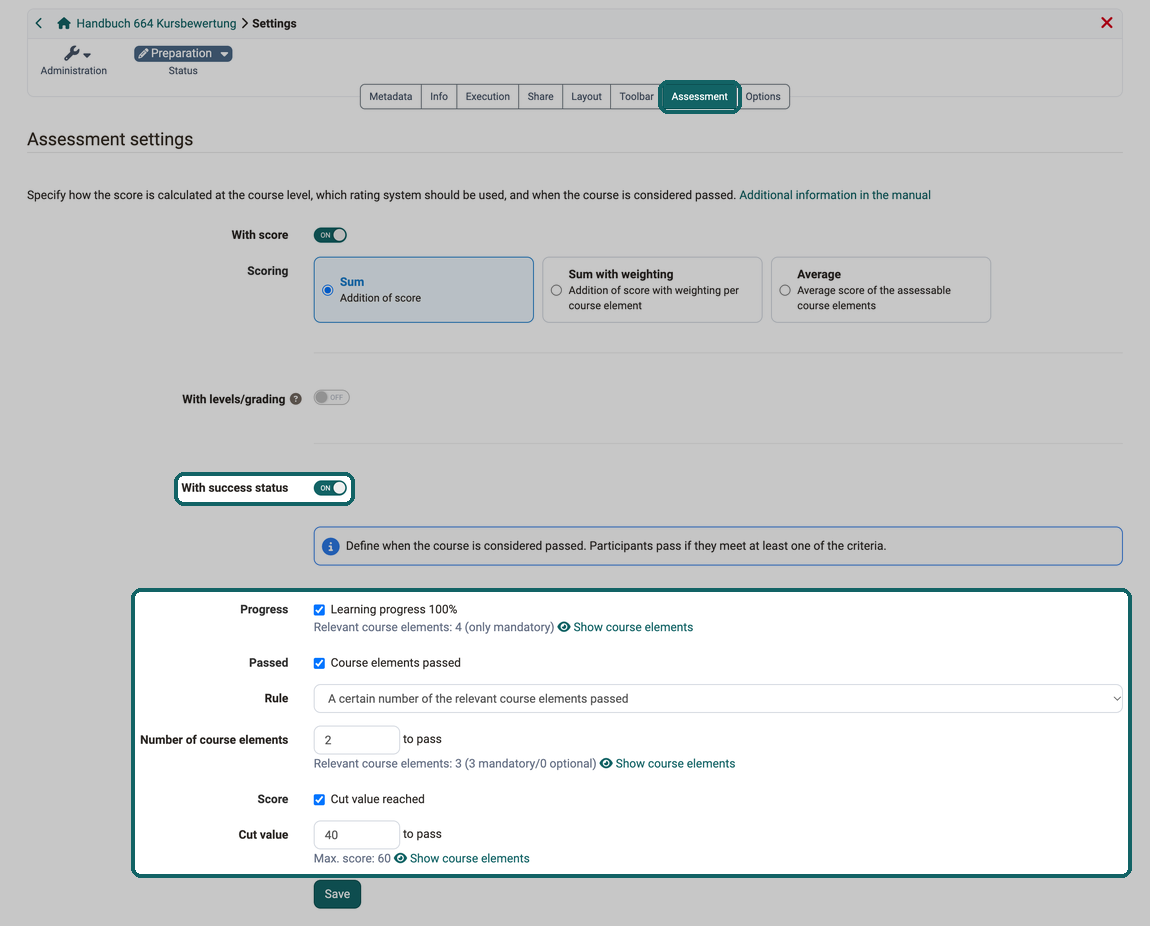
Passed criteria
The individual criteria are an "or" link. It is therefore sufficient if one of the criteria applies.
Which course elements are taken into account?
When calculating learning progress, only the mandatory course elements count.
When calculating "Passed" and points, mandatory and optional course elements count.
To the section Assessment Settings ^
To the top of the page ^
Section User rights

Coaches may be permitted to...
- Set "Passed/Failed" of the course assessment manually,
- Reset participant data,
- Assign levels/grading,
- And release the assessment to the participants.
The option for the manual success status only appears if at least one criterion is checked and saved under "With success status" in the Assessment settings section. It can only be selected once "release assessment" is also checked.
Section Evidence of achievement

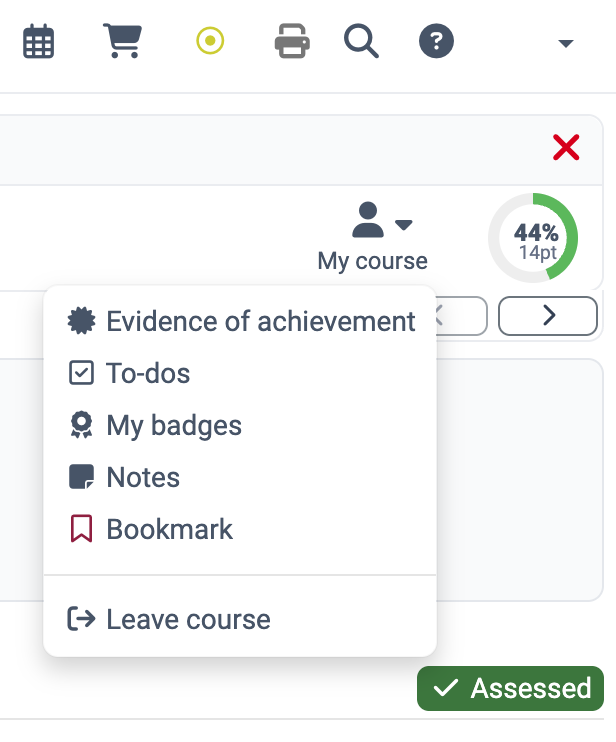
If you activate the option "Show evidence of achievement to participants", the option "Evidence of achievement" appears in the course in the toolbar menu "My course" and the participants see an overview of the assessable course elements with their current assessment status.
The entry "Evidence of achievement" appears in the "My course" menu for participants as soon as this option is switched on. It also appears with the option switched off if "Issue certificate" is switched on in the Certificate section. Guests do not see the entry, and as long as an exam is running in the course in assessment mode, it stays hidden.
If you deactivate this function, your participants will no longer see any evidence of achievement. The evidence of achievement is not lost, it is simply no longer displayed. If you reactivate the evidence of achievement, all current data will be available again. However, if you delete a course with existing evidence of achievement, participants will still be able to view their evidence of achievement. There, the action "Open course" is missing for the deleted course.
Section Credit points
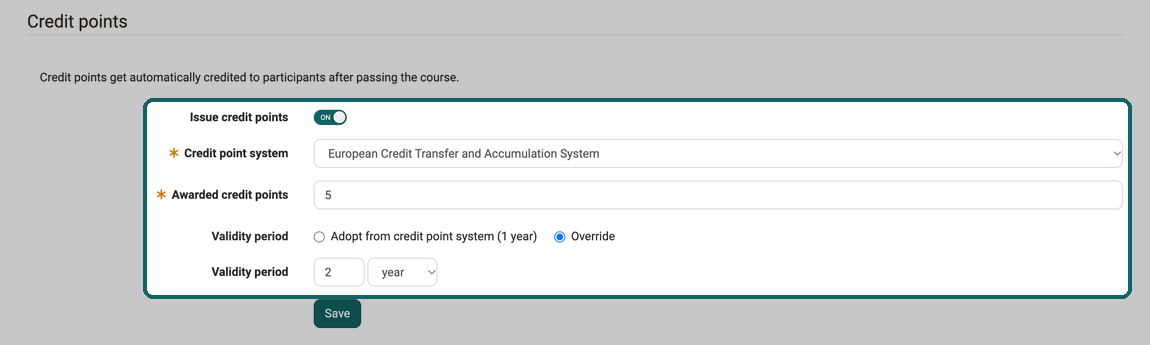
If "Issue credit points" is switched on, participants are automatically credited with credit points after passing the course. Various credit point systems (defined by administrators) can be selected for this purpose.
As the course owner, you determine how many credit points are awarded when this course is passed.
If the selected credit point system has a validity period, the course adopts it with the option "Adopt from credit point system". With "Override" you set a validity period of your own for this course.
Note
The awarding of credit points is also important within a certification program.
Further information:
Activate credit points system-wide >
Section Certificate
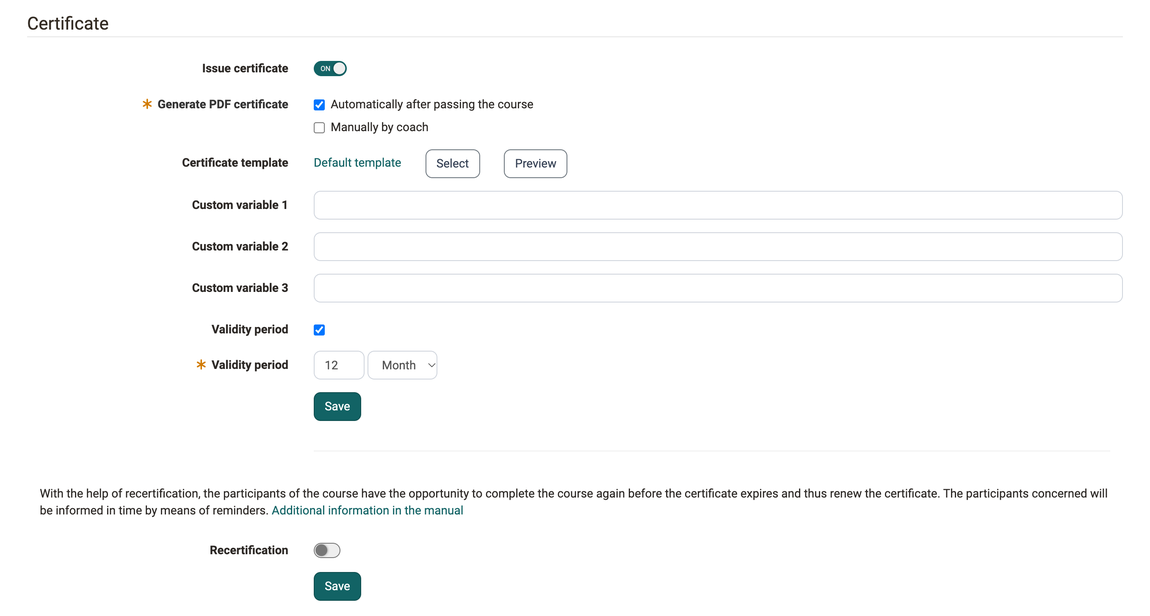
A PDF certificate can be issued as confirmation of attendance at a course or completion of certain course-related activities.
Details about certificates in a course >
If "Validity period" is checked for the certificate, the toggle "Recertification" appears below it. With it, participants can complete the course again before the certificate expires and renew the certificate.
Details on recertification >
Section Badges

If you want to award badges to participants in the course, switch on "Award badges" here. The entry "Badges" then appears in the "Administration" menu of the course, and assessable course elements also get the tab "Badges" in the course editor.
Course owners can always award badges manually, and coaches can also be authorized to do so if desired.
Further information about badges can be found here:
Infos for course owners (Creation and editing of badges) >
Infos for users (Badges in "User tools") >
Infos for OpenOlat administrators >
Further information
Mentioned on this page
Course Settings >
Learning path course - Overview >
Assessment tool - overview >
Additional Course Features >
Assessment management: Assessment mode >
Personal achievements/successes: Evidence of Achievements >
e-Assessment Administration: Credit points >
Course Settings - Tab Assessment: Certificates and recertification >
Badges >
Personal achievements/successes: Badges >
e-Assessment Administration: OpenBadges >
Further reading
Levels/Grading >
Learning path course - Course editor >