Course Element "Structure"
Profile
| Name | Structure |
|---|---|
| Icon | |
| Available since | Release 1 |
| Functional group | Knowledge transfer |
| Purpose | Structuring of the menu into chapters, summary of the assessments of freely selected assessable course elements of the course |
| Assessable | yes |
| Specialty / Note | Generation of automatic overviews |
Use this course element to organize and structure your course elements and/or to clearly separate areas. For example, create an area for communication, one for course activities and one for content.
The course element Structure offers, among other things, an automatic overview of course elements subordinate to it with their short titles, titles and descriptions. The automatic overview is also linked to an automatically generated performance overview with points, status and link to the performance record, provided these have been activated for the course element or the course in general.
The settings of the course element are made by the owners of the course in the course editor: Course > Administration > Course editor. Coaches only reach the course editor if they have been granted the "Course editor" right in the course.
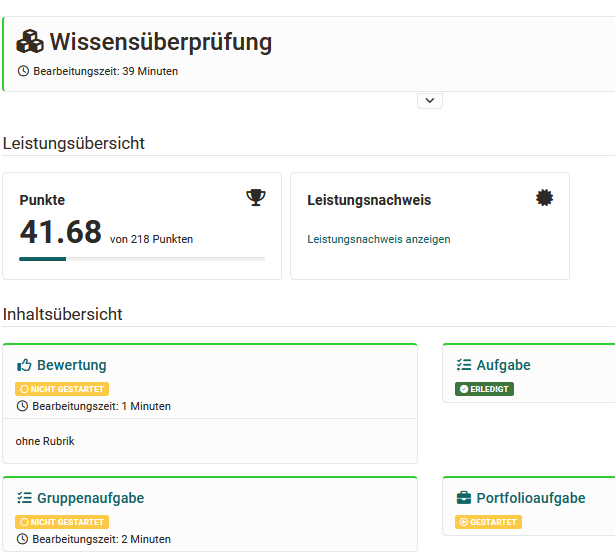
The chosen course format
Learning path or not?
The concrete setting options depend on whether the course element is used in conventional or in learning path courses. The tab bar of the course element tells you which course format you are looking at: A tab "Learning path" identifies the course as a learning path course, the tabs "Visibility", "Access" and "Score" identify it as a conventional course. Here the tabs in comparison:
Tabs in learning path courses

Tabs in conventional courses

A further special case is the topmost entry in the course editor: the course root node. It is a structure element as well, even though it does not look like one: It carries the symbol of the course and not the symbol of the structure element . It therefore has the same tabs as any other structure element, but it is the only one that carries the tab "Reminders". In addition, deleting and moving are not possible for the course root node.
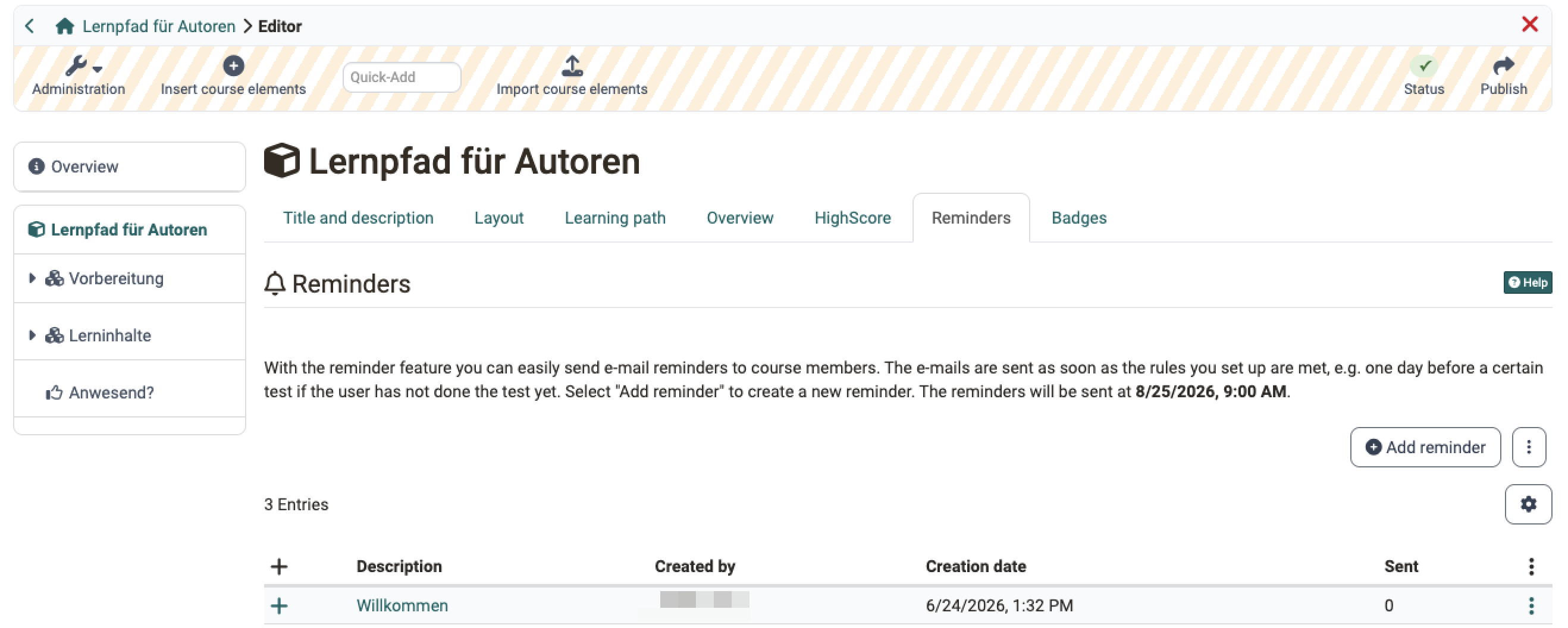
In the course editor, the tabs of the structure element appear in this order:
- Title and description and Layout: identical in both course formats, described under Course elements in the course editor.
- Learning path in the learning path course, or Visibility and Access in the conventional course. On the tab "Learning path" see Settings in the learning path course, on "Visibility" and "Access" the general description and for the password protection of the structure element the Tab Access.
- Overview, Score only in the conventional course, and HighScore: the tabs of the structure element itself, described on this page.
- Reminders only on the course root node, Badges only if the awarding of badges is activated.
Tab Overview
The central settings are made in the "Overview" tab. You can choose between four display modes for the course element "Structure" in the tab Overview and thus generate an automatically generated overview, integrate your own HTML page or simply display the first subordinate course element.
- Automatic overview generates a list of the subordinate course elements. You can additionally select whether all or only certain course elements are displayed and whether the display should be in one or two columns.
- Automatically generated overview incl. preview also generates a directory of the subordinate course elements, but also displays a preview for some course elements. The exact preview varies depending on the course element. The configuration options for this setting are similar to those for the automatic overview. Furthermore, it can be set whether the preview refers to all course elements or only to structure elements. However, the user does not see a preview for course elements to which he does not (yet) have access.
- Custom HTML page allows you to create your own information page instead of the automatically generated overview. Therefore, you can select an HTML page from the storage folder, create a new HTML file or import a suitable file. Text, images etc. can then be added in the OpenOlat HTML editor in a similar way to the HTML page course element. In addition, the "Display content" tab appears and further specific settings for HTML pages can be made.
- If you select the radio button «No overview, activate first visible child node», the first visible subordinate course element will be displayed instead of an overview.
Important
If you have chosen your own HTML page and this contains links to graphics or other files stored in OpenOlat, you must select the option "Allow links in the entire storage folder" under "Security settings". You can also allow coaches to edit the HTML page without access to the course editor.
Tab HighScore
Here you can activate and configure the high score display. You can display a congratulation title, a winner's podium, a histogram as well as a highscore list. An anonymized representation is also possible here.
Tab Badges
If the owner of the course has activated the awarding of badges under Course > Administration > Settings > Assessment in the section Badges, the "Badges" tab is displayed in the course editor for this course element and a specific badge can be created for this course element.
Settings by course format
All tabs described so far behave identically in both course formats. The differences concern only a few tabs: In the learning path course, the standard case, the tab "Learning path" is added. In the conventional course, the tabs "Visibility", "Access" and "Score" are added instead.
Settings in the learning path course
The settings in the tab "Learning path" basically differ from the settings of the other course elements in learning path courses. For learning path courses, the course element Structure defines whether the sequence of learning steps of the subordinate course elements is sequential (one after the other) or flexible, without a given order. Under Execution you additionally define whether the structure element is "Part of learning path" or "Excluded". There is no specific completion criterion for structure elements.
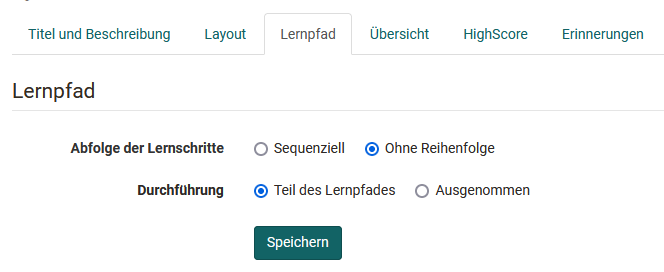
Further information on the tab can be found here.
Deviations in the conventional course
The conventional course has two tabs on the structure element that do not exist in the learning path course: "Score" and "Access".
Tab Score
Can't find the «Score» tab?
Then you are working in a learning path course. There you set the assessment of the course in a different place: Course > Administration > Settings > Assessment, section "Assessment settings". You find the description under Course settings - Assessment tab.
Conventional courses have the "Score" tab. Here points that were collected in other assessable OpenOlat course elements (e.g. assessment, group/assignment, SCORM 1.2, checklist, LTI page, portfolio task, test ) be added up and a pass/fail result displayed. The summarized results appear when you click on the course element Structure in the current course.
The following settings are possible:
Calculate score: Under Total score of, an overview of all assessable course elements of your course appears, which you can take into account when calculating the points. Select either all or specific course elements and OpenOlat adds the respective points. It is also possible to calculate an average value instead of a total. This makes sense, for example, if all course elements have the same maximum number of points. Course elements that do not (yet) contain a rating are not taken into account in the calculation. The calculated value is displayed to the participants after the assessment under "Score".
Calculate passing score: Pass or fail can refer to a minimum score that you define, or to passing selected course elements. If you select «As of minimum score», enter the minimum score. It refers to the course elements selected under "Total score of": The course element Structure shows «Passed» if their total score is greater than or equal to the minimum score.
If you select «Adopt from course element», OpenOlat shows the assessable course elements of your course under Relevant course element. Select those whose "Passed" value should count. Under Passed if you define how many of them have to be passed:
- All relevant course elements passed: The course element Structure shows «Passed» only when every selected course element is passed.
- A certain number of the relevant course elements passed: Under Number of course elements to pass, enter how many of the selected course elements have to be passed. The number must be smaller than the number of selected course elements. This is how you model an elective requirement, for example: Three out of five tests must be passed.
The selection covers the whole learning resource
Under "Total score of" and "Relevant course element", OpenOlat offers all assessable course elements of the course, regardless of where they are located in the menu. A structure element can therefore show "Failed" although all course elements below it are passed: for example, if a test from another chapter is also selected as relevant. In case of unexpected results, first check the selected course elements in the "Score" tab.
Calculate failed score: It is also possible to calculate "Failed".

- As long as the conditions for passed are not reached, the structure is shown as "Failed".
- As long as the conditions for passed are not reached and the end date of the course is reached, the structure is shown as "Failed". If the conditions for "passed" have already been fulfilled before the end of the course, passed is already displayed during the course duration.
If certificates of achievement are to be issued for a course, it is necessary to adjust the settings in the "Score" tab accordingly.
For participants, the performance overview is as follows:
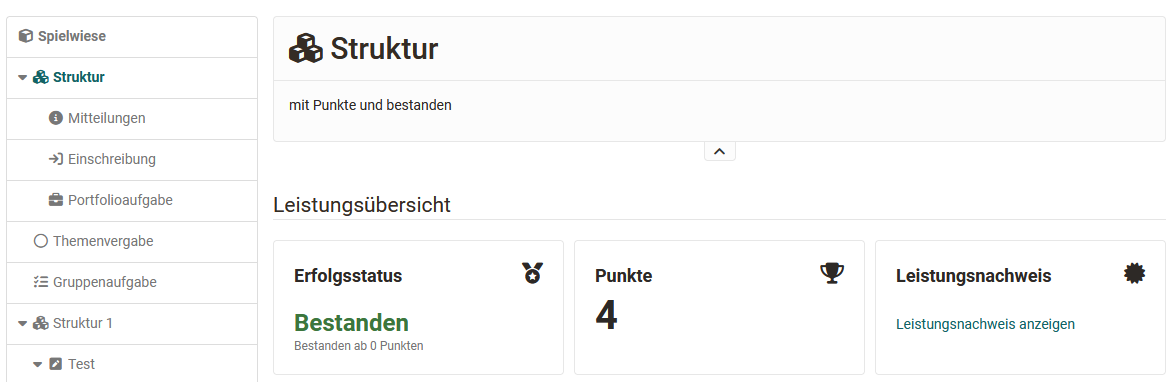
Note
In case you wish to utilize an evidence of achievement or be able to check the Passed status in the Coaching tool, you must check the option Calculate passing score? in the course root node.
Hint
Use distinct short titles for all of your assessable course elements to be able to clearly distinguish them in the tab "Score."
When the configuration is read-only
The configuration in the tab "Score" cannot always be changed right away. As soon as assessments exist for the structure element, OpenOlat displays it as read-only. The reason: every change to the assessment rules acts back on all existing assessments. The read-only mode makes sure that you trigger this intervention deliberately and not in passing.
OpenOlat tells you so with a message above the configuration: "Assessments already exist, so the configuration is displayed as read-only. To make changes, you must disable read-only mode - this will cause all existing assessments to be recalculated."
Click on Enable editing to lift the read-only mode. The button carries the symbol of an open lock. Afterwards the fields are editable again, and in place of the message the warning appears: "You are currently editing the assessment configuration, even though assessments already exist. Saving and publishing your changes will cause all existing assessments to be recalculated. This action cannot be undone."
If no assessments exist yet, the tab is directly editable. Message and warning do not appear then.
Important
The same protection exists in the learning path course, only in a different place and at a different moment. There you set the course assessment under Course > Administration > Settings > Assessment. If participants have already been assessed, the form is not read-only: instead OpenOlat opens the dialog "Save settings" when you save, and there you decide between Apply & recalculate and Discard.
Recalculation when publishing
If you publish a change that includes a structure element or the course root node, OpenOlat immediately recalculates the assessments of all affected participants: score, success status and, if a grading is configured, the grade. The evidence of achievement is updated as well.
Coaches therefore see a consistent state directly after publishing. The participants do not have to open the course for this. The recalculation runs in the background, no manual action is needed.
Tab Access
The course element "Structure" and thus its subordinate course elements can be protected with a password in conventional courses. To do so, tick the box "Password" and enter the code you want.
Attention
On the course root node, no password can be stored in the "Access" tab.
Further information
Mentioned on this page
Course Reminders >
Course elements in the Course editor >
Learning path course - Course editor >
Course Settings - Tab Assessment >
Further reading
Types of Course Elements >
Learning path course - Overview >
Assessment tool - overview >