Course Element "Microsoft Teams"
Profile
| Name | Microsoft Teams |
|---|---|
| Icon | |
| Available since | Release 15.4 |
| Functional group | Communication and collaboration |
| Purpose | Integration of the Microsoft Teams web conferencing software |
| Assessable | no |
| Specialty / Note | Microsoft Teams is commercial software. To use the course element, a separate license and server hosting is required. |
Video Introduction (German): Microsoft Teams
Software functions
Microsoft Teams enables virtual rooms for synchronous online meetings with webcam and audio support.
System requirements
MS Teams can be used both as an app and in the MS Edge browser.
Recommendation
For full use of all features, in particular the breakout rooms, the MS Teams desktop app on Windows or macOS is recommended. Not all features are available in the web browser or on Linux, iOS, and Android.
Roles in MS Teams
There are three roles in an online meeting with MS Teams:
| Role | Who | Rights |
|---|---|---|
| Organizer | Automatically the person who starts the online meeting first, exactly one person per online meeting | Create breakout rooms, settings in MS Teams, full control |
| Presenter | All persons according to the Presenters setting of the online meeting (see Presenters options in detail) | Share screen, manage content |
| Attendee | All other participants | Listen and watch |
Note: First Joiner = Organizer
The first person to start an online meeting automatically receives the Organizer role, regardless of the Presenters setting in OpenOlat. This role cannot be changed or reassigned afterwards, neither in OpenOlat nor in Microsoft Teams.
In permanent meeting rooms with rotating coaches, only the person who started the online meeting first has permanent access to advanced features such as breakout rooms. If a different person is to act as organizer, a new online meeting must be created.
Create online meetings with closed course editor
So that participants can enter an online meeting with Microsoft Teams directly from the course, course owners and coaches create online meetings for it. This is done in the running course, not in the course editor. Open the course element "Microsoft Teams", then open the selection Add online-meeting in the tab Meeting management:
Course element "Microsoft Teams" > Meeting management > Add online-meeting
Variants when creating online meetings
The selection Add online-meeting offers four variants:
- Add online-meeting: a single online meeting with a start and an end.
- Add permanent meeting room: an online meeting without a date that is permanently open. The variant only appears if the system administration has left the option Online-Meetings without date/permanent set to "On". "On" is the default.
- Add daily recurring meeting: one online meeting per working day, Monday to Friday, in a selected period.
- Add weekly recurring meeting: one online meeting per week in a selected period.
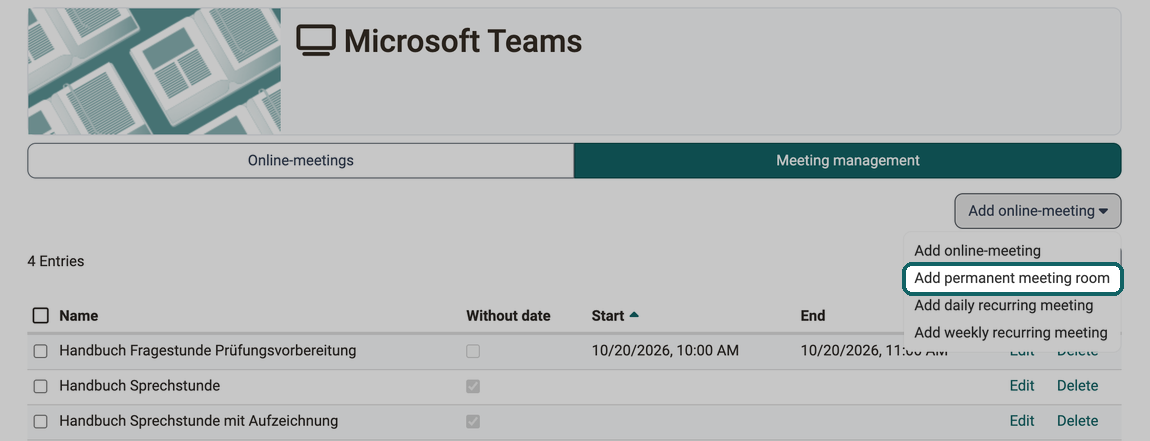
Each variant creates separate online meetings, for recurring meetings one per date. In the tab Meeting management, the link Edit opens each online meeting individually. Once an online meeting including its follow-up time is over, View appears there instead. The link Delete removes an online meeting after a confirmation. To delete several online meetings together, select them and then choose Delete.
Add online meeting: The settings in detail
Configuration Online Meeting
- Name: Name of the online meeting. Mandatory field.
- Creator: The name of the person who creates the online meeting is displayed automatically.
- Description: Description of the online meeting. It appears in the detail view of the online meeting before participants join the online meeting.
- Main presenter: The name of a person can be entered here. The name of the person who creates the online meeting is pre-filled.
- Guests: The checkbox allowed lets persons who are not logged in take part in the online meeting. This option is only visible if the course is publicly accessible and guest access is enabled.
- Access external users: A reference, a unique word without special characters. OpenOlat generates a link from it that you share with external persons, e.g. by e-mail. Owners and coaches find it on the page of the online meeting under "Link for external users" until the online meeting has ended. The icon in front of it shows the link as a QR code. If the field is left empty, access via the link is deactivated.
- Show room bookings: Calendar view for checking booked online meetings.
- Meeting recording: Switches the recording on or off for this online meeting. The switch only appears if the system administration has switched the function on. What the setting does and which fields are added is described in the section Meeting recording.
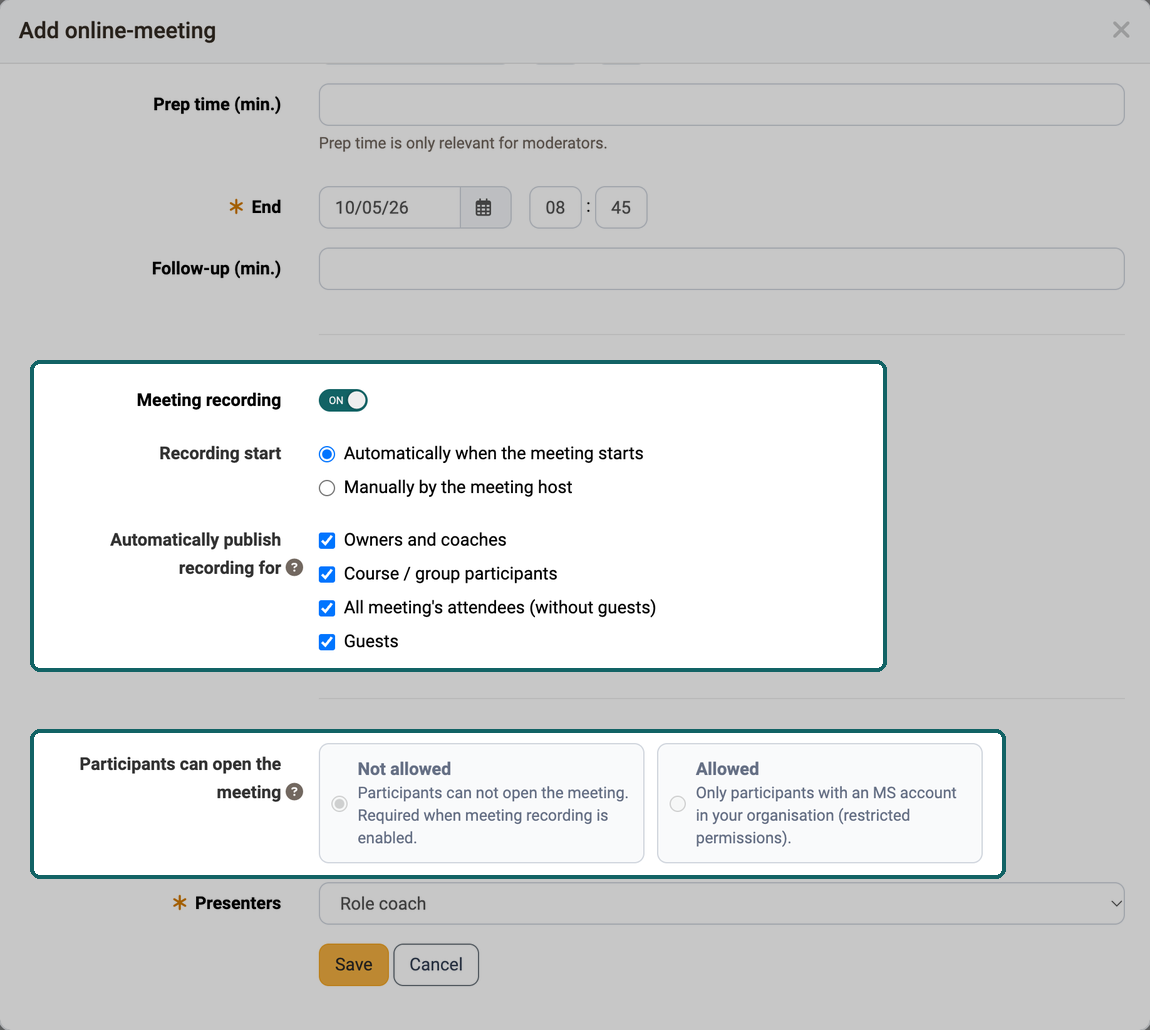
- Participants can open the meeting : Determines whether participants may start the online meeting without a coach being present. Two cards are available. "Not allowed" is preselected. With "Allowed", participants with a Microsoft account of the organisation may open the online meeting with limited permissions. If a participant opens the online meeting, no group rooms (Breakout rooms) are available to the coaches. If meeting recording is switched on, the selection is fixed to "Not allowed". The cards only appear if the server configuration is set up for it.
- Presenters: Determines who receives the Presenter role in MS Teams (see Roles in MS Teams). Mandatory field.
Presenters options in detail
| OO setting | Who becomes Presenter in Teams |
|---|---|
| Role coach / owner | Only course coaches and owners; all other participants become Attendees |
| Organisation | All users of the Azure organisation automatically receive the Presenter role when joining |
| Everyone | All participants become Presenters |
Important
The settings of an online meeting can only be changed as long as it has not been started. After that, the form only displays the settings. To apply different presenter settings, a new online meeting must be created.
For online meetings with a date
- Start: Date and time at which the online meeting begins.
- Prep time (min.): Time in minutes before the start during which owners and coaches can already start and enter the online meeting. For participants, the online meeting only opens at the start.
- End: Date and time at which the online meeting ends.
- Follow-up (min.): Follow-up time during which the online meeting can be extended for all persons.
Important
For daily or weekly recurring online meetings, you also define Start recurring date and End recurring date. In the next step, the wizard lists all dates of this period. There you can delete individual dates or add dates via Add online-meeting.
In the configuration of an online meeting, the link Show room bookings opens a calendar with all Microsoft Teams online meetings of the instance that have a date, both when creating and when editing. Permanent meeting rooms without a date do not appear in it. Despite its label, the calendar does not show room bookings from the "Rooms" module, only online meetings. For daily or weekly recurring online meetings, the button Show room bookings is in step 2 of the wizard, above the list of dates. This makes it easier to identify time bottlenecks or heavy system load at an early stage and, if necessary, to select another date.
In the tab Online-meetings, you open a specific online meeting.
Meeting recording
Whoever records an online meeting wants to show the recording to the participants afterwards without sending files. With meeting recording, OpenOlat fetches the finished recording from Microsoft Teams, stores it with the online meeting and displays it there. You determine who may see it via roles. If a number of days is entered in the system administration under "Delete recordings automatically", OpenOlat then deletes the recording automatically.
Meeting recording belongs to the online meeting, not to the course element. It therefore works the same in all places where online meetings with Microsoft Teams are created: Course element "Microsoft Teams", "Course events", Course element "Appointment scheduling", Groups and Supervisor chat.
The prerequisite is that the system administration has switched on the function "Meeting recording", see Microsoft Teams module. Otherwise the settings are missing in the online meeting, and OpenOlat does not fetch any recording. A recording that someone starts directly in Microsoft Teams then stays in Microsoft Teams.
Settings in the online meeting
When you create or edit an online meeting, you define whether and how it is recorded. The default values come from the system administration, and you can change them for each online meeting.
- Meeting recording: With "On", the online meeting may be recorded. All persons must then check I agree on the page of the online meeting before entering, and the selection "Participants can open the meeting" is fixed to "Not allowed". OpenOlat remembers the consent for this online meeting when the person joins and pre-checks it on the next visit. This does not apply to persons logged in as guest. With "Off", nothing is recorded, and the page of the online meeting shows no recordings.
- Recording start: "Automatically when the meeting starts" or "Manually by the meeting host". The setting takes effect at the first start of the online meeting. The person who starts it for the first time sees the checkbox Start recording automatically next to the button Start the online-meeting. It is pre-set according to this setting and can be changed before the start. After that, the page shows all persons the button Join the online-meeting and no checkbox any more, even if the meeting in Microsoft Teams has already ended.
- Automatically publish recording for: The roles that see the recording after the online meeting: "Owners and coaches", "Course / group participants", "All meeting's attendees (without guests)" and "Guests". If no role is selected, OpenOlat does not publish the recording automatically. You then publish it manually after the online meeting.
The two fields "Recording start" and "Automatically publish recording for" only appear when meeting recording is switched on.
The image only shows the lower part of the form. The other fields, for example the link Show room bookings, are described in the section Add online meeting: The settings in detail.
Recordings after the online meeting
If you want to view or release the recording after the online meeting, you find it on the page of the online meeting in the list Recordings. OpenOlat fetches recordings from Microsoft Teams once per hour, at the earliest 15 minutes after the end of the online meeting. Online meetings without a date are included in every fetch. Until a recording is in the list, the list shows "There is no recording available for this online-meeting at this time."
It is faster for the Organizer, that is the person who started the online meeting first (see Roles in MS Teams). When they open the page with their Microsoft login, OpenOlat asks Microsoft Teams right away and enters existing recordings in the list immediately. A recording entered this way can only be opened after the hourly fetch, because OpenOlat stores the file at that point.
The list shows Name, Start, End and the link Open for each recording. "Open" displays the recording in OpenOlat, where it can also be downloaded. The link appears as soon as OpenOlat has fetched the file, and only if the recording is published for a role of the person. This also applies to owners and coaches.
The image shows the page of an online meeting shortly after the end: the recording is in the list, the column Open is still empty. Above it are the notice Recordings with I agree and the button Join the online-meeting. Next to the button, the name from your Microsoft account under which you join is shown in brackets, not your name in OpenOlat.
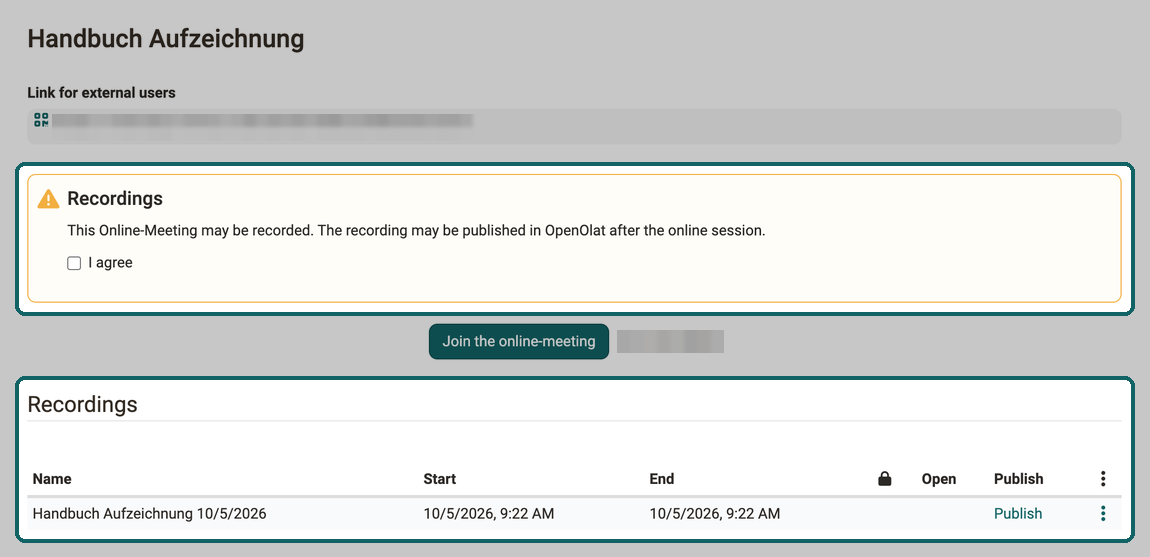
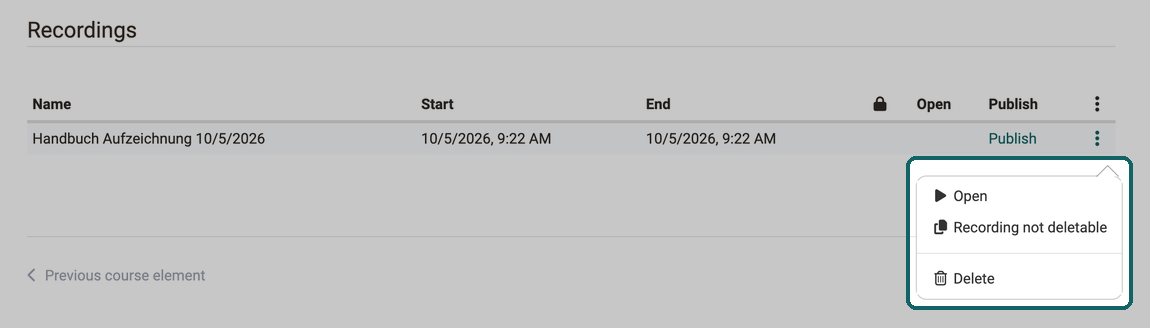
Owners and coaches additionally see the column Publish and, for each recording, the menu More actions at the end of the row. If a number of days is entered in the system administration under "Delete recordings automatically", the column "Will not be automatically deleted" (lock icon) shows them which recordings are excluded from it.
Publish opens the window "Publish to:" with the same four roles as in the online meeting. The roles for which the recording is already published are selected. The button Publish applies the selection. This way you release a recording afterwards or withdraw the release.
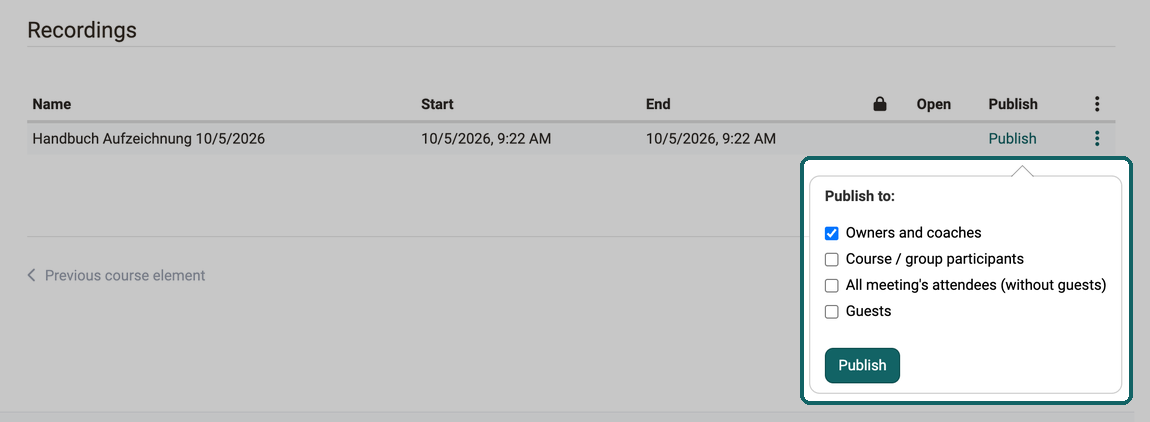
The menu More actions of a recording offers three actions:
- Open: displays the recording as soon as OpenOlat has fetched the file. Before that, the action has no effect. Unlike the link in the list, it does not depend on the roles for which the recording is published.
- Recording not deletable: excludes the recording from automatic deletion, for example a lecture that is needed permanently. For a recording marked this way, Recording deletable appears in the same place, which removes the exception again.
- Delete: deletes the recording permanently after a confirmation. The online meeting remains.
Automatic deletion only affects recordings, never the online meeting. The system administration defines the number of days.
Breakout Rooms
Breakout rooms can only be created and managed by the Organizer of an online meeting (see Roles in MS Teams).
Supported platforms: Breakout rooms are only available in the Teams desktop app on Windows and macOS: not in the web browser and not on mobile devices.
Restrictions on participant assignment: The following persons cannot be assigned to breakout rooms:
- Persons with a Teams Free account
- Persons on unsupported devices (e.g. CVI conferencing devices)
- Offline participants or persons with an outdated Teams version
Further restrictions: Breakout rooms are not available for cancelled or deleted online meetings, in private or shared channels, or when restricted by admin policies.
Capacity: A maximum of 300 participants per online meeting is supported. If this limit is exceeded, the breakout room function is automatically disabled. Rooms expire after 60 days of inactivity.
Display in the course calendar
If you want to keep track of the online meetings of the course, you find them in the course calendar. OpenOlat automatically enters every online meeting with a date that is created in the course element there. The calendar entry contains a link that leads directly to the online meeting. Participants can subscribe to the course calendar.
Important
Only appointments with a defined start and end date appear in the course calendar. Permanent meeting rooms without a date are not displayed in the calendar.
Video Introduction (German): Subscriptions
Start the online meeting
So that participants can join an online meeting, an owner or coach of the course starts it on the page of the online meeting: tab Online-meetings, then Select. To do so, they must be logged in to OpenOlat with the Microsoft account of their organisation, see External tools: Microsoft Teams. The page then shows the button Start the online-meeting. It is active from the start minus the prep time, for online meetings without a date at any time. If the online meeting is already running, the button is called Join the online-meeting. Next to it is the name under which the person joins.
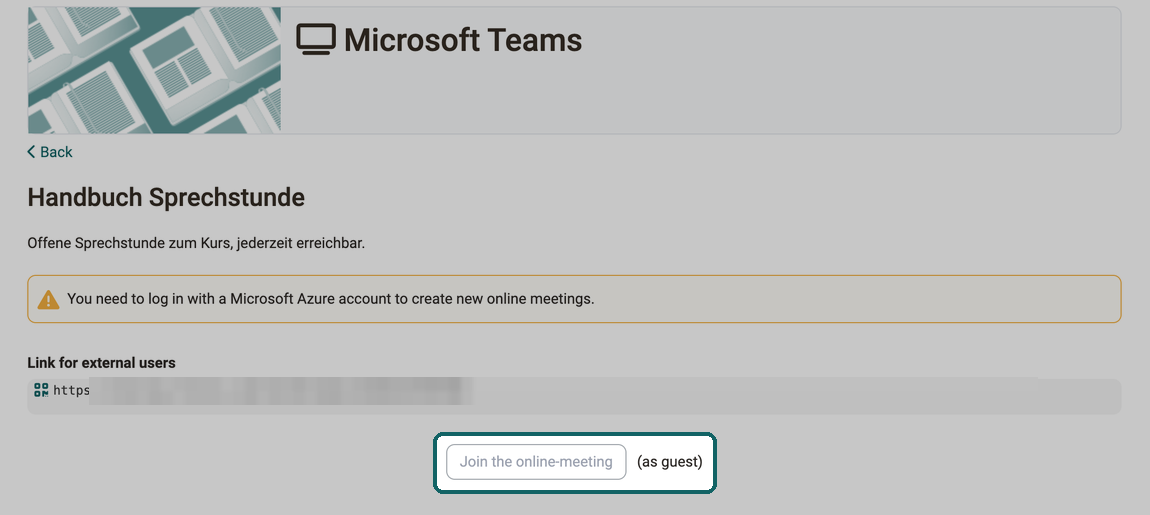
Without a Microsoft login, the page also shows owners and coaches the warning "You need to log in with a Microsoft Azure account to create new online meetings." The button Join the online-meeting then stays locked until someone with a Microsoft login has started the online meeting. Next to it is "(as guest)". The same applies to participants if the online meeting allows them to open it.
Participant view
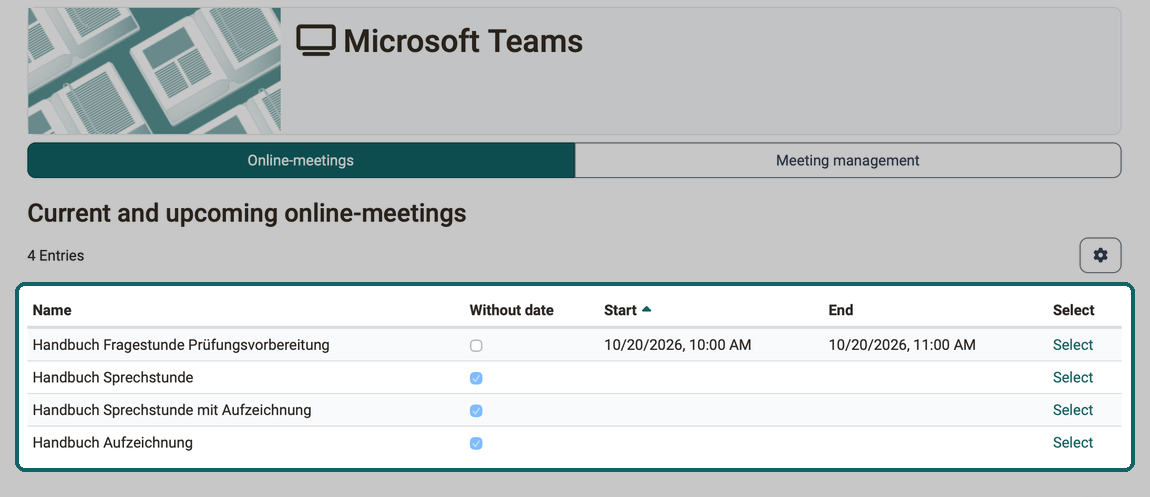
When a participant opens the course element, the list Current and upcoming online-meetings appears. If there are past online meetings, the list Past online-meetings follows below it. Online meetings without a date are marked in the column Without date and always appear in the first list. A click on Select opens the page of the respective online meeting. Owners and coaches see the same list in the tab Online-meetings, next to it the tab Meeting management.
Join the online-meeting opens the online meeting in Microsoft Teams in a new window. As long as nobody has started the online meeting, the button is not active for participants. Next to it is the name under which the person joins, without a Microsoft login "(as guest)". How owners and coaches start the online meeting is described in the section Start the online meeting. Whether participants may also open the online meeting without a coach is determined by the setting Participants can open the meeting (see Add online meeting: The settings in detail).
If meeting recording is switched on for the online meeting, the section Recordings appears above the button: "This Online-Meeting may be recorded. The recording may be published in OpenOlat after the online session." You only enter the online meeting once you have checked I agree. After the online meeting, the recording appears on the same page in the list Recordings. With Open you view it, provided it is published for your role. Guests only see a recording if the role "Guests" is selected. Details: Meeting recording.
Important
Joining is no longer possible for online meetings that have ended. The page of the online meeting then shows "The online-meeting has already ended."
Troubleshooting
For application-specific issues, Microsoft's official help is available:
Microsoft Help: Troubleshoot in Microsoft Teams
Further information
Mentioned on this page
Microsoft Teams module >
External Tools: Overview >
Microsoft Help: Troubleshoot in Microsoft Teams
Further reading
Virtual classrooms >
Course Element "Zoom" >
Events and Absences >
Using Group Tools >
youtube
Microsoft Teams
Subscriptions