Assessment tool - reset data
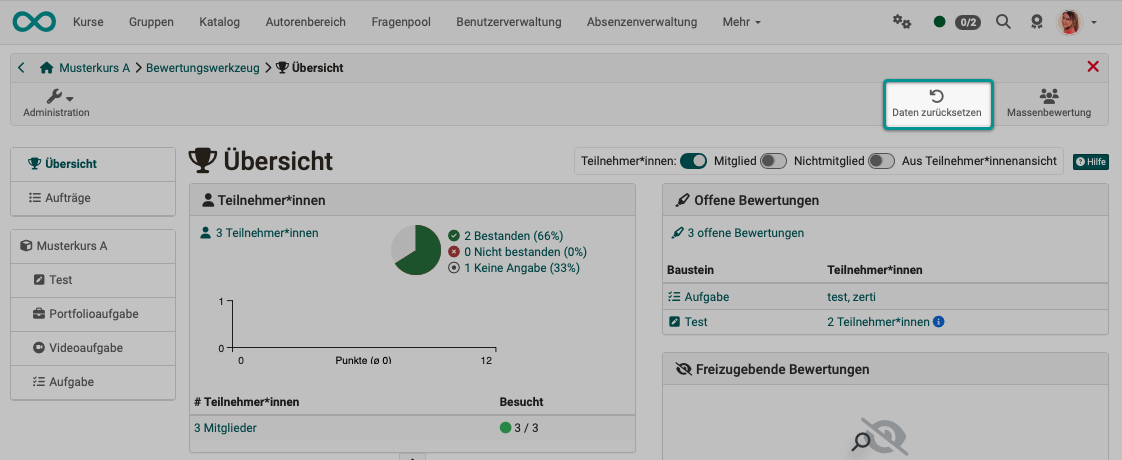
With the help of the wizard the data of participants of a course can be reset. The reset can be done for the whole course or only for selected course elements for all or selected participants.
However, you can also reset data for specific participants or course elements selectively without using the wizard.
Depending on the course module or course configuration, progress, number of attempts, points, success status, assessment approvals, and reminders, for example, are reset.
Back up your data before resetting
Before the data is permanently reset, the old results can be downloaded and saved.
Securing the entire course
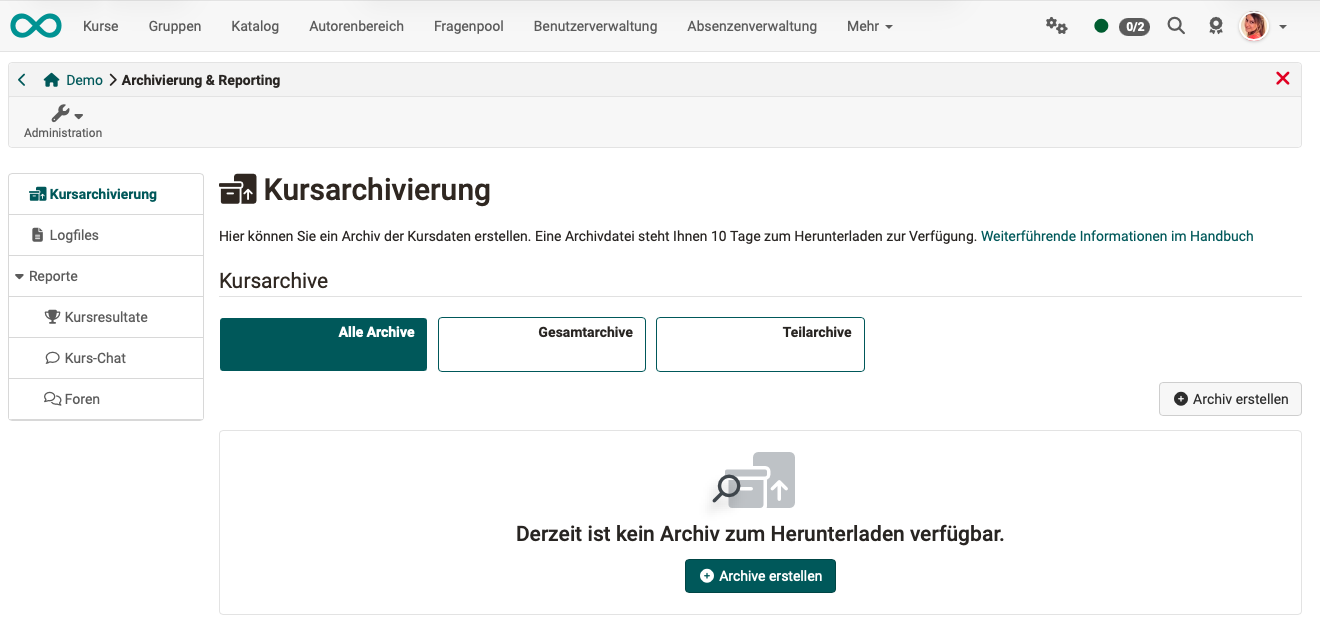
Under Course > Administration > Archiving & Reporting you can generate reports of the course results.
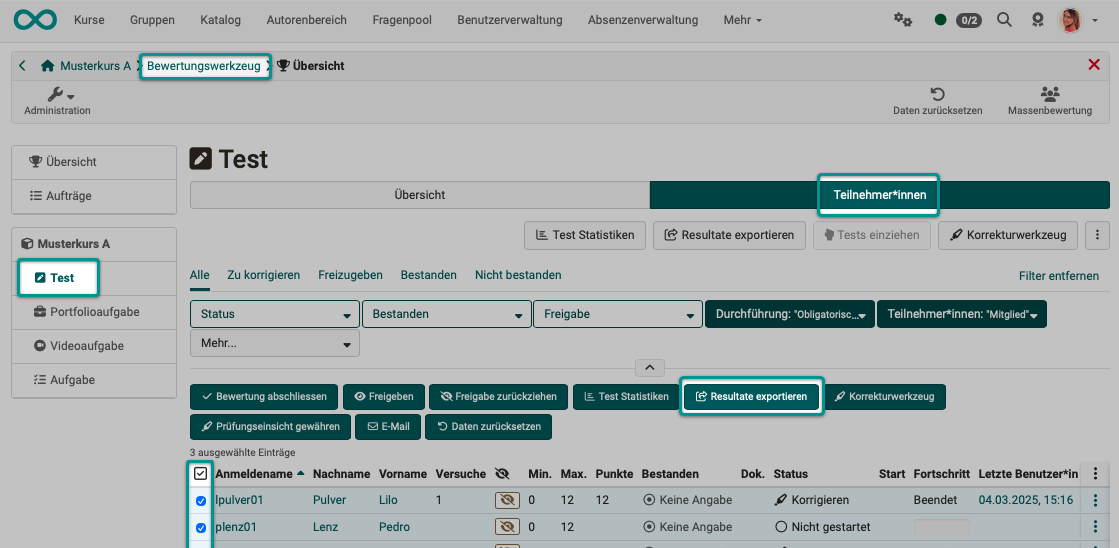
Saving a course element "Test"
The data for a course element "Test" can be downloaded and saved as a zip file in the assessment tool.
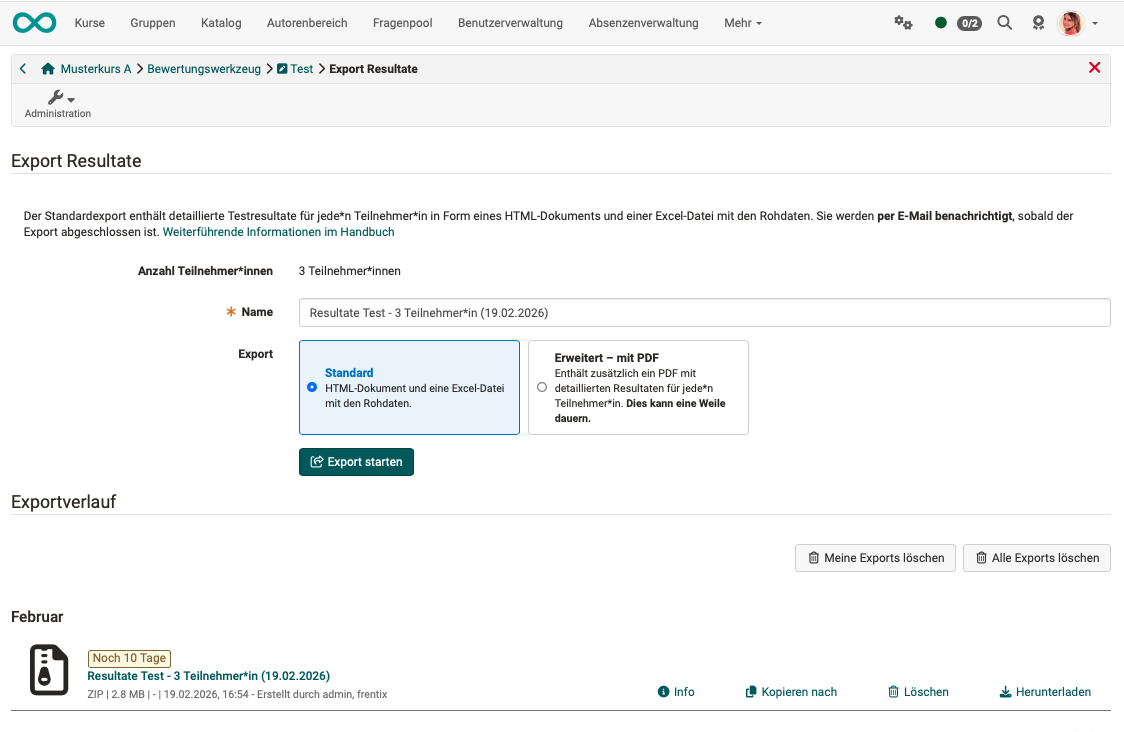
The generated zip files are then listed at the bottom of the screen and can be downloaded.
Prerequisite/authorization for reset
Course owners can always reset data.
Coaches can only reset data if they have been granted permission to do so. To do this, a course owner must:
- Open course → Administration → Settings
- Call up "Assessment" tab
- Under "Administrators can," activate the "Reset data" option.
- Save
Reset data with Wizard
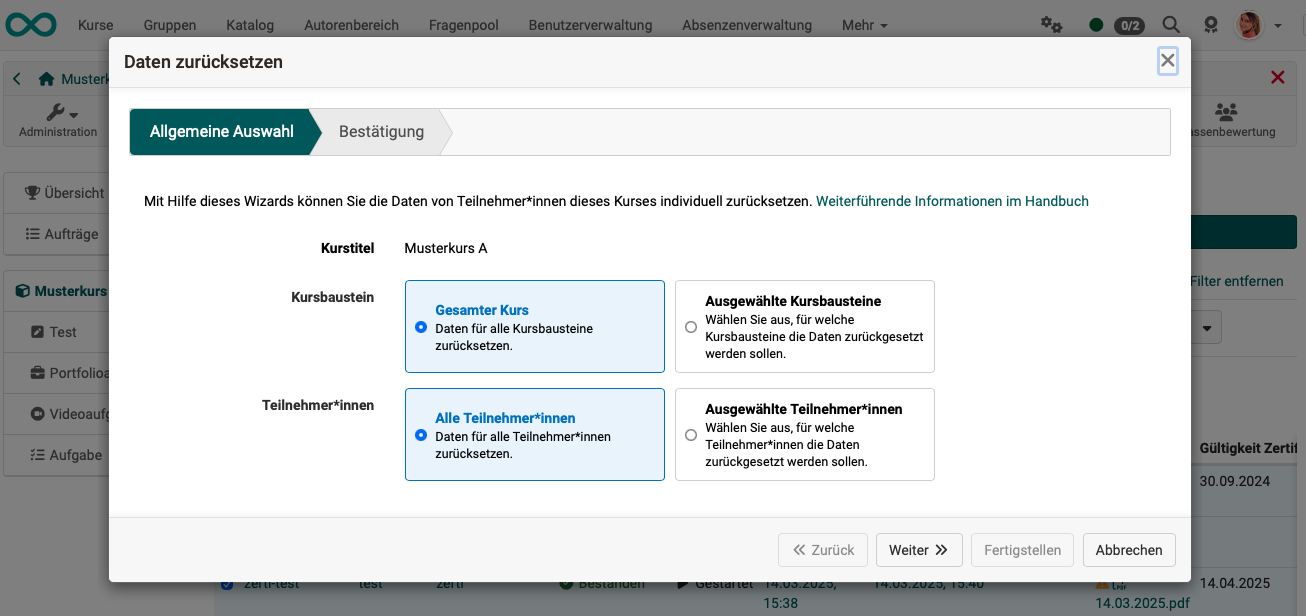
If you select the options "Selected participants" and "Selected course elements" in the wizard, you will be guided through the sub-steps in the wizard and asked again at the end whether you want to proceed with the reset.
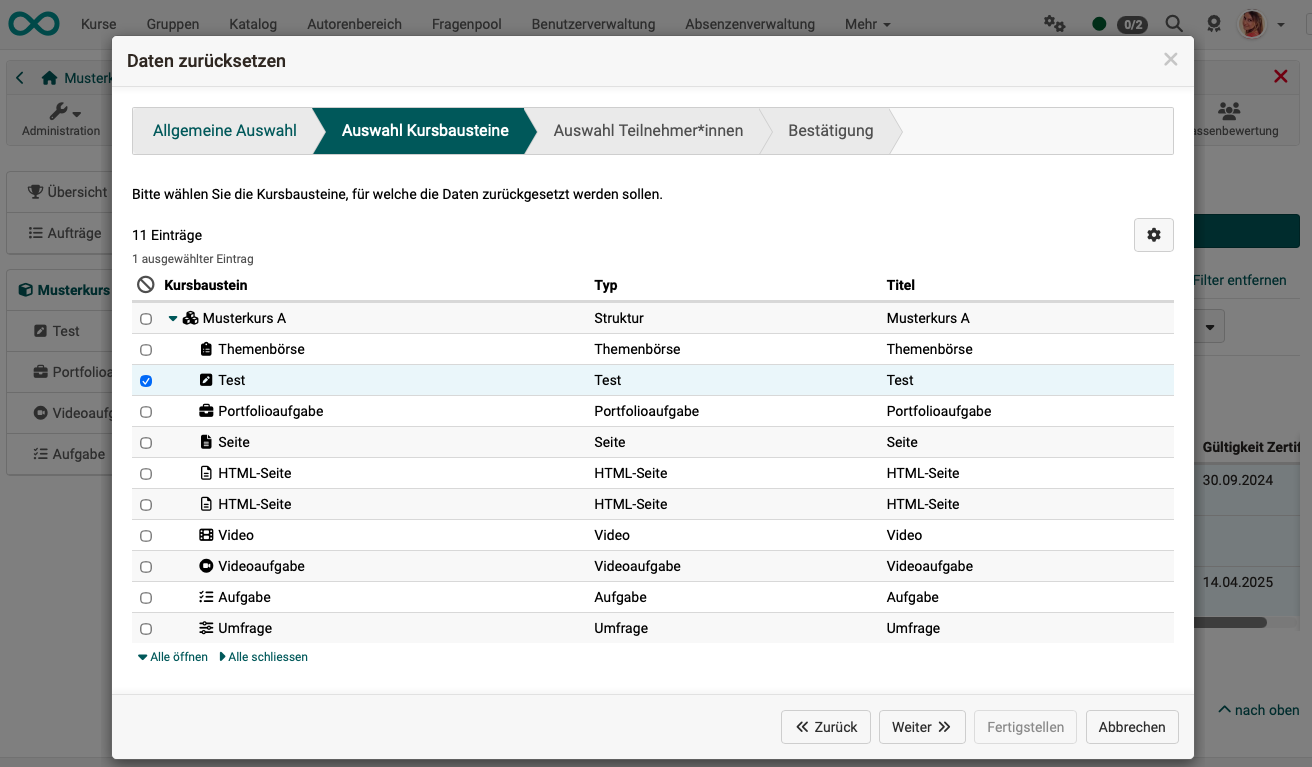
Reset data for specific participants without using the wizard
Reset in the assessment tool
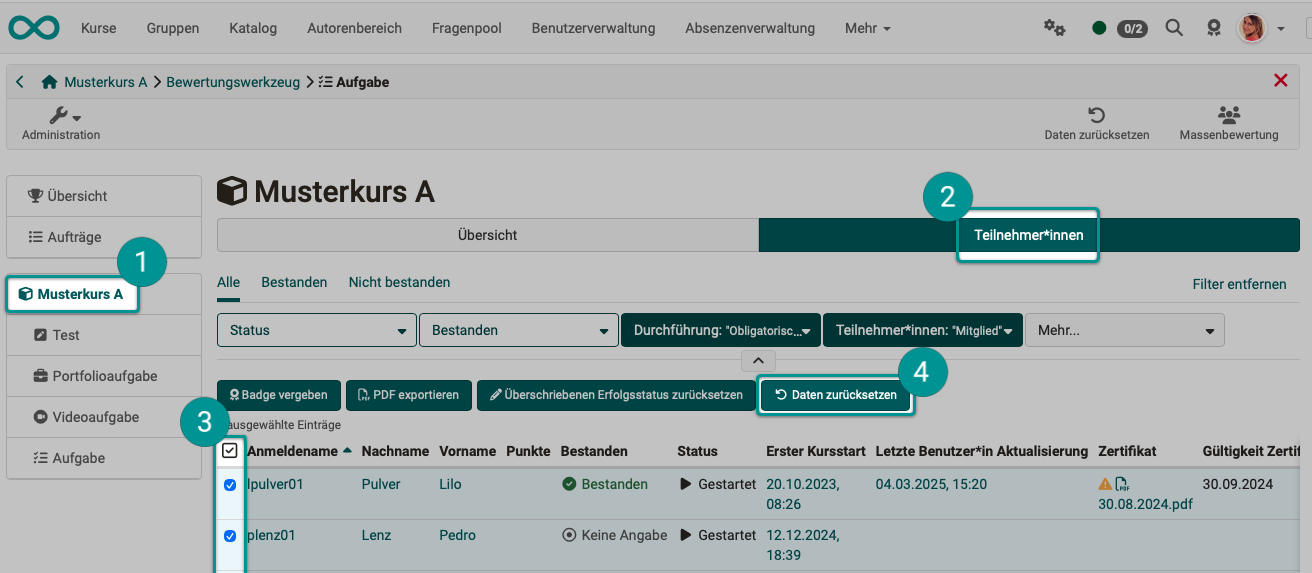
- Open course → Administration → Assessment tool → Select course element
(When you click on the root element of the course (top level), the following steps apply to all course elements.) - Select tab participants
- Click on a participant in the table → Participant overview opens.
For multiple participants, select the corresponding checkboxes in the first column. - As soon as at least one person is selected, additional buttons appear above the table. After clicking on the "Reset data" button, the data of the selected persons will be reset after a security prompt.
Reset in the Learning Path Tool
- Open course → Administration → Select Learning Path Tool

- A list of participants will open. Select a participant from the table.
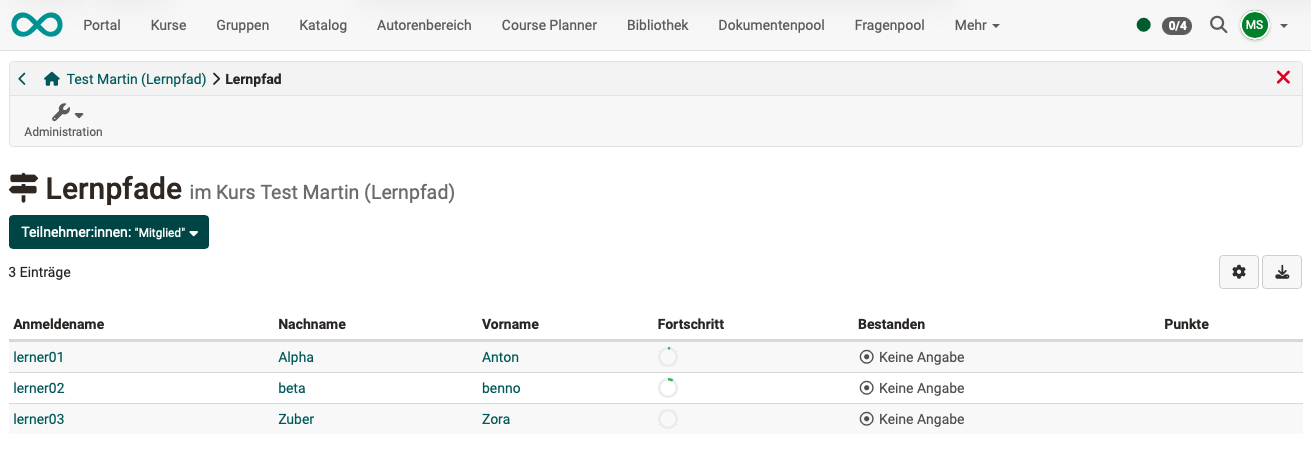
- Click on the three-dot icon at the end of a line. There you will find the option "Reset data". You can reset data for individual course elements or for the course as a whole by selecting the top icon for the entire course.
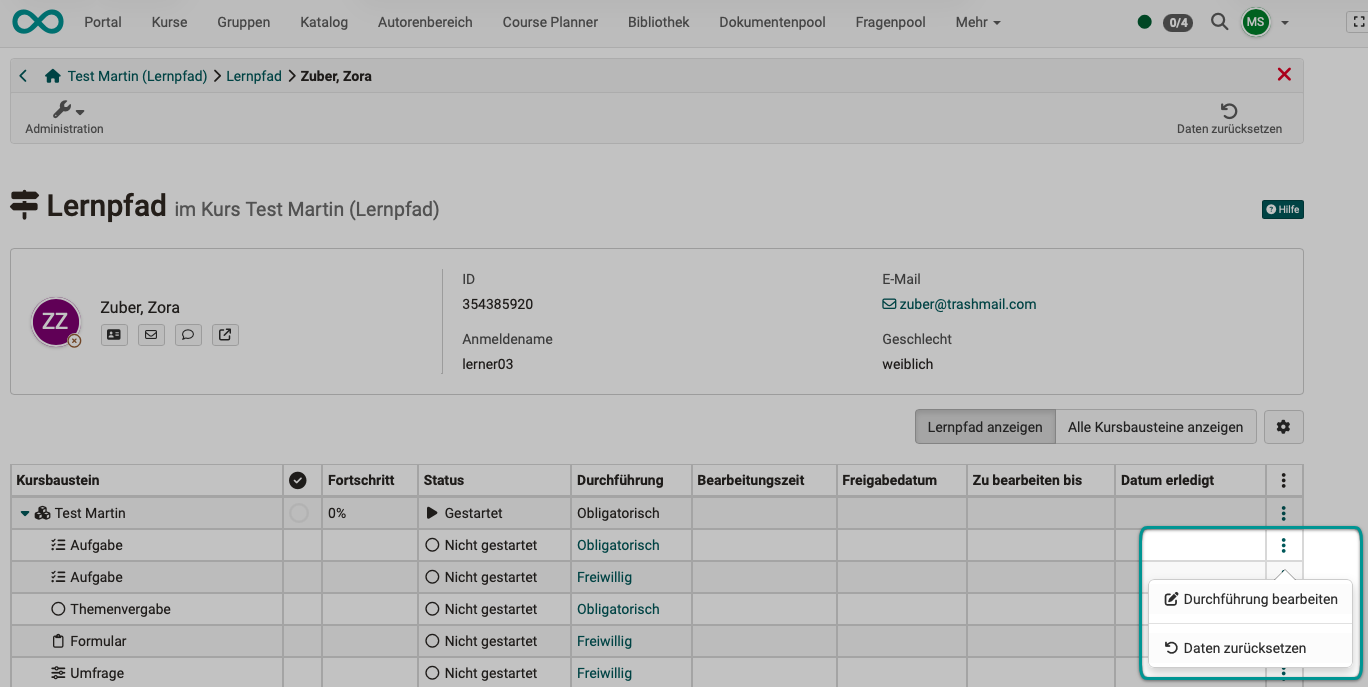
Reset data for specific course elements without using the wizard
Depending on the course module, the following data will be reset or canceled:
- Progress
- Number of tries
- Test runs
- Points and success status
- Share rating
- Reminders
When resetting, a corresponding archive file containing the relevant data is created and then downloaded. The archive is also available for download in the participants' performance records.
Impact of resetting
Impact in the assessment form
| Attribute | Impact |
|---|---|
| Status | Set to "Not started" |
| Release assessment status | Set to "Not released" |
| Number of attempts | Reset to 0 |
| Score | Reset |
| Success status | Set to "Undefined" |
| Comment for other coaches | Reset; Export "assessment_coach_comment.txt" to archive |
| Individual comment / comment for participant | Reset; Export "assessment_comment.txt" to archive |
| Individual assessment documents | Reset |
Impact on comments & ratings
Comments and ratings on course elements and the course are retained.
Impact on course reminders
The information about sent reminders will be deleted. (Applies only if the entire course is reset).
Impact on evidence of achievement
The performance record is versioned at the time of the reset. It remains visible in the personal menu.
Impact on certificates
If the entire course is reset, the certificate will be reissued after successful completion of the course.
Once acquired, certificates are stored with the participant's data and can still be viewed in the personal menu, even if a certificate has expired or a course has been deleted entirely.
Impact on course elements
Resetting the data has an individual effect on the course elements.
If the course element triggers an export to the archive, this will always be created even if no data is available.
| Course element | Impact |
|---|---|
| Appointment scheduling | Registrations retained |
| Assessment | Form reset; Export of results to archive |
| Blog | Entries retained |
| Checklist | All checkboxes reset; Export results to archive |
| Enrollment | Enrollments in groups are removed |
| File discussion | Files, topics and posts are preserved |
| Folder | Contents are preserved |
| Form | Form reset; Export results to archive |
| Forum | Topics and posts are preserved |
| Group Task | When entire group is reset: All workflow data (assignment, documents, extensions) reset; Export of all documents for each participant to archive |
| LTI | Assessment form reset |
| Podcast | Entries are preserved |
| Portfolio Task | Link to portfolio task removed |
| Scorm | Attempts reset; Export of trials (csv file) to archive |
| Self-test | All executions reset |
| Structure | Score reset (conventional course only) |
| Participant Folder | Folder reset; Export of all submitted and returned files to archive |
| Practice | Exercise data and attempts reset; Test executions remain and are marked as invalid; Export of test results to archive |
| Survey | Reset for all participants: Reset and export to archive; Reset for individual participants: No reset and export, because surveys are anonymous |
| Task | All workflow data (assignment, documents, extensions) reset; Export of all documents to archive |
| Test | All attempts reset; Test executions remain and are marked as invalid; Export of test results to archive |
| Topic Assignment | Topic assignments are removed |
| Topic Broker | Assignments and enrollments are reset |
| Video task | All attempts reset; Executions remain and are marked as invalid; Export test results to archive |
| Wiki | Entries remain |
Data that will not be reset
The following items will not be deleted during the reset process:
- Membership data (exception: group membership in enrollment course module)
- Logging data
- Notification subscriptions
- Chat logs
- Uploaded files in a public area (e.g., folder module)
- Forum posts and other comments
- Created blog or podcast entries by users
- Added wiki entries by users
- Added glossary entries by users
Difference: "Reset data" - "Delete all data"
If you have selected a test course module in the assessment tool, you have the option to either reset or delete the data. What are the differences?
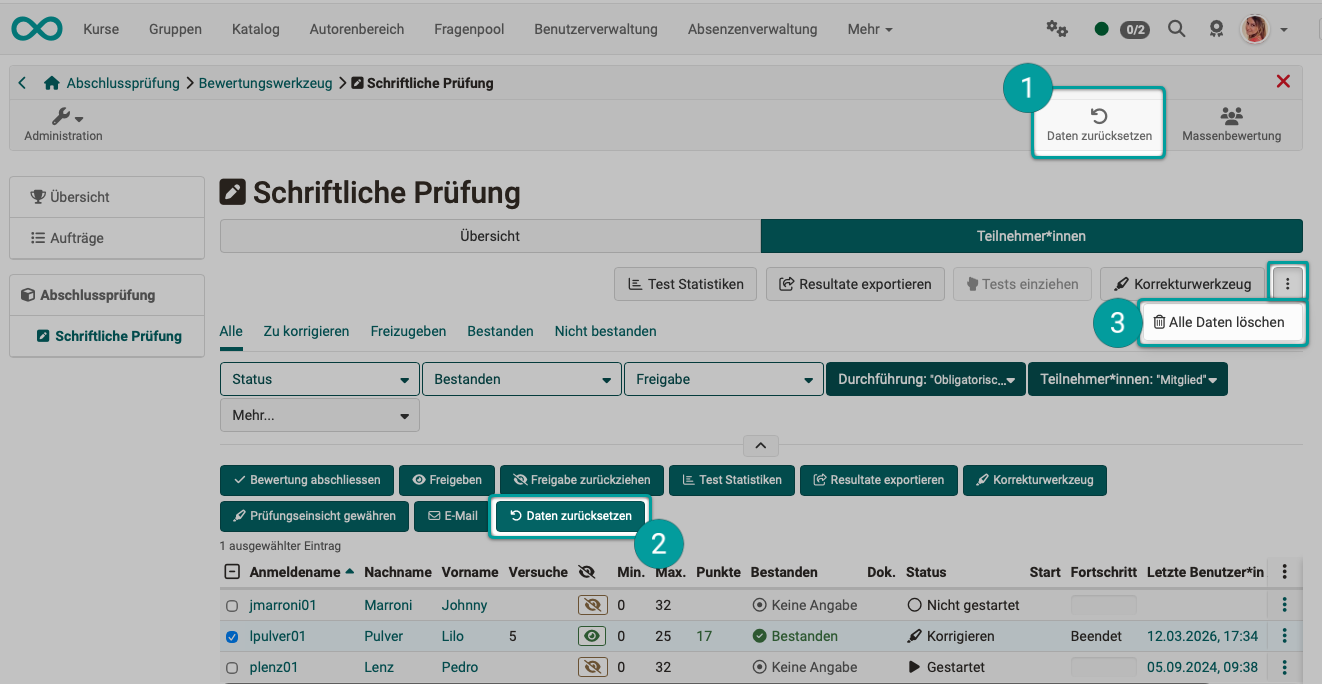
 Reset data with wizard |
 Reset data of selected participants without wizard |
 Delete all data |
|---|---|---|
| With this button you open the wizard. According to the instructions provided there, the data will then be reset. |
This button resets only the data for the selected participants. |
Clicking this button will completely delete all entries made so far in this course module by all participants. |
| Example: | Everyone has three chances to pass the test. | |
| Clicking "Reset Data" will reset the number of attempts made so far to 0. "Passed" and other statuses will also be reset. However, the data from previous attempts ("test runs") will be retained and will remain visible in the assessment tool. | Clicking "Reset Data" will reset the number of attempts made so far to 0. "Passed" and other statuses will also be reset. However, the data from previous attempts ("test runs") will be retained and will remain visible in the assessment tool. | All data from previous attempts to solve the test ("test runs") will be deleted for all participants. |
Further information
Assessment tool - Tab Participants >
Delete course >
Delete user >